mirror of
https://github.com/huggingface/lerobot.git
synced 2026-05-12 07:09:43 +00:00
Compare commits
1 Commits
| Author | SHA1 | Date | |
|---|---|---|---|
 danaaubakirova danaaubakirova
|
44ffa155f4 |
@@ -0,0 +1,68 @@
|
||||
{
|
||||
"homing_offset": [
|
||||
2048,
|
||||
3072,
|
||||
3072,
|
||||
-1024,
|
||||
-1024,
|
||||
2048,
|
||||
-2048,
|
||||
2048,
|
||||
-2048
|
||||
],
|
||||
"drive_mode": [
|
||||
1,
|
||||
1,
|
||||
1,
|
||||
0,
|
||||
0,
|
||||
1,
|
||||
0,
|
||||
1,
|
||||
0
|
||||
],
|
||||
"start_pos": [
|
||||
2015,
|
||||
3058,
|
||||
3061,
|
||||
1071,
|
||||
1071,
|
||||
2035,
|
||||
2152,
|
||||
2029,
|
||||
2499
|
||||
],
|
||||
"end_pos": [
|
||||
-1008,
|
||||
-1963,
|
||||
-1966,
|
||||
2141,
|
||||
2143,
|
||||
-971,
|
||||
3043,
|
||||
-1077,
|
||||
3144
|
||||
],
|
||||
"calib_mode": [
|
||||
"DEGREE",
|
||||
"DEGREE",
|
||||
"DEGREE",
|
||||
"DEGREE",
|
||||
"DEGREE",
|
||||
"DEGREE",
|
||||
"DEGREE",
|
||||
"DEGREE",
|
||||
"LINEAR"
|
||||
],
|
||||
"motor_names": [
|
||||
"waist",
|
||||
"shoulder",
|
||||
"shoulder_shadow",
|
||||
"elbow",
|
||||
"elbow_shadow",
|
||||
"forearm_roll",
|
||||
"wrist_angle",
|
||||
"wrist_rotate",
|
||||
"gripper"
|
||||
]
|
||||
}
|
||||
@@ -0,0 +1,68 @@
|
||||
{
|
||||
"homing_offset": [
|
||||
2048,
|
||||
3072,
|
||||
3072,
|
||||
-1024,
|
||||
-1024,
|
||||
2048,
|
||||
-2048,
|
||||
2048,
|
||||
-1024
|
||||
],
|
||||
"drive_mode": [
|
||||
1,
|
||||
1,
|
||||
1,
|
||||
0,
|
||||
0,
|
||||
1,
|
||||
0,
|
||||
1,
|
||||
0
|
||||
],
|
||||
"start_pos": [
|
||||
2035,
|
||||
3024,
|
||||
3019,
|
||||
979,
|
||||
981,
|
||||
1982,
|
||||
2166,
|
||||
2124,
|
||||
1968
|
||||
],
|
||||
"end_pos": [
|
||||
-990,
|
||||
-2017,
|
||||
-2015,
|
||||
2078,
|
||||
2076,
|
||||
-1030,
|
||||
3117,
|
||||
-1016,
|
||||
2556
|
||||
],
|
||||
"calib_mode": [
|
||||
"DEGREE",
|
||||
"DEGREE",
|
||||
"DEGREE",
|
||||
"DEGREE",
|
||||
"DEGREE",
|
||||
"DEGREE",
|
||||
"DEGREE",
|
||||
"DEGREE",
|
||||
"LINEAR"
|
||||
],
|
||||
"motor_names": [
|
||||
"waist",
|
||||
"shoulder",
|
||||
"shoulder_shadow",
|
||||
"elbow",
|
||||
"elbow_shadow",
|
||||
"forearm_roll",
|
||||
"wrist_angle",
|
||||
"wrist_rotate",
|
||||
"gripper"
|
||||
]
|
||||
}
|
||||
@@ -0,0 +1,68 @@
|
||||
{
|
||||
"homing_offset": [
|
||||
2048,
|
||||
3072,
|
||||
3072,
|
||||
-1024,
|
||||
-1024,
|
||||
2048,
|
||||
-2048,
|
||||
2048,
|
||||
-2048
|
||||
],
|
||||
"drive_mode": [
|
||||
1,
|
||||
1,
|
||||
1,
|
||||
0,
|
||||
0,
|
||||
1,
|
||||
0,
|
||||
1,
|
||||
0
|
||||
],
|
||||
"start_pos": [
|
||||
2056,
|
||||
2895,
|
||||
2896,
|
||||
1191,
|
||||
1190,
|
||||
2018,
|
||||
2051,
|
||||
2056,
|
||||
2509
|
||||
],
|
||||
"end_pos": [
|
||||
-1040,
|
||||
-2004,
|
||||
-2006,
|
||||
2126,
|
||||
2127,
|
||||
-1010,
|
||||
3050,
|
||||
-1117,
|
||||
3143
|
||||
],
|
||||
"calib_mode": [
|
||||
"DEGREE",
|
||||
"DEGREE",
|
||||
"DEGREE",
|
||||
"DEGREE",
|
||||
"DEGREE",
|
||||
"DEGREE",
|
||||
"DEGREE",
|
||||
"DEGREE",
|
||||
"LINEAR"
|
||||
],
|
||||
"motor_names": [
|
||||
"waist",
|
||||
"shoulder",
|
||||
"shoulder_shadow",
|
||||
"elbow",
|
||||
"elbow_shadow",
|
||||
"forearm_roll",
|
||||
"wrist_angle",
|
||||
"wrist_rotate",
|
||||
"gripper"
|
||||
]
|
||||
}
|
||||
@@ -0,0 +1,68 @@
|
||||
{
|
||||
"homing_offset": [
|
||||
2048,
|
||||
3072,
|
||||
3072,
|
||||
-1024,
|
||||
-1024,
|
||||
2048,
|
||||
-2048,
|
||||
2048,
|
||||
-2048
|
||||
],
|
||||
"drive_mode": [
|
||||
1,
|
||||
1,
|
||||
1,
|
||||
0,
|
||||
0,
|
||||
1,
|
||||
0,
|
||||
1,
|
||||
0
|
||||
],
|
||||
"start_pos": [
|
||||
2068,
|
||||
3034,
|
||||
3030,
|
||||
1038,
|
||||
1041,
|
||||
1991,
|
||||
1948,
|
||||
2090,
|
||||
1985
|
||||
],
|
||||
"end_pos": [
|
||||
-1025,
|
||||
-2014,
|
||||
-2015,
|
||||
2058,
|
||||
2060,
|
||||
-955,
|
||||
3091,
|
||||
-940,
|
||||
2576
|
||||
],
|
||||
"calib_mode": [
|
||||
"DEGREE",
|
||||
"DEGREE",
|
||||
"DEGREE",
|
||||
"DEGREE",
|
||||
"DEGREE",
|
||||
"DEGREE",
|
||||
"DEGREE",
|
||||
"DEGREE",
|
||||
"LINEAR"
|
||||
],
|
||||
"motor_names": [
|
||||
"waist",
|
||||
"shoulder",
|
||||
"shoulder_shadow",
|
||||
"elbow",
|
||||
"elbow_shadow",
|
||||
"forearm_roll",
|
||||
"wrist_angle",
|
||||
"wrist_rotate",
|
||||
"gripper"
|
||||
]
|
||||
}
|
||||
@@ -0,0 +1 @@
|
||||
{"homing_offset": [-2090, 3086, -952, -2089, 2063, -2472], "drive_mode": [0, 1, 0, 0, 1, 0], "start_pos": [2077, 3156, 908, 2047, 2047, 2048], "end_pos": [3114, -2062, 1976, 3113, -1039, 3496], "calib_mode": ["DEGREE", "DEGREE", "DEGREE", "DEGREE", "DEGREE", "LINEAR"], "motor_names": ["shoulder_pan", "shoulder_lift", "elbow_flex", "wrist_flex", "wrist_roll", "gripper"]}
|
||||
@@ -0,0 +1 @@
|
||||
{"homing_offset": [-2038, 2985, -1088, -2115, 2060, -1962], "drive_mode": [0, 1, 0, 0, 1, 0], "start_pos": [2052, 3087, 960, 2047, 2011, 2047], "end_pos": [3062, -1961, 2112, 3139, -1036, 2986], "calib_mode": ["DEGREE", "DEGREE", "DEGREE", "DEGREE", "DEGREE", "LINEAR"], "motor_names": ["shoulder_pan", "shoulder_lift", "elbow_flex", "wrist_flex", "wrist_roll", "gripper"]}
|
||||
+1
-2
@@ -11,11 +11,10 @@
|
||||
# WITHOUT WARRANTIES OR CONDITIONS OF ANY KIND, either express or implied.
|
||||
# See the License for the specific language governing permissions and
|
||||
# limitations under the License.
|
||||
|
||||
*.memmap filter=lfs diff=lfs merge=lfs -text
|
||||
*.stl filter=lfs diff=lfs merge=lfs -text
|
||||
*.safetensors filter=lfs diff=lfs merge=lfs -text
|
||||
*.mp4 filter=lfs diff=lfs merge=lfs -text
|
||||
*.arrow filter=lfs diff=lfs merge=lfs -text
|
||||
*.json !text !filter !merge !diff
|
||||
tests/artifacts/cameras/*.png filter=lfs diff=lfs merge=lfs -text
|
||||
*.bag filter=lfs diff=lfs merge=lfs -text
|
||||
|
||||
@@ -1,40 +1,33 @@
|
||||
## What this does
|
||||
|
||||
Explain what this PR does. Feel free to tag your PR with the appropriate label(s).
|
||||
|
||||
Examples:
|
||||
| Title | Label |
|
||||
| Title | Label |
|
||||
|----------------------|-----------------|
|
||||
| Fixes #[issue] | (🐛 Bug) |
|
||||
| Adds new dataset | (🗃️ Dataset) |
|
||||
| Optimizes something | (⚡️ Performance) |
|
||||
| Fixes #[issue] | (🐛 Bug) |
|
||||
| Adds new dataset | (🗃️ Dataset) |
|
||||
| Optimizes something | (⚡️ Performance) |
|
||||
|
||||
## How it was tested
|
||||
|
||||
Explain/show how you tested your changes.
|
||||
|
||||
Examples:
|
||||
|
||||
- Added `test_something` in `tests/test_stuff.py`.
|
||||
- Added `new_feature` and checked that training converges with policy X on dataset/environment Y.
|
||||
- Optimized `some_function`, it now runs X times faster than previously.
|
||||
|
||||
## How to checkout & try? (for the reviewer)
|
||||
|
||||
Provide a simple way for the reviewer to try out your changes.
|
||||
|
||||
Examples:
|
||||
|
||||
```bash
|
||||
pytest -sx tests/test_stuff.py::test_something
|
||||
```
|
||||
|
||||
```bash
|
||||
lerobot-train --some.option=true
|
||||
python lerobot/scripts/train.py --some.option=true
|
||||
```
|
||||
|
||||
## SECTION TO REMOVE BEFORE SUBMITTING YOUR PR
|
||||
|
||||
**Note**: Anyone in the community is free to review the PR once the tests have passed. Feel free to tag
|
||||
members/contributors who may be interested in your PR. Try to avoid tagging more than 3 people.
|
||||
|
||||
|
||||
@@ -0,0 +1,135 @@
|
||||
# Copyright 2024 The HuggingFace Inc. team. All rights reserved.
|
||||
#
|
||||
# Licensed under the Apache License, Version 2.0 (the "License");
|
||||
# you may not use this file except in compliance with the License.
|
||||
# You may obtain a copy of the License at
|
||||
#
|
||||
# http://www.apache.org/licenses/LICENSE-2.0
|
||||
#
|
||||
# Unless required by applicable law or agreed to in writing, software
|
||||
# distributed under the License is distributed on an "AS IS" BASIS,
|
||||
# WITHOUT WARRANTIES OR CONDITIONS OF ANY KIND, either express or implied.
|
||||
# See the License for the specific language governing permissions and
|
||||
# limitations under the License.
|
||||
|
||||
# Inspired by
|
||||
# https://github.com/huggingface/peft/blob/main/.github/workflows/build_docker_images.yml
|
||||
name: Builds
|
||||
|
||||
on:
|
||||
workflow_dispatch:
|
||||
workflow_call:
|
||||
schedule:
|
||||
- cron: "0 1 * * *"
|
||||
|
||||
permissions: {}
|
||||
|
||||
env:
|
||||
PYTHON_VERSION: "3.10"
|
||||
|
||||
jobs:
|
||||
latest-cpu:
|
||||
name: CPU
|
||||
runs-on:
|
||||
group: aws-general-8-plus
|
||||
steps:
|
||||
- name: Install Git LFS
|
||||
run: |
|
||||
sudo apt-get update
|
||||
sudo apt-get install git-lfs
|
||||
git lfs install
|
||||
|
||||
- name: Set up Docker Buildx
|
||||
uses: docker/setup-buildx-action@v3
|
||||
with:
|
||||
cache-binary: false
|
||||
|
||||
- name: Check out code
|
||||
uses: actions/checkout@v4
|
||||
with:
|
||||
lfs: true
|
||||
persist-credentials: false
|
||||
|
||||
- name: Login to DockerHub
|
||||
uses: docker/login-action@v3
|
||||
with:
|
||||
username: ${{ secrets.DOCKERHUB_USERNAME }}
|
||||
password: ${{ secrets.DOCKERHUB_PASSWORD }}
|
||||
|
||||
- name: Build and Push CPU
|
||||
uses: docker/build-push-action@v5
|
||||
with:
|
||||
context: .
|
||||
file: ./docker/lerobot-cpu/Dockerfile
|
||||
push: true
|
||||
tags: huggingface/lerobot-cpu
|
||||
build-args: PYTHON_VERSION=${{ env.PYTHON_VERSION }}
|
||||
|
||||
|
||||
latest-cuda:
|
||||
name: GPU
|
||||
runs-on:
|
||||
group: aws-general-8-plus
|
||||
steps:
|
||||
- name: Install Git LFS
|
||||
run: |
|
||||
sudo apt-get update
|
||||
sudo apt-get install git-lfs
|
||||
git lfs install
|
||||
|
||||
- name: Set up Docker Buildx
|
||||
uses: docker/setup-buildx-action@v3
|
||||
with:
|
||||
cache-binary: false
|
||||
|
||||
- name: Check out code
|
||||
uses: actions/checkout@v4
|
||||
with:
|
||||
lfs: true
|
||||
persist-credentials: false
|
||||
|
||||
- name: Login to DockerHub
|
||||
uses: docker/login-action@v3
|
||||
with:
|
||||
username: ${{ secrets.DOCKERHUB_USERNAME }}
|
||||
password: ${{ secrets.DOCKERHUB_PASSWORD }}
|
||||
|
||||
- name: Build and Push GPU
|
||||
uses: docker/build-push-action@v5
|
||||
with:
|
||||
context: .
|
||||
file: ./docker/lerobot-gpu/Dockerfile
|
||||
push: true
|
||||
tags: huggingface/lerobot-gpu
|
||||
build-args: PYTHON_VERSION=${{ env.PYTHON_VERSION }}
|
||||
|
||||
|
||||
latest-cuda-dev:
|
||||
name: GPU Dev
|
||||
runs-on:
|
||||
group: aws-general-8-plus
|
||||
steps:
|
||||
- name: Set up Docker Buildx
|
||||
uses: docker/setup-buildx-action@v3
|
||||
with:
|
||||
cache-binary: false
|
||||
|
||||
- name: Check out code
|
||||
uses: actions/checkout@v4
|
||||
with:
|
||||
persist-credentials: false
|
||||
|
||||
- name: Login to DockerHub
|
||||
uses: docker/login-action@v3
|
||||
with:
|
||||
username: ${{ secrets.DOCKERHUB_USERNAME }}
|
||||
password: ${{ secrets.DOCKERHUB_PASSWORD }}
|
||||
|
||||
- name: Build and Push GPU dev
|
||||
uses: docker/build-push-action@v5
|
||||
with:
|
||||
context: .
|
||||
file: ./docker/lerobot-gpu-dev/Dockerfile
|
||||
push: true
|
||||
tags: huggingface/lerobot-gpu:dev
|
||||
build-args: PYTHON_VERSION=${{ env.PYTHON_VERSION }}
|
||||
@@ -1,40 +0,0 @@
|
||||
# Copyright 2025 The HuggingFace Inc. team. All rights reserved.
|
||||
#
|
||||
# Licensed under the Apache License, Version 2.0 (the "License");
|
||||
# you may not use this file except in compliance with the License.
|
||||
# You may obtain a copy of the License at
|
||||
#
|
||||
# http://www.apache.org/licenses/LICENSE-2.0
|
||||
#
|
||||
# Unless required by applicable law or agreed to in writing, software
|
||||
# distributed under the License is distributed on an "AS IS" BASIS,
|
||||
# WITHOUT WARRANTIES OR CONDITIONS OF ANY KIND, either express or implied.
|
||||
# See the License for the specific language governing permissions and
|
||||
# limitations under the License.
|
||||
|
||||
# This workflow uploads the documentation preview built for a PR and comments the link on the PR.
|
||||
name: Documentation PR Upload
|
||||
permissions:
|
||||
contents: read
|
||||
pull-requests: write
|
||||
|
||||
on:
|
||||
# Triggered by the completion of the main 'Documentation' workflow.
|
||||
workflow_run: # zizmor: ignore[dangerous-triggers] We follow the same pattern as in Transformers
|
||||
workflows: ["Documentation"]
|
||||
types:
|
||||
- completed
|
||||
|
||||
jobs:
|
||||
# This job uploads a preview of the documentation for a pull request.
|
||||
upload_and_comment:
|
||||
name: Upload Preview and Comment
|
||||
if: >
|
||||
github.event.workflow_run.event == 'pull_request' &&
|
||||
github.event.workflow_run.conclusion == 'success'
|
||||
uses: huggingface/doc-builder/.github/workflows/upload_pr_documentation.yml@main
|
||||
with:
|
||||
package_name: lerobot
|
||||
secrets:
|
||||
hf_token: ${{ secrets.HF_DOC_BUILD_PUSH }}
|
||||
comment_bot_token: ${{ secrets.COMMENT_BOT_TOKEN }}
|
||||
@@ -1,70 +0,0 @@
|
||||
# Copyright 2025 The HuggingFace Inc. team. All rights reserved.
|
||||
#
|
||||
# Licensed under the Apache License, Version 2.0 (the "License");
|
||||
# you may not use this file except in compliance with the License.
|
||||
# You may obtain a copy of the License at
|
||||
#
|
||||
# http://www.apache.org/licenses/LICENSE-2.0
|
||||
#
|
||||
# Unless required by applicable law or agreed to in writing, software
|
||||
# distributed under the License is distributed on an "AS IS" BASIS,
|
||||
# WITHOUT WARRANTIES OR CONDITIONS OF ANY KIND, either express or implied.
|
||||
# See the License for the specific language governing permissions and
|
||||
# limitations under the License.
|
||||
|
||||
# This workflow handles building documentation for both main branches and PRs.
|
||||
name: Documentation
|
||||
|
||||
on:
|
||||
# Allows running this workflow manually from the Actions tab
|
||||
workflow_dispatch:
|
||||
|
||||
# Triggers the workflow on push events to main for the docs folder
|
||||
push:
|
||||
branches:
|
||||
- main
|
||||
paths:
|
||||
- "docs/**"
|
||||
|
||||
# Triggers the workflow on pull request events targeting main for the docs folder
|
||||
pull_request:
|
||||
branches:
|
||||
- main
|
||||
paths:
|
||||
- "docs/**"
|
||||
|
||||
# Ensures that only the latest commit for a PR or branch is built, canceling older runs.
|
||||
concurrency:
|
||||
group: ${{ github.workflow }}-${{ github.head_ref || github.run_id }}
|
||||
cancel-in-progress: true
|
||||
|
||||
jobs:
|
||||
# This job builds and deploys the official documentation.
|
||||
build_main_docs:
|
||||
name: Build Main Docs
|
||||
if: github.event_name == 'push' || github.event_name == 'workflow_dispatch'
|
||||
permissions:
|
||||
contents: read
|
||||
uses: huggingface/doc-builder/.github/workflows/build_main_documentation.yml@main
|
||||
with:
|
||||
commit_sha: ${{ github.sha }}
|
||||
package: lerobot
|
||||
additional_args: --not_python_module
|
||||
secrets:
|
||||
token: ${{ secrets.HUGGINGFACE_PUSH }}
|
||||
hf_token: ${{ secrets.HF_DOC_BUILD_PUSH }}
|
||||
|
||||
# This job builds a preview of the documentation for a pull request.
|
||||
# The result of this job triggers the 'Upload PR Documentation' workflow.
|
||||
build_pr_docs:
|
||||
name: Build PR Docs
|
||||
if: github.event_name == 'pull_request'
|
||||
permissions:
|
||||
contents: read
|
||||
pull-requests: write
|
||||
uses: huggingface/doc-builder/.github/workflows/build_pr_documentation.yml@main
|
||||
with:
|
||||
commit_sha: ${{ github.event.pull_request.head.sha }}
|
||||
pr_number: ${{ github.event.number }}
|
||||
package: lerobot
|
||||
additional_args: --not_python_module
|
||||
@@ -1,87 +0,0 @@
|
||||
# Copyright 2025 The HuggingFace Inc. team. All rights reserved.
|
||||
#
|
||||
# Licensed under the Apache License, Version 2.0 (the "License");
|
||||
# you may not use this file except in compliance with the License.
|
||||
# You may obtain a copy of the License at
|
||||
#
|
||||
# http://www.apache.org/licenses/LICENSE-2.0
|
||||
#
|
||||
# Unless required by applicable law or agreed to in writing, software
|
||||
# distributed under the License is distributed on an "AS IS" BASIS,
|
||||
# WITHOUT WARRANTIES OR CONDITIONS OF ANY KIND, either express or implied.
|
||||
# See the License for the specific language governing permissions and
|
||||
# limitations under the License.
|
||||
|
||||
# This workflow handles fast testing.
|
||||
name: Fast Tests
|
||||
|
||||
on:
|
||||
# Allows running this workflow manually from the Actions tab
|
||||
workflow_dispatch:
|
||||
|
||||
pull_request:
|
||||
branches:
|
||||
- main
|
||||
paths:
|
||||
- "src/**"
|
||||
- "tests/**"
|
||||
- ".github/workflows/**"
|
||||
- "pyproject.toml"
|
||||
- "Makefile"
|
||||
push:
|
||||
branches:
|
||||
- main
|
||||
paths:
|
||||
- "src/**"
|
||||
- "tests/**"
|
||||
- ".github/workflows/**"
|
||||
- "pyproject.toml"
|
||||
- "Makefile"
|
||||
|
||||
permissions:
|
||||
contents: read
|
||||
|
||||
# Sets up the environment variables
|
||||
env:
|
||||
UV_VERSION: "0.8.0"
|
||||
PYTHON_VERSION: "3.10"
|
||||
DOCKER_IMAGE_NAME: huggingface/lerobot-gpu
|
||||
|
||||
# Ensures that only the latest commit for a PR or branch is built, canceling older runs.
|
||||
concurrency:
|
||||
group: ${{ github.workflow }}-${{ github.head_ref || github.run_id }}
|
||||
cancel-in-progress: true
|
||||
|
||||
jobs:
|
||||
# This job runs pytests with the default dependencies.
|
||||
# It runs everytime we commit to a PR or push to main
|
||||
fast-pytest-tests:
|
||||
name: Fast Pytest Tests
|
||||
runs-on: ubuntu-latest
|
||||
env:
|
||||
MUJOCO_GL: egl
|
||||
steps:
|
||||
- uses: actions/checkout@v4
|
||||
with:
|
||||
persist-credentials: false
|
||||
lfs: true
|
||||
|
||||
# TODO(Steven): Evaluate the need of these dependencies
|
||||
- name: Install apt dependencies
|
||||
run: |
|
||||
sudo apt-get update && sudo apt-get install -y build-essential git \
|
||||
curl libglib2.0-0 libegl1-mesa-dev ffmpeg \
|
||||
libusb-1.0-0-dev speech-dispatcher libgeos-dev portaudio19-dev
|
||||
|
||||
- name: Setup uv and Python
|
||||
uses: astral-sh/setup-uv@v6 # zizmor: ignore[unpinned-uses]
|
||||
with:
|
||||
enable-cache: true
|
||||
version: ${{ env.UV_VERSION }}
|
||||
python-version: ${{ env.PYTHON_VERSION }}
|
||||
|
||||
- name: Install lerobot with test extras
|
||||
run: uv sync --extra "test"
|
||||
|
||||
- name: Run pytest
|
||||
run: uv run pytest tests -vv --maxfail=10
|
||||
@@ -1,210 +0,0 @@
|
||||
# Copyright 2025 The HuggingFace Inc. team. All rights reserved.
|
||||
#
|
||||
# Licensed under the Apache License, Version 2.0 (the "License");
|
||||
# you may not use this file except in compliance with the License.
|
||||
# You may obtain a copy of the License at
|
||||
#
|
||||
# http://www.apache.org/licenses/LICENSE-2.0
|
||||
#
|
||||
# Unless required by applicable law or agreed to in writing, software
|
||||
# distributed under the License is distributed on an "AS IS" BASIS,
|
||||
# WITHOUT WARRANTIES OR CONDITIONS OF ANY KIND, either express or implied.
|
||||
# See the License for the specific language governing permissions and
|
||||
# limitations under the License.
|
||||
|
||||
# This workflow handles full testing.
|
||||
name: Full Tests
|
||||
|
||||
on:
|
||||
# Allows running this workflow manually from the Actions tab
|
||||
workflow_dispatch:
|
||||
|
||||
pull_request_review:
|
||||
types: [submitted]
|
||||
push:
|
||||
branches:
|
||||
- main
|
||||
paths:
|
||||
- "src/**"
|
||||
- "tests/**"
|
||||
- ".github/workflows/**"
|
||||
- "pyproject.toml"
|
||||
- "Makefile"
|
||||
|
||||
permissions:
|
||||
contents: read
|
||||
|
||||
# Sets up the environment variables
|
||||
env:
|
||||
UV_VERSION: "0.8.0"
|
||||
PYTHON_VERSION: "3.10"
|
||||
DOCKER_IMAGE_NAME: huggingface/lerobot-gpu
|
||||
|
||||
# Ensures that only the latest action is built, canceling older runs.
|
||||
concurrency:
|
||||
group: ${{ github.workflow }}-${{ github.head_ref || github.run_id }}
|
||||
cancel-in-progress: true
|
||||
|
||||
jobs:
|
||||
|
||||
# This job runs the E2E tests + pytest with all extras
|
||||
# It runs everytime a PR is approved or a push to main
|
||||
full-tests:
|
||||
name: Full Tests
|
||||
runs-on: ubuntu-latest
|
||||
if: |
|
||||
(github.event_name == 'pull_request_review' && github.event.review.state == 'approved') ||
|
||||
github.event_name == 'push' ||
|
||||
github.event_name == 'workflow_dispatch'
|
||||
env:
|
||||
MUJOCO_GL: egl
|
||||
steps:
|
||||
- uses: actions/checkout@v4
|
||||
with:
|
||||
lfs: true
|
||||
persist-credentials: false
|
||||
|
||||
- name: Install apt dependencies
|
||||
run: |
|
||||
sudo apt-get update && sudo apt-get install -y build-essential \
|
||||
git curl libglib2.0-0 libegl1-mesa-dev ffmpeg libusb-1.0-0-dev \
|
||||
speech-dispatcher libgeos-dev portaudio19-dev
|
||||
|
||||
- name: Setup uv and Python
|
||||
uses: astral-sh/setup-uv@v6 # zizmor: ignore[unpinned-uses]
|
||||
with:
|
||||
enable-cache: true
|
||||
version: ${{ env.UV_VERSION }}
|
||||
python-version: ${{ env.PYTHON_VERSION }}
|
||||
|
||||
- name: Install lerobot with all extras
|
||||
run: uv sync --all-extras
|
||||
|
||||
- name: Run pytest (all extras)
|
||||
run: uv run pytest tests -vv --maxfail=10
|
||||
|
||||
- name: Run end-to-end tests
|
||||
run: uv run make test-end-to-end
|
||||
|
||||
# This job builds a GPU enabled image for testing
|
||||
# It runs everytime a PR is approved or a push to main
|
||||
# TODO(Steven): For now we skip this job for community PRs
|
||||
build-and-push-docker:
|
||||
name: Build and Push Docker
|
||||
runs-on:
|
||||
group: aws-general-8-plus
|
||||
if: |
|
||||
(github.event_name == 'pull_request_review' && github.event.review.state == 'approved' && github.event.pull_request.head.repo.fork == false) ||
|
||||
github.event_name == 'push' ||
|
||||
github.event_name == 'workflow_dispatch'
|
||||
outputs:
|
||||
image_tag: ${{ steps.set_tag.outputs.image_tag }}
|
||||
env:
|
||||
GITHUB_EVENT_NAME: ${{ github.event_name }}
|
||||
GITHUB_REF: ${{ github.ref }}
|
||||
GITHUB_PR_NUMBER: ${{ github.event.pull_request.number }}
|
||||
steps:
|
||||
- name: Set Docker image tag
|
||||
id: set_tag
|
||||
run: |
|
||||
if [[ "${GITHUB_EVENT_NAME}" == "push" ]]; then
|
||||
TAG="${DOCKER_IMAGE_NAME}:latest"
|
||||
elif [[ -n "${GITHUB_PR_NUMBER}" ]]; then
|
||||
TAG="${DOCKER_IMAGE_NAME}:pr-${GITHUB_PR_NUMBER}"
|
||||
else
|
||||
TAG="${DOCKER_IMAGE_NAME}:pr-${GITHUB_REF##*/}"
|
||||
fi
|
||||
echo "image_tag=$TAG" >> $GITHUB_OUTPUT
|
||||
- name: Install Git LFS
|
||||
run: |
|
||||
sudo apt-get update
|
||||
sudo apt-get install git-lfs
|
||||
git lfs install
|
||||
- uses: actions/checkout@v4
|
||||
with:
|
||||
lfs: true
|
||||
persist-credentials: false
|
||||
- name: Set up Docker Buildx
|
||||
uses: docker/setup-buildx-action@v3 # zizmor: ignore[unpinned-uses]
|
||||
with:
|
||||
cache-binary: false
|
||||
- name: Login to Docker Hub
|
||||
uses: docker/login-action@v3 # zizmor: ignore[unpinned-uses]
|
||||
with:
|
||||
username: ${{ secrets.DOCKERHUB_LEROBOT_USERNAME }}
|
||||
password: ${{ secrets.DOCKERHUB_LEROBOT_PASSWORD }}
|
||||
- name: Build and push Docker image
|
||||
uses: docker/build-push-action@v6 # zizmor: ignore[unpinned-uses]
|
||||
with:
|
||||
context: .
|
||||
file: ./docker/Dockerfile.internal
|
||||
push: true
|
||||
tags: ${{ steps.set_tag.outputs.image_tag }}
|
||||
|
||||
# This job runs pytest with all extras in a GPU enabled host
|
||||
# It runs everytime a test image is created
|
||||
gpu-tests:
|
||||
name: GPU Tests
|
||||
needs: [build-and-push-docker]
|
||||
runs-on:
|
||||
group: aws-g6-4xlarge-plus
|
||||
env:
|
||||
HF_HOME: /home/user_lerobot/.cache/huggingface
|
||||
HF_LEROBOT_HOME: /home/user_lerobot/.cache/huggingface/lerobot
|
||||
TORCH_HOME: /home/user_lerobot/.cache/torch
|
||||
TRITON_CACHE_DIR: /home/user_lerobot/.cache/triton
|
||||
container:
|
||||
image: ${{ needs.build-and-push-docker.outputs.image_tag }} # zizmor: ignore[unpinned-images]
|
||||
options: --gpus all --shm-size "16gb"
|
||||
credentials:
|
||||
username: ${{ secrets.DOCKERHUB_LEROBOT_USERNAME }}
|
||||
password: ${{ secrets.DOCKERHUB_LEROBOT_PASSWORD }}
|
||||
defaults:
|
||||
run:
|
||||
shell: bash
|
||||
working-directory: /lerobot
|
||||
steps:
|
||||
- name: Run pytest on GPU
|
||||
run: pytest tests -vv --maxfail=10
|
||||
- name: Run end-to-end tests
|
||||
run: make test-end-to-end
|
||||
|
||||
# This job deletes the test image recently created
|
||||
# It runs everytime after the gpu-tests have finished
|
||||
delete-pr-image:
|
||||
name: Delete PR Image
|
||||
needs: [gpu-tests, build-and-push-docker]
|
||||
if: always() && ((github.event.review.state == 'approved') || (github.event_name == 'workflow_dispatch')) && needs.build-and-push-docker.result == 'success'
|
||||
runs-on: ubuntu-latest
|
||||
steps:
|
||||
- name: Get Docker Hub Token and Delete Image
|
||||
# zizmor: ignore[template-injection]
|
||||
run: |
|
||||
IMAGE_NAME=$(echo "${{ needs.build-and-push-docker.outputs.image_tag }}" | cut -d':' -f1)
|
||||
IMAGE_TAG=$(echo "${{ needs.build-and-push-docker.outputs.image_tag }}" | cut -d':' -f2)
|
||||
|
||||
echo "Attempting to delete image: $IMAGE_NAME:$IMAGE_TAG"
|
||||
|
||||
TOKEN=$(curl -s -H "Content-Type: application/json" \
|
||||
-X POST \
|
||||
-d '{"username": "${{ secrets.DOCKERHUB_LEROBOT_USERNAME }}", "password": "${{ secrets.DOCKERHUB_LEROBOT_PASSWORD }}"}' \
|
||||
https://hub.docker.com/v2/users/login/ | jq -r .token)
|
||||
|
||||
if [ "$TOKEN" == "null" ] || [ -z "$TOKEN" ]; then
|
||||
echo "::error::Failed to get Docker Hub token."
|
||||
exit 1
|
||||
fi
|
||||
|
||||
HTTP_RESPONSE=$(curl -s -o /dev/null -w "%{http_code}" \
|
||||
-H "Authorization: JWT ${TOKEN}" \
|
||||
-X DELETE \
|
||||
https://hub.docker.com/v2/repositories/${IMAGE_NAME}/tags/${IMAGE_TAG}/)
|
||||
|
||||
if [ "$HTTP_RESPONSE" -eq 204 ]; then
|
||||
echo "Successfully deleted Docker image tag: $IMAGE_NAME:$IMAGE_TAG"
|
||||
else
|
||||
echo "::error::Failed to delete Docker image. HTTP status: $HTTP_RESPONSE"
|
||||
exit 1
|
||||
fi
|
||||
|
||||
# TODO(Steven): Check dockerimages pull in ubuntu
|
||||
@@ -0,0 +1,93 @@
|
||||
# Copyright 2024 The HuggingFace Inc. team. All rights reserved.
|
||||
#
|
||||
# Licensed under the Apache License, Version 2.0 (the "License");
|
||||
# you may not use this file except in compliance with the License.
|
||||
# You may obtain a copy of the License at
|
||||
#
|
||||
# http://www.apache.org/licenses/LICENSE-2.0
|
||||
#
|
||||
# Unless required by applicable law or agreed to in writing, software
|
||||
# distributed under the License is distributed on an "AS IS" BASIS,
|
||||
# WITHOUT WARRANTIES OR CONDITIONS OF ANY KIND, either express or implied.
|
||||
# See the License for the specific language governing permissions and
|
||||
# limitations under the License.
|
||||
|
||||
# Inspired by
|
||||
# https://github.com/huggingface/peft/blob/main/.github/workflows/nightly.yml
|
||||
name: Nightly
|
||||
|
||||
on:
|
||||
workflow_dispatch:
|
||||
schedule:
|
||||
- cron: "0 2 * * *"
|
||||
|
||||
permissions: {}
|
||||
|
||||
# env:
|
||||
# SLACK_API_TOKEN: ${{ secrets.SLACK_API_TOKEN }}
|
||||
jobs:
|
||||
run_all_tests_cpu:
|
||||
name: CPU
|
||||
strategy:
|
||||
fail-fast: false
|
||||
runs-on:
|
||||
group: aws-general-8-plus
|
||||
container:
|
||||
image: huggingface/lerobot-cpu:latest
|
||||
options: --shm-size "16gb"
|
||||
credentials:
|
||||
username: ${{ secrets.DOCKERHUB_USERNAME }}
|
||||
password: ${{ secrets.DOCKERHUB_PASSWORD }}
|
||||
defaults:
|
||||
run:
|
||||
shell: bash
|
||||
working-directory: /lerobot
|
||||
steps:
|
||||
- name: Tests
|
||||
run: pytest -v --cov=./lerobot --disable-warnings tests
|
||||
|
||||
- name: Tests end-to-end
|
||||
run: make test-end-to-end
|
||||
|
||||
|
||||
run_all_tests_single_gpu:
|
||||
name: GPU
|
||||
strategy:
|
||||
fail-fast: false
|
||||
runs-on:
|
||||
group: aws-g6-4xlarge-plus
|
||||
env:
|
||||
CUDA_VISIBLE_DEVICES: "0"
|
||||
TEST_TYPE: "single_gpu"
|
||||
container:
|
||||
image: huggingface/lerobot-gpu:latest
|
||||
options: --gpus all --shm-size "16gb"
|
||||
credentials:
|
||||
username: ${{ secrets.DOCKERHUB_USERNAME }}
|
||||
password: ${{ secrets.DOCKERHUB_PASSWORD }}
|
||||
defaults:
|
||||
run:
|
||||
shell: bash
|
||||
working-directory: /lerobot
|
||||
steps:
|
||||
- name: Nvidia-smi
|
||||
run: nvidia-smi
|
||||
|
||||
- name: Test
|
||||
run: pytest -v --cov=./lerobot --cov-report=xml --disable-warnings tests
|
||||
# TODO(aliberts): Link with HF Codecov account
|
||||
# - name: Upload coverage reports to Codecov with GitHub Action
|
||||
# uses: codecov/codecov-action@v4
|
||||
# with:
|
||||
# files: ./coverage.xml
|
||||
# verbose: true
|
||||
- name: Tests end-to-end
|
||||
env:
|
||||
DEVICE: cuda
|
||||
run: make test-end-to-end
|
||||
|
||||
# - name: Generate Report
|
||||
# if: always()
|
||||
# run: |
|
||||
# pip install slack_sdk tabulate
|
||||
# python scripts/log_reports.py >> $GITHUB_STEP_SUMMARY
|
||||
@@ -1,160 +0,0 @@
|
||||
# Copyright 2025 The HuggingFace Inc. team. All rights reserved.
|
||||
#
|
||||
# Licensed under the Apache License, Version 2.0 (the "License");
|
||||
# you may not use this file except in compliance with the License.
|
||||
# You may obtain a copy of the License at
|
||||
#
|
||||
# http://www.apache.org/licenses/LICENSE-2.0
|
||||
#
|
||||
# Unless required by applicable law or agreed to in writing, software
|
||||
# distributed under the License is distributed on an "AS IS" BASIS,
|
||||
# WITHOUT WARRANTIES OR CONDITIONS OF ANY KIND, either express or implied.
|
||||
# See the License for the specific language governing permissions and
|
||||
# limitations under the License.
|
||||
|
||||
# This workflow handles nightly testing & docker images publishing.
|
||||
name: Nightly
|
||||
permissions:
|
||||
contents: read
|
||||
|
||||
on:
|
||||
# Allows running this workflow manually from the Actions tab
|
||||
workflow_dispatch:
|
||||
|
||||
# Runs at 02:00
|
||||
schedule:
|
||||
- cron: "0 2 * * *"
|
||||
|
||||
# Sets up the environment variables
|
||||
env:
|
||||
UV_VERSION: "0.8.0"
|
||||
PYTHON_VERSION: "3.10"
|
||||
DOCKER_IMAGE_NAME_CPU: huggingface/lerobot-cpu:latest
|
||||
DOCKER_IMAGE_NAME_GPU: huggingface/lerobot-gpu:latest
|
||||
|
||||
# Ensures that only the latest commit is built, canceling older runs.
|
||||
concurrency:
|
||||
group: ${{ github.workflow }}-${{ github.head_ref || github.run_id }}
|
||||
cancel-in-progress: true
|
||||
|
||||
jobs:
|
||||
# This job builds a CPU image for testing & distribution
|
||||
build-docker-cpu-nightly:
|
||||
name: Build CPU Docker for Nightly
|
||||
runs-on:
|
||||
group: aws-general-8-plus
|
||||
outputs:
|
||||
image_tag: ${{ env.DOCKER_IMAGE_NAME_CPU }}
|
||||
steps:
|
||||
- name: Install Git LFS
|
||||
run: |
|
||||
sudo apt-get update
|
||||
sudo apt-get install git-lfs
|
||||
git lfs install
|
||||
- uses: actions/checkout@v4
|
||||
with:
|
||||
lfs: true
|
||||
persist-credentials: false
|
||||
- name: Set up Docker Buildx
|
||||
uses: docker/setup-buildx-action@v3 # zizmor: ignore[unpinned-uses]
|
||||
with:
|
||||
cache-binary: false
|
||||
- name: Login to Docker Hub
|
||||
uses: docker/login-action@v3 # zizmor: ignore[unpinned-uses]
|
||||
with:
|
||||
username: ${{ secrets.DOCKERHUB_LEROBOT_USERNAME }}
|
||||
password: ${{ secrets.DOCKERHUB_LEROBOT_PASSWORD }}
|
||||
- name: Build and push Docker image CPU
|
||||
uses: docker/build-push-action@v6 # zizmor: ignore[unpinned-uses]
|
||||
with:
|
||||
context: .
|
||||
file: ./docker/Dockerfile.user
|
||||
push: true
|
||||
tags: ${{ env.DOCKER_IMAGE_NAME_CPU }}
|
||||
|
||||
# This job builds a GPU image for testing & distribution
|
||||
build-docker-gpu-nightly:
|
||||
name: Build GPU Docker for Nightly
|
||||
runs-on:
|
||||
group: aws-general-8-plus
|
||||
outputs:
|
||||
image_tag: ${{ env.DOCKER_IMAGE_NAME_GPU }}
|
||||
steps:
|
||||
- name: Install Git LFS
|
||||
run: |
|
||||
sudo apt-get update
|
||||
sudo apt-get install git-lfs
|
||||
git lfs install
|
||||
- uses: actions/checkout@v4
|
||||
with:
|
||||
lfs: true
|
||||
persist-credentials: false
|
||||
- name: Set up Docker Buildx
|
||||
uses: docker/setup-buildx-action@v3 # zizmor: ignore[unpinned-uses]
|
||||
with:
|
||||
cache-binary: false
|
||||
- name: Login to Docker Hub
|
||||
uses: docker/login-action@v3 # zizmor: ignore[unpinned-uses]
|
||||
with:
|
||||
username: ${{ secrets.DOCKERHUB_LEROBOT_USERNAME }}
|
||||
password: ${{ secrets.DOCKERHUB_LEROBOT_PASSWORD }}
|
||||
- name: Build and push Docker image GPU
|
||||
uses: docker/build-push-action@v6 # zizmor: ignore[unpinned-uses]
|
||||
with:
|
||||
context: .
|
||||
file: ./docker/Dockerfile.internal
|
||||
push: true
|
||||
tags: ${{ env.DOCKER_IMAGE_NAME_GPU }}
|
||||
|
||||
# This job runs the E2E tests + pytest with all extras in the CPU image
|
||||
nightly-cpu-tests:
|
||||
name: Nightly CPU Tests
|
||||
needs: [build-docker-cpu-nightly]
|
||||
runs-on:
|
||||
group: aws-g6-4xlarge-plus
|
||||
env:
|
||||
HF_HOME: /home/user_lerobot/.cache/huggingface
|
||||
HF_LEROBOT_HOME: /home/user_lerobot/.cache/huggingface/lerobot
|
||||
TORCH_HOME: /home/user_lerobot/.cache/torch
|
||||
TRITON_CACHE_DIR: /home/user_lerobot/.cache/triton
|
||||
container:
|
||||
image: ${{ needs.build-docker-cpu-nightly.outputs.image_tag }} # zizmor: ignore[unpinned-images]
|
||||
credentials:
|
||||
username: ${{ secrets.DOCKERHUB_LEROBOT_USERNAME }}
|
||||
password: ${{ secrets.DOCKERHUB_LEROBOT_PASSWORD }}
|
||||
defaults:
|
||||
run:
|
||||
shell: bash
|
||||
working-directory: /lerobot
|
||||
steps:
|
||||
- name: Run pytest on CPU
|
||||
run: pytest tests -vv --maxfail=10
|
||||
- name: Run end-to-end tests
|
||||
run: make test-end-to-end
|
||||
|
||||
# This job runs the E2E tests + pytest with all extras in the GPU image
|
||||
nightly-gpu-tests:
|
||||
name: Nightly GPU Tests
|
||||
needs: [build-docker-gpu-nightly]
|
||||
runs-on:
|
||||
group: aws-g6-4xlarge-plus
|
||||
env:
|
||||
HF_HOME: /home/user_lerobot/.cache/huggingface
|
||||
HF_LEROBOT_HOME: /home/user_lerobot/.cache/huggingface/lerobot
|
||||
TORCH_HOME: /home/user_lerobot/.cache/torch
|
||||
TRITON_CACHE_DIR: /home/user_lerobot/.cache/triton
|
||||
container:
|
||||
image: ${{ needs.build-docker-gpu-nightly.outputs.image_tag }} # zizmor: ignore[unpinned-images]
|
||||
options: --gpus all --shm-size "16gb"
|
||||
credentials:
|
||||
username: ${{ secrets.DOCKERHUB_LEROBOT_USERNAME }}
|
||||
password: ${{ secrets.DOCKERHUB_LEROBOT_PASSWORD }}
|
||||
defaults:
|
||||
run:
|
||||
shell: bash
|
||||
working-directory: /lerobot
|
||||
steps:
|
||||
- name: Run pytest on GPU
|
||||
run: pytest tests -vv --maxfail=10
|
||||
- name: Run end-to-end tests
|
||||
run: make test-end-to-end
|
||||
@@ -1,4 +1,4 @@
|
||||
# Copyright 2025 The HuggingFace Inc. team. All rights reserved.
|
||||
# Copyright 2024 The HuggingFace Inc. team. All rights reserved.
|
||||
#
|
||||
# Licensed under the Apache License, Version 2.0 (the "License");
|
||||
# you may not use this file except in compliance with the License.
|
||||
@@ -12,47 +12,61 @@
|
||||
# See the License for the specific language governing permissions and
|
||||
# limitations under the License.
|
||||
|
||||
# This workflow handles linting, formatting, and static analysis checks for the codebase.
|
||||
name: Quality
|
||||
permissions:
|
||||
contents: read
|
||||
|
||||
on:
|
||||
# Allows running this workflow manually from the Actions tab
|
||||
workflow_dispatch:
|
||||
|
||||
# Triggers the workflow on push events to main
|
||||
workflow_call:
|
||||
pull_request:
|
||||
push:
|
||||
branches:
|
||||
- main
|
||||
|
||||
# Triggers the workflow on pull request events targeting main
|
||||
pull_request:
|
||||
branches:
|
||||
- main
|
||||
permissions: {}
|
||||
|
||||
# Ensures that only the latest commit for a PR or branch is built, canceling older runs.
|
||||
concurrency:
|
||||
group: ${{ github.workflow }}-${{ github.head_ref || github.run_id }}
|
||||
cancel-in-progress: true
|
||||
env:
|
||||
PYTHON_VERSION: "3.10"
|
||||
|
||||
jobs:
|
||||
# This job runs pre-commit hooks to check code style and formatting.
|
||||
pre-commit-checks:
|
||||
name: Run Pre-commit Hooks (Lint, Format & Static Analysis)
|
||||
style:
|
||||
name: Style
|
||||
runs-on: ubuntu-latest
|
||||
steps:
|
||||
- name: Checkout code
|
||||
- name: Checkout Repository
|
||||
uses: actions/checkout@v4
|
||||
with:
|
||||
persist-credentials: false
|
||||
|
||||
- name: Set up Python
|
||||
uses: actions/setup-python@v5
|
||||
uses: actions/setup-python@v4
|
||||
with:
|
||||
python-version: '3.10'
|
||||
python-version: ${{ env.PYTHON_VERSION }}
|
||||
|
||||
- name: Run pre-commit hooks
|
||||
uses: pre-commit/action@v3.0.1 # zizmor: ignore[unpinned-uses]
|
||||
- name: Get Ruff Version from pre-commit-config.yaml
|
||||
id: get-ruff-version
|
||||
run: |
|
||||
RUFF_VERSION=$(awk '/repo: https:\/\/github.com\/astral-sh\/ruff-pre-commit/{flag=1;next}/rev:/{if(flag){print $2;exit}}' .pre-commit-config.yaml)
|
||||
echo "ruff_version=${RUFF_VERSION}" >> $GITHUB_OUTPUT
|
||||
|
||||
- name: Install Ruff
|
||||
env:
|
||||
RUFF_VERSION: ${{ steps.get-ruff-version.outputs.ruff_version }}
|
||||
run: python -m pip install "ruff==${RUFF_VERSION}"
|
||||
|
||||
- name: Ruff check
|
||||
run: ruff check --output-format=github
|
||||
|
||||
- name: Ruff format
|
||||
run: ruff format --diff
|
||||
|
||||
typos:
|
||||
name: Typos
|
||||
runs-on: ubuntu-latest
|
||||
steps:
|
||||
- name: Checkout Repository
|
||||
uses: actions/checkout@v4
|
||||
with:
|
||||
extra_args: --all-files --show-diff-on-failure --color=always
|
||||
persist-credentials: false
|
||||
|
||||
- name: typos-action
|
||||
uses: crate-ci/typos@v1.29.10
|
||||
|
||||
@@ -1,171 +0,0 @@
|
||||
# Copyright 2025 The HuggingFace Inc. team. All rights reserved.
|
||||
#
|
||||
# Licensed under the Apache License, Version 2.0 (the "License");
|
||||
# you may not use this file except in compliance with the License.
|
||||
# You may obtain a copy of the License at
|
||||
#
|
||||
# http://www.apache.org/licenses/LICENSE-2.0
|
||||
#
|
||||
# Unless required by applicable law or agreed to in writing, software
|
||||
# distributed under the License is distributed on an "AS IS" BASIS,
|
||||
# WITHOUT WARRANTIES OR CONDITIONS OF ANY KIND, either express or implied.
|
||||
# See the License for the specific language governing permissions and
|
||||
# limitations under the License.
|
||||
|
||||
name: Create Release and Publish to PyPI
|
||||
|
||||
on:
|
||||
push:
|
||||
tags:
|
||||
- 'v*.*.*' # Trigger on tags like v0.1.0, v1.0.0
|
||||
|
||||
# Sets up the environment variables
|
||||
env:
|
||||
UV_VERSION: "0.8.0"
|
||||
PYTHON_VERSION: "3.10"
|
||||
|
||||
jobs:
|
||||
# This job builds the Python package and publishes it to PyPI
|
||||
build-and-publish:
|
||||
name: Build and publish Python distributions
|
||||
runs-on: ubuntu-latest
|
||||
outputs:
|
||||
version: ${{ steps.extract_info.outputs.tag_version }}
|
||||
permissions:
|
||||
contents: write
|
||||
id-token: write
|
||||
|
||||
steps:
|
||||
- name: Checkout code
|
||||
uses: actions/checkout@v4
|
||||
with:
|
||||
persist-credentials: false
|
||||
|
||||
- name: Set up Python
|
||||
uses: actions/setup-python@v5
|
||||
with:
|
||||
python-version: '3.10'
|
||||
|
||||
- name: Extract Version
|
||||
id: extract_info
|
||||
# Extract version from tag (e.g., v0.1.0 -> 0.1.0)
|
||||
# zizmor: ignore[template-injection]
|
||||
run: |
|
||||
VERSION=${{ github.ref_name }}
|
||||
VERSION_NUMBER=${VERSION#v}
|
||||
echo "tag_version=$VERSION_NUMBER" >> $GITHUB_OUTPUT
|
||||
- name: Check if version matches pyproject.toml
|
||||
if: startsWith(github.ref, 'refs/tags/v') && !contains(github.ref, '-')
|
||||
# zizmor: ignore[template-injection]
|
||||
run: |
|
||||
TAG_VERSION=${{ steps.extract_info.outputs.tag_version }}
|
||||
|
||||
PYPROJECT_VERSION=$(grep '^version = ' pyproject.toml | awk -F' = ' '{print $2}' | tr -d '"')
|
||||
|
||||
if [[ "$TAG_VERSION" != "$PYPROJECT_VERSION" ]]; then
|
||||
echo "Error: Tag version ($TAG_VERSION) does not match pyproject.toml version ($PYPROJECT_VERSION)." >&2
|
||||
exit 1
|
||||
else
|
||||
echo "Tag version matches pyproject.toml version: $TAG_VERSION. Proceeding with release."
|
||||
fi
|
||||
|
||||
- name: Check if version exists on PyPI
|
||||
# zizmor: ignore[template-injection]
|
||||
run: |
|
||||
NEW_VERSION=${{ steps.extract_info.outputs.tag_version }}
|
||||
|
||||
response=$(curl -s "https://pypi.org/pypi/lerobot/$NEW_VERSION/json")
|
||||
if echo "$response" | grep -q "message"; then
|
||||
echo "Version $NEW_VERSION is available on PyPI. Proceeding with release."
|
||||
else
|
||||
echo "Error: Version $NEW_VERSION already exists on PyPI. Aborting."
|
||||
exit 1
|
||||
fi
|
||||
|
||||
- name: Install build dependencies
|
||||
run: python -m pip install build
|
||||
|
||||
- name: Build package
|
||||
run: python -m build
|
||||
|
||||
- name: Create GitHub Release
|
||||
env:
|
||||
GITHUB_TOKEN: ${{ secrets.GITHUB_TOKEN }}
|
||||
# zizmor: ignore[template-injection]
|
||||
run: |
|
||||
gh release create ${{ github.ref_name }} \
|
||||
--title "Release ${{ github.ref_name }}" \
|
||||
--generate-notes \
|
||||
--draft=$([[ "${{ github.ref_name }}" == *-* ]] && echo true || echo false) \
|
||||
--prerelease=$([[ "${{ github.ref_name }}" == *-* ]] && echo true || echo false) \
|
||||
./dist/*
|
||||
|
||||
- name: Publish to TestPyPI for pre-releases
|
||||
# True for tags like 'v0.2.0-rc1'
|
||||
if: startsWith(github.ref, 'refs/tags/v') && contains(github.ref, '-')
|
||||
uses: pypa/gh-action-pypi-publish@v1.12.4 # zizmor: ignore[unpinned-uses, use-trusted-publishing]
|
||||
with:
|
||||
repository-url: https://test.pypi.org/legacy/
|
||||
verbose: true
|
||||
print-hash: true
|
||||
|
||||
- name: Publish to PyPI
|
||||
if: startsWith(github.ref, 'refs/tags/v') && !contains(github.ref, '-')
|
||||
uses: pypa/gh-action-pypi-publish@v1.12.4 # zizmor: ignore[unpinned-uses, use-trusted-publishing]
|
||||
with:
|
||||
verbose: true
|
||||
print-hash: true
|
||||
|
||||
# This job runs end-to-end tests on the release
|
||||
test-release:
|
||||
name: Test Release
|
||||
needs: [build-and-publish]
|
||||
runs-on: ubuntu-latest
|
||||
permissions:
|
||||
contents: read
|
||||
env:
|
||||
MUJOCO_GL: egl
|
||||
steps:
|
||||
- uses: actions/checkout@v4
|
||||
with:
|
||||
lfs: true
|
||||
persist-credentials: false
|
||||
- name: Install apt dependencies
|
||||
run: |
|
||||
sudo apt-get update && sudo apt-get install -y build-essential \
|
||||
git curl libglib2.0-0 libegl1-mesa-dev ffmpeg libusb-1.0-0-dev \
|
||||
speech-dispatcher libgeos-dev portaudio19-dev
|
||||
- name: Setup uv and Python
|
||||
uses: astral-sh/setup-uv@v6 # zizmor: ignore[unpinned-uses]
|
||||
with:
|
||||
enable-cache: true
|
||||
version: ${{ env.UV_VERSION }}
|
||||
python-version: ${{ env.PYTHON_VERSION }}
|
||||
- name: Create uv virtual environment
|
||||
run: uv venv
|
||||
- name: Install lerobot release
|
||||
# zizmor: ignore[template-injection]
|
||||
run: |
|
||||
VERSION="${{ needs.build-and-publish.outputs.version }}"
|
||||
if [[ "$VERSION" == *-* ]]; then
|
||||
BASE_VERSION="${VERSION%%-*}"
|
||||
echo "Installing pre-release version $BASE_VERSION from TestPyPI..."
|
||||
uv pip install \
|
||||
--index-url https://test.pypi.org/simple/ \
|
||||
--extra-index-url https://pypi.org/simple \
|
||||
--index-strategy unsafe-best-match \
|
||||
"lerobot[all]==$BASE_VERSION"
|
||||
else
|
||||
echo "Installing release version $VERSION from PyPI..."
|
||||
uv pip install "lerobot[all]==$VERSION"
|
||||
fi
|
||||
- name: Check lerobot version
|
||||
run: uv run python -c "import lerobot; print(lerobot.__version__)"
|
||||
|
||||
- name: Run end-to-end tests
|
||||
run: uv run make test-end-to-end
|
||||
|
||||
|
||||
# TODO(Steven): Publish draft/pre-release and to test pypi weekly
|
||||
# TODO(Steven): Separate build and publish job
|
||||
# TODO(Steven): Tag documentation with the same version as the package
|
||||
@@ -1,54 +0,0 @@
|
||||
# Copyright 2025 The HuggingFace Inc. team. All rights reserved.
|
||||
#
|
||||
# Licensed under the Apache License, Version 2.0 (the "License");
|
||||
# you may not use this file except in compliance with the License.
|
||||
# You may obtain a copy of the License at
|
||||
#
|
||||
# http://www.apache.org/licenses/LICENSE-2.0
|
||||
#
|
||||
# Unless required by applicable law or agreed to in writing, software
|
||||
# distributed under the License is distributed on an "AS IS" BASIS,
|
||||
# WITHOUT WARRANTIES OR CONDITIONS OF ANY KIND, either express or implied.
|
||||
# See the License for the specific language governing permissions and
|
||||
# limitations under the License.
|
||||
|
||||
# This workflow handles secret scanning using TruffleHog to detect sensitive information in the codebase.
|
||||
name: Security
|
||||
permissions:
|
||||
contents: read
|
||||
|
||||
on:
|
||||
# Allows running this workflow manually from the Actions tab
|
||||
workflow_dispatch:
|
||||
|
||||
# Triggers the workflow on push events to main
|
||||
push:
|
||||
branches:
|
||||
- main
|
||||
|
||||
# Triggers the workflow on pull request events targeting main
|
||||
pull_request:
|
||||
branches:
|
||||
- main
|
||||
|
||||
# Ensures that only the latest commit for a PR or branch is built, canceling older runs.
|
||||
concurrency:
|
||||
group: ${{ github.workflow }}-${{ github.head_ref || github.run_id }}
|
||||
cancel-in-progress: true
|
||||
|
||||
jobs:
|
||||
# This job runs TruffleHog to scan the full history of the repository for secrets.
|
||||
trufflehog:
|
||||
name: Secret Leaks Scan
|
||||
runs-on: ubuntu-latest
|
||||
steps:
|
||||
- name: Checkout code
|
||||
uses: actions/checkout@v4 # zizmor: ignore[unpinned-uses]
|
||||
with:
|
||||
fetch-depth: 0
|
||||
persist-credentials: false
|
||||
|
||||
- name: Secret Scanning
|
||||
uses: trufflesecurity/trufflehog@v3.90.0 # zizmor: ignore[unpinned-uses]
|
||||
with:
|
||||
extra_args: --only-verified
|
||||
@@ -0,0 +1,82 @@
|
||||
# Copyright 2024 The HuggingFace Inc. team. All rights reserved.
|
||||
#
|
||||
# Licensed under the Apache License, Version 2.0 (the "License");
|
||||
# you may not use this file except in compliance with the License.
|
||||
# You may obtain a copy of the License at
|
||||
#
|
||||
# http://www.apache.org/licenses/LICENSE-2.0
|
||||
#
|
||||
# Unless required by applicable law or agreed to in writing, software
|
||||
# distributed under the License is distributed on an "AS IS" BASIS,
|
||||
# WITHOUT WARRANTIES OR CONDITIONS OF ANY KIND, either express or implied.
|
||||
# See the License for the specific language governing permissions and
|
||||
# limitations under the License.
|
||||
|
||||
# Inspired by
|
||||
# https://github.com/huggingface/peft/blob/main/.github/workflows/test-docker-build.yml
|
||||
name: Test Dockerfiles
|
||||
|
||||
on:
|
||||
pull_request:
|
||||
paths:
|
||||
# Run only when DockerFile files are modified
|
||||
- "docker/**"
|
||||
|
||||
permissions: {}
|
||||
|
||||
env:
|
||||
PYTHON_VERSION: "3.10"
|
||||
|
||||
jobs:
|
||||
get_changed_files:
|
||||
name: Detect modified Dockerfiles
|
||||
runs-on: ubuntu-latest
|
||||
outputs:
|
||||
matrix: ${{ steps.set-matrix.outputs.matrix }}
|
||||
steps:
|
||||
- name: Check out code
|
||||
uses: actions/checkout@v4
|
||||
with:
|
||||
persist-credentials: false
|
||||
|
||||
- name: Get changed files
|
||||
id: changed-files
|
||||
uses: tj-actions/changed-files@3f54ebb830831fc121d3263c1857cfbdc310cdb9 #v42
|
||||
with:
|
||||
files: docker/**
|
||||
json: "true"
|
||||
|
||||
- name: Run step if only the files listed above change # zizmor: ignore[template-injection]
|
||||
if: steps.changed-files.outputs.any_changed == 'true'
|
||||
id: set-matrix
|
||||
run: |
|
||||
echo "matrix=${{ steps.changed-files.outputs.all_changed_files}}" >> $GITHUB_OUTPUT
|
||||
|
||||
build_modified_dockerfiles:
|
||||
name: Build modified Docker images
|
||||
needs: get_changed_files
|
||||
runs-on:
|
||||
group: aws-general-8-plus
|
||||
if: needs.get_changed_files.outputs.matrix != ''
|
||||
strategy:
|
||||
fail-fast: false
|
||||
matrix:
|
||||
docker-file: ${{ fromJson(needs.get_changed_files.outputs.matrix) }}
|
||||
steps:
|
||||
- name: Set up Docker Buildx
|
||||
uses: docker/setup-buildx-action@v3
|
||||
with:
|
||||
cache-binary: false
|
||||
|
||||
- name: Check out code
|
||||
uses: actions/checkout@v4
|
||||
with:
|
||||
persist-credentials: false
|
||||
|
||||
- name: Build Docker image
|
||||
uses: docker/build-push-action@v5
|
||||
with:
|
||||
file: ${{ matrix.docker-file }}
|
||||
context: .
|
||||
push: False
|
||||
build-args: PYTHON_VERSION=${{ env.PYTHON_VERSION }}
|
||||
@@ -0,0 +1,150 @@
|
||||
# Copyright 2024 The HuggingFace Inc. team. All rights reserved.
|
||||
#
|
||||
# Licensed under the Apache License, Version 2.0 (the "License");
|
||||
# you may not use this file except in compliance with the License.
|
||||
# You may obtain a copy of the License at
|
||||
#
|
||||
# http://www.apache.org/licenses/LICENSE-2.0
|
||||
#
|
||||
# Unless required by applicable law or agreed to in writing, software
|
||||
# distributed under the License is distributed on an "AS IS" BASIS,
|
||||
# WITHOUT WARRANTIES OR CONDITIONS OF ANY KIND, either express or implied.
|
||||
# See the License for the specific language governing permissions and
|
||||
# limitations under the License.
|
||||
|
||||
name: Tests
|
||||
|
||||
on:
|
||||
pull_request:
|
||||
paths:
|
||||
- "lerobot/**"
|
||||
- "tests/**"
|
||||
- "examples/**"
|
||||
- ".github/**"
|
||||
- "pyproject.toml"
|
||||
- ".pre-commit-config.yaml"
|
||||
- "Makefile"
|
||||
- ".cache/**"
|
||||
push:
|
||||
branches:
|
||||
- main
|
||||
paths:
|
||||
- "lerobot/**"
|
||||
- "tests/**"
|
||||
- "examples/**"
|
||||
- ".github/**"
|
||||
- "pyproject.toml"
|
||||
- ".pre-commit-config.yaml"
|
||||
- "Makefile"
|
||||
- ".cache/**"
|
||||
|
||||
permissions: {}
|
||||
|
||||
env:
|
||||
UV_VERSION: "0.6.0"
|
||||
|
||||
jobs:
|
||||
pytest:
|
||||
name: Pytest
|
||||
runs-on: ubuntu-latest
|
||||
env:
|
||||
MUJOCO_GL: egl
|
||||
steps:
|
||||
- uses: actions/checkout@v4
|
||||
with:
|
||||
lfs: true # Ensure LFS files are pulled
|
||||
persist-credentials: false
|
||||
|
||||
- name: Install apt dependencies
|
||||
# portaudio19-dev is needed to install pyaudio
|
||||
run: |
|
||||
sudo apt-get update && \
|
||||
sudo apt-get install -y libegl1-mesa-dev ffmpeg portaudio19-dev
|
||||
|
||||
- name: Install uv and python
|
||||
uses: astral-sh/setup-uv@v5
|
||||
with:
|
||||
enable-cache: true
|
||||
version: ${{ env.UV_VERSION }}
|
||||
python-version: "3.10"
|
||||
|
||||
- name: Install lerobot (all extras)
|
||||
run: uv sync --all-extras
|
||||
|
||||
- name: Test with pytest
|
||||
run: |
|
||||
uv run pytest tests -v --cov=./lerobot --durations=0 \
|
||||
-W ignore::DeprecationWarning:imageio_ffmpeg._utils:7 \
|
||||
-W ignore::UserWarning:torch.utils.data.dataloader:558 \
|
||||
-W ignore::UserWarning:gymnasium.utils.env_checker:247 \
|
||||
&& rm -rf tests/outputs outputs
|
||||
|
||||
pytest-minimal:
|
||||
name: Pytest (minimal install)
|
||||
runs-on: ubuntu-latest
|
||||
env:
|
||||
MUJOCO_GL: egl
|
||||
steps:
|
||||
- uses: actions/checkout@v4
|
||||
with:
|
||||
lfs: true # Ensure LFS files are pulled
|
||||
persist-credentials: false
|
||||
|
||||
- name: Install apt dependencies
|
||||
run: sudo apt-get update && sudo apt-get install -y ffmpeg
|
||||
|
||||
- name: Install uv and python
|
||||
uses: astral-sh/setup-uv@v5
|
||||
with:
|
||||
enable-cache: true
|
||||
version: ${{ env.UV_VERSION }}
|
||||
python-version: "3.10"
|
||||
|
||||
- name: Install lerobot
|
||||
run: uv sync --extra "test"
|
||||
|
||||
- name: Test with pytest
|
||||
run: |
|
||||
uv run pytest tests -v --cov=./lerobot --durations=0 \
|
||||
-W ignore::DeprecationWarning:imageio_ffmpeg._utils:7 \
|
||||
-W ignore::UserWarning:torch.utils.data.dataloader:558 \
|
||||
-W ignore::UserWarning:gymnasium.utils.env_checker:247 \
|
||||
&& rm -rf tests/outputs outputs
|
||||
|
||||
end-to-end:
|
||||
name: End-to-end
|
||||
runs-on: ubuntu-latest
|
||||
env:
|
||||
MUJOCO_GL: egl
|
||||
steps:
|
||||
- uses: actions/checkout@v4
|
||||
with:
|
||||
lfs: true # Ensure LFS files are pulled
|
||||
persist-credentials: false
|
||||
|
||||
- name: Install apt dependencies
|
||||
# portaudio19-dev is needed to install pyaudio
|
||||
run: |
|
||||
sudo apt-get update && \
|
||||
sudo apt-get install -y libegl1-mesa-dev ffmpeg portaudio19-dev
|
||||
|
||||
- name: Install uv and python
|
||||
uses: astral-sh/setup-uv@v5
|
||||
with:
|
||||
enable-cache: true
|
||||
version: ${{ env.UV_VERSION }}
|
||||
python-version: "3.10"
|
||||
|
||||
- name: Install lerobot (all extras)
|
||||
run: |
|
||||
uv venv
|
||||
uv sync --all-extras
|
||||
|
||||
- name: venv
|
||||
run: |
|
||||
echo "PYTHON_PATH=${{ github.workspace }}/.venv/bin/python" >> $GITHUB_ENV
|
||||
|
||||
- name: Test end-to-end
|
||||
run: |
|
||||
make test-end-to-end \
|
||||
&& rm -rf outputs
|
||||
+18
-8
@@ -1,5 +1,3 @@
|
||||
#!/usr/bin/env python
|
||||
|
||||
# Copyright 2024 The HuggingFace Inc. team. All rights reserved.
|
||||
#
|
||||
# Licensed under the Apache License, Version 2.0 (the "License");
|
||||
@@ -14,12 +12,24 @@
|
||||
# See the License for the specific language governing permissions and
|
||||
# limitations under the License.
|
||||
|
||||
from dataclasses import dataclass
|
||||
on:
|
||||
push:
|
||||
|
||||
from ..config import TeleoperatorConfig
|
||||
name: Secret Leaks
|
||||
|
||||
permissions: {}
|
||||
|
||||
@TeleoperatorConfig.register_subclass("stretch3")
|
||||
@dataclass
|
||||
class Stretch3GamePadConfig(TeleoperatorConfig):
|
||||
mock: bool = False
|
||||
jobs:
|
||||
trufflehog:
|
||||
runs-on: ubuntu-latest
|
||||
steps:
|
||||
- name: Checkout code
|
||||
uses: actions/checkout@v4
|
||||
with:
|
||||
fetch-depth: 0
|
||||
persist-credentials: false
|
||||
|
||||
- name: Secret Scanning
|
||||
uses: trufflesecurity/trufflehog@main
|
||||
with:
|
||||
extra_args: --only-verified
|
||||
+139
-141
@@ -12,164 +12,162 @@
|
||||
# See the License for the specific language governing permissions and
|
||||
# limitations under the License.
|
||||
|
||||
### Environments & Dependencies ###
|
||||
# Logging
|
||||
logs
|
||||
tmp
|
||||
wandb
|
||||
|
||||
# Data
|
||||
data
|
||||
outputs
|
||||
|
||||
# Apple
|
||||
.DS_Store
|
||||
|
||||
# VS Code
|
||||
.vscode
|
||||
|
||||
# HPC
|
||||
nautilus/*.yaml
|
||||
*.key
|
||||
|
||||
# Slurm
|
||||
sbatch*.sh
|
||||
|
||||
# Byte-compiled / optimized / DLL files
|
||||
__pycache__/
|
||||
*.py[cod]
|
||||
*$py.class
|
||||
|
||||
# C extensions
|
||||
*.so
|
||||
|
||||
# Distribution / packaging
|
||||
.Python
|
||||
build/
|
||||
develop-eggs/
|
||||
dist/
|
||||
downloads/
|
||||
eggs/
|
||||
.eggs/
|
||||
lib/
|
||||
lib64/
|
||||
parts/
|
||||
sdist/
|
||||
var/
|
||||
wheels/
|
||||
pip-wheel-metadata/
|
||||
share/python-wheels/
|
||||
*.egg-info/
|
||||
.installed.cfg
|
||||
*.egg
|
||||
MANIFEST
|
||||
|
||||
# uv/poetry lock files
|
||||
poetry.lock
|
||||
uv.lock
|
||||
|
||||
# PyInstaller
|
||||
# Usually these files are written by a python script from a template
|
||||
# before PyInstaller builds the exe, so as to inject date/other infos into it.
|
||||
*.manifest
|
||||
*.spec
|
||||
|
||||
# Installer logs
|
||||
pip-log.txt
|
||||
pip-delete-this-directory.txt
|
||||
|
||||
# Unit test / coverage reports
|
||||
!tests/artifacts
|
||||
htmlcov/
|
||||
.tox/
|
||||
.nox/
|
||||
.coverage
|
||||
.coverage.*
|
||||
nosetests.xml
|
||||
coverage.xml
|
||||
*.cover
|
||||
*.py,cover
|
||||
.hypothesis/
|
||||
.pytest_cache/
|
||||
|
||||
# Ignore .cache except calibration
|
||||
.cache/*
|
||||
!.cache/calibration/
|
||||
!.cache/calibration/**
|
||||
|
||||
# Translations
|
||||
*.mo
|
||||
*.pot
|
||||
|
||||
# Django stuff:
|
||||
*.log
|
||||
local_settings.py
|
||||
db.sqlite3
|
||||
db.sqlite3-journal
|
||||
|
||||
# Flask stuff:
|
||||
instance/
|
||||
.webassets-cache
|
||||
|
||||
# Scrapy stuff:
|
||||
.scrapy
|
||||
|
||||
# Sphinx documentation
|
||||
docs/_build/
|
||||
|
||||
# PyBuilder
|
||||
.pybuilder/
|
||||
target/
|
||||
|
||||
# Jupyter Notebook
|
||||
.ipynb_checkpoints
|
||||
|
||||
# IPython
|
||||
profile_default/
|
||||
ipython_config.py
|
||||
|
||||
# pyenv
|
||||
.python-version
|
||||
|
||||
# PEP 582; used by e.g. github.com/David-OConnor/pyflow
|
||||
__pypackages__/
|
||||
|
||||
# Celery stuff
|
||||
celerybeat-schedule
|
||||
celerybeat.pid
|
||||
|
||||
# SageMath parsed files
|
||||
*.sage.py
|
||||
|
||||
# Environments
|
||||
.env
|
||||
.venv
|
||||
env/
|
||||
venv/
|
||||
env.bak/
|
||||
venv.bak/
|
||||
.python-version
|
||||
__pypackages__/
|
||||
node_modules/
|
||||
|
||||
# Lock files
|
||||
poetry.lock
|
||||
uv.lock
|
||||
Pipfile.lock
|
||||
|
||||
### Build & Distribution ###
|
||||
build/
|
||||
dist/
|
||||
sdist/
|
||||
wheels/
|
||||
downloads/
|
||||
eggs/
|
||||
.eggs/
|
||||
parts/
|
||||
var/
|
||||
pip-wheel-metadata/
|
||||
share/python-wheels/
|
||||
develop-eggs/
|
||||
*.egg-info/
|
||||
.installed.cfg
|
||||
*.egg
|
||||
MANIFEST
|
||||
lib/
|
||||
lib64/
|
||||
|
||||
# PyInstaller
|
||||
*.manifest
|
||||
*.spec
|
||||
|
||||
### Compiled & Cached Files ###
|
||||
__pycache__/
|
||||
*.py[cod]
|
||||
*$py.class
|
||||
*.so
|
||||
*.sage.py
|
||||
.cache/
|
||||
.ruff_cache/
|
||||
.mypy_cache/
|
||||
.pyre/
|
||||
.pytype/
|
||||
cython_debug/
|
||||
|
||||
### Testing & Coverage ###
|
||||
htmlcov/
|
||||
.tox/
|
||||
.nox/
|
||||
.coverage
|
||||
.coverage.*
|
||||
.pytest_cache/
|
||||
.hypothesis/
|
||||
nosetests.xml
|
||||
coverage.xml
|
||||
*.cover
|
||||
*.py,cover
|
||||
!tests/artifacts
|
||||
|
||||
### Logs & Temporary Files ###
|
||||
logs/
|
||||
tmp/
|
||||
*.log
|
||||
pip-log.txt
|
||||
pip-delete-this-directory.txt
|
||||
celerybeat-schedule
|
||||
celerybeat.pid
|
||||
|
||||
### IDE & Editor Config ###
|
||||
# VS Code
|
||||
.vscode/
|
||||
.devcontainer/
|
||||
|
||||
# JetBrains / PyCharm
|
||||
.idea/
|
||||
|
||||
# Spyder
|
||||
# Spyder project settings
|
||||
.spyderproject
|
||||
.spyproject
|
||||
|
||||
# Rope
|
||||
# Rope project settings
|
||||
.ropeproject
|
||||
|
||||
# Vim
|
||||
*.swp
|
||||
|
||||
# Other
|
||||
*~
|
||||
|
||||
### OS Specific ###
|
||||
# macOS
|
||||
.DS_Store
|
||||
|
||||
# Windows
|
||||
Thumbs.db
|
||||
|
||||
### Framework & Tool Specific ###
|
||||
|
||||
.Python
|
||||
|
||||
# Django
|
||||
local_settings.py
|
||||
db.sqlite3
|
||||
db.sqlite3-journal
|
||||
|
||||
# Flask
|
||||
instance/
|
||||
.webassets-cache
|
||||
|
||||
# Scrapy
|
||||
.scrapy
|
||||
|
||||
# Jupyter
|
||||
.ipynb_checkpoints/
|
||||
profile_default/
|
||||
ipython_config.py
|
||||
|
||||
# Sphinx
|
||||
docs/_build/
|
||||
|
||||
# MkDocs
|
||||
# mkdocs documentation
|
||||
/site
|
||||
|
||||
# PyBuilder
|
||||
.pybuilder/
|
||||
target/
|
||||
|
||||
# mypy
|
||||
.mypy_cache/
|
||||
.dmypy.json
|
||||
dmypy.json
|
||||
|
||||
### HPC & Slurm ###
|
||||
nautilus/*.yaml
|
||||
*.key
|
||||
sbatch*.sh
|
||||
# Pyre type checker
|
||||
.pyre/
|
||||
|
||||
### Miscellaneous ###
|
||||
# W&B
|
||||
wandb/
|
||||
# pytype static type analyzer
|
||||
.pytype/
|
||||
|
||||
# Dev scripts
|
||||
.dev/
|
||||
|
||||
# Data folders
|
||||
data/
|
||||
outputs/
|
||||
|
||||
# Translations
|
||||
*.mo
|
||||
*.pot
|
||||
|
||||
# Dev folders
|
||||
.cache/*
|
||||
# Cython debug symbols
|
||||
cython_debug/
|
||||
|
||||
+14
-47
@@ -12,11 +12,9 @@
|
||||
# See the License for the specific language governing permissions and
|
||||
# limitations under the License.
|
||||
|
||||
exclude: "tests/artifacts/.*\\.safetensors$"
|
||||
default_language_version:
|
||||
python: python3.10
|
||||
|
||||
exclude: "tests/artifacts/.*\\.safetensors$"
|
||||
|
||||
repos:
|
||||
##### Meta #####
|
||||
- repo: meta
|
||||
@@ -24,12 +22,12 @@ repos:
|
||||
- id: check-useless-excludes
|
||||
- id: check-hooks-apply
|
||||
|
||||
##### General Code Quality & Formatting #####
|
||||
|
||||
##### Style / Misc. #####
|
||||
- repo: https://github.com/pre-commit/pre-commit-hooks
|
||||
rev: v5.0.0
|
||||
hooks:
|
||||
- id: check-added-large-files
|
||||
args: ['--maxkb=1024']
|
||||
- id: debug-statements
|
||||
- id: check-merge-conflict
|
||||
- id: check-case-conflict
|
||||
@@ -38,70 +36,39 @@ repos:
|
||||
- id: end-of-file-fixer
|
||||
- id: trailing-whitespace
|
||||
|
||||
- repo: https://github.com/astral-sh/ruff-pre-commit
|
||||
rev: v0.12.4
|
||||
hooks:
|
||||
- id: ruff-format
|
||||
- id: ruff
|
||||
args: [--fix, --exit-non-zero-on-fix]
|
||||
|
||||
- repo: https://github.com/adhtruong/mirrors-typos
|
||||
rev: v1.34.0
|
||||
rev: v1.31.1
|
||||
hooks:
|
||||
- id: typos
|
||||
args: [--force-exclude]
|
||||
|
||||
- repo: https://github.com/asottile/pyupgrade
|
||||
rev: v3.20.0
|
||||
rev: v3.19.1
|
||||
hooks:
|
||||
- id: pyupgrade
|
||||
args: [--py310-plus]
|
||||
|
||||
##### Markdown Quality #####
|
||||
- repo: https://github.com/rbubley/mirrors-prettier
|
||||
rev: v3.6.2
|
||||
- repo: https://github.com/astral-sh/ruff-pre-commit
|
||||
rev: v0.11.4
|
||||
hooks:
|
||||
- id: prettier
|
||||
name: Format Markdown with Prettier
|
||||
types_or: [markdown, mdx]
|
||||
args: [--prose-wrap=preserve]
|
||||
- id: ruff
|
||||
args: [--fix]
|
||||
- id: ruff-format
|
||||
|
||||
|
||||
##### Security #####
|
||||
- repo: https://github.com/gitleaks/gitleaks
|
||||
rev: v8.27.2
|
||||
rev: v8.24.2
|
||||
hooks:
|
||||
- id: gitleaks
|
||||
|
||||
- repo: https://github.com/woodruffw/zizmor-pre-commit
|
||||
rev: v1.11.0
|
||||
rev: v1.5.2
|
||||
hooks:
|
||||
- id: zizmor
|
||||
|
||||
- repo: https://github.com/PyCQA/bandit
|
||||
rev: 1.8.6
|
||||
rev: 1.8.3
|
||||
hooks:
|
||||
- id: bandit
|
||||
args: ["-c", "pyproject.toml"]
|
||||
additional_dependencies: ["bandit[toml]"]
|
||||
|
||||
# TODO(Steven): Uncomment when ready to use
|
||||
##### Static Analysis & Typing #####
|
||||
# - repo: https://github.com/pre-commit/mirrors-mypy
|
||||
# rev: v1.16.0
|
||||
# hooks:
|
||||
# - id: mypy
|
||||
# args: [--python-version=3.10]
|
||||
|
||||
##### Docstring Checks #####
|
||||
# - repo: https://github.com/akaihola/darglint2
|
||||
# rev: v1.8.2
|
||||
# hooks:
|
||||
# - id: darglint2
|
||||
# args: ["--docstring-style", "google", "-v", "2"]
|
||||
# exclude: ^tests/.*$
|
||||
|
||||
# - repo: https://github.com/econchick/interrogate
|
||||
# rev: 1.7.0
|
||||
# hooks:
|
||||
# - id: interrogate
|
||||
# args: ["-vv", "--config=pyproject.toml"]
|
||||
|
||||
+11
-10
@@ -1,3 +1,4 @@
|
||||
|
||||
# Contributor Covenant Code of Conduct
|
||||
|
||||
## Our Pledge
|
||||
@@ -17,23 +18,23 @@ diverse, inclusive, and healthy community.
|
||||
Examples of behavior that contributes to a positive environment for our
|
||||
community include:
|
||||
|
||||
- Demonstrating empathy and kindness toward other people
|
||||
- Being respectful of differing opinions, viewpoints, and experiences
|
||||
- Giving and gracefully accepting constructive feedback
|
||||
- Accepting responsibility and apologizing to those affected by our mistakes,
|
||||
* Demonstrating empathy and kindness toward other people
|
||||
* Being respectful of differing opinions, viewpoints, and experiences
|
||||
* Giving and gracefully accepting constructive feedback
|
||||
* Accepting responsibility and apologizing to those affected by our mistakes,
|
||||
and learning from the experience
|
||||
- Focusing on what is best not just for us as individuals, but for the overall
|
||||
* Focusing on what is best not just for us as individuals, but for the overall
|
||||
community
|
||||
|
||||
Examples of unacceptable behavior include:
|
||||
|
||||
- The use of sexualized language or imagery, and sexual attention or advances of
|
||||
* The use of sexualized language or imagery, and sexual attention or advances of
|
||||
any kind
|
||||
- Trolling, insulting or derogatory comments, and personal or political attacks
|
||||
- Public or private harassment
|
||||
- Publishing others' private information, such as a physical or email address,
|
||||
* Trolling, insulting or derogatory comments, and personal or political attacks
|
||||
* Public or private harassment
|
||||
* Publishing others' private information, such as a physical or email address,
|
||||
without their explicit permission
|
||||
- Other conduct which could reasonably be considered inappropriate in a
|
||||
* Other conduct which could reasonably be considered inappropriate in a
|
||||
professional setting
|
||||
|
||||
## Enforcement Responsibilities
|
||||
|
||||
+22
-38
@@ -15,11 +15,10 @@ Whichever way you choose to contribute, please be mindful to respect our
|
||||
## You can contribute in so many ways!
|
||||
|
||||
Some of the ways you can contribute to 🤗 LeRobot:
|
||||
|
||||
- Fixing outstanding issues with the existing code.
|
||||
- Implementing new models, datasets or simulation environments.
|
||||
- Contributing to the examples or to the documentation.
|
||||
- Submitting issues related to bugs or desired new features.
|
||||
* Fixing outstanding issues with the existing code.
|
||||
* Implementing new models, datasets or simulation environments.
|
||||
* Contributing to the examples or to the documentation.
|
||||
* Submitting issues related to bugs or desired new features.
|
||||
|
||||
Following the guides below, feel free to open issues and PRs and to coordinate your efforts with the community on our [Discord Channel](https://discord.gg/VjFz58wn3R). For specific inquiries, reach out to [Remi Cadene](mailto:remi.cadene@huggingface.co).
|
||||
|
||||
@@ -41,26 +40,24 @@ already reported** (use the search bar on Github under Issues).
|
||||
|
||||
Did not find it? :( So we can act quickly on it, please follow these steps:
|
||||
|
||||
- Include your **OS type and version**, the versions of **Python** and **PyTorch**.
|
||||
- A short, self-contained, code snippet that allows us to reproduce the bug in
|
||||
* Include your **OS type and version**, the versions of **Python** and **PyTorch**.
|
||||
* A short, self-contained, code snippet that allows us to reproduce the bug in
|
||||
less than 30s.
|
||||
- The full traceback if an exception is raised.
|
||||
- Attach any other additional information, like screenshots, you think may help.
|
||||
* The full traceback if an exception is raised.
|
||||
* Attach any other additional information, like screenshots, you think may help.
|
||||
|
||||
### Do you want a new feature?
|
||||
|
||||
A good feature request addresses the following points:
|
||||
|
||||
1. Motivation first:
|
||||
|
||||
- Is it related to a problem/frustration with the library? If so, please explain
|
||||
* Is it related to a problem/frustration with the library? If so, please explain
|
||||
why. Providing a code snippet that demonstrates the problem is best.
|
||||
- Is it related to something you would need for a project? We'd love to hear
|
||||
* Is it related to something you would need for a project? We'd love to hear
|
||||
about it!
|
||||
- Is it something you worked on and think could benefit the community?
|
||||
* Is it something you worked on and think could benefit the community?
|
||||
Awesome! Tell us what problem it solved for you.
|
||||
|
||||
2. Write a _paragraph_ describing the feature.
|
||||
2. Write a *paragraph* describing the feature.
|
||||
3. Provide a **code snippet** that demonstrates its future use.
|
||||
4. In case this is related to a paper, please attach a link.
|
||||
5. Attach any additional information (drawings, screenshots, etc.) you think may help.
|
||||
@@ -70,22 +67,19 @@ post it.
|
||||
|
||||
## Adding new policies, datasets or environments
|
||||
|
||||
Look at our implementations for [datasets](./src/lerobot/datasets/), [policies](./src/lerobot/policies/),
|
||||
Look at our implementations for [datasets](./lerobot/common/datasets/), [policies](./lerobot/common/policies/),
|
||||
environments ([aloha](https://github.com/huggingface/gym-aloha),
|
||||
[xarm](https://github.com/huggingface/gym-xarm),
|
||||
[pusht](https://github.com/huggingface/gym-pusht))
|
||||
and follow the same api design.
|
||||
|
||||
When implementing a new dataset loadable with LeRobotDataset follow these steps:
|
||||
|
||||
- Update `available_datasets_per_env` in `lerobot/__init__.py`
|
||||
|
||||
When implementing a new environment (e.g. `gym_aloha`), follow these steps:
|
||||
|
||||
- Update `available_tasks_per_env` and `available_datasets_per_env` in `lerobot/__init__.py`
|
||||
|
||||
When implementing a new policy class (e.g. `DiffusionPolicy`) follow these steps:
|
||||
|
||||
- Update `available_policies` and `available_policies_per_env`, in `lerobot/__init__.py`
|
||||
- Set the required `name` class attribute.
|
||||
- Update variables in `tests/test_available.py` by importing your new Policy class
|
||||
@@ -139,13 +133,11 @@ Follow these steps to start contributing:
|
||||
Follow the instructions to [install poetry](https://python-poetry.org/docs/#installation) (use a version >=2.1.0) or to [install uv](https://docs.astral.sh/uv/getting-started/installation/#installation-methods) if you don't have one of them already.
|
||||
|
||||
Set up a development environment with conda or miniconda:
|
||||
|
||||
```bash
|
||||
conda create -y -n lerobot-dev python=3.10 && conda activate lerobot-dev
|
||||
```
|
||||
|
||||
If you're using `uv`, it can manage python versions so you can instead do:
|
||||
|
||||
```bash
|
||||
uv venv --python 3.10 && source .venv/bin/activate
|
||||
```
|
||||
@@ -153,13 +145,11 @@ Follow these steps to start contributing:
|
||||
To develop on 🤗 LeRobot, you will at least need to install the `dev` and `test` extras dependencies along with the core library:
|
||||
|
||||
using `poetry`
|
||||
|
||||
```bash
|
||||
poetry sync --extras "dev test"
|
||||
```
|
||||
|
||||
using `uv`
|
||||
|
||||
```bash
|
||||
uv sync --extra dev --extra test
|
||||
```
|
||||
@@ -167,48 +157,43 @@ Follow these steps to start contributing:
|
||||
You can also install the project with all its dependencies (including environments):
|
||||
|
||||
using `poetry`
|
||||
|
||||
```bash
|
||||
poetry sync --all-extras
|
||||
```
|
||||
|
||||
using `uv`
|
||||
|
||||
```bash
|
||||
uv sync --all-extras
|
||||
```
|
||||
|
||||
> **Note:** If you don't install simulation environments with `--all-extras`, the tests that require them will be skipped when running the pytest suite locally. However, they _will_ be tested in the CI. In general, we advise you to install everything and test locally before pushing.
|
||||
> **Note:** If you don't install simulation environments with `--all-extras`, the tests that require them will be skipped when running the pytest suite locally. However, they *will* be tested in the CI. In general, we advise you to install everything and test locally before pushing.
|
||||
|
||||
Whichever command you chose to install the project (e.g. `poetry sync --all-extras`), you should run it again when pulling code with an updated version of `pyproject.toml` and `poetry.lock` in order to synchronize your virtual environment with the new dependencies.
|
||||
|
||||
The equivalent of `pip install some-package`, would just be:
|
||||
|
||||
using `poetry`
|
||||
|
||||
```bash
|
||||
poetry add some-package
|
||||
```
|
||||
|
||||
using `uv`
|
||||
|
||||
```bash
|
||||
uv add some-package
|
||||
```
|
||||
|
||||
When making changes to the poetry sections of the `pyproject.toml`, you should run the following command to lock dependencies.
|
||||
using `poetry`
|
||||
|
||||
```bash
|
||||
poetry lock
|
||||
```
|
||||
|
||||
using `uv`
|
||||
|
||||
```bash
|
||||
uv lock
|
||||
```
|
||||
|
||||
|
||||
5. Develop the features on your branch.
|
||||
|
||||
As you work on the features, you should make sure that the test suite
|
||||
@@ -226,13 +211,11 @@ Follow these steps to start contributing:
|
||||
automatically as Git commit hooks.
|
||||
|
||||
Install `pre-commit` hooks:
|
||||
|
||||
```bash
|
||||
pre-commit install
|
||||
```
|
||||
|
||||
You can run these hooks whenever you need on staged files with:
|
||||
|
||||
```bash
|
||||
pre-commit
|
||||
```
|
||||
@@ -246,7 +229,6 @@ Follow these steps to start contributing:
|
||||
```
|
||||
|
||||
Note, if you already committed some changes that have a wrong formatting, you can use:
|
||||
|
||||
```bash
|
||||
pre-commit run --all-files
|
||||
```
|
||||
@@ -267,15 +249,16 @@ Follow these steps to start contributing:
|
||||
git push -u origin a-descriptive-name-for-my-changes
|
||||
```
|
||||
|
||||
7. Once you are satisfied (**and the checklist below is happy too**), go to the
|
||||
6. Once you are satisfied (**and the checklist below is happy too**), go to the
|
||||
webpage of your fork on GitHub. Click on 'Pull request' to send your changes
|
||||
to the project maintainers for review.
|
||||
|
||||
8. It's ok if maintainers ask you for changes. It happens to core contributors
|
||||
7. It's ok if maintainers ask you for changes. It happens to core contributors
|
||||
too! So everyone can see the changes in the Pull request, work in your local
|
||||
branch and push the changes to your fork. They will automatically appear in
|
||||
the pull request.
|
||||
|
||||
|
||||
### Checklist
|
||||
|
||||
1. The title of your pull request should be a summary of its contribution;
|
||||
@@ -286,6 +269,9 @@ Follow these steps to start contributing:
|
||||
the PR as a draft PR. These are useful to avoid duplicated work, and to differentiate
|
||||
it from PRs ready to be merged;
|
||||
4. Make sure existing tests pass;
|
||||
<!-- 5. Add high-coverage tests. No quality testing = no merge.
|
||||
|
||||
See an example of a good PR here: https://github.com/huggingface/lerobot/pull/ -->
|
||||
|
||||
### Tests
|
||||
|
||||
@@ -294,21 +280,18 @@ An extensive test suite is included to test the library behavior and several exa
|
||||
Install [git lfs](https://git-lfs.com/) to retrieve test artifacts (if you don't have it already).
|
||||
|
||||
On Mac:
|
||||
|
||||
```bash
|
||||
brew install git-lfs
|
||||
git lfs install
|
||||
```
|
||||
|
||||
On Ubuntu:
|
||||
|
||||
```bash
|
||||
sudo apt-get install git-lfs
|
||||
git lfs install
|
||||
```
|
||||
|
||||
Pull artifacts if they're not in [tests/artifacts](tests/artifacts)
|
||||
|
||||
```bash
|
||||
git lfs pull
|
||||
```
|
||||
@@ -320,5 +303,6 @@ repository, here's how to run tests with `pytest` for the library:
|
||||
python -m pytest -sv ./tests
|
||||
```
|
||||
|
||||
|
||||
You can specify a smaller set of tests in order to test only the feature
|
||||
you're working on.
|
||||
|
||||
@@ -1,2 +0,0 @@
|
||||
include src/lerobot/templates/lerobot_modelcard_template.md
|
||||
include src/lerobot/datasets/card_template.md
|
||||
@@ -26,11 +26,11 @@ export PATH := $(dir $(PYTHON_PATH)):$(PATH)
|
||||
|
||||
DEVICE ?= cpu
|
||||
|
||||
build-user:
|
||||
docker build -f docker/Dockerfile.user -t lerobot-user .
|
||||
build-cpu:
|
||||
docker build -t lerobot:latest -f docker/lerobot-cpu/Dockerfile .
|
||||
|
||||
build-internal:
|
||||
docker build -f docker/Dockerfile.internal -t lerobot-internal .
|
||||
build-gpu:
|
||||
docker build -t lerobot:latest -f docker/lerobot-gpu/Dockerfile .
|
||||
|
||||
test-end-to-end:
|
||||
${MAKE} DEVICE=$(DEVICE) test-act-ete-train
|
||||
@@ -40,17 +40,14 @@ test-end-to-end:
|
||||
${MAKE} DEVICE=$(DEVICE) test-diffusion-ete-eval
|
||||
${MAKE} DEVICE=$(DEVICE) test-tdmpc-ete-train
|
||||
${MAKE} DEVICE=$(DEVICE) test-tdmpc-ete-eval
|
||||
${MAKE} DEVICE=$(DEVICE) test-smolvla-ete-train
|
||||
${MAKE} DEVICE=$(DEVICE) test-smolvla-ete-eval
|
||||
|
||||
test-act-ete-train:
|
||||
lerobot-train \
|
||||
python lerobot/scripts/train.py \
|
||||
--policy.type=act \
|
||||
--policy.dim_model=64 \
|
||||
--policy.n_action_steps=20 \
|
||||
--policy.chunk_size=20 \
|
||||
--policy.device=$(DEVICE) \
|
||||
--policy.push_to_hub=false \
|
||||
--env.type=aloha \
|
||||
--env.episode_length=5 \
|
||||
--dataset.repo_id=lerobot/aloha_sim_transfer_cube_human \
|
||||
@@ -68,12 +65,12 @@ test-act-ete-train:
|
||||
--output_dir=tests/outputs/act/
|
||||
|
||||
test-act-ete-train-resume:
|
||||
lerobot-train \
|
||||
python lerobot/scripts/train.py \
|
||||
--config_path=tests/outputs/act/checkpoints/000002/pretrained_model/train_config.json \
|
||||
--resume=true
|
||||
|
||||
test-act-ete-eval:
|
||||
lerobot-eval \
|
||||
python lerobot/scripts/eval.py \
|
||||
--policy.path=tests/outputs/act/checkpoints/000004/pretrained_model \
|
||||
--policy.device=$(DEVICE) \
|
||||
--env.type=aloha \
|
||||
@@ -82,13 +79,12 @@ test-act-ete-eval:
|
||||
--eval.batch_size=1
|
||||
|
||||
test-diffusion-ete-train:
|
||||
lerobot-train \
|
||||
python lerobot/scripts/train.py \
|
||||
--policy.type=diffusion \
|
||||
--policy.down_dims='[64,128,256]' \
|
||||
--policy.diffusion_step_embed_dim=32 \
|
||||
--policy.num_inference_steps=10 \
|
||||
--policy.device=$(DEVICE) \
|
||||
--policy.push_to_hub=false \
|
||||
--env.type=pusht \
|
||||
--env.episode_length=5 \
|
||||
--dataset.repo_id=lerobot/pusht \
|
||||
@@ -106,7 +102,7 @@ test-diffusion-ete-train:
|
||||
--output_dir=tests/outputs/diffusion/
|
||||
|
||||
test-diffusion-ete-eval:
|
||||
lerobot-eval \
|
||||
python lerobot/scripts/eval.py \
|
||||
--policy.path=tests/outputs/diffusion/checkpoints/000002/pretrained_model \
|
||||
--policy.device=$(DEVICE) \
|
||||
--env.type=pusht \
|
||||
@@ -115,10 +111,9 @@ test-diffusion-ete-eval:
|
||||
--eval.batch_size=1
|
||||
|
||||
test-tdmpc-ete-train:
|
||||
lerobot-train \
|
||||
python lerobot/scripts/train.py \
|
||||
--policy.type=tdmpc \
|
||||
--policy.device=$(DEVICE) \
|
||||
--policy.push_to_hub=false \
|
||||
--env.type=xarm \
|
||||
--env.task=XarmLift-v0 \
|
||||
--env.episode_length=5 \
|
||||
@@ -137,7 +132,7 @@ test-tdmpc-ete-train:
|
||||
--output_dir=tests/outputs/tdmpc/
|
||||
|
||||
test-tdmpc-ete-eval:
|
||||
lerobot-eval \
|
||||
python lerobot/scripts/eval.py \
|
||||
--policy.path=tests/outputs/tdmpc/checkpoints/000002/pretrained_model \
|
||||
--policy.device=$(DEVICE) \
|
||||
--env.type=xarm \
|
||||
@@ -145,36 +140,3 @@ test-tdmpc-ete-eval:
|
||||
--env.task=XarmLift-v0 \
|
||||
--eval.n_episodes=1 \
|
||||
--eval.batch_size=1
|
||||
|
||||
|
||||
test-smolvla-ete-train:
|
||||
lerobot-train \
|
||||
--policy.type=smolvla \
|
||||
--policy.n_action_steps=20 \
|
||||
--policy.chunk_size=20 \
|
||||
--policy.device=$(DEVICE) \
|
||||
--policy.push_to_hub=false \
|
||||
--env.type=aloha \
|
||||
--env.episode_length=5 \
|
||||
--dataset.repo_id=lerobot/aloha_sim_transfer_cube_human \
|
||||
--dataset.image_transforms.enable=true \
|
||||
--dataset.episodes="[0]" \
|
||||
--batch_size=2 \
|
||||
--steps=4 \
|
||||
--eval_freq=2 \
|
||||
--eval.n_episodes=1 \
|
||||
--eval.batch_size=1 \
|
||||
--save_freq=2 \
|
||||
--save_checkpoint=true \
|
||||
--log_freq=1 \
|
||||
--wandb.enable=false \
|
||||
--output_dir=tests/outputs/smolvla/
|
||||
|
||||
test-smolvla-ete-eval:
|
||||
lerobot-eval \
|
||||
--policy.path=tests/outputs/smolvla/checkpoints/000004/pretrained_model \
|
||||
--policy.device=$(DEVICE) \
|
||||
--env.type=aloha \
|
||||
--env.episode_length=5 \
|
||||
--eval.n_episodes=1 \
|
||||
--eval.batch_size=1
|
||||
|
||||
@@ -1,70 +1,46 @@
|
||||
<p align="center">
|
||||
<img alt="LeRobot, Hugging Face Robotics Library" src="https://raw.githubusercontent.com/huggingface/lerobot/main/media/lerobot-logo-thumbnail.png" width="100%">
|
||||
<picture>
|
||||
<source media="(prefers-color-scheme: dark)" srcset="media/lerobot-logo-thumbnail.png">
|
||||
<source media="(prefers-color-scheme: light)" srcset="media/lerobot-logo-thumbnail.png">
|
||||
<img alt="LeRobot, Hugging Face Robotics Library" src="media/lerobot-logo-thumbnail.png" style="max-width: 100%;">
|
||||
</picture>
|
||||
<br/>
|
||||
<br/>
|
||||
</p>
|
||||
|
||||
<div align="center">
|
||||
|
||||
[](https://github.com/huggingface/lerobot/actions/workflows/nightly.yml?query=branch%3Amain)
|
||||
[](https://github.com/huggingface/lerobot/actions/workflows/nightly-tests.yml?query=branch%3Amain)
|
||||
[](https://codecov.io/gh/huggingface/lerobot)
|
||||
[](https://www.python.org/downloads/)
|
||||
[](https://github.com/huggingface/lerobot/blob/main/LICENSE)
|
||||
[](https://pypi.org/project/lerobot/)
|
||||
[](https://pypi.org/project/lerobot/)
|
||||
[](https://github.com/huggingface/lerobot/blob/main/CODE_OF_CONDUCT.md)
|
||||
[](https://github.com/huggingface/lerobot/tree/main/examples)
|
||||
[](https://github.com/huggingface/lerobot/blob/main/CODE_OF_CONDUCT.md)
|
||||
[](https://discord.gg/s3KuuzsPFb)
|
||||
|
||||
<!-- [](https://codecov.io/gh/huggingface/lerobot) -->
|
||||
|
||||
</div>
|
||||
|
||||
<h2 align="center">
|
||||
<p><a href="https://huggingface.co/docs/lerobot/hope_jr">
|
||||
Build Your Own HopeJR Robot!</a></p>
|
||||
<p><a href="https://github.com/huggingface/lerobot/blob/main/examples/10_use_so100.md">
|
||||
Build Your Own SO-100 Robot!</a></p>
|
||||
</h2>
|
||||
|
||||
<div align="center">
|
||||
<img
|
||||
src="https://raw.githubusercontent.com/huggingface/lerobot/main/media/hope_jr/hopejr.png"
|
||||
alt="HopeJR robot"
|
||||
title="HopeJR robot"
|
||||
width="60%"
|
||||
/>
|
||||
<img src="media/so100/leader_follower.webp?raw=true" alt="SO-100 leader and follower arms" title="SO-100 leader and follower arms" width="50%">
|
||||
|
||||
<p><strong>Meet HopeJR – A humanoid robot arm and hand for dexterous manipulation!</strong></p>
|
||||
<p>Control it with exoskeletons and gloves for precise hand movements.</p>
|
||||
<p>Perfect for advanced manipulation tasks! 🤖</p>
|
||||
|
||||
<p><a href="https://huggingface.co/docs/lerobot/hope_jr">
|
||||
See the full HopeJR tutorial here.</a></p>
|
||||
</div>
|
||||
|
||||
<br/>
|
||||
|
||||
<h2 align="center">
|
||||
<p><a href="https://huggingface.co/docs/lerobot/so101">
|
||||
Build Your Own SO-101 Robot!</a></p>
|
||||
</h2>
|
||||
|
||||
<div align="center">
|
||||
<table>
|
||||
<tr>
|
||||
<td align="center"><img src="https://raw.githubusercontent.com/huggingface/lerobot/main/media/so101/so101.webp" alt="SO-101 follower arm" title="SO-101 follower arm" width="90%"/></td>
|
||||
<td align="center"><img src="https://raw.githubusercontent.com/huggingface/lerobot/main/media/so101/so101-leader.webp" alt="SO-101 leader arm" title="SO-101 leader arm" width="90%"/></td>
|
||||
</tr>
|
||||
</table>
|
||||
|
||||
<p><strong>Meet the updated SO100, the SO-101 – Just €114 per arm!</strong></p>
|
||||
<p><strong>Meet the SO-100 – Just $110 per arm!</strong></p>
|
||||
<p>Train it in minutes with a few simple moves on your laptop.</p>
|
||||
<p>Then sit back and watch your creation act autonomously! 🤯</p>
|
||||
|
||||
<p><a href="https://huggingface.co/docs/lerobot/so101">
|
||||
See the full SO-101 tutorial here.</a></p>
|
||||
<p><a href="https://github.com/huggingface/lerobot/blob/main/examples/10_use_so100.md">
|
||||
Get the full SO-100 tutorial here.</a></p>
|
||||
|
||||
<p>Want to take it to the next level? Make your SO-101 mobile by building LeKiwi!</p>
|
||||
<p>Check out the <a href="https://huggingface.co/docs/lerobot/lekiwi">LeKiwi tutorial</a> and bring your robot to life on wheels.</p>
|
||||
<p>Want to take it to the next level? Make your SO-100 mobile by building LeKiwi!</p>
|
||||
<p>Check out the <a href="https://github.com/huggingface/lerobot/blob/main/examples/11_use_lekiwi.md">LeKiwi tutorial</a> and bring your robot to life on wheels.</p>
|
||||
|
||||
<img src="https://raw.githubusercontent.com/huggingface/lerobot/main/media/lekiwi/kiwi.webp" alt="LeKiwi mobile robot" title="LeKiwi mobile robot" width="50%">
|
||||
<img src="media/lekiwi/kiwi.webp?raw=true" alt="LeKiwi mobile robot" title="LeKiwi mobile robot" width="50%">
|
||||
</div>
|
||||
|
||||
<br/>
|
||||
@@ -75,6 +51,7 @@
|
||||
|
||||
---
|
||||
|
||||
|
||||
🤗 LeRobot aims to provide models, datasets, and tools for real-world robotics in PyTorch. The goal is to lower the barrier to entry to robotics so that everyone can contribute and benefit from sharing datasets and pretrained models.
|
||||
|
||||
🤗 LeRobot contains state-of-the-art approaches that have been shown to transfer to the real-world with a focus on imitation learning and reinforcement learning.
|
||||
@@ -87,9 +64,9 @@
|
||||
|
||||
<table>
|
||||
<tr>
|
||||
<td><img src="https://raw.githubusercontent.com/huggingface/lerobot/main/media/gym/aloha_act.gif" width="100%" alt="ACT policy on ALOHA env"/></td>
|
||||
<td><img src="https://raw.githubusercontent.com/huggingface/lerobot/main/media/gym/simxarm_tdmpc.gif" width="100%" alt="TDMPC policy on SimXArm env"/></td>
|
||||
<td><img src="https://raw.githubusercontent.com/huggingface/lerobot/main/media/gym/pusht_diffusion.gif" width="100%" alt="Diffusion policy on PushT env"/></td>
|
||||
<td><img src="media/gym/aloha_act.gif" width="100%" alt="ACT policy on ALOHA env"/></td>
|
||||
<td><img src="media/gym/simxarm_tdmpc.gif" width="100%" alt="TDMPC policy on SimXArm env"/></td>
|
||||
<td><img src="media/gym/pusht_diffusion.gif" width="100%" alt="Diffusion policy on PushT env"/></td>
|
||||
</tr>
|
||||
<tr>
|
||||
<td align="center">ACT policy on ALOHA env</td>
|
||||
@@ -98,136 +75,116 @@
|
||||
</tr>
|
||||
</table>
|
||||
|
||||
### Acknowledgment
|
||||
|
||||
- Thanks to Tony Zhao, Zipeng Fu and colleagues for open sourcing ACT policy, ALOHA environments and datasets. Ours are adapted from [ALOHA](https://tonyzhaozh.github.io/aloha) and [Mobile ALOHA](https://mobile-aloha.github.io).
|
||||
- Thanks to Cheng Chi, Zhenjia Xu and colleagues for open sourcing Diffusion policy, Pusht environment and datasets, as well as UMI datasets. Ours are adapted from [Diffusion Policy](https://diffusion-policy.cs.columbia.edu) and [UMI Gripper](https://umi-gripper.github.io).
|
||||
- Thanks to Nicklas Hansen, Yunhai Feng and colleagues for open sourcing TDMPC policy, Simxarm environments and datasets. Ours are adapted from [TDMPC](https://github.com/nicklashansen/tdmpc) and [FOWM](https://www.yunhaifeng.com/FOWM).
|
||||
- Thanks to Antonio Loquercio and Ashish Kumar for their early support.
|
||||
- Thanks to [Seungjae (Jay) Lee](https://sjlee.cc/), [Mahi Shafiullah](https://mahis.life/) and colleagues for open sourcing [VQ-BeT](https://sjlee.cc/vq-bet/) policy and helping us adapt the codebase to our repository. The policy is adapted from [VQ-BeT repo](https://github.com/jayLEE0301/vq_bet_official).
|
||||
|
||||
|
||||
## Installation
|
||||
|
||||
LeRobot works with Python 3.10+ and PyTorch 2.2+.
|
||||
|
||||
### Environment Setup
|
||||
Download our source code:
|
||||
```bash
|
||||
git clone https://github.com/huggingface/lerobot.git
|
||||
cd lerobot
|
||||
```
|
||||
|
||||
Create a virtual environment with Python 3.10 and activate it, e.g. with [`miniconda`](https://docs.anaconda.com/free/miniconda/index.html):
|
||||
|
||||
```bash
|
||||
conda create -y -n lerobot python=3.10
|
||||
conda activate lerobot
|
||||
```
|
||||
|
||||
When using `miniconda`, install `ffmpeg` in your environment:
|
||||
|
||||
```bash
|
||||
conda install ffmpeg -c conda-forge
|
||||
```
|
||||
|
||||
> **NOTE:** This usually installs `ffmpeg 7.X` for your platform compiled with the `libsvtav1` encoder. If `libsvtav1` is not supported (check supported encoders with `ffmpeg -encoders`), you can:
|
||||
>
|
||||
> - _[On any platform]_ Explicitly install `ffmpeg 7.X` using:
|
||||
>
|
||||
> ```bash
|
||||
> conda install ffmpeg=7.1.1 -c conda-forge
|
||||
> ```
|
||||
>
|
||||
> - _[On Linux only]_ Install [ffmpeg build dependencies](https://trac.ffmpeg.org/wiki/CompilationGuide/Ubuntu#GettheDependencies) and [compile ffmpeg from source with libsvtav1](https://trac.ffmpeg.org/wiki/CompilationGuide/Ubuntu#libsvtav1), and make sure you use the corresponding ffmpeg binary to your install with `which ffmpeg`.
|
||||
|
||||
### Install LeRobot 🤗
|
||||
|
||||
#### From Source
|
||||
|
||||
First, clone the repository and navigate into the directory:
|
||||
|
||||
```bash
|
||||
git clone https://github.com/huggingface/lerobot.git
|
||||
cd lerobot
|
||||
```
|
||||
|
||||
Then, install the library in editable mode. This is useful if you plan to contribute to the code.
|
||||
|
||||
Install 🤗 LeRobot:
|
||||
```bash
|
||||
pip install -e .
|
||||
```
|
||||
|
||||
> **NOTE:** If you encounter build errors, you may need to install additional dependencies (`cmake`, `build-essential`, and `ffmpeg libs`). On Linux, run:
|
||||
> `sudo apt-get install cmake build-essential python3-dev pkg-config libavformat-dev libavcodec-dev libavdevice-dev libavutil-dev libswscale-dev libswresample-dev libavfilter-dev`. For other systems, see: [Compiling PyAV](https://pyav.org/docs/develop/overview/installation.html#bring-your-own-ffmpeg)
|
||||
`sudo apt-get install cmake build-essential python-dev pkg-config libavformat-dev libavcodec-dev libavdevice-dev libavutil-dev libswscale-dev libswresample-dev libavfilter-dev pkg-config`. For other systems, see: [Compiling PyAV](https://pyav.org/docs/develop/overview/installation.html#bring-your-own-ffmpeg)
|
||||
|
||||
For simulations, 🤗 LeRobot comes with gymnasium environments that can be installed as extras:
|
||||
|
||||
- [aloha](https://github.com/huggingface/gym-aloha)
|
||||
- [xarm](https://github.com/huggingface/gym-xarm)
|
||||
- [pusht](https://github.com/huggingface/gym-pusht)
|
||||
|
||||
For instance, to install 🤗 LeRobot with aloha and pusht, use:
|
||||
|
||||
```bash
|
||||
pip install -e ".[aloha, pusht]"
|
||||
```
|
||||
|
||||
### Installation from PyPI
|
||||
|
||||
**Core Library:**
|
||||
Install the base package with:
|
||||
|
||||
```bash
|
||||
pip install lerobot
|
||||
```
|
||||
|
||||
_This installs only the default dependencies._
|
||||
|
||||
**Extra Features:**
|
||||
To install additional functionality, use one of the following:
|
||||
|
||||
```bash
|
||||
pip install 'lerobot[all]' # All available features
|
||||
pip install 'lerobot[aloha,pusht]' # Specific features (Aloha & Pusht)
|
||||
pip install 'lerobot[feetech]' # Feetech motor support
|
||||
```
|
||||
|
||||
_Replace `[...]` with your desired features._
|
||||
|
||||
**Available Tags:**
|
||||
For a full list of optional dependencies, see:
|
||||
https://pypi.org/project/lerobot/
|
||||
|
||||
### Weights & Biases
|
||||
|
||||
To use [Weights and Biases](https://docs.wandb.ai/quickstart) for experiment tracking, log in with
|
||||
|
||||
```bash
|
||||
wandb login
|
||||
```
|
||||
|
||||
(note: you will also need to enable WandB in the configuration. See below.)
|
||||
|
||||
## Walkthrough
|
||||
|
||||
```
|
||||
.
|
||||
├── examples # contains demonstration examples, start here to learn about LeRobot
|
||||
| └── advanced # contains even more examples for those who have mastered the basics
|
||||
├── lerobot
|
||||
| ├── configs # contains config classes with all options that you can override in the command line
|
||||
| ├── common # contains classes and utilities
|
||||
| | ├── datasets # various datasets of human demonstrations: aloha, pusht, xarm
|
||||
| | ├── envs # various sim environments: aloha, pusht, xarm
|
||||
| | ├── policies # various policies: act, diffusion, tdmpc
|
||||
| | ├── robot_devices # various real devices: dynamixel motors, opencv cameras, koch robots
|
||||
| | └── utils # various utilities
|
||||
| └── scripts # contains functions to execute via command line
|
||||
| ├── eval.py # load policy and evaluate it on an environment
|
||||
| ├── train.py # train a policy via imitation learning and/or reinforcement learning
|
||||
| ├── control_robot.py # teleoperate a real robot, record data, run a policy
|
||||
| ├── push_dataset_to_hub.py # convert your dataset into LeRobot dataset format and upload it to the Hugging Face hub
|
||||
| └── visualize_dataset.py # load a dataset and render its demonstrations
|
||||
├── outputs # contains results of scripts execution: logs, videos, model checkpoints
|
||||
└── tests # contains pytest utilities for continuous integration
|
||||
```
|
||||
|
||||
### Visualize datasets
|
||||
|
||||
Check out [example 1](https://github.com/huggingface/lerobot/blob/main/examples/1_load_lerobot_dataset.py) that illustrates how to use our dataset class which automatically downloads data from the Hugging Face hub.
|
||||
Check out [example 1](./examples/1_load_lerobot_dataset.py) that illustrates how to use our dataset class which automatically downloads data from the Hugging Face hub.
|
||||
|
||||
You can also locally visualize episodes from a dataset on the hub by executing our script from the command line:
|
||||
|
||||
```bash
|
||||
python -m lerobot.scripts.visualize_dataset \
|
||||
python lerobot/scripts/visualize_dataset.py \
|
||||
--repo-id lerobot/pusht \
|
||||
--episode-index 0
|
||||
```
|
||||
|
||||
or from a dataset in a local folder with the `root` option and the `--local-files-only` (in the following case the dataset will be searched for in `./my_local_data_dir/lerobot/pusht`)
|
||||
|
||||
```bash
|
||||
python -m lerobot.scripts.visualize_dataset \
|
||||
python lerobot/scripts/visualize_dataset.py \
|
||||
--repo-id lerobot/pusht \
|
||||
--root ./my_local_data_dir \
|
||||
--local-files-only 1 \
|
||||
--episode-index 0
|
||||
```
|
||||
|
||||
|
||||
It will open `rerun.io` and display the camera streams, robot states and actions, like this:
|
||||
|
||||
https://github-production-user-asset-6210df.s3.amazonaws.com/4681518/328035972-fd46b787-b532-47e2-bb6f-fd536a55a7ed.mov?X-Amz-Algorithm=AWS4-HMAC-SHA256&X-Amz-Credential=AKIAVCODYLSA53PQK4ZA%2F20240505%2Fus-east-1%2Fs3%2Faws4_request&X-Amz-Date=20240505T172924Z&X-Amz-Expires=300&X-Amz-Signature=d680b26c532eeaf80740f08af3320d22ad0b8a4e4da1bcc4f33142c15b509eda&X-Amz-SignedHeaders=host&actor_id=24889239&key_id=0&repo_id=748713144
|
||||
|
||||
Our script can also visualize datasets stored on a distant server. See `python -m lerobot.scripts.visualize_dataset --help` for more instructions.
|
||||
|
||||
Our script can also visualize datasets stored on a distant server. See `python lerobot/scripts/visualize_dataset.py --help` for more instructions.
|
||||
|
||||
### The `LeRobotDataset` format
|
||||
|
||||
A dataset in `LeRobotDataset` format is very simple to use. It can be loaded from a repository on the Hugging Face hub or a local folder simply with e.g. `dataset = LeRobotDataset("lerobot/aloha_static_coffee")` and can be indexed into like any Hugging Face and PyTorch dataset. For instance `dataset[0]` will retrieve a single temporal frame from the dataset containing observation(s) and an action as PyTorch tensors ready to be fed to a model.
|
||||
|
||||
A specificity of `LeRobotDataset` is that, rather than retrieving a single frame by its index, we can retrieve several frames based on their temporal relationship with the indexed frame, by setting `delta_timestamps` to a list of relative times with respect to the indexed frame. For example, with `delta_timestamps = {"observation.image": [-1, -0.5, -0.2, 0]}` one can retrieve, for a given index, 4 frames: 3 "previous" frames 1 second, 0.5 seconds, and 0.2 seconds before the indexed frame, and the indexed frame itself (corresponding to the 0 entry). See example [1_load_lerobot_dataset.py](https://github.com/huggingface/lerobot/blob/main/examples/1_load_lerobot_dataset.py) for more details on `delta_timestamps`.
|
||||
A specificity of `LeRobotDataset` is that, rather than retrieving a single frame by its index, we can retrieve several frames based on their temporal relationship with the indexed frame, by setting `delta_timestamps` to a list of relative times with respect to the indexed frame. For example, with `delta_timestamps = {"observation.image": [-1, -0.5, -0.2, 0]}` one can retrieve, for a given index, 4 frames: 3 "previous" frames 1 second, 0.5 seconds, and 0.2 seconds before the indexed frame, and the indexed frame itself (corresponding to the 0 entry). See example [1_load_lerobot_dataset.py](examples/1_load_lerobot_dataset.py) for more details on `delta_timestamps`.
|
||||
|
||||
Under the hood, the `LeRobotDataset` format makes use of several ways to serialize data which can be useful to understand if you plan to work more closely with this format. We tried to make a flexible yet simple dataset format that would cover most type of features and specificities present in reinforcement learning and robotics, in simulation and in real-world, with a focus on cameras and robot states but easily extended to other types of sensory inputs as long as they can be represented by a tensor.
|
||||
|
||||
@@ -244,7 +201,7 @@ dataset attributes:
|
||||
│ ├ episode_index (int64): index of the episode for this sample
|
||||
│ ├ frame_index (int64): index of the frame for this sample in the episode ; starts at 0 for each episode
|
||||
│ ├ timestamp (float32): timestamp in the episode
|
||||
│ ├ next.done (bool): indicates the end of an episode ; True for the last frame in each episode
|
||||
│ ├ next.done (bool): indicates the end of en episode ; True for the last frame in each episode
|
||||
│ └ index (int64): general index in the whole dataset
|
||||
├ episode_data_index: contains 2 tensors with the start and end indices of each episode
|
||||
│ ├ from (1D int64 tensor): first frame index for each episode — shape (num episodes,) starts with 0
|
||||
@@ -262,7 +219,6 @@ dataset attributes:
|
||||
```
|
||||
|
||||
A `LeRobotDataset` is serialised using several widespread file formats for each of its parts, namely:
|
||||
|
||||
- hf_dataset stored using Hugging Face datasets library serialization to parquet
|
||||
- videos are stored in mp4 format to save space
|
||||
- metadata are stored in plain json/jsonl files
|
||||
@@ -271,12 +227,11 @@ Dataset can be uploaded/downloaded from the HuggingFace hub seamlessly. To work
|
||||
|
||||
### Evaluate a pretrained policy
|
||||
|
||||
Check out [example 2](https://github.com/huggingface/lerobot/blob/main/examples/2_evaluate_pretrained_policy.py) that illustrates how to download a pretrained policy from Hugging Face hub, and run an evaluation on its corresponding environment.
|
||||
Check out [example 2](./examples/2_evaluate_pretrained_policy.py) that illustrates how to download a pretrained policy from Hugging Face hub, and run an evaluation on its corresponding environment.
|
||||
|
||||
We also provide a more capable script to parallelize the evaluation over multiple environments during the same rollout. Here is an example with a pretrained model hosted on [lerobot/diffusion_pusht](https://huggingface.co/lerobot/diffusion_pusht):
|
||||
|
||||
```bash
|
||||
lerobot-eval \
|
||||
python lerobot/scripts/eval.py \
|
||||
--policy.path=lerobot/diffusion_pusht \
|
||||
--env.type=pusht \
|
||||
--eval.batch_size=10 \
|
||||
@@ -288,78 +243,151 @@ lerobot-eval \
|
||||
Note: After training your own policy, you can re-evaluate the checkpoints with:
|
||||
|
||||
```bash
|
||||
lerobot-eval --policy.path={OUTPUT_DIR}/checkpoints/last/pretrained_model
|
||||
python lerobot/scripts/eval.py --policy.path={OUTPUT_DIR}/checkpoints/last/pretrained_model
|
||||
```
|
||||
|
||||
See `lerobot-eval --help` for more instructions.
|
||||
See `python lerobot/scripts/eval.py --help` for more instructions.
|
||||
|
||||
### Train your own policy
|
||||
|
||||
Check out [example 3](https://github.com/huggingface/lerobot/blob/main/examples/3_train_policy.py) that illustrates how to train a model using our core library in python, and [example 4](https://github.com/huggingface/lerobot/blob/main/examples/4_train_policy_with_script.md) that shows how to use our training script from command line.
|
||||
Check out [example 3](./examples/3_train_policy.py) that illustrate how to train a model using our core library in python, and [example 4](./examples/4_train_policy_with_script.md) that shows how to use our training script from command line.
|
||||
|
||||
To use wandb for logging training and evaluation curves, make sure you've run `wandb login` as a one-time setup step. Then, when running the training command above, enable WandB in the configuration by adding `--wandb.enable=true`.
|
||||
|
||||
A link to the wandb logs for the run will also show up in yellow in your terminal. Here is an example of what they look like in your browser. Please also check [here](https://github.com/huggingface/lerobot/blob/main/examples/4_train_policy_with_script.md#typical-logs-and-metrics) for the explanation of some commonly used metrics in logs.
|
||||
A link to the wandb logs for the run will also show up in yellow in your terminal. Here is an example of what they look like in your browser. Please also check [here](./examples/4_train_policy_with_script.md#typical-logs-and-metrics) for the explanation of some commonly used metrics in logs.
|
||||
|
||||
\<img src="https://raw.githubusercontent.com/huggingface/lerobot/main/media/wandb.png" alt="WandB logs example"\>
|
||||

|
||||
|
||||
Note: For efficiency, during training every checkpoint is evaluated on a low number of episodes. You may use `--eval.n_episodes=500` to evaluate on more episodes than the default. Or, after training, you may want to re-evaluate your best checkpoints on more episodes or change the evaluation settings. See `lerobot-eval --help` for more instructions.
|
||||
Note: For efficiency, during training every checkpoint is evaluated on a low number of episodes. You may use `--eval.n_episodes=500` to evaluate on more episodes than the default. Or, after training, you may want to re-evaluate your best checkpoints on more episodes or change the evaluation settings. See `python lerobot/scripts/eval.py --help` for more instructions.
|
||||
|
||||
#### Reproduce state-of-the-art (SOTA)
|
||||
|
||||
We provide some pretrained policies on our [hub page](https://huggingface.co/lerobot) that can achieve state-of-the-art performances.
|
||||
You can reproduce their training by loading the config from their run. Simply running:
|
||||
|
||||
```bash
|
||||
lerobot-train --config_path=lerobot/diffusion_pusht
|
||||
python lerobot/scripts/train.py --config_path=lerobot/diffusion_pusht
|
||||
```
|
||||
|
||||
reproduces SOTA results for Diffusion Policy on the PushT task.
|
||||
|
||||
## Contribute
|
||||
|
||||
If you would like to contribute to 🤗 LeRobot, please check out our [contribution guide](https://github.com/huggingface/lerobot/blob/main/CONTRIBUTING.md).
|
||||
|
||||
<!-- ### Add a new dataset
|
||||
|
||||
To add a dataset to the hub, you need to login using a write-access token, which can be generated from the [Hugging Face settings](https://huggingface.co/settings/tokens):
|
||||
```bash
|
||||
huggingface-cli login --token ${HUGGINGFACE_TOKEN} --add-to-git-credential
|
||||
```
|
||||
|
||||
Then point to your raw dataset folder (e.g. `data/aloha_static_pingpong_test_raw`), and push your dataset to the hub with:
|
||||
```bash
|
||||
python lerobot/scripts/push_dataset_to_hub.py \
|
||||
--raw-dir data/aloha_static_pingpong_test_raw \
|
||||
--out-dir data \
|
||||
--repo-id lerobot/aloha_static_pingpong_test \
|
||||
--raw-format aloha_hdf5
|
||||
```
|
||||
|
||||
See `python lerobot/scripts/push_dataset_to_hub.py --help` for more instructions.
|
||||
|
||||
If your dataset format is not supported, implement your own in `lerobot/common/datasets/push_dataset_to_hub/${raw_format}_format.py` by copying examples like [pusht_zarr](https://github.com/huggingface/lerobot/blob/main/lerobot/common/datasets/push_dataset_to_hub/pusht_zarr_format.py), [umi_zarr](https://github.com/huggingface/lerobot/blob/main/lerobot/common/datasets/push_dataset_to_hub/umi_zarr_format.py), [aloha_hdf5](https://github.com/huggingface/lerobot/blob/main/lerobot/common/datasets/push_dataset_to_hub/aloha_hdf5_format.py), or [xarm_pkl](https://github.com/huggingface/lerobot/blob/main/lerobot/common/datasets/push_dataset_to_hub/xarm_pkl_format.py). -->
|
||||
|
||||
|
||||
### Add a pretrained policy
|
||||
|
||||
Once you have trained a policy you may upload it to the Hugging Face hub using a hub id that looks like `${hf_user}/${repo_name}` (e.g. [lerobot/diffusion_pusht](https://huggingface.co/lerobot/diffusion_pusht)).
|
||||
|
||||
You first need to find the checkpoint folder located inside your experiment directory (e.g. `outputs/train/2024-05-05/20-21-12_aloha_act_default/checkpoints/002500`). Within that there is a `pretrained_model` directory which should contain:
|
||||
|
||||
- `config.json`: A serialized version of the policy configuration (following the policy's dataclass config).
|
||||
- `model.safetensors`: A set of `torch.nn.Module` parameters, saved in [Hugging Face Safetensors](https://huggingface.co/docs/safetensors/index) format.
|
||||
- `train_config.json`: A consolidated configuration containing all parameters used for training. The policy configuration should match `config.json` exactly. This is useful for anyone who wants to evaluate your policy or for reproducibility.
|
||||
- `train_config.json`: A consolidated configuration containing all parameter userd for training. The policy configuration should match `config.json` exactly. Thisis useful for anyone who wants to evaluate your policy or for reproducibility.
|
||||
|
||||
To upload these to the hub, run the following:
|
||||
|
||||
```bash
|
||||
huggingface-cli upload ${hf_user}/${repo_name} path/to/pretrained_model
|
||||
```
|
||||
|
||||
See [eval.py](https://github.com/huggingface/lerobot/blob/main/src/lerobot/scripts/eval.py) for an example of how other people may use your policy.
|
||||
See [eval.py](https://github.com/huggingface/lerobot/blob/main/lerobot/scripts/eval.py) for an example of how other people may use your policy.
|
||||
|
||||
### Acknowledgment
|
||||
|
||||
- The LeRobot team 🤗 for building SmolVLA [Paper](https://arxiv.org/abs/2506.01844), [Blog](https://huggingface.co/blog/smolvla).
|
||||
- Thanks to Tony Zhao, Zipeng Fu and colleagues for open sourcing ACT policy, ALOHA environments and datasets. Ours are adapted from [ALOHA](https://tonyzhaozh.github.io/aloha) and [Mobile ALOHA](https://mobile-aloha.github.io).
|
||||
- Thanks to Cheng Chi, Zhenjia Xu and colleagues for open sourcing Diffusion policy, Pusht environment and datasets, as well as UMI datasets. Ours are adapted from [Diffusion Policy](https://diffusion-policy.cs.columbia.edu) and [UMI Gripper](https://umi-gripper.github.io).
|
||||
- Thanks to Nicklas Hansen, Yunhai Feng and colleagues for open sourcing TDMPC policy, Simxarm environments and datasets. Ours are adapted from [TDMPC](https://github.com/nicklashansen/tdmpc) and [FOWM](https://www.yunhaifeng.com/FOWM).
|
||||
- Thanks to Antonio Loquercio and Ashish Kumar for their early support.
|
||||
- Thanks to [Seungjae (Jay) Lee](https://sjlee.cc/), [Mahi Shafiullah](https://mahis.life/) and colleagues for open sourcing [VQ-BeT](https://sjlee.cc/vq-bet/) policy and helping us adapt the codebase to our repository. The policy is adapted from [VQ-BeT repo](https://github.com/jayLEE0301/vq_bet_official).
|
||||
### Improve your code with profiling
|
||||
|
||||
An example of a code snippet to profile the evaluation of a policy:
|
||||
```python
|
||||
from torch.profiler import profile, record_function, ProfilerActivity
|
||||
|
||||
def trace_handler(prof):
|
||||
prof.export_chrome_trace(f"tmp/trace_schedule_{prof.step_num}.json")
|
||||
|
||||
with profile(
|
||||
activities=[ProfilerActivity.CPU, ProfilerActivity.CUDA],
|
||||
schedule=torch.profiler.schedule(
|
||||
wait=2,
|
||||
warmup=2,
|
||||
active=3,
|
||||
),
|
||||
on_trace_ready=trace_handler
|
||||
) as prof:
|
||||
with record_function("eval_policy"):
|
||||
for i in range(num_episodes):
|
||||
prof.step()
|
||||
# insert code to profile, potentially whole body of eval_policy function
|
||||
```
|
||||
|
||||
## Citation
|
||||
|
||||
If you want, you can cite this work with:
|
||||
|
||||
```bibtex
|
||||
@misc{cadene2024lerobot,
|
||||
author = {Cadene, Remi and Alibert, Simon and Soare, Alexander and Gallouedec, Quentin and Zouitine, Adil and Palma, Steven and Kooijmans, Pepijn and Aractingi, Michel and Shukor, Mustafa and Aubakirova, Dana and Russi, Martino and Capuano, Francesco and Pascal, Caroline and Choghari, Jade and Moss, Jess and Wolf, Thomas},
|
||||
author = {Cadene, Remi and Alibert, Simon and Soare, Alexander and Gallouedec, Quentin and Zouitine, Adil and Wolf, Thomas},
|
||||
title = {LeRobot: State-of-the-art Machine Learning for Real-World Robotics in Pytorch},
|
||||
howpublished = "\url{https://github.com/huggingface/lerobot}",
|
||||
year = {2024}
|
||||
}
|
||||
```
|
||||
|
||||
Additionally, if you are using any of the particular policy architecture, pretrained models, or datasets, it is recommended to cite the original authors of the work as they appear below:
|
||||
|
||||
- [Diffusion Policy](https://diffusion-policy.cs.columbia.edu)
|
||||
```bibtex
|
||||
@article{chi2024diffusionpolicy,
|
||||
author = {Cheng Chi and Zhenjia Xu and Siyuan Feng and Eric Cousineau and Yilun Du and Benjamin Burchfiel and Russ Tedrake and Shuran Song},
|
||||
title ={Diffusion Policy: Visuomotor Policy Learning via Action Diffusion},
|
||||
journal = {The International Journal of Robotics Research},
|
||||
year = {2024},
|
||||
}
|
||||
```
|
||||
- [ACT or ALOHA](https://tonyzhaozh.github.io/aloha)
|
||||
```bibtex
|
||||
@article{zhao2023learning,
|
||||
title={Learning fine-grained bimanual manipulation with low-cost hardware},
|
||||
author={Zhao, Tony Z and Kumar, Vikash and Levine, Sergey and Finn, Chelsea},
|
||||
journal={arXiv preprint arXiv:2304.13705},
|
||||
year={2023}
|
||||
}
|
||||
```
|
||||
|
||||
- [TDMPC](https://www.nicklashansen.com/td-mpc/)
|
||||
|
||||
```bibtex
|
||||
@inproceedings{Hansen2022tdmpc,
|
||||
title={Temporal Difference Learning for Model Predictive Control},
|
||||
author={Nicklas Hansen and Xiaolong Wang and Hao Su},
|
||||
booktitle={ICML},
|
||||
year={2022}
|
||||
}
|
||||
```
|
||||
|
||||
- [VQ-BeT](https://sjlee.cc/vq-bet/)
|
||||
```bibtex
|
||||
@article{lee2024behavior,
|
||||
title={Behavior generation with latent actions},
|
||||
author={Lee, Seungjae and Wang, Yibin and Etukuru, Haritheja and Kim, H Jin and Shafiullah, Nur Muhammad Mahi and Pinto, Lerrel},
|
||||
journal={arXiv preprint arXiv:2403.03181},
|
||||
year={2024}
|
||||
}
|
||||
```
|
||||
## Star History
|
||||
|
||||
[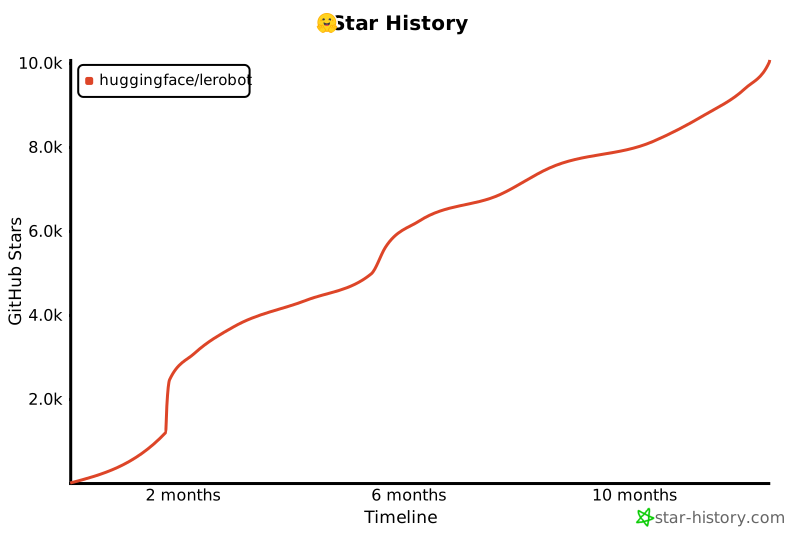](https://star-history.com/#huggingface/lerobot&Timeline)
|
||||
|
||||
@@ -1,11 +0,0 @@
|
||||
compute_environment: LOCAL_MACHINE
|
||||
debug: false
|
||||
distributed_type: NO
|
||||
downcast_bf16: 'no'
|
||||
enable_cpu_affinity: false
|
||||
machine_rank: 0
|
||||
main_training_function: main
|
||||
mixed_precision: 'no'
|
||||
num_machines: 1
|
||||
num_processes: 1
|
||||
use_cpu: false
|
||||
@@ -1,18 +0,0 @@
|
||||
compute_environment: LOCAL_MACHINE
|
||||
debug: false
|
||||
distributed_type: MULTI_GPU
|
||||
downcast_bf16: 'no'
|
||||
enable_cpu_affinity: false
|
||||
gpu_ids: all
|
||||
machine_rank: 0
|
||||
main_training_function: main
|
||||
mixed_precision: 'no'
|
||||
num_machines: 1
|
||||
num_processes: 2
|
||||
rdzv_backend: static
|
||||
same_network: true
|
||||
tpu_env: []
|
||||
tpu_use_cluster: false
|
||||
tpu_use_sudo: false
|
||||
use_cpu: false
|
||||
dynamo_backend: "no"
|
||||
+14
-31
@@ -1,32 +1,28 @@
|
||||
# Video benchmark
|
||||
|
||||
|
||||
## Questions
|
||||
|
||||
What is the optimal trade-off between:
|
||||
|
||||
- maximizing loading time with random access,
|
||||
- minimizing memory space on disk,
|
||||
- maximizing success rate of policies,
|
||||
- compatibility across devices/platforms for decoding videos (e.g. video players, web browsers).
|
||||
|
||||
How to encode videos?
|
||||
|
||||
- Which video codec (`-vcodec`) to use? h264, h265, AV1?
|
||||
- What pixel format to use (`-pix_fmt`)? `yuv444p` or `yuv420p`?
|
||||
- How much compression (`-crf`)? No compression with `0`, intermediate compression with `25` or extreme with `50+`?
|
||||
- Which frequency to chose for key frames (`-g`)? A key frame every `10` frames?
|
||||
|
||||
How to decode videos?
|
||||
|
||||
- Which `decoder`? `torchvision`, `torchaudio`, `ffmpegio`, `decord`, or `nvc`?
|
||||
- What scenarios to use for the requesting timestamps during benchmark? (`timestamps_mode`)
|
||||
|
||||
## Variables
|
||||
|
||||
## Variables
|
||||
**Image content & size**
|
||||
We don't expect the same optimal settings for a dataset of images from a simulation, or from real-world in an apartment, or in a factory, or outdoor, or with lots of moving objects in the scene, etc. Similarly, loading times might not vary linearly with the image size (resolution).
|
||||
For these reasons, we run this benchmark on four representative datasets:
|
||||
|
||||
- `lerobot/pusht_image`: (96 x 96 pixels) simulation with simple geometric shapes, fixed camera.
|
||||
- `aliberts/aloha_mobile_shrimp_image`: (480 x 640 pixels) real-world indoor, moving camera.
|
||||
- `aliberts/paris_street`: (720 x 1280 pixels) real-world outdoor, moving camera.
|
||||
@@ -38,9 +34,8 @@ Note: The datasets used for this benchmark need to be image datasets, not video
|
||||
We might revisit this benchmark and find better settings if we train our policies with various data augmentations to make them more robust (e.g. robust to color changes, compression, etc.).
|
||||
|
||||
### Encoding parameters
|
||||
|
||||
| parameter | values |
|
||||
| ----------- | ------------------------------------------------------------ |
|
||||
|-------------|--------------------------------------------------------------|
|
||||
| **vcodec** | `libx264`, `libx265`, `libsvtav1` |
|
||||
| **pix_fmt** | `yuv444p`, `yuv420p` |
|
||||
| **g** | `1`, `2`, `3`, `4`, `5`, `6`, `10`, `15`, `20`, `40`, `None` |
|
||||
@@ -49,23 +44,19 @@ We might revisit this benchmark and find better settings if we train our policie
|
||||
Note that `crf` value might be interpreted differently by various video codecs. In other words, the same value used with one codec doesn't necessarily translate into the same compression level with another codec. In fact, the default value (`None`) isn't the same amongst the different video codecs. Importantly, it is also the case for many other ffmpeg arguments like `g` which specifies the frequency of the key frames.
|
||||
|
||||
For a comprehensive list and documentation of these parameters, see the ffmpeg documentation depending on the video codec used:
|
||||
|
||||
- h264: https://trac.ffmpeg.org/wiki/Encode/H.264
|
||||
- h265: https://trac.ffmpeg.org/wiki/Encode/H.265
|
||||
- AV1: https://trac.ffmpeg.org/wiki/Encode/AV1
|
||||
|
||||
### Decoding parameters
|
||||
|
||||
**Decoder**
|
||||
We tested two video decoding backends from torchvision:
|
||||
|
||||
- `pyav`
|
||||
- `video_reader` (requires to build torchvision from source)
|
||||
|
||||
**Requested timestamps**
|
||||
Given the way video decoding works, once a keyframe has been loaded, the decoding of subsequent frames is fast.
|
||||
This of course is affected by the `-g` parameter during encoding, which specifies the frequency of the keyframes. Given our typical use cases in robotics policies which might request a few timestamps in different random places, we want to replicate these use cases with the following scenarios:
|
||||
|
||||
- `1_frame`: 1 frame,
|
||||
- `2_frames`: 2 consecutive frames (e.g. `[t, t + 1 / fps]`),
|
||||
- `6_frames`: 6 consecutive frames (e.g. `[t + i / fps for i in range(6)]`)
|
||||
@@ -73,13 +64,12 @@ This of course is affected by the `-g` parameter during encoding, which specifie
|
||||
Note that this differs significantly from a typical use case like watching a movie, in which every frame is loaded sequentially from the beginning to the end and it's acceptable to have big values for `-g`.
|
||||
|
||||
Additionally, because some policies might request single timestamps that are a few frames apart, we also have the following scenario:
|
||||
|
||||
- `2_frames_4_space`: 2 frames with 4 consecutive frames of spacing in between (e.g `[t, t + 5 / fps]`),
|
||||
|
||||
However, due to how video decoding is implemented with `pyav`, we don't have access to an accurate seek so in practice this scenario is essentially the same as `6_frames` since all 6 frames between `t` and `t + 5 / fps` will be decoded.
|
||||
|
||||
## Metrics
|
||||
|
||||
## Metrics
|
||||
**Data compression ratio (lower is better)**
|
||||
`video_images_size_ratio` is the ratio of the memory space on disk taken by the encoded video over the memory space taken by the original images. For instance, `video_images_size_ratio=25%` means that the video takes 4 times less memory space on disk compared to the original images.
|
||||
|
||||
@@ -97,18 +87,18 @@ However, due to how video decoding is implemented with `pyav`, we don't have acc
|
||||
|
||||
One aspect that can't be measured here with those metrics is the compatibility of the encoding across platforms, in particular on web browser, for visualization purposes.
|
||||
h264, h265 and AV1 are all commonly used codecs and should not pose an issue. However, the chroma subsampling (`pix_fmt`) format might affect compatibility:
|
||||
|
||||
- `yuv420p` is more widely supported across various platforms, including web browsers.
|
||||
- `yuv444p` offers higher color fidelity but might not be supported as broadly.
|
||||
|
||||
|
||||
<!-- **Loss of a pretrained policy (higher is better)** (not available)
|
||||
`loss_pretrained` is the result of evaluating with the selected encoding/decoding settings a policy pretrained on original images. It is easier to understand than `avg_l2_error`.
|
||||
|
||||
**Success rate after retraining (higher is better)** (not available)
|
||||
`success_rate` is the result of training and evaluating a policy with the selected encoding/decoding settings. It is the most difficult metric to get but also the very best. -->
|
||||
|
||||
## How the benchmark works
|
||||
|
||||
## How the benchmark works
|
||||
The benchmark evaluates both encoding and decoding of video frames on the first episode of each dataset.
|
||||
|
||||
**Encoding:** for each `vcodec` and `pix_fmt` pair, we use a default value for `g` and `crf` upon which we change a single value (either `g` or `crf`) to one of the specified values (we don't test every combination of those as this would be computationally too heavy).
|
||||
@@ -120,18 +110,15 @@ Intermediate results saved for each `vcodec` and `pix_fmt` combination in csv ta
|
||||
These are then all concatenated to a single table ready for analysis.
|
||||
|
||||
## Caveats
|
||||
|
||||
We tried to measure the most impactful parameters for both encoding and decoding. However, for computational reasons we can't test out every combination.
|
||||
|
||||
Additional encoding parameters exist that are not included in this benchmark. In particular:
|
||||
|
||||
- `-preset` which allows for selecting encoding presets. This represents a collection of options that will provide a certain encoding speed to compression ratio. By leaving this parameter unspecified, it is considered to be `medium` for libx264 and libx265 and `8` for libsvtav1.
|
||||
- `-tune` which allows to optimize the encoding for certain aspects (e.g. film quality, fast decoding, etc.).
|
||||
|
||||
See the documentation mentioned above for more detailed info on these settings and for a more comprehensive list of other parameters.
|
||||
|
||||
Similarly on the decoding side, other decoders exist but are not implemented in our current benchmark. To name a few:
|
||||
|
||||
- `torchaudio`
|
||||
- `ffmpegio`
|
||||
- `decord`
|
||||
@@ -140,17 +127,16 @@ Similarly on the decoding side, other decoders exist but are not implemented in
|
||||
Note as well that since we are mostly interested in the performance at decoding time (also because encoding is done only once before uploading a dataset), we did not measure encoding times nor have any metrics regarding encoding.
|
||||
However, besides the necessity to build ffmpeg from source, encoding did not pose any issue and it didn't take a significant amount of time during this benchmark.
|
||||
|
||||
## Install
|
||||
|
||||
## Install
|
||||
Building ffmpeg from source is required to include libx265 and libaom/libsvtav1 (av1) video codecs ([compilation guide](https://trac.ffmpeg.org/wiki/CompilationGuide/Ubuntu)).
|
||||
|
||||
**Note:** While you still need to build torchvision with a conda-installed `ffmpeg<4.3` to use the `video_reader` decoder (as described in [#220](https://github.com/huggingface/lerobot/pull/220)), you also need another version which is custom-built with all the video codecs for encoding. For the script to then use that version, you can prepend the command above with `PATH="$HOME/bin:$PATH"`, which is where ffmpeg should be built.
|
||||
|
||||
## Adding a video decoder
|
||||
|
||||
## Adding a video decoder
|
||||
Right now, we're only benchmarking the two video decoder available with torchvision: `pyav` and `video_reader`.
|
||||
You can easily add a new decoder to benchmark by adding it to this function in the script:
|
||||
|
||||
```diff
|
||||
def decode_video_frames(
|
||||
video_path: str,
|
||||
@@ -170,10 +156,9 @@ def decode_video_frames(
|
||||
raise NotImplementedError(backend)
|
||||
```
|
||||
|
||||
|
||||
## Example
|
||||
|
||||
For a quick run, you can try these parameters:
|
||||
|
||||
```bash
|
||||
python benchmark/video/run_video_benchmark.py \
|
||||
--output-dir outputs/video_benchmark \
|
||||
@@ -191,12 +176,11 @@ python benchmark/video/run_video_benchmark.py \
|
||||
--save-frames 0
|
||||
```
|
||||
|
||||
|
||||
## Results
|
||||
|
||||
### Reproduce
|
||||
|
||||
We ran the benchmark with the following parameters:
|
||||
|
||||
```bash
|
||||
# h264 and h265 encodings
|
||||
python benchmark/video/run_video_benchmark.py \
|
||||
@@ -237,10 +221,9 @@ python benchmark/video/run_video_benchmark.py \
|
||||
|
||||
The full results are available [here](https://docs.google.com/spreadsheets/d/1OYJB43Qu8fC26k_OyoMFgGBBKfQRCi4BIuYitQnq3sw/edit?usp=sharing)
|
||||
|
||||
|
||||
### Parameters selected for LeRobotDataset
|
||||
|
||||
Considering these results, we chose what we think is the best set of encoding parameter:
|
||||
|
||||
- vcodec: `libsvtav1`
|
||||
- pix-fmt: `yuv420p`
|
||||
- g: `2`
|
||||
@@ -253,7 +236,7 @@ Since we're using av1 encoding, we're choosing the `pyav` decoder as `video_read
|
||||
These tables show the results for `g=2` and `crf=30`, using `timestamps-modes=6_frames` and `backend=pyav`
|
||||
|
||||
| video_images_size_ratio | vcodec | pix_fmt | | | |
|
||||
| ---------------------------------- | ---------- | ------- | --------- | --------- | --------- |
|
||||
|------------------------------------|------------|---------|-----------|-----------|-----------|
|
||||
| | libx264 | | libx265 | | libsvtav1 |
|
||||
| repo_id | yuv420p | yuv444p | yuv420p | yuv444p | yuv420p |
|
||||
| lerobot/pusht_image | **16.97%** | 17.58% | 18.57% | 18.86% | 22.06% |
|
||||
@@ -262,7 +245,7 @@ These tables show the results for `g=2` and `crf=30`, using `timestamps-modes=6_
|
||||
| aliberts/kitchen | 1.40% | 1.39% | **1.00%** | **1.00%** | 2.52% |
|
||||
|
||||
| video_images_load_time_ratio | vcodec | pix_fmt | | | |
|
||||
| ---------------------------------- | ------- | ------- | -------- | ------- | --------- |
|
||||
|------------------------------------|---------|---------|----------|---------|-----------|
|
||||
| | libx264 | | libx265 | | libsvtav1 |
|
||||
| repo_id | yuv420p | yuv444p | yuv420p | yuv444p | yuv420p |
|
||||
| lerobot/pusht_image | 6.45 | 5.19 | **1.90** | 2.12 | 2.47 |
|
||||
@@ -271,7 +254,7 @@ These tables show the results for `g=2` and `crf=30`, using `timestamps-modes=6_
|
||||
| aliberts/kitchen | 1.46 | 1.46 | 0.28 | 0.51 | **0.26** |
|
||||
|
||||
| | | vcodec | pix_fmt | | | |
|
||||
| ---------------------------------- | -------- | -------- | ------------ | -------- | --------- | ------------ |
|
||||
|------------------------------------|----------|----------|--------------|----------|-----------|--------------|
|
||||
| | | libx264 | | libx265 | | libsvtav1 |
|
||||
| repo_id | metric | yuv420p | yuv444p | yuv420p | yuv444p | yuv420p |
|
||||
| lerobot/pusht_image | avg_mse | 2.90E-04 | **2.03E-04** | 3.13E-04 | 2.29E-04 | 2.19E-04 |
|
||||
|
||||
Executable → Regular
+1
-1
@@ -55,7 +55,7 @@ def display_and_save_video_stream(output_dir: Path, fps: int, width: int, height
|
||||
if not ret:
|
||||
print("Error: Could not read frame.")
|
||||
break
|
||||
rr.log("video/stream", rr.Image(frame), static=True)
|
||||
rr.log("video/stream", rr.Image(frame.numpy()), static=True)
|
||||
cv2.imwrite(str(capture_dir / f"frame_{frame_index:06d}.png"), frame)
|
||||
frame_index += 1
|
||||
|
||||
|
||||
@@ -35,12 +35,12 @@ import torch
|
||||
from skimage.metrics import mean_squared_error, peak_signal_noise_ratio, structural_similarity
|
||||
from tqdm import tqdm
|
||||
|
||||
from lerobot.datasets.lerobot_dataset import LeRobotDataset
|
||||
from lerobot.datasets.video_utils import (
|
||||
from lerobot.common.datasets.lerobot_dataset import LeRobotDataset
|
||||
from lerobot.common.datasets.video_utils import (
|
||||
decode_video_frames_torchvision,
|
||||
encode_video_frames,
|
||||
)
|
||||
from lerobot.utils.benchmark import TimeBenchmark
|
||||
from lerobot.common.utils.benchmark import TimeBenchmark
|
||||
|
||||
BASE_ENCODING = OrderedDict(
|
||||
[
|
||||
@@ -416,7 +416,7 @@ if __name__ == "__main__":
|
||||
"--vcodec",
|
||||
type=str,
|
||||
nargs="*",
|
||||
default=["libx264", "hevc", "libsvtav1"],
|
||||
default=["libx264", "libx265", "libsvtav1"],
|
||||
help="Video codecs to be tested",
|
||||
)
|
||||
parser.add_argument(
|
||||
@@ -446,7 +446,7 @@ if __name__ == "__main__":
|
||||
# nargs="*",
|
||||
# default=[0, 1],
|
||||
# help="Use the fastdecode tuning option. 0 disables it. "
|
||||
# "For libx264 and libx265/hevc, only 1 is possible. "
|
||||
# "For libx264 and libx265, only 1 is possible. "
|
||||
# "For libsvtav1, 1, 2 or 3 are possible values with a higher number meaning a faster decoding optimization",
|
||||
# )
|
||||
parser.add_argument(
|
||||
|
||||
@@ -1,84 +0,0 @@
|
||||
# Copyright 2025 The HuggingFace Inc. team. All rights reserved.
|
||||
#
|
||||
# Licensed under the Apache License, Version 2.0 (the "License");
|
||||
# you may not use this file except in compliance with the License.
|
||||
# You may obtain a copy of the License at
|
||||
#
|
||||
# http://www.apache.org/licenses/LICENSE-2.0
|
||||
#
|
||||
# Unless required by applicable law or agreed to in writing, software
|
||||
# distributed under the License is distributed on an "AS IS" BASIS,
|
||||
# WITHOUT WARRANTIES OR CONDITIONS OF ANY KIND, either express or implied.
|
||||
# See the License for the specific language governing permissions and
|
||||
# limitations under the License.
|
||||
|
||||
# This Dockerfile is designed for HuggingFace internal CI environments
|
||||
# that require GPU access. It starts from an NVIDIA CUDA base image.
|
||||
|
||||
# docker build -f docker/Dockerfile.internal -t lerobot-internal .
|
||||
|
||||
# Configure the base image for CI with GPU access
|
||||
# TODO(Steven): Bump these versions
|
||||
ARG CUDA_VERSION=12.4.1
|
||||
ARG OS_VERSION=22.04
|
||||
FROM nvidia/cuda:${CUDA_VERSION}-base-ubuntu${OS_VERSION}
|
||||
|
||||
# Define Python version argument
|
||||
ARG PYTHON_VERSION=3.10
|
||||
|
||||
# Configure environment variables
|
||||
ENV DEBIAN_FRONTEND=noninteractive \
|
||||
MUJOCO_GL=egl \
|
||||
PATH=/lerobot/.venv/bin:$PATH \
|
||||
CUDA_VISIBLE_DEVICES=0 \
|
||||
TEST_TYPE=single_gpu \
|
||||
DEVICE=cuda
|
||||
|
||||
# Install Python, system dependencies, and uv (as root)
|
||||
RUN apt-get update && apt-get install -y --no-install-recommends \
|
||||
software-properties-common build-essential git curl \
|
||||
libglib2.0-0 libgl1-mesa-glx libegl1-mesa ffmpeg \
|
||||
libusb-1.0-0-dev speech-dispatcher libgeos-dev portaudio19-dev \
|
||||
&& add-apt-repository -y ppa:deadsnakes/ppa \
|
||||
&& apt-get update \
|
||||
&& apt-get install -y --no-install-recommends \
|
||||
python${PYTHON_VERSION} \
|
||||
python${PYTHON_VERSION}-venv \
|
||||
python${PYTHON_VERSION}-dev \
|
||||
&& curl -LsSf https://astral.sh/uv/install.sh | sh \
|
||||
&& mv /root/.local/bin/uv /usr/local/bin/uv \
|
||||
&& useradd --create-home --shell /bin/bash user_lerobot \
|
||||
&& usermod -aG sudo user_lerobot \
|
||||
&& apt-get clean && rm -rf /var/lib/apt/lists/*
|
||||
|
||||
# Create application directory and set permissions
|
||||
WORKDIR /lerobot
|
||||
RUN chown -R user_lerobot:user_lerobot /lerobot
|
||||
|
||||
# Switch to the non-root user
|
||||
USER user_lerobot
|
||||
|
||||
# Environment variables for the testing
|
||||
ENV HOME=/home/user_lerobot \
|
||||
HF_HOME=/home/user_lerobot/.cache/huggingface \
|
||||
HF_LEROBOT_HOME=/home/user_lerobot/.cache/huggingface/lerobot \
|
||||
TORCH_HOME=/home/user_lerobot/.cache/torch \
|
||||
TRITON_CACHE_DIR=/home/user_lerobot/.cache/triton
|
||||
|
||||
# Create the virtual environment
|
||||
# We use a virtual environment inside the container—even though the container itself \
|
||||
# provides isolation—to ensure compatibility with the cluster and to prevent \
|
||||
# issues with MuJoCo and OpenGL drivers.
|
||||
RUN uv venv --python python${PYTHON_VERSION}
|
||||
|
||||
# Install Python dependencies for caching
|
||||
COPY --chown=user_lerobot:user_lerobot pyproject.toml README.md MANIFEST.in ./
|
||||
COPY --chown=user_lerobot:user_lerobot src/ src/
|
||||
RUN uv pip install --no-cache ".[all]"
|
||||
|
||||
# Copy the rest of the application source code
|
||||
# Make sure to have the git-LFS files for testing
|
||||
COPY --chown=user_lerobot:user_lerobot . .
|
||||
|
||||
# Set the default command
|
||||
CMD ["/bin/bash"]
|
||||
@@ -1,70 +0,0 @@
|
||||
# Copyright 2025 The HuggingFace Inc. team. All rights reserved.
|
||||
#
|
||||
# Licensed under the Apache License, Version 2.0 (the "License");
|
||||
# you may not use this file except in compliance with the License.
|
||||
# You may obtain a copy of the License at
|
||||
#
|
||||
# http://www.apache.org/licenses/LICENSE-2.0
|
||||
#
|
||||
# Unless required by applicable law or agreed to in writing, software
|
||||
# distributed under the License is distributed on an "AS IS" BASIS,
|
||||
# WITHOUT WARRANTIES OR CONDITIONS OF ANY KIND, either express or implied.
|
||||
# See the License for the specific language governing permissions and
|
||||
# limitations under the License.
|
||||
|
||||
# This Dockerfile is designed for a lerobot user who wants to
|
||||
# experiment with the project. It starts from an Python Slim base image.
|
||||
|
||||
# docker build -f docker/Dockerfile.user -t lerobot-user .
|
||||
# docker run -it --rm lerobot-user
|
||||
|
||||
# Configure the base image
|
||||
ARG PYTHON_VERSION=3.10
|
||||
FROM python:${PYTHON_VERSION}-slim
|
||||
|
||||
# Configure environment variables
|
||||
ENV DEBIAN_FRONTEND=noninteractive \
|
||||
MUJOCO_GL=egl \
|
||||
PATH=/lerobot/.venv/bin:$PATH
|
||||
|
||||
# Install system dependencies and uv (as root)
|
||||
RUN apt-get update && apt-get install -y --no-install-recommends \
|
||||
build-essential git curl libglib2.0-0 libegl1-mesa-dev ffmpeg \
|
||||
libusb-1.0-0-dev speech-dispatcher libgeos-dev portaudio19-dev \
|
||||
&& curl -LsSf https://astral.sh/uv/install.sh | sh \
|
||||
&& mv /root/.local/bin/uv /usr/local/bin/uv \
|
||||
&& useradd --create-home --shell /bin/bash user_lerobot \
|
||||
&& usermod -aG sudo user_lerobot \
|
||||
&& apt-get clean && rm -rf /var/lib/apt/lists/*
|
||||
|
||||
# Create application directory and set permissions
|
||||
WORKDIR /lerobot
|
||||
RUN chown -R user_lerobot:user_lerobot /lerobot
|
||||
|
||||
# Switch to the non-root user
|
||||
USER user_lerobot
|
||||
|
||||
# Environment variables for the testing
|
||||
ENV HOME=/home/user_lerobot \
|
||||
HF_HOME=/home/user_lerobot/.cache/huggingface \
|
||||
HF_LEROBOT_HOME=/home/user_lerobot/.cache/huggingface/lerobot \
|
||||
TORCH_HOME=/home/user_lerobot/.cache/torch \
|
||||
TRITON_CACHE_DIR=/home/user_lerobot/.cache/triton
|
||||
|
||||
# Create the virtual environment
|
||||
# We use a virtual environment inside the container—even though the container itself \
|
||||
# provides isolation—to closely resemble local development and allow users to \
|
||||
# run other Python projects in the same container without dependency conflicts.
|
||||
RUN uv venv
|
||||
|
||||
# Install Python dependencies for caching
|
||||
COPY --chown=user_lerobot:user_lerobot pyproject.toml README.md MANIFEST.in ./
|
||||
COPY --chown=user_lerobot:user_lerobot src/ src/
|
||||
RUN uv pip install --no-cache ".[all]"
|
||||
|
||||
# Copy the rest of the application code
|
||||
# Make sure to have the git-LFS files for testing
|
||||
COPY --chown=user_lerobot:user_lerobot . .
|
||||
|
||||
# Set the default command
|
||||
CMD ["/bin/bash"]
|
||||
@@ -0,0 +1,29 @@
|
||||
# Configure image
|
||||
ARG PYTHON_VERSION=3.10
|
||||
FROM python:${PYTHON_VERSION}-slim
|
||||
|
||||
# Configure environment variables
|
||||
ARG PYTHON_VERSION
|
||||
ENV DEBIAN_FRONTEND=noninteractive
|
||||
ENV MUJOCO_GL="egl"
|
||||
ENV PATH="/opt/venv/bin:$PATH"
|
||||
|
||||
# Install dependencies and set up Python in a single layer
|
||||
RUN apt-get update && apt-get install -y --no-install-recommends \
|
||||
build-essential cmake git \
|
||||
libglib2.0-0 libgl1-mesa-glx libegl1-mesa ffmpeg \
|
||||
speech-dispatcher libgeos-dev \
|
||||
&& ln -s /usr/bin/python${PYTHON_VERSION} /usr/bin/python \
|
||||
&& python -m venv /opt/venv \
|
||||
&& apt-get clean && rm -rf /var/lib/apt/lists/* \
|
||||
&& echo "source /opt/venv/bin/activate" >> /root/.bashrc
|
||||
|
||||
# Clone repository and install LeRobot in a single layer
|
||||
COPY . /lerobot
|
||||
WORKDIR /lerobot
|
||||
RUN /opt/venv/bin/pip install --upgrade --no-cache-dir pip \
|
||||
&& /opt/venv/bin/pip install --no-cache-dir ".[test, aloha, xarm, pusht, dynamixel]" \
|
||||
--extra-index-url https://download.pytorch.org/whl/cpu
|
||||
|
||||
# Execute in bash shell rather than python
|
||||
CMD ["/bin/bash"]
|
||||
@@ -0,0 +1,68 @@
|
||||
FROM nvidia/cuda:12.2.2-devel-ubuntu22.04
|
||||
|
||||
# Configure image
|
||||
ARG PYTHON_VERSION=3.10
|
||||
ARG DEBIAN_FRONTEND=noninteractive
|
||||
|
||||
# Install apt dependencies
|
||||
RUN apt-get update && apt-get install -y --no-install-recommends \
|
||||
build-essential cmake \
|
||||
git git-lfs openssh-client \
|
||||
nano vim less util-linux tree \
|
||||
htop atop nvtop \
|
||||
sed gawk grep curl wget zip unzip \
|
||||
tcpdump sysstat screen tmux \
|
||||
libglib2.0-0 libgl1-mesa-glx libegl1-mesa \
|
||||
speech-dispatcher portaudio19-dev libgeos-dev \
|
||||
python${PYTHON_VERSION} python${PYTHON_VERSION}-venv \
|
||||
&& apt-get clean && rm -rf /var/lib/apt/lists/*
|
||||
|
||||
# Install ffmpeg build dependencies. See:
|
||||
# https://trac.ffmpeg.org/wiki/CompilationGuide/Ubuntu
|
||||
# TODO(aliberts): create image to build dependencies from source instead
|
||||
RUN apt-get update && apt-get install -y --no-install-recommends \
|
||||
autoconf automake yasm \
|
||||
libass-dev \
|
||||
libfreetype6-dev \
|
||||
libgnutls28-dev \
|
||||
libunistring-dev \
|
||||
libmp3lame-dev \
|
||||
libtool \
|
||||
libvorbis-dev \
|
||||
meson \
|
||||
ninja-build \
|
||||
pkg-config \
|
||||
texinfo \
|
||||
yasm \
|
||||
zlib1g-dev \
|
||||
nasm \
|
||||
libx264-dev \
|
||||
libx265-dev libnuma-dev \
|
||||
libvpx-dev \
|
||||
libfdk-aac-dev \
|
||||
libopus-dev \
|
||||
libsvtav1-dev libsvtav1enc-dev libsvtav1dec-dev \
|
||||
libdav1d-dev
|
||||
|
||||
# Install gh cli tool
|
||||
RUN (type -p wget >/dev/null || (apt update && apt-get install wget -y)) \
|
||||
&& mkdir -p -m 755 /etc/apt/keyrings \
|
||||
&& wget -qO- https://cli.github.com/packages/githubcli-archive-keyring.gpg | tee /etc/apt/keyrings/githubcli-archive-keyring.gpg > /dev/null \
|
||||
&& chmod go+r /etc/apt/keyrings/githubcli-archive-keyring.gpg \
|
||||
&& echo "deb [arch=$(dpkg --print-architecture) signed-by=/etc/apt/keyrings/githubcli-archive-keyring.gpg] https://cli.github.com/packages stable main" | tee /etc/apt/sources.list.d/github-cli.list > /dev/null \
|
||||
&& apt update \
|
||||
&& apt install gh -y \
|
||||
&& apt clean && rm -rf /var/lib/apt/lists/*
|
||||
|
||||
# Setup `python`
|
||||
RUN ln -s /usr/bin/python3 /usr/bin/python
|
||||
|
||||
# Install poetry
|
||||
RUN curl -sSL https://install.python-poetry.org | python -
|
||||
ENV PATH="/root/.local/bin:$PATH"
|
||||
RUN echo 'if [ "$HOME" != "/root" ]; then ln -sf /root/.local/bin/poetry $HOME/.local/bin/poetry; fi' >> /root/.bashrc
|
||||
RUN poetry config virtualenvs.create false
|
||||
RUN poetry config virtualenvs.in-project true
|
||||
|
||||
# Set EGL as the rendering backend for MuJoCo
|
||||
ENV MUJOCO_GL="egl"
|
||||
@@ -0,0 +1,24 @@
|
||||
FROM nvidia/cuda:12.4.1-base-ubuntu22.04
|
||||
|
||||
# Configure environment variables
|
||||
ARG PYTHON_VERSION=3.10
|
||||
ENV DEBIAN_FRONTEND=noninteractive
|
||||
ENV MUJOCO_GL="egl"
|
||||
ENV PATH="/opt/venv/bin:$PATH"
|
||||
|
||||
# Install dependencies and set up Python in a single layer
|
||||
RUN apt-get update && apt-get install -y --no-install-recommends \
|
||||
build-essential cmake git \
|
||||
libglib2.0-0 libgl1-mesa-glx libegl1-mesa ffmpeg \
|
||||
speech-dispatcher libgeos-dev \
|
||||
python${PYTHON_VERSION}-dev python${PYTHON_VERSION}-venv \
|
||||
&& ln -s /usr/bin/python${PYTHON_VERSION} /usr/bin/python \
|
||||
&& python -m venv /opt/venv \
|
||||
&& apt-get clean && rm -rf /var/lib/apt/lists/* \
|
||||
&& echo "source /opt/venv/bin/activate" >> /root/.bashrc
|
||||
|
||||
# Clone repository and install LeRobot in a single layer
|
||||
COPY . /lerobot
|
||||
WORKDIR /lerobot
|
||||
RUN /opt/venv/bin/pip install --upgrade --no-cache-dir pip \
|
||||
&& /opt/venv/bin/pip install --no-cache-dir ".[test, aloha, xarm, pusht, dynamixel]"
|
||||
@@ -1,3 +0,0 @@
|
||||
# docs-requirements.txt
|
||||
hf-doc-builder @ git+https://github.com/huggingface/doc-builder.git@main
|
||||
watchdog>=6.0.0
|
||||
-139
@@ -1,139 +0,0 @@
|
||||
<!---
|
||||
Copyright 2020 The HuggingFace Team. All rights reserved.
|
||||
|
||||
Licensed under the Apache License, Version 2.0 (the "License");
|
||||
you may not use this file except in compliance with the License.
|
||||
You may obtain a copy of the License at
|
||||
|
||||
http://www.apache.org/licenses/LICENSE-2.0
|
||||
|
||||
Unless required by applicable law or agreed to in writing, software
|
||||
distributed under the License is distributed on an "AS IS" BASIS,
|
||||
WITHOUT WARRANTIES OR CONDITIONS OF ANY KIND, either express or implied.
|
||||
See the License for the specific language governing permissions and
|
||||
limitations under the License.
|
||||
-->
|
||||
|
||||
# Generating the documentation
|
||||
|
||||
To generate the documentation, you first have to build it. Several packages are necessary to build the doc,
|
||||
you can install them with the following command, at the root of the code repository:
|
||||
|
||||
```bash
|
||||
pip install -e . -r docs-requirements.txt
|
||||
```
|
||||
|
||||
You will also need `nodejs`. Please refer to their [installation page](https://nodejs.org/en/download)
|
||||
|
||||
---
|
||||
|
||||
**NOTE**
|
||||
|
||||
You only need to generate the documentation to inspect it locally (if you're planning changes and want to
|
||||
check how they look before committing for instance). You don't have to `git commit` the built documentation.
|
||||
|
||||
---
|
||||
|
||||
## Building the documentation
|
||||
|
||||
Once you have setup the `doc-builder` and additional packages, you can generate the documentation by
|
||||
typing the following command:
|
||||
|
||||
```bash
|
||||
doc-builder build lerobot docs/source/ --build_dir ~/tmp/test-build
|
||||
```
|
||||
|
||||
You can adapt the `--build_dir` to set any temporary folder that you prefer. This command will create it and generate
|
||||
the MDX files that will be rendered as the documentation on the main website. You can inspect them in your favorite
|
||||
Markdown editor.
|
||||
|
||||
## Previewing the documentation
|
||||
|
||||
To preview the docs, first install the `watchdog` module with:
|
||||
|
||||
```bash
|
||||
pip install watchdog
|
||||
```
|
||||
|
||||
Then run the following command:
|
||||
|
||||
```bash
|
||||
doc-builder preview lerobot docs/source/
|
||||
```
|
||||
|
||||
The docs will be viewable at [http://localhost:3000](http://localhost:3000). You can also preview the docs once you have opened a PR. You will see a bot add a comment to a link where the documentation with your changes lives.
|
||||
|
||||
---
|
||||
|
||||
**NOTE**
|
||||
|
||||
The `preview` command only works with existing doc files. When you add a completely new file, you need to update `_toctree.yml` & restart `preview` command (`ctrl-c` to stop it & call `doc-builder preview ...` again).
|
||||
|
||||
---
|
||||
|
||||
## Adding a new element to the navigation bar
|
||||
|
||||
Accepted files are Markdown (.md).
|
||||
|
||||
Create a file with its extension and put it in the source directory. You can then link it to the toc-tree by putting
|
||||
the filename without the extension in the [`_toctree.yml`](https://github.com/huggingface/lerobot/blob/main/docs/source/_toctree.yml) file.
|
||||
|
||||
## Renaming section headers and moving sections
|
||||
|
||||
It helps to keep the old links working when renaming the section header and/or moving sections from one document to another. This is because the old links are likely to be used in Issues, Forums, and Social media and it'd make for a much more superior user experience if users reading those months later could still easily navigate to the originally intended information.
|
||||
|
||||
Therefore, we simply keep a little map of moved sections at the end of the document where the original section was. The key is to preserve the original anchor.
|
||||
|
||||
So if you renamed a section from: "Section A" to "Section B", then you can add at the end of the file:
|
||||
|
||||
```
|
||||
Sections that were moved:
|
||||
|
||||
[ <a href="#section-b">Section A</a><a id="section-a"></a> ]
|
||||
```
|
||||
|
||||
and of course, if you moved it to another file, then:
|
||||
|
||||
```
|
||||
Sections that were moved:
|
||||
|
||||
[ <a href="../new-file#section-b">Section A</a><a id="section-a"></a> ]
|
||||
```
|
||||
|
||||
Use the relative style to link to the new file so that the versioned docs continue to work.
|
||||
|
||||
For an example of a rich moved sections set please see the very end of [the transformers Trainer doc](https://github.com/huggingface/transformers/blob/main/docs/source/en/main_classes/trainer.md).
|
||||
|
||||
### Adding a new tutorial
|
||||
|
||||
Adding a new tutorial or section is done in two steps:
|
||||
|
||||
- Add a new file under `./source`. This file can either be ReStructuredText (.rst) or Markdown (.md).
|
||||
- Link that file in `./source/_toctree.yml` on the correct toc-tree.
|
||||
|
||||
Make sure to put your new file under the proper section. If you have a doubt, feel free to ask in a Github Issue or PR.
|
||||
|
||||
### Writing source documentation
|
||||
|
||||
Values that should be put in `code` should either be surrounded by backticks: \`like so\`. Note that argument names
|
||||
and objects like True, None or any strings should usually be put in `code`.
|
||||
|
||||
#### Writing a multi-line code block
|
||||
|
||||
Multi-line code blocks can be useful for displaying examples. They are done between two lines of three backticks as usual in Markdown:
|
||||
|
||||
````
|
||||
```
|
||||
# first line of code
|
||||
# second line
|
||||
# etc
|
||||
```
|
||||
````
|
||||
|
||||
#### Adding an image
|
||||
|
||||
Due to the rapidly growing repository, it is important to make sure that no files that would significantly weigh down the repository are added. This includes images, videos, and other non-text files. We prefer to leverage a hf.co hosted `dataset` like
|
||||
the ones hosted on [`hf-internal-testing`](https://huggingface.co/hf-internal-testing) in which to place these files and reference
|
||||
them by URL. We recommend putting them in the following dataset: [huggingface/documentation-images](https://huggingface.co/datasets/huggingface/documentation-images).
|
||||
If an external contribution, feel free to add the images to your PR and ask a Hugging Face member to migrate your images
|
||||
to this dataset.
|
||||
@@ -1,50 +0,0 @@
|
||||
- sections:
|
||||
- local: index
|
||||
title: LeRobot
|
||||
- local: installation
|
||||
title: Installation
|
||||
title: Get started
|
||||
- sections:
|
||||
- local: il_robots
|
||||
title: Imitation Learning for Robots
|
||||
- local: il_sim
|
||||
title: Imitation Learning in Sim
|
||||
- local: cameras
|
||||
title: Cameras
|
||||
- local: integrate_hardware
|
||||
title: Bring Your Own Hardware
|
||||
- local: hilserl
|
||||
title: Train a Robot with RL
|
||||
- local: hilserl_sim
|
||||
title: Train RL in Simulation
|
||||
- local: async
|
||||
title: Use Async Inference
|
||||
title: "Tutorials"
|
||||
- sections:
|
||||
- local: smolvla
|
||||
title: Finetune SmolVLA
|
||||
title: "Policies"
|
||||
- sections:
|
||||
- local: hope_jr
|
||||
title: Hope Jr
|
||||
- local: so101
|
||||
title: SO-101
|
||||
- local: so100
|
||||
title: SO-100
|
||||
- local: koch
|
||||
title: Koch v1.1
|
||||
- local: lekiwi
|
||||
title: LeKiwi
|
||||
title: "Robots"
|
||||
- sections:
|
||||
- local: notebooks
|
||||
title: Notebooks
|
||||
- local: feetech
|
||||
title: Updating Feetech Firmware
|
||||
title: "Resources"
|
||||
- sections:
|
||||
- local: contributing
|
||||
title: Contribute to LeRobot
|
||||
- local: backwardcomp
|
||||
title: Backward compatibility
|
||||
title: "About"
|
||||
@@ -1,312 +0,0 @@
|
||||
# Asynchronous Inference
|
||||
|
||||
With our [SmolVLA](https://huggingface.co/papers/2506.01844) we introduced a new way to run inference on real-world robots, **decoupling action prediction from action execution**.
|
||||
In this tutorial, we'll show how to use asynchronous inference (_async inference_) using a finetuned version of SmolVLA, and all the policies supported by LeRobot.
|
||||
**Try async inference with all the policies** supported by LeRobot!
|
||||
|
||||
**What you'll learn:**
|
||||
|
||||
1. Why asynchronous inference matters and how it compares to, more traditional, sequential inference.
|
||||
2. How to spin-up a `PolicyServer` and connect a `RobotClient` from the same machine, and even over the network.
|
||||
3. How to tune key parameters (`actions_per_chunk`, `chunk_size_threshold`) for your robot and policy.
|
||||
|
||||
If you get stuck, hop into our [Discord community](https://discord.gg/s3KuuzsPFb)!
|
||||
|
||||
In a nutshell: with _async inference_, your robot keeps acting while the policy server is already busy computing the next chunk of actions---eliminating "wait-for-inference" lags and unlocking smoother, more reactive behaviours.
|
||||
This is fundamentally different from synchronous inference (sync), where the robot stays idle while the policy computes the next chunk of actions.
|
||||
|
||||
---
|
||||
|
||||
## Getting started with async inference
|
||||
|
||||
You can read more information on asynchronous inference in our [blogpost](https://huggingface.co/blog/async-robot-inference). This guide is designed to help you quickly set up and run asynchronous inference in your environment.
|
||||
|
||||
First, install `lerobot` with the `async` tag, to install the extra dependencies required to run async inference.
|
||||
|
||||
```shell
|
||||
pip install -e ".[async]"
|
||||
```
|
||||
|
||||
Then, spin up a policy server (in one terminal, or in a separate machine) specifying the host address and port for the client to connect to.
|
||||
You can spin up a policy server running:
|
||||
|
||||
```shell
|
||||
python src/lerobot/scripts/server/policy_server.py \
|
||||
--host=127.0.0.1 \
|
||||
--port=8080 \
|
||||
```
|
||||
|
||||
This will start a policy server listening on `127.0.0.1:8080` (`localhost`, port 8080). At this stage, the policy server is empty, as all information related to which policy to run and with which parameters are specified during the first handshake with the client. Spin up a client with:
|
||||
|
||||
```shell
|
||||
python src/lerobot/scripts/server/robot_client.py \
|
||||
--server_address=127.0.0.1:8080 \ # SERVER: the host address and port of the policy server
|
||||
--robot.type=so100_follower \ # ROBOT: your robot type
|
||||
--robot.port=/dev/tty.usbmodem585A0076841 \ # ROBOT: your robot port
|
||||
--robot.id=follower_so100 \ # ROBOT: your robot id, to load calibration file
|
||||
--robot.cameras="{ laptop: {type: opencv, index_or_path: 0, width: 1920, height: 1080, fps: 30}, phone: {type: opencv, index_or_path: 0, width: 1920, height: 1080, fps: 30}}" \ # POLICY: the cameras used to acquire frames, with keys matching the keys expected by the policy
|
||||
--task="dummy" \ # POLICY: The task to run the policy on (`Fold my t-shirt`). Not necessarily defined for all policies, such as `act`
|
||||
--policy_type=your_policy_type \ # POLICY: the type of policy to run (smolvla, act, etc)
|
||||
--pretrained_name_or_path=user/model \ # POLICY: the model name/path on server to the checkpoint to run (e.g., lerobot/smolvla_base)
|
||||
--policy_device=mps \ # POLICY: the device to run the policy on, on the server
|
||||
--actions_per_chunk=50 \ # POLICY: the number of actions to output at once
|
||||
--chunk_size_threshold=0.5 \ # CLIENT: the threshold for the chunk size before sending a new observation to the server
|
||||
--aggregate_fn_name=weighted_average \ # CLIENT: the function to aggregate actions on overlapping portions
|
||||
--debug_visualize_queue_size=True # CLIENT: whether to visualize the queue size at runtime
|
||||
```
|
||||
|
||||
In summary, you need to specify instructions for:
|
||||
|
||||
- `SERVER`: the address and port of the policy server
|
||||
- `ROBOT`: the type of robot to connect to, the port to connect to, and the local `id` of the robot
|
||||
- `POLICY`: the type of policy to run, and the model name/path on server to the checkpoint to run. You also need to specify which device should the sever be using, and how many actions to output at once (capped at the policy max actions value).
|
||||
- `CLIENT`: the threshold for the chunk size before sending a new observation to the server, and the function to aggregate actions on overlapping portions. Optionally, you can also visualize the queue size at runtime, to help you tune the `CLIENT` parameters.
|
||||
|
||||
Importantly,
|
||||
|
||||
- `actions_per_chunk` and `chunk_size_threshold` are key parameters to tune for your setup.
|
||||
- `aggregate_fn_name` is the function to aggregate actions on overlapping portions. You can either add a new one to a registry of functions, or add your own in `robot_client.py` (see [here](NOTE:addlinktoLOC))
|
||||
- `debug_visualize_queue_size` is a useful tool to tune the `CLIENT` parameters.
|
||||
|
||||
## Done! You should see your robot moving around by now 😉
|
||||
|
||||
## Async vs. synchronous inference
|
||||
|
||||
Synchronous inference relies on interleaving action chunk prediction and action execution. This inherently results in _idle frames_, frames where the robot awaits idle the policy's output: a new action chunk.
|
||||
In turn, inference is plagued by evident real-time lags, where the robot simply stops acting due to the lack of available actions.
|
||||
With robotics models increasing in size, this problem risks becoming only more severe.
|
||||
|
||||
<p align="center">
|
||||
<img
|
||||
src="https://huggingface.co/datasets/huggingface/documentation-images/resolve/main/async-inference/sync.png"
|
||||
width="80%"
|
||||
></img>
|
||||
</p>
|
||||
<p align="center">
|
||||
<i>Synchronous inference</i> makes the robot idle while the policy is
|
||||
computing the next chunk of actions.
|
||||
</p>
|
||||
|
||||
To overcome this, we design async inference, a paradigm where action planning and execution are decoupled, resulting in (1) higher adaptability and, most importantly, (2) no idle frames.
|
||||
Crucially, with async inference, the next action chunk is computed _before_ the current one is exhausted, resulting in no idleness.
|
||||
Higher adaptability is ensured by aggregating the different action chunks on overlapping portions, obtaining an up-to-date plan and a tighter control loop.
|
||||
|
||||
<p align="center">
|
||||
<img
|
||||
src="https://huggingface.co/datasets/huggingface/documentation-images/resolve/main/async-inference/async.png"
|
||||
width="80%"
|
||||
></img>
|
||||
</p>
|
||||
<p align="center">
|
||||
<i>Asynchronous inference</i> results in no idleness because the next chunk is
|
||||
computed before the current chunk is exhausted.
|
||||
</p>
|
||||
|
||||
---
|
||||
|
||||
## Start the Policy Server
|
||||
|
||||
Policy servers are wrappers around a `PreTrainedPolicy` interfacing them with observations coming from a robot client.
|
||||
Policy servers are initialized as empty containers which are populated with the requested policy specified in the initial handshake between the robot client and the policy server.
|
||||
As such, spinning up a policy server is as easy as specifying the host address and port. If you're running the policy server on the same machine as the robot client, you can use `localhost` as the host address.
|
||||
|
||||
<hfoptions id="start_policy_server">
|
||||
<hfoption id="Command">
|
||||
```bash
|
||||
python -m lerobot.scripts.server.policy_server \
|
||||
--host="localhost" \
|
||||
--port=8080
|
||||
```
|
||||
</hfoption>
|
||||
<hfoption id="API example">
|
||||
|
||||
<!-- prettier-ignore-start -->
|
||||
```python
|
||||
from lerobot.scripts.server.configs import PolicyServerConfig
|
||||
from lerobot.scripts.server.policy_server import serve
|
||||
|
||||
config = PolicyServerConfig(
|
||||
host="localhost",
|
||||
port=8080,
|
||||
)
|
||||
serve(config)
|
||||
```
|
||||
<!-- prettier-ignore-end -->
|
||||
|
||||
</hfoption>
|
||||
</hfoptions>
|
||||
|
||||
This listens on `localhost:8080` for an incoming connection from the associated`RobotClient`, which will communicate which policy to run during the first client-server handshake.
|
||||
|
||||
---
|
||||
|
||||
## Launch the Robot Client
|
||||
|
||||
`RobotClient` is a wrapper around a `Robot` instance, which `RobotClient` connects to the (possibly remote) `PolicyServer`.
|
||||
The `RobotClient` streams observations to the `PolicyServer`, and receives action chunks obtained running inference on the server (which we assume to have better computational resources than the robot controller).
|
||||
|
||||
<hfoptions id="start_robot_client">
|
||||
<hfoption id="Command">
|
||||
```bash
|
||||
python src/lerobot/scripts/server/robot_client.py \
|
||||
--server_address=127.0.0.1:8080 \ # SERVER: the host address and port of the policy server
|
||||
--robot.type=so100_follower \ # ROBOT: your robot type
|
||||
--robot.port=/dev/tty.usbmodem585A0076841 \ # ROBOT: your robot port
|
||||
--robot.id=follower_so100 \ # ROBOT: your robot id, to load calibration file
|
||||
--robot.cameras="{ laptop: {type: opencv, index_or_path: 0, width: 1920, height: 1080, fps: 30}, phone: {type: opencv, index_or_path: 0, width: 1920, height: 1080, fps: 30}}" \ # POLICY: the cameras used to acquire frames, with keys matching the keys expected by the policy
|
||||
--task="dummy" \ # POLICY: The task to run the policy on (`Fold my t-shirt`). Not necessarily defined for all policies, such as `act`
|
||||
--policy_type=your_policy_type \ # POLICY: the type of policy to run (smolvla, act, etc)
|
||||
--pretrained_name_or_path=user/model \ # POLICY: the model name/path on server to the checkpoint to run (e.g., lerobot/smolvla_base)
|
||||
--policy_device=mps \ # POLICY: the device to run the policy on, on the server
|
||||
--actions_per_chunk=50 \ # POLICY: the number of actions to output at once
|
||||
--chunk_size_threshold=0.5 \ # CLIENT: the threshold for the chunk size before sending a new observation to the server
|
||||
--aggregate_fn_name=weighted_average \ # CLIENT: the function to aggregate actions on overlapping portions
|
||||
--debug_visualize_queue_size=True # CLIENT: whether to visualize the queue size at runtime
|
||||
```
|
||||
</hfoption>
|
||||
<hfoption id="API example">
|
||||
|
||||
<!-- prettier-ignore-start -->
|
||||
```python
|
||||
import threading
|
||||
from lerobot.robots.so100_follower import SO100FollowerConfig
|
||||
from lerobot.cameras.opencv.configuration_opencv import OpenCVCameraConfig
|
||||
from lerobot.scripts.server.configs import RobotClientConfig
|
||||
from lerobot.scripts.server.robot_client import RobotClient
|
||||
from lerobot.scripts.server.helpers import visualize_action_queue_size
|
||||
|
||||
# 1. Create the robot instance
|
||||
"""Check out the cameras available in your setup by running `python lerobot/find_cameras.py`"""
|
||||
# these cameras must match the ones expected by the policy
|
||||
# check the config.json on the Hub for the policy you are using
|
||||
camera_cfg = {
|
||||
"top": OpenCVCameraConfig(index_or_path=0, width=640, height=480, fps=30),
|
||||
"side": OpenCVCameraConfig(index_or_path=1, width=640, height=480, fps=30)
|
||||
}
|
||||
|
||||
robot_cfg = SO100FollowerConfig(
|
||||
port="/dev/tty.usbmodem585A0076841",
|
||||
id="follower_so100",
|
||||
cameras=camera_cfg
|
||||
)
|
||||
|
||||
# 3. Create client configuration
|
||||
client_cfg = RobotClientConfig(
|
||||
robot=robot_cfg,
|
||||
server_address="localhost:8080",
|
||||
policy_device="mps",
|
||||
policy_type="smolvla",
|
||||
pretrained_name_or_path="fracapuano/smolvla_async",
|
||||
chunk_size_threshold=0.5,
|
||||
actions_per_chunk=50, # make sure this is less than the max actions of the policy
|
||||
)
|
||||
|
||||
# 4. Create and start client
|
||||
client = RobotClient(client_cfg)
|
||||
|
||||
# 5. Specify the task
|
||||
task = "Don't do anything, stay still"
|
||||
|
||||
if client.start():
|
||||
# Start action receiver thread
|
||||
action_receiver_thread = threading.Thread(target=client.receive_actions, daemon=True)
|
||||
action_receiver_thread.start()
|
||||
|
||||
try:
|
||||
# Run the control loop
|
||||
client.control_loop(task)
|
||||
except KeyboardInterrupt:
|
||||
client.stop()
|
||||
action_receiver_thread.join()
|
||||
# (Optionally) plot the action queue size
|
||||
visualize_action_queue_size(client.action_queue_size)
|
||||
```
|
||||
<!-- prettier-ignore-end -->
|
||||
|
||||
</hfoption>
|
||||
</hfoptions>
|
||||
|
||||
The following two parameters are key in every setup:
|
||||
|
||||
<table>
|
||||
<thead>
|
||||
<tr>
|
||||
<th>Hyperparameter</th>
|
||||
<th>Default</th>
|
||||
<th>What it does</th>
|
||||
</tr>
|
||||
</thead>
|
||||
<tbody>
|
||||
<tr>
|
||||
<td>
|
||||
<code>actions_per_chunk</code>
|
||||
</td>
|
||||
<td>50</td>
|
||||
<td>
|
||||
How many actions the policy outputs at once. Typical values: 10-50.
|
||||
</td>
|
||||
</tr>
|
||||
<tr>
|
||||
<td>
|
||||
<code>chunk_size_threshold</code>
|
||||
</td>
|
||||
<td>0.7</td>
|
||||
<td>
|
||||
When the queue is ≤ 50% full, the client sends a fresh observation.
|
||||
Value in [0, 1].
|
||||
</td>
|
||||
</tr>
|
||||
</tbody>
|
||||
</table>
|
||||
|
||||
<Tip>
|
||||
Different values of `actions_per_chunk` and `chunk_size_threshold` do result
|
||||
in different behaviours.
|
||||
</Tip>
|
||||
|
||||
On the one hand, increasing the value of `actions_per_chunk` will result in reducing the likelihood of ending up with no actions to execute, as more actions will be available when the new chunk is computed.
|
||||
However, larger values of `actions_per_chunk` might also result in less precise actions, due to the compounding errors consequent to predicting actions over longer timespans.
|
||||
|
||||
On the other hand, increasing the value of `chunk_size_threshold` will result in sending out to the `PolicyServer` observations for inference more often, resulting in a larger number of updates action chunks, overlapping on significant portions. This results in high adaptability, in the limit predicting one action chunk for each observation, which is in turn only marginally consumed while a new one is produced.
|
||||
This option does also put more pressure on the inference pipeline, as a consequence of the many requests. Conversely, values of `chunk_size_threshold` close to 0.0 collapse to the synchronous edge case, whereby new observations are only sent out whenever the current chunk is exhausted.
|
||||
|
||||
We found the default values of `actions_per_chunk` and `chunk_size_threshold` to work well in the experiments we developed for the [SmolVLA paper](https://huggingface.co/papers/2506.01844), but recommend experimenting with different values to find the best fit for your setup.
|
||||
|
||||
### Tuning async inference for your setup
|
||||
|
||||
1. **Choose your computational resources carefully.** [PI0](https://huggingface.co/lerobot/pi0) occupies 14GB of memory at inference time, while [SmolVLA](https://huggingface.co/lerobot/smolvla_base) requires only ~2GB. You should identify the best computational resource for your use case keeping in mind smaller policies require less computational resources. The combination of policy and device used (CPU-intensive, using MPS, or the number of CUDA cores on a given NVIDIA GPU) directly impacts the average inference latency you should expect.
|
||||
2. **Adjust your `fps` based on inference latency.** While the server generates a new action chunk, the client is not idle and is stepping through its current action queue. If the two processes happen at fundamentally different speeds, the client might end up with an empty queue. As such, you should reduce your fps if you consistently run out of actions in queue.
|
||||
3. **Adjust `chunk_size_threshold`**.
|
||||
- Values closer to `0.0` result in almost sequential behavior. Values closer to `1.0` → send observation every step (more bandwidth, relies on good world-model).
|
||||
- We found values around 0.5-0.6 to work well. If you want to tweak this, spin up a `RobotClient` setting the `--debug-visualize-queue-size` to `True`. This will plot the action queue size evolution at runtime, and you can use it to find the value of `chunk_size_threshold` that works best for your setup.
|
||||
|
||||
<p align="center">
|
||||
<img
|
||||
src="https://huggingface.co/datasets/huggingface/documentation-images/resolve/main/async-inference/queues.png"
|
||||
width="80%"
|
||||
></img>
|
||||
</p>
|
||||
<p align="center">
|
||||
<i>
|
||||
The action queue size is plotted at runtime when the
|
||||
`--debug-visualize-queue-size` flag is passed, for various levels of
|
||||
`chunk_size_threshold` (`g` in the SmolVLA paper).
|
||||
</i>
|
||||
</p>
|
||||
|
||||
---
|
||||
|
||||
## Conclusion
|
||||
|
||||
Asynchronous inference represents a significant advancement in real-time robotics control, addressing the fundamental challenge of inference latency that has long plagued robotics applications. Through this tutorial, you've learned how to implement a complete async inference pipeline that eliminates idle frames and enables smoother, more reactive robot behaviors.
|
||||
|
||||
**Key Takeaways:**
|
||||
|
||||
- **Paradigm Shift**: Async inference decouples action prediction from execution, allowing robots to continue acting while new action chunks are computed in parallel
|
||||
- **Performance Benefits**: Eliminates "wait-for-inference" lags that are inherent in synchronous approaches, becoming increasingly important as policy models grow larger
|
||||
- **Flexible Architecture**: The server-client design enables distributed computing, where inference can run on powerful remote hardware while maintaining real-time robot control
|
||||
- **Tunable Parameters**: Success depends on properly configuring `actions_per_chunk` and `chunk_size_threshold` for your specific hardware, policy, and task requirements
|
||||
- **Universal Compatibility**: Works with all LeRobot-supported policies, from lightweight ACT models to vision-language models like SmolVLA
|
||||
|
||||
Start experimenting with the default parameters, monitor your action queue sizes, and iteratively refine your setup to achieve optimal performance for your specific use case.
|
||||
If you want to discuss this further, hop into our [Discord community](https://discord.gg/s3KuuzsPFb), or open an issue on our [GitHub repository](https://github.com/lerobot/lerobot/issues).
|
||||
@@ -1,95 +0,0 @@
|
||||
# Backward compatibility
|
||||
|
||||
## Hardware API redesign
|
||||
|
||||
PR [#777](https://github.com/huggingface/lerobot/pull/777) improves the LeRobot calibration but is **not backward-compatible**. Below is a overview of what changed and how you can continue to work with datasets created before this pull request.
|
||||
|
||||
### What changed?
|
||||
|
||||
| | Before PR #777 | After PR #777 |
|
||||
| --------------------------------- | ------------------------------------------------- | ------------------------------------------------------------ |
|
||||
| **Joint range** | Degrees `-180...180°` | **Normalised range** Joints: `–100...100` Gripper: `0...100` |
|
||||
| **Zero position (SO100 / SO101)** | Arm fully extended horizontally | **In middle of the range for each joint** |
|
||||
| **Boundary handling** | Software safeguards to detect ±180 ° wrap-arounds | No wrap-around logic needed due to mid-range zero |
|
||||
|
||||
---
|
||||
|
||||
### Impact on existing datasets
|
||||
|
||||
- Recorded trajectories created **before** PR #777 will replay incorrectly if loaded directly:
|
||||
- Joint angles are offset and incorrectly normalized.
|
||||
- Any models directly finetuned or trained on the old data will need their inputs and outputs converted.
|
||||
|
||||
### Using datasets made with the previous calibration system
|
||||
|
||||
We provide a migration example script for replaying an episode recorded with the previous calibration here: `examples/backward_compatibility/replay.py`.
|
||||
Below we take you through the modifications that are done in the example script to make the previous calibration datasets work.
|
||||
|
||||
```diff
|
||||
+ key = f"{name.removeprefix('main_')}.pos"
|
||||
action[key] = action_array[i].item()
|
||||
+ action["shoulder_lift.pos"] = -(action["shoulder_lift.pos"] - 90)
|
||||
+ action["elbow_flex.pos"] -= 90
|
||||
```
|
||||
|
||||
Let's break this down.
|
||||
New codebase uses `.pos` suffix for the position observations and we have removed `main_` prefix:
|
||||
|
||||
<!-- prettier-ignore-start -->
|
||||
```python
|
||||
key = f"{name.removeprefix('main_')}.pos"
|
||||
```
|
||||
<!-- prettier-ignore-end -->
|
||||
|
||||
For `"shoulder_lift"` (id = 2), the 0 position is changed by -90 degrees and the direction is reversed compared to old calibration/code.
|
||||
|
||||
<!-- prettier-ignore-start -->
|
||||
```python
|
||||
action["shoulder_lift.pos"] = -(action["shoulder_lift.pos"] - 90)
|
||||
```
|
||||
<!-- prettier-ignore-end -->
|
||||
|
||||
For `"elbow_flex"` (id = 3), the 0 position is changed by -90 degrees compared to old calibration/code.
|
||||
|
||||
<!-- prettier-ignore-start -->
|
||||
```python
|
||||
action["elbow_flex.pos"] -= 90
|
||||
```
|
||||
<!-- prettier-ignore-end -->
|
||||
|
||||
To use degrees normalization we then set the `--robot.use_degrees` option to `true`.
|
||||
|
||||
```diff
|
||||
python examples/backward_compatibility/replay.py \
|
||||
--robot.type=so101_follower \
|
||||
--robot.port=/dev/tty.usbmodem5A460814411 \
|
||||
--robot.id=blue \
|
||||
+ --robot.use_degrees=true \
|
||||
--dataset.repo_id=my_dataset_id \
|
||||
--dataset.episode=0
|
||||
```
|
||||
|
||||
### Using policies trained with the previous calibration system
|
||||
|
||||
Policies output actions in the same format as the datasets (`torch.Tensors`). Therefore, the same transformations should be applied.
|
||||
|
||||
To find these transformations, we recommend to first try and and replay an episode of the dataset your policy was trained on using the section above.
|
||||
Then, add these same transformations on your inference script (shown here in the `record.py` script):
|
||||
|
||||
```diff
|
||||
action_values = predict_action(
|
||||
observation_frame,
|
||||
policy,
|
||||
get_safe_torch_device(policy.config.device),
|
||||
policy.config.use_amp,
|
||||
task=single_task,
|
||||
robot_type=robot.robot_type,
|
||||
)
|
||||
action = {key: action_values[i].item() for i, key in enumerate(robot.action_features)}
|
||||
|
||||
+ action["shoulder_lift.pos"] = -(action["shoulder_lift.pos"] - 90)
|
||||
+ action["elbow_flex.pos"] -= 90
|
||||
robot.send_action(action)
|
||||
```
|
||||
|
||||
If you have questions or run into migration issues, feel free to ask them on [Discord](https://discord.gg/s3KuuzsPFb)
|
||||
@@ -1,206 +0,0 @@
|
||||
# Cameras
|
||||
|
||||
LeRobot offers multiple options for video capture, including phone cameras, built-in laptop cameras, external webcams, and Intel RealSense cameras. To efficiently record frames from most cameras, you can use either the `OpenCVCamera` or `RealSenseCamera` class. For additional compatibility details on the `OpenCVCamera` class, refer to the [Video I/O with OpenCV Overview](https://docs.opencv.org/4.x/d0/da7/videoio_overview.html).
|
||||
|
||||
### Finding your camera
|
||||
|
||||
To instantiate a camera, you need a camera identifier. This identifier might change if you reboot your computer or re-plug your camera, a behavior mostly dependant on your operating system.
|
||||
|
||||
To find the camera indices of the cameras plugged into your system, run the following script:
|
||||
|
||||
```bash
|
||||
lerobot-find-cameras opencv # or realsense for Intel Realsense cameras
|
||||
```
|
||||
|
||||
The output will look something like this if you have two cameras connected:
|
||||
|
||||
```
|
||||
--- Detected Cameras ---
|
||||
Camera #0:
|
||||
Name: OpenCV Camera @ 0
|
||||
Type: OpenCV
|
||||
Id: 0
|
||||
Backend api: AVFOUNDATION
|
||||
Default stream profile:
|
||||
Format: 16.0
|
||||
Width: 1920
|
||||
Height: 1080
|
||||
Fps: 15.0
|
||||
--------------------
|
||||
(more cameras ...)
|
||||
```
|
||||
|
||||
> [!WARNING]
|
||||
> When using Intel RealSense cameras in `macOS`, you could get this [error](https://github.com/IntelRealSense/librealsense/issues/12307): `Error finding RealSense cameras: failed to set power state`, this can be solved by running the same command with `sudo` permissions. Note that using RealSense cameras in `macOS` is unstable.
|
||||
|
||||
## Use Cameras
|
||||
|
||||
Below are two examples, demonstrating how to work with the API.
|
||||
|
||||
- **Asynchronous frame capture** using an OpenCV-based camera
|
||||
- **Color and depth capture** using an Intel RealSense camera
|
||||
|
||||
<hfoptions id="shell_restart">
|
||||
<hfoption id="Open CV Camera">
|
||||
|
||||
<!-- prettier-ignore-start -->
|
||||
```python
|
||||
from lerobot.cameras.opencv.configuration_opencv import OpenCVCameraConfig
|
||||
from lerobot.cameras.opencv.camera_opencv import OpenCVCamera
|
||||
from lerobot.cameras.configs import ColorMode, Cv2Rotation
|
||||
|
||||
# Construct an `OpenCVCameraConfig` with your desired FPS, resolution, color mode, and rotation.
|
||||
config = OpenCVCameraConfig(
|
||||
index_or_path=0,
|
||||
fps=15,
|
||||
width=1920,
|
||||
height=1080,
|
||||
color_mode=ColorMode.RGB,
|
||||
rotation=Cv2Rotation.NO_ROTATION
|
||||
)
|
||||
|
||||
# Instantiate and connect an `OpenCVCamera`, performing a warm-up read (default).
|
||||
camera = OpenCVCamera(config)
|
||||
camera.connect()
|
||||
|
||||
# Read frames asynchronously in a loop via `async_read(timeout_ms)`
|
||||
try:
|
||||
for i in range(10):
|
||||
frame = camera.async_read(timeout_ms=200)
|
||||
print(f"Async frame {i} shape:", frame.shape)
|
||||
finally:
|
||||
camera.disconnect()
|
||||
```
|
||||
<!-- prettier-ignore-end -->
|
||||
|
||||
</hfoption>
|
||||
<hfoption id="Intel Realsense Camera">
|
||||
|
||||
<!-- prettier-ignore-start -->
|
||||
```python
|
||||
from lerobot.cameras.realsense.configuration_realsense import RealSenseCameraConfig
|
||||
from lerobot.cameras.realsense.camera_realsense import RealSenseCamera
|
||||
from lerobot.cameras.configs import ColorMode, Cv2Rotation
|
||||
|
||||
# Create a `RealSenseCameraConfig` specifying your camera’s serial number and enabling depth.
|
||||
config = RealSenseCameraConfig(
|
||||
serial_number_or_name="233522074606",
|
||||
fps=15,
|
||||
width=640,
|
||||
height=480,
|
||||
color_mode=ColorMode.RGB,
|
||||
use_depth=True,
|
||||
rotation=Cv2Rotation.NO_ROTATION
|
||||
)
|
||||
|
||||
# Instantiate and connect a `RealSenseCamera` with warm-up read (default).
|
||||
camera = RealSenseCamera(config)
|
||||
camera.connect()
|
||||
|
||||
# Capture a color frame via `read()` and a depth map via `read_depth()`.
|
||||
try:
|
||||
color_frame = camera.read()
|
||||
depth_map = camera.read_depth()
|
||||
print("Color frame shape:", color_frame.shape)
|
||||
print("Depth map shape:", depth_map.shape)
|
||||
finally:
|
||||
camera.disconnect()
|
||||
```
|
||||
<!-- prettier-ignore-end -->
|
||||
|
||||
</hfoption>
|
||||
</hfoptions>
|
||||
|
||||
## Use your phone
|
||||
|
||||
<hfoptions id="use phone">
|
||||
<hfoption id="Mac">
|
||||
|
||||
To use your iPhone as a camera on macOS, enable the Continuity Camera feature:
|
||||
|
||||
- Ensure your Mac is running macOS 13 or later, and your iPhone is on iOS 16 or later.
|
||||
- Sign in both devices with the same Apple ID.
|
||||
- Connect your devices with a USB cable or turn on Wi-Fi and Bluetooth for a wireless connection.
|
||||
|
||||
For more details, visit [Apple support](https://support.apple.com/en-gb/guide/mac-help/mchl77879b8a/mac).
|
||||
|
||||
Your iPhone should be detected automatically when running the camera setup script in the next section.
|
||||
|
||||
</hfoption>
|
||||
<hfoption id="Linux">
|
||||
|
||||
If you want to use your phone as a camera on Linux, follow these steps to set up a virtual camera
|
||||
|
||||
1. _Install `v4l2loopback-dkms` and `v4l-utils`_. Those packages are required to create virtual camera devices (`v4l2loopback`) and verify their settings with the `v4l2-ctl` utility from `v4l-utils`. Install them using:
|
||||
|
||||
<!-- prettier-ignore-start -->
|
||||
```python
|
||||
sudo apt install v4l2loopback-dkms v4l-utils
|
||||
```
|
||||
<!-- prettier-ignore-end -->
|
||||
|
||||
2. _Install [DroidCam](https://droidcam.app) on your phone_. This app is available for both iOS and Android.
|
||||
3. _Install [OBS Studio](https://obsproject.com)_. This software will help you manage the camera feed. Install it using [Flatpak](https://flatpak.org):
|
||||
|
||||
<!-- prettier-ignore-start -->
|
||||
```python
|
||||
flatpak install flathub com.obsproject.Studio
|
||||
```
|
||||
<!-- prettier-ignore-end -->
|
||||
|
||||
4. _Install the DroidCam OBS plugin_. This plugin integrates DroidCam with OBS Studio. Install it with:
|
||||
|
||||
<!-- prettier-ignore-start -->
|
||||
```python
|
||||
flatpak install flathub com.obsproject.Studio.Plugin.DroidCam
|
||||
```
|
||||
<!-- prettier-ignore-end -->
|
||||
|
||||
5. _Start OBS Studio_. Launch with:
|
||||
|
||||
<!-- prettier-ignore-start -->
|
||||
```python
|
||||
flatpak run com.obsproject.Studio
|
||||
```
|
||||
<!-- prettier-ignore-end -->
|
||||
|
||||
6. _Add your phone as a source_. Follow the instructions [here](https://droidcam.app/obs/usage). Be sure to set the resolution to `640x480`.
|
||||
7. _Adjust resolution settings_. In OBS Studio, go to `File > Settings > Video`. Change the `Base(Canvas) Resolution` and the `Output(Scaled) Resolution` to `640x480` by manually typing it in.
|
||||
8. _Start virtual camera_. In OBS Studio, follow the instructions [here](https://obsproject.com/kb/virtual-camera-guide).
|
||||
9. _Verify the virtual camera setup_. Use `v4l2-ctl` to list the devices:
|
||||
|
||||
<!-- prettier-ignore-start -->
|
||||
```python
|
||||
v4l2-ctl --list-devices
|
||||
```
|
||||
<!-- prettier-ignore-end -->
|
||||
|
||||
You should see an entry like:
|
||||
|
||||
```
|
||||
VirtualCam (platform:v4l2loopback-000):
|
||||
/dev/video1
|
||||
```
|
||||
|
||||
10. _Check the camera resolution_. Use `v4l2-ctl` to ensure that the virtual camera output resolution is `640x480`. Change `/dev/video1` to the port of your virtual camera from the output of `v4l2-ctl --list-devices`.
|
||||
|
||||
<!-- prettier-ignore-start -->
|
||||
```python
|
||||
v4l2-ctl -d /dev/video1 --get-fmt-video
|
||||
```
|
||||
<!-- prettier-ignore-end -->
|
||||
|
||||
You should see an entry like:
|
||||
|
||||
```
|
||||
>>> Format Video Capture:
|
||||
>>> Width/Height : 640/480
|
||||
>>> Pixel Format : 'YUYV' (YUYV 4:2:2)
|
||||
```
|
||||
|
||||
Troubleshooting: If the resolution is not correct you will have to delete the Virtual Camera port and try again as it cannot be changed.
|
||||
|
||||
If everything is set up correctly, you can proceed with the rest of the tutorial.
|
||||
|
||||
</hfoption>
|
||||
</hfoptions>
|
||||
@@ -1 +0,0 @@
|
||||
../../CONTRIBUTING.md
|
||||
@@ -1,71 +0,0 @@
|
||||
# Feetech Motor Firmware Update
|
||||
|
||||
This tutorial guides you through updating the firmware of Feetech motors using the official Feetech software.
|
||||
|
||||
## Prerequisites
|
||||
|
||||
- Windows computer (Feetech software is only available for Windows)
|
||||
- Feetech motor control board
|
||||
- USB cable to connect the control board to your computer
|
||||
- Feetech motors connected to the control board
|
||||
|
||||
## Step 1: Download Feetech Software
|
||||
|
||||
1. Visit the official Feetech software download page: [https://www.feetechrc.com/software.html](https://www.feetechrc.com/software.html)
|
||||
2. Download the latest version of the Feetech debugging software (FD)
|
||||
3. Install the software on your Windows computer
|
||||
|
||||
## Step 2: Hardware Setup
|
||||
|
||||
1. Connect your Feetech motors to the motor control board
|
||||
2. Connect the motor control board to your Windows computer via USB cable
|
||||
3. Ensure power is supplied to the motors
|
||||
|
||||
## Step 3: Configure Connection
|
||||
|
||||
1. Launch the Feetech debugging software
|
||||
2. Select the correct COM port from the port dropdown menu
|
||||
- If unsure which port to use, check Windows Device Manager under "Ports (COM & LPT)"
|
||||
3. Set the appropriate baud rate (typically 1000000 for most Feetech motors)
|
||||
4. Click "Open" to establish communication with the control board
|
||||
|
||||
## Step 4: Scan for Motors
|
||||
|
||||
1. Once connected, click the "Search" button to detect all connected motors
|
||||
2. The software will automatically discover and list all motors on the bus
|
||||
3. Each motor will appear with its ID number
|
||||
|
||||
## Step 5: Update Firmware
|
||||
|
||||
For each motor you want to update:
|
||||
|
||||
1. **Select the motor** from the list by clicking on it
|
||||
2. **Click on Upgrade tab**:
|
||||
3. **Click on Online button**:
|
||||
- If an potential firmware update is found, it will be displayed in the box
|
||||
4. **Click on Upgrade button**:
|
||||
- The update progress will be displayed
|
||||
|
||||
## Step 6: Verify Update
|
||||
|
||||
1. After the update completes, the software should automatically refresh the motor information
|
||||
2. Verify that the firmware version has been updated to the expected version
|
||||
|
||||
## Important Notes
|
||||
|
||||
⚠️ **Warning**: Do not disconnect power or USB during firmware updates, it will potentially brick the motor.
|
||||
|
||||
## Bonus: Motor Debugging on Linux/macOS
|
||||
|
||||
For debugging purposes only, you can use the open-source Feetech Debug Tool:
|
||||
|
||||
- **Repository**: [FT_SCServo_Debug_Qt](https://github.com/CarolinePascal/FT_SCServo_Debug_Qt/tree/fix/port-search-timer)
|
||||
|
||||
### Installation Instructions
|
||||
|
||||
Follow the instructions in the repository to install the tool, for Ubuntu you can directly install it, for MacOS you need to build it from source.
|
||||
|
||||
**Limitations:**
|
||||
|
||||
- This tool is for debugging and parameter adjustment only
|
||||
- Firmware updates must still be done on Windows with official Feetech software
|
||||
@@ -1,601 +0,0 @@
|
||||
# HIL-SERL Real Robot Training Workflow Guide
|
||||
|
||||
In this tutorial you will go through the full Human-in-the-Loop Sample-Efficient Reinforcement Learning (HIL-SERL) workflow using LeRobot. You will master training a policy with RL on a real robot in just a few hours.
|
||||
|
||||
HIL-SERL is a sample-efficient reinforcement learning algorithm that combines human demonstrations with online learning and human interventions. The approach starts from a small set of human demonstrations, uses them to train a reward classifier, and then employs an actor-learner architecture where humans can intervene during policy execution to guide exploration and correct unsafe behaviors. In this tutorial, you'll use a gamepad to provide interventions and control the robot during the learning process.
|
||||
|
||||
It combines three key ingredients: 1. **Offline demonstrations & reward classifier:** a handful of human-teleop episodes plus a vision-based success detector give the policy a shaped starting point. 2. **On-robot actor / learner loop with human interventions:** a distributed Soft Actor Critic (SAC) learner updates the policy while an actor explores on the physical robot; the human can jump in at any time to correct dangerous or unproductive behaviour. 3. **Safety & efficiency tools:** joint/end-effector (EE) bounds, crop region of interest (ROI) preprocessing and WandB monitoring keep the data useful and the hardware safe.
|
||||
|
||||
Together these elements let HIL-SERL reach near-perfect task success and faster cycle times than imitation-only baselines.
|
||||
|
||||
<p align="center">
|
||||
<img
|
||||
src="https://huggingface.co/datasets/huggingface/documentation-images/resolve/main/lerobot/hilserl-main-figure.png"
|
||||
alt="HIL-SERL workflow"
|
||||
title="HIL-SERL workflow"
|
||||
width="100%"
|
||||
></img>
|
||||
</p>
|
||||
|
||||
<p align="center">
|
||||
<i>HIL-SERL workflow, Luo et al. 2024</i>
|
||||
</p>
|
||||
|
||||
This guide provides step-by-step instructions for training a robot policy using LeRobot's HilSerl implementation to train on a real robot.
|
||||
|
||||
## What do I need?
|
||||
|
||||
- A gamepad (recommended) or keyboard to control the robot
|
||||
- A Nvidia GPU
|
||||
- A real robot with a follower and leader arm (optional if you use the keyboard or the gamepad)
|
||||
- A URDF file for the robot for the kinematics package (check `lerobot/model/kinematics.py`)
|
||||
|
||||
## What kind of tasks can I train?
|
||||
|
||||
One can use HIL-SERL to train on a variety of manipulation tasks. Some recommendations:
|
||||
|
||||
- Start with a simple task to understand how the system works.
|
||||
- Push cube to a goal region
|
||||
- Pick and lift cube with the gripper
|
||||
- Avoid extremely long horizon tasks. Focus on tasks that can be completed in 5-10 seconds.
|
||||
- Once you have a good idea of how the system works, you can try more complex tasks and longer horizons.
|
||||
- Pick and place cube
|
||||
- Bimanual tasks to pick objects with two arms
|
||||
- Hand-over tasks to transfer objects from one arm to another
|
||||
- Go crazy!
|
||||
|
||||
## Install LeRobot with HIL-SERL
|
||||
|
||||
To install LeRobot with HIL-SERL, you need to install the `hilserl` extra.
|
||||
|
||||
```bash
|
||||
pip install -e ".[hilserl]"
|
||||
```
|
||||
|
||||
## Real Robot Training Workflow
|
||||
|
||||
### Understanding Configuration
|
||||
|
||||
The training process begins with proper configuration for the HILSerl environment. The configuration class of interest is `HILSerlRobotEnvConfig` in `lerobot/envs/configs.py`. Which is defined as:
|
||||
|
||||
<!-- prettier-ignore-start -->
|
||||
```python
|
||||
class HILSerlRobotEnvConfig(EnvConfig):
|
||||
robot: RobotConfig | None = None # Main robot agent (defined in `lerobot/robots`)
|
||||
teleop: TeleoperatorConfig | None = None # Teleoperator agent, e.g., gamepad or leader arm, (defined in `lerobot/teleoperators`)
|
||||
wrapper: EnvTransformConfig | None = None # Environment wrapper settings; check `lerobot/scripts/server/gym_manipulator.py`
|
||||
fps: int = 10 # Control frequency
|
||||
name: str = "real_robot" # Environment name
|
||||
mode: str = None # "record", "replay", or None (for training)
|
||||
repo_id: str | None = None # LeRobot dataset repository ID
|
||||
dataset_root: str | None = None # Local dataset root (optional)
|
||||
task: str = "" # Task identifier
|
||||
num_episodes: int = 10 # Number of episodes for recording
|
||||
episode: int = 0 # episode index for replay
|
||||
device: str = "cuda" # Compute device
|
||||
push_to_hub: bool = True # Whether to push the recorded datasets to Hub
|
||||
pretrained_policy_name_or_path: str | None = None # For policy loading
|
||||
reward_classifier_pretrained_path: str | None = None # For reward model
|
||||
number_of_steps_after_success: int = 0 # For reward classifier, collect more positive examples after a success to train a classifier
|
||||
```
|
||||
<!-- prettier-ignore-end -->
|
||||
|
||||
### Finding Robot Workspace Bounds
|
||||
|
||||
Before collecting demonstrations, you need to determine the appropriate operational bounds for your robot.
|
||||
|
||||
This helps simplify the problem of learning on the real robot in two ways: 1) by limiting the robot's operational space to a specific region that solves the task and avoids unnecessary or unsafe exploration, and 2) by allowing training in end-effector space rather than joint space. Empirically, learning in joint space for reinforcement learning in manipulation is often a harder problem - some tasks are nearly impossible to learn in joint space but become learnable when the action space is transformed to end-effector coordinates.
|
||||
|
||||
**Using find_joint_limits.py**
|
||||
|
||||
This script helps you find the safe operational bounds for your robot's end-effector. Given that you have a follower and leader arm, you can use the script to find the bounds for the follower arm that will be applied during training.
|
||||
Bounding the action space will reduce the redundant exploration of the agent and guarantees safety.
|
||||
|
||||
```bash
|
||||
python -m lerobot.scripts.find_joint_limits \
|
||||
--robot.type=so100_follower \
|
||||
--robot.port=/dev/tty.usbmodem58760431541 \
|
||||
--robot.id=black \
|
||||
--teleop.type=so100_leader \
|
||||
--teleop.port=/dev/tty.usbmodem58760431551 \
|
||||
--teleop.id=blue
|
||||
```
|
||||
|
||||
**Workflow**
|
||||
|
||||
1. Run the script and move the robot through the space that solves the task
|
||||
2. The script will record the minimum and maximum end-effector positions and the joint angles and prints them to the console, for example:
|
||||
```
|
||||
Max ee position [0.2417 0.2012 0.1027]
|
||||
Min ee position [0.1663 -0.0823 0.0336]
|
||||
Max joint positions [-20.0, -20.0, -20.0, -20.0, -20.0, -20.0]
|
||||
Min joint positions [50.0, 50.0, 50.0, 50.0, 50.0, 50.0]
|
||||
```
|
||||
3. Use these values in the configuration of your teleoperation device (TeleoperatorConfig) under the `end_effector_bounds` field
|
||||
|
||||
**Example Configuration**
|
||||
|
||||
```json
|
||||
"end_effector_bounds": {
|
||||
"max": [0.24, 0.20, 0.10],
|
||||
"min": [0.16, -0.08, 0.03]
|
||||
}
|
||||
```
|
||||
|
||||
### Collecting Demonstrations
|
||||
|
||||
With the bounds defined, you can safely collect demonstrations for training. Training RL with off-policy algorithm allows us to use offline datasets collected in order to improve the efficiency of the learning process.
|
||||
|
||||
**Setting Up Record Mode**
|
||||
|
||||
Create a configuration file for recording demonstrations (or edit an existing one like [env_config_so100.json](https://huggingface.co/datasets/aractingi/lerobot-example-config-files/blob/main/env_config_so100.json)):
|
||||
|
||||
1. Set `mode` to `"record"`
|
||||
2. Specify a unique `repo_id` for your dataset (e.g., "username/task_name")
|
||||
3. Set `num_episodes` to the number of demonstrations you want to collect
|
||||
4. Set `crop_params_dict` to `null` initially (we'll determine crops later)
|
||||
5. Configure `robot`, `cameras`, and other hardware settings
|
||||
|
||||
Example configuration section:
|
||||
|
||||
```json
|
||||
"mode": "record",
|
||||
"repo_id": "username/pick_lift_cube",
|
||||
"dataset_root": null,
|
||||
"task": "pick_and_lift",
|
||||
"num_episodes": 15,
|
||||
"episode": 0,
|
||||
"push_to_hub": true
|
||||
```
|
||||
|
||||
### Using a Teleoperation Device
|
||||
|
||||
Along with your robot, you will need a teleoperation device to control it in order to collect datasets of your task and perform interventions during the online training.
|
||||
We support using a gamepad or a keyboard or the leader arm of the robot.
|
||||
|
||||
HIL-Serl learns actions in the end-effector space of the robot. Therefore, the teleoperation will control the end-effector's x,y,z displacements.
|
||||
|
||||
For that we need to define a version of the robot that takes actions in the end-effector space. Check the robot class `SO100FollowerEndEffector` and its configuration `SO100FollowerEndEffectorConfig` for the default parameters related to the end-effector space.
|
||||
|
||||
<!-- prettier-ignore-start -->
|
||||
```python
|
||||
class SO100FollowerEndEffectorConfig(SO100FollowerConfig):
|
||||
"""Configuration for the SO100FollowerEndEffector robot."""
|
||||
|
||||
# Default bounds for the end-effector position (in meters)
|
||||
end_effector_bounds: dict[str, list[float]] = field( # bounds for the end-effector in x,y,z direction
|
||||
default_factory=lambda: {
|
||||
"min": [-1.0, -1.0, -1.0], # min x, y, z
|
||||
"max": [1.0, 1.0, 1.0], # max x, y, z
|
||||
}
|
||||
)
|
||||
|
||||
max_gripper_pos: float = 50 # maximum gripper position that the gripper will be open at
|
||||
|
||||
end_effector_step_sizes: dict[str, float] = field( # maximum step size for the end-effector in x,y,z direction
|
||||
default_factory=lambda: {
|
||||
"x": 0.02,
|
||||
"y": 0.02,
|
||||
"z": 0.02,
|
||||
}
|
||||
)
|
||||
```
|
||||
<!-- prettier-ignore-end -->
|
||||
|
||||
The `Teleoperator` defines the teleoperation device. You can check the list of available teleoperators in `lerobot/teleoperators`.
|
||||
|
||||
**Setting up the Gamepad**
|
||||
|
||||
The gamepad provides a very convenient way to control the robot and the episode state.
|
||||
|
||||
To setup the gamepad, you need to set the `control_mode` to `"gamepad"` and define the `teleop` section in the configuration file.
|
||||
|
||||
```json
|
||||
"teleop": {
|
||||
"type": "gamepad",
|
||||
"use_gripper": true
|
||||
},
|
||||
```
|
||||
|
||||
<p align="center">
|
||||
<img
|
||||
src="https://huggingface.co/datasets/huggingface/documentation-images/resolve/main/lerobot/gamepad_guide.jpg?raw=true"
|
||||
alt="Figure shows the control mappings on a Logitech gamepad."
|
||||
title="Gamepad Control Mapping"
|
||||
width="100%"
|
||||
></img>
|
||||
</p>
|
||||
<p align="center">
|
||||
<i>Gamepad button mapping for robot control and episode management</i>
|
||||
</p>
|
||||
|
||||
**Setting up the SO101 leader**
|
||||
|
||||
The SO101 leader arm has reduced gears that allows it to move and track the follower arm during exploration. Therefore, taking over is much smoother than the gearless SO100.
|
||||
|
||||
To setup the SO101 leader, you need to set the `control_mode` to `"leader"` and define the `teleop` section in the configuration file.
|
||||
|
||||
```json
|
||||
"teleop": {
|
||||
"type": "so101_leader",
|
||||
"port": "/dev/tty.usbmodem585A0077921", # check your port number
|
||||
"use_degrees": true
|
||||
},
|
||||
```
|
||||
|
||||
In order to annotate the success/failure of the episode, **you will need** to use a keyboard to press `s` for success, `esc` for failure.
|
||||
During the online training, press `space` to take over the policy and `space` again to give the control back to the policy.
|
||||
|
||||
<details>
|
||||
<summary><strong>Video: SO101 leader teleoperation</strong></summary>
|
||||
|
||||
<div class="video-container">
|
||||
<video controls width="600">
|
||||
<source
|
||||
src="https://huggingface.co/datasets/huggingface/documentation-images/resolve/main/lerobot/so101_leader_tutorial.mp4"
|
||||
type="video/mp4"
|
||||
/>
|
||||
</video>
|
||||
</div>
|
||||
|
||||
<p align="center"><i>SO101 leader teleoperation example, the leader tracks the follower, press `space` to intervene</i></p>
|
||||
</details>
|
||||
|
||||
**Recording Demonstrations**
|
||||
|
||||
Start the recording process, an example of the config file can be found [here](https://huggingface.co/datasets/aractingi/lerobot-example-config-files/blob/main/env_config_so100.json):
|
||||
|
||||
```bash
|
||||
python -m lerobot.scripts.rl.gym_manipulator --config_path src/lerobot/configs/env_config_so100.json
|
||||
```
|
||||
|
||||
During recording:
|
||||
|
||||
1. The robot will reset to the initial position defined in the configuration file `fixed_reset_joint_positions`
|
||||
2. Complete the task successfully
|
||||
3. The episode ends with a reward of 1 when you press the "success" button
|
||||
4. If the time limit is reached, or the fail button is pressed, the episode ends with a reward of 0
|
||||
5. You can rerecord an episode by pressing the "rerecord" button
|
||||
6. The process automatically continues to the next episode
|
||||
7. After recording all episodes, the dataset is pushed to the Hugging Face Hub (optional) and saved locally
|
||||
|
||||
### Processing the Dataset
|
||||
|
||||
After collecting demonstrations, process them to determine optimal camera crops.
|
||||
Reinforcement learning is sensitive to background distractions, so it is important to crop the images to the relevant workspace area.
|
||||
|
||||
Visual RL algorithms learn directly from pixel inputs, making them vulnerable to irrelevant visual information. Background elements like changing lighting, shadows, people moving, or objects outside the workspace can confuse the learning process. Good ROI selection should:
|
||||
|
||||
- Include only the essential workspace where the task happens
|
||||
- Capture the robot's end-effector and all objects involved in the task
|
||||
- Exclude unnecessary background elements and distractions
|
||||
|
||||
Note: If you already know the crop parameters, you can skip this step and just set the `crop_params_dict` in the configuration file during recording.
|
||||
|
||||
**Determining Crop Parameters**
|
||||
|
||||
Use the `crop_dataset_roi.py` script to interactively select regions of interest in your camera images:
|
||||
|
||||
```bash
|
||||
python -m lerobot.scripts.rl.crop_dataset_roi --repo-id username/pick_lift_cube
|
||||
```
|
||||
|
||||
1. For each camera view, the script will display the first frame
|
||||
2. Draw a rectangle around the relevant workspace area
|
||||
3. Press 'c' to confirm the selection
|
||||
4. Repeat for all camera views
|
||||
5. The script outputs cropping parameters and creates a new cropped dataset
|
||||
|
||||
Example output:
|
||||
|
||||
```
|
||||
Selected Rectangular Regions of Interest (top, left, height, width):
|
||||
observation.images.side: [180, 207, 180, 200]
|
||||
observation.images.front: [180, 250, 120, 150]
|
||||
```
|
||||
|
||||
<p align="center">
|
||||
<img
|
||||
src="https://huggingface.co/datasets/huggingface/documentation-images/resolve/main/lerobot/crop_dataset.gif"
|
||||
width="600"
|
||||
/>
|
||||
</p>
|
||||
|
||||
<p align="center">
|
||||
<i>Interactive cropping tool for selecting regions of interest</i>
|
||||
</p>
|
||||
|
||||
**Updating Configuration**
|
||||
|
||||
Add these crop parameters to your training configuration:
|
||||
|
||||
```json
|
||||
"crop_params_dict": {
|
||||
"observation.images.side": [180, 207, 180, 200],
|
||||
"observation.images.front": [180, 250, 120, 150]
|
||||
},
|
||||
"resize_size": [128, 128]
|
||||
```
|
||||
|
||||
**Recommended image resolution**
|
||||
|
||||
Most vision-based policies have been validated on square inputs of either **128×128** (default) or **64×64** pixels. We therefore advise setting the resize_size parameter to [128, 128] – or [64, 64] if you need to save GPU memory and bandwidth. Other resolutions are possible but have not been extensively tested.
|
||||
|
||||
### Training a Reward Classifier
|
||||
|
||||
The reward classifier plays an important role in the HIL-SERL workflow by automating reward assignment and automatically detecting episode success. Instead of manually defining reward functions or relying on human feedback for every timestep, the reward classifier learns to predict success/failure from visual observations. This enables the RL algorithm to learn efficiently by providing consistent and automated reward signals based on the robot's camera inputs.
|
||||
|
||||
This guide explains how to train a reward classifier for human-in-the-loop reinforcement learning implementation of LeRobot. Reward classifiers learn to predict the reward value given a state which can be used in an RL setup to train a policy.
|
||||
|
||||
**Note**: Training a reward classifier is optional. You can start the first round of RL experiments by annotating the success manually with your gamepad or keyboard device.
|
||||
|
||||
The reward classifier implementation in `modeling_classifier.py` uses a pretrained vision model to process the images. It can output either a single value for binary rewards to predict success/fail cases or multiple values for multi-class settings.
|
||||
|
||||
**Collecting a Dataset for the reward classifier**
|
||||
|
||||
Before training, you need to collect a dataset with labeled examples. The `record_dataset` function in `gym_manipulator.py` enables the process of collecting a dataset of observations, actions, and rewards.
|
||||
|
||||
To collect a dataset, you need to modify some parameters in the environment configuration based on HILSerlRobotEnvConfig.
|
||||
|
||||
```bash
|
||||
python -m lerobot.scripts.rl.gym_manipulator --config_path src/lerobot/configs/reward_classifier_train_config.json
|
||||
```
|
||||
|
||||
**Key Parameters for Data Collection**
|
||||
|
||||
- **mode**: set it to `"record"` to collect a dataset
|
||||
- **repo_id**: `"hf_username/dataset_name"`, name of the dataset and repo on the hub
|
||||
- **num_episodes**: Number of episodes to record
|
||||
- **number_of_steps_after_success**: Number of additional frames to record after a success (reward=1) is detected
|
||||
- **fps**: Number of frames per second to record
|
||||
- **push_to_hub**: Whether to push the dataset to the hub
|
||||
|
||||
The `number_of_steps_after_success` parameter is crucial as it allows you to collect more positive examples. When a success is detected, the system will continue recording for the specified number of steps while maintaining the reward=1 label. Otherwise, there won't be enough states in the dataset labeled to 1 to train a good classifier.
|
||||
|
||||
Example configuration section for data collection:
|
||||
|
||||
```json
|
||||
{
|
||||
"mode": "record",
|
||||
"repo_id": "hf_username/dataset_name",
|
||||
"dataset_root": "data/your_dataset",
|
||||
"num_episodes": 20,
|
||||
"push_to_hub": true,
|
||||
"fps": 10,
|
||||
"number_of_steps_after_success": 15
|
||||
}
|
||||
```
|
||||
|
||||
**Reward Classifier Configuration**
|
||||
|
||||
The reward classifier is configured using `configuration_classifier.py`. Here are the key parameters:
|
||||
|
||||
- **model_name**: Base model architecture (e.g., we mainly use `"helper2424/resnet10"`)
|
||||
- **model_type**: `"cnn"` or `"transformer"`
|
||||
- **num_cameras**: Number of camera inputs
|
||||
- **num_classes**: Number of output classes (typically 2 for binary success/failure)
|
||||
- **hidden_dim**: Size of hidden representation
|
||||
- **dropout_rate**: Regularization parameter
|
||||
- **learning_rate**: Learning rate for optimizer
|
||||
|
||||
Example configuration for training the [reward classifier](https://huggingface.co/datasets/aractingi/lerobot-example-config-files/blob/main/reward_classifier_train_config.json):
|
||||
|
||||
```json
|
||||
{
|
||||
"policy": {
|
||||
"type": "reward_classifier",
|
||||
"model_name": "helper2424/resnet10",
|
||||
"model_type": "cnn",
|
||||
"num_cameras": 2,
|
||||
"num_classes": 2,
|
||||
"hidden_dim": 256,
|
||||
"dropout_rate": 0.1,
|
||||
"learning_rate": 1e-4,
|
||||
"device": "cuda",
|
||||
"use_amp": true,
|
||||
"input_features": {
|
||||
"observation.images.front": {
|
||||
"type": "VISUAL",
|
||||
"shape": [3, 128, 128]
|
||||
},
|
||||
"observation.images.side": {
|
||||
"type": "VISUAL",
|
||||
"shape": [3, 128, 128]
|
||||
}
|
||||
}
|
||||
}
|
||||
}
|
||||
```
|
||||
|
||||
**Training the Classifier**
|
||||
|
||||
To train the classifier, use the `train.py` script with your configuration:
|
||||
|
||||
```bash
|
||||
lerobot-train --config_path path/to/reward_classifier_train_config.json
|
||||
```
|
||||
|
||||
**Deploying and Testing the Model**
|
||||
|
||||
To use your trained reward classifier, configure the `HILSerlRobotEnvConfig` to use your model:
|
||||
|
||||
<!-- prettier-ignore-start -->
|
||||
```python
|
||||
env_config = HILSerlRobotEnvConfig(
|
||||
reward_classifier_pretrained_path="path_to_your_pretrained_trained_model",
|
||||
# Other environment parameters
|
||||
)
|
||||
```
|
||||
<!-- prettier-ignore-end -->
|
||||
|
||||
or set the argument in the json config file.
|
||||
|
||||
```json
|
||||
{
|
||||
"reward_classifier_pretrained_path": "path_to_your_pretrained_model"
|
||||
}
|
||||
```
|
||||
|
||||
Run `gym_manipulator.py` to test the model.
|
||||
|
||||
```bash
|
||||
python -m lerobot.scripts.rl.gym_manipulator --config_path path/to/env_config.json
|
||||
```
|
||||
|
||||
The reward classifier will automatically provide rewards based on the visual input from the robot's cameras.
|
||||
|
||||
**Example Workflow for training the reward classifier**
|
||||
|
||||
1. **Create the configuration files**:
|
||||
Create the necessary json configuration files for the reward classifier and the environment. Check the examples [here](https://huggingface.co/datasets/aractingi/lerobot-example-config-files/tree/main).
|
||||
|
||||
2. **Collect a dataset**:
|
||||
|
||||
```bash
|
||||
python -m lerobot.scripts.rl.gym_manipulator --config_path src/lerobot/configs/env_config.json
|
||||
```
|
||||
|
||||
3. **Train the classifier**:
|
||||
|
||||
```bash
|
||||
lerobot-train --config_path src/lerobot/configs/reward_classifier_train_config.json
|
||||
```
|
||||
|
||||
4. **Test the classifier**:
|
||||
```bash
|
||||
python -m lerobot.scripts.rl.gym_manipulator --config_path src/lerobot/configs/env_config.json
|
||||
```
|
||||
|
||||
### Training with Actor-Learner
|
||||
|
||||
The LeRobot system uses a distributed actor-learner architecture for training. This architecture decouples robot interactions from the learning process, allowing them to run concurrently without blocking each other. The actor server handles robot observations and actions, sending interaction data to the learner server. The learner server performs gradient descent and periodically updates the actor's policy weights. You will need to start two processes: a learner and an actor.
|
||||
|
||||
**Configuration Setup**
|
||||
|
||||
Create a training configuration file (example available [here](https://huggingface.co/datasets/aractingi/lerobot-example-config-files/blob/main/train_config_hilserl_so100.json)). The training config is based on the main `TrainRLServerPipelineConfig` class in `lerobot/configs/train.py`.
|
||||
|
||||
1. Configure the policy settings (`type="sac"`, `device`, etc.)
|
||||
2. Set `dataset` to your cropped dataset
|
||||
3. Configure environment settings with crop parameters
|
||||
4. Check the other parameters related to SAC in [configuration_sac.py](https://github.com/huggingface/lerobot/blob/main/src/lerobot/policies/sac/configuration_sac.py#L79).
|
||||
5. Verify that the `policy` config is correct with the right `input_features` and `output_features` for your task.
|
||||
|
||||
**Starting the Learner**
|
||||
|
||||
First, start the learner server process:
|
||||
|
||||
```bash
|
||||
python -m lerobot.scripts.rl.learner --config_path src/lerobot/configs/train_config_hilserl_so100.json
|
||||
```
|
||||
|
||||
The learner:
|
||||
|
||||
- Initializes the policy network
|
||||
- Prepares replay buffers
|
||||
- Opens a `gRPC` server to communicate with actors
|
||||
- Processes transitions and updates the policy
|
||||
|
||||
**Starting the Actor**
|
||||
|
||||
In a separate terminal, start the actor process with the same configuration:
|
||||
|
||||
```bash
|
||||
python -m lerobot.scripts.rl.actor --config_path src/lerobot/configs/train_config_hilserl_so100.json
|
||||
```
|
||||
|
||||
The actor:
|
||||
|
||||
- Connects to the learner via `gRPC`
|
||||
- Initializes the environment
|
||||
- Execute rollouts of the policy to collect experience
|
||||
- Sends transitions to the learner
|
||||
- Receives updated policy parameters
|
||||
|
||||
**Training Flow**
|
||||
|
||||
The training proceeds automatically:
|
||||
|
||||
1. The actor executes the policy in the environment
|
||||
2. Transitions are collected and sent to the learner
|
||||
3. The learner updates the policy based on these transitions
|
||||
4. Updated policy parameters are sent back to the actor
|
||||
5. The process continues until the specified step limit is reached
|
||||
|
||||
**Human in the Loop**
|
||||
|
||||
- The key to learning efficiently is to have human interventions to provide corrective feedback and completing the task to aide the policy learning and exploration.
|
||||
- To perform human interventions, you can press the upper right trigger button on the gamepad (or the `space` key on the keyboard). This will pause the policy actions and allow you to take over.
|
||||
- A successful experiment is one where the human has to intervene at the start but then reduces the amount of interventions as the policy improves. You can monitor the intervention rate in the `wandb` dashboard.
|
||||
|
||||
<p align="center">
|
||||
<img
|
||||
src="https://huggingface.co/datasets/huggingface/documentation-images/resolve/main/lerobot/hil_effect.png?raw=true"
|
||||
alt="Figure shows the control mappings on a Logitech gamepad."
|
||||
title="Gamepad Control Mapping"
|
||||
width="100%"
|
||||
></img>
|
||||
</p>
|
||||
|
||||
<p align="center">
|
||||
<i>
|
||||
Example showing how human interventions help guide policy learning over time
|
||||
</i>
|
||||
</p>
|
||||
|
||||
- The figure shows the plot of the episodic reward over interaction step. The figure shows the effect of human interventions on the policy learning.
|
||||
- The orange curve is an experiment without any human interventions. While the pink and blue curves are experiments with human interventions.
|
||||
- We can observe that the number of steps where the policy starts achieving the maximum reward is cut by a quarter when human interventions are present.
|
||||
|
||||
**Monitoring and Debugging**
|
||||
|
||||
If you have `wandb.enable` set to `true` in your configuration, you can monitor training progress in real-time through the [Weights & Biases](https://wandb.ai/site/) dashboard.
|
||||
|
||||
### Guide to Human Interventions
|
||||
|
||||
The learning process is very sensitive to the intervention strategy. It will takes a few runs to understand how to intervene effectively. Some tips and hints:
|
||||
|
||||
- Allow the policy to explore for a few episodes at the start of training.
|
||||
- Avoid intervening for long periods of time. Try to intervene in situation to correct the robot's behaviour when it goes off track.
|
||||
- Once the policy starts achieving the task, even if its not perfect, you can limit your interventions to simple quick actions like a simple grasping commands.
|
||||
|
||||
The ideal behaviour is that your intervention rate should drop gradually during training as shown in the figure below.
|
||||
|
||||
<p align="center">
|
||||
<img
|
||||
src="https://huggingface.co/datasets/huggingface/documentation-images/resolve/main/lerobot/intervention_rate_tutorial_rl.png?raw=true"
|
||||
alt="Intervention rate"
|
||||
title="Intervention rate during training"
|
||||
width="100%"
|
||||
></img>
|
||||
</p>
|
||||
|
||||
<p align="center">
|
||||
<i>
|
||||
Plot of the intervention rate during a training run on a pick and lift cube
|
||||
task
|
||||
</i>
|
||||
</p>
|
||||
|
||||
### Key hyperparameters to tune
|
||||
|
||||
Some configuration values have a disproportionate impact on training stability and speed:
|
||||
|
||||
- **`temperature_init`** (`policy.temperature_init`) – initial entropy temperature in SAC. Higher values encourage more exploration; lower values make the policy more deterministic early on. A good starting point is `1e-2`. We observed that setting it too high can make human interventions ineffective and slow down learning.
|
||||
- **`policy_parameters_push_frequency`** (`policy.actor_learner_config.policy_parameters_push_frequency`) – interval in _seconds_ between two weight pushes from the learner to the actor. The default is `4 s`. Decrease to **1-2 s** to provide fresher weights (at the cost of more network traffic); increase only if your connection is slow, as this will reduce sample efficiency.
|
||||
- **`storage_device`** (`policy.storage_device`) – device on which the learner keeps the policy parameters. If you have spare GPU memory, set this to `"cuda"` (instead of the default `"cpu"`). Keeping the weights on-GPU removes CPU→GPU transfer overhead and can significantly increase the number of learner updates per second.
|
||||
|
||||
Congrats 🎉, you have finished this tutorial!
|
||||
|
||||
> [!TIP]
|
||||
> If you have any questions or need help, please reach out on [Discord](https://discord.com/invite/s3KuuzsPFb).
|
||||
|
||||
Paper citation:
|
||||
|
||||
```
|
||||
@article{luo2024precise,
|
||||
title={Precise and Dexterous Robotic Manipulation via Human-in-the-Loop Reinforcement Learning},
|
||||
author={Luo, Jianlan and Xu, Charles and Wu, Jeffrey and Levine, Sergey},
|
||||
journal={arXiv preprint arXiv:2410.21845},
|
||||
year={2024}
|
||||
}
|
||||
```
|
||||
@@ -1,128 +0,0 @@
|
||||
# Train RL in Simulation
|
||||
|
||||
This guide explains how to use the `gym_hil` simulation environments as an alternative to real robots when working with the LeRobot framework for Human-In-the-Loop (HIL) reinforcement learning.
|
||||
|
||||
`gym_hil` is a package that provides Gymnasium-compatible simulation environments specifically designed for Human-In-the-Loop reinforcement learning. These environments allow you to:
|
||||
|
||||
- Train policies in simulation to test the RL stack before training on real robots
|
||||
|
||||
- Collect demonstrations in sim using external devices like gamepads or keyboards
|
||||
- Perform human interventions during policy learning
|
||||
|
||||
Currently, the main environment is a Franka Panda robot simulation based on MuJoCo, with tasks like picking up a cube.
|
||||
|
||||
## Installation
|
||||
|
||||
First, install the `gym_hil` package within the LeRobot environment:
|
||||
|
||||
```bash
|
||||
pip install -e ".[hilserl]"
|
||||
```
|
||||
|
||||
## What do I need?
|
||||
|
||||
- A gamepad or keyboard to control the robot
|
||||
- A Nvidia GPU
|
||||
|
||||
## Configuration
|
||||
|
||||
To use `gym_hil` with LeRobot, you need to create a configuration file. An example is provided [here](https://huggingface.co/datasets/aractingi/lerobot-example-config-files/blob/main/gym_hil_env.json). Key configuration sections include:
|
||||
|
||||
### Environment Type and Task
|
||||
|
||||
```json
|
||||
{
|
||||
"type": "hil",
|
||||
"name": "franka_sim",
|
||||
"task": "PandaPickCubeGamepad-v0",
|
||||
"device": "cuda"
|
||||
}
|
||||
```
|
||||
|
||||
Available tasks:
|
||||
|
||||
- `PandaPickCubeBase-v0`: Basic environment
|
||||
- `PandaPickCubeGamepad-v0`: With gamepad control
|
||||
- `PandaPickCubeKeyboard-v0`: With keyboard control
|
||||
|
||||
### Gym Wrappers Configuration
|
||||
|
||||
```json
|
||||
"wrapper": {
|
||||
"gripper_penalty": -0.02,
|
||||
"control_time_s": 15.0,
|
||||
"use_gripper": true,
|
||||
"fixed_reset_joint_positions": [0.0, 0.195, 0.0, -2.43, 0.0, 2.62, 0.785],
|
||||
"end_effector_step_sizes": {
|
||||
"x": 0.025,
|
||||
"y": 0.025,
|
||||
"z": 0.025
|
||||
},
|
||||
"control_mode": "gamepad"
|
||||
}
|
||||
```
|
||||
|
||||
Important parameters:
|
||||
|
||||
- `gripper_penalty`: Penalty for excessive gripper movement
|
||||
- `use_gripper`: Whether to enable gripper control
|
||||
- `end_effector_step_sizes`: Size of the steps in the x,y,z axes of the end-effector
|
||||
- `control_mode`: Set to `"gamepad"` to use a gamepad controller
|
||||
|
||||
## Running with HIL RL of LeRobot
|
||||
|
||||
### Basic Usage
|
||||
|
||||
To run the environment, set mode to null:
|
||||
|
||||
<!-- prettier-ignore-start -->
|
||||
```python
|
||||
python -m lerobot.scripts.rl.gym_manipulator --config_path path/to/gym_hil_env.json
|
||||
```
|
||||
<!-- prettier-ignore-end -->
|
||||
|
||||
### Recording a Dataset
|
||||
|
||||
To collect a dataset, set the mode to `record` whilst defining the repo_id and number of episodes to record:
|
||||
|
||||
<!-- prettier-ignore-start -->
|
||||
```python
|
||||
python -m lerobot.scripts.rl.gym_manipulator --config_path path/to/gym_hil_env.json
|
||||
```
|
||||
<!-- prettier-ignore-end -->
|
||||
|
||||
### Training a Policy
|
||||
|
||||
To train a policy, checkout the configuration example available [here](https://huggingface.co/datasets/aractingi/lerobot-example-config-files/blob/main/train_gym_hil_env.json) and run the actor and learner servers:
|
||||
|
||||
<!-- prettier-ignore-start -->
|
||||
```python
|
||||
python -m lerobot.scripts.rl.actor --config_path path/to/train_gym_hil_env.json
|
||||
```
|
||||
<!-- prettier-ignore-end -->
|
||||
|
||||
In a different terminal, run the learner server:
|
||||
|
||||
<!-- prettier-ignore-start -->
|
||||
```python
|
||||
python -m lerobot.scripts.rl.learner --config_path path/to/train_gym_hil_env.json
|
||||
```
|
||||
<!-- prettier-ignore-end -->
|
||||
|
||||
The simulation environment provides a safe and repeatable way to develop and test your Human-In-the-Loop reinforcement learning components before deploying to real robots.
|
||||
|
||||
Congrats 🎉, you have finished this tutorial!
|
||||
|
||||
> [!TIP]
|
||||
> If you have any questions or need help, please reach out on [Discord](https://discord.com/invite/s3KuuzsPFb).
|
||||
|
||||
Paper citation:
|
||||
|
||||
```
|
||||
@article{luo2024precise,
|
||||
title={Precise and Dexterous Robotic Manipulation via Human-in-the-Loop Reinforcement Learning},
|
||||
author={Luo, Jianlan and Xu, Charles and Wu, Jeffrey and Levine, Sergey},
|
||||
journal={arXiv preprint arXiv:2410.21845},
|
||||
year={2024}
|
||||
}
|
||||
```
|
||||
@@ -1,277 +0,0 @@
|
||||
# HopeJR
|
||||
|
||||
## Prerequisites
|
||||
|
||||
- [Hardware Setup](https://github.com/TheRobotStudio/HOPEJr)
|
||||
|
||||
## Install LeRobot
|
||||
|
||||
Follow the [installation instructions](https://github.com/huggingface/lerobot#installation) to install LeRobot.
|
||||
|
||||
Install LeRobot with HopeJR dependencies:
|
||||
|
||||
```bash
|
||||
pip install -e ".[hopejr]"
|
||||
```
|
||||
|
||||
## Device Configuration
|
||||
|
||||
Before starting calibration and operation, you need to identify the USB ports for each HopeJR component. Run this script to find the USB ports for the arm, hand, glove, and exoskeleton:
|
||||
|
||||
```bash
|
||||
lerobot-find-port
|
||||
```
|
||||
|
||||
This will display the available USB ports and their associated devices. Make note of the port paths (e.g., `/dev/tty.usbmodem58760433331`, `/dev/tty.usbmodem11301`) as you'll need to specify them in the `--robot.port` and `--teleop.port` parameters when recording data, replaying episodes, or running teleoperation scripts.
|
||||
|
||||
## Step 1: Calibration
|
||||
|
||||
Before performing teleoperation, HopeJR's limbs need to be calibrated. Calibration files will be saved in `~/.cache/huggingface/lerobot/calibration`
|
||||
|
||||
### 1.1 Calibrate Robot Hand
|
||||
|
||||
```bash
|
||||
lerobot-calibrate \
|
||||
--robot.type=hope_jr_hand \
|
||||
--robot.port=/dev/tty.usbmodem58760432281 \
|
||||
--robot.id=blue \
|
||||
--robot.side=right
|
||||
```
|
||||
|
||||
When running the calibration script, a calibration GUI will pop up. Finger joints are named as follows:
|
||||
|
||||
**Thumb**:
|
||||
|
||||
- **CMC**: base joint connecting thumb to hand
|
||||
- **MCP**: knuckle joint
|
||||
- **PIP**: first finger joint
|
||||
- **DIP** : fingertip joint
|
||||
|
||||
**Index, Middle, Ring, and Pinky fingers**:
|
||||
|
||||
- **Radial flexor**: Moves base of finger towards the thumb
|
||||
- **Ulnar flexor**: Moves base of finger towards the pinky
|
||||
- **PIP/DIP**: Flexes the distal and proximal phalanx of the finger
|
||||
|
||||
Each one of these will need to be calibrated individually via the GUI.
|
||||
Note that ulnar and radial flexors should have ranges of the same size (but with different offsets) in order to get symmetric movement.
|
||||
|
||||
<p align="center">
|
||||
<img
|
||||
src="https://huggingface.co/datasets/huggingface/documentation-images/resolve/main/lerobot/calibration_gui_1.png"
|
||||
alt="Setting boundaries in the hand calibration GUI"
|
||||
title="Setting boundaries in the hand calibration GUI"
|
||||
width="100%"
|
||||
></img>
|
||||
</p>
|
||||
|
||||
Use the calibration interface to set the range boundaries for each joint as shown above.
|
||||
|
||||
<p align="center">
|
||||
<img
|
||||
src="https://huggingface.co/datasets/huggingface/documentation-images/resolve/main/lerobot/calibration_gui_2.png"
|
||||
alt="Saving calibration values"
|
||||
title="Saving calibration values"
|
||||
width="100%"
|
||||
></img>
|
||||
</p>
|
||||
|
||||
Once you have set the appropriate boundaries for all joints, click "Save" to save the calibration values to the motors.
|
||||
|
||||
### 1.2 Calibrate Teleoperator Glove
|
||||
|
||||
```bash
|
||||
lerobot-calibrate \
|
||||
--teleop.type=homunculus_glove \
|
||||
--teleop.port=/dev/tty.usbmodem11201 \
|
||||
--teleop.id=red \
|
||||
--teleop.side=right
|
||||
```
|
||||
|
||||
Move each finger through its full range of motion, starting from the thumb.
|
||||
|
||||
```
|
||||
Move thumb through its entire range of motion.
|
||||
Recording positions. Press ENTER to stop...
|
||||
|
||||
-------------------------------------------
|
||||
NAME | MIN | POS | MAX
|
||||
thumb_cmc | 1790 | 1831 | 1853
|
||||
thumb_mcp | 1497 | 1514 | 1528
|
||||
thumb_pip | 1466 | 1496 | 1515
|
||||
thumb_dip | 1463 | 1484 | 1514
|
||||
```
|
||||
|
||||
Continue with each finger:
|
||||
|
||||
```
|
||||
Move middle through its entire range of motion.
|
||||
Recording positions. Press ENTER to stop...
|
||||
|
||||
-------------------------------------------
|
||||
NAME | MIN | POS | MAX
|
||||
middle_mcp_abduction | 1598 | 1718 | 1820
|
||||
middle_mcp_flexion | 1512 | 1658 | 2136
|
||||
middle_dip | 1484 | 1500 | 1547
|
||||
```
|
||||
|
||||
Once calibration is complete, the system will save the calibration to `/Users/your_username/.cache/huggingface/lerobot/calibration/teleoperators/homunculus_glove/red.json`
|
||||
|
||||
### 1.3 Calibrate Robot Arm
|
||||
|
||||
```bash
|
||||
lerobot-calibrate \
|
||||
--robot.type=hope_jr_arm \
|
||||
--robot.port=/dev/tty.usbserial-1110 \
|
||||
--robot.id=white
|
||||
```
|
||||
|
||||
This will open a calibration GUI where you can set the range limits for each motor. The arm motions are organized as follows:
|
||||
|
||||
- **Shoulder**: pitch, yaw, and roll
|
||||
- **Elbow**: flex
|
||||
- **Wrist**: pitch, yaw, and roll
|
||||
|
||||
<p align="center">
|
||||
<img
|
||||
src="https://huggingface.co/datasets/huggingface/documentation-images/resolve/main/lerobot/calibration_gui_2.png"
|
||||
alt="Setting boundaries in the arm calibration GUI"
|
||||
title="Setting boundaries in the arm calibration GUI"
|
||||
width="100%"
|
||||
></img>
|
||||
</p>
|
||||
|
||||
Use the calibration interface to set the range boundaries for each joint. Move each joint through its full range of motion and adjust the minimum and maximum values accordingly. Once you have set the appropriate boundaries for all joints, save the calibration.
|
||||
|
||||
### 1.4 Calibrate Teleoperator Exoskeleton
|
||||
|
||||
```bash
|
||||
lerobot-calibrate \
|
||||
--teleop.type=homunculus_arm \
|
||||
--teleop.port=/dev/tty.usbmodem11201 \
|
||||
--teleop.id=black
|
||||
```
|
||||
|
||||
The exoskeleton allows one to control the robot arm. During calibration, you'll be prompted to move all joints through their full range of motion:
|
||||
|
||||
```
|
||||
Move all joints through their entire range of motion.
|
||||
Recording positions. Press ENTER to stop...
|
||||
|
||||
-------------------------------------------
|
||||
-------------------------------------------
|
||||
NAME | MIN | POS | MAX
|
||||
shoulder_pitch | 586 | 736 | 895
|
||||
shoulder_yaw | 1257 | 1374 | 1390
|
||||
shoulder_roll | 449 | 1034 | 2564
|
||||
elbow_flex | 3023 | 3117 | 3134
|
||||
wrist_roll | 3073 | 3096 | 3147
|
||||
wrist_yaw | 2143 | 2171 | 2185
|
||||
wrist_pitch | 1975 | 1993 | 2074
|
||||
Calibration saved to /Users/your_username/.cache/huggingface/lerobot/calibration/teleoperators/homunculus_arm/black.json
|
||||
```
|
||||
|
||||
## Step 2: Teleoperation
|
||||
|
||||
Due to global variable conflicts in the Feetech middleware, teleoperation for arm and hand must run in separate shell sessions:
|
||||
|
||||
### Hand
|
||||
|
||||
```bash
|
||||
lerobot-teleoperate \
|
||||
--robot.type=hope_jr_hand \
|
||||
--robot.port=/dev/tty.usbmodem58760432281 \
|
||||
--robot.id=blue \
|
||||
--robot.side=right \
|
||||
--teleop.type=homunculus_glove \
|
||||
--teleop.port=/dev/tty.usbmodem11201 \
|
||||
--teleop.id=red \
|
||||
--teleop.side=right \
|
||||
--display_data=true \
|
||||
--fps=30
|
||||
```
|
||||
|
||||
### Arm
|
||||
|
||||
```bash
|
||||
lerobot-teleoperate \
|
||||
--robot.type=hope_jr_arm \
|
||||
--robot.port=/dev/tty.usbserial-1110 \
|
||||
--robot.id=white \
|
||||
--teleop.type=homunculus_arm \
|
||||
--teleop.port=/dev/tty.usbmodem11201 \
|
||||
--teleop.id=black \
|
||||
--display_data=true \
|
||||
--fps=30
|
||||
```
|
||||
|
||||
## Step 3: Record, Replay, Train
|
||||
|
||||
Record, Replay and Train with Hope-JR is still experimental.
|
||||
|
||||
### Record
|
||||
|
||||
This step records the dataset, which can be seen as an example [here](https://huggingface.co/datasets/nepyope/hand_record_test_with_video_data/settings).
|
||||
|
||||
```bash
|
||||
lerobot-record \
|
||||
--robot.type=hope_jr_hand \
|
||||
--robot.port=/dev/tty.usbmodem58760432281 \
|
||||
--robot.id=right \
|
||||
--robot.side=right \
|
||||
--robot.cameras='{"main": {"type": "opencv", "index_or_path": 0, "width": 640, "height": 480, "fps": 30}}' \
|
||||
--teleop.type=homunculus_glove \
|
||||
--teleop.port=/dev/tty.usbmodem1201 \
|
||||
--teleop.id=right \
|
||||
--teleop.side=right \
|
||||
--dataset.repo_id=nepyope/hand_record_test_with_video_data \
|
||||
--dataset.single_task="Hand recording test with video data" \
|
||||
--dataset.num_episodes=1 \
|
||||
--dataset.episode_time_s=5 \
|
||||
--dataset.push_to_hub=true \
|
||||
--dataset.private=true \
|
||||
--display_data=true
|
||||
```
|
||||
|
||||
### Replay
|
||||
|
||||
```bash
|
||||
lerobot-replay \
|
||||
--robot.type=hope_jr_hand \
|
||||
--robot.port=/dev/tty.usbmodem58760432281 \
|
||||
--robot.id=right \
|
||||
--robot.side=right \
|
||||
--dataset.repo_id=nepyope/hand_record_test_with_camera \
|
||||
--dataset.episode=0
|
||||
```
|
||||
|
||||
### Train
|
||||
|
||||
```bash
|
||||
lerobot-train \
|
||||
--dataset.repo_id=nepyope/hand_record_test_with_video_data \
|
||||
--policy.type=act \
|
||||
--output_dir=outputs/train/hopejr_hand \
|
||||
--job_name=hopejr \
|
||||
--policy.device=mps \
|
||||
--wandb.enable=true \
|
||||
--policy.repo_id=nepyope/hand_test_policy
|
||||
```
|
||||
|
||||
### Evaluate
|
||||
|
||||
This training run can be viewed as an example [here](https://wandb.ai/tino/lerobot/runs/rp0k8zvw?nw=nwusertino).
|
||||
|
||||
```bash
|
||||
lerobot-record \
|
||||
--robot.type=hope_jr_hand \
|
||||
--robot.port=/dev/tty.usbmodem58760432281 \
|
||||
--robot.id=right \
|
||||
--robot.side=right \
|
||||
--robot.cameras='{"main": {"type": "opencv", "index_or_path": 0, "width": 640, "height": 480, "fps": 30}}' \
|
||||
--display_data=false \
|
||||
--dataset.repo_id=nepyope/eval_hopejr \
|
||||
--dataset.single_task="Evaluate hopejr hand policy" \
|
||||
--dataset.num_episodes=10 \
|
||||
--policy.path=outputs/train/hopejr_hand/checkpoints/last/pretrained_model
|
||||
```
|
||||
@@ -1,591 +0,0 @@
|
||||
# Imitation Learning on Real-World Robots
|
||||
|
||||
This tutorial will explain how to train a neural network to control a real robot autonomously.
|
||||
|
||||
**You'll learn:**
|
||||
|
||||
1. How to record and visualize your dataset.
|
||||
2. How to train a policy using your data and prepare it for evaluation.
|
||||
3. How to evaluate your policy and visualize the results.
|
||||
|
||||
By following these steps, you'll be able to replicate tasks, such as picking up a Lego block and placing it in a bin with a high success rate, as shown in the video below.
|
||||
|
||||
<details>
|
||||
<summary><strong>Video: pickup lego block task</strong></summary>
|
||||
|
||||
<div class="video-container">
|
||||
<video controls width="600">
|
||||
<source
|
||||
src="https://huggingface.co/datasets/huggingface/documentation-images/resolve/main/lerobot/lerobot_task.mp4"
|
||||
type="video/mp4"
|
||||
/>
|
||||
</video>
|
||||
</div>
|
||||
|
||||
</details>
|
||||
|
||||
This tutorial isn’t tied to a specific robot: we walk you through the commands and API snippets you can adapt for any supported platform.
|
||||
|
||||
During data collection, you’ll use a “teloperation” device, such as a leader arm or keyboard to teleoperate the robot and record its motion trajectories.
|
||||
|
||||
Once you’ve gathered enough trajectories, you’ll train a neural network to imitate these trajectories and deploy the trained model so your robot can perform the task autonomously.
|
||||
|
||||
If you run into any issues at any point, jump into our [Discord community](https://discord.com/invite/s3KuuzsPFb) for support.
|
||||
|
||||
## Set up and Calibrate
|
||||
|
||||
If you haven't yet set up and calibrated your robot and teleop device, please do so by following the robot-specific tutorial.
|
||||
|
||||
## Teleoperate
|
||||
|
||||
In this example, we’ll demonstrate how to teleoperate the SO101 robot. For each command, we also provide a corresponding API example.
|
||||
|
||||
Note that the `id` associated with a robot is used to store the calibration file. It's important to use the same `id` when teleoperating, recording, and evaluating when using the same setup.
|
||||
|
||||
<hfoptions id="teleoperate_so101">
|
||||
<hfoption id="Command">
|
||||
```bash
|
||||
lerobot-teleoperate \
|
||||
--robot.type=so101_follower \
|
||||
--robot.port=/dev/tty.usbmodem58760431541 \
|
||||
--robot.id=my_awesome_follower_arm \
|
||||
--teleop.type=so101_leader \
|
||||
--teleop.port=/dev/tty.usbmodem58760431551 \
|
||||
--teleop.id=my_awesome_leader_arm
|
||||
```
|
||||
</hfoption>
|
||||
<hfoption id="API example">
|
||||
|
||||
<!-- prettier-ignore-start -->
|
||||
```python
|
||||
from lerobot.teleoperators.so101_leader import SO101LeaderConfig, SO101Leader
|
||||
from lerobot.robots.so101_follower import SO101FollowerConfig, SO101Follower
|
||||
|
||||
robot_config = SO101FollowerConfig(
|
||||
port="/dev/tty.usbmodem58760431541",
|
||||
id="my_red_robot_arm",
|
||||
)
|
||||
|
||||
teleop_config = SO101LeaderConfig(
|
||||
port="/dev/tty.usbmodem58760431551",
|
||||
id="my_blue_leader_arm",
|
||||
)
|
||||
|
||||
robot = SO101Follower(robot_config)
|
||||
teleop_device = SO101Leader(teleop_config)
|
||||
robot.connect()
|
||||
teleop_device.connect()
|
||||
|
||||
while True:
|
||||
action = teleop_device.get_action()
|
||||
robot.send_action(action)
|
||||
```
|
||||
<!-- prettier-ignore-end -->
|
||||
|
||||
</hfoption>
|
||||
</hfoptions>
|
||||
|
||||
The teleoperate command will automatically:
|
||||
|
||||
1. Identify any missing calibrations and initiate the calibration procedure.
|
||||
2. Connect the robot and teleop device and start teleoperation.
|
||||
|
||||
## Cameras
|
||||
|
||||
To add cameras to your setup, follow this [Guide](./cameras#setup-cameras).
|
||||
|
||||
## Teleoperate with cameras
|
||||
|
||||
With `rerun`, you can teleoperate again while simultaneously visualizing the camera feeds and joint positions. In this example, we’re using the Koch arm.
|
||||
|
||||
<hfoptions id="teleoperate_koch_camera">
|
||||
<hfoption id="Command">
|
||||
```bash
|
||||
lerobot-teleoperate \
|
||||
--robot.type=koch_follower \
|
||||
--robot.port=/dev/tty.usbmodem58760431541 \
|
||||
--robot.id=my_awesome_follower_arm \
|
||||
--robot.cameras="{ front: {type: opencv, index_or_path: 0, width: 1920, height: 1080, fps: 30}}" \
|
||||
--teleop.type=koch_leader \
|
||||
--teleop.port=/dev/tty.usbmodem58760431551 \
|
||||
--teleop.id=my_awesome_leader_arm \
|
||||
--display_data=true
|
||||
```
|
||||
</hfoption>
|
||||
<hfoption id="API example">
|
||||
|
||||
<!-- prettier-ignore-start -->
|
||||
```python
|
||||
from lerobot.cameras.opencv.configuration_opencv import OpenCVCameraConfig
|
||||
from lerobot.teleoperators.koch_leader import KochLeaderConfig, KochLeader
|
||||
from lerobot.robots.koch_follower import KochFollowerConfig, KochFollower
|
||||
|
||||
camera_config = {
|
||||
"front": OpenCVCameraConfig(index_or_path=0, width=1920, height=1080, fps=30)
|
||||
}
|
||||
|
||||
robot_config = KochFollowerConfig(
|
||||
port="/dev/tty.usbmodem585A0076841",
|
||||
id="my_red_robot_arm",
|
||||
cameras=camera_config
|
||||
)
|
||||
|
||||
teleop_config = KochLeaderConfig(
|
||||
port="/dev/tty.usbmodem58760431551",
|
||||
id="my_blue_leader_arm",
|
||||
)
|
||||
|
||||
robot = KochFollower(robot_config)
|
||||
teleop_device = KochLeader(teleop_config)
|
||||
robot.connect()
|
||||
teleop_device.connect()
|
||||
|
||||
while True:
|
||||
observation = robot.get_observation()
|
||||
action = teleop_device.get_action()
|
||||
robot.send_action(action)
|
||||
```
|
||||
<!-- prettier-ignore-end -->
|
||||
|
||||
</hfoption>
|
||||
</hfoptions>
|
||||
|
||||
## Record a dataset
|
||||
|
||||
Once you're familiar with teleoperation, you can record your first dataset.
|
||||
|
||||
We use the Hugging Face hub features for uploading your dataset. If you haven't previously used the Hub, make sure you can login via the cli using a write-access token, this token can be generated from the [Hugging Face settings](https://huggingface.co/settings/tokens).
|
||||
|
||||
Add your token to the CLI by running this command:
|
||||
|
||||
```bash
|
||||
huggingface-cli login --token ${HUGGINGFACE_TOKEN} --add-to-git-credential
|
||||
```
|
||||
|
||||
Then store your Hugging Face repository name in a variable:
|
||||
|
||||
```bash
|
||||
HF_USER=$(huggingface-cli whoami | head -n 1)
|
||||
echo $HF_USER
|
||||
```
|
||||
|
||||
Now you can record a dataset. To record 5 episodes and upload your dataset to the hub, adapt the code below for your robot and execute the command or API example.
|
||||
|
||||
<hfoptions id="record">
|
||||
<hfoption id="Command">
|
||||
```bash
|
||||
lerobot-record \
|
||||
--robot.type=so101_follower \
|
||||
--robot.port=/dev/tty.usbmodem585A0076841 \
|
||||
--robot.id=my_awesome_follower_arm \
|
||||
--robot.cameras="{ front: {type: opencv, index_or_path: 0, width: 1920, height: 1080, fps: 30}}" \
|
||||
--teleop.type=so101_leader \
|
||||
--teleop.port=/dev/tty.usbmodem58760431551 \
|
||||
--teleop.id=my_awesome_leader_arm \
|
||||
--display_data=true \
|
||||
--dataset.repo_id=${HF_USER}/record-test \
|
||||
--dataset.num_episodes=5 \
|
||||
--dataset.single_task="Grab the black cube"
|
||||
```
|
||||
</hfoption>
|
||||
<hfoption id="API example">
|
||||
|
||||
<!-- prettier-ignore-start -->
|
||||
```python
|
||||
from lerobot.cameras.opencv.configuration_opencv import OpenCVCameraConfig
|
||||
from lerobot.datasets.lerobot_dataset import LeRobotDataset
|
||||
from lerobot.datasets.utils import hw_to_dataset_features
|
||||
from lerobot.robots.so100_follower import SO100Follower, SO100FollowerConfig
|
||||
from lerobot.teleoperators.so100_leader.config_so100_leader import SO100LeaderConfig
|
||||
from lerobot.teleoperators.so100_leader.so100_leader import SO100Leader
|
||||
from lerobot.utils.control_utils import init_keyboard_listener
|
||||
from lerobot.utils.utils import log_say
|
||||
from lerobot.utils.visualization_utils import _init_rerun
|
||||
from lerobot.record import record_loop
|
||||
|
||||
NUM_EPISODES = 5
|
||||
FPS = 30
|
||||
EPISODE_TIME_SEC = 60
|
||||
RESET_TIME_SEC = 10
|
||||
TASK_DESCRIPTION = "My task description"
|
||||
|
||||
# Create the robot and teleoperator configurations
|
||||
camera_config = {"front": OpenCVCameraConfig(index_or_path=0, width=640, height=480, fps=FPS)}
|
||||
robot_config = SO100FollowerConfig(
|
||||
port="/dev/tty.usbmodem58760434471", id="my_awesome_follower_arm", cameras=camera_config
|
||||
)
|
||||
teleop_config = SO100LeaderConfig(port="/dev/tty.usbmodem585A0077581", id="my_awesome_leader_arm")
|
||||
|
||||
# Initialize the robot and teleoperator
|
||||
robot = SO100Follower(robot_config)
|
||||
teleop = SO100Leader(teleop_config)
|
||||
|
||||
# Configure the dataset features
|
||||
action_features = hw_to_dataset_features(robot.action_features, "action")
|
||||
obs_features = hw_to_dataset_features(robot.observation_features, "observation")
|
||||
dataset_features = {**action_features, **obs_features}
|
||||
|
||||
# Create the dataset
|
||||
dataset = LeRobotDataset.create(
|
||||
repo_id="<hf_username>/<dataset_repo_id>",
|
||||
fps=FPS,
|
||||
features=dataset_features,
|
||||
robot_type=robot.name,
|
||||
use_videos=True,
|
||||
image_writer_threads=4,
|
||||
)
|
||||
|
||||
# Initialize the keyboard listener and rerun visualization
|
||||
_, events = init_keyboard_listener()
|
||||
_init_rerun(session_name="recording")
|
||||
|
||||
# Connect the robot and teleoperator
|
||||
robot.connect()
|
||||
teleop.connect()
|
||||
|
||||
episode_idx = 0
|
||||
while episode_idx < NUM_EPISODES and not events["stop_recording"]:
|
||||
log_say(f"Recording episode {episode_idx + 1} of {NUM_EPISODES}")
|
||||
|
||||
record_loop(
|
||||
robot=robot,
|
||||
events=events,
|
||||
fps=FPS,
|
||||
teleop=teleop,
|
||||
dataset=dataset,
|
||||
control_time_s=EPISODE_TIME_SEC,
|
||||
single_task=TASK_DESCRIPTION,
|
||||
display_data=True,
|
||||
)
|
||||
|
||||
# Reset the environment if not stopping or re-recording
|
||||
if not events["stop_recording"] and (episode_idx < NUM_EPISODES - 1 or events["rerecord_episode"]):
|
||||
log_say("Reset the environment")
|
||||
record_loop(
|
||||
robot=robot,
|
||||
events=events,
|
||||
fps=FPS,
|
||||
teleop=teleop,
|
||||
control_time_s=RESET_TIME_SEC,
|
||||
single_task=TASK_DESCRIPTION,
|
||||
display_data=True,
|
||||
)
|
||||
|
||||
if events["rerecord_episode"]:
|
||||
log_say("Re-recording episode")
|
||||
events["rerecord_episode"] = False
|
||||
events["exit_early"] = False
|
||||
dataset.clear_episode_buffer()
|
||||
continue
|
||||
|
||||
dataset.save_episode()
|
||||
episode_idx += 1
|
||||
|
||||
# Clean up
|
||||
log_say("Stop recording")
|
||||
robot.disconnect()
|
||||
teleop.disconnect()
|
||||
dataset.push_to_hub()
|
||||
```
|
||||
<!-- prettier-ignore-end -->
|
||||
|
||||
</hfoption>
|
||||
</hfoptions>
|
||||
|
||||
#### Dataset upload
|
||||
|
||||
Locally, your dataset is stored in this folder: `~/.cache/huggingface/lerobot/{repo-id}`. At the end of data recording, your dataset will be uploaded on your Hugging Face page (e.g. `https://huggingface.co/datasets/${HF_USER}/so101_test`) that you can obtain by running:
|
||||
|
||||
```bash
|
||||
echo https://huggingface.co/datasets/${HF_USER}/so101_test
|
||||
```
|
||||
|
||||
Your dataset will be automatically tagged with `LeRobot` for the community to find it easily, and you can also add custom tags (in this case `tutorial` for example).
|
||||
|
||||
You can look for other LeRobot datasets on the hub by searching for `LeRobot` [tags](https://huggingface.co/datasets?other=LeRobot).
|
||||
|
||||
You can also push your local dataset to the Hub manually, running:
|
||||
|
||||
```bash
|
||||
huggingface-cli upload ${HF_USER}/record-test ~/.cache/huggingface/lerobot/{repo-id} --repo-type dataset
|
||||
```
|
||||
|
||||
#### Record function
|
||||
|
||||
The `record` function provides a suite of tools for capturing and managing data during robot operation:
|
||||
|
||||
##### 1. Data Storage
|
||||
|
||||
- Data is stored using the `LeRobotDataset` format and is stored on disk during recording.
|
||||
- By default, the dataset is pushed to your Hugging Face page after recording.
|
||||
- To disable uploading, use `--dataset.push_to_hub=False`.
|
||||
|
||||
##### 2. Checkpointing and Resuming
|
||||
|
||||
- Checkpoints are automatically created during recording.
|
||||
- If an issue occurs, you can resume by re-running the same command with `--resume=true`. When resuming a recording, `--dataset.num_episodes` must be set to the **number of additional episodes to be recorded**, and not to the targeted total number of episodes in the dataset !
|
||||
- To start recording from scratch, **manually delete** the dataset directory.
|
||||
|
||||
##### 3. Recording Parameters
|
||||
|
||||
Set the flow of data recording using command-line arguments:
|
||||
|
||||
- `--dataset.episode_time_s=60`
|
||||
Duration of each data recording episode (default: **60 seconds**).
|
||||
- `--dataset.reset_time_s=60`
|
||||
Duration for resetting the environment after each episode (default: **60 seconds**).
|
||||
- `--dataset.num_episodes=50`
|
||||
Total number of episodes to record (default: **50**).
|
||||
|
||||
##### 4. Keyboard Controls During Recording
|
||||
|
||||
Control the data recording flow using keyboard shortcuts:
|
||||
|
||||
- Press **Right Arrow (`→`)**: Early stop the current episode or reset time and move to the next.
|
||||
- Press **Left Arrow (`←`)**: Cancel the current episode and re-record it.
|
||||
- Press **Escape (`ESC`)**: Immediately stop the session, encode videos, and upload the dataset.
|
||||
|
||||
#### Tips for gathering data
|
||||
|
||||
Once you're comfortable with data recording, you can create a larger dataset for training. A good starting task is grasping an object at different locations and placing it in a bin. We suggest recording at least 50 episodes, with 10 episodes per location. Keep the cameras fixed and maintain consistent grasping behavior throughout the recordings. Also make sure the object you are manipulating is visible on the camera's. A good rule of thumb is you should be able to do the task yourself by only looking at the camera images.
|
||||
|
||||
In the following sections, you’ll train your neural network. After achieving reliable grasping performance, you can start introducing more variations during data collection, such as additional grasp locations, different grasping techniques, and altering camera positions.
|
||||
|
||||
Avoid adding too much variation too quickly, as it may hinder your results.
|
||||
|
||||
If you want to dive deeper into this important topic, you can check out the [blog post](https://huggingface.co/blog/lerobot-datasets#what-makes-a-good-dataset) we wrote on what makes a good dataset.
|
||||
|
||||
#### Troubleshooting:
|
||||
|
||||
- On Linux, if the left and right arrow keys and escape key don't have any effect during data recording, make sure you've set the `$DISPLAY` environment variable. See [pynput limitations](https://pynput.readthedocs.io/en/latest/limitations.html#linux).
|
||||
|
||||
## Visualize a dataset
|
||||
|
||||
If you uploaded your dataset to the hub with `--control.push_to_hub=true`, you can [visualize your dataset online](https://huggingface.co/spaces/lerobot/visualize_dataset) by copy pasting your repo id given by:
|
||||
|
||||
```bash
|
||||
echo ${HF_USER}/so101_test
|
||||
```
|
||||
|
||||
## Replay an episode
|
||||
|
||||
A useful feature is the `replay` function, which allows you to replay any episode that you've recorded or episodes from any dataset out there. This function helps you test the repeatability of your robot's actions and assess transferability across robots of the same model.
|
||||
|
||||
You can replay the first episode on your robot with either the command below or with the API example:
|
||||
|
||||
<hfoptions id="replay">
|
||||
<hfoption id="Command">
|
||||
```bash
|
||||
lerobot-replay \
|
||||
--robot.type=so101_follower \
|
||||
--robot.port=/dev/tty.usbmodem58760431541 \
|
||||
--robot.id=my_awesome_follower_arm \
|
||||
--dataset.repo_id=${HF_USER}/record-test \
|
||||
--dataset.episode=0 # choose the episode you want to replay
|
||||
```
|
||||
</hfoption>
|
||||
<hfoption id="API example">
|
||||
|
||||
<!-- prettier-ignore-start -->
|
||||
```python
|
||||
import time
|
||||
|
||||
from lerobot.datasets.lerobot_dataset import LeRobotDataset
|
||||
from lerobot.robots.so100_follower.config_so100_follower import SO100FollowerConfig
|
||||
from lerobot.robots.so100_follower.so100_follower import SO100Follower
|
||||
from lerobot.utils.robot_utils import busy_wait
|
||||
from lerobot.utils.utils import log_say
|
||||
|
||||
episode_idx = 0
|
||||
|
||||
robot_config = SO100FollowerConfig(port="/dev/tty.usbmodem58760434471", id="my_awesome_follower_arm")
|
||||
|
||||
robot = SO100Follower(robot_config)
|
||||
robot.connect()
|
||||
|
||||
dataset = LeRobotDataset("<hf_username>/<dataset_repo_id>", episodes=[episode_idx])
|
||||
actions = dataset.hf_dataset.select_columns("action")
|
||||
|
||||
log_say(f"Replaying episode {episode_idx}")
|
||||
for idx in range(dataset.num_frames):
|
||||
t0 = time.perf_counter()
|
||||
|
||||
action = {
|
||||
name: float(actions[idx]["action"][i]) for i, name in enumerate(dataset.features["action"]["names"])
|
||||
}
|
||||
robot.send_action(action)
|
||||
|
||||
busy_wait(1.0 / dataset.fps - (time.perf_counter() - t0))
|
||||
|
||||
robot.disconnect()
|
||||
```
|
||||
<!-- prettier-ignore-end -->
|
||||
|
||||
</hfoption>
|
||||
</hfoptions>
|
||||
|
||||
Your robot should replicate movements similar to those you recorded. For example, check out [this video](https://x.com/RemiCadene/status/1793654950905680090) where we use `replay` on a Aloha robot from [Trossen Robotics](https://www.trossenrobotics.com).
|
||||
|
||||
## Train a policy
|
||||
|
||||
To train a policy to control your robot, use the [`lerobot-train`](https://github.com/huggingface/lerobot/blob/main/src/lerobot/scripts/train.py) script. A few arguments are required. Here is an example command:
|
||||
|
||||
```bash
|
||||
lerobot-train \
|
||||
--dataset.repo_id=${HF_USER}/so101_test \
|
||||
--policy.type=act \
|
||||
--output_dir=outputs/train/act_so101_test \
|
||||
--job_name=act_so101_test \
|
||||
--policy.device=cuda \
|
||||
--wandb.enable=true \
|
||||
--policy.repo_id=${HF_USER}/my_policy
|
||||
```
|
||||
|
||||
Let's explain the command:
|
||||
|
||||
1. We provided the dataset as argument with `--dataset.repo_id=${HF_USER}/so101_test`.
|
||||
2. We provided the policy with `policy.type=act`. This loads configurations from [`configuration_act.py`](https://github.com/huggingface/lerobot/blob/main/src/lerobot/policies/act/configuration_act.py). Importantly, this policy will automatically adapt to the number of motor states, motor actions and cameras of your robot (e.g. `laptop` and `phone`) which have been saved in your dataset.
|
||||
3. We provided `policy.device=cuda` since we are training on a Nvidia GPU, but you could use `policy.device=mps` to train on Apple silicon.
|
||||
4. We provided `wandb.enable=true` to use [Weights and Biases](https://docs.wandb.ai/quickstart) for visualizing training plots. This is optional but if you use it, make sure you are logged in by running `wandb login`.
|
||||
|
||||
Training should take several hours. You will find checkpoints in `outputs/train/act_so101_test/checkpoints`.
|
||||
|
||||
To resume training from a checkpoint, below is an example command to resume from `last` checkpoint of the `act_so101_test` policy:
|
||||
|
||||
```bash
|
||||
lerobot-train \
|
||||
--config_path=outputs/train/act_so101_test/checkpoints/last/pretrained_model/train_config.json \
|
||||
--resume=true
|
||||
```
|
||||
|
||||
If you do not want to push your model to the hub after training use `--policy.push_to_hub=false`.
|
||||
|
||||
Additionally you can provide extra `tags` or specify a `license` for your model or make the model repo `private` by adding this: `--policy.private=true --policy.tags=\[ppo,rl\] --policy.license=mit`
|
||||
|
||||
#### Train using Google Colab
|
||||
|
||||
If your local computer doesn't have a powerful GPU you could utilize Google Colab to train your model by following the [ACT training notebook](./notebooks#training-act).
|
||||
|
||||
#### Upload policy checkpoints
|
||||
|
||||
Once training is done, upload the latest checkpoint with:
|
||||
|
||||
```bash
|
||||
huggingface-cli upload ${HF_USER}/act_so101_test \
|
||||
outputs/train/act_so101_test/checkpoints/last/pretrained_model
|
||||
```
|
||||
|
||||
You can also upload intermediate checkpoints with:
|
||||
|
||||
```bash
|
||||
CKPT=010000
|
||||
huggingface-cli upload ${HF_USER}/act_so101_test${CKPT} \
|
||||
outputs/train/act_so101_test/checkpoints/${CKPT}/pretrained_model
|
||||
```
|
||||
|
||||
## Run inference and evaluate your policy
|
||||
|
||||
You can use the `record` script from [`lerobot/record.py`](https://github.com/huggingface/lerobot/blob/main/src/lerobot/record.py) with a policy checkpoint as input, to run inference and evaluate your policy. For instance, run this command or API example to run inference and record 10 evaluation episodes:
|
||||
|
||||
<hfoptions id="eval">
|
||||
<hfoption id="Command">
|
||||
```bash
|
||||
lerobot-record \
|
||||
--robot.type=so100_follower \
|
||||
--robot.port=/dev/ttyACM1 \
|
||||
--robot.cameras="{ up: {type: opencv, index_or_path: /dev/video10, width: 640, height: 480, fps: 30}, side: {type: intelrealsense, serial_number_or_name: 233522074606, width: 640, height: 480, fps: 30}}" \
|
||||
--robot.id=my_awesome_follower_arm \
|
||||
--display_data=false \
|
||||
--dataset.repo_id=${HF_USER}/eval_so100 \
|
||||
--dataset.single_task="Put lego brick into the transparent box" \
|
||||
# <- Teleop optional if you want to teleoperate in between episodes \
|
||||
# --teleop.type=so100_leader \
|
||||
# --teleop.port=/dev/ttyACM0 \
|
||||
# --teleop.id=my_awesome_leader_arm \
|
||||
--policy.path=${HF_USER}/my_policy
|
||||
```
|
||||
</hfoption>
|
||||
<hfoption id="API example">
|
||||
|
||||
<!-- prettier-ignore-start -->
|
||||
```python
|
||||
from lerobot.cameras.opencv.configuration_opencv import OpenCVCameraConfig
|
||||
from lerobot.datasets.lerobot_dataset import LeRobotDataset
|
||||
from lerobot.datasets.utils import hw_to_dataset_features
|
||||
from lerobot.policies.act.modeling_act import ACTPolicy
|
||||
from lerobot.robots.so100_follower.config_so100_follower import SO100FollowerConfig
|
||||
from lerobot.robots.so100_follower.so100_follower import SO100Follower
|
||||
from lerobot.utils.control_utils import init_keyboard_listener
|
||||
from lerobot.utils.utils import log_say
|
||||
from lerobot.utils.visualization_utils import _init_rerun
|
||||
from lerobot.record import record_loop
|
||||
|
||||
NUM_EPISODES = 5
|
||||
FPS = 30
|
||||
EPISODE_TIME_SEC = 60
|
||||
TASK_DESCRIPTION = "My task description"
|
||||
|
||||
# Create the robot configuration
|
||||
camera_config = {"front": OpenCVCameraConfig(index_or_path=0, width=640, height=480, fps=FPS)}
|
||||
robot_config = SO100FollowerConfig(
|
||||
port="/dev/tty.usbmodem58760434471", id="my_awesome_follower_arm", cameras=camera_config
|
||||
)
|
||||
|
||||
# Initialize the robot
|
||||
robot = SO100Follower(robot_config)
|
||||
|
||||
# Initialize the policy
|
||||
policy = ACTPolicy.from_pretrained("<hf_username>/<my_policy_repo_id>")
|
||||
|
||||
# Configure the dataset features
|
||||
action_features = hw_to_dataset_features(robot.action_features, "action")
|
||||
obs_features = hw_to_dataset_features(robot.observation_features, "observation")
|
||||
dataset_features = {**action_features, **obs_features}
|
||||
|
||||
# Create the dataset
|
||||
dataset = LeRobotDataset.create(
|
||||
repo_id="<hf_username>/eval_<dataset_repo_id>",
|
||||
fps=FPS,
|
||||
features=dataset_features,
|
||||
robot_type=robot.name,
|
||||
use_videos=True,
|
||||
image_writer_threads=4,
|
||||
)
|
||||
|
||||
# Initialize the keyboard listener and rerun visualization
|
||||
_, events = init_keyboard_listener()
|
||||
_init_rerun(session_name="recording")
|
||||
|
||||
# Connect the robot
|
||||
robot.connect()
|
||||
|
||||
for episode_idx in range(NUM_EPISODES):
|
||||
log_say(f"Running inference, recording eval episode {episode_idx + 1} of {NUM_EPISODES}")
|
||||
|
||||
# Run the policy inference loop
|
||||
record_loop(
|
||||
robot=robot,
|
||||
events=events,
|
||||
fps=FPS,
|
||||
policy=policy,
|
||||
dataset=dataset,
|
||||
control_time_s=EPISODE_TIME_SEC,
|
||||
single_task=TASK_DESCRIPTION,
|
||||
display_data=True,
|
||||
)
|
||||
|
||||
dataset.save_episode()
|
||||
|
||||
# Clean up
|
||||
robot.disconnect()
|
||||
dataset.push_to_hub()
|
||||
```
|
||||
<!-- prettier-ignore-end -->
|
||||
|
||||
</hfoption>
|
||||
</hfoptions>
|
||||
|
||||
As you can see, it's almost the same command as previously used to record your training dataset. Two things changed:
|
||||
|
||||
1. There is an additional `--control.policy.path` argument which indicates the path to your policy checkpoint with (e.g. `outputs/train/eval_act_so101_test/checkpoints/last/pretrained_model`). You can also use the model repository if you uploaded a model checkpoint to the hub (e.g. `${HF_USER}/act_so101_test`).
|
||||
2. The name of dataset begins by `eval` to reflect that you are running inference (e.g. `${HF_USER}/eval_act_so101_test`).
|
||||
@@ -1,172 +0,0 @@
|
||||
# Imitation Learning in Sim
|
||||
|
||||
This tutorial will explain how to train a neural network to control a robot in simulation with imitation learning.
|
||||
|
||||
**You'll learn:**
|
||||
|
||||
1. How to record a dataset in simulation with [gym-hil](https://github.com/huggingface/gym-hil) and visualize the dataset.
|
||||
2. How to train a policy using your data.
|
||||
3. How to evaluate your policy in simulation and visualize the results.
|
||||
|
||||
For the simulation environment we use the same [repo](https://github.com/huggingface/gym-hil) that is also being used by the Human-In-the-Loop (HIL) reinforcement learning algorithm.
|
||||
This environment is based on [MuJoCo](https://mujoco.org) and allows you to record datasets in LeRobotDataset format.
|
||||
Teleoperation is easiest with a controller like the Logitech F710, but you can also use your keyboard if you are up for the challenge.
|
||||
|
||||
## Installation
|
||||
|
||||
First, install the `gym_hil` package within the LeRobot environment, go to your LeRobot folder and run this command:
|
||||
|
||||
```bash
|
||||
pip install -e ".[hilserl]"
|
||||
```
|
||||
|
||||
## Teleoperate and Record a Dataset
|
||||
|
||||
To use `gym_hil` with LeRobot, you need to use a configuration file. An example config file can be found [here](https://huggingface.co/datasets/aractingi/lerobot-example-config-files/blob/main/env_config_gym_hil_il.json).
|
||||
|
||||
To teleoperate and collect a dataset, we need to modify this config file and you should add your `repo_id` here: `"repo_id": "il_gym",` and `"num_episodes": 30,` and make sure you set `mode` to `record`, "mode": "record".
|
||||
|
||||
If you do not have a Nvidia GPU also change `"device": "cuda"` parameter in the config file (for example to `mps` for MacOS).
|
||||
|
||||
By default the config file assumes you use a controller. To use your keyboard please change the envoirment specified at `"task"` in the config file and set it to `"PandaPickCubeKeyboard-v0"`.
|
||||
|
||||
Then we can run this command to start:
|
||||
|
||||
<hfoptions id="teleop_sim">
|
||||
<hfoption id="Linux">
|
||||
|
||||
```bash
|
||||
python -m lerobot.scripts.rl.gym_manipulator --config_path path/to/env_config_gym_hil_il.json
|
||||
```
|
||||
|
||||
</hfoption>
|
||||
<hfoption id="MacOS">
|
||||
|
||||
```bash
|
||||
mjpython -m lerobot.scripts.rl.gym_manipulator --config_path path/to/env_config_gym_hil_il.json
|
||||
```
|
||||
|
||||
</hfoption>
|
||||
</hfoptions>
|
||||
|
||||
Once rendered you can teleoperate the robot with the gamepad or keyboard, below you can find the gamepad/keyboard controls.
|
||||
|
||||
Note that to teleoperate the robot you have to hold the "Human Take Over Pause Policy" Button `RB` to enable control!
|
||||
|
||||
**Gamepad Controls**
|
||||
|
||||
<p align="center">
|
||||
<img
|
||||
src="https://huggingface.co/datasets/huggingface/documentation-images/resolve/main/lerobot/gamepad_guide.jpg?raw=true"
|
||||
alt="Figure shows the control mappings on a Logitech gamepad."
|
||||
title="Gamepad Control Mapping"
|
||||
width="100%"
|
||||
></img>
|
||||
</p>
|
||||
<p align="center">
|
||||
<i>Gamepad button mapping for robot control and episode management</i>
|
||||
</p>
|
||||
|
||||
**Keyboard controls**
|
||||
|
||||
For keyboard controls use the `spacebar` to enable control and the following keys to move the robot:
|
||||
|
||||
```bash
|
||||
Arrow keys: Move in X-Y plane
|
||||
Shift and Shift_R: Move in Z axis
|
||||
Right Ctrl and Left Ctrl: Open and close gripper
|
||||
ESC: Exit
|
||||
```
|
||||
|
||||
## Visualize a dataset
|
||||
|
||||
If you uploaded your dataset to the hub you can [visualize your dataset online](https://huggingface.co/spaces/lerobot/visualize_dataset) by copy pasting your repo id.
|
||||
|
||||
<p align="center">
|
||||
<img
|
||||
src="https://huggingface.co/datasets/huggingface/documentation-images/resolve/main/lerobot/dataset_visualizer_sim.png"
|
||||
alt="Figure shows the dataset visualizer"
|
||||
title="Dataset visualization"
|
||||
width="100%"
|
||||
></img>
|
||||
</p>
|
||||
<p align="center">
|
||||
<i>Dataset visualizer</i>
|
||||
</p>
|
||||
|
||||
## Train a policy
|
||||
|
||||
To train a policy to control your robot, use the [`lerobot-train`](https://github.com/huggingface/lerobot/blob/main/src/lerobot/scripts/train.py) script. A few arguments are required. Here is an example command:
|
||||
|
||||
```bash
|
||||
lerobot-train \
|
||||
--dataset.repo_id=${HF_USER}/il_gym \
|
||||
--policy.type=act \
|
||||
--output_dir=outputs/train/il_sim_test \
|
||||
--job_name=il_sim_test \
|
||||
--policy.device=cuda \
|
||||
--wandb.enable=true
|
||||
```
|
||||
|
||||
Let's explain the command:
|
||||
|
||||
1. We provided the dataset as argument with `--dataset.repo_id=${HF_USER}/il_gym`.
|
||||
2. We provided the policy with `policy.type=act`. This loads configurations from [`configuration_act.py`](https://github.com/huggingface/lerobot/blob/main/src/lerobot/policies/act/configuration_act.py). Importantly, this policy will automatically adapt to the number of motor states, motor actions and cameras of your robot (e.g. `laptop` and `phone`) which have been saved in your dataset.
|
||||
3. We provided `policy.device=cuda` since we are training on a Nvidia GPU, but you could use `policy.device=mps` to train on Apple silicon.
|
||||
4. We provided `wandb.enable=true` to use [Weights and Biases](https://docs.wandb.ai/quickstart) for visualizing training plots. This is optional but if you use it, make sure you are logged in by running `wandb login`.
|
||||
|
||||
Training should take several hours, 100k steps (which is the default) will take about 1h on Nvidia A100. You will find checkpoints in `outputs/train/il_sim_test/checkpoints`.
|
||||
|
||||
#### Train using Collab
|
||||
|
||||
If your local computer doesn't have a powerful GPU you could utilize Google Collab to train your model by following the [ACT training notebook](./notebooks#training-act).
|
||||
|
||||
#### Upload policy checkpoints
|
||||
|
||||
Once training is done, upload the latest checkpoint with:
|
||||
|
||||
```bash
|
||||
huggingface-cli upload ${HF_USER}/il_sim_test \
|
||||
outputs/train/il_sim_test/checkpoints/last/pretrained_model
|
||||
```
|
||||
|
||||
You can also upload intermediate checkpoints with:
|
||||
|
||||
```bash
|
||||
CKPT=010000
|
||||
huggingface-cli upload ${HF_USER}/il_sim_test${CKPT} \
|
||||
outputs/train/il_sim_test/checkpoints/${CKPT}/pretrained_model
|
||||
```
|
||||
|
||||
## Evaluate your policy in Sim
|
||||
|
||||
To evaluate your policy we have to use the config file that can be found [here](https://huggingface.co/datasets/aractingi/lerobot-example-config-files/blob/main/eval_config_gym_hil.json).
|
||||
|
||||
Make sure to replace the `repo_id` with the dataset you trained on, for example `pepijn223/il_sim_dataset` and replace the `pretrained_policy_name_or_path` with your model id, for example `pepijn223/il_sim_model`
|
||||
|
||||
Then you can run this command to visualize your trained policy
|
||||
|
||||
<hfoptions id="eval_policy">
|
||||
<hfoption id="Linux">
|
||||
|
||||
```bash
|
||||
python -m lerobot.scripts.rl.eval_policy --config_path=path/to/eval_config_gym_hil.json
|
||||
```
|
||||
|
||||
</hfoption>
|
||||
<hfoption id="MacOS">
|
||||
|
||||
```bash
|
||||
mjpython -m lerobot.scripts.rl.eval_policy --config_path=path/to/eval_config_gym_hil.json
|
||||
```
|
||||
|
||||
</hfoption>
|
||||
</hfoptions>
|
||||
|
||||
> [!WARNING]
|
||||
> While the main workflow of training ACT in simulation is straightforward, there is significant room for exploring how to set up the task, define the initial state of the environment, and determine the type of data required during collection to learn the most effective policy. If your trained policy doesn't perform well, investigate the quality of the dataset it was trained on using our visualizers, as well as the action values and various hyperparameters related to ACT and the simulation.
|
||||
|
||||
Congrats 🎉, you have finished this tutorial. If you want to continue with using LeRobot in simulation follow this [Tutorial on reinforcement learning in sim with HIL-SERL](https://huggingface.co/docs/lerobot/hilserl_sim)
|
||||
|
||||
> [!TIP]
|
||||
> If you have any questions or need help, please reach out on [Discord](https://discord.com/invite/s3KuuzsPFb).
|
||||
@@ -1,23 +0,0 @@
|
||||
<div class="flex justify-center">
|
||||
<a target="_blank" href="https://huggingface.co/lerobot">
|
||||
<img
|
||||
alt="HuggingFace Expert Acceleration Program"
|
||||
src="https://huggingface.co/datasets/huggingface/documentation-images/resolve/main/lerobot/lerobot-logo-thumbnail.png"
|
||||
style="width: 100%"
|
||||
></img>
|
||||
</a>
|
||||
</div>
|
||||
|
||||
# LeRobot
|
||||
|
||||
**State-of-the-art machine learning for real-world robotics**
|
||||
|
||||
🤗 LeRobot aims to provide models, datasets, and tools for real-world robotics in PyTorch. The goal is to lower the barrier for entry to robotics so that everyone can contribute and benefit from sharing datasets and pretrained models.
|
||||
|
||||
🤗 LeRobot contains state-of-the-art approaches that have been shown to transfer to the real-world with a focus on imitation learning and reinforcement learning.
|
||||
|
||||
🤗 LeRobot already provides a set of pretrained models, datasets with human collected demonstrations, and simulated environments so that everyone can get started.
|
||||
|
||||
🤗 LeRobot hosts pretrained models and datasets on the LeRobot HuggingFace page.
|
||||
|
||||
Join the LeRobot community on [Discord](https://discord.gg/s3KuuzsPFb)
|
||||
@@ -1,117 +0,0 @@
|
||||
# Installation
|
||||
|
||||
## Environment Setup
|
||||
|
||||
Create a virtual environment with Python 3.10, using [`Miniconda`](https://docs.anaconda.com/miniconda/install/#quick-command-line-install)
|
||||
|
||||
```bash
|
||||
conda create -y -n lerobot python=3.10
|
||||
```
|
||||
|
||||
Then activate your conda environment, you have to do this each time you open a shell to use lerobot:
|
||||
|
||||
```bash
|
||||
conda activate lerobot
|
||||
```
|
||||
|
||||
When using `miniconda`, install `ffmpeg` in your environment:
|
||||
|
||||
```bash
|
||||
conda install ffmpeg -c conda-forge
|
||||
```
|
||||
|
||||
> [!TIP]
|
||||
> This usually installs `ffmpeg 7.X` for your platform compiled with the `libsvtav1` encoder. If `libsvtav1` is not supported (check supported encoders with `ffmpeg -encoders`), you can:
|
||||
>
|
||||
> - _[On any platform]_ Explicitly install `ffmpeg 7.X` using:
|
||||
>
|
||||
> ```bash
|
||||
> conda install ffmpeg=7.1.1 -c conda-forge
|
||||
> ```
|
||||
>
|
||||
> - _[On Linux only]_ If you want to bring your own ffmpeg: Install [ffmpeg build dependencies](https://trac.ffmpeg.org/wiki/CompilationGuide/Ubuntu#GettheDependencies) and [compile ffmpeg from source with libsvtav1](https://trac.ffmpeg.org/wiki/CompilationGuide/Ubuntu#libsvtav1), and make sure you use the corresponding ffmpeg binary to your install with `which ffmpeg`.
|
||||
|
||||
## Install LeRobot 🤗
|
||||
|
||||
### From Source
|
||||
|
||||
First, clone the repository and navigate into the directory:
|
||||
|
||||
```bash
|
||||
git clone https://github.com/huggingface/lerobot.git
|
||||
cd lerobot
|
||||
```
|
||||
|
||||
Then, install the library in editable mode. This is useful if you plan to contribute to the code.
|
||||
|
||||
```bash
|
||||
pip install -e .
|
||||
```
|
||||
|
||||
### Installation from PyPI
|
||||
|
||||
**Core Library:**
|
||||
Install the base package with:
|
||||
|
||||
```bash
|
||||
pip install lerobot
|
||||
```
|
||||
|
||||
_This installs only the default dependencies._
|
||||
|
||||
**Extra Features:**
|
||||
To install additional functionality, use one of the following:
|
||||
|
||||
```bash
|
||||
pip install 'lerobot[all]' # All available features
|
||||
pip install 'lerobot[aloha,pusht]' # Specific features (Aloha & Pusht)
|
||||
pip install 'lerobot[feetech]' # Feetech motor support
|
||||
```
|
||||
|
||||
_Replace `[...]` with your desired features._
|
||||
|
||||
**Available Tags:**
|
||||
For a full list of optional dependencies, see:
|
||||
https://pypi.org/project/lerobot/
|
||||
|
||||
### Troubleshooting
|
||||
|
||||
If you encounter build errors, you may need to install additional dependencies: `cmake`, `build-essential`, and `ffmpeg libs`.
|
||||
To install these for linux run:
|
||||
|
||||
```bash
|
||||
sudo apt-get install cmake build-essential python-dev pkg-config libavformat-dev libavcodec-dev libavdevice-dev libavutil-dev libswscale-dev libswresample-dev libavfilter-dev pkg-config
|
||||
```
|
||||
|
||||
For other systems, see: [Compiling PyAV](https://pyav.org/docs/develop/overview/installation.html#bring-your-own-ffmpeg)
|
||||
|
||||
## Optional dependencies
|
||||
|
||||
LeRobot provides optional extras for specific functionalities. Multiple extras can be combined (e.g., `.[aloha,feetech]`). For all available extras, refer to `pyproject.toml`.
|
||||
|
||||
### Simulations
|
||||
|
||||
Install environment packages: `aloha` ([gym-aloha](https://github.com/huggingface/gym-aloha)), `xarm` ([gym-xarm](https://github.com/huggingface/gym-xarm)), or `pusht` ([gym-pusht](https://github.com/huggingface/gym-pusht))
|
||||
Example:
|
||||
|
||||
```bash
|
||||
pip install -e ".[aloha]" # or "[pusht]" for example
|
||||
```
|
||||
|
||||
### Motor Control
|
||||
|
||||
For Koch v1.1 install the Dynamixel SDK, for SO100/SO101/Moss install the Feetech SDK.
|
||||
|
||||
```bash
|
||||
pip install -e ".[feetech]" # or "[dynamixel]" for example
|
||||
```
|
||||
|
||||
### Experiment Tracking
|
||||
|
||||
To use [Weights and Biases](https://docs.wandb.ai/quickstart) for experiment tracking, log in with
|
||||
|
||||
```bash
|
||||
wandb login
|
||||
```
|
||||
|
||||
You can now assemble your robot if it's not ready yet, look for your robot type on the left. Then follow the link below to use Lerobot with your robot.
|
||||
@@ -1,346 +0,0 @@
|
||||
# Bring Your Own Hardware
|
||||
|
||||
This tutorial will explain how to integrate your own robot design into the LeRobot ecosystem and have it access all of our tools (data collection, control pipelines, policy training and inference).
|
||||
|
||||
To that end, we provide the [`Robot`](https://github.com/huggingface/lerobot/blob/main/src/lerobot/robots/robot.py) base class in the LeRobot which specifies a standard interface for physical robot integration. Let's see how to implement it.
|
||||
|
||||
## Prerequisites
|
||||
|
||||
- Your own robot which exposes a communication interface (e.g. serial, CAN, TCP)
|
||||
- A way to read sensor data and send motor commands programmatically, e.g. manufacturer's SDK or API, or your own protocol implementation.
|
||||
- LeRobot installed in your environment. Follow our [Installation Guide](./installation.mdx).
|
||||
|
||||
## Choose your motors
|
||||
|
||||
If you're using Feetech or Dynamixel motors, LeRobot provides built-in bus interfaces:
|
||||
|
||||
- [`FeetechMotorsBus`](https://github.com/huggingface/lerobot/blob/main/src/lerobot/motors/feetech/feetech.py) – for controlling Feetech servos
|
||||
- [`DynamixelMotorsBus`](https://github.com/huggingface/lerobot/blob/main/src/lerobot/motors/dynamixel/dynamixel.py) – for controlling Dynamixel servos
|
||||
|
||||
Please refer to the [`MotorsBus`](https://github.com/huggingface/lerobot/blob/main/src/lerobot/motors/motors_bus.py) abstract class to learn about its API.
|
||||
For a good example of how it can be used, you can have a look at our own [SO101 follower implementation](https://github.com/huggingface/lerobot/blob/main/src/lerobot/robots/so101_follower/so101_follower.py)
|
||||
|
||||
Use these if compatible. Otherwise, you'll need to find or write a Python interface (not covered in this tutorial):
|
||||
|
||||
- Find an existing SDK in Python (or use bindings to C/C++)
|
||||
- Or implement a basic communication wrapper (e.g., via pyserial, socket, or CANopen)
|
||||
|
||||
You're not alone—many community contributions use custom boards or firmware!
|
||||
|
||||
For Feetech and Dynamixel, we currently support these servos: - Feetech: - STS & SMS series (protocol 0): `sts3215`, `sts3250`, `sm8512bl` - SCS series (protocol 1): `scs0009` - Dynamixel (protocol 2.0 only): `xl330-m077`, `xl330-m288`, `xl430-w250`, `xm430-w350`, `xm540-w270`, `xc430-w150`
|
||||
|
||||
If you are using Feetech or Dynamixel servos that are not in this list, you can add those in the [Feetech table](https://github.com/huggingface/lerobot/blob/main/src/lerobot/motors/feetech/tables.py) or [Dynamixel table](https://github.com/huggingface/lerobot/blob/main/src/lerobot/motors/dynamixel/tables.py). Depending on the model, this will require you to add model-specific information. In most cases though, there shouldn't be a lot of additions to do.
|
||||
|
||||
In the next sections, we'll use a `FeetechMotorsBus` as the motors interface for the examples. Replace it and adapt to your motors if necessary.
|
||||
|
||||
## Step 1: Subclass the `Robot` Interface
|
||||
|
||||
You’ll first need to specify the config class and a string identifier (`name`) for your robot. If your robot has special needs that you'd like to be able to change easily, it should go here (e.g. port/address, baudrate).
|
||||
|
||||
Here, we'll add the port name and one camera by default for our robot:
|
||||
|
||||
<!-- prettier-ignore-start -->
|
||||
```python
|
||||
from dataclasses import dataclass, field
|
||||
|
||||
from lerobot.cameras import CameraConfig
|
||||
from lerobot.cameras.opencv import OpenCVCameraConfig
|
||||
from lerobot.robots import RobotConfig
|
||||
|
||||
|
||||
@RobotConfig.register_subclass("my_cool_robot")
|
||||
@dataclass
|
||||
class MyCoolRobotConfig(RobotConfig):
|
||||
port: str
|
||||
cameras: dict[str, CameraConfig] = field(
|
||||
default_factory={
|
||||
"cam_1": OpenCVCameraConfig(
|
||||
index_or_path=2,
|
||||
fps=30,
|
||||
width=480,
|
||||
height=640,
|
||||
),
|
||||
}
|
||||
)
|
||||
```
|
||||
<!-- prettier-ignore-end -->
|
||||
|
||||
[Cameras tutorial](./cameras.mdx) to understand how to detect and add your camera.
|
||||
|
||||
Next, we'll create our actual robot class which inherits from `Robot`. This abstract class defines a contract you must follow for your robot to be usable with the rest of the LeRobot tools.
|
||||
|
||||
Here we'll create a simple 5-DoF robot with one camera. It could be a simple arm but notice that the `Robot` abstract class does not assume anything on your robot's form factor. You can let you imagination run wild when designing new robots!
|
||||
|
||||
<!-- prettier-ignore-start -->
|
||||
```python
|
||||
from lerobot.cameras import make_cameras_from_configs
|
||||
from lerobot.motors import Motor, MotorNormMode
|
||||
from lerobot.motors.feetech import FeetechMotorsBus
|
||||
from lerobot.robots import Robot
|
||||
|
||||
class MyCoolRobot(Robot):
|
||||
config_class = MyCoolRobotConfig
|
||||
name = "my_cool_robot"
|
||||
|
||||
def __init__(self, config: MyCoolRobotConfig):
|
||||
super().__init__(config)
|
||||
self.bus = FeetechMotorsBus(
|
||||
port=self.config.port,
|
||||
motors={
|
||||
"joint_1": Motor(1, "sts3250", MotorNormMode.RANGE_M100_100),
|
||||
"joint_2": Motor(2, "sts3215", MotorNormMode.RANGE_M100_100),
|
||||
"joint_3": Motor(3, "sts3215", MotorNormMode.RANGE_M100_100),
|
||||
"joint_4": Motor(4, "sts3215", MotorNormMode.RANGE_M100_100),
|
||||
"joint_5": Motor(5, "sts3215", MotorNormMode.RANGE_M100_100),
|
||||
},
|
||||
calibration=self.calibration,
|
||||
)
|
||||
self.cameras = make_cameras_from_configs(config.cameras)
|
||||
```
|
||||
<!-- prettier-ignore-end -->
|
||||
|
||||
## Step 2: Define Observation and Action Features
|
||||
|
||||
These two properties define the _interface contract_ between your robot and tools that consume it (such as data collection or learning pipelines).
|
||||
|
||||
> [!WARNING]
|
||||
> Note that these properties must be callable even if the robot is not yet connected, so avoid relying on runtime hardware state to define them.
|
||||
|
||||
### `observation_features`
|
||||
|
||||
This property should return a dictionary describing the structure of sensor outputs from your robot. The keys match what `get_observation()` returns, and the values describe either the shape (for arrays/images) or the type (for simple values).
|
||||
|
||||
Example for our 5-DoF arm with one camera:
|
||||
|
||||
<!-- prettier-ignore-start -->
|
||||
```python
|
||||
@property
|
||||
def _motors_ft(self) -> dict[str, type]:
|
||||
return {
|
||||
"joint_1.pos": float,
|
||||
"joint_2.pos": float,
|
||||
"joint_3.pos": float,
|
||||
"joint_4.pos": float,
|
||||
"joint_5.pos": float,
|
||||
}
|
||||
|
||||
@property
|
||||
def _cameras_ft(self) -> dict[str, tuple]:
|
||||
return {
|
||||
cam: (self.cameras[cam].height, self.cameras[cam].width, 3) for cam in self.cameras
|
||||
}
|
||||
|
||||
@property
|
||||
def observation_features(self) -> dict:
|
||||
return {**self._motors_ft, **self._cameras_ft}
|
||||
```
|
||||
<!-- prettier-ignore-end -->
|
||||
|
||||
In this case, observations consist of a simple dict storing each motor's position and a camera image.
|
||||
|
||||
### `action_features`
|
||||
|
||||
This property describes the commands your robot expects via `send_action()`. Again, keys must match the expected input format, and values define the shape/type of each command.
|
||||
|
||||
Here, we simply use the same joints proprioceptive features (`self._motors_ft`) as with `observation_features`: the action sent will simply the goal position for each motor.
|
||||
|
||||
<!-- prettier-ignore-start -->
|
||||
```python
|
||||
def action_features(self) -> dict:
|
||||
return self._motors_ft
|
||||
```
|
||||
<!-- prettier-ignore-end -->
|
||||
|
||||
## Step 3: Handle Connection and Disconnection
|
||||
|
||||
These methods should handle opening and closing communication with your hardware (e.g. serial ports, CAN interfaces, USB devices, cameras).
|
||||
|
||||
### `is_connected`
|
||||
|
||||
This property should simply reflect that communication with the robot's hardware is established. When this property is `True`, it should be possible to read and write to the hardware using `get_observation()` and `send_action()`.
|
||||
|
||||
<!-- prettier-ignore-start -->
|
||||
```python
|
||||
@property
|
||||
def is_connected(self) -> bool:
|
||||
return self.bus.is_connected and all(cam.is_connected for cam in self.cameras.values())
|
||||
```
|
||||
<!-- prettier-ignore-end -->
|
||||
|
||||
### `connect()`
|
||||
|
||||
This method should establish communication with the hardware. Moreover, if your robot needs calibration and is not calibrated, it should start a calibration procedure by default. If your robot needs some specific configuration, this should also be called here.
|
||||
|
||||
<!-- prettier-ignore-start -->
|
||||
```python
|
||||
def connect(self, calibrate: bool = True) -> None:
|
||||
self.bus.connect()
|
||||
if not self.is_calibrated and calibrate:
|
||||
self.calibrate()
|
||||
|
||||
for cam in self.cameras.values():
|
||||
cam.connect()
|
||||
|
||||
self.configure()
|
||||
```
|
||||
<!-- prettier-ignore-end -->
|
||||
|
||||
### `disconnect()`
|
||||
|
||||
This method should gracefully terminate communication with the hardware: free any related resources (threads or processes), close ports, etc.
|
||||
|
||||
Here, we already handle this in our `MotorsBus` and `Camera` classes so we just need to call their own `disconnect()` methods:
|
||||
|
||||
<!-- prettier-ignore-start -->
|
||||
```python
|
||||
def disconnect(self) -> None:
|
||||
self.bus.disconnect()
|
||||
for cam in self.cameras.values():
|
||||
cam.disconnect()
|
||||
```
|
||||
<!-- prettier-ignore-end -->
|
||||
|
||||
## Step 4: Support Calibration and Configuration
|
||||
|
||||
LeRobot supports saving and loading calibration data automatically. This is useful for joint offsets, zero positions, or sensor alignment.
|
||||
|
||||
> Note that depending on your hardware, this may not apply. If that's the case, you can simply leave these methods as no-ops:
|
||||
|
||||
<!-- prettier-ignore-start -->
|
||||
```python
|
||||
> @property
|
||||
> def is_calibrated(self) -> bool:
|
||||
> return True
|
||||
>
|
||||
> def calibrate(self) -> None:
|
||||
> pass
|
||||
> ```
|
||||
|
||||
### `is_calibrated`
|
||||
|
||||
This should reflect whether your robot has the required calibration loaded.
|
||||
|
||||
```
|
||||
<!-- prettier-ignore-end -->python
|
||||
@property
|
||||
def is_calibrated(self) -> bool:
|
||||
return self.bus.is_calibrated
|
||||
```
|
||||
|
||||
### `calibrate()`
|
||||
|
||||
The goal of the calibration is twofold:
|
||||
- Know the physical range of motion of each motors in order to only send commands within this range.
|
||||
- Normalize raw motors positions to sensible continuous values (e.g. percentages, degrees) instead of arbitrary discrete value dependant on the specific motor used that will not replicate elsewhere.
|
||||
|
||||
It should implement the logic for calibration (if relevant) and update the `self.calibration` dictionary. If you are using Feetech or Dynamixel motors, our bus interfaces already include methods to help with this.
|
||||
|
||||
|
||||
<!-- prettier-ignore-start -->
|
||||
```python
|
||||
def calibrate(self) -> None:
|
||||
self.bus.disable_torque()
|
||||
for motor in self.bus.motors:
|
||||
self.bus.write("Operating_Mode", motor, OperatingMode.POSITION.value)
|
||||
|
||||
input(f"Move {self} to the middle of its range of motion and press ENTER....")
|
||||
homing_offsets = self.bus.set_half_turn_homings()
|
||||
|
||||
print(
|
||||
"Move all joints sequentially through their entire ranges "
|
||||
"of motion.\nRecording positions. Press ENTER to stop..."
|
||||
)
|
||||
range_mins, range_maxes = self.bus.record_ranges_of_motion()
|
||||
|
||||
self.calibration = {}
|
||||
for motor, m in self.bus.motors.items():
|
||||
self.calibration[motor] = MotorCalibration(
|
||||
id=m.id,
|
||||
drive_mode=0,
|
||||
homing_offset=homing_offsets[motor],
|
||||
range_min=range_mins[motor],
|
||||
range_max=range_maxes[motor],
|
||||
)
|
||||
|
||||
self.bus.write_calibration(self.calibration)
|
||||
self._save_calibration()
|
||||
print("Calibration saved to", self.calibration_fpath)
|
||||
```
|
||||
<!-- prettier-ignore-end -->
|
||||
|
||||
### `configure()`
|
||||
|
||||
Use this to set up any configuration for your hardware (servos control modes, controller gains, etc.). This should usually be run at connection time and be idempotent.
|
||||
|
||||
<!-- prettier-ignore-start -->
|
||||
```python
|
||||
def configure(self) -> None:
|
||||
with self.bus.torque_disabled():
|
||||
self.bus.configure_motors()
|
||||
for motor in self.bus.motors:
|
||||
self.bus.write("Operating_Mode", motor, OperatingMode.POSITION.value)
|
||||
self.bus.write("P_Coefficient", motor, 16)
|
||||
self.bus.write("I_Coefficient", motor, 0)
|
||||
self.bus.write("D_Coefficient", motor, 32)
|
||||
```
|
||||
<!-- prettier-ignore-end -->
|
||||
|
||||
## Step 5: Implement Sensors Reading and Action Sending
|
||||
|
||||
These are the most important runtime functions: the core I/O loop.
|
||||
|
||||
### `get_observation()`
|
||||
|
||||
Returns a dictionary of sensor values from the robot. These typically include motor states, camera frames, various sensors, etc. In the LeRobot framework, these observations are what will be fed to a policy in order to predict the actions to take. The dictionary keys and structure must match `observation_features`.
|
||||
|
||||
<!-- prettier-ignore-start -->
|
||||
```python
|
||||
def get_observation(self) -> dict[str, Any]:
|
||||
if not self.is_connected:
|
||||
raise ConnectionError(f"{self} is not connected.")
|
||||
|
||||
# Read arm position
|
||||
obs_dict = self.bus.sync_read("Present_Position")
|
||||
obs_dict = {f"{motor}.pos": val for motor, val in obs_dict.items()}
|
||||
|
||||
# Capture images from cameras
|
||||
for cam_key, cam in self.cameras.items():
|
||||
obs_dict[cam_key] = cam.async_read()
|
||||
|
||||
return obs_dict
|
||||
```
|
||||
<!-- prettier-ignore-end -->
|
||||
|
||||
### `send_action()`
|
||||
|
||||
Takes a dictionary that matches `action_features`, and sends it to your hardware. You can add safety limits (clipping, smoothing) and return what was actually sent.
|
||||
|
||||
For simplicity, we won't be adding any modification of the actions in our example here.
|
||||
|
||||
<!-- prettier-ignore-start -->
|
||||
```python
|
||||
def send_action(self, action: dict[str, Any]) -> dict[str, Any]:
|
||||
goal_pos = {key.removesuffix(".pos"): val for key, val in action.items()}
|
||||
|
||||
# Send goal position to the arm
|
||||
self.bus.sync_write("Goal_Position", goal_pos)
|
||||
|
||||
return action
|
||||
```
|
||||
<!-- prettier-ignore-end -->
|
||||
|
||||
## Adding a Teleoperator
|
||||
|
||||
For implementing teleoperation devices, we also provide a [`Teleoperator`](https://github.com/huggingface/lerobot/blob/main/src/lerobot/teleoperators/teleoperator.py) base class. This class is very similar to the `Robot` base class and also doesn't assume anything on form factor.
|
||||
|
||||
The main differences are in the I/O functions: a teleoperator allows you to produce action via `get_action` and can receive feedback actions via `send_feedback`. Feedback could be anything controllable on the teleoperation device that could help the person controlling it understand the consequences of the actions sent. Think motion/force feedback on a leader arm, vibrations on a gamepad controller for example. To implement a teleoperator, you can follow this same tutorial and adapt it for these two methods.
|
||||
|
||||
## Wrapping Up
|
||||
|
||||
Once your robot class is complete, you can leverage the LeRobot ecosystem:
|
||||
|
||||
- Control your robot with available teleoperators or integrate directly your teleoperating device
|
||||
- Record training data and visualize it
|
||||
- Integrate it into RL or imitation learning pipelines
|
||||
|
||||
Don't hesitate to reach out to the community for help on our [Discord](https://discord.gg/s3KuuzsPFb) 🤗
|
||||
@@ -1,283 +0,0 @@
|
||||
# Koch v1.1
|
||||
|
||||
In the steps below, we explain how to assemble the Koch v1.1 robot.
|
||||
|
||||
## Order and assemble the parts
|
||||
|
||||
Follow the sourcing and assembling instructions provided in this [README](https://github.com/jess-moss/koch-v1-1). This will guide you through setting up both the follower and leader arms, as shown in the image below.
|
||||
|
||||
For a visual walkthrough of the assembly process, you can refer to [this video tutorial](https://youtu.be/8nQIg9BwwTk).
|
||||
|
||||
> [!WARNING]
|
||||
> Since the production of this video, we simplified the configuration phase. Because of this, two things differ from the instructions in that video:
|
||||
>
|
||||
> - Don't plug in all the motor cables right away and wait to be instructed to do so in [Configure the motors](#configure-the-motors).
|
||||
> - Don't screw in the controller board (PCB) to the base right away and wait for being instructed to do so in [Configure the motors](#configure-the-motors).
|
||||
|
||||
## Install LeRobot 🤗
|
||||
|
||||
To install LeRobot follow, our [Installation Guide](./installation)
|
||||
|
||||
In addition to these instructions, you need to install the Dynamixel SDK:
|
||||
|
||||
```bash
|
||||
pip install -e ".[dynamixel]"
|
||||
```
|
||||
|
||||
## Configure the motors
|
||||
|
||||
### 1. Find the USB ports associated with each arm
|
||||
|
||||
To find the port for each bus servo adapter, run this script:
|
||||
|
||||
```bash
|
||||
lerobot-find-port
|
||||
```
|
||||
|
||||
<hfoptions id="example">
|
||||
<hfoption id="Mac">
|
||||
|
||||
Example output:
|
||||
|
||||
```
|
||||
Finding all available ports for the MotorBus.
|
||||
['/dev/tty.usbmodem575E0032081', '/dev/tty.usbmodem575E0031751']
|
||||
Remove the USB cable from your MotorsBus and press Enter when done.
|
||||
|
||||
[...Disconnect corresponding leader or follower arm and press Enter...]
|
||||
|
||||
The port of this MotorsBus is /dev/tty.usbmodem575E0032081
|
||||
Reconnect the USB cable.
|
||||
```
|
||||
|
||||
Where the found port is: `/dev/tty.usbmodem575E0032081` corresponding to your leader or follower arm.
|
||||
|
||||
</hfoption>
|
||||
<hfoption id="Linux">
|
||||
|
||||
On Linux, you might need to give access to the USB ports by running:
|
||||
|
||||
```bash
|
||||
sudo chmod 666 /dev/ttyACM0
|
||||
sudo chmod 666 /dev/ttyACM1
|
||||
```
|
||||
|
||||
Example output:
|
||||
|
||||
```
|
||||
Finding all available ports for the MotorBus.
|
||||
['/dev/ttyACM0', '/dev/ttyACM1']
|
||||
Remove the usb cable from your MotorsBus and press Enter when done.
|
||||
|
||||
[...Disconnect corresponding leader or follower arm and press Enter...]
|
||||
|
||||
The port of this MotorsBus is /dev/ttyACM1
|
||||
Reconnect the USB cable.
|
||||
```
|
||||
|
||||
Where the found port is: `/dev/ttyACM1` corresponding to your leader or follower arm.
|
||||
|
||||
</hfoption>
|
||||
</hfoptions>
|
||||
|
||||
### 2. Set the motors ids and baudrates
|
||||
|
||||
Each motor is identified by a unique id on the bus. When brand new, motors usually come with a default id of `1`. For the communication to work properly between the motors and the controller, we first need to set a unique, different id to each motor. Additionally, the speed at which data is transmitted on the bus is determined by the baudrate. In order to talk to each other, the controller and all the motors need to be configured with the same baudrate.
|
||||
|
||||
To that end, we first need to connect to each motor individually with the controller in order to set these. Since we will write these parameters in the non-volatile section of the motors' internal memory (EEPROM), we'll only need to do this once.
|
||||
|
||||
If you are repurposing motors from another robot, you will probably also need to perform this step, as the ids and baudrate likely won't match.
|
||||
|
||||
#### Follower
|
||||
|
||||
Connect the usb cable from your computer and the 5V power supply to the follower arm's controller board. Then, run the following command or run the API example with the port you got from the previous step. You'll also need to give your leader arm a name with the `id` parameter.
|
||||
|
||||
For a visual reference on how to set the motor ids please refer to [this video](https://huggingface.co/docs/lerobot/en/so101#setup-motors-video) where we follow the process for the SO101 arm.
|
||||
|
||||
<hfoptions id="setup_motors">
|
||||
<hfoption id="Command">
|
||||
|
||||
```bash
|
||||
lerobot-setup-motors \
|
||||
--robot.type=koch_follower \
|
||||
--robot.port=/dev/tty.usbmodem575E0031751 # <- paste here the port found at previous step
|
||||
```
|
||||
|
||||
</hfoption>
|
||||
<hfoption id="API example">
|
||||
|
||||
<!-- prettier-ignore-start -->
|
||||
```python
|
||||
from lerobot.robots.koch_follower import KochFollower, KochFollowerConfig
|
||||
|
||||
config = KochFollowerConfig(
|
||||
port="/dev/tty.usbmodem575E0031751",
|
||||
id="my_awesome_follower_arm",
|
||||
)
|
||||
follower = KochFollower(config)
|
||||
follower.setup_motors()
|
||||
```
|
||||
<!-- prettier-ignore-end -->
|
||||
|
||||
</hfoption>
|
||||
</hfoptions>
|
||||
|
||||
You should see the following instruction.
|
||||
|
||||
```
|
||||
Connect the controller board to the 'gripper' motor only and press enter.
|
||||
```
|
||||
|
||||
As instructed, plug the gripper's motor. Make sure it's the only motor connected to the board, and that the motor itself is not yet daisy-chained to any other motor. As you press `[Enter]`, the script will automatically set the id and baudrate for that motor.
|
||||
|
||||
<details>
|
||||
<summary>Troubleshooting</summary>
|
||||
|
||||
If you get an error at that point, check your cables and make sure they are plugged in properly:
|
||||
|
||||
<ul>
|
||||
<li>Power supply</li>
|
||||
<li>USB cable between your computer and the controller board</li>
|
||||
<li>The 3-pin cable from the controller board to the motor</li>
|
||||
</ul>
|
||||
|
||||
If you are using a Waveshare controller board, make sure that the two jumpers are set on the `B` channel (USB).
|
||||
|
||||
</details>
|
||||
|
||||
You should then see the following message:
|
||||
|
||||
```
|
||||
'gripper' motor id set to 6
|
||||
```
|
||||
|
||||
Followed by the next instruction:
|
||||
|
||||
```
|
||||
Connect the controller board to the 'wrist_roll' motor only and press enter.
|
||||
```
|
||||
|
||||
You can disconnect the 3-pin cable from the controller board but you can leave it connected to the gripper motor on the other end as it will already be in the right place. Now, plug in another 3-pin cable to the wrist roll motor and connect it to the controller board. As with the previous motor, make sure it is the only motor connected to the board and that the motor itself isn't connected to any other one.
|
||||
|
||||
Repeat the operation for each motor as instructed.
|
||||
|
||||
> [!TIP]
|
||||
> Check your cabling at each step before pressing Enter. For instance, the power supply cable might disconnect as you manipulate the board.
|
||||
|
||||
When you are done, the script will simply finish, at which point the motors are ready to be used. You can now plug the 3-pin cable from each motor to the next one, and the cable from the first motor (the 'shoulder pan' with id=1) to the controller board, which can now be attached to the base of the arm.
|
||||
|
||||
#### Leader
|
||||
|
||||
Do the same steps for the leader arm but modify the command or script accordingly.
|
||||
|
||||
<hfoptions id="setup_motors">
|
||||
<hfoption id="Command">
|
||||
|
||||
```bash
|
||||
lerobot-setup-motors \
|
||||
--teleop.type=koch_leader \
|
||||
--teleop.port=/dev/tty.usbmodem575E0031751 \ # <- paste here the port found at previous step
|
||||
```
|
||||
|
||||
</hfoption>
|
||||
<hfoption id="API example">
|
||||
|
||||
<!-- prettier-ignore-start -->
|
||||
```python
|
||||
from lerobot.teleoperators.koch_leader import KochLeader, KochLeaderConfig
|
||||
|
||||
config = KochLeaderConfig(
|
||||
port="/dev/tty.usbmodem575E0031751",
|
||||
id="my_awesome_leader_arm",
|
||||
)
|
||||
leader = KochLeader(config)
|
||||
leader.setup_motors()
|
||||
```
|
||||
<!-- prettier-ignore-end -->
|
||||
|
||||
</hfoption>
|
||||
</hfoptions>
|
||||
|
||||
## Calibrate
|
||||
|
||||
Next, you'll need to calibrate your robot to ensure that the leader and follower arms have the same position values when they are in the same physical position.
|
||||
The calibration process is very important because it allows a neural network trained on one robot to work on another.
|
||||
|
||||
#### Follower
|
||||
|
||||
Run the following command or API example to calibrate the follower arm:
|
||||
|
||||
<hfoptions id="calibrate_follower">
|
||||
<hfoption id="Command">
|
||||
|
||||
```bash
|
||||
lerobot-calibrate \
|
||||
--robot.type=koch_follower \
|
||||
--robot.port=/dev/tty.usbmodem58760431551 \ # <- The port of your robot
|
||||
--robot.id=my_awesome_follower_arm # <- Give the robot a unique name
|
||||
```
|
||||
|
||||
</hfoption>
|
||||
<hfoption id="API example">
|
||||
|
||||
<!-- prettier-ignore-start -->
|
||||
```python
|
||||
from lerobot.robots.koch_follower import KochFollowerConfig, KochFollower
|
||||
|
||||
config = KochFollowerConfig(
|
||||
port="/dev/tty.usbmodem585A0076891",
|
||||
id="my_awesome_follower_arm",
|
||||
)
|
||||
|
||||
follower = KochFollower(config)
|
||||
follower.connect(calibrate=False)
|
||||
follower.calibrate()
|
||||
follower.disconnect()
|
||||
```
|
||||
<!-- prettier-ignore-end -->
|
||||
|
||||
</hfoption>
|
||||
</hfoptions>
|
||||
|
||||
We unified the calibration method for most robots. Thus, the calibration steps for this Koch arm are the same as the steps for the SO100 and SO101. First, we have to move the robot to the position where each joint is in the middle of its range, then we press `Enter`. Secondly, we move all joints through their full range of motion. A video of this same process for the SO101 as reference can be found [here](https://huggingface.co/docs/lerobot/en/so101#calibration-video).
|
||||
|
||||
#### Leader
|
||||
|
||||
Do the same steps to calibrate the leader arm, run the following command or API example:
|
||||
|
||||
<hfoptions id="calibrate_leader">
|
||||
<hfoption id="Command">
|
||||
|
||||
```bash
|
||||
lerobot-calibrate \
|
||||
--teleop.type=koch_leader \
|
||||
--teleop.port=/dev/tty.usbmodem58760431551 \ # <- The port of your robot
|
||||
--teleop.id=my_awesome_leader_arm # <- Give the robot a unique name
|
||||
```
|
||||
|
||||
</hfoption>
|
||||
<hfoption id="API example">
|
||||
|
||||
<!-- prettier-ignore-start -->
|
||||
```python
|
||||
from lerobot.teleoperators.koch_leader import KochLeaderConfig, KochLeader
|
||||
|
||||
config = KochLeaderConfig(
|
||||
port="/dev/tty.usbmodem575E0031751",
|
||||
id="my_awesome_leader_arm",
|
||||
)
|
||||
|
||||
leader = KochLeader(config)
|
||||
leader.connect(calibrate=False)
|
||||
leader.calibrate()
|
||||
leader.disconnect()
|
||||
```
|
||||
<!-- prettier-ignore-end -->
|
||||
|
||||
</hfoption>
|
||||
</hfoptions>
|
||||
|
||||
Congrats 🎉, your robot is all set to learn a task on its own. Start training it by following this tutorial: [Getting started with real-world robots](./getting_started_real_world_robot)
|
||||
|
||||
> [!TIP]
|
||||
> If you have any questions or need help, please reach out on [Discord](https://discord.com/invite/s3KuuzsPFb).
|
||||
@@ -1,337 +0,0 @@
|
||||
# LeKiwi
|
||||
|
||||
In the steps below, we explain how to assemble the LeKiwi mobile robot.
|
||||
|
||||
## Source the parts
|
||||
|
||||
Follow this [README](https://github.com/SIGRobotics-UIUC/LeKiwi). It contains the bill of materials, with a link to source the parts, as well as the instructions to 3D print the parts.
|
||||
And advise if it's your first time printing or if you don't own a 3D printer.
|
||||
|
||||
### Wired version
|
||||
|
||||
If you have the **wired** LeKiwi version, you can skip the installation of the Raspberry Pi and setting up SSH. You can also run all commands directly on your PC for both the LeKiwi scripts and the leader arm scripts for teleoperating.
|
||||
|
||||
## Install software on Pi
|
||||
|
||||
Now we have to set up the remote PC that will run on the LeKiwi Robot. This is normally a Raspberry Pi, but can be any PC that can run on 5V and has enough usb ports (2 or more) for the cameras and motor control board.
|
||||
|
||||
### Install OS
|
||||
|
||||
For setting up the Raspberry Pi and its SD-card see: [Setup PI](https://www.raspberrypi.com/documentation/computers/getting-started.html). Here is explained how to download the [Imager](https://www.raspberrypi.com/software/) to install Raspberry Pi OS or Ubuntu.
|
||||
|
||||
### Setup SSH
|
||||
|
||||
After setting up your Pi, you should enable and set up [SSH](https://www.raspberrypi.com/news/coding-on-raspberry-pi-remotely-with-visual-studio-code/) (Secure Shell Protocol) so you can log in to the Pi from your laptop without requiring a screen, keyboard, and mouse on the Pi. A great tutorial on how to do this can be found [here](https://www.raspberrypi.com/documentation/computers/remote-access.html#ssh). Logging into your Pi can be done in your Command Prompt (cmd) or, if you use VSCode you can use [this](https://marketplace.visualstudio.com/items?itemName=ms-vscode-remote.remote-ssh) extension.
|
||||
|
||||
### Install LeRobot on Pi 🤗
|
||||
|
||||
On your Raspberry Pi install LeRobot using our [Installation Guide](./installation)
|
||||
|
||||
In addition to these instructions, you need to install the Feetech SDK & ZeroMQ on your Pi:
|
||||
|
||||
```bash
|
||||
pip install -e ".[lekiwi]"
|
||||
```
|
||||
|
||||
## Install LeRobot locally
|
||||
|
||||
If you already have installed LeRobot on your laptop/pc you can skip this step; otherwise, please follow along as we do the same steps we did on the Pi.
|
||||
|
||||
Follow our [Installation Guide](./installation)
|
||||
|
||||
In addition to these instructions, you need to install the Feetech SDK & ZeroMQ on your laptop/pc:
|
||||
|
||||
```bash
|
||||
pip install -e ".[lekiwi]"
|
||||
```
|
||||
|
||||
Great :hugs:! You are now done installing LeRobot, and we can begin assembling the SO100/SO101 arms and the mobile base :robot:.
|
||||
Every time you now want to use LeRobot, you can go to the `~/lerobot` folder where we installed LeRobot and run one of the commands.
|
||||
|
||||
# Step-by-Step Assembly Instructions
|
||||
|
||||
First, we will assemble the two SO100/SO101 arms. One to attach to the mobile base and one for teleoperation. Then we will assemble the mobile base. The instructions for assembling can be found on these two pages:
|
||||
|
||||
- [Assemble SO101](./so101#step-by-step-assembly-instructions)
|
||||
- [Assemble LeKiwi](https://github.com/SIGRobotics-UIUC/LeKiwi/blob/main/Assembly.md)
|
||||
|
||||
### Find the USB ports associated with motor board
|
||||
|
||||
To find the port for each bus servo adapter, run this script:
|
||||
|
||||
```bash
|
||||
lerobot-find-port
|
||||
```
|
||||
|
||||
<hfoptions id="example">
|
||||
<hfoption id="Mac">
|
||||
|
||||
Example output:
|
||||
|
||||
```
|
||||
Finding all available ports for the MotorBus.
|
||||
['/dev/tty.usbmodem575E0032081']
|
||||
Remove the USB cable from your MotorsBus and press Enter when done.
|
||||
|
||||
[...Disconnect corresponding leader or follower arm and press Enter...]
|
||||
|
||||
The port of this MotorsBus is /dev/tty.usbmodem575E0032081
|
||||
Reconnect the USB cable.
|
||||
```
|
||||
|
||||
Where the found port is: `/dev/tty.usbmodem575E0032081` corresponding to your board.
|
||||
|
||||
</hfoption>
|
||||
<hfoption id="Linux">
|
||||
|
||||
On Linux, you might need to give access to the USB ports by running:
|
||||
|
||||
```bash
|
||||
sudo chmod 666 /dev/ttyACM0
|
||||
sudo chmod 666 /dev/ttyACM1
|
||||
```
|
||||
|
||||
Example output:
|
||||
|
||||
```
|
||||
Finding all available ports for the MotorBus.
|
||||
['/dev/ttyACM0']
|
||||
Remove the usb cable from your MotorsBus and press Enter when done.
|
||||
|
||||
[...Disconnect corresponding leader or follower arm and press Enter...]
|
||||
|
||||
The port of this MotorsBus is /dev/ttyACM0
|
||||
Reconnect the USB cable.
|
||||
```
|
||||
|
||||
Where the found port is: `/dev/ttyACM0` corresponding to your board.
|
||||
|
||||
</hfoption>
|
||||
</hfoptions>
|
||||
|
||||
### Configure motors
|
||||
|
||||
The instructions for configuring the motors can be found in the SO101 [docs](./so101#configure-the-motors). Besides the ids for the arm motors, we also need to set the motor ids for the mobile base. These need to be in a specific order to work. Below an image of the motor ids and motor mounting positions for the mobile base. Note that we only use one Motor Control board on LeKiwi. This means the motor ids for the wheels are 7, 8 and 9.
|
||||
|
||||
You can run this command to setup motors for LeKiwi. It will first setup the motors for arm (id 6..1) and then setup motors for wheels (9,8,7)
|
||||
|
||||
```bash
|
||||
lerobot-setup-motors \
|
||||
--robot.type=lekiwi \
|
||||
--robot.port=/dev/tty.usbmodem58760431551 # <- paste here the port found at previous step
|
||||
```
|
||||
|
||||
<img src="https://huggingface.co/datasets/huggingface/documentation-images/resolve/main/lerobot/motor_ids.webp" alt="Motor ID's for mobile robot" title="Motor ID's for mobile robot" width="60%">
|
||||
|
||||
### Troubleshoot communication
|
||||
|
||||
If you are having trouble connecting to the Mobile SO100, follow these steps to diagnose and resolve the issue.
|
||||
|
||||
#### 1. Verify IP Address Configuration
|
||||
|
||||
Make sure that the correct IP for the Pi is used in the commands or in your code. To check the Raspberry Pi's IP address, run (on the Pi command line):
|
||||
|
||||
```bash
|
||||
hostname -I
|
||||
```
|
||||
|
||||
#### 2. Check if Pi is reachable from laptop/pc
|
||||
|
||||
Try pinging the Raspberry Pi from your laptop:
|
||||
|
||||
```bach
|
||||
ping <your_pi_ip_address>
|
||||
```
|
||||
|
||||
If the ping fails:
|
||||
|
||||
- Ensure the Pi is powered on and connected to the same network.
|
||||
- Check if SSH is enabled on the Pi.
|
||||
|
||||
#### 3. Try SSH connection
|
||||
|
||||
If you can't SSH into the Pi, it might not be properly connected. Use:
|
||||
|
||||
```bash
|
||||
ssh <your_pi_user_name>@<your_pi_ip_address>
|
||||
```
|
||||
|
||||
If you get a connection error:
|
||||
|
||||
- Ensure SSH is enabled on the Pi by running:
|
||||
```bash
|
||||
sudo raspi-config
|
||||
```
|
||||
Then navigate to: **Interfacing Options -> SSH** and enable it.
|
||||
|
||||
### Calibration
|
||||
|
||||
Now we have to calibrate the leader arm and the follower arm. The wheel motors don't have to be calibrated.
|
||||
The calibration process is very important because it allows a neural network trained on one robot to work on another.
|
||||
|
||||
### Calibrate follower arm (on mobile base)
|
||||
|
||||
Make sure the arm is connected to the Raspberry Pi and run this script or API example (on the Raspberry Pi via SSH) to launch calibration of the follower arm:
|
||||
|
||||
```bash
|
||||
lerobot-calibrate \
|
||||
--robot.type=lekiwi \
|
||||
--robot.id=my_awesome_kiwi # <- Give the robot a unique name
|
||||
```
|
||||
|
||||
We unified the calibration method for most robots, thus, the calibration steps for this SO100 arm are the same as the steps for the Koch and SO101. First, we have to move the robot to the position where each joint is in the middle of its range, then we press `Enter`. Secondly, we move all joints through their full range of motion. A video of this same process for the SO101 as reference can be found [here](https://huggingface.co/docs/lerobot/en/so101#calibration-video).
|
||||
|
||||
### Wired version
|
||||
|
||||
If you have the **wired** LeKiwi version, please run all commands on your laptop.
|
||||
|
||||
### Calibrate leader arm
|
||||
|
||||
Then, to calibrate the leader arm (which is attached to the laptop/pc). Run the following command of API example on your laptop:
|
||||
|
||||
<hfoptions id="calibrate_leader">
|
||||
<hfoption id="Command">
|
||||
|
||||
```bash
|
||||
lerobot-calibrate \
|
||||
--teleop.type=so100_leader \
|
||||
--teleop.port=/dev/tty.usbmodem58760431551 \ # <- The port of your robot
|
||||
--teleop.id=my_awesome_leader_arm # <- Give the robot a unique name
|
||||
```
|
||||
|
||||
</hfoption>
|
||||
<hfoption id="API example">
|
||||
|
||||
<!-- prettier-ignore-start -->
|
||||
```python
|
||||
from lerobot.teleoperators.so100_leader import SO100LeaderConfig, SO100Leader
|
||||
|
||||
config = SO100LeaderConfig(
|
||||
port="/dev/tty.usbmodem58760431551",
|
||||
id="my_awesome_leader_arm",
|
||||
)
|
||||
|
||||
leader = SO100Leader(config)
|
||||
leader.connect(calibrate=False)
|
||||
leader.calibrate()
|
||||
leader.disconnect()
|
||||
```
|
||||
<!-- prettier-ignore-end -->
|
||||
|
||||
</hfoption>
|
||||
</hfoptions>
|
||||
|
||||
## Teleoperate LeKiwi
|
||||
|
||||
> [!TIP]
|
||||
> If you're using a Mac, you might need to give Terminal permission to access your keyboard for teleoperation. Go to System Preferences > Security & Privacy > Input Monitoring and check the box for Terminal.
|
||||
|
||||
To teleoperate, SSH into your Raspberry Pi, and run `conda activate lerobot` and this command:
|
||||
|
||||
```bash
|
||||
python -m lerobot.robots.lekiwi.lekiwi_host --robot.id=my_awesome_kiwi
|
||||
```
|
||||
|
||||
Then on your laptop, also run `conda activate lerobot` and run the API example, make sure you set the correct `remote_ip` and `port` in `examples/lekiwi/teleoperate.py`.
|
||||
|
||||
```bash
|
||||
python examples/lekiwi/teleoperate.py
|
||||
```
|
||||
|
||||
You should see on your laptop something like this: `[INFO] Connected to remote robot at tcp://172.17.133.91:5555 and video stream at tcp://172.17.133.91:5556.` Now you can move the leader arm and use the keyboard (w,a,s,d) to drive forward, left, backwards, right. And use (z,x) to turn left or turn right. You can use (r,f) to increase and decrease the speed of the mobile robot. There are three speed modes, see the table below:
|
||||
|
||||
| Speed Mode | Linear Speed (m/s) | Rotation Speed (deg/s) |
|
||||
| ---------- | ------------------ | ---------------------- |
|
||||
| Fast | 0.4 | 90 |
|
||||
| Medium | 0.25 | 60 |
|
||||
| Slow | 0.1 | 30 |
|
||||
|
||||
| Key | Action |
|
||||
| --- | -------------- |
|
||||
| W | Move forward |
|
||||
| A | Move left |
|
||||
| S | Move backward |
|
||||
| D | Move right |
|
||||
| Z | Turn left |
|
||||
| X | Turn right |
|
||||
| R | Increase speed |
|
||||
| F | Decrease speed |
|
||||
|
||||
> [!TIP]
|
||||
> If you use a different keyboard, you can change the keys for each command in the [`LeKiwiClientConfig`](https://github.com/huggingface/lerobot/blob/main/src/lerobot/robots/lekiwi/config_lekiwi.py).
|
||||
|
||||
### Wired version
|
||||
|
||||
If you have the **wired** LeKiwi version, please run all commands on your laptop.
|
||||
|
||||
## Record a dataset
|
||||
|
||||
Once you're familiar with teleoperation, you can record your first dataset.
|
||||
|
||||
We use the Hugging Face hub features for uploading your dataset. If you haven't previously used the Hub, make sure you can login via the cli using a write-access token, this token can be generated from the [Hugging Face settings](https://huggingface.co/settings/tokens).
|
||||
|
||||
Add your token to the CLI by running this command:
|
||||
|
||||
```bash
|
||||
huggingface-cli login --token ${HUGGINGFACE_TOKEN} --add-to-git-credential
|
||||
```
|
||||
|
||||
Then store your Hugging Face repository name in a variable:
|
||||
|
||||
```bash
|
||||
HF_USER=$(huggingface-cli whoami | head -n 1)
|
||||
echo $HF_USER
|
||||
```
|
||||
|
||||
Now you can record a dataset. To record episodes and upload your dataset to the hub, execute this API example tailored for LeKiwi. Make sure to first adapt the `remote_ip`, `repo_id`, `port` and `task` in the script. If you would like to run the script for longer you can increase `NB_CYCLES_CLIENT_CONNECTION`.
|
||||
|
||||
```bash
|
||||
python examples/lekiwi/record.py
|
||||
```
|
||||
|
||||
#### Dataset upload
|
||||
|
||||
Locally, your dataset is stored in this folder: `~/.cache/huggingface/lerobot/{repo-id}`. At the end of data recording, your dataset will be uploaded on your Hugging Face page (e.g. https://huggingface.co/datasets/cadene/so101_test) that you can obtain by running:
|
||||
|
||||
```bash
|
||||
echo https://huggingface.co/datasets/${HF_USER}/so101_test
|
||||
```
|
||||
|
||||
Your dataset will be automatically tagged with `LeRobot` for the community to find it easily, and you can also add custom tags (in this case `tutorial` for example).
|
||||
|
||||
You can look for other LeRobot datasets on the hub by searching for `LeRobot` [tags](https://huggingface.co/datasets?other=LeRobot).
|
||||
|
||||
#### Tips for gathering data
|
||||
|
||||
Once you're comfortable with data recording, you can create a larger dataset for training. A good starting task is grasping an object at different locations and placing it in a bin. We suggest recording at least 50 episodes, with 10 episodes per location. Keep the cameras fixed and maintain consistent grasping behavior throughout the recordings. Also make sure the object you are manipulating is visible on the camera's. A good rule of thumb is you should be able to do the task yourself by only looking at the camera images.
|
||||
|
||||
In the following sections, you’ll train your neural network. After achieving reliable grasping performance, you can start introducing more variations during data collection, such as additional grasp locations, different grasping techniques, and altering camera positions.
|
||||
|
||||
Avoid adding too much variation too quickly, as it may hinder your results.
|
||||
|
||||
If you want to dive deeper into this important topic, you can check out the [blog post](https://huggingface.co/blog/lerobot-datasets#what-makes-a-good-dataset) we wrote on what makes a good dataset.
|
||||
|
||||
#### Troubleshooting:
|
||||
|
||||
- On Linux, if the left and right arrow keys and escape key don't have any effect during data recording, make sure you've set the `$DISPLAY` environment variable. See [pynput limitations](https://pynput.readthedocs.io/en/latest/limitations.html#linux).
|
||||
|
||||
## Replay an episode
|
||||
|
||||
To replay an episode run the API example below, make sure to change `remote_ip`, `port`, LeRobotDatasetId and episode index.
|
||||
|
||||
```bash
|
||||
python examples/lekiwi/replay.py
|
||||
```
|
||||
|
||||
Congrats 🎉, your robot is all set to learn a task on its own. Start training it by the training part of this tutorial: [Getting started with real-world robots](./getting_started_real_world_robot)
|
||||
|
||||
## Evaluate your policy
|
||||
|
||||
To evaluate your policy run the `evaluate.py` API example, make sure to change `remote_ip`, `port`, model..
|
||||
|
||||
```bash
|
||||
python examples/lekiwi/evaluate.py
|
||||
```
|
||||
|
||||
> [!TIP]
|
||||
> If you have any questions or need help, please reach out on [Discord](https://discord.com/invite/s3KuuzsPFb).
|
||||
@@ -1,29 +0,0 @@
|
||||
# 🤗 LeRobot Notebooks
|
||||
|
||||
This repository contains example notebooks for using LeRobot. These notebooks demonstrate how to train policies on real or simulation datasets using standardized policies.
|
||||
|
||||
---
|
||||
|
||||
### Training ACT
|
||||
|
||||
[ACT](https://huggingface.co/papers/2304.13705) (Action Chunking Transformer) is a transformer-based policy architecture for imitation learning that processes robot states and camera inputs to generate smooth, chunked action sequences.
|
||||
|
||||
We provide a ready-to-run Google Colab notebook to help you train ACT policies using datasets from the Hugging Face Hub, with optional logging to Weights & Biases.
|
||||
|
||||
| Notebook | Colab |
|
||||
| :------------------------------------------------------------------------------------------------------ | :-------------------------------------------------------------------------------------------------------------------------------------------------------------------------------- |
|
||||
| [Train ACT with LeRobot](https://github.com/huggingface/notebooks/blob/main/lerobot/training-act.ipynb) | [](https://colab.research.google.com/github/huggingface/notebooks/blob/main/lerobot/training-act.ipynb) |
|
||||
|
||||
Expected training time for 100k steps: ~1.5 hours on an NVIDIA A100 GPU with batch size of `64`.
|
||||
|
||||
### Training SmolVLA
|
||||
|
||||
[SmolVLA](https://huggingface.co/papers/2506.01844) is a small but efficient Vision-Language-Action model. It is compact in size with 450 M-parameter and is developed by Hugging Face.
|
||||
|
||||
We provide a ready-to-run Google Colab notebook to help you train SmolVLA policies using datasets from the Hugging Face Hub, with optional logging to Weights & Biases.
|
||||
|
||||
| Notebook | Colab |
|
||||
| :-------------------------------------------------------------------------------------------------------------- | :------------------------------------------------------------------------------------------------------------------------------------------------------------------------------------ |
|
||||
| [Train SmolVLA with LeRobot](https://github.com/huggingface/notebooks/blob/main/lerobot/training-smolvla.ipynb) | [](https://colab.research.google.com/github/huggingface/notebooks/blob/main/lerobot/training-smolvla.ipynb) |
|
||||
|
||||
Expected training time for 20k steps: ~5 hours on an NVIDIA A100 GPU with batch size of `64`.
|
||||
@@ -1,14 +0,0 @@
|
||||
## Paper
|
||||
|
||||
https://tonyzhaozh.github.io/aloha
|
||||
|
||||
## Citation
|
||||
|
||||
```bibtex
|
||||
@article{zhao2023learning,
|
||||
title={Learning fine-grained bimanual manipulation with low-cost hardware},
|
||||
author={Zhao, Tony Z and Kumar, Vikash and Levine, Sergey and Finn, Chelsea},
|
||||
journal={arXiv preprint arXiv:2304.13705},
|
||||
year={2023}
|
||||
}
|
||||
```
|
||||
@@ -1,14 +0,0 @@
|
||||
## Paper
|
||||
|
||||
https://diffusion-policy.cs.columbia.edu
|
||||
|
||||
## Citation
|
||||
|
||||
```bibtex
|
||||
@article{chi2024diffusionpolicy,
|
||||
author = {Cheng Chi and Zhenjia Xu and Siyuan Feng and Eric Cousineau and Yilun Du and Benjamin Burchfiel and Russ Tedrake and Shuran Song},
|
||||
title ={Diffusion Policy: Visuomotor Policy Learning via Action Diffusion},
|
||||
journal = {The International Journal of Robotics Research},
|
||||
year = {2024},
|
||||
}
|
||||
```
|
||||
@@ -1,14 +0,0 @@
|
||||
## Paper
|
||||
|
||||
https://arxiv.org/abs/2506.01844
|
||||
|
||||
## Citation
|
||||
|
||||
```bibtex
|
||||
@article{shukor2025smolvla,
|
||||
title={SmolVLA: A Vision-Language-Action Model for Affordable and Efficient Robotics},
|
||||
author={Shukor, Mustafa and Aubakirova, Dana and Capuano, Francesco and Kooijmans, Pepijn and Palma, Steven and Zouitine, Adil and Aractingi, Michel and Pascal, Caroline and Russi, Martino and Marafioti, Andres and Alibert, Simon and Cord, Matthieu and Wolf, Thomas and Cadene, Remi},
|
||||
journal={arXiv preprint arXiv:2506.01844},
|
||||
year={2025}
|
||||
}
|
||||
```
|
||||
@@ -1,14 +0,0 @@
|
||||
## Paper
|
||||
|
||||
https://www.nicklashansen.com/td-mpc/
|
||||
|
||||
## Citation
|
||||
|
||||
```bibtex
|
||||
@inproceedings{Hansen2022tdmpc,
|
||||
title={Temporal Difference Learning for Model Predictive Control},
|
||||
author={Nicklas Hansen and Xiaolong Wang and Hao Su},
|
||||
booktitle={ICML},
|
||||
year={2022}
|
||||
}
|
||||
```
|
||||
@@ -1,14 +0,0 @@
|
||||
## Paper
|
||||
|
||||
https://sjlee.cc/vq-bet/
|
||||
|
||||
## Citation
|
||||
|
||||
```bibtex
|
||||
@article{lee2024behavior,
|
||||
title={Behavior generation with latent actions},
|
||||
author={Lee, Seungjae and Wang, Yibin and Etukuru, Haritheja and Kim, H Jin and Shafiullah, Nur Muhammad Mahi and Pinto, Lerrel},
|
||||
journal={arXiv preprint arXiv:2403.03181},
|
||||
year={2024}
|
||||
}
|
||||
```
|
||||
@@ -1,116 +0,0 @@
|
||||
# Finetune SmolVLA
|
||||
|
||||
SmolVLA is Hugging Face’s lightweight foundation model for robotics. Designed for easy fine-tuning on LeRobot datasets, it helps accelerate your development!
|
||||
|
||||
<p align="center">
|
||||
<img
|
||||
src="https://cdn-uploads.huggingface.co/production/uploads/640e21ef3c82bd463ee5a76d/aooU0a3DMtYmy_1IWMaIM.png"
|
||||
alt="SmolVLA architecture."
|
||||
width="500"
|
||||
/>
|
||||
<br />
|
||||
<em>
|
||||
Figure 1. SmolVLA takes as input (i) multiple cameras views, (ii) the
|
||||
robot’s current sensorimotor state, and (iii) a natural language
|
||||
instruction, encoded into contextual features used to condition the action
|
||||
expert when generating an action chunk.
|
||||
</em>
|
||||
</p>
|
||||
|
||||
## Set Up Your Environment
|
||||
|
||||
1. Install LeRobot by following our [Installation Guide](./installation).
|
||||
2. Install SmolVLA dependencies by running:
|
||||
|
||||
```bash
|
||||
pip install -e ".[smolvla]"
|
||||
```
|
||||
|
||||
## Collect a dataset
|
||||
|
||||
SmolVLA is a base model, so fine-tuning on your own data is required for optimal performance in your setup.
|
||||
We recommend recording ~50 episodes of your task as a starting point. Follow our guide to get started: [Recording a Dataset](https://huggingface.co/docs/lerobot/getting_started_real_world_robot#record-a-dataset)
|
||||
|
||||
<Tip>
|
||||
|
||||
In your dataset, make sure to have enough demonstrations per each variation (e.g. the cube position on the table if it is cube pick-place task) you are introducing.
|
||||
|
||||
We recommend checking out the dataset linked below for reference that was used in the [SmolVLA paper](https://huggingface.co/papers/2506.01844):
|
||||
|
||||
🔗 [SVLA SO100 PickPlace](https://huggingface.co/spaces/lerobot/visualize_dataset?path=%2Flerobot%2Fsvla_so100_pickplace%2Fepisode_0)
|
||||
|
||||
In this dataset, we recorded 50 episodes across 5 distinct cube positions. For each position, we collected 10 episodes of pick-and-place interactions. This structure, repeating each variation several times, helped the model generalize better. We tried similar dataset with 25 episodes, and it was not enough leading to a bad performance. So, the data quality and quantity is definitely a key.
|
||||
After you have your dataset available on the Hub, you are good to go to use our finetuning script to adapt SmolVLA to your application.
|
||||
|
||||
</Tip>
|
||||
|
||||
## Finetune SmolVLA on your data
|
||||
|
||||
Use [`smolvla_base`](https://hf.co/lerobot/smolvla_base), our pretrained 450M model, and fine-tune it on your data.
|
||||
Training the model for 20k steps will roughly take ~4 hrs on a single A100 GPU. You should tune the number of steps based on performance and your use-case.
|
||||
|
||||
If you don't have a gpu device, you can train using our notebook on [](https://colab.research.google.com/github/huggingface/notebooks/blob/main/lerobot/training-smolvla.ipynb)
|
||||
|
||||
Pass your dataset to the training script using `--dataset.repo_id`. If you want to test your installation, run the following command where we use one of the datasets we collected for the [SmolVLA Paper](https://huggingface.co/papers/2506.01844).
|
||||
|
||||
```bash
|
||||
cd lerobot && lerobot-train \
|
||||
--policy.path=lerobot/smolvla_base \
|
||||
--dataset.repo_id=${HF_USER}/mydataset \
|
||||
--batch_size=64 \
|
||||
--steps=20000 \
|
||||
--output_dir=outputs/train/my_smolvla \
|
||||
--job_name=my_smolvla_training \
|
||||
--policy.device=cuda \
|
||||
--wandb.enable=true
|
||||
```
|
||||
|
||||
<Tip>
|
||||
You can start with a small batch size and increase it incrementally, if the
|
||||
GPU allows it, as long as loading times remain short.
|
||||
</Tip>
|
||||
|
||||
Fine-tuning is an art. For a complete overview of the options for finetuning, run
|
||||
|
||||
```bash
|
||||
lerobot-train --help
|
||||
```
|
||||
|
||||
<p align="center">
|
||||
<img
|
||||
src="https://cdn-uploads.huggingface.co/production/uploads/640e21ef3c82bd463ee5a76d/S-3vvVCulChREwHDkquoc.gif"
|
||||
alt="Comparison of SmolVLA across task variations."
|
||||
width="500"
|
||||
/>
|
||||
<br />
|
||||
<em>
|
||||
Figure 2: Comparison of SmolVLA across task variations. From left to right:
|
||||
(1) pick-place cube counting, (2) pick-place cube counting, (3) pick-place
|
||||
cube counting under perturbations, and (4) generalization on pick-and-place
|
||||
of the lego block with real-world SO101.
|
||||
</em>
|
||||
</p>
|
||||
|
||||
## Evaluate the finetuned model and run it in real-time
|
||||
|
||||
Similarly for when recording an episode, it is recommended that you are logged in to the HuggingFace Hub. You can follow the corresponding steps: [Record a dataset](./getting_started_real_world_robot#record-a-dataset).
|
||||
Once you are logged in, you can run inference in your setup by doing:
|
||||
|
||||
```bash
|
||||
lerobot-record \
|
||||
--robot.type=so101_follower \
|
||||
--robot.port=/dev/ttyACM0 \ # <- Use your port
|
||||
--robot.id=my_blue_follower_arm \ # <- Use your robot id
|
||||
--robot.cameras="{ front: {type: opencv, index_or_path: 8, width: 640, height: 480, fps: 30}}" \ # <- Use your cameras
|
||||
--dataset.single_task="Grasp a lego block and put it in the bin." \ # <- Use the same task description you used in your dataset recording
|
||||
--dataset.repo_id=${HF_USER}/eval_DATASET_NAME_test \ # <- This will be the dataset name on HF Hub
|
||||
--dataset.episode_time_s=50 \
|
||||
--dataset.num_episodes=10 \
|
||||
# <- Teleop optional if you want to teleoperate in between episodes \
|
||||
# --teleop.type=so100_leader \
|
||||
# --teleop.port=/dev/ttyACM0 \
|
||||
# --teleop.id=my_red_leader_arm \
|
||||
--policy.path=HF_USER/FINETUNE_MODEL_NAME # <- Use your fine-tuned model
|
||||
```
|
||||
|
||||
Depending on your evaluation setup, you can configure the duration and the number of episodes to record for your evaluation suite.
|
||||
@@ -1,640 +0,0 @@
|
||||
# SO-100
|
||||
|
||||
In the steps below, we explain how to assemble the SO-100 robot.
|
||||
|
||||
## Source the parts
|
||||
|
||||
Follow this [README](https://github.com/TheRobotStudio/SO-ARM100/blob/main/SO100.md). It contains the bill of materials, with a link to source the parts, as well as the instructions to 3D print the parts. And advise if it's your first time printing or if you don't own a 3D printer.
|
||||
|
||||
## Install LeRobot 🤗
|
||||
|
||||
To install LeRobot, follow our [Installation Guide](./installation)
|
||||
|
||||
In addition to these instructions, you need to install the Feetech SDK:
|
||||
|
||||
```bash
|
||||
pip install -e ".[feetech]"
|
||||
```
|
||||
|
||||
## Configure the motors
|
||||
|
||||
**Note:**
|
||||
Unlike the SO-101, the motor connectors are not easily accessible once the arm is assembled, so the configuration step must be done beforehand.
|
||||
|
||||
### 1. Find the USB ports associated with each arm
|
||||
|
||||
To find the port for each bus servo adapter, run this script:
|
||||
|
||||
```bash
|
||||
lerobot-find-port
|
||||
```
|
||||
|
||||
<hfoptions id="example">
|
||||
<hfoption id="Mac">
|
||||
|
||||
Example output:
|
||||
|
||||
```
|
||||
Finding all available ports for the MotorBus.
|
||||
['/dev/tty.usbmodem575E0032081', '/dev/tty.usbmodem575E0031751']
|
||||
Remove the USB cable from your MotorsBus and press Enter when done.
|
||||
|
||||
[...Disconnect corresponding leader or follower arm and press Enter...]
|
||||
|
||||
The port of this MotorsBus is /dev/tty.usbmodem575E0032081
|
||||
Reconnect the USB cable.
|
||||
```
|
||||
|
||||
Where the found port is: `/dev/tty.usbmodem575E0032081` corresponding to your leader or follower arm.
|
||||
|
||||
</hfoption>
|
||||
<hfoption id="Linux">
|
||||
|
||||
On Linux, you might need to give access to the USB ports by running:
|
||||
|
||||
```bash
|
||||
sudo chmod 666 /dev/ttyACM0
|
||||
sudo chmod 666 /dev/ttyACM1
|
||||
```
|
||||
|
||||
Example output:
|
||||
|
||||
```
|
||||
Finding all available ports for the MotorBus.
|
||||
['/dev/ttyACM0', '/dev/ttyACM1']
|
||||
Remove the usb cable from your MotorsBus and press Enter when done.
|
||||
|
||||
[...Disconnect corresponding leader or follower arm and press Enter...]
|
||||
|
||||
The port of this MotorsBus is /dev/ttyACM1
|
||||
Reconnect the USB cable.
|
||||
```
|
||||
|
||||
Where the found port is: `/dev/ttyACM1` corresponding to your leader or follower arm.
|
||||
|
||||
</hfoption>
|
||||
</hfoptions>
|
||||
|
||||
### 2. Set the motors ids and baudrates
|
||||
|
||||
Each motor is identified by a unique id on the bus. When brand new, motors usually come with a default id of `1`. For the communication to work properly between the motors and the controller, we first need to set a unique, different id to each motor. Additionally, the speed at which data is transmitted on the bus is determined by the baudrate. In order to talk to each other, the controller and all the motors need to be configured with the same baudrate.
|
||||
|
||||
To that end, we first need to connect to each motor individually with the controller in order to set these. Since we will write these parameters in the non-volatile section of the motors' internal memory (EEPROM), we'll only need to do this once.
|
||||
|
||||
If you are repurposing motors from another robot, you will probably also need to perform this step as the ids and baudrate likely won't match.
|
||||
|
||||
#### Follower
|
||||
|
||||
Connect the usb cable from your computer and the power supply to the follower arm's controller board. Then, run the following command or run the API example with the port you got from the previous step. You'll also need to give your leader arm a name with the `id` parameter.
|
||||
|
||||
For a visual reference on how to set the motor ids please refer to [this video](https://huggingface.co/docs/lerobot/en/so101#setup-motors-video) where we follow the process for the SO101 arm.
|
||||
|
||||
<hfoptions id="setup_motors">
|
||||
<hfoption id="Command">
|
||||
|
||||
```bash
|
||||
lerobot-setup-motors \
|
||||
--robot.type=so100_follower \
|
||||
--robot.port=/dev/tty.usbmodem585A0076841 # <- paste here the port found at previous step
|
||||
```
|
||||
|
||||
</hfoption>
|
||||
<hfoption id="API example">
|
||||
|
||||
<!-- prettier-ignore-start -->
|
||||
```python
|
||||
from lerobot.robots.so100_follower import SO100Follower, SO100FollowerConfig
|
||||
|
||||
config = SO100FollowerConfig(
|
||||
port="/dev/tty.usbmodem585A0076841",
|
||||
id="my_awesome_follower_arm",
|
||||
)
|
||||
follower = SO100Follower(config)
|
||||
follower.setup_motors()
|
||||
```
|
||||
<!-- prettier-ignore-end -->
|
||||
|
||||
</hfoption>
|
||||
</hfoptions>
|
||||
|
||||
You should see the following instruction
|
||||
|
||||
```
|
||||
Connect the controller board to the 'gripper' motor only and press enter.
|
||||
```
|
||||
|
||||
As instructed, plug the gripper's motor. Make sure it's the only motor connected to the board, and that the motor itself is not yet daisy-chained to any other motor. As you press `[Enter]`, the script will automatically set the id and baudrate for that motor.
|
||||
|
||||
<details>
|
||||
<summary>Troubleshooting</summary>
|
||||
|
||||
If you get an error at that point, check your cables and make sure they are plugged in properly:
|
||||
|
||||
<ul>
|
||||
<li>Power supply</li>
|
||||
<li>USB cable between your computer and the controller board</li>
|
||||
<li>The 3-pin cable from the controller board to the motor</li>
|
||||
</ul>
|
||||
|
||||
If you are using a Waveshare controller board, make sure that the two jumpers are set on the `B` channel (USB).
|
||||
|
||||
</details>
|
||||
|
||||
You should then see the following message:
|
||||
|
||||
```
|
||||
'gripper' motor id set to 6
|
||||
```
|
||||
|
||||
Followed by the next instruction:
|
||||
|
||||
```
|
||||
Connect the controller board to the 'wrist_roll' motor only and press enter.
|
||||
```
|
||||
|
||||
You can disconnect the 3-pin cable from the controller board, but you can leave it connected to the gripper motor on the other end, as it will already be in the right place. Now, plug in another 3-pin cable to the wrist roll motor and connect it to the controller board. As with the previous motor, make sure it is the only motor connected to the board and that the motor itself isn't connected to any other one.
|
||||
|
||||
Repeat the operation for each motor as instructed.
|
||||
|
||||
> [!TIP]
|
||||
> Check your cabling at each step before pressing Enter. For instance, the power supply cable might disconnect as you manipulate the board.
|
||||
|
||||
When you are done, the script will simply finish, at which point the motors are ready to be used. You can now plug the 3-pin cable from each motor to the next one, and the cable from the first motor (the 'shoulder pan' with id=1) to the controller board, which can now be attached to the base of the arm.
|
||||
|
||||
#### Leader
|
||||
|
||||
Do the same steps for the leader arm.
|
||||
|
||||
<hfoptions id="setup_motors">
|
||||
<hfoption id="Command">
|
||||
```bash
|
||||
lerobot-setup-motors \
|
||||
--teleop.type=so100_leader \
|
||||
--teleop.port=/dev/tty.usbmodem575E0031751 # <- paste here the port found at previous step
|
||||
```
|
||||
</hfoption>
|
||||
<hfoption id="API example">
|
||||
|
||||
<!-- prettier-ignore-start -->
|
||||
```python
|
||||
from lerobot.teleoperators.so100_leader import SO100Leader, SO100LeaderConfig
|
||||
|
||||
config = SO100LeaderConfig(
|
||||
port="/dev/tty.usbmodem585A0076841",
|
||||
id="my_awesome_leader_arm",
|
||||
)
|
||||
leader = SO100Leader(config)
|
||||
leader.setup_motors()
|
||||
```
|
||||
<!-- prettier-ignore-end -->
|
||||
|
||||
</hfoption>
|
||||
</hfoptions>
|
||||
|
||||
## Step-by-Step Assembly Instructions
|
||||
|
||||
## Remove the gears of the 6 leader motors
|
||||
|
||||
<details>
|
||||
<summary><strong>Video removing gears</strong></summary>
|
||||
|
||||
<div class="video-container">
|
||||
<video controls width="600">
|
||||
<source
|
||||
src="https://github.com/user-attachments/assets/0c95b88c-5b85-413d-ba19-aee2f864f2a7"
|
||||
type="video/mp4"
|
||||
/>
|
||||
</video>
|
||||
</div>
|
||||
|
||||
</details>
|
||||
|
||||
Follow the video for removing gears. You need to remove the gear for the motors of the leader arm. As a result, you will only use the position encoding of the motor and reduce friction to more easily operate the leader arm.
|
||||
|
||||
### Clean Parts
|
||||
|
||||
Remove all support material from the 3D-printed parts. The easiest way to do this is using a small screwdriver to get underneath the support material.
|
||||
|
||||
### Additional Guidance
|
||||
|
||||
<details>
|
||||
<summary><strong>Video assembling arms</strong></summary>
|
||||
|
||||
<div class="video-container">
|
||||
<video controls width="600">
|
||||
<source
|
||||
src="https://github.com/user-attachments/assets/488a39de-0189-4461-9de3-05b015f90cca"
|
||||
type="video/mp4"
|
||||
/>
|
||||
</video>
|
||||
</div>
|
||||
|
||||
</details>
|
||||
|
||||
**Note:**
|
||||
This video provides visual guidance for assembling the arms, but it doesn't specify when or how to do the wiring. Inserting the cables beforehand is much easier than doing it afterward. The first arm may take a bit more than 1 hour to assemble, but once you get used to it, you can assemble the second arm in under 1 hour.
|
||||
|
||||
---
|
||||
|
||||
### First Motor
|
||||
|
||||
**Step 2: Insert Wires**
|
||||
|
||||
- Insert two wires into the first motor.
|
||||
|
||||
<img
|
||||
src="https://huggingface.co/datasets/huggingface/documentation-images/resolve/main/lerobot/so100_assembly_1.webp"
|
||||
style="height:300px;"
|
||||
/>
|
||||
|
||||
**Step 3: Install in Base**
|
||||
|
||||
- Place the first motor into the base.
|
||||
|
||||
<img
|
||||
src="https://huggingface.co/datasets/huggingface/documentation-images/resolve/main/lerobot/so100_assembly_2.webp"
|
||||
style="height:300px;"
|
||||
/>
|
||||
|
||||
**Step 4: Secure Motor**
|
||||
|
||||
- Fasten the motor with 4 screws. Two from the bottom and two from top.
|
||||
|
||||
**Step 5: Attach Motor Holder**
|
||||
|
||||
- Slide over the first motor holder and fasten it using two screws (one on each side).
|
||||
|
||||
<img
|
||||
src="https://huggingface.co/datasets/huggingface/documentation-images/resolve/main/lerobot/so100_assembly_4.webp"
|
||||
style="height:300px;"
|
||||
/>
|
||||
|
||||
**Step 6: Attach Motor Horns**
|
||||
|
||||
- Install both motor horns, securing the top horn with a screw. Try not to move the motor position when attaching the motor horn, especially for the leader arms, where we removed the gears.
|
||||
|
||||
<img
|
||||
src="https://huggingface.co/datasets/huggingface/documentation-images/resolve/main/lerobot/so100_assembly_5.webp"
|
||||
style="height:300px;"
|
||||
/>
|
||||
|
||||
<details>
|
||||
<summary>
|
||||
<strong>Video adding motor horn</strong>
|
||||
</summary>
|
||||
<video src="https://github.com/user-attachments/assets/ef3391a4-ad05-4100-b2bd-1699bf86c969"></video>
|
||||
</details>
|
||||
|
||||
**Step 7: Attach Shoulder Part**
|
||||
|
||||
- Route one wire to the back of the robot and the other to the left or towards you (see photo).
|
||||
- Attach the shoulder part.
|
||||
|
||||
<img
|
||||
src="https://huggingface.co/datasets/huggingface/documentation-images/resolve/main/lerobot/so100_assembly_6.webp"
|
||||
style="height:300px;"
|
||||
/>
|
||||
|
||||
**Step 8: Secure Shoulder**
|
||||
|
||||
- Tighten the shoulder part with 4 screws on top and 4 on the bottom
|
||||
_(access bottom holes by turning the shoulder)._
|
||||
|
||||
---
|
||||
|
||||
### Second Motor Assembly
|
||||
|
||||
**Step 9: Install Motor 2**
|
||||
|
||||
- Slide the second motor in from the top and link the wire from motor 1 to motor 2.
|
||||
|
||||
<img
|
||||
src="https://huggingface.co/datasets/huggingface/documentation-images/resolve/main/lerobot/so100_assembly_8.webp"
|
||||
style="height:300px;"
|
||||
/>
|
||||
|
||||
**Step 10: Attach Shoulder Holder**
|
||||
|
||||
- Add the shoulder motor holder.
|
||||
- Ensure the wire from motor 1 to motor 2 goes behind the holder while the other wire is routed upward (see photo).
|
||||
- This part can be tight to assemble, you can use a workbench like the image or a similar setup to push the part around the motor.
|
||||
|
||||
<div style="display: flex;">
|
||||
<img
|
||||
src="https://huggingface.co/datasets/huggingface/documentation-images/resolve/main/lerobot/so100_assembly_9.webp"
|
||||
style="height:250px;"
|
||||
/>
|
||||
<img
|
||||
src="https://huggingface.co/datasets/huggingface/documentation-images/resolve/main/lerobot/so100_assembly_10.webp"
|
||||
style="height:250px;"
|
||||
/>
|
||||
<img
|
||||
src="https://huggingface.co/datasets/huggingface/documentation-images/resolve/main/lerobot/so100_assembly_12.webp"
|
||||
style="height:250px;"
|
||||
/>
|
||||
</div>
|
||||
|
||||
**Step 11: Secure Motor 2**
|
||||
|
||||
- Fasten the second motor with 4 screws.
|
||||
|
||||
**Step 12: Attach Motor Horn**
|
||||
|
||||
- Attach both motor horns to motor 2, again use the horn screw.
|
||||
|
||||
**Step 13: Attach Base**
|
||||
|
||||
- Install the base attachment using 2 screws.
|
||||
|
||||
<img src="https://huggingface.co/datasets/huggingface/documentation-images/resolve/main/lerobot/so100_assembly_11.webp" style="height:300px;">
|
||||
|
||||
**Step 14: Attach Upper Arm**
|
||||
|
||||
- Attach the upper arm with 4 screws on each side.
|
||||
|
||||
<img src="https://huggingface.co/datasets/huggingface/documentation-images/resolve/main/lerobot/so100_assembly_13.webp" style="height:300px;">
|
||||
|
||||
---
|
||||
|
||||
### Third Motor Assembly
|
||||
|
||||
**Step 15: Install Motor 3**
|
||||
|
||||
- Route the motor cable from motor 2 through the cable holder to motor 3, then secure motor 3 with 4 screws.
|
||||
|
||||
**Step 16: Attach Motor Horn**
|
||||
|
||||
- Attach both motor horns to motor 3 and secure one again with a horn screw.
|
||||
|
||||
<img
|
||||
src="https://huggingface.co/datasets/huggingface/documentation-images/resolve/main/lerobot/so100_assembly_14.webp"
|
||||
style="height:300px;"
|
||||
/>
|
||||
|
||||
**Step 17: Attach Forearm**
|
||||
|
||||
- Connect the forearm to motor 3 using 4 screws on each side.
|
||||
|
||||
<img
|
||||
src="https://huggingface.co/datasets/huggingface/documentation-images/resolve/main/lerobot/so100_assembly_15.webp"
|
||||
style="height:300px;"
|
||||
/>
|
||||
|
||||
---
|
||||
|
||||
### Fourth Motor Assembly
|
||||
|
||||
**Step 18: Install Motor 4**
|
||||
|
||||
- Slide in motor 4, attach the cable from motor 3, and secure the cable in its holder with a screw.
|
||||
|
||||
<div style="display: flex;">
|
||||
<img
|
||||
src="https://huggingface.co/datasets/huggingface/documentation-images/resolve/main/lerobot/so100_assembly_16.webp"
|
||||
style="height:300px;"
|
||||
/>
|
||||
<img
|
||||
src="https://huggingface.co/datasets/huggingface/documentation-images/resolve/main/lerobot/so100_assembly_19.webp"
|
||||
style="height:300px;"
|
||||
/>
|
||||
</div>
|
||||
|
||||
**Step 19: Attach Motor Holder 4**
|
||||
|
||||
- Install the fourth motor holder (a tight fit). Ensure one wire is routed upward and the wire from motor 3 is routed downward (see photo).
|
||||
|
||||
<img
|
||||
src="https://huggingface.co/datasets/huggingface/documentation-images/resolve/main/lerobot/so100_assembly_17.webp"
|
||||
style="height:300px;"
|
||||
/>
|
||||
|
||||
**Step 20: Secure Motor 4 & Attach Horn**
|
||||
|
||||
- Fasten motor 4 with 4 screws and attach its motor horns, use for one a horn screw.
|
||||
|
||||
<img
|
||||
src="https://huggingface.co/datasets/huggingface/documentation-images/resolve/main/lerobot/so100_assembly_18.webp"
|
||||
style="height:300px;"
|
||||
/>
|
||||
|
||||
---
|
||||
|
||||
### Wrist Assembly
|
||||
|
||||
**Step 21: Install Motor 5**
|
||||
|
||||
- Insert motor 5 into the wrist holder and secure it with 2 front screws.
|
||||
|
||||
<img
|
||||
src="https://huggingface.co/datasets/huggingface/documentation-images/resolve/main/lerobot/so100_assembly_20.webp"
|
||||
style="height:300px;"
|
||||
/>
|
||||
|
||||
**Step 22: Attach Wrist**
|
||||
|
||||
- Connect the wire from motor 4 to motor 5. And already insert the other wire for the gripper.
|
||||
- Secure the wrist to motor 4 using 4 screws on both sides.
|
||||
|
||||
<img
|
||||
src="https://huggingface.co/datasets/huggingface/documentation-images/resolve/main/lerobot/so100_assembly_22.webp"
|
||||
style="height:300px;"
|
||||
/>
|
||||
|
||||
**Step 23: Attach Wrist Horn**
|
||||
|
||||
- Install only one motor horn on the wrist motor and secure it with a horn screw.
|
||||
|
||||
<img
|
||||
src="https://huggingface.co/datasets/huggingface/documentation-images/resolve/main/lerobot/so100_assembly_23.webp"
|
||||
style="height:300px;"
|
||||
/>
|
||||
|
||||
---
|
||||
|
||||
### Follower Configuration
|
||||
|
||||
**Step 24: Attach Gripper**
|
||||
|
||||
- Attach the gripper to motor 5.
|
||||
|
||||
<img
|
||||
src="https://huggingface.co/datasets/huggingface/documentation-images/resolve/main/lerobot/so100_assembly_24.webp"
|
||||
style="height:300px;"
|
||||
/>
|
||||
|
||||
**Step 25: Install Gripper Motor**
|
||||
|
||||
- Insert the gripper motor, connect the motor wire from motor 5 to motor 6, and secure it with 3 screws on each side.
|
||||
|
||||
<img
|
||||
src="https://huggingface.co/datasets/huggingface/documentation-images/resolve/main/lerobot/so100_assembly_25.webp"
|
||||
style="height:300px;"
|
||||
/>
|
||||
|
||||
**Step 26: Attach Gripper Horn & Claw**
|
||||
|
||||
- Attach the motor horns and again use a horn screw.
|
||||
- Install the gripper claw and secure it with 4 screws on both sides.
|
||||
|
||||
<img
|
||||
src="https://huggingface.co/datasets/huggingface/documentation-images/resolve/main/lerobot/so100_assembly_26.webp"
|
||||
style="height:300px;"
|
||||
/>
|
||||
|
||||
**Step 27: Mount Controller**
|
||||
|
||||
- Attach the motor controller to the back of the robot.
|
||||
|
||||
<div style="display: flex;">
|
||||
<img
|
||||
src="https://huggingface.co/datasets/huggingface/documentation-images/resolve/main/lerobot/so100_assembly_27.webp"
|
||||
style="height:300px;"
|
||||
/>
|
||||
<img
|
||||
src="https://huggingface.co/datasets/huggingface/documentation-images/resolve/main/lerobot/so100_assembly_28.webp"
|
||||
style="height:300px;"
|
||||
/>
|
||||
</div>
|
||||
|
||||
_Assembly complete – proceed to Leader arm assembly._
|
||||
|
||||
---
|
||||
|
||||
### Leader Configuration
|
||||
|
||||
For the leader configuration, perform **Steps 1–23**. Make sure that you removed the motor gears from the motors.
|
||||
|
||||
**Step 24: Attach Leader Holder**
|
||||
|
||||
- Mount the leader holder onto the wrist and secure it with a screw.
|
||||
|
||||
<img
|
||||
src="https://huggingface.co/datasets/huggingface/documentation-images/resolve/main/lerobot/so100_assembly_29.webp"
|
||||
style="height:300px;"
|
||||
/>
|
||||
|
||||
**Step 25: Attach Handle**
|
||||
|
||||
- Attach the handle to motor 5 using 4 screws.
|
||||
|
||||
<img
|
||||
src="https://huggingface.co/datasets/huggingface/documentation-images/resolve/main/lerobot/so100_assembly_30.webp"
|
||||
style="height:300px;"
|
||||
/>
|
||||
|
||||
**Step 26: Install Gripper Motor**
|
||||
|
||||
- Insert the gripper motor, secure it with 3 screws on each side, attach a motor horn using a horn screw, and connect the motor wire.
|
||||
|
||||
<img
|
||||
src="https://huggingface.co/datasets/huggingface/documentation-images/resolve/main/lerobot/so100_assembly_31.webp"
|
||||
style="height:300px;"
|
||||
/>
|
||||
|
||||
**Step 27: Attach Trigger**
|
||||
|
||||
- Attach the follower trigger with 4 screws.
|
||||
|
||||
<img
|
||||
src="https://huggingface.co/datasets/huggingface/documentation-images/resolve/main/lerobot/so100_assembly_32.webp"
|
||||
style="height:300px;"
|
||||
/>
|
||||
|
||||
**Step 28: Mount Controller**
|
||||
|
||||
- Attach the motor controller to the back of the robot.
|
||||
|
||||
<div style="display: flex;">
|
||||
<img
|
||||
src="https://huggingface.co/datasets/huggingface/documentation-images/resolve/main/lerobot/so100_assembly_27.webp"
|
||||
style="height:300px;"
|
||||
/>
|
||||
<img
|
||||
src="https://huggingface.co/datasets/huggingface/documentation-images/resolve/main/lerobot/so100_assembly_28.webp"
|
||||
style="height:300px;"
|
||||
/>
|
||||
</div>
|
||||
|
||||
## Calibrate
|
||||
|
||||
Next, you'll need to calibrate your robot to ensure that the leader and follower arms have the same position values when they are in the same physical position.
|
||||
The calibration process is very important because it allows a neural network trained on one robot to work on another.
|
||||
|
||||
#### Follower
|
||||
|
||||
Run the following command or API example to calibrate the follower arm:
|
||||
|
||||
<hfoptions id="calibrate_follower">
|
||||
<hfoption id="Command">
|
||||
|
||||
```bash
|
||||
lerobot-calibrate \
|
||||
--robot.type=so100_follower \
|
||||
--robot.port=/dev/tty.usbmodem58760431551 \ # <- The port of your robot
|
||||
--robot.id=my_awesome_follower_arm # <- Give the robot a unique name
|
||||
```
|
||||
|
||||
</hfoption>
|
||||
<hfoption id="API example">
|
||||
|
||||
<!-- prettier-ignore-start -->
|
||||
```python
|
||||
from lerobot.robots.so100_follower import SO100FollowerConfig, SO100Follower
|
||||
|
||||
config = SO100FollowerConfig(
|
||||
port="/dev/tty.usbmodem585A0076891",
|
||||
id="my_awesome_follower_arm",
|
||||
)
|
||||
|
||||
follower = SO100Follower(config)
|
||||
follower.connect(calibrate=False)
|
||||
follower.calibrate()
|
||||
follower.disconnect()
|
||||
```
|
||||
<!-- prettier-ignore-end -->
|
||||
|
||||
</hfoption>
|
||||
</hfoptions>
|
||||
|
||||
We unified the calibration method for most robots. Thus, the calibration steps for this SO100 arm are the same as the steps for the Koch and SO101. First, we have to move the robot to the position where each joint is in the middle of its range, then we press `Enter`. Secondly, we move all joints through their full range of motion. A video of this same process for the SO101 as reference can be found [here](https://huggingface.co/docs/lerobot/en/so101#calibration-video)
|
||||
|
||||
#### Leader
|
||||
|
||||
Do the same steps to calibrate the leader arm, run the following command or API example:
|
||||
|
||||
<hfoptions id="calibrate_leader">
|
||||
<hfoption id="Command">
|
||||
|
||||
```bash
|
||||
lerobot-calibrate \
|
||||
--teleop.type=so100_leader \
|
||||
--teleop.port=/dev/tty.usbmodem58760431551 \ # <- The port of your robot
|
||||
--teleop.id=my_awesome_leader_arm # <- Give the robot a unique name
|
||||
```
|
||||
|
||||
</hfoption>
|
||||
<hfoption id="API example">
|
||||
|
||||
<!-- prettier-ignore-start -->
|
||||
```python
|
||||
from lerobot.teleoperators.so100_leader import SO100LeaderConfig, SO100Leader
|
||||
|
||||
config = SO100LeaderConfig(
|
||||
port="/dev/tty.usbmodem58760431551",
|
||||
id="my_awesome_leader_arm",
|
||||
)
|
||||
|
||||
leader = SO100Leader(config)
|
||||
leader.connect(calibrate=False)
|
||||
leader.calibrate()
|
||||
leader.disconnect()
|
||||
```
|
||||
<!-- prettier-ignore-end -->
|
||||
|
||||
</hfoption>
|
||||
</hfoptions>
|
||||
|
||||
Congrats 🎉, your robot is all set to learn a task on its own. Start training it by following this tutorial: [Getting started with real-world robots](./getting_started_real_world_robot)
|
||||
|
||||
> [!TIP]
|
||||
> If you have any questions or need help, please reach out on [Discord](https://discord.com/invite/s3KuuzsPFb).
|
||||
@@ -1,436 +0,0 @@
|
||||
# SO-101
|
||||
|
||||
In the steps below, we explain how to assemble our flagship robot, the SO-101.
|
||||
|
||||
## Source the parts
|
||||
|
||||
Follow this [README](https://github.com/TheRobotStudio/SO-ARM100). It contains the bill of materials, with a link to source the parts, as well as the instructions to 3D print the parts.
|
||||
And advise if it's your first time printing or if you don't own a 3D printer.
|
||||
|
||||
## Install LeRobot 🤗
|
||||
|
||||
To install LeRobot, follow our [Installation Guide](./installation)
|
||||
|
||||
In addition to these instructions, you need to install the Feetech SDK:
|
||||
|
||||
```bash
|
||||
pip install -e ".[feetech]"
|
||||
```
|
||||
|
||||
## Step-by-Step Assembly Instructions
|
||||
|
||||
The follower arm uses 6x STS3215 motors with 1/345 gearing. The leader, however, uses three differently geared motors to make sure it can both sustain its own weight and it can be moved without requiring much force. Which motor is needed for which joint is shown in the table below.
|
||||
|
||||
| Leader-Arm Axis | Motor | Gear Ratio |
|
||||
| ------------------- | :---: | :--------: |
|
||||
| Base / Shoulder Pan | 1 | 1 / 191 |
|
||||
| Shoulder Lift | 2 | 1 / 345 |
|
||||
| Elbow Flex | 3 | 1 / 191 |
|
||||
| Wrist Flex | 4 | 1 / 147 |
|
||||
| Wrist Roll | 5 | 1 / 147 |
|
||||
| Gripper | 6 | 1 / 147 |
|
||||
|
||||
### Clean Parts
|
||||
|
||||
Remove all support material from the 3D-printed parts. The easiest way to do this is using a small screwdriver to get underneath the support material.
|
||||
|
||||
It is advisable to install one 3-pin cable in the motor after placing them before continuing assembly.
|
||||
|
||||
### Joint 1
|
||||
|
||||
- Place the first motor into the base.
|
||||
- Fasten the motor with 4 M2x6mm screws (smallest screws). Two from the top and two from the bottom.
|
||||
- Slide over the first motor holder and fasten it using two M2x6mm screws (one on each side).
|
||||
- Install both motor horns, securing the top horn with a M3x6mm screw.
|
||||
- Attach the shoulder part.
|
||||
- Tighten the shoulder part with 4 M3x6mm screws on top and 4 M3x6mm screws on the bottom
|
||||
- Add the shoulder motor holder.
|
||||
|
||||
<div class="video-container">
|
||||
<video controls width="600">
|
||||
<source
|
||||
src="https://huggingface.co/datasets/huggingface/documentation-images/resolve/main/lerobot/Joint1_v2.mp4"
|
||||
type="video/mp4"
|
||||
/>
|
||||
</video>
|
||||
</div>
|
||||
|
||||
### Joint 2
|
||||
|
||||
- Slide the second motor in from the top.
|
||||
- Fasten the second motor with 4 M2x6mm screws.
|
||||
- Attach both motor horns to motor 2, again use the M3x6mm horn screw.
|
||||
- Attach the upper arm with 4 M3x6mm screws on each side.
|
||||
|
||||
<div class="video-container">
|
||||
<video controls width="600">
|
||||
<source
|
||||
src="https://huggingface.co/datasets/huggingface/documentation-images/resolve/main/lerobot/Joint2_v2.mp4"
|
||||
type="video/mp4"
|
||||
/>
|
||||
</video>
|
||||
</div>
|
||||
|
||||
### Joint 3
|
||||
|
||||
- Insert motor 3 and fasten using 4 M2x6mm screws
|
||||
- Attach both motor horns to motor 3 and secure one again with a M3x6mm horn screw.
|
||||
- Connect the forearm to motor 3 using 4 M3x6mm screws on each side.
|
||||
|
||||
<div class="video-container">
|
||||
<video controls width="600">
|
||||
<source
|
||||
src="https://huggingface.co/datasets/huggingface/documentation-images/resolve/main/lerobot/Joint3_v2.mp4"
|
||||
type="video/mp4"
|
||||
/>
|
||||
</video>
|
||||
</div>
|
||||
|
||||
### Joint 4
|
||||
|
||||
- Slide over motor holder 4.
|
||||
- Slide in motor 4.
|
||||
- Fasten motor 4 with 4 M2x6mm screws and attach its motor horns, use a M3x6mm horn screw.
|
||||
|
||||
<div class="video-container">
|
||||
<video controls width="600">
|
||||
<source
|
||||
src="https://huggingface.co/datasets/huggingface/documentation-images/resolve/main/lerobot/Joint4_v2.mp4"
|
||||
type="video/mp4"
|
||||
/>
|
||||
</video>
|
||||
</div>
|
||||
|
||||
### Joint 5
|
||||
|
||||
- Insert motor 5 into the wrist holder and secure it with 2 M2x6mm front screws.
|
||||
- Install only one motor horn on the wrist motor and secure it with a M3x6mm horn screw.
|
||||
- Secure the wrist to motor 4 using 4 M3x6mm screws on both sides.
|
||||
|
||||
<div class="video-container">
|
||||
<video controls width="600">
|
||||
<source
|
||||
src="https://huggingface.co/datasets/huggingface/documentation-images/resolve/main/lerobot/Joint5_v2.mp4"
|
||||
type="video/mp4"
|
||||
/>
|
||||
</video>
|
||||
</div>
|
||||
|
||||
### Gripper / Handle
|
||||
|
||||
<hfoptions id="assembly">
|
||||
<hfoption id="Follower">
|
||||
|
||||
- Attach the gripper to motor 5, attach it to the motor horn on the wrist using 4 M3x6mm screws.
|
||||
- Insert the gripper motor and secure it with 2 M2x6mm screws on each side.
|
||||
- Attach the motor horns and again use a M3x6mm horn screw.
|
||||
- Install the gripper claw and secure it with 4 M3x6mm screws on both sides.
|
||||
|
||||
<div class="video-container">
|
||||
<video controls width="600">
|
||||
<source
|
||||
src="https://huggingface.co/datasets/huggingface/documentation-images/resolve/main/lerobot/Gripper_v2.mp4"
|
||||
type="video/mp4"
|
||||
/>
|
||||
</video>
|
||||
</div>
|
||||
|
||||
</hfoption>
|
||||
<hfoption id="Leader">
|
||||
|
||||
- Mount the leader holder onto the wrist and secure it with 4 M3x6mm screws.
|
||||
- Attach the handle to motor 5 using 1 M2x6mm screw.
|
||||
- Insert the gripper motor, secure it with 2 M2x6mm screws on each side, attach a motor horn using a M3x6mm horn screw.
|
||||
- Attach the follower trigger with 4 M3x6mm screws.
|
||||
|
||||
<div class="video-container">
|
||||
<video controls width="600">
|
||||
<source
|
||||
src="https://huggingface.co/datasets/huggingface/documentation-images/resolve/main/lerobot/Leader_v2.mp4"
|
||||
type="video/mp4"
|
||||
/>
|
||||
</video>
|
||||
</div>
|
||||
|
||||
</hfoption>
|
||||
</hfoptions>
|
||||
|
||||
## Configure the motors
|
||||
|
||||
### 1. Find the USB ports associated with each arm
|
||||
|
||||
To find the port for each bus servo adapter, connect MotorBus to your computer via USB and power. Run the following script and disconnect the MotorBus when prompted:
|
||||
|
||||
```bash
|
||||
lerobot-find-port
|
||||
```
|
||||
|
||||
<hfoptions id="example">
|
||||
<hfoption id="Mac">
|
||||
|
||||
Example output:
|
||||
|
||||
```
|
||||
Finding all available ports for the MotorBus.
|
||||
['/dev/tty.usbmodem575E0032081', '/dev/tty.usbmodem575E0031751']
|
||||
Remove the USB cable from your MotorsBus and press Enter when done.
|
||||
|
||||
[...Disconnect corresponding leader or follower arm and press Enter...]
|
||||
|
||||
The port of this MotorsBus is /dev/tty.usbmodem575E0032081
|
||||
Reconnect the USB cable.
|
||||
```
|
||||
|
||||
Where the found port is: `/dev/tty.usbmodem575E0032081` corresponding to your leader or follower arm.
|
||||
|
||||
</hfoption>
|
||||
<hfoption id="Linux">
|
||||
|
||||
On Linux, you might need to give access to the USB ports by running:
|
||||
|
||||
```bash
|
||||
sudo chmod 666 /dev/ttyACM0
|
||||
sudo chmod 666 /dev/ttyACM1
|
||||
```
|
||||
|
||||
Example output:
|
||||
|
||||
```
|
||||
Finding all available ports for the MotorBus.
|
||||
['/dev/ttyACM0', '/dev/ttyACM1']
|
||||
Remove the usb cable from your MotorsBus and press Enter when done.
|
||||
|
||||
[...Disconnect corresponding leader or follower arm and press Enter...]
|
||||
|
||||
The port of this MotorsBus is /dev/ttyACM1
|
||||
Reconnect the USB cable.
|
||||
```
|
||||
|
||||
Where the found port is: `/dev/ttyACM1` corresponding to your leader or follower arm.
|
||||
|
||||
</hfoption>
|
||||
</hfoptions>
|
||||
|
||||
### 2. Set the motors ids and baudrates
|
||||
|
||||
Each motor is identified by a unique id on the bus. When brand new, motors usually come with a default id of `1`. For the communication to work properly between the motors and the controller, we first need to set a unique, different id to each motor. Additionally, the speed at which data is transmitted on the bus is determined by the baudrate. In order to talk to each other, the controller and all the motors need to be configured with the same baudrate.
|
||||
|
||||
To that end, we first need to connect to each motor individually with the controller in order to set these. Since we will write these parameters in the non-volatile section of the motors' internal memory (EEPROM), we'll only need to do this once.
|
||||
|
||||
If you are repurposing motors from another robot, you will probably also need to perform this step as the ids and baudrate likely won't match.
|
||||
|
||||
The video below shows the sequence of steps for setting the motor ids.
|
||||
|
||||
##### Setup motors video
|
||||
|
||||
<div class="video-container">
|
||||
<video controls width="600">
|
||||
<source
|
||||
src="https://huggingface.co/datasets/huggingface/documentation-images/resolve/main/lerobot/setup_motors_so101_2.mp4"
|
||||
type="video/mp4"
|
||||
/>
|
||||
</video>
|
||||
</div>
|
||||
|
||||
#### Follower
|
||||
|
||||
Connect the usb cable from your computer and the power supply to the follower arm's controller board. Then, run the following command or run the API example with the port you got from the previous step. You'll also need to give your leader arm a name with the `id` parameter.
|
||||
|
||||
<hfoptions id="setup_motors">
|
||||
<hfoption id="Command">
|
||||
|
||||
```bash
|
||||
lerobot-setup-motors \
|
||||
--robot.type=so101_follower \
|
||||
--robot.port=/dev/tty.usbmodem585A0076841 # <- paste here the port found at previous step
|
||||
```
|
||||
|
||||
</hfoption>
|
||||
<hfoption id="API example">
|
||||
|
||||
<!-- prettier-ignore-start -->
|
||||
```python
|
||||
from lerobot.robots.so101_follower import SO101Follower, SO101FollowerConfig
|
||||
|
||||
config = SO101FollowerConfig(
|
||||
port="/dev/tty.usbmodem585A0076841",
|
||||
id="my_awesome_follower_arm",
|
||||
)
|
||||
follower = SO101Follower(config)
|
||||
follower.setup_motors()
|
||||
```
|
||||
<!-- prettier-ignore-end -->
|
||||
|
||||
</hfoption>
|
||||
</hfoptions>
|
||||
|
||||
You should see the following instruction
|
||||
|
||||
```bash
|
||||
Connect the controller board to the 'gripper' motor only and press enter.
|
||||
```
|
||||
|
||||
As instructed, plug the gripper's motor. Make sure it's the only motor connected to the board, and that the motor itself is not yet daisy-chained to any other motor. As you press `[Enter]`, the script will automatically set the id and baudrate for that motor.
|
||||
|
||||
<details>
|
||||
<summary>Troubleshooting</summary>
|
||||
|
||||
If you get an error at that point, check your cables and make sure they are plugged in properly:
|
||||
|
||||
<ul>
|
||||
<li>Power supply</li>
|
||||
<li>USB cable between your computer and the controller board</li>
|
||||
<li>The 3-pin cable from the controller board to the motor</li>
|
||||
</ul>
|
||||
|
||||
If you are using a Waveshare controller board, make sure that the two jumpers are set on the `B` channel (USB).
|
||||
|
||||
</details>
|
||||
|
||||
You should then see the following message:
|
||||
|
||||
```bash
|
||||
'gripper' motor id set to 6
|
||||
```
|
||||
|
||||
Followed by the next instruction:
|
||||
|
||||
```bash
|
||||
Connect the controller board to the 'wrist_roll' motor only and press enter.
|
||||
```
|
||||
|
||||
You can disconnect the 3-pin cable from the controller board, but you can leave it connected to the gripper motor on the other end, as it will already be in the right place. Now, plug in another 3-pin cable to the wrist roll motor and connect it to the controller board. As with the previous motor, make sure it is the only motor connected to the board and that the motor itself isn't connected to any other one.
|
||||
|
||||
Repeat the operation for each motor as instructed.
|
||||
|
||||
> [!TIP]
|
||||
> Check your cabling at each step before pressing Enter. For instance, the power supply cable might disconnect as you manipulate the board.
|
||||
|
||||
When you are done, the script will simply finish, at which point the motors are ready to be used. You can now plug the 3-pin cable from each motor to the next one, and the cable from the first motor (the 'shoulder pan' with id=1) to the controller board, which can now be attached to the base of the arm.
|
||||
|
||||
#### Leader
|
||||
|
||||
Do the same steps for the leader arm.
|
||||
|
||||
<hfoptions id="setup_motors">
|
||||
<hfoption id="Command">
|
||||
|
||||
```bash
|
||||
lerobot-setup-motors \
|
||||
--teleop.type=so101_leader \
|
||||
--teleop.port=/dev/tty.usbmodem575E0031751 # <- paste here the port found at previous step
|
||||
```
|
||||
|
||||
</hfoption>
|
||||
<hfoption id="API example">
|
||||
|
||||
<!-- prettier-ignore-start -->
|
||||
```python
|
||||
from lerobot.teleoperators.so101_leader import SO101Leader, SO101LeaderConfig
|
||||
|
||||
config = SO101LeaderConfig(
|
||||
port="/dev/tty.usbmodem585A0076841",
|
||||
id="my_awesome_leader_arm",
|
||||
)
|
||||
leader = SO101Leader(config)
|
||||
leader.setup_motors()
|
||||
```
|
||||
<!-- prettier-ignore-end -->
|
||||
|
||||
</hfoption>
|
||||
</hfoptions>
|
||||
|
||||
## Calibrate
|
||||
|
||||
Next, you'll need to calibrate your robot to ensure that the leader and follower arms have the same position values when they are in the same physical position.
|
||||
The calibration process is very important because it allows a neural network trained on one robot to work on another.
|
||||
|
||||
#### Follower
|
||||
|
||||
Run the following command or API example to calibrate the follower arm:
|
||||
|
||||
<hfoptions id="calibrate_follower">
|
||||
<hfoption id="Command">
|
||||
|
||||
```bash
|
||||
lerobot-calibrate \
|
||||
--robot.type=so101_follower \
|
||||
--robot.port=/dev/tty.usbmodem58760431551 \ # <- The port of your robot
|
||||
--robot.id=my_awesome_follower_arm # <- Give the robot a unique name
|
||||
```
|
||||
|
||||
</hfoption>
|
||||
<hfoption id="API example">
|
||||
|
||||
<!-- prettier-ignore-start -->
|
||||
```python
|
||||
from lerobot.robots.so101_follower import SO101FollowerConfig, SO101Follower
|
||||
|
||||
config = SO101FollowerConfig(
|
||||
port="/dev/tty.usbmodem585A0076891",
|
||||
id="my_awesome_follower_arm",
|
||||
)
|
||||
|
||||
follower = SO101Follower(config)
|
||||
follower.connect(calibrate=False)
|
||||
follower.calibrate()
|
||||
follower.disconnect()
|
||||
```
|
||||
<!-- prettier-ignore-end -->
|
||||
|
||||
</hfoption>
|
||||
</hfoptions>
|
||||
|
||||
The video below shows how to perform the calibration. First you need to move the robot to the position where all joints are in the middle of their ranges. Then after pressing enter you have to move each joint through its full range of motion.
|
||||
|
||||
##### Calibration video
|
||||
|
||||
<div class="video-container">
|
||||
<video controls width="600">
|
||||
<source
|
||||
src="https://huggingface.co/datasets/huggingface/documentation-images/resolve/main/lerobot/calibrate_so101_2.mp4"
|
||||
type="video/mp4"
|
||||
/>
|
||||
</video>
|
||||
</div>
|
||||
|
||||
#### Leader
|
||||
|
||||
Do the same steps to calibrate the leader arm, run the following command or API example:
|
||||
|
||||
<hfoptions id="calibrate_leader">
|
||||
<hfoption id="Command">
|
||||
|
||||
```bash
|
||||
lerobot-calibrate \
|
||||
--teleop.type=so101_leader \
|
||||
--teleop.port=/dev/tty.usbmodem58760431551 \ # <- The port of your robot
|
||||
--teleop.id=my_awesome_leader_arm # <- Give the robot a unique name
|
||||
```
|
||||
|
||||
</hfoption>
|
||||
<hfoption id="API example">
|
||||
|
||||
<!-- prettier-ignore-start -->
|
||||
```python
|
||||
from lerobot.teleoperators.so101_leader import SO101LeaderConfig, SO101Leader
|
||||
|
||||
config = SO101LeaderConfig(
|
||||
port="/dev/tty.usbmodem58760431551",
|
||||
id="my_awesome_leader_arm",
|
||||
)
|
||||
|
||||
leader = SO101Leader(config)
|
||||
leader.connect(calibrate=False)
|
||||
leader.calibrate()
|
||||
leader.disconnect()
|
||||
```
|
||||
<!-- prettier-ignore-end -->
|
||||
|
||||
</hfoption>
|
||||
</hfoptions>
|
||||
|
||||
Congrats 🎉, your robot is all set to learn a task on its own. Start training it by following this tutorial: [Getting started with real-world robots](./getting_started_real_world_robot)
|
||||
|
||||
> [!TIP]
|
||||
> If you have any questions or need help, please reach out on [Discord](https://discord.com/invite/s3KuuzsPFb).
|
||||
@@ -0,0 +1,624 @@
|
||||
# Using the [SO-100](https://github.com/TheRobotStudio/SO-ARM100) with LeRobot
|
||||
|
||||
## Table of Contents
|
||||
|
||||
- [A. Source the parts](#a-source-the-parts)
|
||||
- [B. Install LeRobot](#b-install-lerobot)
|
||||
- [C. Configure the Motors](#c-configure-the-motors)
|
||||
- [D. Step-by-Step Assembly Instructions](#d-step-by-step-assembly-instructions)
|
||||
- [E. Calibrate](#e-calibrate)
|
||||
- [F. Teleoperate](#f-teleoperate)
|
||||
- [G. Record a dataset](#g-record-a-dataset)
|
||||
- [H. Visualize a dataset](#h-visualize-a-dataset)
|
||||
- [I. Replay an episode](#i-replay-an-episode)
|
||||
- [J. Train a policy](#j-train-a-policy)
|
||||
- [K. Evaluate your policy](#k-evaluate-your-policy)
|
||||
- [L. More Information](#l-more-information)
|
||||
|
||||
## A. Source the parts
|
||||
|
||||
Follow this [README](https://github.com/TheRobotStudio/SO-ARM100). It contains the bill of materials, with a link to source the parts, as well as the instructions to 3D print the parts,
|
||||
and advice if it's your first time printing or if you don't own a 3D printer.
|
||||
|
||||
Before assembling, you will first need to configure your motors. To this end, we provide a nice script, so let's first install LeRobot. After configuration, we will also guide you through assembly.
|
||||
|
||||
## B. Install LeRobot
|
||||
|
||||
> [!TIP]
|
||||
> We use the Command Prompt (cmd) quite a lot. If you are not comfortable using the cmd or want to brush up using the command line you can have a look here: [Command line crash course](https://developer.mozilla.org/en-US/docs/Learn_web_development/Getting_started/Environment_setup/Command_line)
|
||||
|
||||
On your computer:
|
||||
|
||||
#### 1. [Install Miniconda](https://docs.anaconda.com/miniconda/install/#quick-command-line-install):
|
||||
|
||||
#### 2. Restart shell
|
||||
Copy paste in your shell: `source ~/.bashrc` or for Mac: `source ~/.bash_profile` or `source ~/.zshrc` if you're using zshell
|
||||
|
||||
#### 3. Create and activate a fresh conda environment for lerobot
|
||||
|
||||
<details>
|
||||
<summary><strong>Video install instructions</strong></summary>
|
||||
|
||||
<video src="https://github.com/user-attachments/assets/17172d3b-3b64-4b80-9cf1-b2b7c5cbd236"></video>
|
||||
|
||||
</details>
|
||||
|
||||
```bash
|
||||
conda create -y -n lerobot python=3.10
|
||||
```
|
||||
|
||||
Then activate your conda environment (do this each time you open a shell to use lerobot!):
|
||||
```bash
|
||||
conda activate lerobot
|
||||
```
|
||||
|
||||
#### 4. Clone LeRobot:
|
||||
```bash
|
||||
git clone https://github.com/huggingface/lerobot.git ~/lerobot
|
||||
```
|
||||
|
||||
#### 5. Install ffmpeg in your environment:
|
||||
When using `miniconda`, install `ffmpeg` in your environment:
|
||||
```bash
|
||||
conda install ffmpeg -c conda-forge
|
||||
```
|
||||
|
||||
#### 6. Install LeRobot with dependencies for the feetech motors:
|
||||
```bash
|
||||
cd ~/lerobot && pip install -e ".[feetech]"
|
||||
```
|
||||
|
||||
Great :hugs:! You are now done installing LeRobot and we can begin assembling the SO100 arms :robot:.
|
||||
Every time you now want to use LeRobot you can go to the `~/lerobot` folder where we installed LeRobot and run one of the commands.
|
||||
|
||||
## C. Configure the motors
|
||||
|
||||
> [!NOTE]
|
||||
> Throughout this tutorial you will find videos on how to do the steps, the full video tutorial can be found here: [assembly video](https://www.youtube.com/watch?v=FioA2oeFZ5I).
|
||||
|
||||
### 1. Find the USB ports associated to each arm
|
||||
|
||||
Designate one bus servo adapter and 6 motors for your leader arm, and similarly the other bus servo adapter and 6 motors for the follower arm. It's convenient to label them and write on each motor if it's for the follower `F` or for the leader `L` and it's ID from 1 to 6 (F1...F6 and L1...L6).
|
||||
|
||||
#### a. Run the script to find port
|
||||
|
||||
<details>
|
||||
<summary><strong>Video finding port</strong></summary>
|
||||
<video src="https://github.com/user-attachments/assets/4a21a14d-2046-4805-93c4-ee97a30ba33f"></video>
|
||||
<video src="https://github.com/user-attachments/assets/1cc3aecf-c16d-4ff9-aec7-8c175afbbce2"></video>
|
||||
</details>
|
||||
|
||||
To find the port for each bus servo adapter, run the utility script:
|
||||
```bash
|
||||
python lerobot/scripts/find_motors_bus_port.py
|
||||
```
|
||||
|
||||
#### b. Example outputs
|
||||
|
||||
Example output when identifying the leader arm's port (e.g., `/dev/tty.usbmodem575E0031751` on Mac, or possibly `/dev/ttyACM0` on Linux):
|
||||
```
|
||||
Finding all available ports for the MotorBus.
|
||||
['/dev/tty.usbmodem575E0032081', '/dev/tty.usbmodem575E0031751']
|
||||
Remove the usb cable from your MotorsBus and press Enter when done.
|
||||
|
||||
[...Disconnect leader arm and press Enter...]
|
||||
|
||||
The port of this MotorsBus is /dev/tty.usbmodem575E0031751
|
||||
Reconnect the usb cable.
|
||||
```
|
||||
Example output when identifying the follower arm's port (e.g., `/dev/tty.usbmodem575E0032081`, or possibly `/dev/ttyACM1` on Linux):
|
||||
```
|
||||
Finding all available ports for the MotorBus.
|
||||
['/dev/tty.usbmodem575E0032081', '/dev/tty.usbmodem575E0031751']
|
||||
Remove the usb cable from your MotorsBus and press Enter when done.
|
||||
|
||||
[...Disconnect follower arm and press Enter...]
|
||||
|
||||
The port of this MotorsBus is /dev/tty.usbmodem575E0032081
|
||||
Reconnect the usb cable.
|
||||
```
|
||||
|
||||
#### c. Troubleshooting
|
||||
On Linux, you might need to give access to the USB ports by running:
|
||||
```bash
|
||||
sudo chmod 666 /dev/ttyACM0
|
||||
sudo chmod 666 /dev/ttyACM1
|
||||
```
|
||||
|
||||
#### d. Update config file
|
||||
|
||||
IMPORTANTLY: Now that you have your ports, update the **port** default values of [`SO100RobotConfig`](../lerobot/common/robot_devices/robots/configs.py). You will find something like:
|
||||
```python
|
||||
@RobotConfig.register_subclass("so100")
|
||||
@dataclass
|
||||
class So100RobotConfig(ManipulatorRobotConfig):
|
||||
calibration_dir: str = ".cache/calibration/so100"
|
||||
# `max_relative_target` limits the magnitude of the relative positional target vector for safety purposes.
|
||||
# Set this to a positive scalar to have the same value for all motors, or a list that is the same length as
|
||||
# the number of motors in your follower arms.
|
||||
max_relative_target: int | None = None
|
||||
|
||||
leader_arms: dict[str, MotorsBusConfig] = field(
|
||||
default_factory=lambda: {
|
||||
"main": FeetechMotorsBusConfig(
|
||||
port="/dev/tty.usbmodem58760431091", <-- UPDATE HERE
|
||||
motors={
|
||||
# name: (index, model)
|
||||
"shoulder_pan": [1, "sts3215"],
|
||||
"shoulder_lift": [2, "sts3215"],
|
||||
"elbow_flex": [3, "sts3215"],
|
||||
"wrist_flex": [4, "sts3215"],
|
||||
"wrist_roll": [5, "sts3215"],
|
||||
"gripper": [6, "sts3215"],
|
||||
},
|
||||
),
|
||||
}
|
||||
)
|
||||
|
||||
follower_arms: dict[str, MotorsBusConfig] = field(
|
||||
default_factory=lambda: {
|
||||
"main": FeetechMotorsBusConfig(
|
||||
port="/dev/tty.usbmodem585A0076891", <-- UPDATE HERE
|
||||
motors={
|
||||
# name: (index, model)
|
||||
"shoulder_pan": [1, "sts3215"],
|
||||
"shoulder_lift": [2, "sts3215"],
|
||||
"elbow_flex": [3, "sts3215"],
|
||||
"wrist_flex": [4, "sts3215"],
|
||||
"wrist_roll": [5, "sts3215"],
|
||||
"gripper": [6, "sts3215"],
|
||||
},
|
||||
),
|
||||
}
|
||||
)
|
||||
```
|
||||
|
||||
### 2. Assembling the Base
|
||||
Let's begin with assembling the follower arm base
|
||||
|
||||
#### a. Set IDs for all 12 motors
|
||||
|
||||
<details>
|
||||
<summary><strong>Video configuring motor</strong></summary>
|
||||
<video src="https://github.com/user-attachments/assets/ef9b3317-2e11-4858-b9d3-f0a02fb48ecf"></video>
|
||||
<video src="https://github.com/user-attachments/assets/f36b5ed5-c803-4ebe-8947-b39278776a0d"></video>
|
||||
</details>
|
||||
|
||||
Plug your first motor F1 and run this script to set its ID to 1. It will also set its present position to 2048, so expect your motor to rotate. Replace the text after --port to the corresponding follower control board port and run this command in cmd:
|
||||
```bash
|
||||
python lerobot/scripts/configure_motor.py \
|
||||
--port /dev/tty.usbmodem58760432961 \
|
||||
--brand feetech \
|
||||
--model sts3215 \
|
||||
--baudrate 1000000 \
|
||||
--ID 1
|
||||
```
|
||||
|
||||
> [!NOTE]
|
||||
> These motors are currently limited. They can take values between 0 and 4096 only, which corresponds to a full turn. They can't turn more than that. 2048 is at the middle of this range, so we can take -2048 steps (180 degrees anticlockwise) and reach the maximum range, or take +2048 steps (180 degrees clockwise) and reach the maximum range. The configuration step also sets the homing offset to 0, so that if you misassembled the arm, you can always update the homing offset to account for a shift up to ± 2048 steps (± 180 degrees).
|
||||
|
||||
Then unplug your motor and plug the second motor and set its ID to 2.
|
||||
```bash
|
||||
python lerobot/scripts/configure_motor.py \
|
||||
--port /dev/tty.usbmodem58760432961 \
|
||||
--brand feetech \
|
||||
--model sts3215 \
|
||||
--baudrate 1000000 \
|
||||
--ID 2
|
||||
```
|
||||
|
||||
Redo the process for all your motors until ID 6. Do the same for the 6 motors of the leader arm.
|
||||
|
||||
|
||||
#### b. Remove the gears of the 6 leader motors
|
||||
|
||||
<details>
|
||||
<summary><strong>Video removing gears</strong></summary>
|
||||
|
||||
<video src="https://github.com/user-attachments/assets/0c95b88c-5b85-413d-ba19-aee2f864f2a7"></video>
|
||||
|
||||
</details>
|
||||
|
||||
|
||||
Follow the video for removing gears. You need to remove the gear for the motors of the leader arm. As a result, you will only use the position encoding of the motor and reduce friction to more easily operate the leader arm.
|
||||
|
||||
## D. Step-by-Step Assembly Instructions
|
||||
|
||||
**Step 1: Clean Parts**
|
||||
- Remove all support material from the 3D-printed parts.
|
||||
---
|
||||
|
||||
### Additional Guidance
|
||||
|
||||
<details>
|
||||
<summary><strong>Video assembling arms</strong></summary>
|
||||
|
||||
<video src="https://github.com/user-attachments/assets/488a39de-0189-4461-9de3-05b015f90cca"></video>
|
||||
|
||||
</details>
|
||||
|
||||
**Note:**
|
||||
This video provides visual guidance for assembling the arms, but it doesn't specify when or how to do the wiring. Inserting the cables beforehand is much easier than doing it afterward. The first arm may take a bit more than 1 hour to assemble, but once you get used to it, you can assemble the second arm in under 1 hour.
|
||||
|
||||
---
|
||||
|
||||
### First Motor
|
||||
|
||||
**Step 2: Insert Wires**
|
||||
- Insert two wires into the first motor.
|
||||
|
||||
<img src="../media/tutorial/img1.jpg" style="height:300px;">
|
||||
|
||||
**Step 3: Install in Base**
|
||||
- Place the first motor into the base.
|
||||
|
||||
<img src="../media/tutorial/img2.jpg" style="height:300px;">
|
||||
|
||||
**Step 4: Secure Motor**
|
||||
- Fasten the motor with 4 screws. Two from the bottom and two from top.
|
||||
|
||||
**Step 5: Attach Motor Holder**
|
||||
- Slide over the first motor holder and fasten it using two screws (one on each side).
|
||||
|
||||
<img src="../media/tutorial/img4.jpg" style="height:300px;">
|
||||
|
||||
**Step 6: Attach Motor Horns**
|
||||
- Install both motor horns, securing the top horn with a screw. Try not to move the motor position when attaching the motor horn, especially for the leader arms, where we removed the gears.
|
||||
|
||||
<img src="../media/tutorial/img5.jpg" style="height:300px;">
|
||||
<details>
|
||||
<summary><strong>Video adding motor horn</strong></summary>
|
||||
<video src="https://github.com/user-attachments/assets/ef3391a4-ad05-4100-b2bd-1699bf86c969"></video>
|
||||
</details>
|
||||
|
||||
**Step 7: Attach Shoulder Part**
|
||||
- Route one wire to the back of the robot and the other to the left or in photo towards you (see photo).
|
||||
- Attach the shoulder part.
|
||||
|
||||
<img src="../media/tutorial/img6.jpg" style="height:300px;">
|
||||
|
||||
**Step 8: Secure Shoulder**
|
||||
- Tighten the shoulder part with 4 screws on top and 4 on the bottom
|
||||
*(access bottom holes by turning the shoulder).*
|
||||
|
||||
---
|
||||
|
||||
### Second Motor Assembly
|
||||
|
||||
**Step 9: Install Motor 2**
|
||||
- Slide the second motor in from the top and link the wire from motor 1 to motor 2.
|
||||
|
||||
<img src="../media/tutorial/img8.jpg" style="height:300px;">
|
||||
|
||||
**Step 10: Attach Shoulder Holder**
|
||||
- Add the shoulder motor holder.
|
||||
- Ensure the wire from motor 1 to motor 2 goes behind the holder while the other wire is routed upward (see photo).
|
||||
- This part can be tight to assemble, you can use a workbench like the image or a similar setup to push the part around the motor.
|
||||
|
||||
<div style="display: flex;">
|
||||
<img src="../media/tutorial/img9.jpg" style="height:250px;">
|
||||
<img src="../media/tutorial/img10.jpg" style="height:250px;">
|
||||
<img src="../media/tutorial/img12.jpg" style="height:250px;">
|
||||
</div>
|
||||
|
||||
**Step 11: Secure Motor 2**
|
||||
- Fasten the second motor with 4 screws.
|
||||
|
||||
**Step 12: Attach Motor Horn**
|
||||
- Attach both motor horns to motor 2, again use the horn screw.
|
||||
|
||||
**Step 13: Attach Base**
|
||||
- Install the base attachment using 2 screws.
|
||||
|
||||
<img src="../media/tutorial/img11.jpg" style="height:300px;">
|
||||
|
||||
**Step 14: Attach Upper Arm**
|
||||
- Attach the upper arm with 4 screws on each side.
|
||||
|
||||
<img src="../media/tutorial/img13.jpg" style="height:300px;">
|
||||
|
||||
---
|
||||
|
||||
### Third Motor Assembly
|
||||
|
||||
**Step 15: Install Motor 3**
|
||||
- Route the motor cable from motor 2 through the cable holder to motor 3, then secure motor 3 with 4 screws.
|
||||
|
||||
**Step 16: Attach Motor Horn**
|
||||
- Attach both motor horns to motor 3 and secure one again with a horn screw.
|
||||
|
||||
<img src="../media/tutorial/img14.jpg" style="height:300px;">
|
||||
|
||||
**Step 17: Attach Forearm**
|
||||
- Connect the forearm to motor 3 using 4 screws on each side.
|
||||
|
||||
<img src="../media/tutorial/img15.jpg" style="height:300px;">
|
||||
|
||||
---
|
||||
|
||||
### Fourth Motor Assembly
|
||||
|
||||
**Step 18: Install Motor 4**
|
||||
- Slide in motor 4, attach the cable from motor 3, and secure the cable in its holder with a screw.
|
||||
|
||||
<div style="display: flex;">
|
||||
<img src="../media/tutorial/img16.jpg" style="height:300px;">
|
||||
<img src="../media/tutorial/img19.jpg" style="height:300px;">
|
||||
</div>
|
||||
|
||||
**Step 19: Attach Motor Holder 4**
|
||||
- Install the fourth motor holder (a tight fit). Ensure one wire is routed upward and the wire from motor 3 is routed downward (see photo).
|
||||
|
||||
<img src="../media/tutorial/img17.jpg" style="height:300px;">
|
||||
|
||||
**Step 20: Secure Motor 4 & Attach Horn**
|
||||
- Fasten motor 4 with 4 screws and attach its motor horns, use for one a horn screw.
|
||||
|
||||
<img src="../media/tutorial/img18.jpg" style="height:300px;">
|
||||
|
||||
---
|
||||
|
||||
### Wrist Assembly
|
||||
|
||||
**Step 21: Install Motor 5**
|
||||
- Insert motor 5 into the wrist holder and secure it with 2 front screws.
|
||||
|
||||
<img src="../media/tutorial/img20.jpg" style="height:300px;">
|
||||
|
||||
**Step 22: Attach Wrist**
|
||||
- Connect the wire from motor 4 to motor 5. And already insert the other wire for the gripper.
|
||||
- Secure the wrist to motor 4 using 4 screws on both sides.
|
||||
|
||||
<img src="../media/tutorial/img22.jpg" style="height:300px;">
|
||||
|
||||
**Step 23: Attach Wrist Horn**
|
||||
- Install only one motor horn on the wrist motor and secure it with a horn screw.
|
||||
|
||||
<img src="../media/tutorial/img23.jpg" style="height:300px;">
|
||||
|
||||
---
|
||||
|
||||
### Follower Configuration
|
||||
|
||||
**Step 24: Attach Gripper**
|
||||
- Attach the gripper to motor 5.
|
||||
|
||||
<img src="../media/tutorial/img24.jpg" style="height:300px;">
|
||||
|
||||
**Step 25: Install Gripper Motor**
|
||||
- Insert the gripper motor, connect the motor wire from motor 5 to motor 6, and secure it with 3 screws on each side.
|
||||
|
||||
<img src="../media/tutorial/img25.jpg" style="height:300px;">
|
||||
|
||||
**Step 26: Attach Gripper Horn & Claw**
|
||||
- Attach the motor horns and again use a horn screw.
|
||||
- Install the gripper claw and secure it with 4 screws on both sides.
|
||||
|
||||
<img src="../media/tutorial/img26.jpg" style="height:300px;">
|
||||
|
||||
**Step 27: Mount Controller**
|
||||
- Attach the motor controller on the back.
|
||||
|
||||
<div style="display: flex;">
|
||||
<img src="../media/tutorial/img27.jpg" style="height:300px;">
|
||||
<img src="../media/tutorial/img28.jpg" style="height:300px;">
|
||||
</div>
|
||||
|
||||
*Assembly complete – proceed to Leader arm assembly.*
|
||||
|
||||
---
|
||||
|
||||
### Leader Configuration
|
||||
|
||||
For the leader configuration, perform **Steps 1–23**. Make sure that you removed the motor gears from the motors.
|
||||
|
||||
**Step 24: Attach Leader Holder**
|
||||
- Mount the leader holder onto the wrist and secure it with a screw.
|
||||
|
||||
<img src="../media/tutorial/img29.jpg" style="height:300px;">
|
||||
|
||||
**Step 25: Attach Handle**
|
||||
- Attach the handle to motor 5 using 4 screws.
|
||||
|
||||
<img src="../media/tutorial/img30.jpg" style="height:300px;">
|
||||
|
||||
**Step 26: Install Gripper Motor**
|
||||
- Insert the gripper motor, secure it with 3 screws on each side, attach a motor horn using a horn screw, and connect the motor wire.
|
||||
|
||||
<img src="../media/tutorial/img31.jpg" style="height:300px;">
|
||||
|
||||
**Step 27: Attach Trigger**
|
||||
- Attach the follower trigger with 4 screws.
|
||||
|
||||
<img src="../media/tutorial/img32.jpg" style="height:300px;">
|
||||
|
||||
**Step 28: Mount Controller**
|
||||
- Attach the motor controller on the back.
|
||||
|
||||
<div style="display: flex;">
|
||||
<img src="../media/tutorial/img27.jpg" style="height:300px;">
|
||||
<img src="../media/tutorial/img28.jpg" style="height:300px;">
|
||||
</div>
|
||||
|
||||
*Assembly complete – proceed to calibration.*
|
||||
|
||||
|
||||
## E. Calibrate
|
||||
|
||||
Next, you'll need to calibrate your SO-100 robot to ensure that the leader and follower arms have the same position values when they are in the same physical position. This calibration is essential because it allows a neural network trained on one SO-100 robot to work on another.
|
||||
|
||||
#### a. Manual calibration of follower arm
|
||||
|
||||
> [!IMPORTANT]
|
||||
> Contrarily to step 6 of the [assembly video](https://youtu.be/FioA2oeFZ5I?t=724) which illustrates the auto calibration, we will actually do manual calibration of follower for now.
|
||||
|
||||
You will need to move the follower arm to these positions sequentially:
|
||||
|
||||
| 1. Zero position | 2. Rotated position | 3. Rest position |
|
||||
| ------------------------------------------------------------------------------------------------------------------------------------------------------------ | --------------------------------------------------------------------------------------------------------------------------------------------------------------------- | ------------------------------------------------------------------------------------------------------------------------------------------------------------ |
|
||||
| <img src="../media/so100/follower_zero.webp?raw=true" alt="SO-100 follower arm zero position" title="SO-100 follower arm zero position" style="width:100%;"> | <img src="../media/so100/follower_rotated.webp?raw=true" alt="SO-100 follower arm rotated position" title="SO-100 follower arm rotated position" style="width:100%;"> | <img src="../media/so100/follower_rest.webp?raw=true" alt="SO-100 follower arm rest position" title="SO-100 follower arm rest position" style="width:100%;"> |
|
||||
|
||||
Make sure both arms are connected and run this script to launch manual calibration:
|
||||
```bash
|
||||
python lerobot/scripts/control_robot.py \
|
||||
--robot.type=so100 \
|
||||
--robot.cameras='{}' \
|
||||
--control.type=calibrate \
|
||||
--control.arms='["main_follower"]'
|
||||
```
|
||||
|
||||
#### b. Manual calibration of leader arm
|
||||
Follow step 6 of the [assembly video](https://youtu.be/FioA2oeFZ5I?t=724) which illustrates the manual calibration. You will need to move the leader arm to these positions sequentially:
|
||||
|
||||
| 1. Zero position | 2. Rotated position | 3. Rest position |
|
||||
| ------------------------------------------------------------------------------------------------------------------------------------------------------ | --------------------------------------------------------------------------------------------------------------------------------------------------------------- | ------------------------------------------------------------------------------------------------------------------------------------------------------ |
|
||||
| <img src="../media/so100/leader_zero.webp?raw=true" alt="SO-100 leader arm zero position" title="SO-100 leader arm zero position" style="width:100%;"> | <img src="../media/so100/leader_rotated.webp?raw=true" alt="SO-100 leader arm rotated position" title="SO-100 leader arm rotated position" style="width:100%;"> | <img src="../media/so100/leader_rest.webp?raw=true" alt="SO-100 leader arm rest position" title="SO-100 leader arm rest position" style="width:100%;"> |
|
||||
|
||||
Run this script to launch manual calibration:
|
||||
```bash
|
||||
python lerobot/scripts/control_robot.py \
|
||||
--robot.type=so100 \
|
||||
--robot.cameras='{}' \
|
||||
--control.type=calibrate \
|
||||
--control.arms='["main_leader"]'
|
||||
```
|
||||
|
||||
## F. Teleoperate
|
||||
|
||||
**Simple teleop**
|
||||
Then you are ready to teleoperate your robot! Run this simple script (it won't connect and display the cameras):
|
||||
```bash
|
||||
python lerobot/scripts/control_robot.py \
|
||||
--robot.type=so100 \
|
||||
--robot.cameras='{}' \
|
||||
--control.type=teleoperate
|
||||
```
|
||||
|
||||
|
||||
#### a. Teleop with displaying cameras
|
||||
Follow [this guide to setup your cameras](https://github.com/huggingface/lerobot/blob/main/examples/7_get_started_with_real_robot.md#c-add-your-cameras-with-opencvcamera). Then you will be able to display the cameras on your computer while you are teleoperating by running the following code. This is useful to prepare your setup before recording your first dataset.
|
||||
|
||||
> **NOTE:** To visualize the data, enable `--control.display_data=true`. This streams the data using `rerun`.
|
||||
|
||||
```bash
|
||||
python lerobot/scripts/control_robot.py \
|
||||
--robot.type=so100 \
|
||||
--control.type=teleoperate
|
||||
```
|
||||
|
||||
## G. Record a dataset
|
||||
|
||||
Once you're familiar with teleoperation, you can record your first dataset with SO-100.
|
||||
|
||||
If you want to use the Hugging Face hub features for uploading your dataset and you haven't previously done it, make sure you've logged in using a write-access token, which can be generated from the [Hugging Face settings](https://huggingface.co/settings/tokens):
|
||||
```bash
|
||||
huggingface-cli login --token ${HUGGINGFACE_TOKEN} --add-to-git-credential
|
||||
```
|
||||
|
||||
Store your Hugging Face repository name in a variable to run these commands:
|
||||
```bash
|
||||
HF_USER=$(huggingface-cli whoami | head -n 1)
|
||||
echo $HF_USER
|
||||
```
|
||||
|
||||
Record 2 episodes and upload your dataset to the hub:
|
||||
```bash
|
||||
python lerobot/scripts/control_robot.py \
|
||||
--robot.type=so100 \
|
||||
--control.type=record \
|
||||
--control.fps=30 \
|
||||
--control.single_task="Grasp a lego block and put it in the bin." \
|
||||
--control.repo_id=${HF_USER}/so100_test \
|
||||
--control.tags='["so100","tutorial"]' \
|
||||
--control.warmup_time_s=5 \
|
||||
--control.episode_time_s=30 \
|
||||
--control.reset_time_s=30 \
|
||||
--control.num_episodes=2 \
|
||||
--control.push_to_hub=true
|
||||
```
|
||||
|
||||
Note: You can resume recording by adding `--control.resume=true`.
|
||||
|
||||
## H. Visualize a dataset
|
||||
|
||||
If you uploaded your dataset to the hub with `--control.push_to_hub=true`, you can [visualize your dataset online](https://huggingface.co/spaces/lerobot/visualize_dataset) by copy pasting your repo id given by:
|
||||
```bash
|
||||
echo ${HF_USER}/so100_test
|
||||
```
|
||||
|
||||
If you didn't upload with `--control.push_to_hub=false`, you can also visualize it locally with (a window can be opened in the browser `http://127.0.0.1:9090` with the visualization tool):
|
||||
```bash
|
||||
python lerobot/scripts/visualize_dataset_html.py \
|
||||
--repo-id ${HF_USER}/so100_test \
|
||||
--local-files-only 1
|
||||
```
|
||||
|
||||
## I. Replay an episode
|
||||
|
||||
Now try to replay the first episode on your robot:
|
||||
```bash
|
||||
python lerobot/scripts/control_robot.py \
|
||||
--robot.type=so100 \
|
||||
--control.type=replay \
|
||||
--control.fps=30 \
|
||||
--control.repo_id=${HF_USER}/so100_test \
|
||||
--control.episode=0
|
||||
```
|
||||
|
||||
## J. Train a policy
|
||||
|
||||
To train a policy to control your robot, use the [`python lerobot/scripts/train.py`](../lerobot/scripts/train.py) script. A few arguments are required. Here is an example command:
|
||||
```bash
|
||||
python lerobot/scripts/train.py \
|
||||
--dataset.repo_id=${HF_USER}/so100_test \
|
||||
--policy.type=act \
|
||||
--output_dir=outputs/train/act_so100_test \
|
||||
--job_name=act_so100_test \
|
||||
--policy.device=cuda \
|
||||
--wandb.enable=true
|
||||
```
|
||||
|
||||
Let's explain it:
|
||||
1. We provided the dataset as argument with `--dataset.repo_id=${HF_USER}/so100_test`.
|
||||
2. We provided the policy with `policy.type=act`. This loads configurations from [`configuration_act.py`](../lerobot/common/policies/act/configuration_act.py). Importantly, this policy will automatically adapt to the number of motor sates, motor actions and cameras of your robot (e.g. `laptop` and `phone`) which have been saved in your dataset.
|
||||
4. We provided `policy.device=cuda` since we are training on a Nvidia GPU, but you could use `policy.device=mps` to train on Apple silicon.
|
||||
5. We provided `wandb.enable=true` to use [Weights and Biases](https://docs.wandb.ai/quickstart) for visualizing training plots. This is optional but if you use it, make sure you are logged in by running `wandb login`.
|
||||
|
||||
Training should take several hours. You will find checkpoints in `outputs/train/act_so100_test/checkpoints`.
|
||||
|
||||
To resume training from a checkpoint, below is an example command to resume from `last` checkpoint of the `act_so100_test` policy:
|
||||
```bash
|
||||
python lerobot/scripts/train.py \
|
||||
--config_path=outputs/train/act_so100_test/checkpoints/last/pretrained_model/train_config.json \
|
||||
--resume=true
|
||||
```
|
||||
|
||||
## K. Evaluate your policy
|
||||
|
||||
You can use the `record` function from [`lerobot/scripts/control_robot.py`](../lerobot/scripts/control_robot.py) but with a policy checkpoint as input. For instance, run this command to record 10 evaluation episodes:
|
||||
```bash
|
||||
python lerobot/scripts/control_robot.py \
|
||||
--robot.type=so100 \
|
||||
--control.type=record \
|
||||
--control.fps=30 \
|
||||
--control.single_task="Grasp a lego block and put it in the bin." \
|
||||
--control.repo_id=${HF_USER}/eval_act_so100_test \
|
||||
--control.tags='["tutorial"]' \
|
||||
--control.warmup_time_s=5 \
|
||||
--control.episode_time_s=30 \
|
||||
--control.reset_time_s=30 \
|
||||
--control.num_episodes=10 \
|
||||
--control.push_to_hub=true \
|
||||
--control.policy.path=outputs/train/act_so100_test/checkpoints/last/pretrained_model
|
||||
```
|
||||
|
||||
As you can see, it's almost the same command as previously used to record your training dataset. Two things changed:
|
||||
1. There is an additional `--control.policy.path` argument which indicates the path to your policy checkpoint with (e.g. `outputs/train/eval_act_so100_test/checkpoints/last/pretrained_model`). You can also use the model repository if you uploaded a model checkpoint to the hub (e.g. `${HF_USER}/act_so100_test`).
|
||||
2. The name of dataset begins by `eval` to reflect that you are running inference (e.g. `${HF_USER}/eval_act_so100_test`).
|
||||
|
||||
## L. More Information
|
||||
|
||||
Follow this [previous tutorial](https://github.com/huggingface/lerobot/blob/main/examples/7_get_started_with_real_robot.md#4-train-a-policy-on-your-data) for a more in-depth tutorial on controlling real robots with LeRobot.
|
||||
|
||||
> [!TIP]
|
||||
> If you have any questions or need help, please reach out on [Discord](https://discord.com/invite/s3KuuzsPFb) in the channel [`#so100-arm`](https://discord.com/channels/1216765309076115607/1237741463832363039).
|
||||
@@ -0,0 +1,597 @@
|
||||
# Using the [LeKiwi](https://github.com/SIGRobotics-UIUC/LeKiwi) Robot with LeRobot
|
||||
|
||||
## Table of Contents
|
||||
|
||||
- [A. Source the parts](#a-source-the-parts)
|
||||
- [B. Install software Pi](#b-install-software-on-pi)
|
||||
- [C. Setup LeRobot laptop/pc](#c-install-lerobot-on-laptop)
|
||||
- [D. Assemble the arms](#d-assembly)
|
||||
- [E. Calibrate](#e-calibration)
|
||||
- [F. Teleoperate](#f-teleoperate)
|
||||
- [G. Record a dataset](#g-record-a-dataset)
|
||||
- [H. Visualize a dataset](#h-visualize-a-dataset)
|
||||
- [I. Replay an episode](#i-replay-an-episode)
|
||||
- [J. Train a policy](#j-train-a-policy)
|
||||
- [K. Evaluate your policy](#k-evaluate-your-policy)
|
||||
|
||||
> [!TIP]
|
||||
> If you have any questions or need help, please reach out on [Discord](https://discord.com/invite/s3KuuzsPFb) in the channel [`#mobile-so-100-arm`](https://discord.com/channels/1216765309076115607/1318390825528332371).
|
||||
|
||||
## A. Source the parts
|
||||
|
||||
Follow this [README](https://github.com/SIGRobotics-UIUC/LeKiwi). It contains the bill of materials, with a link to source the parts, as well as the instructions to 3D print the parts, and advice if it's your first time printing or if you don't own a 3D printer.
|
||||
|
||||
Before assembling, you will first need to configure your motors. To this end, we provide a nice script, so let's first install LeRobot. After configuration, we will also guide you through assembly.
|
||||
|
||||
### Wired version
|
||||
If you have the **wired** LeKiwi version you can skip the installation of the Raspberry Pi and setting up SSH. You can also run all commands directly on your PC for both the LeKiwi scripts and the leader arm scripts for teleoperating.
|
||||
|
||||
## B. Install software on Pi
|
||||
Now we have to setup the remote PC that will run on the LeKiwi Robot. This is normally a Raspberry Pi, but can be any PC that can run on 5V and has enough usb ports (2 or more) for the cameras and motor control board.
|
||||
|
||||
### Install OS
|
||||
For setting up the Raspberry Pi and its SD-card see: [Setup PI](https://www.raspberrypi.com/documentation/computers/getting-started.html). Here is explained how to download the [Imager](https://www.raspberrypi.com/software/) to install Raspberry Pi OS or Ubuntu.
|
||||
|
||||
### Setup SSH
|
||||
After setting up your Pi, you should enable and setup [SSH](https://www.raspberrypi.com/news/coding-on-raspberry-pi-remotely-with-visual-studio-code/) (Secure Shell Protocol) so you can login into the Pi from your laptop without requiring a screen, keyboard and mouse in the Pi. A great tutorial on how to do this can be found [here](https://www.raspberrypi.com/documentation/computers/remote-access.html#ssh). Logging into your Pi can be done in your Command Prompt (cmd) or if you use VSCode you can use [this](https://marketplace.visualstudio.com/items?itemName=ms-vscode-remote.remote-ssh) extension.
|
||||
|
||||
### Install LeRobot
|
||||
|
||||
On your Raspberry Pi:
|
||||
|
||||
#### 1. [Install Miniconda](https://docs.anaconda.com/miniconda/install/#quick-command-line-install):
|
||||
|
||||
#### 2. Restart shell
|
||||
Copy paste in your shell: `source ~/.bashrc` or for Mac: `source ~/.bash_profile` or `source ~/.zshrc` if you're using zshell
|
||||
|
||||
#### 3. Create and activate a fresh conda environment for lerobot
|
||||
|
||||
<details>
|
||||
<summary><strong>Video install instructions</strong></summary>
|
||||
|
||||
<video src="https://github.com/user-attachments/assets/17172d3b-3b64-4b80-9cf1-b2b7c5cbd236"></video>
|
||||
|
||||
</details>
|
||||
|
||||
```bash
|
||||
conda create -y -n lerobot python=3.10
|
||||
```
|
||||
|
||||
Then activate your conda environment (do this each time you open a shell to use lerobot!):
|
||||
```bash
|
||||
conda activate lerobot
|
||||
```
|
||||
|
||||
#### 4. Clone LeRobot:
|
||||
```bash
|
||||
git clone https://github.com/huggingface/lerobot.git ~/lerobot
|
||||
```
|
||||
|
||||
#### 5. Install ffmpeg in your environment:
|
||||
When using `miniconda`, install `ffmpeg` in your environment:
|
||||
```bash
|
||||
conda install ffmpeg -c conda-forge
|
||||
```
|
||||
|
||||
#### 6. Install LeRobot with dependencies for the feetech motors:
|
||||
```bash
|
||||
cd ~/lerobot && pip install -e ".[feetech]"
|
||||
```
|
||||
|
||||
## C. Install LeRobot on laptop
|
||||
If you already have install LeRobot on your laptop you can skip this step, otherwise please follow along as we do the same steps we did on the Pi.
|
||||
|
||||
> [!TIP]
|
||||
> We use the Command Prompt (cmd) quite a lot. If you are not comfortable using the cmd or want to brush up using the command line you can have a look here: [Command line crash course](https://developer.mozilla.org/en-US/docs/Learn_web_development/Getting_started/Environment_setup/Command_line)
|
||||
|
||||
On your computer:
|
||||
|
||||
#### 1. [Install Miniconda](https://docs.anaconda.com/miniconda/install/#quick-command-line-install):
|
||||
|
||||
#### 2. Restart shell
|
||||
Copy paste in your shell: `source ~/.bashrc` or for Mac: `source ~/.bash_profile` or `source ~/.zshrc` if you're using zshell
|
||||
|
||||
#### 3. Create and activate a fresh conda environment for lerobot
|
||||
|
||||
<details>
|
||||
<summary><strong>Video install instructions</strong></summary>
|
||||
|
||||
<video src="https://github.com/user-attachments/assets/17172d3b-3b64-4b80-9cf1-b2b7c5cbd236"></video>
|
||||
|
||||
</details>
|
||||
|
||||
```bash
|
||||
conda create -y -n lerobot python=3.10
|
||||
```
|
||||
|
||||
Then activate your conda environment (do this each time you open a shell to use lerobot!):
|
||||
```bash
|
||||
conda activate lerobot
|
||||
```
|
||||
|
||||
#### 4. Clone LeRobot:
|
||||
```bash
|
||||
git clone https://github.com/huggingface/lerobot.git ~/lerobot
|
||||
```
|
||||
|
||||
#### 5. Install ffmpeg in your environment:
|
||||
When using `miniconda`, install `ffmpeg` in your environment:
|
||||
```bash
|
||||
conda install ffmpeg -c conda-forge
|
||||
```
|
||||
|
||||
#### 6. Install LeRobot with dependencies for the feetech motors:
|
||||
```bash
|
||||
cd ~/lerobot && pip install -e ".[feetech]"
|
||||
```
|
||||
|
||||
Great :hugs:! You are now done installing LeRobot and we can begin assembling the SO100 arms and Mobile base :robot:.
|
||||
Every time you now want to use LeRobot you can go to the `~/lerobot` folder where we installed LeRobot and run one of the commands.
|
||||
|
||||
# D. Assembly
|
||||
|
||||
First we will assemble the two SO100 arms. One to attach to the mobile base and one for teleoperation. Then we will assemble the mobile base.
|
||||
|
||||
## SO100 Arms
|
||||
### Configure motors
|
||||
The instructions for configuring the motors can be found [Here](https://github.com/huggingface/lerobot/blob/main/examples/10_use_so100.md#c-configure-the-motors) in step C of the SO100 tutorial. Besides the ID's for the arm motors we also need to set the motor ID's for the mobile base. These needs to be in a specific order to work. Below an image of the motor ID's and motor mounting positions for the mobile base. Note that we only use one Motor Control board on LeKiwi. This means the motor ID's for the wheels are 7, 8 and 9.
|
||||
|
||||
<img src="../media/lekiwi/motor_ids.webp?raw=true" alt="Motor ID's for mobile robot" title="Motor ID's for mobile robot" width="60%">
|
||||
|
||||
### Assemble arms
|
||||
[Assemble arms instruction](https://github.com/huggingface/lerobot/blob/main/examples/10_use_so100.md#d-assemble-the-arms)
|
||||
|
||||
## Mobile base (LeKiwi)
|
||||
[Assemble LeKiwi](https://github.com/SIGRobotics-UIUC/LeKiwi)
|
||||
|
||||
### Update config
|
||||
Both config files on the LeKiwi LeRobot and on the laptop should be the same. First we should find the Ip address of the Raspberry Pi of the mobile manipulator. This is the same Ip address used in SSH. We also need the usb port of the control board of the leader arm on the laptop and the port of the control board on LeKiwi. We can find these ports with the following script.
|
||||
|
||||
#### a. Run the script to find port
|
||||
|
||||
<details>
|
||||
<summary><strong>Video finding port</strong></summary>
|
||||
<video src="https://github.com/user-attachments/assets/4a21a14d-2046-4805-93c4-ee97a30ba33f"></video>
|
||||
<video src="https://github.com/user-attachments/assets/1cc3aecf-c16d-4ff9-aec7-8c175afbbce2"></video>
|
||||
</details>
|
||||
|
||||
To find the port for each bus servo adapter, run the utility script:
|
||||
```bash
|
||||
python lerobot/scripts/find_motors_bus_port.py
|
||||
```
|
||||
|
||||
#### b. Example outputs
|
||||
|
||||
Example output when identifying the leader arm's port (e.g., `/dev/tty.usbmodem575E0031751` on Mac, or possibly `/dev/ttyACM0` on Linux):
|
||||
```
|
||||
Finding all available ports for the MotorBus.
|
||||
['/dev/tty.usbmodem575E0032081', '/dev/tty.usbmodem575E0031751']
|
||||
Remove the usb cable from your DynamixelMotorsBus and press Enter when done.
|
||||
|
||||
[...Disconnect leader arm and press Enter...]
|
||||
|
||||
The port of this DynamixelMotorsBus is /dev/tty.usbmodem575E0031751
|
||||
Reconnect the usb cable.
|
||||
```
|
||||
Example output when identifying the follower arm's port (e.g., `/dev/tty.usbmodem575E0032081`, or possibly `/dev/ttyACM1` on Linux):
|
||||
```
|
||||
Finding all available ports for the MotorBus.
|
||||
['/dev/tty.usbmodem575E0032081', '/dev/tty.usbmodem575E0031751']
|
||||
Remove the usb cable from your DynamixelMotorsBus and press Enter when done.
|
||||
|
||||
[...Disconnect follower arm and press Enter...]
|
||||
|
||||
The port of this DynamixelMotorsBus is /dev/tty.usbmodem575E0032081
|
||||
Reconnect the usb cable.
|
||||
```
|
||||
|
||||
#### c. Troubleshooting
|
||||
On Linux, you might need to give access to the USB ports by running:
|
||||
```bash
|
||||
sudo chmod 666 /dev/ttyACM0
|
||||
sudo chmod 666 /dev/ttyACM1
|
||||
```
|
||||
|
||||
#### d. Update config file
|
||||
|
||||
IMPORTANTLY: Now that you have your ports of leader and follower arm and ip address of the mobile-so100, update the **ip** in Network configuration, **port** in leader_arms and **port** in lekiwi. In the [`LeKiwiRobotConfig`](../lerobot/common/robot_devices/robots/configs.py) file. Where you will find something like:
|
||||
```python
|
||||
@RobotConfig.register_subclass("lekiwi")
|
||||
@dataclass
|
||||
class LeKiwiRobotConfig(RobotConfig):
|
||||
# `max_relative_target` limits the magnitude of the relative positional target vector for safety purposes.
|
||||
# Set this to a positive scalar to have the same value for all motors, or a list that is the same length as
|
||||
# the number of motors in your follower arms.
|
||||
max_relative_target: int | None = None
|
||||
|
||||
# Network Configuration
|
||||
ip: str = "172.17.133.91"
|
||||
port: int = 5555
|
||||
video_port: int = 5556
|
||||
|
||||
cameras: dict[str, CameraConfig] = field(
|
||||
default_factory=lambda: {
|
||||
"mobile": OpenCVCameraConfig(camera_index="/dev/video0", fps=30, width=640, height=480),
|
||||
"mobile2": OpenCVCameraConfig(camera_index="/dev/video2", fps=30, width=640, height=480),
|
||||
}
|
||||
)
|
||||
|
||||
calibration_dir: str = ".cache/calibration/lekiwi"
|
||||
|
||||
leader_arms: dict[str, MotorsBusConfig] = field(
|
||||
default_factory=lambda: {
|
||||
"main": FeetechMotorsBusConfig(
|
||||
port="/dev/tty.usbmodem585A0077581",
|
||||
motors={
|
||||
# name: (index, model)
|
||||
"shoulder_pan": [1, "sts3215"],
|
||||
"shoulder_lift": [2, "sts3215"],
|
||||
"elbow_flex": [3, "sts3215"],
|
||||
"wrist_flex": [4, "sts3215"],
|
||||
"wrist_roll": [5, "sts3215"],
|
||||
"gripper": [6, "sts3215"],
|
||||
},
|
||||
),
|
||||
}
|
||||
)
|
||||
|
||||
follower_arms: dict[str, MotorsBusConfig] = field(
|
||||
default_factory=lambda: {
|
||||
"main": FeetechMotorsBusConfig(
|
||||
port="/dev/ttyACM0",
|
||||
motors={
|
||||
# name: (index, model)
|
||||
"shoulder_pan": [1, "sts3215"],
|
||||
"shoulder_lift": [2, "sts3215"],
|
||||
"elbow_flex": [3, "sts3215"],
|
||||
"wrist_flex": [4, "sts3215"],
|
||||
"wrist_roll": [5, "sts3215"],
|
||||
"gripper": [6, "sts3215"],
|
||||
"left_wheel": (7, "sts3215"),
|
||||
"back_wheel": (8, "sts3215"),
|
||||
"right_wheel": (9, "sts3215"),
|
||||
},
|
||||
),
|
||||
}
|
||||
)
|
||||
|
||||
teleop_keys: dict[str, str] = field(
|
||||
default_factory=lambda: {
|
||||
# Movement
|
||||
"forward": "w",
|
||||
"backward": "s",
|
||||
"left": "a",
|
||||
"right": "d",
|
||||
"rotate_left": "z",
|
||||
"rotate_right": "x",
|
||||
# Speed control
|
||||
"speed_up": "r",
|
||||
"speed_down": "f",
|
||||
# quit teleop
|
||||
"quit": "q",
|
||||
}
|
||||
)
|
||||
|
||||
mock: bool = False
|
||||
```
|
||||
|
||||
## Wired version
|
||||
|
||||
For the wired LeKiwi version your configured IP address should refer to your own laptop (127.0.0.1), because leader arm and LeKiwi are in this case connected to own laptop. Below and example configuration for this wired setup:
|
||||
```python
|
||||
@RobotConfig.register_subclass("lekiwi")
|
||||
@dataclass
|
||||
class LeKiwiRobotConfig(RobotConfig):
|
||||
# `max_relative_target` limits the magnitude of the relative positional target vector for safety purposes.
|
||||
# Set this to a positive scalar to have the same value for all motors, or a list that is the same length as
|
||||
# the number of motors in your follower arms.
|
||||
max_relative_target: int | None = None
|
||||
|
||||
# Network Configuration
|
||||
ip: str = "127.0.0.1"
|
||||
port: int = 5555
|
||||
video_port: int = 5556
|
||||
|
||||
cameras: dict[str, CameraConfig] = field(
|
||||
default_factory=lambda: {
|
||||
"front": OpenCVCameraConfig(
|
||||
camera_index=0, fps=30, width=640, height=480, rotation=90
|
||||
),
|
||||
"wrist": OpenCVCameraConfig(
|
||||
camera_index=1, fps=30, width=640, height=480, rotation=180
|
||||
),
|
||||
}
|
||||
)
|
||||
|
||||
calibration_dir: str = ".cache/calibration/lekiwi"
|
||||
|
||||
leader_arms: dict[str, MotorsBusConfig] = field(
|
||||
default_factory=lambda: {
|
||||
"main": FeetechMotorsBusConfig(
|
||||
port="/dev/tty.usbmodem585A0077581",
|
||||
motors={
|
||||
# name: (index, model)
|
||||
"shoulder_pan": [1, "sts3215"],
|
||||
"shoulder_lift": [2, "sts3215"],
|
||||
"elbow_flex": [3, "sts3215"],
|
||||
"wrist_flex": [4, "sts3215"],
|
||||
"wrist_roll": [5, "sts3215"],
|
||||
"gripper": [6, "sts3215"],
|
||||
},
|
||||
),
|
||||
}
|
||||
)
|
||||
|
||||
follower_arms: dict[str, MotorsBusConfig] = field(
|
||||
default_factory=lambda: {
|
||||
"main": FeetechMotorsBusConfig(
|
||||
port="/dev/tty.usbmodem58760431061",
|
||||
motors={
|
||||
# name: (index, model)
|
||||
"shoulder_pan": [1, "sts3215"],
|
||||
"shoulder_lift": [2, "sts3215"],
|
||||
"elbow_flex": [3, "sts3215"],
|
||||
"wrist_flex": [4, "sts3215"],
|
||||
"wrist_roll": [5, "sts3215"],
|
||||
"gripper": [6, "sts3215"],
|
||||
"left_wheel": (7, "sts3215"),
|
||||
"back_wheel": (8, "sts3215"),
|
||||
"right_wheel": (9, "sts3215"),
|
||||
},
|
||||
),
|
||||
}
|
||||
)
|
||||
|
||||
teleop_keys: dict[str, str] = field(
|
||||
default_factory=lambda: {
|
||||
# Movement
|
||||
"forward": "w",
|
||||
"backward": "s",
|
||||
"left": "a",
|
||||
"right": "d",
|
||||
"rotate_left": "z",
|
||||
"rotate_right": "x",
|
||||
# Speed control
|
||||
"speed_up": "r",
|
||||
"speed_down": "f",
|
||||
# quit teleop
|
||||
"quit": "q",
|
||||
}
|
||||
)
|
||||
|
||||
mock: bool = False
|
||||
```
|
||||
|
||||
# E. Calibration
|
||||
Now we have to calibrate the leader arm and the follower arm. The wheel motors don't have to be calibrated.
|
||||
|
||||
|
||||
### Calibrate follower arm (on mobile base)
|
||||
> [!IMPORTANT]
|
||||
> Contrarily to step 6 of the [assembly video](https://youtu.be/FioA2oeFZ5I?t=724) which illustrates the auto calibration, we will actually do manual calibration of follower for now.
|
||||
|
||||
You will need to move the follower arm to these positions sequentially:
|
||||
|
||||
| 1. Zero position | 2. Rotated position | 3. Rest position |
|
||||
| ----------------------------------------------------------------------------------------------------------------------------------------------------------------- | -------------------------------------------------------------------------------------------------------------------------------------------------------------------------- | ----------------------------------------------------------------------------------------------------------------------------------------------------------------- |
|
||||
| <img src="../media/lekiwi/mobile_calib_zero.webp?raw=true" alt="SO-100 follower arm zero position" title="SO-100 follower arm zero position" style="width:100%;"> | <img src="../media/lekiwi/mobile_calib_rotated.webp?raw=true" alt="SO-100 follower arm rotated position" title="SO-100 follower arm rotated position" style="width:100%;"> | <img src="../media/lekiwi/mobile_calib_rest.webp?raw=true" alt="SO-100 follower arm rest position" title="SO-100 follower arm rest position" style="width:100%;"> |
|
||||
|
||||
Make sure the arm is connected to the Raspberry Pi and run this script (on the Raspberry Pi) to launch manual calibration:
|
||||
```bash
|
||||
python lerobot/scripts/control_robot.py \
|
||||
--robot.type=lekiwi \
|
||||
--robot.cameras='{}' \
|
||||
--control.type=calibrate \
|
||||
--control.arms='["main_follower"]'
|
||||
```
|
||||
|
||||
### Wired version
|
||||
If you have the **wired** LeKiwi version please run all commands including this calibration command on your laptop.
|
||||
|
||||
### Calibrate leader arm
|
||||
Then to calibrate the leader arm (which is attached to the laptop/pc). You will need to move the leader arm to these positions sequentially:
|
||||
|
||||
| 1. Zero position | 2. Rotated position | 3. Rest position |
|
||||
| ------------------------------------------------------------------------------------------------------------------------------------------------------ | --------------------------------------------------------------------------------------------------------------------------------------------------------------- | ------------------------------------------------------------------------------------------------------------------------------------------------------ |
|
||||
| <img src="../media/so100/leader_zero.webp?raw=true" alt="SO-100 leader arm zero position" title="SO-100 leader arm zero position" style="width:100%;"> | <img src="../media/so100/leader_rotated.webp?raw=true" alt="SO-100 leader arm rotated position" title="SO-100 leader arm rotated position" style="width:100%;"> | <img src="../media/so100/leader_rest.webp?raw=true" alt="SO-100 leader arm rest position" title="SO-100 leader arm rest position" style="width:100%;"> |
|
||||
|
||||
Run this script (on your laptop/pc) to launch manual calibration:
|
||||
```bash
|
||||
python lerobot/scripts/control_robot.py \
|
||||
--robot.type=lekiwi \
|
||||
--robot.cameras='{}' \
|
||||
--control.type=calibrate \
|
||||
--control.arms='["main_leader"]'
|
||||
```
|
||||
|
||||
# F. Teleoperate
|
||||
|
||||
> [!TIP]
|
||||
> If you're using a Mac, you might need to give Terminal permission to access your keyboard. Go to System Preferences > Security & Privacy > Input Monitoring and check the box for Terminal.
|
||||
|
||||
To teleoperate SSH into your Raspberry Pi, and run `conda activate lerobot` and this script:
|
||||
```bash
|
||||
python lerobot/scripts/control_robot.py \
|
||||
--robot.type=lekiwi \
|
||||
--control.type=remote_robot
|
||||
```
|
||||
|
||||
Then on your laptop, also run `conda activate lerobot` and this script:
|
||||
```bash
|
||||
python lerobot/scripts/control_robot.py \
|
||||
--robot.type=lekiwi \
|
||||
--control.type=teleoperate \
|
||||
--control.fps=30
|
||||
```
|
||||
|
||||
> **NOTE:** To visualize the data, enable `--control.display_data=true`. This streams the data using `rerun`. For the `--control.type=remote_robot` you will also need to set `--control.viewer_ip` and `--control.viewer_port`
|
||||
|
||||
You should see on your laptop something like this: ```[INFO] Connected to remote robot at tcp://172.17.133.91:5555 and video stream at tcp://172.17.133.91:5556.``` Now you can move the leader arm and use the keyboard (w,a,s,d) to drive forward, left, backwards, right. And use (z,x) to turn left or turn right. You can use (r,f) to increase and decrease the speed of the mobile robot. There are three speed modes, see the table below:
|
||||
| Speed Mode | Linear Speed (m/s) | Rotation Speed (deg/s) |
|
||||
| ---------- | ------------------ | ---------------------- |
|
||||
| Fast | 0.4 | 90 |
|
||||
| Medium | 0.25 | 60 |
|
||||
| Slow | 0.1 | 30 |
|
||||
|
||||
|
||||
| Key | Action |
|
||||
| --- | -------------- |
|
||||
| W | Move forward |
|
||||
| A | Move left |
|
||||
| S | Move backward |
|
||||
| D | Move right |
|
||||
| Z | Turn left |
|
||||
| X | Turn right |
|
||||
| R | Increase speed |
|
||||
| F | Decrease speed |
|
||||
|
||||
> [!TIP]
|
||||
> If you use a different keyboard you can change the keys for each command in the [`LeKiwiRobotConfig`](../lerobot/common/robot_devices/robots/configs.py).
|
||||
|
||||
### Wired version
|
||||
If you have the **wired** LeKiwi version please run all commands including both these teleoperation commands on your laptop.
|
||||
|
||||
## Troubleshoot communication
|
||||
|
||||
If you are having trouble connecting to the Mobile SO100, follow these steps to diagnose and resolve the issue.
|
||||
|
||||
### 1. Verify IP Address Configuration
|
||||
Make sure that the correct ip for the Pi is set in the configuration file. To check the Raspberry Pi's IP address, run (on the Pi command line):
|
||||
```bash
|
||||
hostname -I
|
||||
```
|
||||
|
||||
### 2. Check if Pi is reachable from laptop/pc
|
||||
Try pinging the Raspberry Pi from your laptop:
|
||||
```bach
|
||||
ping <your_pi_ip_address>
|
||||
```
|
||||
|
||||
If the ping fails:
|
||||
- Ensure the Pi is powered on and connected to the same network.
|
||||
- Check if SSH is enabled on the Pi.
|
||||
|
||||
### 3. Try SSH connection
|
||||
If you can't SSH into the Pi, it might not be properly connected. Use:
|
||||
```bash
|
||||
ssh <your_pi_user_name>@<your_pi_ip_address>
|
||||
```
|
||||
If you get a connection error:
|
||||
- Ensure SSH is enabled on the Pi by running:
|
||||
```bash
|
||||
sudo raspi-config
|
||||
```
|
||||
Then navigate to: **Interfacing Options -> SSH** and enable it.
|
||||
|
||||
### 4. Same config file
|
||||
Make sure the configuration file on both your laptop/pc and the Raspberry Pi is the same.
|
||||
|
||||
# G. Record a dataset
|
||||
Once you're familiar with teleoperation, you can record your first dataset with LeKiwi.
|
||||
|
||||
To start the program on LeKiwi, SSH into your Raspberry Pi, and run `conda activate lerobot` and this script:
|
||||
```bash
|
||||
python lerobot/scripts/control_robot.py \
|
||||
--robot.type=lekiwi \
|
||||
--control.type=remote_robot
|
||||
```
|
||||
|
||||
If you want to use the Hugging Face hub features for uploading your dataset and you haven't previously done it, make sure you've logged in using a write-access token, which can be generated from the [Hugging Face settings](https://huggingface.co/settings/tokens):
|
||||
```bash
|
||||
huggingface-cli login --token ${HUGGINGFACE_TOKEN} --add-to-git-credential
|
||||
```
|
||||
|
||||
Store your Hugging Face repository name in a variable to run these commands:
|
||||
```bash
|
||||
HF_USER=$(huggingface-cli whoami | head -n 1)
|
||||
echo $HF_USER
|
||||
```
|
||||
On your laptop then run this command to record 2 episodes and upload your dataset to the hub:
|
||||
```bash
|
||||
python lerobot/scripts/control_robot.py \
|
||||
--robot.type=lekiwi \
|
||||
--control.type=record \
|
||||
--control.fps=30 \
|
||||
--control.single_task="Grasp a lego block and put it in the bin." \
|
||||
--control.repo_id=${HF_USER}/lekiwi_test \
|
||||
--control.tags='["tutorial"]' \
|
||||
--control.warmup_time_s=5 \
|
||||
--control.episode_time_s=30 \
|
||||
--control.reset_time_s=30 \
|
||||
--control.num_episodes=2 \
|
||||
--control.push_to_hub=true
|
||||
```
|
||||
|
||||
Note: You can resume recording by adding `--control.resume=true`.
|
||||
|
||||
### Wired version
|
||||
If you have the **wired** LeKiwi version please run all commands including both these record dataset commands on your laptop.
|
||||
|
||||
# H. Visualize a dataset
|
||||
|
||||
If you uploaded your dataset to the hub with `--control.push_to_hub=true`, you can [visualize your dataset online](https://huggingface.co/spaces/lerobot/visualize_dataset) by copy pasting your repo id given by:
|
||||
```bash
|
||||
echo ${HF_USER}/lekiwi_test
|
||||
```
|
||||
|
||||
If you didn't upload with `--control.push_to_hub=false`, you can also visualize it locally with (a window can be opened in the browser `http://127.0.0.1:9090` with the visualization tool):
|
||||
```bash
|
||||
python lerobot/scripts/visualize_dataset_html.py \
|
||||
--repo-id ${HF_USER}/lekiwi_test \
|
||||
--local-files-only 1
|
||||
```
|
||||
|
||||
# I. Replay an episode
|
||||
Now try to replay the first episode on your robot:
|
||||
```bash
|
||||
python lerobot/scripts/control_robot.py \
|
||||
--robot.type=lekiwi \
|
||||
--control.type=replay \
|
||||
--control.fps=30 \
|
||||
--control.repo_id=${HF_USER}/lekiwi_test \
|
||||
--control.episode=0
|
||||
```
|
||||
|
||||
## J. Train a policy
|
||||
|
||||
To train a policy to control your robot, use the [`python lerobot/scripts/train.py`](../lerobot/scripts/train.py) script. A few arguments are required. Here is an example command:
|
||||
```bash
|
||||
python lerobot/scripts/train.py \
|
||||
--dataset.repo_id=${HF_USER}/lekiwi_test \
|
||||
--policy.type=act \
|
||||
--output_dir=outputs/train/act_lekiwi_test \
|
||||
--job_name=act_lekiwi_test \
|
||||
--policy.device=cuda \
|
||||
--wandb.enable=true
|
||||
```
|
||||
|
||||
Let's explain it:
|
||||
1. We provided the dataset as argument with `--dataset.repo_id=${HF_USER}/lekiwi_test`.
|
||||
2. We provided the policy with `policy.type=act`. This loads configurations from [`configuration_act.py`](../lerobot/common/policies/act/configuration_act.py). Importantly, this policy will automatically adapt to the number of motor sates, motor actions and cameras of your robot (e.g. `laptop` and `phone`) which have been saved in your dataset.
|
||||
4. We provided `policy.device=cuda` since we are training on a Nvidia GPU, but you could use `policy.device=mps` to train on Apple silicon.
|
||||
5. We provided `wandb.enable=true` to use [Weights and Biases](https://docs.wandb.ai/quickstart) for visualizing training plots. This is optional but if you use it, make sure you are logged in by running `wandb login`.
|
||||
|
||||
Training should take several hours. You will find checkpoints in `outputs/train/act_lekiwi_test/checkpoints`.
|
||||
|
||||
## K. Evaluate your policy
|
||||
|
||||
You can use the `record` function from [`lerobot/scripts/control_robot.py`](../lerobot/scripts/control_robot.py) but with a policy checkpoint as input. For instance, run this command to record 10 evaluation episodes:
|
||||
```bash
|
||||
python lerobot/scripts/control_robot.py \
|
||||
--robot.type=lekiwi \
|
||||
--control.type=record \
|
||||
--control.fps=30 \
|
||||
--control.single_task="Drive to the red block and pick it up" \
|
||||
--control.repo_id=${HF_USER}/eval_act_lekiwi_test \
|
||||
--control.tags='["tutorial"]' \
|
||||
--control.warmup_time_s=5 \
|
||||
--control.episode_time_s=30 \
|
||||
--control.reset_time_s=30 \
|
||||
--control.num_episodes=10 \
|
||||
--control.push_to_hub=true \
|
||||
--control.policy.path=outputs/train/act_lekiwi_test/checkpoints/last/pretrained_model
|
||||
```
|
||||
|
||||
As you can see, it's almost the same command as previously used to record your training dataset. Two things changed:
|
||||
1. There is an additional `--control.policy.path` argument which indicates the path to your policy checkpoint with (e.g. `outputs/train/eval_act_lekiwi_test/checkpoints/last/pretrained_model`). You can also use the model repository if you uploaded a model checkpoint to the hub (e.g. `${HF_USER}/act_lekiwi_test`).
|
||||
2. The name of dataset begins by `eval` to reflect that you are running inference (e.g. `${HF_USER}/eval_act_lekiwi_test`).
|
||||
@@ -0,0 +1,337 @@
|
||||
This tutorial explains how to use [Moss v1](https://github.com/jess-moss/moss-robot-arms) with LeRobot.
|
||||
|
||||
## Source the parts
|
||||
|
||||
Follow this [README](https://github.com/jess-moss/moss-robot-arms). It contains the bill of materials with link to source the parts, as well as the instructions to 3D print the parts and advice if it's your first time printing or if you don't own a 3D printer already.
|
||||
|
||||
**Important**: Before assembling, you will first need to configure your motors. To this end, we provide a nice script, so let's first install LeRobot. After configuration, we will also guide you through assembly.
|
||||
|
||||
## Install LeRobot
|
||||
|
||||
On your computer:
|
||||
|
||||
1. [Install Miniconda](https://docs.anaconda.com/miniconda/#quick-command-line-install):
|
||||
```bash
|
||||
mkdir -p ~/miniconda3
|
||||
wget https://repo.anaconda.com/miniconda/Miniconda3-latest-Linux-x86_64.sh -O ~/miniconda3/miniconda.sh
|
||||
bash ~/miniconda3/miniconda.sh -b -u -p ~/miniconda3
|
||||
rm ~/miniconda3/miniconda.sh
|
||||
~/miniconda3/bin/conda init bash
|
||||
```
|
||||
|
||||
2. Restart shell or `source ~/.bashrc`
|
||||
|
||||
3. Create and activate a fresh conda environment for lerobot
|
||||
```bash
|
||||
conda create -y -n lerobot python=3.10 && conda activate lerobot
|
||||
```
|
||||
|
||||
4. Clone LeRobot:
|
||||
```bash
|
||||
git clone https://github.com/huggingface/lerobot.git ~/lerobot
|
||||
```
|
||||
|
||||
5. Install ffmpeg in your environment:
|
||||
When using `miniconda`, install `ffmpeg` in your environment:
|
||||
```bash
|
||||
conda install ffmpeg -c conda-forge
|
||||
```
|
||||
|
||||
6. Install LeRobot with dependencies for the feetech motors:
|
||||
```bash
|
||||
cd ~/lerobot && pip install -e ".[feetech]"
|
||||
```
|
||||
|
||||
## Configure the motors
|
||||
|
||||
Follow steps 1 of the [assembly video](https://www.youtube.com/watch?v=DA91NJOtMic) which illustrates the use of our scripts below.
|
||||
|
||||
**Find USB ports associated to your arms**
|
||||
To find the correct ports for each arm, run the utility script twice:
|
||||
```bash
|
||||
python lerobot/scripts/find_motors_bus_port.py
|
||||
```
|
||||
|
||||
Example output when identifying the leader arm's port (e.g., `/dev/tty.usbmodem575E0031751` on Mac, or possibly `/dev/ttyACM0` on Linux):
|
||||
```
|
||||
Finding all available ports for the MotorBus.
|
||||
['/dev/tty.usbmodem575E0032081', '/dev/tty.usbmodem575E0031751']
|
||||
Remove the usb cable from your DynamixelMotorsBus and press Enter when done.
|
||||
|
||||
[...Disconnect leader arm and press Enter...]
|
||||
|
||||
The port of this DynamixelMotorsBus is /dev/tty.usbmodem575E0031751
|
||||
Reconnect the usb cable.
|
||||
```
|
||||
|
||||
Example output when identifying the follower arm's port (e.g., `/dev/tty.usbmodem575E0032081`, or possibly `/dev/ttyACM1` on Linux):
|
||||
```
|
||||
Finding all available ports for the MotorBus.
|
||||
['/dev/tty.usbmodem575E0032081', '/dev/tty.usbmodem575E0031751']
|
||||
Remove the usb cable from your DynamixelMotorsBus and press Enter when done.
|
||||
|
||||
[...Disconnect follower arm and press Enter...]
|
||||
|
||||
The port of this DynamixelMotorsBus is /dev/tty.usbmodem575E0032081
|
||||
Reconnect the usb cable.
|
||||
```
|
||||
|
||||
Troubleshooting: On Linux, you might need to give access to the USB ports by running:
|
||||
```bash
|
||||
sudo chmod 666 /dev/ttyACM0
|
||||
sudo chmod 666 /dev/ttyACM1
|
||||
```
|
||||
|
||||
#### Update config file
|
||||
|
||||
IMPORTANTLY: Now that you have your ports, update the **port** default values of [`MossRobotConfig`](../lerobot/common/robot_devices/robots/configs.py). You will find something like:
|
||||
```python
|
||||
@RobotConfig.register_subclass("moss")
|
||||
@dataclass
|
||||
class MossRobotConfig(ManipulatorRobotConfig):
|
||||
calibration_dir: str = ".cache/calibration/moss"
|
||||
# `max_relative_target` limits the magnitude of the relative positional target vector for safety purposes.
|
||||
# Set this to a positive scalar to have the same value for all motors, or a list that is the same length as
|
||||
# the number of motors in your follower arms.
|
||||
max_relative_target: int | None = None
|
||||
|
||||
leader_arms: dict[str, MotorsBusConfig] = field(
|
||||
default_factory=lambda: {
|
||||
"main": FeetechMotorsBusConfig(
|
||||
port="/dev/tty.usbmodem58760431091", <-- UPDATE HERE
|
||||
motors={
|
||||
# name: (index, model)
|
||||
"shoulder_pan": [1, "sts3215"],
|
||||
"shoulder_lift": [2, "sts3215"],
|
||||
"elbow_flex": [3, "sts3215"],
|
||||
"wrist_flex": [4, "sts3215"],
|
||||
"wrist_roll": [5, "sts3215"],
|
||||
"gripper": [6, "sts3215"],
|
||||
},
|
||||
),
|
||||
}
|
||||
)
|
||||
|
||||
follower_arms: dict[str, MotorsBusConfig] = field(
|
||||
default_factory=lambda: {
|
||||
"main": FeetechMotorsBusConfig(
|
||||
port="/dev/tty.usbmodem585A0076891", <-- UPDATE HERE
|
||||
motors={
|
||||
# name: (index, model)
|
||||
"shoulder_pan": [1, "sts3215"],
|
||||
"shoulder_lift": [2, "sts3215"],
|
||||
"elbow_flex": [3, "sts3215"],
|
||||
"wrist_flex": [4, "sts3215"],
|
||||
"wrist_roll": [5, "sts3215"],
|
||||
"gripper": [6, "sts3215"],
|
||||
},
|
||||
),
|
||||
}
|
||||
)
|
||||
```
|
||||
|
||||
**Configure your motors**
|
||||
Plug your first motor and run this script to set its ID to 1. It will also set its present position to 2048, so expect your motor to rotate:
|
||||
```bash
|
||||
python lerobot/scripts/configure_motor.py \
|
||||
--port /dev/tty.usbmodem58760432961 \
|
||||
--brand feetech \
|
||||
--model sts3215 \
|
||||
--baudrate 1000000 \
|
||||
--ID 1
|
||||
```
|
||||
|
||||
Note: These motors are currently limitated. They can take values between 0 and 4096 only, which corresponds to a full turn. They can't turn more than that. 2048 is at the middle of this range, so we can take -2048 steps (180 degrees anticlockwise) and reach the maximum range, or take +2048 steps (180 degrees clockwise) and reach the maximum range. The configuration step also sets the homing offset to 0, so that if you misassembled the arm, you can always update the homing offset to account for a shift up to ± 2048 steps (± 180 degrees).
|
||||
|
||||
Then unplug your motor and plug the second motor and set its ID to 2.
|
||||
```bash
|
||||
python lerobot/scripts/configure_motor.py \
|
||||
--port /dev/tty.usbmodem58760432961 \
|
||||
--brand feetech \
|
||||
--model sts3215 \
|
||||
--baudrate 1000000 \
|
||||
--ID 2
|
||||
```
|
||||
|
||||
Redo the process for all your motors until ID 6. Do the same for the 6 motors of the leader arm.
|
||||
|
||||
**Remove the gears of the 6 leader motors**
|
||||
Follow step 2 of the [assembly video](https://www.youtube.com/watch?v=DA91NJOtMic). You need to remove the gear for the motors of the leader arm. As a result, you will only use the position encoding of the motor and reduce friction to more easily operate the leader arm.
|
||||
|
||||
**Add motor horn to the motors**
|
||||
Follow step 3 of the [assembly video](https://www.youtube.com/watch?v=DA91NJOtMic). For Moss v1, you need to align the holes on the motor horn to the motor spline to be approximately 3, 6, 9 and 12 o'clock.
|
||||
Try to avoid rotating the motor while doing so to keep position 2048 set during configuration. It is especially tricky for the leader motors as it is more sensible without the gears, but it's ok if it's a bit rotated.
|
||||
|
||||
## Assemble the arms
|
||||
|
||||
Follow step 4 of the [assembly video](https://www.youtube.com/watch?v=DA91NJOtMic). The first arm should take a bit more than 1 hour to assemble, but once you get use to it, you can do it under 1 hour for the second arm.
|
||||
|
||||
## Calibrate
|
||||
|
||||
Next, you'll need to calibrate your Moss v1 robot to ensure that the leader and follower arms have the same position values when they are in the same physical position. This calibration is essential because it allows a neural network trained on one Moss v1 robot to work on another.
|
||||
|
||||
**Manual calibration of follower arm**
|
||||
/!\ Contrarily to step 6 of the [assembly video](https://www.youtube.com/watch?v=DA91NJOtMic) which illustrates the auto calibration, we will actually do manual calibration of follower for now.
|
||||
|
||||
You will need to move the follower arm to these positions sequentially:
|
||||
|
||||
| 1. Zero position | 2. Rotated position | 3. Rest position |
|
||||
| ------------------------------------------------------------------------------------------------------------------------------------------------------------- | ---------------------------------------------------------------------------------------------------------------------------------------------------------------------- | ------------------------------------------------------------------------------------------------------------------------------------------------------------- |
|
||||
| <img src="../media/moss/follower_zero.webp?raw=true" alt="Moss v1 follower arm zero position" title="Moss v1 follower arm zero position" style="width:100%;"> | <img src="../media/moss/follower_rotated.webp?raw=true" alt="Moss v1 follower arm rotated position" title="Moss v1 follower arm rotated position" style="width:100%;"> | <img src="../media/moss/follower_rest.webp?raw=true" alt="Moss v1 follower arm rest position" title="Moss v1 follower arm rest position" style="width:100%;"> |
|
||||
|
||||
Make sure both arms are connected and run this script to launch manual calibration:
|
||||
```bash
|
||||
python lerobot/scripts/control_robot.py \
|
||||
--robot.type=moss \
|
||||
--robot.cameras='{}' \
|
||||
--control.type=calibrate \
|
||||
--control.arms='["main_follower"]'
|
||||
```
|
||||
|
||||
**Manual calibration of leader arm**
|
||||
Follow step 6 of the [assembly video](https://www.youtube.com/watch?v=DA91NJOtMic) which illustrates the manual calibration. You will need to move the leader arm to these positions sequentially:
|
||||
|
||||
| 1. Zero position | 2. Rotated position | 3. Rest position |
|
||||
| ------------------------------------------------------------------------------------------------------------------------------------------------------- | ---------------------------------------------------------------------------------------------------------------------------------------------------------------- | ------------------------------------------------------------------------------------------------------------------------------------------------------- |
|
||||
| <img src="../media/moss/leader_zero.webp?raw=true" alt="Moss v1 leader arm zero position" title="Moss v1 leader arm zero position" style="width:100%;"> | <img src="../media/moss/leader_rotated.webp?raw=true" alt="Moss v1 leader arm rotated position" title="Moss v1 leader arm rotated position" style="width:100%;"> | <img src="../media/moss/leader_rest.webp?raw=true" alt="Moss v1 leader arm rest position" title="Moss v1 leader arm rest position" style="width:100%;"> |
|
||||
|
||||
Run this script to launch manual calibration:
|
||||
```bash
|
||||
python lerobot/scripts/control_robot.py \
|
||||
--robot.type=moss \
|
||||
--robot.cameras='{}' \
|
||||
--control.type=calibrate \
|
||||
--control.arms='["main_leader"]'
|
||||
```
|
||||
|
||||
## Teleoperate
|
||||
|
||||
**Simple teleop**
|
||||
Then you are ready to teleoperate your robot! Run this simple script (it won't connect and display the cameras):
|
||||
```bash
|
||||
python lerobot/scripts/control_robot.py \
|
||||
--robot.type=moss \
|
||||
--robot.cameras='{}' \
|
||||
--control.type=teleoperate
|
||||
```
|
||||
|
||||
|
||||
**Teleop with displaying cameras**
|
||||
Follow [this guide to setup your cameras](https://github.com/huggingface/lerobot/blob/main/examples/7_get_started_with_real_robot.md#c-add-your-cameras-with-opencvcamera). Then you will be able to display the cameras on your computer while you are teleoperating by running the following code. This is useful to prepare your setup before recording your first dataset.
|
||||
|
||||
> **NOTE:** To visualize the data, enable `--control.display_data=true`. This streams the data using `rerun`.
|
||||
|
||||
```bash
|
||||
python lerobot/scripts/control_robot.py \
|
||||
--robot.type=moss \
|
||||
--control.type=teleoperate
|
||||
```
|
||||
|
||||
## Record a dataset
|
||||
|
||||
Once you're familiar with teleoperation, you can record your first dataset with Moss v1.
|
||||
|
||||
If you want to use the Hugging Face hub features for uploading your dataset and you haven't previously done it, make sure you've logged in using a write-access token, which can be generated from the [Hugging Face settings](https://huggingface.co/settings/tokens):
|
||||
```bash
|
||||
huggingface-cli login --token ${HUGGINGFACE_TOKEN} --add-to-git-credential
|
||||
```
|
||||
|
||||
Store your Hugging Face repository name in a variable to run these commands:
|
||||
```bash
|
||||
HF_USER=$(huggingface-cli whoami | head -n 1)
|
||||
echo $HF_USER
|
||||
```
|
||||
|
||||
Record 2 episodes and upload your dataset to the hub:
|
||||
```bash
|
||||
python lerobot/scripts/control_robot.py \
|
||||
--robot.type=moss \
|
||||
--control.type=record \
|
||||
--control.fps=30 \
|
||||
--control.single_task="Grasp a lego block and put it in the bin." \
|
||||
--control.repo_id=${HF_USER}/moss_test \
|
||||
--control.tags='["moss","tutorial"]' \
|
||||
--control.warmup_time_s=5 \
|
||||
--control.episode_time_s=30 \
|
||||
--control.reset_time_s=30 \
|
||||
--control.num_episodes=2 \
|
||||
--control.push_to_hub=true
|
||||
```
|
||||
|
||||
Note: You can resume recording by adding `--control.resume=true`.
|
||||
|
||||
## Visualize a dataset
|
||||
|
||||
If you uploaded your dataset to the hub with `--control.push_to_hub=true`, you can [visualize your dataset online](https://huggingface.co/spaces/lerobot/visualize_dataset) by copy pasting your repo id given by:
|
||||
```bash
|
||||
echo ${HF_USER}/moss_test
|
||||
```
|
||||
|
||||
If you didn't upload with `--control.push_to_hub=false`, you can also visualize it locally with:
|
||||
```bash
|
||||
python lerobot/scripts/visualize_dataset_html.py \
|
||||
--repo-id ${HF_USER}/moss_test \
|
||||
--local-files-only 1
|
||||
```
|
||||
|
||||
## Replay an episode
|
||||
|
||||
Now try to replay the first episode on your robot:
|
||||
```bash
|
||||
python lerobot/scripts/control_robot.py \
|
||||
--robot.type=moss \
|
||||
--control.type=replay \
|
||||
--control.fps=30 \
|
||||
--control.repo_id=${HF_USER}/moss_test \
|
||||
--control.episode=0
|
||||
```
|
||||
|
||||
## Train a policy
|
||||
|
||||
To train a policy to control your robot, use the [`python lerobot/scripts/train.py`](../lerobot/scripts/train.py) script. A few arguments are required. Here is an example command:
|
||||
```bash
|
||||
python lerobot/scripts/train.py \
|
||||
--dataset.repo_id=${HF_USER}/moss_test \
|
||||
--policy.type=act \
|
||||
--output_dir=outputs/train/act_moss_test \
|
||||
--job_name=act_moss_test \
|
||||
--policy.device=cuda \
|
||||
--wandb.enable=true
|
||||
```
|
||||
|
||||
Let's explain it:
|
||||
1. We provided the dataset as argument with `--dataset.repo_id=${HF_USER}/moss_test`.
|
||||
2. We provided the policy with `policy.type=act`. This loads configurations from [`configuration_act.py`](../lerobot/common/policies/act/configuration_act.py). Importantly, this policy will automatically adapt to the number of motor sates, motor actions and cameras of your robot (e.g. `laptop` and `phone`) which have been saved in your dataset.
|
||||
4. We provided `policy.device=cuda` since we are training on a Nvidia GPU, but you could use `policy.device=mps` to train on Apple silicon.
|
||||
5. We provided `wandb.enable=true` to use [Weights and Biases](https://docs.wandb.ai/quickstart) for visualizing training plots. This is optional but if you use it, make sure you are logged in by running `wandb login`.
|
||||
|
||||
Training should take several hours. You will find checkpoints in `outputs/train/act_moss_test/checkpoints`.
|
||||
|
||||
## Evaluate your policy
|
||||
|
||||
You can use the `record` function from [`lerobot/scripts/control_robot.py`](../lerobot/scripts/control_robot.py) but with a policy checkpoint as input. For instance, run this command to record 10 evaluation episodes:
|
||||
```bash
|
||||
python lerobot/scripts/control_robot.py \
|
||||
--robot.type=moss \
|
||||
--control.type=record \
|
||||
--control.fps=30 \
|
||||
--control.single_task="Grasp a lego block and put it in the bin." \
|
||||
--control.repo_id=${HF_USER}/eval_act_moss_test \
|
||||
--control.tags='["tutorial"]' \
|
||||
--control.warmup_time_s=5 \
|
||||
--control.episode_time_s=30 \
|
||||
--control.reset_time_s=30 \
|
||||
--control.num_episodes=10 \
|
||||
--control.push_to_hub=true \
|
||||
--control.policy.path=outputs/train/act_moss_test/checkpoints/last/pretrained_model
|
||||
```
|
||||
|
||||
As you can see, it's almost the same command as previously used to record your training dataset. Two things changed:
|
||||
1. There is an additional `--control.policy.path` argument which indicates the path to your policy checkpoint with (e.g. `outputs/train/eval_act_moss_test/checkpoints/last/pretrained_model`). You can also use the model repository if you uploaded a model checkpoint to the hub (e.g. `${HF_USER}/act_moss_test`).
|
||||
2. The name of dataset begins by `eval` to reflect that you are running inference (e.g. `${HF_USER}/eval_act_moss_test`).
|
||||
|
||||
## More
|
||||
|
||||
Follow this [previous tutorial](https://github.com/huggingface/lerobot/blob/main/examples/7_get_started_with_real_robot.md#4-train-a-policy-on-your-data) for a more in-depth tutorial on controlling real robots with LeRobot.
|
||||
|
||||
If you have any question or need help, please reach out on Discord in the channel [`#moss-arm`](https://discord.com/channels/1216765309076115607/1275374638985252925).
|
||||
@@ -32,7 +32,7 @@ import torch
|
||||
from huggingface_hub import HfApi
|
||||
|
||||
import lerobot
|
||||
from lerobot.datasets.lerobot_dataset import LeRobotDataset, LeRobotDatasetMetadata
|
||||
from lerobot.common.datasets.lerobot_dataset import LeRobotDataset, LeRobotDatasetMetadata
|
||||
|
||||
# We ported a number of existing datasets ourselves, use this to see the list:
|
||||
print("List of available datasets:")
|
||||
|
||||
@@ -13,7 +13,7 @@
|
||||
# limitations under the License.
|
||||
|
||||
"""
|
||||
This script demonstrates how to evaluate a pretrained policy from the HuggingFace Hub or from your local
|
||||
This scripts demonstrates how to evaluate a pretrained policy from the HuggingFace Hub or from your local
|
||||
training outputs directory. In the latter case, you might want to run examples/3_train_policy.py first.
|
||||
|
||||
It requires the installation of the 'gym_pusht' simulation environment. Install it by running:
|
||||
@@ -30,7 +30,7 @@ import imageio
|
||||
import numpy
|
||||
import torch
|
||||
|
||||
from lerobot.policies.diffusion.modeling_diffusion import DiffusionPolicy
|
||||
from lerobot.common.policies.diffusion.modeling_diffusion import DiffusionPolicy
|
||||
|
||||
# Create a directory to store the video of the evaluation
|
||||
output_directory = Path("outputs/eval/example_pusht_diffusion")
|
||||
@@ -119,7 +119,7 @@ while not done:
|
||||
rewards.append(reward)
|
||||
frames.append(env.render())
|
||||
|
||||
# The rollout is considered done when the success state is reached (i.e. terminated is True),
|
||||
# The rollout is considered done when the success state is reach (i.e. terminated is True),
|
||||
# or the maximum number of iterations is reached (i.e. truncated is True)
|
||||
done = terminated | truncated | done
|
||||
step += 1
|
||||
|
||||
@@ -12,7 +12,7 @@
|
||||
# See the License for the specific language governing permissions and
|
||||
# limitations under the License.
|
||||
|
||||
"""This script demonstrates how to train Diffusion Policy on the PushT environment.
|
||||
"""This scripts demonstrates how to train Diffusion Policy on the PushT environment.
|
||||
|
||||
Once you have trained a model with this script, you can try to evaluate it on
|
||||
examples/2_evaluate_pretrained_policy.py
|
||||
@@ -22,11 +22,11 @@ from pathlib import Path
|
||||
|
||||
import torch
|
||||
|
||||
from lerobot.common.datasets.lerobot_dataset import LeRobotDataset, LeRobotDatasetMetadata
|
||||
from lerobot.common.datasets.utils import dataset_to_policy_features
|
||||
from lerobot.common.policies.diffusion.configuration_diffusion import DiffusionConfig
|
||||
from lerobot.common.policies.diffusion.modeling_diffusion import DiffusionPolicy
|
||||
from lerobot.configs.types import FeatureType
|
||||
from lerobot.datasets.lerobot_dataset import LeRobotDataset, LeRobotDatasetMetadata
|
||||
from lerobot.datasets.utils import dataset_to_policy_features
|
||||
from lerobot.policies.diffusion.configuration_diffusion import DiffusionConfig
|
||||
from lerobot.policies.diffusion.modeling_diffusion import DiffusionPolicy
|
||||
|
||||
|
||||
def main():
|
||||
|
||||
@@ -1,10 +1,10 @@
|
||||
This tutorial will explain the training script, how to use it, and particularly how to configure everything needed for the training run.
|
||||
> **Note:** The following assume you're running these commands on a machine equipped with a cuda GPU. If you don't have one (or if you're using a Mac), you can add `--policy.device=cpu` (`--policy.device=mps` respectively). However, be advised that the code executes much slower on cpu.
|
||||
|
||||
> **Note:** The following assumes you're running these commands on a machine equipped with a cuda GPU. If you don't have one (or if you're using a Mac), you can add `--policy.device=cpu` (`--policy.device=mps` respectively). However, be advised that the code executes much slower on cpu.
|
||||
|
||||
## The training script
|
||||
|
||||
LeRobot offers a training script at [`lerobot/scripts/train.py`](../src/lerobot/scripts/train.py). At a high level it does the following:
|
||||
LeRobot offers a training script at [`lerobot/scripts/train.py`](../../lerobot/scripts/train.py). At a high level it does the following:
|
||||
|
||||
- Initialize/load a configuration for the following steps using.
|
||||
- Instantiates a dataset.
|
||||
@@ -15,22 +15,17 @@ LeRobot offers a training script at [`lerobot/scripts/train.py`](../src/lerobot/
|
||||
## Overview of the configuration system
|
||||
|
||||
In the training script, the main function `train` expects a `TrainPipelineConfig` object:
|
||||
|
||||
<!-- prettier-ignore-start -->
|
||||
```python
|
||||
# train.py
|
||||
@parser.wrap()
|
||||
def train(cfg: TrainPipelineConfig):
|
||||
```
|
||||
<!-- prettier-ignore-end -->
|
||||
|
||||
You can inspect the `TrainPipelineConfig` defined in [`lerobot/configs/train.py`](../src/lerobot/configs/train.py) (which is heavily commented and meant to be a reference to understand any option)
|
||||
You can inspect the `TrainPipelineConfig` defined in [`lerobot/configs/train.py`](../../lerobot/configs/train.py) (which is heavily commented and meant to be a reference to understand any option)
|
||||
|
||||
When running the script, inputs for the command line are parsed thanks to the `@parser.wrap()` decorator and an instance of this class is automatically generated. Under the hood, this is done with [Draccus](https://github.com/dlwh/draccus) which is a tool dedicated to this purpose. If you're familiar with Hydra, Draccus can similarly load configurations from config files (.json, .yaml) and also override their values through command line inputs. Unlike Hydra, these configurations are pre-defined in the code through dataclasses rather than being defined entirely in config files. This allows for more rigorous serialization/deserialization, typing, and to manipulate configuration as objects directly in the code and not as dictionaries or namespaces (which enables nice features in an IDE such as autocomplete, jump-to-def, etc.)
|
||||
When running the script, inputs for the command line are parsed thanks to the `@parser.wrap()` decorator and an instance of this class is automatically generated. Under the hood, this is done with [Draccus](https://github.com/dlwh/draccus) which is a tool dedicated for this purpose. If you're familiar with Hydra, Draccus can similarly load configurations from config files (.json, .yaml) and also override their values through command line inputs. Unlike Hydra, these configurations are pre-defined in the code through dataclasses rather than being defined entirely in config files. This allows for more rigorous serialization/deserialization, typing, and to manipulate configuration as objects directly in the code and not as dictionaries or namespaces (which enables nice features in an IDE such as autocomplete, jump-to-def, etc.)
|
||||
|
||||
Let's have a look at a simplified example. Amongst other attributes, the training config has the following attributes:
|
||||
|
||||
<!-- prettier-ignore-start -->
|
||||
```python
|
||||
@dataclass
|
||||
class TrainPipelineConfig:
|
||||
@@ -38,11 +33,7 @@ class TrainPipelineConfig:
|
||||
env: envs.EnvConfig | None = None
|
||||
policy: PreTrainedConfig | None = None
|
||||
```
|
||||
<!-- prettier-ignore-end -->
|
||||
|
||||
in which `DatasetConfig` for example is defined as such:
|
||||
|
||||
<!-- prettier-ignore-start -->
|
||||
```python
|
||||
@dataclass
|
||||
class DatasetConfig:
|
||||
@@ -50,47 +41,42 @@ class DatasetConfig:
|
||||
episodes: list[int] | None = None
|
||||
video_backend: str = "pyav"
|
||||
```
|
||||
<!-- prettier-ignore-end -->
|
||||
|
||||
This creates a hierarchical relationship where, for example assuming we have a `cfg` instance of `TrainPipelineConfig`, we can access the `repo_id` value with `cfg.dataset.repo_id`.
|
||||
From the command line, we can specify this value by using a very similar syntax `--dataset.repo_id=repo/id`.
|
||||
From the command line, we can specify this value with using a very similar syntax `--dataset.repo_id=repo/id`.
|
||||
|
||||
By default, every field takes its default value specified in the dataclass. If a field doesn't have a default value, it needs to be specified either from the command line or from a config file – which path is also given in the command line (more in this below). In the example above, the `dataset` field doesn't have a default value which means it must be specified.
|
||||
|
||||
|
||||
## Specifying values from the CLI
|
||||
|
||||
Let's say that we want to train [Diffusion Policy](../src/lerobot/policies/diffusion) on the [pusht](https://huggingface.co/datasets/lerobot/pusht) dataset, using the [gym_pusht](https://github.com/huggingface/gym-pusht) environment for evaluation. The command to do so would look like this:
|
||||
|
||||
Let's say that we want to train [Diffusion Policy](../../lerobot/common/policies/diffusion) on the [pusht](https://huggingface.co/datasets/lerobot/pusht) dataset, using the [gym_pusht](https://github.com/huggingface/gym-pusht) environment for evaluation. The command to do so would look like this:
|
||||
```bash
|
||||
lerobot-train \
|
||||
python lerobot/scripts/train.py \
|
||||
--dataset.repo_id=lerobot/pusht \
|
||||
--policy.type=diffusion \
|
||||
--env.type=pusht
|
||||
```
|
||||
|
||||
Let's break this down:
|
||||
|
||||
- To specify the dataset, we just need to specify its `repo_id` on the hub which is the only required argument in the `DatasetConfig`. The rest of the fields have default values and in this case we are fine with those so we can just add the option `--dataset.repo_id=lerobot/pusht`.
|
||||
- To specify the policy, we can just select diffusion policy using `--policy` appended with `.type`. Here, `.type` is a special argument which allows us to select config classes inheriting from `draccus.ChoiceRegistry` and that have been decorated with the `register_subclass()` method. To have a better explanation of this feature, have a look at this [Draccus demo](https://github.com/dlwh/draccus?tab=readme-ov-file#more-flexible-configuration-with-choice-types). In our code, we use this mechanism mainly to select policies, environments, robots, and some other components like optimizers. The policies available to select are located in [lerobot/policies](../src/lerobot/policies)
|
||||
- Similarly, we select the environment with `--env.type=pusht`. The different environment configs are available in [`lerobot/envs/configs.py`](../src/lerobot/envs/configs.py)
|
||||
|
||||
Let's see another example. Let's say you've been training [ACT](../src/lerobot/policies/act) on [lerobot/aloha_sim_insertion_human](https://huggingface.co/datasets/lerobot/aloha_sim_insertion_human) using the [gym-aloha](https://github.com/huggingface/gym-aloha) environment for evaluation with:
|
||||
- To specify the policy, we can just select diffusion policy using `--policy` appended with `.type`. Here, `.type` is a special argument which allows us to select config classes inheriting from `draccus.ChoiceRegistry` and that have been decorated with the `register_subclass()` method. To have a better explanation of this feature, have a look at this [Draccus demo](https://github.com/dlwh/draccus?tab=readme-ov-file#more-flexible-configuration-with-choice-types). In our code, we use this mechanism mainly to select policies, environments, robots, and some other components like optimizers. The policies available to select are located in [lerobot/common/policies](../../lerobot/common/policies)
|
||||
- Similarly, we select the environment with `--env.type=pusht`. The different environment configs are available in [`lerobot/common/envs/configs.py`](../../lerobot/common/envs/configs.py)
|
||||
|
||||
Let's see another example. Let's say you've been training [ACT](../../lerobot/common/policies/act) on [lerobot/aloha_sim_insertion_human](https://huggingface.co/datasets/lerobot/aloha_sim_insertion_human) using the [gym-aloha](https://github.com/huggingface/gym-aloha) environment for evaluation with:
|
||||
```bash
|
||||
lerobot-train \
|
||||
python lerobot/scripts/train.py \
|
||||
--policy.type=act \
|
||||
--dataset.repo_id=lerobot/aloha_sim_insertion_human \
|
||||
--env.type=aloha \
|
||||
--output_dir=outputs/train/act_aloha_insertion
|
||||
```
|
||||
|
||||
> Notice we added `--output_dir` to explicitly tell where to write outputs from this run (checkpoints, training state, configs etc.). This is not mandatory and if you don't specify it, a default directory will be created from the current date and time, env.type and policy.type. This will typically look like `outputs/train/2025-01-24/16-10-05_aloha_act`.
|
||||
|
||||
We now want to train a different policy for aloha on another task. We'll change the dataset and use [lerobot/aloha_sim_transfer_cube_human](https://huggingface.co/datasets/lerobot/aloha_sim_transfer_cube_human) instead. Of course, we also need to change the task of the environment as well to match this other task.
|
||||
Looking at the [`AlohaEnv`](../src/lerobot/envs/configs.py) config, the task is `"AlohaInsertion-v0"` by default, which corresponds to the task we trained on in the command above. The [gym-aloha](https://github.com/huggingface/gym-aloha?tab=readme-ov-file#description) environment also has the `AlohaTransferCube-v0` task which corresponds to this other task we want to train on. Putting this together, we can train this new policy on this different task using:
|
||||
|
||||
Looking at the [`AlohaEnv`](../../lerobot/common/envs/configs.py) config, the task is `"AlohaInsertion-v0"` by default, which corresponds to the task we trained on in the command above. The [gym-aloha](https://github.com/huggingface/gym-aloha?tab=readme-ov-file#description) environment also has the `AlohaTransferCube-v0` task which corresponds to this other task we want to train on. Putting this together, we can train this new policy on this different task using:
|
||||
```bash
|
||||
lerobot-train \
|
||||
python lerobot/scripts/train.py \
|
||||
--policy.type=act \
|
||||
--dataset.repo_id=lerobot/aloha_sim_transfer_cube_human \
|
||||
--env.type=aloha \
|
||||
@@ -101,7 +87,6 @@ lerobot-train \
|
||||
## Loading from a config file
|
||||
|
||||
Now, let's assume that we want to reproduce the run just above. That run has produced a `train_config.json` file in its checkpoints, which serializes the `TrainPipelineConfig` instance it used:
|
||||
|
||||
```json
|
||||
{
|
||||
"dataset": {
|
||||
@@ -125,42 +110,36 @@ Now, let's assume that we want to reproduce the run just above. That run has pro
|
||||
```
|
||||
|
||||
We can then simply load the config values from this file using:
|
||||
|
||||
```bash
|
||||
lerobot-train \
|
||||
python lerobot/scripts/train.py \
|
||||
--config_path=outputs/train/act_aloha_transfer/checkpoints/last/pretrained_model/ \
|
||||
--output_dir=outputs/train/act_aloha_transfer_2
|
||||
```
|
||||
|
||||
`--config_path` is also a special argument which allows to initialize the config from a local config file. It can point to a directory that contains `train_config.json` or to the config file itself directly.
|
||||
|
||||
Similarly to Hydra, we can still override some parameters in the CLI if we want to, e.g.:
|
||||
|
||||
```bash
|
||||
lerobot-train \
|
||||
python lerobot/scripts/train.py \
|
||||
--config_path=outputs/train/act_aloha_transfer/checkpoints/last/pretrained_model/ \
|
||||
--output_dir=outputs/train/act_aloha_transfer_2
|
||||
--policy.n_action_steps=80
|
||||
```
|
||||
|
||||
> Note: While `--output_dir` is not required in general, in this case we need to specify it since it will otherwise take the value from the `train_config.json` (which is `outputs/train/act_aloha_transfer`). In order to prevent accidental deletion of previous run checkpoints, we raise an error if you're trying to write in an existing directory. This is not the case when resuming a run, which is what you'll learn next.
|
||||
|
||||
`--config_path` can also accept the repo_id of a repo on the hub that contains a `train_config.json` file, e.g. running:
|
||||
|
||||
```bash
|
||||
lerobot-train --config_path=lerobot/diffusion_pusht
|
||||
python lerobot/scripts/train.py --config_path=lerobot/diffusion_pusht
|
||||
```
|
||||
|
||||
will start a training run with the same configuration used for training [lerobot/diffusion_pusht](https://huggingface.co/lerobot/diffusion_pusht)
|
||||
|
||||
|
||||
## Resume training
|
||||
|
||||
Being able to resume a training run is important in case it crashed or aborted for any reason. We'll demonstrate how to do that here.
|
||||
Being able to resume a training run is important in case it crashed or aborted for any reason. We'll demonstrate how to that here.
|
||||
|
||||
Let's reuse the command from the previous run and add a few more options:
|
||||
|
||||
```bash
|
||||
lerobot-train \
|
||||
python lerobot/scripts/train.py \
|
||||
--policy.type=act \
|
||||
--dataset.repo_id=lerobot/aloha_sim_transfer_cube_human \
|
||||
--env.type=aloha \
|
||||
@@ -171,35 +150,28 @@ lerobot-train \
|
||||
```
|
||||
|
||||
Here we've taken care to set up the log frequency and checkpointing frequency to low numbers so we can showcase resumption. You should be able to see some logging and have a first checkpoint within 1 minute (depending on hardware). Wait for the first checkpoint to happen, you should see a line that looks like this in your terminal:
|
||||
|
||||
```
|
||||
INFO 2025-01-24 16:10:56 ts/train.py:263 Checkpoint policy after step 100
|
||||
```
|
||||
|
||||
Now let's simulate a crash by killing the process (hit `ctrl`+`c`). We can then simply resume this run from the last checkpoint available with:
|
||||
|
||||
```bash
|
||||
lerobot-train \
|
||||
python lerobot/scripts/train.py \
|
||||
--config_path=outputs/train/run_resumption/checkpoints/last/pretrained_model/ \
|
||||
--resume=true
|
||||
```
|
||||
|
||||
You should see from the logging that your training picks up from where it left off.
|
||||
|
||||
Another reason for which you might want to resume a run is simply to extend training and add more training steps. The number of training steps is set by the option `--steps`, which is 100 000 by default.
|
||||
You could double the number of steps of the previous run with:
|
||||
|
||||
```bash
|
||||
lerobot-train \
|
||||
python lerobot/scripts/train.py \
|
||||
--config_path=outputs/train/run_resumption/checkpoints/last/pretrained_model/ \
|
||||
--resume=true \
|
||||
--steps=200000
|
||||
```
|
||||
|
||||
## Outputs of a run
|
||||
|
||||
In the output directory, there will be a folder called `checkpoints` with the following structure:
|
||||
|
||||
```bash
|
||||
outputs/train/run_resumption/checkpoints
|
||||
├── 000100 # checkpoint_dir for training step 100
|
||||
@@ -222,9 +194,8 @@ outputs/train/run_resumption/checkpoints
|
||||
In addition to the features currently in Draccus, we've added a special `.path` argument for the policy, which allows to load a policy as you would with `PreTrainedPolicy.from_pretrained()`. In that case, `path` can be a local directory that contains a checkpoint or a repo_id pointing to a pretrained policy on the hub.
|
||||
|
||||
For example, we could fine-tune a [policy pre-trained on the aloha transfer task](https://huggingface.co/lerobot/act_aloha_sim_transfer_cube_human) on the aloha insertion task. We can achieve this with:
|
||||
|
||||
```bash
|
||||
lerobot-train \
|
||||
python lerobot/scripts/train.py \
|
||||
--policy.path=lerobot/act_aloha_sim_transfer_cube_human \
|
||||
--dataset.repo_id=lerobot/aloha_sim_insertion_human \
|
||||
--env.type=aloha \
|
||||
@@ -238,19 +209,15 @@ When doing so, keep in mind that the features of the fine-tuning dataset would h
|
||||
When you start the training process, you will first see your full configuration being printed in the terminal. You can check it to make sure that you configured your run correctly. The final configuration will also be saved with the checkpoint.
|
||||
|
||||
After that, you will see training log like this one:
|
||||
|
||||
```
|
||||
INFO 2024-08-14 13:35:12 ts/train.py:192 step:0 smpl:64 ep:1 epch:0.00 loss:1.112 grdn:15.387 lr:2.0e-07 updt_s:1.738 data_s:4.774
|
||||
```
|
||||
|
||||
or evaluation log:
|
||||
|
||||
```
|
||||
INFO 2024-08-14 13:38:45 ts/train.py:226 step:100 smpl:6K ep:52 epch:0.25 ∑rwrd:20.693 success:0.0% eval_s:120.266
|
||||
```
|
||||
|
||||
These logs will also be saved in wandb if `wandb.enable` is set to `true`. Here are the meaning of some abbreviations:
|
||||
|
||||
- `smpl`: number of samples seen during training.
|
||||
- `ep`: number of episodes seen during training. An episode contains multiple samples in a complete manipulation task.
|
||||
- `epch`: number of time all unique samples are seen (epoch).
|
||||
@@ -268,35 +235,31 @@ Some metrics are useful for initial performance profiling. For example, if you f
|
||||
We'll summarize here the main use cases to remember from this tutorial.
|
||||
|
||||
#### Train a policy from scratch – CLI
|
||||
|
||||
```bash
|
||||
lerobot-train \
|
||||
python lerobot/scripts/train.py \
|
||||
--policy.type=act \ # <- select 'act' policy
|
||||
--env.type=pusht \ # <- select 'pusht' environment
|
||||
--dataset.repo_id=lerobot/pusht # <- train on this dataset
|
||||
```
|
||||
|
||||
#### Train a policy from scratch - config file + CLI
|
||||
|
||||
```bash
|
||||
lerobot-train \
|
||||
python lerobot/scripts/train.py \
|
||||
--config_path=path/to/pretrained_model \ # <- can also be a repo_id
|
||||
--policy.n_action_steps=80 # <- you may still override values
|
||||
```
|
||||
|
||||
#### Resume/continue a training run
|
||||
|
||||
```bash
|
||||
lerobot-train \
|
||||
python lerobot/scripts/train.py \
|
||||
--config_path=checkpoint/pretrained_model/ \
|
||||
--resume=true \
|
||||
--steps=200000 # <- you can change some training parameters
|
||||
```
|
||||
|
||||
#### Fine-tuning
|
||||
|
||||
```bash
|
||||
lerobot-train \
|
||||
python lerobot/scripts/train.py \
|
||||
--policy.path=lerobot/act_aloha_sim_transfer_cube_human \ # <- can also be a local path to a checkpoint
|
||||
--dataset.repo_id=lerobot/aloha_sim_insertion_human \
|
||||
--env.type=aloha \
|
||||
|
||||
File diff suppressed because it is too large
Load Diff
@@ -5,17 +5,16 @@ This tutorial explains how to use [Stretch 3](https://hello-robot.com/stretch-3-
|
||||
Familiarize yourself with Stretch by following its [tutorials](https://docs.hello-robot.com/0.3/getting_started/hello_robot/) (recommended).
|
||||
|
||||
To use LeRobot on Stretch, 3 options are available:
|
||||
|
||||
- [tethered setup](https://docs.hello-robot.com/0.3/getting_started/connecting_to_stretch/#tethered-setup)
|
||||
- [untethered setup](https://docs.hello-robot.com/0.3/getting_started/connecting_to_stretch/#untethered-setup)
|
||||
- ssh directly into Stretch (you will first need to install and configure openssh-server on stretch using one of the two above setups)
|
||||
|
||||
|
||||
## Install LeRobot
|
||||
|
||||
On Stretch's CLI, follow these steps:
|
||||
|
||||
1. [Install Miniconda](https://docs.anaconda.com/miniconda/#quick-command-line-install):
|
||||
|
||||
```bash
|
||||
mkdir -p ~/miniconda3
|
||||
wget https://repo.anaconda.com/miniconda/Miniconda3-latest-Linux-x86_64.sh -O ~/miniconda3/miniconda.sh
|
||||
@@ -25,7 +24,6 @@ rm ~/miniconda3/miniconda.sh
|
||||
```
|
||||
|
||||
2. Comment out these lines in `~/.profile` (this can mess up paths used by conda and ~/.local/bin should already be in your PATH)
|
||||
|
||||
```
|
||||
# set PATH so it includes user's private bin if it exists
|
||||
if [ -d "$HOME/.local/bin" ] ; then
|
||||
@@ -36,25 +34,21 @@ fi
|
||||
3. Restart shell or `source ~/.bashrc`
|
||||
|
||||
4. Create and activate a fresh conda environment for lerobot
|
||||
|
||||
```bash
|
||||
conda create -y -n lerobot python=3.10 && conda activate lerobot
|
||||
```
|
||||
|
||||
5. Clone LeRobot:
|
||||
|
||||
```bash
|
||||
git clone https://github.com/huggingface/lerobot.git ~/lerobot
|
||||
```
|
||||
|
||||
6. When using `miniconda`, install `ffmpeg` in your environment:
|
||||
|
||||
```bash
|
||||
conda install ffmpeg -c conda-forge
|
||||
```
|
||||
|
||||
7. Install LeRobot with stretch dependencies:
|
||||
|
||||
```bash
|
||||
cd ~/lerobot && pip install -e ".[stretch]"
|
||||
```
|
||||
@@ -62,7 +56,6 @@ cd ~/lerobot && pip install -e ".[stretch]"
|
||||
> **Note:** If you get this message, you can ignore it: `ERROR: pip's dependency resolver does not currently take into account all the packages that are installed.`
|
||||
|
||||
8. Run a [system check](https://docs.hello-robot.com/0.3/getting_started/stretch_hardware_overview/#system-check) to make sure your robot is ready:
|
||||
|
||||
```bash
|
||||
stretch_system_check.py
|
||||
```
|
||||
@@ -70,7 +63,6 @@ stretch_system_check.py
|
||||
> **Note:** You may need to free the "robot process" after booting Stretch by running `stretch_free_robot_process.py`. For more info this Stretch's [doc](https://docs.hello-robot.com/0.3/getting_started/stretch_hardware_overview/#turning-off-gamepad-teleoperation).
|
||||
|
||||
You should get something like this:
|
||||
|
||||
```bash
|
||||
For use with S T R E T C H (R) from Hello Robot Inc.
|
||||
---------------------------------------------------------------------
|
||||
@@ -97,50 +89,43 @@ Serial Number = stretch-se3-3054
|
||||
|
||||
**Calibrate (Optional)**
|
||||
Before operating Stretch, you need to [home](https://docs.hello-robot.com/0.3/getting_started/stretch_hardware_overview/#homing) it first. Be mindful about giving Stretch some space as this procedure will move the robot's arm and gripper. Now run this command:
|
||||
|
||||
```bash
|
||||
python lerobot/scripts/control_robot.py \
|
||||
--robot.type=stretch \
|
||||
--control.type=calibrate
|
||||
```
|
||||
|
||||
This is equivalent to running `stretch_robot_home.py`
|
||||
|
||||
> **Note:** If you run any of the LeRobot scripts below and Stretch is not properly homed, it will automatically home/calibrate first.
|
||||
|
||||
**Teleoperate**
|
||||
Before trying teleoperation, you need to activate the gamepad controller by pressing the middle button. For more info, see Stretch's [doc](https://docs.hello-robot.com/0.3/getting_started/hello_robot/#gamepad-teleoperation).
|
||||
Before trying teleoperation, you need activate the gamepad controller by pressing the middle button. For more info, see Stretch's [doc](https://docs.hello-robot.com/0.3/getting_started/hello_robot/#gamepad-teleoperation).
|
||||
|
||||
Now try out teleoperation (see above documentation to learn about the gamepad controls):
|
||||
|
||||
> **NOTE:** To visualize the data, enable `--control.display_data=true`. This streams the data using `rerun`.
|
||||
|
||||
```bash
|
||||
python lerobot/scripts/control_robot.py \
|
||||
--robot.type=stretch \
|
||||
--control.type=teleoperate
|
||||
```
|
||||
|
||||
This is essentially the same as running `stretch_gamepad_teleop.py`
|
||||
|
||||
**Record a dataset**
|
||||
Once you're familiar with the gamepad controls and after a bit of practice, you can try to record your first dataset with Stretch.
|
||||
|
||||
If you want to use the Hugging Face hub features for uploading your dataset and you haven't previously done it, make sure you've logged in using a write-access token, which can be generated from the [Hugging Face settings](https://huggingface.co/settings/tokens):
|
||||
|
||||
```bash
|
||||
huggingface-cli login --token ${HUGGINGFACE_TOKEN} --add-to-git-credential
|
||||
```
|
||||
|
||||
Store your Hugging Face repository name in a variable to run these commands:
|
||||
|
||||
```bash
|
||||
HF_USER=$(huggingface-cli whoami | head -n 1)
|
||||
echo $HF_USER
|
||||
```
|
||||
|
||||
Record one episode:
|
||||
|
||||
```bash
|
||||
python lerobot/scripts/control_robot.py \
|
||||
--robot.type=stretch \
|
||||
@@ -160,7 +145,6 @@ python lerobot/scripts/control_robot.py \
|
||||
|
||||
**Replay an episode**
|
||||
Now try to replay this episode (make sure the robot's initial position is the same):
|
||||
|
||||
```bash
|
||||
python lerobot/scripts/control_robot.py \
|
||||
--robot.type=stretch \
|
||||
@@ -4,12 +4,12 @@ This tutorial explains how to use [Aloha and Aloha 2 stationary](https://www.tro
|
||||
|
||||
Follow the [documentation from Trossen Robotics](https://docs.trossenrobotics.com/aloha_docs/2.0/getting_started/stationary/hardware_setup.html) for setting up the hardware and plugging the 4 arms and 4 cameras to your computer.
|
||||
|
||||
|
||||
## Install LeRobot
|
||||
|
||||
On your computer:
|
||||
|
||||
1. [Install Miniconda](https://docs.anaconda.com/miniconda/#quick-command-line-install):
|
||||
|
||||
```bash
|
||||
mkdir -p ~/miniconda3
|
||||
wget https://repo.anaconda.com/miniconda/Miniconda3-latest-Linux-x86_64.sh -O ~/miniconda3/miniconda.sh
|
||||
@@ -21,34 +21,29 @@ rm ~/miniconda3/miniconda.sh
|
||||
2. Restart shell or `source ~/.bashrc`
|
||||
|
||||
3. Create and activate a fresh conda environment for lerobot
|
||||
|
||||
```bash
|
||||
conda create -y -n lerobot python=3.10 && conda activate lerobot
|
||||
```
|
||||
|
||||
4. Clone LeRobot:
|
||||
|
||||
```bash
|
||||
git clone https://github.com/huggingface/lerobot.git ~/lerobot
|
||||
```
|
||||
|
||||
5. When using `miniconda`, install `ffmpeg` in your environment:
|
||||
|
||||
```bash
|
||||
conda install ffmpeg -c conda-forge
|
||||
```
|
||||
|
||||
6. Install LeRobot with dependencies for the Aloha motors (dynamixel) and cameras (intelrealsense):
|
||||
|
||||
```bash
|
||||
cd ~/lerobot && pip install -e ".[dynamixel, intelrealsense]"
|
||||
```
|
||||
|
||||
## Teleoperate
|
||||
|
||||
\*\*/!\ FOR SAFETY, READ THIS /!\*\*
|
||||
**/!\ FOR SAFETY, READ THIS /!\**
|
||||
Teleoperation consists in manually operating the leader arms to move the follower arms. Importantly:
|
||||
|
||||
1. Make sure your leader arms are in the same position as the follower arms, so that the follower arms don't move too fast to match the leader arms,
|
||||
2. Our code assumes that your robot has been assembled following Trossen Robotics instructions. This allows us to skip calibration, as we use the pre-defined calibration files in `.cache/calibration/aloha_default`. If you replace a motor, make sure you follow the exact instructions from Trossen Robotics.
|
||||
|
||||
@@ -63,8 +58,7 @@ python lerobot/scripts/control_robot.py \
|
||||
--control.type=teleoperate
|
||||
```
|
||||
|
||||
By adding `--robot.max_relative_target=5`, we override the default value for `max_relative_target` defined in [`ViperXConfig`](./config_viperx.py). It is expected to be `5` to limit the magnitude of the movement for more safety, but the teleoperation won't be smooth. When you feel confident, you can disable this limit by adding `--robot.max_relative_target=null` to the command line:
|
||||
|
||||
By adding `--robot.max_relative_target=5`, we override the default value for `max_relative_target` defined in [`AlohaRobotConfig`](lerobot/common/robot_devices/robots/configs.py). It is expected to be `5` to limit the magnitude of the movement for more safety, but the teleoperation won't be smooth. When you feel confident, you can disable this limit by adding `--robot.max_relative_target=null` to the command line:
|
||||
```bash
|
||||
python lerobot/scripts/control_robot.py \
|
||||
--robot.type=aloha \
|
||||
@@ -77,20 +71,17 @@ python lerobot/scripts/control_robot.py \
|
||||
Once you're familiar with teleoperation, you can record your first dataset with Aloha.
|
||||
|
||||
If you want to use the Hugging Face hub features for uploading your dataset and you haven't previously done it, make sure you've logged in using a write-access token, which can be generated from the [Hugging Face settings](https://huggingface.co/settings/tokens):
|
||||
|
||||
```bash
|
||||
huggingface-cli login --token ${HUGGINGFACE_TOKEN} --add-to-git-credential
|
||||
```
|
||||
|
||||
Store your Hugging Face repository name in a variable to run these commands:
|
||||
|
||||
```bash
|
||||
HF_USER=$(huggingface-cli whoami | head -n 1)
|
||||
echo $HF_USER
|
||||
```
|
||||
|
||||
Record 2 episodes and upload your dataset to the hub:
|
||||
|
||||
```bash
|
||||
python lerobot/scripts/control_robot.py \
|
||||
--robot.type=aloha \
|
||||
@@ -110,25 +101,22 @@ python lerobot/scripts/control_robot.py \
|
||||
## Visualize a dataset
|
||||
|
||||
If you uploaded your dataset to the hub with `--control.push_to_hub=true`, you can [visualize your dataset online](https://huggingface.co/spaces/lerobot/visualize_dataset) by copy pasting your repo id given by:
|
||||
|
||||
```bash
|
||||
echo ${HF_USER}/aloha_test
|
||||
```
|
||||
|
||||
If you didn't upload with `--control.push_to_hub=false`, you can also visualize it locally with:
|
||||
|
||||
```bash
|
||||
python -m lerobot.scripts.visualize_dataset_html \
|
||||
python lerobot/scripts/visualize_dataset_html.py \
|
||||
--repo-id ${HF_USER}/aloha_test
|
||||
```
|
||||
|
||||
## Replay an episode
|
||||
|
||||
\*\*/!\ FOR SAFETY, READ THIS /!\*\*
|
||||
**/!\ FOR SAFETY, READ THIS /!\**
|
||||
Replay consists in automatically replaying the sequence of actions (i.e. goal positions for your motors) recorded in a given dataset episode. Make sure the current initial position of your robot is similar to the one in your episode, so that your follower arms don't move too fast to go to the first goal positions. For safety, you might want to add `--robot.max_relative_target=5` to your command line as explained above.
|
||||
|
||||
Now try to replay the first episode on your robot:
|
||||
|
||||
```bash
|
||||
python lerobot/scripts/control_robot.py \
|
||||
--robot.type=aloha \
|
||||
@@ -141,10 +129,9 @@ python lerobot/scripts/control_robot.py \
|
||||
|
||||
## Train a policy
|
||||
|
||||
To train a policy to control your robot, use the [`lerobot-train`](../src/lerobot/scripts/train.py) script. A few arguments are required. Here is an example command:
|
||||
|
||||
To train a policy to control your robot, use the [`python lerobot/scripts/train.py`](../lerobot/scripts/train.py) script. A few arguments are required. Here is an example command:
|
||||
```bash
|
||||
lerobot-train \
|
||||
python lerobot/scripts/train.py \
|
||||
--dataset.repo_id=${HF_USER}/aloha_test \
|
||||
--policy.type=act \
|
||||
--output_dir=outputs/train/act_aloha_test \
|
||||
@@ -154,11 +141,10 @@ lerobot-train \
|
||||
```
|
||||
|
||||
Let's explain it:
|
||||
|
||||
1. We provided the dataset as argument with `--dataset.repo_id=${HF_USER}/aloha_test`.
|
||||
2. We provided the policy with `policy.type=act`. This loads configurations from [`configuration_act.py`](../src/lerobot/policies/act/configuration_act.py). Importantly, this policy will automatically adapt to the number of motor states, motor actions and cameras of your robot (e.g. `laptop` and `phone`) which have been saved in your dataset.
|
||||
3. We provided `policy.device=cuda` since we are training on a Nvidia GPU, but you could use `policy.device=mps` to train on Apple silicon.
|
||||
4. We provided `wandb.enable=true` to use [Weights and Biases](https://docs.wandb.ai/quickstart) for visualizing training plots. This is optional but if you use it, make sure you are logged in by running `wandb login`.
|
||||
2. We provided the policy with `policy.type=act`. This loads configurations from [`configuration_act.py`](../lerobot/common/policies/act/configuration_act.py). Importantly, this policy will automatically adapt to the number of motor sates, motor actions and cameras of your robot (e.g. `laptop` and `phone`) which have been saved in your dataset.
|
||||
4. We provided `policy.device=cuda` since we are training on a Nvidia GPU, but you could use `policy.device=mps` to train on Apple silicon.
|
||||
5. We provided `wandb.enable=true` to use [Weights and Biases](https://docs.wandb.ai/quickstart) for visualizing training plots. This is optional but if you use it, make sure you are logged in by running `wandb login`.
|
||||
|
||||
For more information on the `train` script see the previous tutorial: [`examples/4_train_policy_with_script.md`](../examples/4_train_policy_with_script.md)
|
||||
|
||||
@@ -166,8 +152,7 @@ Training should take several hours. You will find checkpoints in `outputs/train/
|
||||
|
||||
## Evaluate your policy
|
||||
|
||||
You can use the `record` function from [`lerobot/scripts/control_robot.py`](../src/lerobot/scripts/control_robot.py) but with a policy checkpoint as input. For instance, run this command to record 10 evaluation episodes:
|
||||
|
||||
You can use the `record` function from [`lerobot/scripts/control_robot.py`](../lerobot/scripts/control_robot.py) but with a policy checkpoint as input. For instance, run this command to record 10 evaluation episodes:
|
||||
```bash
|
||||
python lerobot/scripts/control_robot.py \
|
||||
--robot.type=aloha \
|
||||
@@ -186,8 +171,7 @@ python lerobot/scripts/control_robot.py \
|
||||
```
|
||||
|
||||
As you can see, it's almost the same command as previously used to record your training dataset. Two things changed:
|
||||
|
||||
1. There is an additional `--control.policy.path` argument which indicates the path to your policy checkpoint with (e.g. `outputs/train/eval_act_aloha_test/checkpoints/last/pretrained_model`). You can also use the model repository if you uploaded a model checkpoint to the hub (e.g. `${HF_USER}/act_aloha_test`).
|
||||
1. There is an additional `--control.policy.path` argument which indicates the path to your policy checkpoint with (e.g. `outputs/train/eval_act_aloha_test/checkpoints/last/pretrained_model`). You can also use the model repository if you uploaded a model checkpoint to the hub (e.g. `${HF_USER}/act_aloha_test`).
|
||||
2. The name of dataset begins by `eval` to reflect that you are running inference (e.g. `${HF_USER}/eval_act_aloha_test`).
|
||||
3. We use `--control.num_image_writer_processes=1` instead of the default value (`0`). On our computer, using a dedicated process to write images from the 4 cameras on disk allows to reach constant 30 fps during inference. Feel free to explore different values for `--control.num_image_writer_processes`.
|
||||
|
||||
@@ -0,0 +1,67 @@
|
||||
# Copyright 2024 The HuggingFace Inc. team. All rights reserved.
|
||||
#
|
||||
# Licensed under the Apache License, Version 2.0 (the "License");
|
||||
# you may not use this file except in compliance with the License.
|
||||
# You may obtain a copy of the License at
|
||||
#
|
||||
# http://www.apache.org/licenses/LICENSE-2.0
|
||||
#
|
||||
# Unless required by applicable law or agreed to in writing, software
|
||||
# distributed under the License is distributed on an "AS IS" BASIS,
|
||||
# WITHOUT WARRANTIES OR CONDITIONS OF ANY KIND, either express or implied.
|
||||
# See the License for the specific language governing permissions and
|
||||
# limitations under the License.
|
||||
|
||||
"""
|
||||
This script demonstrates how to use torchvision's image transformation with LeRobotDataset for data
|
||||
augmentation purposes. The transformations are passed to the dataset as an argument upon creation, and
|
||||
transforms are applied to the observation images before they are returned in the dataset's __getitem__.
|
||||
"""
|
||||
|
||||
from pathlib import Path
|
||||
|
||||
from torchvision.transforms import ToPILImage, v2
|
||||
|
||||
from lerobot.common.datasets.lerobot_dataset import LeRobotDataset
|
||||
|
||||
dataset_repo_id = "lerobot/aloha_static_screw_driver"
|
||||
|
||||
# Create a LeRobotDataset with no transformations
|
||||
dataset = LeRobotDataset(dataset_repo_id, episodes=[0])
|
||||
# This is equivalent to `dataset = LeRobotDataset(dataset_repo_id, image_transforms=None)`
|
||||
|
||||
# Get the index of the first observation in the first episode
|
||||
first_idx = dataset.episode_data_index["from"][0].item()
|
||||
|
||||
# Get the frame corresponding to the first camera
|
||||
frame = dataset[first_idx][dataset.meta.camera_keys[0]]
|
||||
|
||||
|
||||
# Define the transformations
|
||||
transforms = v2.Compose(
|
||||
[
|
||||
v2.ColorJitter(brightness=(0.5, 1.5)),
|
||||
v2.ColorJitter(contrast=(0.5, 1.5)),
|
||||
v2.ColorJitter(hue=(-0.1, 0.1)),
|
||||
v2.RandomAdjustSharpness(sharpness_factor=2, p=1),
|
||||
]
|
||||
)
|
||||
|
||||
# Create another LeRobotDataset with the defined transformations
|
||||
transformed_dataset = LeRobotDataset(dataset_repo_id, episodes=[0], image_transforms=transforms)
|
||||
|
||||
# Get a frame from the transformed dataset
|
||||
transformed_frame = transformed_dataset[first_idx][transformed_dataset.meta.camera_keys[0]]
|
||||
|
||||
# Create a directory to store output images
|
||||
output_dir = Path("outputs/image_transforms")
|
||||
output_dir.mkdir(parents=True, exist_ok=True)
|
||||
|
||||
# Save the original frame
|
||||
to_pil = ToPILImage()
|
||||
to_pil(frame).save(output_dir / "original_frame.png", quality=100)
|
||||
print(f"Original frame saved to {output_dir / 'original_frame.png'}.")
|
||||
|
||||
# Save the transformed frame
|
||||
to_pil(transformed_frame).save(output_dir / "transformed_frame.png", quality=100)
|
||||
print(f"Transformed frame saved to {output_dir / 'transformed_frame.png'}.")
|
||||
@@ -0,0 +1,104 @@
|
||||
# Copyright 2024 The HuggingFace Inc. team. All rights reserved.
|
||||
#
|
||||
# Licensed under the Apache License, Version 2.0 (the "License");
|
||||
# you may not use this file except in compliance with the License.
|
||||
# You may obtain a copy of the License at
|
||||
#
|
||||
# http://www.apache.org/licenses/LICENSE-2.0
|
||||
#
|
||||
# Unless required by applicable law or agreed to in writing, software
|
||||
# distributed under the License is distributed on an "AS IS" BASIS,
|
||||
# WITHOUT WARRANTIES OR CONDITIONS OF ANY KIND, either express or implied.
|
||||
# See the License for the specific language governing permissions and
|
||||
# limitations under the License.
|
||||
|
||||
"""This script demonstrates how to slice a dataset and calculate the loss on a subset of the data.
|
||||
|
||||
This technique can be useful for debugging and testing purposes, as well as identifying whether a policy
|
||||
is learning effectively.
|
||||
|
||||
Furthermore, relying on validation loss to evaluate performance is generally not considered a good practice,
|
||||
especially in the context of imitation learning. The most reliable approach is to evaluate the policy directly
|
||||
on the target environment, whether that be in simulation or the real world.
|
||||
"""
|
||||
|
||||
import math
|
||||
|
||||
import torch
|
||||
|
||||
from lerobot.common.datasets.lerobot_dataset import LeRobotDataset, LeRobotDatasetMetadata
|
||||
from lerobot.common.policies.diffusion.modeling_diffusion import DiffusionPolicy
|
||||
|
||||
|
||||
def main():
|
||||
device = torch.device("cuda")
|
||||
|
||||
# Download the diffusion policy for pusht environment
|
||||
pretrained_policy_path = "lerobot/diffusion_pusht"
|
||||
# OR uncomment the following to evaluate a policy from the local outputs/train folder.
|
||||
# pretrained_policy_path = Path("outputs/train/example_pusht_diffusion")
|
||||
|
||||
policy = DiffusionPolicy.from_pretrained(pretrained_policy_path)
|
||||
policy.eval()
|
||||
policy.to(device)
|
||||
|
||||
# Set up the dataset.
|
||||
delta_timestamps = {
|
||||
# Load the previous image and state at -0.1 seconds before current frame,
|
||||
# then load current image and state corresponding to 0.0 second.
|
||||
"observation.image": [-0.1, 0.0],
|
||||
"observation.state": [-0.1, 0.0],
|
||||
# Load the previous action (-0.1), the next action to be executed (0.0),
|
||||
# and 14 future actions with a 0.1 seconds spacing. All these actions will be
|
||||
# used to calculate the loss.
|
||||
"action": [-0.1, 0.0, 0.1, 0.2, 0.3, 0.4, 0.5, 0.6, 0.7, 0.8, 0.9, 1.0, 1.1, 1.2, 1.3, 1.4],
|
||||
}
|
||||
|
||||
# Load the last 10% of episodes of the dataset as a validation set.
|
||||
# - Load dataset metadata
|
||||
dataset_metadata = LeRobotDatasetMetadata("lerobot/pusht")
|
||||
# - Calculate train and val episodes
|
||||
total_episodes = dataset_metadata.total_episodes
|
||||
episodes = list(range(dataset_metadata.total_episodes))
|
||||
num_train_episodes = math.floor(total_episodes * 90 / 100)
|
||||
train_episodes = episodes[:num_train_episodes]
|
||||
val_episodes = episodes[num_train_episodes:]
|
||||
print(f"Number of episodes in full dataset: {total_episodes}")
|
||||
print(f"Number of episodes in training dataset (90% subset): {len(train_episodes)}")
|
||||
print(f"Number of episodes in validation dataset (10% subset): {len(val_episodes)}")
|
||||
# - Load train an val datasets
|
||||
train_dataset = LeRobotDataset(
|
||||
"lerobot/pusht", episodes=train_episodes, delta_timestamps=delta_timestamps
|
||||
)
|
||||
val_dataset = LeRobotDataset("lerobot/pusht", episodes=val_episodes, delta_timestamps=delta_timestamps)
|
||||
print(f"Number of frames in training dataset (90% subset): {len(train_dataset)}")
|
||||
print(f"Number of frames in validation dataset (10% subset): {len(val_dataset)}")
|
||||
|
||||
# Create dataloader for evaluation.
|
||||
val_dataloader = torch.utils.data.DataLoader(
|
||||
val_dataset,
|
||||
num_workers=4,
|
||||
batch_size=64,
|
||||
shuffle=False,
|
||||
pin_memory=device != torch.device("cpu"),
|
||||
drop_last=False,
|
||||
)
|
||||
|
||||
# Run validation loop.
|
||||
loss_cumsum = 0
|
||||
n_examples_evaluated = 0
|
||||
for batch in val_dataloader:
|
||||
batch = {k: v.to(device, non_blocking=True) for k, v in batch.items()}
|
||||
loss, _ = policy.forward(batch)
|
||||
|
||||
loss_cumsum += loss.item()
|
||||
n_examples_evaluated += batch["index"].shape[0]
|
||||
|
||||
# Calculate the average loss over the validation set.
|
||||
average_loss = loss_cumsum / n_examples_evaluated
|
||||
|
||||
print(f"Average loss on validation set: {average_loss:.4f}")
|
||||
|
||||
|
||||
if __name__ == "__main__":
|
||||
main()
|
||||
@@ -1,105 +0,0 @@
|
||||
# Copyright 2024 The HuggingFace Inc. team. All rights reserved.
|
||||
#
|
||||
# Licensed under the Apache License, Version 2.0 (the "License");
|
||||
# you may not use this file except in compliance with the License.
|
||||
# You may obtain a copy of the License at
|
||||
#
|
||||
# http://www.apache.org/licenses/LICENSE-2.0
|
||||
#
|
||||
# Unless required by applicable law or agreed to in writing, software
|
||||
# distributed under the License is distributed on an "AS IS" BASIS,
|
||||
# WITHOUT WARRANTIES OR CONDITIONS OF ANY KIND, either express or implied.
|
||||
# See the License for the specific language governing permissions and
|
||||
# limitations under the License.
|
||||
|
||||
"""
|
||||
Replays the actions of an episode from a dataset on a robot.
|
||||
|
||||
Example:
|
||||
|
||||
```shell
|
||||
lerobot-replay \
|
||||
--robot.type=so100_follower \
|
||||
--robot.port=/dev/tty.usbmodem58760431541 \
|
||||
--robot.id=black \
|
||||
--dataset.repo_id=aliberts/record-test \
|
||||
--dataset.episode=2
|
||||
```
|
||||
"""
|
||||
|
||||
import logging
|
||||
import time
|
||||
from dataclasses import asdict, dataclass
|
||||
from pathlib import Path
|
||||
from pprint import pformat
|
||||
|
||||
import draccus
|
||||
|
||||
from lerobot.datasets.lerobot_dataset import LeRobotDataset
|
||||
from lerobot.robots import ( # noqa: F401
|
||||
Robot,
|
||||
RobotConfig,
|
||||
koch_follower,
|
||||
make_robot_from_config,
|
||||
so100_follower,
|
||||
so101_follower,
|
||||
)
|
||||
from lerobot.utils.robot_utils import busy_wait
|
||||
from lerobot.utils.utils import (
|
||||
init_logging,
|
||||
log_say,
|
||||
)
|
||||
|
||||
|
||||
@dataclass
|
||||
class DatasetReplayConfig:
|
||||
# Dataset identifier. By convention it should match '{hf_username}/{dataset_name}' (e.g. `lerobot/test`).
|
||||
repo_id: str
|
||||
# Episode to replay.
|
||||
episode: int
|
||||
# Root directory where the dataset will be stored (e.g. 'dataset/path').
|
||||
root: str | Path | None = None
|
||||
# Limit the frames per second. By default, uses the policy fps.
|
||||
fps: int = 30
|
||||
|
||||
|
||||
@dataclass
|
||||
class ReplayConfig:
|
||||
robot: RobotConfig
|
||||
dataset: DatasetReplayConfig
|
||||
# Use vocal synthesis to read events.
|
||||
play_sounds: bool = True
|
||||
|
||||
|
||||
@draccus.wrap()
|
||||
def replay(cfg: ReplayConfig):
|
||||
init_logging()
|
||||
logging.info(pformat(asdict(cfg)))
|
||||
|
||||
robot = make_robot_from_config(cfg.robot)
|
||||
dataset = LeRobotDataset(cfg.dataset.repo_id, root=cfg.dataset.root, episodes=[cfg.dataset.episode])
|
||||
actions = dataset.hf_dataset.select_columns("action")
|
||||
robot.connect()
|
||||
|
||||
log_say("Replaying episode", cfg.play_sounds, blocking=True)
|
||||
for idx in range(dataset.num_frames):
|
||||
start_episode_t = time.perf_counter()
|
||||
|
||||
action_array = actions[idx]["action"]
|
||||
action = {}
|
||||
for i, name in enumerate(dataset.features["action"]["names"]):
|
||||
key = f"{name.removeprefix('main_')}.pos"
|
||||
action[key] = action_array[i].item()
|
||||
|
||||
action["shoulder_lift.pos"] = -(action["shoulder_lift.pos"] - 90)
|
||||
action["elbow_flex.pos"] -= 90
|
||||
robot.send_action(action)
|
||||
|
||||
dt_s = time.perf_counter() - start_episode_t
|
||||
busy_wait(1 / dataset.fps - dt_s)
|
||||
|
||||
robot.disconnect()
|
||||
|
||||
|
||||
if __name__ == "__main__":
|
||||
replay()
|
||||
@@ -1,90 +0,0 @@
|
||||
from lerobot.datasets.lerobot_dataset import LeRobotDataset
|
||||
from lerobot.datasets.utils import hw_to_dataset_features
|
||||
from lerobot.policies.act.modeling_act import ACTPolicy
|
||||
from lerobot.record import record_loop
|
||||
from lerobot.robots.lekiwi import LeKiwiClient, LeKiwiClientConfig
|
||||
from lerobot.utils.control_utils import init_keyboard_listener
|
||||
from lerobot.utils.utils import log_say
|
||||
from lerobot.utils.visualization_utils import _init_rerun
|
||||
|
||||
NUM_EPISODES = 2
|
||||
FPS = 30
|
||||
EPISODE_TIME_SEC = 60
|
||||
TASK_DESCRIPTION = "My task description"
|
||||
|
||||
# Create the robot and teleoperator configurations
|
||||
robot_config = LeKiwiClientConfig(remote_ip="172.18.134.136", id="lekiwi")
|
||||
robot = LeKiwiClient(robot_config)
|
||||
|
||||
policy = ACTPolicy.from_pretrained("<hf_username>/<policy_repo_id>")
|
||||
|
||||
# Configure the dataset features
|
||||
action_features = hw_to_dataset_features(robot.action_features, "action")
|
||||
obs_features = hw_to_dataset_features(robot.observation_features, "observation")
|
||||
dataset_features = {**action_features, **obs_features}
|
||||
|
||||
# Create the dataset
|
||||
dataset = LeRobotDataset.create(
|
||||
repo_id="<hf_username>/<eval_dataset_repo_id>",
|
||||
fps=FPS,
|
||||
features=dataset_features,
|
||||
robot_type=robot.name,
|
||||
use_videos=True,
|
||||
image_writer_threads=4,
|
||||
)
|
||||
|
||||
# To connect you already should have this script running on LeKiwi: `python -m lerobot.robots.lekiwi.lekiwi_host --robot.id=my_awesome_kiwi`
|
||||
robot.connect()
|
||||
|
||||
_init_rerun(session_name="recording")
|
||||
|
||||
listener, events = init_keyboard_listener()
|
||||
|
||||
if not robot.is_connected:
|
||||
raise ValueError("Robot is not connected!")
|
||||
|
||||
recorded_episodes = 0
|
||||
while recorded_episodes < NUM_EPISODES and not events["stop_recording"]:
|
||||
log_say(f"Running inference, recording eval episode {recorded_episodes} of {NUM_EPISODES}")
|
||||
|
||||
# Run the policy inference loop
|
||||
record_loop(
|
||||
robot=robot,
|
||||
events=events,
|
||||
fps=FPS,
|
||||
policy=policy,
|
||||
dataset=dataset,
|
||||
control_time_s=EPISODE_TIME_SEC,
|
||||
single_task=TASK_DESCRIPTION,
|
||||
display_data=True,
|
||||
)
|
||||
|
||||
# Logic for reset env
|
||||
if not events["stop_recording"] and (
|
||||
(recorded_episodes < NUM_EPISODES - 1) or events["rerecord_episode"]
|
||||
):
|
||||
log_say("Reset the environment")
|
||||
record_loop(
|
||||
robot=robot,
|
||||
events=events,
|
||||
fps=FPS,
|
||||
control_time_s=EPISODE_TIME_SEC,
|
||||
single_task=TASK_DESCRIPTION,
|
||||
display_data=True,
|
||||
)
|
||||
|
||||
if events["rerecord_episode"]:
|
||||
log_say("Re-record episode")
|
||||
events["rerecord_episode"] = False
|
||||
events["exit_early"] = False
|
||||
dataset.clear_episode_buffer()
|
||||
continue
|
||||
|
||||
dataset.save_episode()
|
||||
recorded_episodes += 1
|
||||
|
||||
# Upload to hub and clean up
|
||||
dataset.push_to_hub()
|
||||
|
||||
robot.disconnect()
|
||||
listener.stop()
|
||||
@@ -1,101 +0,0 @@
|
||||
from lerobot.datasets.lerobot_dataset import LeRobotDataset
|
||||
from lerobot.datasets.utils import hw_to_dataset_features
|
||||
from lerobot.record import record_loop
|
||||
from lerobot.robots.lekiwi.config_lekiwi import LeKiwiClientConfig
|
||||
from lerobot.robots.lekiwi.lekiwi_client import LeKiwiClient
|
||||
from lerobot.teleoperators.keyboard import KeyboardTeleop, KeyboardTeleopConfig
|
||||
from lerobot.teleoperators.so100_leader import SO100Leader, SO100LeaderConfig
|
||||
from lerobot.utils.control_utils import init_keyboard_listener
|
||||
from lerobot.utils.utils import log_say
|
||||
from lerobot.utils.visualization_utils import _init_rerun
|
||||
|
||||
NUM_EPISODES = 3
|
||||
FPS = 30
|
||||
EPISODE_TIME_SEC = 30
|
||||
RESET_TIME_SEC = 10
|
||||
TASK_DESCRIPTION = "My task description"
|
||||
|
||||
# Create the robot and teleoperator configurations
|
||||
robot_config = LeKiwiClientConfig(remote_ip="172.18.134.136", id="lekiwi")
|
||||
leader_arm_config = SO100LeaderConfig(port="/dev/tty.usbmodem585A0077581", id="my_awesome_leader_arm")
|
||||
keyboard_config = KeyboardTeleopConfig()
|
||||
|
||||
robot = LeKiwiClient(robot_config)
|
||||
leader_arm = SO100Leader(leader_arm_config)
|
||||
keyboard = KeyboardTeleop(keyboard_config)
|
||||
|
||||
# Configure the dataset features
|
||||
action_features = hw_to_dataset_features(robot.action_features, "action")
|
||||
obs_features = hw_to_dataset_features(robot.observation_features, "observation")
|
||||
dataset_features = {**action_features, **obs_features}
|
||||
|
||||
# Create the dataset
|
||||
dataset = LeRobotDataset.create(
|
||||
repo_id="<hf_username>/<dataset_repo_id>",
|
||||
fps=FPS,
|
||||
features=dataset_features,
|
||||
robot_type=robot.name,
|
||||
use_videos=True,
|
||||
image_writer_threads=4,
|
||||
)
|
||||
|
||||
# To connect you already should have this script running on LeKiwi: `python -m lerobot.robots.lekiwi.lekiwi_host --robot.id=my_awesome_kiwi`
|
||||
robot.connect()
|
||||
leader_arm.connect()
|
||||
keyboard.connect()
|
||||
|
||||
_init_rerun(session_name="lekiwi_record")
|
||||
|
||||
listener, events = init_keyboard_listener()
|
||||
|
||||
if not robot.is_connected or not leader_arm.is_connected or not keyboard.is_connected:
|
||||
raise ValueError("Robot, leader arm of keyboard is not connected!")
|
||||
|
||||
recorded_episodes = 0
|
||||
while recorded_episodes < NUM_EPISODES and not events["stop_recording"]:
|
||||
log_say(f"Recording episode {recorded_episodes}")
|
||||
|
||||
# Run the record loop
|
||||
record_loop(
|
||||
robot=robot,
|
||||
events=events,
|
||||
fps=FPS,
|
||||
dataset=dataset,
|
||||
teleop=[leader_arm, keyboard],
|
||||
control_time_s=EPISODE_TIME_SEC,
|
||||
single_task=TASK_DESCRIPTION,
|
||||
display_data=True,
|
||||
)
|
||||
|
||||
# Logic for reset env
|
||||
if not events["stop_recording"] and (
|
||||
(recorded_episodes < NUM_EPISODES - 1) or events["rerecord_episode"]
|
||||
):
|
||||
log_say("Reset the environment")
|
||||
record_loop(
|
||||
robot=robot,
|
||||
events=events,
|
||||
fps=FPS,
|
||||
teleop=[leader_arm, keyboard],
|
||||
control_time_s=RESET_TIME_SEC,
|
||||
single_task=TASK_DESCRIPTION,
|
||||
display_data=True,
|
||||
)
|
||||
|
||||
if events["rerecord_episode"]:
|
||||
log_say("Re-record episode")
|
||||
events["rerecord_episode"] = False
|
||||
events["exit_early"] = False
|
||||
dataset.clear_episode_buffer()
|
||||
continue
|
||||
|
||||
dataset.save_episode()
|
||||
recorded_episodes += 1
|
||||
|
||||
# Upload to hub and clean up
|
||||
dataset.push_to_hub()
|
||||
|
||||
robot.disconnect()
|
||||
leader_arm.disconnect()
|
||||
keyboard.disconnect()
|
||||
listener.stop()
|
||||
@@ -1,33 +0,0 @@
|
||||
import time
|
||||
|
||||
from lerobot.datasets.lerobot_dataset import LeRobotDataset
|
||||
from lerobot.robots.lekiwi.config_lekiwi import LeKiwiClientConfig
|
||||
from lerobot.robots.lekiwi.lekiwi_client import LeKiwiClient
|
||||
from lerobot.utils.robot_utils import busy_wait
|
||||
from lerobot.utils.utils import log_say
|
||||
|
||||
EPISODE_IDX = 0
|
||||
|
||||
robot_config = LeKiwiClientConfig(remote_ip="172.18.134.136", id="lekiwi")
|
||||
robot = LeKiwiClient(robot_config)
|
||||
|
||||
dataset = LeRobotDataset("<hf_username>/<dataset_repo_id>", episodes=[EPISODE_IDX])
|
||||
actions = dataset.hf_dataset.select_columns("action")
|
||||
|
||||
robot.connect()
|
||||
|
||||
if not robot.is_connected:
|
||||
raise ValueError("Robot is not connected!")
|
||||
|
||||
log_say(f"Replaying episode {EPISODE_IDX}")
|
||||
for idx in range(dataset.num_frames):
|
||||
t0 = time.perf_counter()
|
||||
|
||||
action = {
|
||||
name: float(actions[idx]["action"][i]) for i, name in enumerate(dataset.features["action"]["names"])
|
||||
}
|
||||
robot.send_action(action)
|
||||
|
||||
busy_wait(max(1.0 / dataset.fps - (time.perf_counter() - t0), 0.0))
|
||||
|
||||
robot.disconnect()
|
||||
@@ -1,47 +0,0 @@
|
||||
import time
|
||||
|
||||
from lerobot.robots.lekiwi import LeKiwiClient, LeKiwiClientConfig
|
||||
from lerobot.teleoperators.keyboard.teleop_keyboard import KeyboardTeleop, KeyboardTeleopConfig
|
||||
from lerobot.teleoperators.so100_leader import SO100Leader, SO100LeaderConfig
|
||||
from lerobot.utils.robot_utils import busy_wait
|
||||
from lerobot.utils.visualization_utils import _init_rerun, log_rerun_data
|
||||
|
||||
FPS = 30
|
||||
|
||||
# Create the robot and teleoperator configurations
|
||||
robot_config = LeKiwiClientConfig(remote_ip="172.18.134.136", id="my_lekiwi")
|
||||
teleop_arm_config = SO100LeaderConfig(port="/dev/tty.usbmodem585A0077581", id="my_awesome_leader_arm")
|
||||
keyboard_config = KeyboardTeleopConfig(id="my_laptop_keyboard")
|
||||
|
||||
robot = LeKiwiClient(robot_config)
|
||||
leader_arm = SO100Leader(teleop_arm_config)
|
||||
keyboard = KeyboardTeleop(keyboard_config)
|
||||
|
||||
# To connect you already should have this script running on LeKiwi: `python -m lerobot.robots.lekiwi.lekiwi_host --robot.id=my_awesome_kiwi`
|
||||
robot.connect()
|
||||
leader_arm.connect()
|
||||
keyboard.connect()
|
||||
|
||||
_init_rerun(session_name="lekiwi_teleop")
|
||||
|
||||
if not robot.is_connected or not leader_arm.is_connected or not keyboard.is_connected:
|
||||
raise ValueError("Robot, leader arm of keyboard is not connected!")
|
||||
|
||||
while True:
|
||||
t0 = time.perf_counter()
|
||||
|
||||
observation = robot.get_observation()
|
||||
|
||||
arm_action = leader_arm.get_action()
|
||||
arm_action = {f"arm_{k}": v for k, v in arm_action.items()}
|
||||
|
||||
keyboard_keys = keyboard.get_action()
|
||||
base_action = robot._from_keyboard_to_base_action(keyboard_keys)
|
||||
|
||||
log_rerun_data(observation, {**arm_action, **base_action})
|
||||
|
||||
action = {**arm_action, **base_action} if len(base_action) > 0 else arm_action
|
||||
|
||||
robot.send_action(action)
|
||||
|
||||
busy_wait(max(1.0 / FPS - (time.perf_counter() - t0), 0.0))
|
||||
@@ -167,25 +167,30 @@ available_datasets = sorted(
|
||||
set(itertools.chain(*available_datasets_per_env.values(), available_real_world_datasets))
|
||||
)
|
||||
|
||||
# lists all available policies from `lerobot/policies`
|
||||
available_policies = ["act", "diffusion", "tdmpc", "vqbet"]
|
||||
# lists all available policies from `lerobot/common/policies`
|
||||
available_policies = [
|
||||
"act",
|
||||
"diffusion",
|
||||
"tdmpc",
|
||||
"vqbet",
|
||||
]
|
||||
|
||||
# lists all available robots from `lerobot/robots`
|
||||
# lists all available robots from `lerobot/common/robot_devices/robots`
|
||||
available_robots = [
|
||||
"koch",
|
||||
"koch_bimanual",
|
||||
"aloha",
|
||||
"so100",
|
||||
"so101",
|
||||
"moss",
|
||||
]
|
||||
|
||||
# lists all available cameras from `lerobot/cameras`
|
||||
# lists all available cameras from `lerobot/common/robot_devices/cameras`
|
||||
available_cameras = [
|
||||
"opencv",
|
||||
"intelrealsense",
|
||||
]
|
||||
|
||||
# lists all available motors from `lerobot/motors`
|
||||
# lists all available motors from `lerobot/common/robot_devices/motors`
|
||||
available_motors = [
|
||||
"dynamixel",
|
||||
"feetech",
|
||||
@@ -17,16 +17,11 @@ from pathlib import Path
|
||||
|
||||
from huggingface_hub.constants import HF_HOME
|
||||
|
||||
OBS_ENV_STATE = "observation.environment_state"
|
||||
OBS_STATE = "observation.state"
|
||||
OBS_ENV = "observation.environment_state"
|
||||
OBS_ROBOT = "observation.state"
|
||||
OBS_IMAGE = "observation.image"
|
||||
OBS_IMAGES = "observation.images"
|
||||
ACTION = "action"
|
||||
REWARD = "next.reward"
|
||||
|
||||
ROBOTS = "robots"
|
||||
ROBOT_TYPE = "robot_type"
|
||||
TELEOPERATORS = "teleoperators"
|
||||
|
||||
# files & directories
|
||||
CHECKPOINTS_DIR = "checkpoints"
|
||||
@@ -39,16 +34,12 @@ OPTIMIZER_STATE = "optimizer_state.safetensors"
|
||||
OPTIMIZER_PARAM_GROUPS = "optimizer_param_groups.json"
|
||||
SCHEDULER_STATE = "scheduler_state.json"
|
||||
|
||||
# cache dir
|
||||
default_cache_path = Path(HF_HOME) / "lerobot"
|
||||
HF_LEROBOT_HOME = Path(os.getenv("HF_LEROBOT_HOME", default_cache_path)).expanduser()
|
||||
|
||||
if "LEROBOT_HOME" in os.environ:
|
||||
raise ValueError(
|
||||
f"You have a 'LEROBOT_HOME' environment variable set to '{os.getenv('LEROBOT_HOME')}'.\n"
|
||||
"'LEROBOT_HOME' is deprecated, please use 'HF_LEROBOT_HOME' instead."
|
||||
)
|
||||
|
||||
# cache dir
|
||||
default_cache_path = Path(HF_HOME) / "lerobot"
|
||||
HF_LEROBOT_HOME = Path(os.getenv("HF_LEROBOT_HOME", default_cache_path)).expanduser()
|
||||
|
||||
# calibration dir
|
||||
default_calibration_path = HF_LEROBOT_HOME / "calibration"
|
||||
HF_LEROBOT_CALIBRATION = Path(os.getenv("HF_LEROBOT_CALIBRATION", default_calibration_path)).expanduser()
|
||||
+2
-2
@@ -20,7 +20,7 @@ The dataset you requested ({repo_id}) is in {version} format.
|
||||
We introduced a new format since v2.0 which is not backward compatible with v1.x.
|
||||
Please, use our conversion script. Modify the following command with your own task description:
|
||||
```
|
||||
python -m lerobot.datasets.v2.convert_dataset_v1_to_v2 \\
|
||||
python lerobot/common/datasets/v2/convert_dataset_v1_to_v2.py \\
|
||||
--repo-id {repo_id} \\
|
||||
--single-task "TASK DESCRIPTION." # <---- /!\\ Replace TASK DESCRIPTION /!\\
|
||||
```
|
||||
@@ -40,7 +40,7 @@ The dataset you requested ({repo_id}) is in {version} format.
|
||||
While current version of LeRobot is backward-compatible with it, the version of your dataset still uses global
|
||||
stats instead of per-episode stats. Update your dataset stats to the new format using this command:
|
||||
```
|
||||
python -m lerobot.datasets.v21.convert_dataset_v20_to_v21 --repo-id={repo_id}
|
||||
python lerobot/common/datasets/v21/convert_dataset_v20_to_v21.py --repo-id={repo_id}
|
||||
```
|
||||
|
||||
If you encounter a problem, contact LeRobot maintainers on [Discord](https://discord.com/invite/s3KuuzsPFb)
|
||||
@@ -1,8 +1,7 @@
|
||||
---
|
||||
# For reference on dataset card metadata, see the spec: https://github.com/huggingface/hub-docs/blob/main/datasetcard.md?plain=1
|
||||
# Doc / guide: https://huggingface.co/docs/hub/datasets-cards
|
||||
# prettier-ignore
|
||||
{{card_data}}
|
||||
{{ card_data }}
|
||||
---
|
||||
|
||||
This dataset was created using [LeRobot](https://github.com/huggingface/lerobot).
|
||||
@@ -15,7 +15,7 @@
|
||||
# limitations under the License.
|
||||
import numpy as np
|
||||
|
||||
from lerobot.datasets.utils import load_image_as_numpy
|
||||
from lerobot.common.datasets.utils import load_image_as_numpy
|
||||
|
||||
|
||||
def estimate_num_samples(
|
||||
@@ -18,14 +18,14 @@ from pprint import pformat
|
||||
|
||||
import torch
|
||||
|
||||
from lerobot.configs.policies import PreTrainedConfig
|
||||
from lerobot.configs.train import TrainPipelineConfig
|
||||
from lerobot.datasets.lerobot_dataset import (
|
||||
from lerobot.common.datasets.lerobot_dataset import (
|
||||
LeRobotDataset,
|
||||
LeRobotDatasetMetadata,
|
||||
MultiLeRobotDataset,
|
||||
)
|
||||
from lerobot.datasets.transforms import ImageTransforms
|
||||
from lerobot.common.datasets.transforms import ImageTransforms
|
||||
from lerobot.configs.policies import PreTrainedConfig
|
||||
from lerobot.configs.train import TrainPipelineConfig
|
||||
|
||||
IMAGENET_STATS = {
|
||||
"mean": [[[0.485]], [[0.456]], [[0.406]]], # (c,1,1)
|
||||
@@ -49,7 +49,7 @@ def resolve_delta_timestamps(
|
||||
"observation.state": [-0.04, -0.02, 0]
|
||||
"observation.action": [-0.02, 0, 0.02]
|
||||
}
|
||||
returns `None` if the resulting dict is empty.
|
||||
returns `None` if the the resulting dict is empty.
|
||||
"""
|
||||
delta_timestamps = {}
|
||||
for key in ds_meta.features:
|
||||
@@ -106,7 +106,7 @@ def worker_process(queue: queue.Queue, num_threads: int):
|
||||
class AsyncImageWriter:
|
||||
"""
|
||||
This class abstract away the initialisation of processes or/and threads to
|
||||
save images on disk asynchronously, which is critical to control a robot and record data
|
||||
save images on disk asynchrounously, which is critical to control a robot and record data
|
||||
at a high frame rate.
|
||||
|
||||
When `num_processes=0`, it creates a threads pool of size `num_threads`.
|
||||
+77
-96
@@ -16,8 +16,8 @@
|
||||
import contextlib
|
||||
import logging
|
||||
import shutil
|
||||
from collections.abc import Callable
|
||||
from pathlib import Path
|
||||
from typing import Callable
|
||||
|
||||
import datasets
|
||||
import numpy as np
|
||||
@@ -30,15 +30,14 @@ from huggingface_hub import HfApi, snapshot_download
|
||||
from huggingface_hub.constants import REPOCARD_NAME
|
||||
from huggingface_hub.errors import RevisionNotFoundError
|
||||
|
||||
from lerobot.constants import HF_LEROBOT_HOME
|
||||
from lerobot.datasets.compute_stats import aggregate_stats, compute_episode_stats
|
||||
from lerobot.datasets.image_writer import AsyncImageWriter, write_image
|
||||
from lerobot.datasets.utils import (
|
||||
from lerobot.common.constants import HF_LEROBOT_HOME
|
||||
from lerobot.common.datasets.compute_stats import aggregate_stats, compute_episode_stats
|
||||
from lerobot.common.datasets.image_writer import AsyncImageWriter, write_image
|
||||
from lerobot.common.datasets.utils import (
|
||||
DEFAULT_FEATURES,
|
||||
DEFAULT_IMAGE_PATH,
|
||||
INFO_PATH,
|
||||
TASKS_PATH,
|
||||
_validate_feature_names,
|
||||
append_jsonlines,
|
||||
backward_compatible_episodes_stats,
|
||||
check_delta_timestamps,
|
||||
@@ -49,6 +48,7 @@ from lerobot.datasets.utils import (
|
||||
embed_images,
|
||||
get_delta_indices,
|
||||
get_episode_data_index,
|
||||
get_features_from_robot,
|
||||
get_hf_features_from_features,
|
||||
get_safe_version,
|
||||
hf_transform_to_torch,
|
||||
@@ -65,13 +65,14 @@ from lerobot.datasets.utils import (
|
||||
write_info,
|
||||
write_json,
|
||||
)
|
||||
from lerobot.datasets.video_utils import (
|
||||
from lerobot.common.datasets.video_utils import (
|
||||
VideoFrame,
|
||||
decode_video_frames,
|
||||
encode_video_frames,
|
||||
get_safe_default_codec,
|
||||
get_video_info,
|
||||
)
|
||||
from lerobot.common.robot_devices.robots.utils import Robot
|
||||
|
||||
CODEBASE_VERSION = "v2.1"
|
||||
|
||||
@@ -260,6 +261,8 @@ class LeRobotDatasetMetadata:
|
||||
|
||||
self.info["splits"] = {"train": f"0:{self.info['total_episodes']}"}
|
||||
self.info["total_videos"] += len(self.video_keys)
|
||||
if len(self.video_keys) > 0:
|
||||
self.update_video_info()
|
||||
|
||||
write_info(self.info, self.root)
|
||||
|
||||
@@ -301,9 +304,10 @@ class LeRobotDatasetMetadata:
|
||||
cls,
|
||||
repo_id: str,
|
||||
fps: int,
|
||||
features: dict,
|
||||
robot_type: str | None = None,
|
||||
root: str | Path | None = None,
|
||||
robot: Robot | None = None,
|
||||
robot_type: str | None = None,
|
||||
features: dict | None = None,
|
||||
use_videos: bool = True,
|
||||
) -> "LeRobotDatasetMetadata":
|
||||
"""Creates metadata for a LeRobotDataset."""
|
||||
@@ -313,13 +317,33 @@ class LeRobotDatasetMetadata:
|
||||
|
||||
obj.root.mkdir(parents=True, exist_ok=False)
|
||||
|
||||
# TODO(aliberts, rcadene): implement sanity check for features
|
||||
features = {**features, **DEFAULT_FEATURES}
|
||||
_validate_feature_names(features)
|
||||
if robot is not None:
|
||||
features = get_features_from_robot(robot, use_videos)
|
||||
robot_type = robot.robot_type
|
||||
if not all(cam.fps == fps for cam in robot.cameras.values()):
|
||||
logging.warning(
|
||||
f"Some cameras in your {robot.robot_type} robot don't have an fps matching the fps of your dataset."
|
||||
"In this case, frames from lower fps cameras will be repeated to fill in the blanks."
|
||||
)
|
||||
elif features is None:
|
||||
raise ValueError(
|
||||
"Dataset features must either come from a Robot or explicitly passed upon creation."
|
||||
)
|
||||
else:
|
||||
# TODO(aliberts, rcadene): implement sanity check for features
|
||||
features = {**features, **DEFAULT_FEATURES}
|
||||
|
||||
# check if none of the features contains a "/" in their names,
|
||||
# as this would break the dict flattening in the stats computation, which uses '/' as separator
|
||||
for key in features:
|
||||
if "/" in key:
|
||||
raise ValueError(f"Feature names should not contain '/'. Found '/' in feature '{key}'.")
|
||||
|
||||
features = {**features, **DEFAULT_FEATURES}
|
||||
|
||||
obj.tasks, obj.task_to_task_index = {}, {}
|
||||
obj.episodes_stats, obj.stats, obj.episodes = {}, {}, {}
|
||||
obj.info = create_empty_dataset_info(CODEBASE_VERSION, fps, features, use_videos, robot_type)
|
||||
obj.info = create_empty_dataset_info(CODEBASE_VERSION, fps, robot_type, features, use_videos)
|
||||
if len(obj.video_keys) > 0 and not use_videos:
|
||||
raise ValueError()
|
||||
write_json(obj.info, obj.root / INFO_PATH)
|
||||
@@ -340,7 +364,6 @@ class LeRobotDataset(torch.utils.data.Dataset):
|
||||
force_cache_sync: bool = False,
|
||||
download_videos: bool = True,
|
||||
video_backend: str | None = None,
|
||||
batch_encoding_size: int = 1,
|
||||
):
|
||||
"""
|
||||
2 modes are available for instantiating this class, depending on 2 different use cases:
|
||||
@@ -356,7 +379,7 @@ class LeRobotDataset(torch.utils.data.Dataset):
|
||||
the dataset from that address and load it, pending your dataset is compliant with
|
||||
codebase_version v2.0. If your dataset has been created before this new format, you will be
|
||||
prompted to convert it using our conversion script from v1.6 to v2.0, which you can find at
|
||||
lerobot/datasets/v2/convert_dataset_v1_to_v2.py.
|
||||
lerobot/common/datasets/v2/convert_dataset_v1_to_v2.py.
|
||||
|
||||
|
||||
2. Your dataset doesn't already exists (either on local disk or on the Hub): you can create an empty
|
||||
@@ -433,7 +456,7 @@ class LeRobotDataset(torch.utils.data.Dataset):
|
||||
multiples of 1/fps. Defaults to 1e-4.
|
||||
revision (str, optional): An optional Git revision id which can be a branch name, a tag, or a
|
||||
commit hash. Defaults to current codebase version tag.
|
||||
force_cache_sync (bool, optional): Flag to sync and refresh local files first. If True and files
|
||||
sync_cache_first (bool, optional): Flag to sync and refresh local files first. If True and files
|
||||
are already present in the local cache, this will be faster. However, files loaded might not
|
||||
be in sync with the version on the hub, especially if you specified 'revision'. Defaults to
|
||||
False.
|
||||
@@ -442,8 +465,6 @@ class LeRobotDataset(torch.utils.data.Dataset):
|
||||
True.
|
||||
video_backend (str | None, optional): Video backend to use for decoding videos. Defaults to torchcodec when available int the platform; otherwise, defaults to 'pyav'.
|
||||
You can also use the 'pyav' decoder used by Torchvision, which used to be the default option, or 'video_reader' which is another decoder of Torchvision.
|
||||
batch_encoding_size (int, optional): Number of episodes to accumulate before batch encoding videos.
|
||||
Set to 1 for immediate encoding (default), or higher for batched encoding. Defaults to 1.
|
||||
"""
|
||||
super().__init__()
|
||||
self.repo_id = repo_id
|
||||
@@ -455,8 +476,6 @@ class LeRobotDataset(torch.utils.data.Dataset):
|
||||
self.revision = revision if revision else CODEBASE_VERSION
|
||||
self.video_backend = video_backend if video_backend else get_safe_default_codec()
|
||||
self.delta_indices = None
|
||||
self.batch_encoding_size = batch_encoding_size
|
||||
self.episodes_since_last_encoding = 0
|
||||
|
||||
# Unused attributes
|
||||
self.image_writer = None
|
||||
@@ -766,7 +785,7 @@ class LeRobotDataset(torch.utils.data.Dataset):
|
||||
else:
|
||||
self.image_writer.save_image(image=image, fpath=fpath)
|
||||
|
||||
def add_frame(self, frame: dict, task: str, timestamp: float | None = None) -> None:
|
||||
def add_frame(self, frame: dict) -> None:
|
||||
"""
|
||||
This function only adds the frame to the episode_buffer. Apart from images — which are written in a
|
||||
temporary directory — nothing is written to disk. To save those frames, the 'save_episode()' method
|
||||
@@ -784,14 +803,17 @@ class LeRobotDataset(torch.utils.data.Dataset):
|
||||
|
||||
# Automatically add frame_index and timestamp to episode buffer
|
||||
frame_index = self.episode_buffer["size"]
|
||||
if timestamp is None:
|
||||
timestamp = frame_index / self.fps
|
||||
timestamp = frame.pop("timestamp") if "timestamp" in frame else frame_index / self.fps
|
||||
self.episode_buffer["frame_index"].append(frame_index)
|
||||
self.episode_buffer["timestamp"].append(timestamp)
|
||||
self.episode_buffer["task"].append(task)
|
||||
|
||||
# Add frame features to episode_buffer
|
||||
for key in frame:
|
||||
if key == "task":
|
||||
# Note: we associate the task in natural language to its task index during `save_episode`
|
||||
self.episode_buffer["task"].append(frame["task"])
|
||||
continue
|
||||
|
||||
if key not in self.features:
|
||||
raise ValueError(
|
||||
f"An element of the frame is not in the features. '{key}' not in '{self.features.keys()}'."
|
||||
@@ -814,10 +836,6 @@ class LeRobotDataset(torch.utils.data.Dataset):
|
||||
"""
|
||||
This will save to disk the current episode in self.episode_buffer.
|
||||
|
||||
Video encoding is handled automatically based on batch_encoding_size:
|
||||
- If batch_encoding_size == 1: Videos are encoded immediately after each episode
|
||||
- If batch_encoding_size > 1: Videos are encoded in batches.
|
||||
|
||||
Args:
|
||||
episode_data (dict | None, optional): Dict containing the episode data to save. If None, this will
|
||||
save the current episode in self.episode_buffer, which is filled with 'add_frame'. Defaults to
|
||||
@@ -825,8 +843,6 @@ class LeRobotDataset(torch.utils.data.Dataset):
|
||||
"""
|
||||
if not episode_data:
|
||||
episode_buffer = self.episode_buffer
|
||||
else:
|
||||
episode_buffer = episode_data
|
||||
|
||||
validate_episode_buffer(episode_buffer, self.meta.total_episodes, self.features)
|
||||
|
||||
@@ -859,28 +875,14 @@ class LeRobotDataset(torch.utils.data.Dataset):
|
||||
self._save_episode_table(episode_buffer, episode_index)
|
||||
ep_stats = compute_episode_stats(episode_buffer, self.features)
|
||||
|
||||
has_video_keys = len(self.meta.video_keys) > 0
|
||||
use_batched_encoding = self.batch_encoding_size > 1
|
||||
if len(self.meta.video_keys) > 0:
|
||||
video_paths = self.encode_episode_videos(episode_index)
|
||||
for key in self.meta.video_keys:
|
||||
episode_buffer[key] = video_paths[key]
|
||||
|
||||
if has_video_keys and not use_batched_encoding:
|
||||
self.encode_episode_videos(episode_index)
|
||||
|
||||
# `meta.save_episode` should be executed after encoding the videos
|
||||
# `meta.save_episode` be executed after encoding the videos
|
||||
self.meta.save_episode(episode_index, episode_length, episode_tasks, ep_stats)
|
||||
|
||||
# Check if we should trigger batch encoding
|
||||
if has_video_keys and use_batched_encoding:
|
||||
self.episodes_since_last_encoding += 1
|
||||
if self.episodes_since_last_encoding == self.batch_encoding_size:
|
||||
start_ep = self.num_episodes - self.batch_encoding_size
|
||||
end_ep = self.num_episodes
|
||||
logging.info(
|
||||
f"Batch encoding {self.batch_encoding_size} videos for episodes {start_ep} to {end_ep - 1}"
|
||||
)
|
||||
self.batch_encode_videos(start_ep, end_ep)
|
||||
self.episodes_since_last_encoding = 0
|
||||
|
||||
# Episode data index and timestamp checking
|
||||
ep_data_index = get_episode_data_index(self.meta.episodes, [episode_index])
|
||||
ep_data_index_np = {k: t.numpy() for k, t in ep_data_index.items()}
|
||||
check_timestamps_sync(
|
||||
@@ -891,13 +893,16 @@ class LeRobotDataset(torch.utils.data.Dataset):
|
||||
self.tolerance_s,
|
||||
)
|
||||
|
||||
# Verify that we have one parquet file per episode and the number of video files matches the number of encoded episodes
|
||||
video_files = list(self.root.rglob("*.mp4"))
|
||||
assert len(video_files) == self.num_episodes * len(self.meta.video_keys)
|
||||
|
||||
parquet_files = list(self.root.rglob("*.parquet"))
|
||||
assert len(parquet_files) == self.num_episodes
|
||||
video_files = list(self.root.rglob("*.mp4"))
|
||||
assert len(video_files) == (self.num_episodes - self.episodes_since_last_encoding) * len(
|
||||
self.meta.video_keys
|
||||
)
|
||||
|
||||
# delete images
|
||||
img_dir = self.root / "images"
|
||||
if img_dir.is_dir():
|
||||
shutil.rmtree(self.root / "images")
|
||||
|
||||
if not episode_data: # Reset the buffer
|
||||
self.episode_buffer = self.create_episode_buffer()
|
||||
@@ -914,8 +919,6 @@ class LeRobotDataset(torch.utils.data.Dataset):
|
||||
|
||||
def clear_episode_buffer(self) -> None:
|
||||
episode_index = self.episode_buffer["episode_index"]
|
||||
|
||||
# Clean up image files for the current episode buffer
|
||||
if self.image_writer is not None:
|
||||
for cam_key in self.meta.camera_keys:
|
||||
img_dir = self._get_image_file_path(
|
||||
@@ -941,7 +944,7 @@ class LeRobotDataset(torch.utils.data.Dataset):
|
||||
def stop_image_writer(self) -> None:
|
||||
"""
|
||||
Whenever wrapping this dataset inside a parallelized DataLoader, this needs to be called first to
|
||||
remove the image_writer in order for the LeRobotDataset object to be picklable and parallelized.
|
||||
remove the image_writer in order for the LeRobotDataset object to be pickleable and parallelized.
|
||||
"""
|
||||
if self.image_writer is not None:
|
||||
self.image_writer.stop()
|
||||
@@ -952,22 +955,25 @@ class LeRobotDataset(torch.utils.data.Dataset):
|
||||
if self.image_writer is not None:
|
||||
self.image_writer.wait_until_done()
|
||||
|
||||
def encode_episode_videos(self, episode_index: int) -> None:
|
||||
def encode_videos(self) -> None:
|
||||
"""
|
||||
Use ffmpeg to convert frames stored as png into mp4 videos.
|
||||
Note: `encode_video_frames` is a blocking call. Making it asynchronous shouldn't speedup encoding,
|
||||
since video encoding with ffmpeg is already using multithreading.
|
||||
|
||||
This method handles video encoding steps:
|
||||
- Video encoding via ffmpeg
|
||||
- Video info updating in metadata
|
||||
- Raw image cleanup
|
||||
|
||||
Args:
|
||||
episode_index (int): Index of the episode to encode.
|
||||
"""
|
||||
for ep_idx in range(self.meta.total_episodes):
|
||||
self.encode_episode_videos(ep_idx)
|
||||
|
||||
def encode_episode_videos(self, episode_index: int) -> dict:
|
||||
"""
|
||||
Use ffmpeg to convert frames stored as png into mp4 videos.
|
||||
Note: `encode_video_frames` is a blocking call. Making it asynchronous shouldn't speedup encoding,
|
||||
since video encoding with ffmpeg is already using multithreading.
|
||||
"""
|
||||
video_paths = {}
|
||||
for key in self.meta.video_keys:
|
||||
video_path = self.root / self.meta.get_video_file_path(episode_index, key)
|
||||
video_paths[key] = str(video_path)
|
||||
if video_path.is_file():
|
||||
# Skip if video is already encoded. Could be the case when resuming data recording.
|
||||
continue
|
||||
@@ -975,56 +981,33 @@ class LeRobotDataset(torch.utils.data.Dataset):
|
||||
episode_index=episode_index, image_key=key, frame_index=0
|
||||
).parent
|
||||
encode_video_frames(img_dir, video_path, self.fps, overwrite=True)
|
||||
shutil.rmtree(img_dir)
|
||||
|
||||
# Update video info (only needed when first episode is encoded since it reads from episode 0)
|
||||
if len(self.meta.video_keys) > 0 and episode_index == 0:
|
||||
self.meta.update_video_info()
|
||||
write_info(self.meta.info, self.meta.root) # ensure video info always written properly
|
||||
|
||||
def batch_encode_videos(self, start_episode: int = 0, end_episode: int | None = None) -> None:
|
||||
"""
|
||||
Batch encode videos for multiple episodes.
|
||||
|
||||
Args:
|
||||
start_episode: Starting episode index (inclusive)
|
||||
end_episode: Ending episode index (exclusive). If None, encodes all episodes from start_episode
|
||||
"""
|
||||
if end_episode is None:
|
||||
end_episode = self.meta.total_episodes
|
||||
|
||||
logging.info(f"Starting batch video encoding for episodes {start_episode} to {end_episode - 1}")
|
||||
|
||||
# Encode all episodes with cleanup enabled for individual episodes
|
||||
for ep_idx in range(start_episode, end_episode):
|
||||
logging.info(f"Encoding videos for episode {ep_idx}")
|
||||
self.encode_episode_videos(ep_idx)
|
||||
|
||||
logging.info("Batch video encoding completed")
|
||||
return video_paths
|
||||
|
||||
@classmethod
|
||||
def create(
|
||||
cls,
|
||||
repo_id: str,
|
||||
fps: int,
|
||||
features: dict,
|
||||
root: str | Path | None = None,
|
||||
robot: Robot | None = None,
|
||||
robot_type: str | None = None,
|
||||
features: dict | None = None,
|
||||
use_videos: bool = True,
|
||||
tolerance_s: float = 1e-4,
|
||||
image_writer_processes: int = 0,
|
||||
image_writer_threads: int = 0,
|
||||
video_backend: str | None = None,
|
||||
batch_encoding_size: int = 1,
|
||||
) -> "LeRobotDataset":
|
||||
"""Create a LeRobot Dataset from scratch in order to record data."""
|
||||
obj = cls.__new__(cls)
|
||||
obj.meta = LeRobotDatasetMetadata.create(
|
||||
repo_id=repo_id,
|
||||
fps=fps,
|
||||
root=root,
|
||||
robot=robot,
|
||||
robot_type=robot_type,
|
||||
features=features,
|
||||
root=root,
|
||||
use_videos=use_videos,
|
||||
)
|
||||
obj.repo_id = obj.meta.repo_id
|
||||
@@ -1032,8 +1015,6 @@ class LeRobotDataset(torch.utils.data.Dataset):
|
||||
obj.revision = None
|
||||
obj.tolerance_s = tolerance_s
|
||||
obj.image_writer = None
|
||||
obj.batch_encoding_size = batch_encoding_size
|
||||
obj.episodes_since_last_encoding = 0
|
||||
|
||||
if image_writer_processes or image_writer_threads:
|
||||
obj.start_image_writer(image_writer_processes, image_writer_threads)
|
||||
@@ -28,7 +28,7 @@ from typing import Any
|
||||
import numpy as np
|
||||
import torch
|
||||
|
||||
from lerobot.datasets.lerobot_dataset import LeRobotDataset
|
||||
from lerobot.common.datasets.lerobot_dataset import LeRobotDataset
|
||||
|
||||
|
||||
def _make_memmap_safe(**kwargs) -> np.memmap:
|
||||
+3
-2
@@ -16,13 +16,14 @@
|
||||
import inspect
|
||||
from concurrent.futures import ThreadPoolExecutor
|
||||
from pathlib import Path
|
||||
from typing import Dict
|
||||
|
||||
import datasets
|
||||
import numpy
|
||||
import PIL
|
||||
import torch
|
||||
|
||||
from lerobot.datasets.video_utils import encode_video_frames
|
||||
from lerobot.common.datasets.video_utils import encode_video_frames
|
||||
|
||||
|
||||
def concatenate_episodes(ep_dicts):
|
||||
@@ -76,7 +77,7 @@ def check_repo_id(repo_id: str) -> None:
|
||||
|
||||
|
||||
# TODO(aliberts): remove
|
||||
def calculate_episode_data_index(hf_dataset: datasets.Dataset) -> dict[str, torch.Tensor]:
|
||||
def calculate_episode_data_index(hf_dataset: datasets.Dataset) -> Dict[str, torch.Tensor]:
|
||||
"""
|
||||
Calculate episode data index for the provided HuggingFace Dataset. Relies on episode_index column of hf_dataset.
|
||||
|
||||
@@ -13,7 +13,7 @@
|
||||
# WITHOUT WARRANTIES OR CONDITIONS OF ANY KIND, either express or implied.
|
||||
# See the License for the specific language governing permissions and
|
||||
# limitations under the License.
|
||||
from collections.abc import Iterator
|
||||
from typing import Iterator, Union
|
||||
|
||||
import torch
|
||||
|
||||
@@ -22,7 +22,7 @@ class EpisodeAwareSampler:
|
||||
def __init__(
|
||||
self,
|
||||
episode_data_index: dict,
|
||||
episode_indices_to_use: list | None = None,
|
||||
episode_indices_to_use: Union[list, None] = None,
|
||||
drop_n_first_frames: int = 0,
|
||||
drop_n_last_frames: int = 0,
|
||||
shuffle: bool = False,
|
||||
@@ -14,16 +14,13 @@
|
||||
# See the License for the specific language governing permissions and
|
||||
# limitations under the License.
|
||||
import collections
|
||||
from collections.abc import Callable, Sequence
|
||||
from dataclasses import dataclass, field
|
||||
from typing import Any
|
||||
from typing import Any, Callable, Sequence
|
||||
|
||||
import torch
|
||||
from torchvision.transforms import v2
|
||||
from torchvision.transforms.v2 import (
|
||||
Transform,
|
||||
functional as F, # noqa: N812
|
||||
)
|
||||
from torchvision.transforms.v2 import Transform
|
||||
from torchvision.transforms.v2 import functional as F # noqa: N812
|
||||
|
||||
|
||||
class RandomSubsetApply(Transform):
|
||||
@@ -131,7 +128,7 @@ class SharpnessJitter(Transform):
|
||||
raise TypeError(f"{sharpness=} should be a single number or a sequence with length 2.")
|
||||
|
||||
if not 0.0 <= sharpness[0] <= sharpness[1]:
|
||||
raise ValueError(f"sharpness values should be between (0., inf), but got {sharpness}.")
|
||||
raise ValueError(f"sharpnesss values should be between (0., inf), but got {sharpness}.")
|
||||
|
||||
return float(sharpness[0]), float(sharpness[1])
|
||||
|
||||
@@ -35,13 +35,14 @@ from huggingface_hub.errors import RevisionNotFoundError
|
||||
from PIL import Image as PILImage
|
||||
from torchvision import transforms
|
||||
|
||||
from lerobot.configs.types import DictLike, FeatureType, PolicyFeature
|
||||
from lerobot.datasets.backward_compatibility import (
|
||||
from lerobot.common.datasets.backward_compatibility import (
|
||||
V21_MESSAGE,
|
||||
BackwardCompatibilityError,
|
||||
ForwardCompatibilityError,
|
||||
)
|
||||
from lerobot.utils.utils import is_valid_numpy_dtype_string
|
||||
from lerobot.common.robot_devices.robots.utils import Robot
|
||||
from lerobot.common.utils.utils import is_valid_numpy_dtype_string
|
||||
from lerobot.configs.types import DictLike, FeatureType, PolicyFeature
|
||||
|
||||
DEFAULT_CHUNK_SIZE = 1000 # Max number of episodes per chunk
|
||||
|
||||
@@ -386,57 +387,14 @@ def get_hf_features_from_features(features: dict) -> datasets.Features:
|
||||
return datasets.Features(hf_features)
|
||||
|
||||
|
||||
def _validate_feature_names(features: dict[str, dict]) -> None:
|
||||
invalid_features = {name: ft for name, ft in features.items() if "/" in name}
|
||||
if invalid_features:
|
||||
raise ValueError(f"Feature names should not contain '/'. Found '/' in '{invalid_features}'.")
|
||||
|
||||
|
||||
def hw_to_dataset_features(
|
||||
hw_features: dict[str, type | tuple], prefix: str, use_video: bool = True
|
||||
) -> dict[str, dict]:
|
||||
features = {}
|
||||
joint_fts = {key: ftype for key, ftype in hw_features.items() if ftype is float}
|
||||
cam_fts = {key: shape for key, shape in hw_features.items() if isinstance(shape, tuple)}
|
||||
|
||||
if joint_fts and prefix == "action":
|
||||
features[prefix] = {
|
||||
"dtype": "float32",
|
||||
"shape": (len(joint_fts),),
|
||||
"names": list(joint_fts),
|
||||
def get_features_from_robot(robot: Robot, use_videos: bool = True) -> dict:
|
||||
camera_ft = {}
|
||||
if robot.cameras:
|
||||
camera_ft = {
|
||||
key: {"dtype": "video" if use_videos else "image", **ft}
|
||||
for key, ft in robot.camera_features.items()
|
||||
}
|
||||
|
||||
if joint_fts and prefix == "observation":
|
||||
features[f"{prefix}.state"] = {
|
||||
"dtype": "float32",
|
||||
"shape": (len(joint_fts),),
|
||||
"names": list(joint_fts),
|
||||
}
|
||||
|
||||
for key, shape in cam_fts.items():
|
||||
features[f"{prefix}.images.{key}"] = {
|
||||
"dtype": "video" if use_video else "image",
|
||||
"shape": shape,
|
||||
"names": ["height", "width", "channels"],
|
||||
}
|
||||
|
||||
_validate_feature_names(features)
|
||||
return features
|
||||
|
||||
|
||||
def build_dataset_frame(
|
||||
ds_features: dict[str, dict], values: dict[str, Any], prefix: str
|
||||
) -> dict[str, np.ndarray]:
|
||||
frame = {}
|
||||
for key, ft in ds_features.items():
|
||||
if key in DEFAULT_FEATURES or not key.startswith(prefix):
|
||||
continue
|
||||
elif ft["dtype"] == "float32" and len(ft["shape"]) == 1:
|
||||
frame[key] = np.array([values[name] for name in ft["names"]], dtype=np.float32)
|
||||
elif ft["dtype"] in ["image", "video"]:
|
||||
frame[key] = values[key.removeprefix(f"{prefix}.images.")]
|
||||
|
||||
return frame
|
||||
return {**robot.motor_features, **camera_ft, **DEFAULT_FEATURES}
|
||||
|
||||
|
||||
def dataset_to_policy_features(features: dict[str, dict]) -> dict[str, PolicyFeature]:
|
||||
@@ -457,7 +415,7 @@ def dataset_to_policy_features(features: dict[str, dict]) -> dict[str, PolicyFea
|
||||
type = FeatureType.ENV
|
||||
elif key.startswith("observation"):
|
||||
type = FeatureType.STATE
|
||||
elif key.startswith("action"):
|
||||
elif key == "action":
|
||||
type = FeatureType.ACTION
|
||||
else:
|
||||
continue
|
||||
@@ -473,9 +431,9 @@ def dataset_to_policy_features(features: dict[str, dict]) -> dict[str, PolicyFea
|
||||
def create_empty_dataset_info(
|
||||
codebase_version: str,
|
||||
fps: int,
|
||||
robot_type: str,
|
||||
features: dict,
|
||||
use_videos: bool,
|
||||
robot_type: str | None = None,
|
||||
) -> dict:
|
||||
return {
|
||||
"codebase_version": codebase_version,
|
||||
@@ -653,7 +611,7 @@ def create_lerobot_dataset_card(
|
||||
**kwargs,
|
||||
) -> DatasetCard:
|
||||
"""
|
||||
Keyword arguments will be used to replace values in src/lerobot/datasets/card_template.md.
|
||||
Keyword arguments will be used to replace values in ./lerobot/common/datasets/card_template.md.
|
||||
Note: If specified, license must be one of https://huggingface.co/docs/hub/repositories-licenses.
|
||||
"""
|
||||
card_tags = ["LeRobot"]
|
||||
@@ -676,7 +634,7 @@ def create_lerobot_dataset_card(
|
||||
],
|
||||
)
|
||||
|
||||
card_template = (importlib.resources.files("lerobot.datasets") / "card_template.md").read_text()
|
||||
card_template = (importlib.resources.files("lerobot.common.datasets") / "card_template.md").read_text()
|
||||
|
||||
return DatasetCard.from_template(
|
||||
card_data=card_data,
|
||||
@@ -741,12 +699,16 @@ class IterableNamespace(SimpleNamespace):
|
||||
|
||||
|
||||
def validate_frame(frame: dict, features: dict):
|
||||
expected_features = set(features) - set(DEFAULT_FEATURES)
|
||||
actual_features = set(frame)
|
||||
optional_features = {"timestamp"}
|
||||
expected_features = (set(features) - set(DEFAULT_FEATURES.keys())) | {"task"}
|
||||
actual_features = set(frame.keys())
|
||||
|
||||
error_message = validate_features_presence(actual_features, expected_features)
|
||||
error_message = validate_features_presence(actual_features, expected_features, optional_features)
|
||||
|
||||
common_features = actual_features & expected_features
|
||||
if "task" in frame:
|
||||
error_message += validate_feature_string("task", frame["task"])
|
||||
|
||||
common_features = actual_features & (expected_features | optional_features)
|
||||
for name in common_features - {"task"}:
|
||||
error_message += validate_feature_dtype_and_shape(name, features[name], frame[name])
|
||||
|
||||
@@ -754,10 +716,12 @@ def validate_frame(frame: dict, features: dict):
|
||||
raise ValueError(error_message)
|
||||
|
||||
|
||||
def validate_features_presence(actual_features: set[str], expected_features: set[str]):
|
||||
def validate_features_presence(
|
||||
actual_features: set[str], expected_features: set[str], optional_features: set[str]
|
||||
):
|
||||
error_message = ""
|
||||
missing_features = expected_features - actual_features
|
||||
extra_features = actual_features - expected_features
|
||||
extra_features = actual_features - (expected_features | optional_features)
|
||||
|
||||
if missing_features or extra_features:
|
||||
error_message += "Feature mismatch in `frame` dictionary:\n"
|
||||
+40
-40
@@ -26,8 +26,8 @@ from pathlib import Path
|
||||
from textwrap import dedent
|
||||
|
||||
from lerobot import available_datasets
|
||||
from lerobot.datasets.v2.convert_dataset_v1_to_v2 import convert_dataset
|
||||
from lerobot.robots.aloha.configuration_aloha import AlohaRobotConfig
|
||||
from lerobot.common.datasets.v2.convert_dataset_v1_to_v2 import convert_dataset
|
||||
from lerobot.common.robot_devices.robots.configs import AlohaRobotConfig
|
||||
|
||||
LOCAL_DIR = Path("data/")
|
||||
|
||||
@@ -36,7 +36,7 @@ ALOHA_MOBILE_INFO = {
|
||||
"robot_config": AlohaRobotConfig(),
|
||||
"license": "mit",
|
||||
"url": "https://mobile-aloha.github.io/",
|
||||
"paper": "https://huggingface.co/papers/2401.02117",
|
||||
"paper": "https://arxiv.org/abs/2401.02117",
|
||||
"citation_bibtex": dedent(r"""
|
||||
@inproceedings{fu2024mobile,
|
||||
author = {Fu, Zipeng and Zhao, Tony Z. and Finn, Chelsea},
|
||||
@@ -49,7 +49,7 @@ ALOHA_STATIC_INFO = {
|
||||
"robot_config": AlohaRobotConfig(),
|
||||
"license": "mit",
|
||||
"url": "https://tonyzhaozh.github.io/aloha/",
|
||||
"paper": "https://huggingface.co/papers/2304.13705",
|
||||
"paper": "https://arxiv.org/abs/2304.13705",
|
||||
"citation_bibtex": dedent(r"""
|
||||
@article{Zhao2023LearningFB,
|
||||
title={Learning Fine-Grained Bimanual Manipulation with Low-Cost Hardware},
|
||||
@@ -57,13 +57,13 @@ ALOHA_STATIC_INFO = {
|
||||
journal={RSS},
|
||||
year={2023},
|
||||
volume={abs/2304.13705},
|
||||
url={https://huggingface.co/papers/2304.13705}
|
||||
url={https://arxiv.org/abs/2304.13705}
|
||||
}""").lstrip(),
|
||||
}
|
||||
PUSHT_INFO = {
|
||||
"license": "mit",
|
||||
"url": "https://diffusion-policy.cs.columbia.edu/",
|
||||
"paper": "https://huggingface.co/papers/2303.04137",
|
||||
"paper": "https://arxiv.org/abs/2303.04137v5",
|
||||
"citation_bibtex": dedent(r"""
|
||||
@article{chi2024diffusionpolicy,
|
||||
author = {Cheng Chi and Zhenjia Xu and Siyuan Feng and Eric Cousineau and Yilun Du and Benjamin Burchfiel and Russ Tedrake and Shuran Song},
|
||||
@@ -75,7 +75,7 @@ PUSHT_INFO = {
|
||||
XARM_INFO = {
|
||||
"license": "mit",
|
||||
"url": "https://www.nicklashansen.com/td-mpc/",
|
||||
"paper": "https://huggingface.co/papers/2203.04955",
|
||||
"paper": "https://arxiv.org/abs/2203.04955",
|
||||
"citation_bibtex": dedent(r"""
|
||||
@inproceedings{Hansen2022tdmpc,
|
||||
title={Temporal Difference Learning for Model Predictive Control},
|
||||
@@ -244,7 +244,7 @@ DATASETS = {
|
||||
"tasks_col": "language_instruction",
|
||||
"license": "mit",
|
||||
"url": "https://ut-austin-rpl.github.io/BUDS-website/",
|
||||
"paper": "https://huggingface.co/papers/2109.13841",
|
||||
"paper": "https://arxiv.org/abs/2109.13841",
|
||||
"citation_bibtex": dedent(r"""
|
||||
@article{zhu2022bottom,
|
||||
title={Bottom-Up Skill Discovery From Unsegmented Demonstrations for Long-Horizon Robot Manipulation},
|
||||
@@ -261,7 +261,7 @@ DATASETS = {
|
||||
"tasks_col": "language_instruction",
|
||||
"license": "mit",
|
||||
"url": "https://ut-austin-rpl.github.io/sailor/",
|
||||
"paper": "https://huggingface.co/papers/2210.11435",
|
||||
"paper": "https://arxiv.org/abs/2210.11435",
|
||||
"citation_bibtex": dedent(r"""
|
||||
@inproceedings{nasiriany2022sailor,
|
||||
title={Learning and Retrieval from Prior Data for Skill-based Imitation Learning},
|
||||
@@ -274,7 +274,7 @@ DATASETS = {
|
||||
"tasks_col": "language_instruction",
|
||||
"license": "mit",
|
||||
"url": "https://ut-austin-rpl.github.io/sirius/",
|
||||
"paper": "https://huggingface.co/papers/2211.08416",
|
||||
"paper": "https://arxiv.org/abs/2211.08416",
|
||||
"citation_bibtex": dedent(r"""
|
||||
@inproceedings{liu2022robot,
|
||||
title = {Robot Learning on the Job: Human-in-the-Loop Autonomy and Learning During Deployment},
|
||||
@@ -298,14 +298,14 @@ DATASETS = {
|
||||
"tasks_col": "language_instruction",
|
||||
"license": "cc-by-4.0",
|
||||
"url": "https://sites.google.com/view/cablerouting/home",
|
||||
"paper": "https://huggingface.co/papers/2307.08927",
|
||||
"paper": "https://arxiv.org/abs/2307.08927",
|
||||
"citation_bibtex": dedent(r"""
|
||||
@article{luo2023multistage,
|
||||
author = {Jianlan Luo and Charles Xu and Xinyang Geng and Gilbert Feng and Kuan Fang and Liam Tan and Stefan Schaal and Sergey Levine},
|
||||
title = {Multi-Stage Cable Routing through Hierarchical Imitation Learning},
|
||||
journal = {arXiv pre-print},
|
||||
year = {2023},
|
||||
url = {https://huggingface.co/papers/2307.08927},
|
||||
url = {https://arxiv.org/abs/2307.08927},
|
||||
}""").lstrip(),
|
||||
},
|
||||
"berkeley_fanuc_manipulation": {
|
||||
@@ -322,7 +322,7 @@ DATASETS = {
|
||||
"berkeley_gnm_cory_hall": {
|
||||
"tasks_col": "language_instruction",
|
||||
"license": "mit",
|
||||
"paper": "https://huggingface.co/papers/1709.10489",
|
||||
"paper": "https://arxiv.org/abs/1709.10489",
|
||||
"citation_bibtex": dedent(r"""
|
||||
@inproceedings{kahn2018self,
|
||||
title={Self-supervised deep reinforcement learning with generalized computation graphs for robot navigation},
|
||||
@@ -337,7 +337,7 @@ DATASETS = {
|
||||
"tasks_col": "language_instruction",
|
||||
"license": "mit",
|
||||
"url": "https://sites.google.com/view/recon-robot",
|
||||
"paper": "https://huggingface.co/papers/2104.05859",
|
||||
"paper": "https://arxiv.org/abs/2104.05859",
|
||||
"citation_bibtex": dedent(r"""
|
||||
@inproceedings{shah2021rapid,
|
||||
title={Rapid Exploration for Open-World Navigation with Latent Goal Models},
|
||||
@@ -351,7 +351,7 @@ DATASETS = {
|
||||
"tasks_col": "language_instruction",
|
||||
"license": "mit",
|
||||
"url": "https://sites.google.com/view/SACSoN-review",
|
||||
"paper": "https://huggingface.co/papers/2306.01874",
|
||||
"paper": "https://arxiv.org/abs/2306.01874",
|
||||
"citation_bibtex": dedent(r"""
|
||||
@article{hirose2023sacson,
|
||||
title={SACSoN: Scalable Autonomous Data Collection for Social Navigation},
|
||||
@@ -363,7 +363,7 @@ DATASETS = {
|
||||
"berkeley_mvp": {
|
||||
"tasks_col": "language_instruction",
|
||||
"license": "mit",
|
||||
"paper": "https://huggingface.co/papers/2203.06173",
|
||||
"paper": "https://arxiv.org/abs/2203.06173",
|
||||
"citation_bibtex": dedent(r"""
|
||||
@InProceedings{Radosavovic2022,
|
||||
title = {Real-World Robot Learning with Masked Visual Pre-training},
|
||||
@@ -375,7 +375,7 @@ DATASETS = {
|
||||
"berkeley_rpt": {
|
||||
"tasks_col": "language_instruction",
|
||||
"license": "mit",
|
||||
"paper": "https://huggingface.co/papers/2306.10007",
|
||||
"paper": "https://arxiv.org/abs/2306.10007",
|
||||
"citation_bibtex": dedent(r"""
|
||||
@article{Radosavovic2023,
|
||||
title={Robot Learning with Sensorimotor Pre-training},
|
||||
@@ -388,7 +388,7 @@ DATASETS = {
|
||||
"tasks_col": "language_instruction",
|
||||
"license": "mit",
|
||||
"url": "https://human-world-model.github.io/",
|
||||
"paper": "https://huggingface.co/papers/2308.10901",
|
||||
"paper": "https://arxiv.org/abs/2308.10901",
|
||||
"citation_bibtex": dedent(r"""
|
||||
@inproceedings{mendonca2023structured,
|
||||
title={Structured World Models from Human Videos},
|
||||
@@ -401,7 +401,7 @@ DATASETS = {
|
||||
"tasks_col": "language_instruction",
|
||||
"license": "mit",
|
||||
"url": "https://play-fusion.github.io/",
|
||||
"paper": "https://huggingface.co/papers/2312.04549",
|
||||
"paper": "https://arxiv.org/abs/2312.04549",
|
||||
"citation_bibtex": dedent(r"""
|
||||
@inproceedings{chen2023playfusion,
|
||||
title={PlayFusion: Skill Acquisition via Diffusion from Language-Annotated Play},
|
||||
@@ -414,7 +414,7 @@ DATASETS = {
|
||||
"tasks_col": "language_instruction",
|
||||
"license": "mit",
|
||||
"url": "https://robo-affordances.github.io/",
|
||||
"paper": "https://huggingface.co/papers/2304.08488",
|
||||
"paper": "https://arxiv.org/abs/2304.08488",
|
||||
"citation_bibtex": dedent(r"""
|
||||
@inproceedings{bahl2023affordances,
|
||||
title={Affordances from Human Videos as a Versatile Representation for Robotics},
|
||||
@@ -433,7 +433,7 @@ DATASETS = {
|
||||
"tasks_col": "language_instruction",
|
||||
"license": "mit",
|
||||
"url": "https://diffusion-policy.cs.columbia.edu/",
|
||||
"paper": "https://huggingface.co/papers/2303.04137",
|
||||
"paper": "https://arxiv.org/abs/2303.04137v5",
|
||||
"citation_bibtex": dedent(r"""
|
||||
@inproceedings{chi2023diffusionpolicy,
|
||||
title={Diffusion Policy: Visuomotor Policy Learning via Action Diffusion},
|
||||
@@ -505,7 +505,7 @@ DATASETS = {
|
||||
"tasks_col": "language_instruction",
|
||||
"license": "mit",
|
||||
"url": "https://droid-dataset.github.io/",
|
||||
"paper": "https://huggingface.co/papers/2403.12945",
|
||||
"paper": "https://arxiv.org/abs/2403.12945",
|
||||
"citation_bibtex": dedent(r"""
|
||||
@article{khazatsky2024droid,
|
||||
title = {DROID: A Large-Scale In-The-Wild Robot Manipulation Dataset},
|
||||
@@ -517,7 +517,7 @@ DATASETS = {
|
||||
"tasks_col": "language_instruction",
|
||||
"license": "cc-by-4.0",
|
||||
"url": "https://functional-manipulation-benchmark.github.io/",
|
||||
"paper": "https://huggingface.co/papers/2401.08553",
|
||||
"paper": "https://arxiv.org/abs/2401.08553",
|
||||
"citation_bibtex": dedent(r"""
|
||||
@article{luo2024fmb,
|
||||
title={FMB: a Functional Manipulation Benchmark for Generalizable Robotic Learning},
|
||||
@@ -530,7 +530,7 @@ DATASETS = {
|
||||
"tasks_col": "language_instruction",
|
||||
"license": "mit",
|
||||
"url": "https://openreview.net/forum?id=WuBv9-IGDUA",
|
||||
"paper": "https://huggingface.co/papers/2401.14502",
|
||||
"paper": "https://arxiv.org/abs/2401.14502",
|
||||
"citation_bibtex": dedent(r"""
|
||||
@inproceedings{saxena2023multiresolution,
|
||||
title={Multi-Resolution Sensing for Real-Time Control with Vision-Language Models},
|
||||
@@ -575,7 +575,7 @@ DATASETS = {
|
||||
"tasks_col": "language_instruction",
|
||||
"license": "mit",
|
||||
"url": "https://jyopari.github.io/VINN/",
|
||||
"paper": "https://huggingface.co/papers/2112.01511",
|
||||
"paper": "https://arxiv.org/abs/2112.01511",
|
||||
"citation_bibtex": dedent(r"""
|
||||
@misc{pari2021surprising,
|
||||
title={The Surprising Effectiveness of Representation Learning for Visual Imitation},
|
||||
@@ -590,7 +590,7 @@ DATASETS = {
|
||||
"tasks_col": "language_instruction",
|
||||
"license": "mit",
|
||||
"url": "https://play-to-policy.github.io/",
|
||||
"paper": "https://huggingface.co/papers/2210.10047",
|
||||
"paper": "https://arxiv.org/abs/2210.10047",
|
||||
"citation_bibtex": dedent(r"""
|
||||
@article{cui2022play,
|
||||
title = {From Play to Policy: Conditional Behavior Generation from Uncurated Robot Data},
|
||||
@@ -603,7 +603,7 @@ DATASETS = {
|
||||
"tasks_col": "language_instruction",
|
||||
"license": "mit",
|
||||
"url": "https://rot-robot.github.io/",
|
||||
"paper": "https://huggingface.co/papers/2206.15469",
|
||||
"paper": "https://arxiv.org/abs/2206.15469",
|
||||
"citation_bibtex": dedent(r"""
|
||||
@inproceedings{haldar2023watch,
|
||||
title={Watch and match: Supercharging imitation with regularized optimal transport},
|
||||
@@ -633,7 +633,7 @@ DATASETS = {
|
||||
"tasks_col": "language_instruction",
|
||||
"license": "mit",
|
||||
"url": "https://sites.google.com/view/hydra-il-2023",
|
||||
"paper": "https://huggingface.co/papers/2306.17237",
|
||||
"paper": "https://arxiv.org/abs/2306.17237",
|
||||
"citation_bibtex": dedent(r"""
|
||||
@article{belkhale2023hydra,
|
||||
title={HYDRA: Hybrid Robot Actions for Imitation Learning},
|
||||
@@ -646,21 +646,21 @@ DATASETS = {
|
||||
"tasks_col": "language_instruction",
|
||||
"license": "mit",
|
||||
"url": "https://sites.google.com/view/visionandtouch",
|
||||
"paper": "https://huggingface.co/papers/1810.10191",
|
||||
"paper": "https://arxiv.org/abs/1810.10191",
|
||||
"citation_bibtex": dedent(r"""
|
||||
@inproceedings{lee2019icra,
|
||||
title={Making sense of vision and touch: Self-supervised learning of multimodal representations for contact-rich tasks},
|
||||
author={Lee, Michelle A and Zhu, Yuke and Srinivasan, Krishnan and Shah, Parth and Savarese, Silvio and Fei-Fei, Li and Garg, Animesh and Bohg, Jeannette},
|
||||
booktitle={2019 IEEE International Conference on Robotics and Automation (ICRA)},
|
||||
year={2019},
|
||||
url={https://huggingface.co/papers/1810.10191}
|
||||
url={https://arxiv.org/abs/1810.10191}
|
||||
}""").lstrip(),
|
||||
},
|
||||
"stanford_robocook": {
|
||||
"tasks_col": "language_instruction",
|
||||
"license": "mit",
|
||||
"url": "https://hshi74.github.io/robocook/",
|
||||
"paper": "https://huggingface.co/papers/2306.14447",
|
||||
"paper": "https://arxiv.org/abs/2306.14447",
|
||||
"citation_bibtex": dedent(r"""
|
||||
@article{shi2023robocook,
|
||||
title={RoboCook: Long-Horizon Elasto-Plastic Object Manipulation with Diverse Tools},
|
||||
@@ -673,7 +673,7 @@ DATASETS = {
|
||||
"tasks_col": "language_instruction",
|
||||
"license": "cc-by-4.0",
|
||||
"url": "https://www.kaggle.com/datasets/oiermees/taco-robot",
|
||||
"paper": "https://huggingface.co/papers/2209.08959, https://huggingface.co/papers/2210.01911",
|
||||
"paper": "https://arxiv.org/abs/2209.08959, https://arxiv.org/abs/2210.01911",
|
||||
"citation_bibtex": dedent(r"""
|
||||
@inproceedings{rosete2022tacorl,
|
||||
author = {Erick Rosete-Beas and Oier Mees and Gabriel Kalweit and Joschka Boedecker and Wolfram Burgard},
|
||||
@@ -693,7 +693,7 @@ DATASETS = {
|
||||
"tasks_col": "language_instruction",
|
||||
"license": "mit",
|
||||
"url": "URL",
|
||||
"paper": "https://huggingface.co/papers/2107.05842",
|
||||
"paper": "https://arxiv.org/abs/2107.05842",
|
||||
"citation_bibtex": dedent(r"""
|
||||
@Article{Osa22,
|
||||
author = {Takayuki Osa},
|
||||
@@ -709,7 +709,7 @@ DATASETS = {
|
||||
"tasks_col": "language_instruction",
|
||||
"license": "mit",
|
||||
"url": "https://toto-benchmark.org/",
|
||||
"paper": "https://huggingface.co/papers/2306.00942",
|
||||
"paper": "https://arxiv.org/abs/2306.00942",
|
||||
"citation_bibtex": dedent(r"""
|
||||
@inproceedings{zhou2023train,
|
||||
author={Zhou, Gaoyue and Dean, Victoria and Srirama, Mohan Kumar and Rajeswaran, Aravind and Pari, Jyothish and Hatch, Kyle and Jain, Aryan and Yu, Tianhe and Abbeel, Pieter and Pinto, Lerrel and Finn, Chelsea and Gupta, Abhinav},
|
||||
@@ -733,7 +733,7 @@ DATASETS = {
|
||||
"tasks_col": "language_instruction",
|
||||
"license": "mit",
|
||||
"url": "https://owmcorl.github.io/#",
|
||||
"paper": "https://huggingface.co/papers/2310.16029",
|
||||
"paper": "https://arxiv.org/abs/2310.16029",
|
||||
"citation_bibtex": dedent(r"""
|
||||
@preprint{Feng2023Finetuning,
|
||||
title={Finetuning Offline World Models in the Real World},
|
||||
@@ -745,7 +745,7 @@ DATASETS = {
|
||||
"tasks_col": "language_instruction",
|
||||
"license": "mit",
|
||||
"url": "https://robopil.github.io/d3fields/",
|
||||
"paper": "https://huggingface.co/papers/2309.16118",
|
||||
"paper": "https://arxiv.org/abs/2309.16118",
|
||||
"citation_bibtex": dedent(r"""
|
||||
@article{wang2023d3field,
|
||||
title={D^3Field: Dynamic 3D Descriptor Fields for Generalizable Robotic Manipulation},
|
||||
@@ -758,7 +758,7 @@ DATASETS = {
|
||||
"tasks_col": "language_instruction",
|
||||
"license": "mit",
|
||||
"url": "https://uscresl.github.io/dmfd/",
|
||||
"paper": "https://huggingface.co/papers/2207.10148",
|
||||
"paper": "https://arxiv.org/abs/2207.10148",
|
||||
"citation_bibtex": dedent(r"""
|
||||
@article{salhotra2022dmfd,
|
||||
author={Salhotra, Gautam and Liu, I-Chun Arthur and Dominguez-Kuhne, Marcus and Sukhatme, Gaurav S.},
|
||||
@@ -775,7 +775,7 @@ DATASETS = {
|
||||
"tasks_col": "language_instruction",
|
||||
"license": "mit",
|
||||
"url": "https://ut-austin-rpl.github.io/MUTEX/",
|
||||
"paper": "https://huggingface.co/papers/2309.14320",
|
||||
"paper": "https://arxiv.org/abs/2309.14320",
|
||||
"citation_bibtex": dedent(r"""
|
||||
@inproceedings{shah2023mutex,
|
||||
title={{MUTEX}: Learning Unified Policies from Multimodal Task Specifications},
|
||||
@@ -811,7 +811,7 @@ DATASETS = {
|
||||
"tasks_col": "language_instruction",
|
||||
"license": "mit",
|
||||
"url": "https://saytap.github.io/",
|
||||
"paper": "https://huggingface.co/papers/2306.07580",
|
||||
"paper": "https://arxiv.org/abs/2306.07580",
|
||||
"citation_bibtex": dedent(r"""
|
||||
@article{saytap2023,
|
||||
author = {Yujin Tang and Wenhao Yu and Jie Tan and Heiga Zen and Aleksandra Faust and
|
||||
@@ -847,7 +847,7 @@ DATASETS = {
|
||||
"tasks_col": "language_instruction",
|
||||
"license": "mit",
|
||||
"url": "https://ut-austin-rpl.github.io/VIOLA/",
|
||||
"paper": "https://huggingface.co/papers/2210.11339",
|
||||
"paper": "https://arxiv.org/abs/2210.11339",
|
||||
"citation_bibtex": dedent(r"""
|
||||
@article{zhu2022viola,
|
||||
title={VIOLA: Imitation Learning for Vision-Based Manipulation with Object Proposal Priors},
|
||||
+8
-31
@@ -38,7 +38,7 @@ If your dataset contains a single task, you can simply provide it directly via t
|
||||
Examples:
|
||||
|
||||
```bash
|
||||
python -m lerobot.datasets.v2.convert_dataset_v1_to_v2 \
|
||||
python lerobot/common/datasets/v2/convert_dataset_v1_to_v2.py \
|
||||
--repo-id lerobot/aloha_sim_insertion_human_image \
|
||||
--single-task "Insert the peg into the socket." \
|
||||
--robot-config lerobot/configs/robot/aloha.yaml \
|
||||
@@ -46,7 +46,7 @@ python -m lerobot.datasets.v2.convert_dataset_v1_to_v2 \
|
||||
```
|
||||
|
||||
```bash
|
||||
python -m lerobot.datasets.v2.convert_dataset_v1_to_v2 \
|
||||
python lerobot/common/datasets/v2/convert_dataset_v1_to_v2.py \
|
||||
--repo-id aliberts/koch_tutorial \
|
||||
--single-task "Pick the Lego block and drop it in the box on the right." \
|
||||
--robot-config lerobot/configs/robot/koch.yaml \
|
||||
@@ -63,7 +63,7 @@ If your dataset is a multi-task dataset, you have two options to provide the tas
|
||||
Example:
|
||||
|
||||
```bash
|
||||
python -m lerobot.datasets.v2.convert_dataset_v1_to_v2 \
|
||||
python lerobot/common/datasets/v2/convert_dataset_v1_to_v2.py \
|
||||
--repo-id lerobot/stanford_kuka_multimodal_dataset \
|
||||
--tasks-col "language_instruction" \
|
||||
--local-dir data
|
||||
@@ -92,7 +92,7 @@ parquet file, and you must provide this column's name with the '--tasks-col' arg
|
||||
Example:
|
||||
|
||||
```bash
|
||||
python -m lerobot.datasets.v2.convert_dataset_v1_to_v2 \
|
||||
python lerobot/common/datasets/v2/convert_dataset_v1_to_v2.py \
|
||||
--repo-id lerobot/stanford_kuka_multimodal_dataset \
|
||||
--tasks-col "language_instruction" \
|
||||
--local-dir data
|
||||
@@ -119,7 +119,7 @@ from huggingface_hub import HfApi
|
||||
from huggingface_hub.errors import EntryNotFoundError, HfHubHTTPError
|
||||
from safetensors.torch import load_file
|
||||
|
||||
from lerobot.datasets.utils import (
|
||||
from lerobot.common.datasets.utils import (
|
||||
DEFAULT_CHUNK_SIZE,
|
||||
DEFAULT_PARQUET_PATH,
|
||||
DEFAULT_VIDEO_PATH,
|
||||
@@ -136,12 +136,13 @@ from lerobot.datasets.utils import (
|
||||
write_json,
|
||||
write_jsonlines,
|
||||
)
|
||||
from lerobot.datasets.video_utils import (
|
||||
from lerobot.common.datasets.video_utils import (
|
||||
VideoFrame, # noqa: F401
|
||||
get_image_pixel_channels,
|
||||
get_video_info,
|
||||
)
|
||||
from lerobot.robots import RobotConfig
|
||||
from lerobot.common.robot_devices.robots.configs import RobotConfig
|
||||
from lerobot.common.robot_devices.robots.utils import make_robot_config
|
||||
|
||||
V16 = "v1.6"
|
||||
V20 = "v2.0"
|
||||
@@ -597,30 +598,6 @@ def convert_dataset(
|
||||
create_branch(repo_id=repo_id, branch=V20, repo_type="dataset")
|
||||
|
||||
|
||||
def make_robot_config(robot_type: str, **kwargs) -> RobotConfig:
|
||||
if robot_type == "aloha":
|
||||
raise NotImplementedError # TODO
|
||||
|
||||
elif robot_type == "koch_follower":
|
||||
from lerobot.robots.koch_follower import KochFollowerConfig
|
||||
|
||||
return KochFollowerConfig(**kwargs)
|
||||
elif robot_type == "so100_follower":
|
||||
from lerobot.robots.so100_follower import SO100FollowerConfig
|
||||
|
||||
return SO100FollowerConfig(**kwargs)
|
||||
elif robot_type == "stretch":
|
||||
from lerobot.robots.stretch3 import Stretch3RobotConfig
|
||||
|
||||
return Stretch3RobotConfig(**kwargs)
|
||||
elif robot_type == "lekiwi":
|
||||
from lerobot.robots.lekiwi import LeKiwiConfig
|
||||
|
||||
return LeKiwiConfig(**kwargs)
|
||||
else:
|
||||
raise ValueError(f"Robot type '{robot_type}' is not available.")
|
||||
|
||||
|
||||
def main():
|
||||
parser = argparse.ArgumentParser()
|
||||
task_args = parser.add_mutually_exclusive_group(required=True)
|
||||
+3
-3
@@ -20,9 +20,9 @@ from datasets import get_dataset_config_info
|
||||
from huggingface_hub import HfApi
|
||||
|
||||
from lerobot import available_datasets
|
||||
from lerobot.datasets.lerobot_dataset import LeRobotDatasetMetadata
|
||||
from lerobot.datasets.utils import INFO_PATH, write_info
|
||||
from lerobot.datasets.v21.convert_dataset_v20_to_v21 import V20, SuppressWarnings
|
||||
from lerobot.common.datasets.lerobot_dataset import LeRobotDatasetMetadata
|
||||
from lerobot.common.datasets.utils import INFO_PATH, write_info
|
||||
from lerobot.common.datasets.v21.convert_dataset_v20_to_v21 import V20, SuppressWarnings
|
||||
|
||||
LOCAL_DIR = Path("data/")
|
||||
|
||||
+1
-1
@@ -24,7 +24,7 @@ from pathlib import Path
|
||||
from huggingface_hub import HfApi
|
||||
|
||||
from lerobot import available_datasets
|
||||
from lerobot.datasets.v21.convert_dataset_v20_to_v21 import V21, convert_dataset
|
||||
from lerobot.common.datasets.v21.convert_dataset_v20_to_v21 import V21, convert_dataset
|
||||
|
||||
LOCAL_DIR = Path("data/")
|
||||
|
||||
Some files were not shown because too many files have changed in this diff Show More
Reference in New Issue
Block a user