mirror of
https://github.com/huggingface/lerobot.git
synced 2026-05-11 22:59:50 +00:00
Compare commits
1 Commits
| Author | SHA1 | Date | |
|---|---|---|---|
 danaaubakirova danaaubakirova
|
d148279921 |
@@ -12,83 +12,57 @@
|
||||
# See the License for the specific language governing permissions and
|
||||
# limitations under the License.
|
||||
|
||||
name: "🚀 Issue / Bug / Request"
|
||||
description: Report a bug, suggest an improvement, or ask a technical question.
|
||||
name: "\U0001F41B Bug Report"
|
||||
description: Submit a bug report to help us improve LeRobot
|
||||
body:
|
||||
- type: markdown
|
||||
attributes:
|
||||
value: |
|
||||
### Thanks for contributing to LeRobot! 🙌
|
||||
Please choose the most relevant sections below. If this is a general "how-to" question, consider our [Discord](https://discord.gg/s3KuuzsPFb) for faster community support.
|
||||
|
||||
- type: dropdown
|
||||
id: issue-type
|
||||
attributes:
|
||||
label: Ticket Type
|
||||
description: What kind of ticket are you opening?
|
||||
options:
|
||||
- "🐛 Bug Report (Something isn't working)"
|
||||
- "💡 Feature Request / Improvement"
|
||||
- "❓ Technical Question"
|
||||
- "🧹 Maintenance / Documentation"
|
||||
validations:
|
||||
required: true
|
||||
Thanks for taking the time to submit a bug report! 🐛
|
||||
If this is not a bug related to the LeRobot library directly, but instead a general question about your code or the library specifically please use our [discord](https://discord.gg/s3KuuzsPFb).
|
||||
|
||||
- type: textarea
|
||||
id: system-info
|
||||
attributes:
|
||||
label: Environment & System Info
|
||||
description: |
|
||||
For bugs or technical questions, please run `lerobot-info` and paste the output.
|
||||
(Optional for feature requests).
|
||||
label: System Info
|
||||
description: If needed, you can share your lerobot configuration with us by running `python -m lerobot.scripts.display_sys_info` and copy-pasting its outputs below
|
||||
render: Shell
|
||||
placeholder: lerobot version, OS, python version, etc.
|
||||
placeholder: lerobot version, OS, python version, numpy version, torch version, and lerobot's configuration
|
||||
validations:
|
||||
required: true
|
||||
|
||||
- type: checkboxes
|
||||
id: information-scripts-examples
|
||||
attributes:
|
||||
label: Information
|
||||
description: 'The problem arises when using:'
|
||||
options:
|
||||
- label: "One of the scripts in the examples/ folder of LeRobot"
|
||||
- label: "My own task or dataset (give details below)"
|
||||
|
||||
- type: textarea
|
||||
id: description
|
||||
id: reproduction
|
||||
validations:
|
||||
required: true
|
||||
attributes:
|
||||
label: Description
|
||||
label: Reproduction
|
||||
description: |
|
||||
Provide a clear summary of the issue or your proposal.
|
||||
- **Bugs:** What is happening?
|
||||
- **Features:** What is the goal/use case?
|
||||
- **Questions:** What are you trying to achieve?
|
||||
If needed, provide a simple code sample that reproduces the problem you ran into. It can be a Colab link or just a code snippet.
|
||||
Sharing error messages or stack traces could be useful as well!
|
||||
Important! Use code tags to correctly format your code. See https://help.github.com/en/github/writing-on-github/creating-and-highlighting-code-blocks#syntax-highlighting
|
||||
Try to avoid screenshots, as they are hard to read and don't allow copy-and-pasting.
|
||||
|
||||
placeholder: |
|
||||
A clear and concise description of the issue or suggestion.
|
||||
Steps to reproduce the behavior:
|
||||
|
||||
1.
|
||||
2.
|
||||
3.
|
||||
|
||||
- type: textarea
|
||||
id: context-repro
|
||||
id: expected-behavior
|
||||
validations:
|
||||
required: true
|
||||
attributes:
|
||||
label: Context & Reproduction
|
||||
description: |
|
||||
Provide a code snippet, steps to reproduce a bug, or technical details about your proposal.
|
||||
Please use code blocks for scripts and CLI commands.
|
||||
placeholder: |
|
||||
Steps to reproduce / Usage example:
|
||||
1.
|
||||
2.
|
||||
3.
|
||||
|
||||
- type: textarea
|
||||
id: logs
|
||||
attributes:
|
||||
label: Relevant logs or stack trace
|
||||
description: If applicable, paste relevant error logs here.
|
||||
render: Shell
|
||||
|
||||
- type: checkboxes
|
||||
id: extras
|
||||
attributes:
|
||||
label: Checklist
|
||||
options:
|
||||
- label: I have searched existing tickets to ensure this isn't a duplicate.
|
||||
- label: I am using the latest version of the `main` branch.
|
||||
- label: I have verified this is not an environment-specific problem.
|
||||
|
||||
- type: textarea
|
||||
id: workaround
|
||||
attributes:
|
||||
label: Additional Info / Workarounds
|
||||
description: Anything else we should know? If you have a workaround, please share it!
|
||||
label: Expected behavior
|
||||
description: "A clear and concise description of what you would expect to happen."
|
||||
|
||||
@@ -1,55 +1,41 @@
|
||||
## Title
|
||||
## What this does
|
||||
|
||||
Short, imperative summary (e.g., "fix(robots): handle None in sensor parser"). See [CONTRIBUTING.md](../CONTRIBUTING.md) for PR conventions.
|
||||
Explain what this PR does. Feel free to tag your PR with the appropriate label(s).
|
||||
|
||||
## Type / Scope
|
||||
Examples:
|
||||
| Title | Label |
|
||||
|----------------------|-----------------|
|
||||
| Fixes #[issue] | (🐛 Bug) |
|
||||
| Adds new dataset | (🗃️ Dataset) |
|
||||
| Optimizes something | (⚡️ Performance) |
|
||||
|
||||
- **Type**: (Bug | Feature | Docs | Performance | Test | CI | Chore)
|
||||
- **Scope**: (optional — name of module or package affected)
|
||||
## How it was tested
|
||||
|
||||
## Summary / Motivation
|
||||
Explain/show how you tested your changes.
|
||||
|
||||
- One-paragraph description of what changes and why.
|
||||
- Why this change is needed and any trade-offs or design notes.
|
||||
Examples:
|
||||
|
||||
## Related issues
|
||||
- Added `test_something` in `tests/test_stuff.py`.
|
||||
- Added `new_feature` and checked that training converges with policy X on dataset/environment Y.
|
||||
- Optimized `some_function`, it now runs X times faster than previously.
|
||||
|
||||
- Fixes / Closes: # (if any)
|
||||
- Related: # (if any)
|
||||
## How to checkout & try? (for the reviewer)
|
||||
|
||||
## What changed
|
||||
Provide a simple way for the reviewer to try out your changes.
|
||||
|
||||
- Short, concrete bullets of the modifications (files/behaviour).
|
||||
- Short note if this introduces breaking changes and migration steps.
|
||||
Examples:
|
||||
|
||||
## How was this tested (or how to run locally)
|
||||
```bash
|
||||
pytest -sx tests/test_stuff.py::test_something
|
||||
```
|
||||
|
||||
- Tests added: list new tests or test files.
|
||||
- Manual checks / dataset runs performed.
|
||||
- Instructions for the reviewer
|
||||
```bash
|
||||
lerobot-train --some.option=true
|
||||
```
|
||||
|
||||
Example:
|
||||
## SECTION TO REMOVE BEFORE SUBMITTING YOUR PR
|
||||
|
||||
- Ran the relevant tests:
|
||||
**Note**: Anyone in the community is free to review the PR once the tests have passed. Feel free to tag
|
||||
members/contributors who may be interested in your PR. Try to avoid tagging more than 3 people.
|
||||
|
||||
```bash
|
||||
pytest -q tests/ -k <keyword>
|
||||
```
|
||||
|
||||
- Reproduce with a quick example or CLI (if applicable):
|
||||
|
||||
```bash
|
||||
lerobot-train --some.option=true
|
||||
```
|
||||
|
||||
## Checklist (required before merge)
|
||||
|
||||
- [ ] Linting/formatting run (`pre-commit run -a`)
|
||||
- [ ] All tests pass locally (`pytest`)
|
||||
- [ ] Documentation updated
|
||||
- [ ] CI is green
|
||||
|
||||
## Reviewer notes
|
||||
|
||||
- Anything the reviewer should focus on (performance, edge-cases, specific files) or general notes.
|
||||
- Anyone in the community is free to review the PR.
|
||||
**Note**: Before submitting this PR, please read the [contributor guideline](https://github.com/huggingface/lerobot/blob/main/CONTRIBUTING.md#submitting-a-pull-request-pr).
|
||||
|
||||
@@ -1,69 +0,0 @@
|
||||
# Copyright 2025 The HuggingFace Inc. team. All rights reserved.
|
||||
#
|
||||
# Licensed under the Apache License, Version 2.0 (the "License");
|
||||
# you may not use this file except in compliance with the License.
|
||||
# You may obtain a copy of the License at
|
||||
#
|
||||
# http://www.apache.org/licenses/LICENSE-2.0
|
||||
#
|
||||
# Unless required by applicable law or agreed to in writing, software
|
||||
# distributed under the License is distributed on an "AS IS" BASIS,
|
||||
# WITHOUT WARRANTIES OR CONDITIONS OF ANY KIND, either express or implied.
|
||||
# See the License for the specific language governing permissions and
|
||||
# limitations under the License.
|
||||
|
||||
CI:
|
||||
- changed-files:
|
||||
- any-glob-to-any-file:
|
||||
- '.github/**'
|
||||
- 'docker/**'
|
||||
|
||||
github_actions:
|
||||
- changed-files:
|
||||
- any-glob-to-any-file: '.github/**'
|
||||
|
||||
documentation:
|
||||
- changed-files:
|
||||
- any-glob-to-any-file:
|
||||
- '**/*.md'
|
||||
- '**/*.mdx'
|
||||
- 'docs/**'
|
||||
|
||||
examples:
|
||||
- changed-files:
|
||||
- any-glob-to-any-file: 'examples/**'
|
||||
|
||||
tests:
|
||||
- changed-files:
|
||||
- any-glob-to-any-file: 'tests/**'
|
||||
|
||||
sensors:
|
||||
- changed-files:
|
||||
- any-glob-to-any-file: 'src/lerobot/cameras/**'
|
||||
|
||||
configuration:
|
||||
- changed-files:
|
||||
- any-glob-to-any-file: 'src/lerobot/configs/**'
|
||||
|
||||
dataset:
|
||||
- changed-files:
|
||||
- any-glob-to-any-file: 'src/lerobot/datasets/**'
|
||||
|
||||
evaluation:
|
||||
- changed-files:
|
||||
- any-glob-to-any-file: 'src/lerobot/envs/**'
|
||||
|
||||
robots:
|
||||
- changed-files:
|
||||
- any-glob-to-any-file:
|
||||
- 'src/lerobot/teleoperators/**'
|
||||
- 'src/lerobot/robots/**'
|
||||
- 'src/lerobot/motors/**'
|
||||
|
||||
policies:
|
||||
- changed-files:
|
||||
- any-glob-to-any-file: 'src/lerobot/policies/**'
|
||||
|
||||
processor:
|
||||
- changed-files:
|
||||
- any-glob-to-any-file: 'src/lerobot/processor/**'
|
||||
@@ -31,8 +31,7 @@ jobs:
|
||||
name: Upload Preview and Comment
|
||||
if: >
|
||||
github.event.workflow_run.event == 'pull_request' &&
|
||||
github.event.workflow_run.conclusion == 'success' &&
|
||||
github.repository == 'huggingface/lerobot'
|
||||
github.event.workflow_run.conclusion == 'success'
|
||||
uses: huggingface/doc-builder/.github/workflows/upload_pr_documentation.yml@main
|
||||
with:
|
||||
package_name: lerobot
|
||||
|
||||
@@ -18,11 +18,6 @@ name: Documentation
|
||||
on:
|
||||
# Allows running this workflow manually from the Actions tab
|
||||
workflow_dispatch:
|
||||
inputs:
|
||||
version:
|
||||
description: 'Version tag (e.g. v0.1.2) - Leave empty for standard main build'
|
||||
required: false
|
||||
type: string
|
||||
|
||||
# Triggers the workflow on push events to main for the docs folder
|
||||
push:
|
||||
@@ -38,9 +33,6 @@ on:
|
||||
paths:
|
||||
- "docs/**"
|
||||
|
||||
release:
|
||||
types: [published]
|
||||
|
||||
# Ensures that only the latest commit for a PR or branch is built, canceling older runs.
|
||||
concurrency:
|
||||
group: ${{ github.workflow }}-${{ github.head_ref || github.run_id }}
|
||||
@@ -50,22 +42,14 @@ jobs:
|
||||
# This job builds and deploys the official documentation.
|
||||
build_main_docs:
|
||||
name: Build Main Docs
|
||||
if: >
|
||||
(github.event_name == 'push' || github.event_name == 'workflow_dispatch' || github.event_name == 'release') &&
|
||||
github.repository == 'huggingface/lerobot'
|
||||
if: github.event_name == 'push' || github.event_name == 'workflow_dispatch'
|
||||
permissions:
|
||||
contents: read
|
||||
uses: huggingface/doc-builder/.github/workflows/build_main_documentation.yml@main
|
||||
with:
|
||||
commit_sha: ${{ github.sha }}
|
||||
package: lerobot
|
||||
additional_args: >-
|
||||
--not_python_module
|
||||
${{
|
||||
(github.event_name == 'release' && format('--version {0}', github.event.release.tag_name)) ||
|
||||
(inputs.version != '' && format('--version {0}', inputs.version)) ||
|
||||
''
|
||||
}}
|
||||
additional_args: --not_python_module
|
||||
secrets:
|
||||
token: ${{ secrets.HUGGINGFACE_PUSH }}
|
||||
hf_token: ${{ secrets.HF_DOC_BUILD_PUSH }}
|
||||
@@ -74,7 +58,7 @@ jobs:
|
||||
# The result of this job triggers the 'Upload PR Documentation' workflow.
|
||||
build_pr_docs:
|
||||
name: Build PR Docs
|
||||
if: github.event_name == 'pull_request' && github.repository == 'huggingface/lerobot'
|
||||
if: github.event_name == 'pull_request'
|
||||
permissions:
|
||||
contents: read
|
||||
pull-requests: write
|
||||
|
||||
@@ -45,6 +45,7 @@ permissions:
|
||||
env:
|
||||
UV_VERSION: "0.8.0"
|
||||
PYTHON_VERSION: "3.10"
|
||||
DOCKER_IMAGE_NAME: huggingface/lerobot-gpu
|
||||
|
||||
# Ensures that only the latest commit for a PR or branch is built, canceling older runs.
|
||||
concurrency:
|
||||
@@ -59,19 +60,12 @@ jobs:
|
||||
runs-on: ubuntu-latest
|
||||
env:
|
||||
MUJOCO_GL: egl
|
||||
HF_HOME: /mnt/cache/.cache/huggingface
|
||||
HF_LEROBOT_HOME: /mnt/cache/.cache/huggingface/lerobot
|
||||
steps:
|
||||
- uses: actions/checkout@v6
|
||||
- uses: actions/checkout@v4
|
||||
with:
|
||||
persist-credentials: false
|
||||
lfs: true
|
||||
|
||||
# NOTE(Steven): Mount to `/mnt` to avoid the limited storage on `/home`. Consider cleaning default SDKs or using self-hosted runners for more space.
|
||||
# (As of 2024-06-10, the runner's `/home` has only 6.2 GB free—8% of its 72 GB total.)
|
||||
- name: Setup /mnt storage
|
||||
run: sudo chown -R $USER:$USER /mnt
|
||||
|
||||
# TODO(Steven): Evaluate the need of these dependencies
|
||||
- name: Install apt dependencies
|
||||
run: |
|
||||
|
||||
@@ -58,19 +58,12 @@ jobs:
|
||||
github.event_name == 'workflow_dispatch'
|
||||
env:
|
||||
MUJOCO_GL: egl
|
||||
HF_HOME: /mnt/cache/.cache/huggingface
|
||||
HF_LEROBOT_HOME: /mnt/cache/.cache/huggingface/lerobot
|
||||
steps:
|
||||
- uses: actions/checkout@v6
|
||||
- uses: actions/checkout@v4
|
||||
with:
|
||||
lfs: true
|
||||
persist-credentials: false
|
||||
|
||||
# NOTE(Steven): Mount to `/mnt` to avoid the limited storage on `/home`. Consider cleaning default SDKs or using self-hosted runners for more space.
|
||||
# (As of 2024-06-10, the runner's `/home` has only 6.2 GB free—8% of its 72 GB total.)
|
||||
- name: Setup /mnt storage
|
||||
run: sudo chown -R $USER:$USER /mnt
|
||||
|
||||
- name: Install apt dependencies
|
||||
run: |
|
||||
sudo apt-get update && sudo apt-get install -y build-essential \
|
||||
@@ -85,7 +78,7 @@ jobs:
|
||||
python-version: ${{ env.PYTHON_VERSION }}
|
||||
|
||||
- name: Install lerobot with all extras
|
||||
run: uv sync --extra all # TODO(Steven): Make flash-attn optional
|
||||
run: uv sync --all-extras
|
||||
|
||||
- name: Run pytest (all extras)
|
||||
run: uv run pytest tests -vv --maxfail=10
|
||||
@@ -127,7 +120,7 @@ jobs:
|
||||
sudo apt-get update
|
||||
sudo apt-get install git-lfs
|
||||
git lfs install
|
||||
- uses: actions/checkout@v6
|
||||
- uses: actions/checkout@v4
|
||||
with:
|
||||
lfs: true
|
||||
persist-credentials: false
|
||||
@@ -186,18 +179,15 @@ jobs:
|
||||
steps:
|
||||
- name: Get Docker Hub Token and Delete Image
|
||||
# zizmor: ignore[template-injection]
|
||||
env:
|
||||
DOCKERHUB_LEROBOT_USERNAME: ${{ secrets.DOCKERHUB_LEROBOT_USERNAME }}
|
||||
DOCKERHUB_LEROBOT_PASSWORD: ${{ secrets.DOCKERHUB_LEROBOT_PASSWORD }}
|
||||
IMAGE_FULL: ${{ needs.build-and-push-docker.outputs.image_tag }}
|
||||
run: |
|
||||
IMAGE_NAME=$(echo "$IMAGE_FULL" | cut -d':' -f1)
|
||||
IMAGE_TAG=$(echo "$IMAGE_FULL" | cut -d':' -f2-)
|
||||
IMAGE_NAME=$(echo "${{ needs.build-and-push-docker.outputs.image_tag }}" | cut -d':' -f1)
|
||||
IMAGE_TAG=$(echo "${{ needs.build-and-push-docker.outputs.image_tag }}" | cut -d':' -f2)
|
||||
|
||||
echo "Attempting to delete image: $IMAGE_NAME:$IMAGE_TAG"
|
||||
|
||||
TOKEN=$(curl -s -H "Content-Type: application/json" \
|
||||
-X POST \
|
||||
-d "{\"username\": \"$DOCKERHUB_LEROBOT_USERNAME\", \"password\": \"$DOCKERHUB_LEROBOT_PASSWORD\"}" \
|
||||
-d '{"username": "${{ secrets.DOCKERHUB_LEROBOT_USERNAME }}", "password": "${{ secrets.DOCKERHUB_LEROBOT_PASSWORD }}"}' \
|
||||
https://hub.docker.com/v2/users/login/ | jq -r .token)
|
||||
|
||||
if [ "$TOKEN" == "null" ] || [ -z "$TOKEN" ]; then
|
||||
@@ -208,7 +198,7 @@ jobs:
|
||||
HTTP_RESPONSE=$(curl -s -o /dev/null -w "%{http_code}" \
|
||||
-H "Authorization: JWT ${TOKEN}" \
|
||||
-X DELETE \
|
||||
https://hub.docker.com/v2/repositories/${IMAGE_NAME}/tags/$IMAGE_TAG)
|
||||
https://hub.docker.com/v2/repositories/${IMAGE_NAME}/tags/${IMAGE_TAG}/)
|
||||
|
||||
if [ "$HTTP_RESPONSE" -eq 204 ]; then
|
||||
echo "Successfully deleted Docker image tag: $IMAGE_NAME:$IMAGE_TAG"
|
||||
|
||||
@@ -1,77 +0,0 @@
|
||||
# Copyright 2025 The HuggingFace Inc. team. All rights reserved.
|
||||
#
|
||||
# Licensed under the Apache License, Version 2.0 (the "License");
|
||||
# you may not use this file except in compliance with the License.
|
||||
# You may obtain a copy of the License at
|
||||
#
|
||||
# http://www.apache.org/licenses/LICENSE-2.0
|
||||
#
|
||||
# Unless required by applicable law or agreed to in writing, software
|
||||
# distributed under the License is distributed on an "AS IS" BASIS,
|
||||
# WITHOUT WARRANTIES OR CONDITIONS OF ANY KIND, either express or implied.
|
||||
# See the License for the specific language governing permissions and
|
||||
# limitations under the License.
|
||||
|
||||
# This workflow automatically labels issues based on their content.
|
||||
name: Issue Labeler
|
||||
on:
|
||||
# Trigger on new issues and edits to existing issues
|
||||
issues:
|
||||
types: [opened, edited]
|
||||
|
||||
permissions:
|
||||
contents: read
|
||||
issues: write
|
||||
|
||||
jobs:
|
||||
label-issue:
|
||||
name: Auto Label Issue
|
||||
runs-on: ubuntu-latest
|
||||
if: github.repository == 'huggingface/lerobot'
|
||||
steps:
|
||||
- uses: actions/github-script@v8
|
||||
with:
|
||||
script: |
|
||||
// Setup Input Text
|
||||
const body = (context.payload.issue.body || '');
|
||||
const title = (context.payload.issue.title || '');
|
||||
const cleanBody = body.replace(/```[\s\S]*?```/g, '');
|
||||
const text = `${title}\n${cleanBody}`.toLowerCase();
|
||||
const labelsToAdd = new Set();
|
||||
const matches = (re) => re.test(text);
|
||||
|
||||
// Keyword Heuristics
|
||||
|
||||
if (matches(/\b(bug|error|crash|exception)\b/i)) labelsToAdd.add('bug');
|
||||
if (matches(/\b(new feature|enhancement|improvement|proposal|feature request)\b/i)) labelsToAdd.add('enhancement');
|
||||
if (matches(/\b(question|how to|clarify|explain|how do i|help me|question about)\b/i)) labelsToAdd.add('question');
|
||||
if (matches(/\b(documentation|docs?|readme|tutorial|wiki|typo|docstring)\b/i)) labelsToAdd.add('documentation');
|
||||
if (matches(/\b(example|sample|demo|notebook)s?\b/i)) labelsToAdd.add('examples');
|
||||
if (matches(/\b(datasets?|data loader|data augmentation|data preprocessing)\b/i)) labelsToAdd.add('dataset');
|
||||
if (matches(/\b(mujoco|isaac|simulation|sim)\b/i)) labelsToAdd.add('simulation');
|
||||
if (matches(/\b(train|training|optimizer|gradient|wandb|sac)\b/i)) labelsToAdd.add('training');
|
||||
if (matches(/\b(rerun|plot|render|rendering|visualizer)/i)) labelsToAdd.add('visualization');
|
||||
if (matches(/\b(cameras?|opencv|realsense|lidars?|sensors?|imus?|microphones?|rgbd|encoders?)\b/i)) labelsToAdd.add('sensors');
|
||||
if (matches(/\b(urdf|actuators?|calibration|end-effector|kinematics)\b/i)) labelsToAdd.add('robots');
|
||||
if (matches(/\b(teleop|teleoperator|controller|leader|follower|joystick|gamepad)\b/i)) labelsToAdd.add('teleoperators');
|
||||
if (matches(/\b(policy|policies|model?)\b/i)) labelsToAdd.add('policies');
|
||||
if (matches(/\b(processor|pipeline|preprocessor|postprocessor)s?\b/i)) labelsToAdd.add('processor');
|
||||
if (matches(/\b(eval|evaluate|evaluation|metrics?|score|benchmarks?)\b/i)) labelsToAdd.add('evaluation');
|
||||
if (matches(/\b(tests?|pytest|unittest|failing test)\b/i)) labelsToAdd.add('tests');
|
||||
if (matches(/\b(ci|github actions?|github workflows?|gha|docker|pypi)\b/i)) labelsToAdd.add('CI');
|
||||
if (matches(/\b(perf|latency|throughput|fps|speed|performance|slow|fast|slower|faster|memory usage)\b/i)) labelsToAdd.add('performance');
|
||||
if (matches(/\b(dependency|dependencies|pip|install error|importerror|package not found|pyproject)\b/i)) labelsToAdd.add('dependencies');
|
||||
if (matches(/\b(configuration|config|arguments?|input feature|dracuss)\b/i)) labelsToAdd.add('configuration');
|
||||
|
||||
// Apply Labels
|
||||
const labels = Array.from(labelsToAdd).filter(Boolean);
|
||||
|
||||
if (labels.length > 0) {
|
||||
console.log(`Adding labels: ${labels.join(', ')}`);
|
||||
await github.rest.issues.addLabels({
|
||||
owner: context.repo.owner,
|
||||
repo: context.repo.repo,
|
||||
issue_number: context.issue.number,
|
||||
labels,
|
||||
});
|
||||
}
|
||||
@@ -43,7 +43,6 @@ jobs:
|
||||
name: Build CPU Docker for Nightly
|
||||
runs-on:
|
||||
group: aws-general-8-plus
|
||||
if: github.repository == 'huggingface/lerobot'
|
||||
outputs:
|
||||
image_tag: ${{ env.DOCKER_IMAGE_NAME_CPU }}
|
||||
steps:
|
||||
@@ -52,7 +51,7 @@ jobs:
|
||||
sudo apt-get update
|
||||
sudo apt-get install git-lfs
|
||||
git lfs install
|
||||
- uses: actions/checkout@v6
|
||||
- uses: actions/checkout@v4
|
||||
with:
|
||||
lfs: true
|
||||
persist-credentials: false
|
||||
@@ -78,7 +77,6 @@ jobs:
|
||||
name: Build GPU Docker for Nightly
|
||||
runs-on:
|
||||
group: aws-general-8-plus
|
||||
if: github.repository == 'huggingface/lerobot'
|
||||
outputs:
|
||||
image_tag: ${{ env.DOCKER_IMAGE_NAME_GPU }}
|
||||
steps:
|
||||
@@ -87,7 +85,7 @@ jobs:
|
||||
sudo apt-get update
|
||||
sudo apt-get install git-lfs
|
||||
git lfs install
|
||||
- uses: actions/checkout@v6
|
||||
- uses: actions/checkout@v4
|
||||
with:
|
||||
lfs: true
|
||||
persist-credentials: false
|
||||
@@ -121,7 +119,6 @@ jobs:
|
||||
TRITON_CACHE_DIR: /home/user_lerobot/.cache/triton
|
||||
container:
|
||||
image: ${{ needs.build-docker-cpu-nightly.outputs.image_tag }} # zizmor: ignore[unpinned-images]
|
||||
options: --shm-size "16gb"
|
||||
credentials:
|
||||
username: ${{ secrets.DOCKERHUB_LEROBOT_USERNAME }}
|
||||
password: ${{ secrets.DOCKERHUB_LEROBOT_PASSWORD }}
|
||||
@@ -161,36 +158,3 @@ jobs:
|
||||
run: pytest tests -vv --maxfail=10
|
||||
- name: Run end-to-end tests
|
||||
run: make test-end-to-end
|
||||
|
||||
# This job runs multi-GPU training tests with 4 GPUs
|
||||
nightly-multi-gpu-tests:
|
||||
name: Nightly Multi-GPU Tests
|
||||
needs: [build-docker-gpu-nightly]
|
||||
runs-on:
|
||||
group: aws-g4dn-12xlarge # Instance with 4 GPUs
|
||||
env:
|
||||
HF_HOME: /home/user_lerobot/.cache/huggingface
|
||||
HF_LEROBOT_HOME: /home/user_lerobot/.cache/huggingface/lerobot
|
||||
TORCH_HOME: /home/user_lerobot/.cache/torch
|
||||
TRITON_CACHE_DIR: /home/user_lerobot/.cache/triton
|
||||
CUDA_VISIBLE_DEVICES: "0,1,2,3"
|
||||
container:
|
||||
image: ${{ needs.build-docker-gpu-nightly.outputs.image_tag }} # zizmor: ignore[unpinned-images]
|
||||
options: --gpus all --shm-size "16gb"
|
||||
credentials:
|
||||
username: ${{ secrets.DOCKERHUB_LEROBOT_USERNAME }}
|
||||
password: ${{ secrets.DOCKERHUB_LEROBOT_PASSWORD }}
|
||||
defaults:
|
||||
run:
|
||||
shell: bash
|
||||
working-directory: /lerobot
|
||||
steps:
|
||||
- name: Verify GPU availability
|
||||
run: |
|
||||
nvidia-smi
|
||||
python -c "import torch; print(f'PyTorch CUDA available: {torch.cuda.is_available()}'); print(f'Number of GPUs: {torch.cuda.device_count()}')"
|
||||
|
||||
- name: Run multi-GPU training tests
|
||||
# TODO(Steven): Investigate why motors tests are failing in multi-GPU setup
|
||||
run: pytest tests -vv --maxfail=10 --ignore=tests/motors/
|
||||
timeout-minutes: 10
|
||||
|
||||
@@ -1,39 +0,0 @@
|
||||
# Copyright 2025 The HuggingFace Inc. team. All rights reserved.
|
||||
#
|
||||
# Licensed under the Apache License, Version 2.0 (the "License");
|
||||
# you may not use this file except in compliance with the License.
|
||||
# You may obtain a copy of the License at
|
||||
#
|
||||
# http://www.apache.org/licenses/LICENSE-2.0
|
||||
#
|
||||
# Unless required by applicable law or agreed to in writing, software
|
||||
# distributed under the License is distributed on an "AS IS" BASIS,
|
||||
# WITHOUT WARRANTIES OR CONDITIONS OF ANY KIND, either express or implied.
|
||||
# See the License for the specific language governing permissions and
|
||||
# limitations under the License.
|
||||
|
||||
# This workflow labels pull requests based on the files that were changed.
|
||||
name: Pull Request Labeler
|
||||
|
||||
on:
|
||||
# Allows labeling pull requests when they are opened or updated
|
||||
# zizmor: ignore[dangerous-triggers] Needed to label PRs from forks
|
||||
pull_request_target:
|
||||
branches:
|
||||
- main
|
||||
types: [opened, synchronize, reopened, ready_for_review]
|
||||
|
||||
permissions:
|
||||
contents: read
|
||||
pull-requests: write
|
||||
|
||||
jobs:
|
||||
triage:
|
||||
name: Label PR
|
||||
runs-on: ubuntu-latest
|
||||
if: github.repository == 'huggingface/lerobot' && !github.event.pull_request.draft
|
||||
steps:
|
||||
- uses: actions/labeler@v6
|
||||
with:
|
||||
repo-token: ${{ secrets.GITHUB_TOKEN }}
|
||||
sync-labels: true # Removes labels if files are removed from the PR
|
||||
@@ -43,12 +43,12 @@ jobs:
|
||||
runs-on: ubuntu-latest
|
||||
steps:
|
||||
- name: Checkout code
|
||||
uses: actions/checkout@v6
|
||||
uses: actions/checkout@v4
|
||||
with:
|
||||
persist-credentials: false
|
||||
|
||||
- name: Set up Python
|
||||
uses: actions/setup-python@v6
|
||||
uses: actions/setup-python@v5
|
||||
with:
|
||||
python-version: '3.10'
|
||||
|
||||
|
||||
@@ -29,7 +29,6 @@ jobs:
|
||||
build-and-publish:
|
||||
name: Build and publish Python distributions
|
||||
runs-on: ubuntu-latest
|
||||
if: github.repository == 'huggingface/lerobot'
|
||||
outputs:
|
||||
version: ${{ steps.extract_info.outputs.tag_version }}
|
||||
permissions:
|
||||
@@ -38,12 +37,12 @@ jobs:
|
||||
|
||||
steps:
|
||||
- name: Checkout code
|
||||
uses: actions/checkout@v6
|
||||
uses: actions/checkout@v4
|
||||
with:
|
||||
persist-credentials: false
|
||||
|
||||
- name: Set up Python
|
||||
uses: actions/setup-python@v6
|
||||
uses: actions/setup-python@v5
|
||||
with:
|
||||
python-version: '3.10'
|
||||
|
||||
@@ -83,14 +82,6 @@ jobs:
|
||||
exit 1
|
||||
fi
|
||||
|
||||
- name: Remove Tags with Git dependencies
|
||||
# TODO(Steven): Temporary patch to remove pi from PyPi 0.4.0 release due to its reliance on git dependencies.
|
||||
run: |
|
||||
echo "::info:: Checking for Git dependencies to remove from pyproject.toml..."
|
||||
grep -E '@ git\+https|lerobot\[pi\]' pyproject.toml | sed 's/^/::warning:: Removing line: /' || true
|
||||
sed -E -i '/@ git\+https|lerobot\[pi\]/d' pyproject.toml
|
||||
echo "::info:: Git dependencies removed. Proceeding with build."
|
||||
|
||||
- name: Install build dependencies
|
||||
run: python -m pip install build
|
||||
|
||||
@@ -112,7 +103,7 @@ jobs:
|
||||
- name: Publish to TestPyPI for pre-releases
|
||||
# True for tags like 'v0.2.0-rc1'
|
||||
if: startsWith(github.ref, 'refs/tags/v') && contains(github.ref, '-')
|
||||
uses: pypa/gh-action-pypi-publish@v1.13.0 # zizmor: ignore[unpinned-uses, use-trusted-publishing]
|
||||
uses: pypa/gh-action-pypi-publish@v1.12.4 # zizmor: ignore[unpinned-uses, use-trusted-publishing]
|
||||
with:
|
||||
repository-url: https://test.pypi.org/legacy/
|
||||
verbose: true
|
||||
@@ -120,7 +111,7 @@ jobs:
|
||||
|
||||
- name: Publish to PyPI
|
||||
if: startsWith(github.ref, 'refs/tags/v') && !contains(github.ref, '-')
|
||||
uses: pypa/gh-action-pypi-publish@v1.13.0 # zizmor: ignore[unpinned-uses, use-trusted-publishing]
|
||||
uses: pypa/gh-action-pypi-publish@v1.12.4 # zizmor: ignore[unpinned-uses, use-trusted-publishing]
|
||||
with:
|
||||
verbose: true
|
||||
print-hash: true
|
||||
@@ -135,7 +126,7 @@ jobs:
|
||||
env:
|
||||
MUJOCO_GL: egl
|
||||
steps:
|
||||
- uses: actions/checkout@v6
|
||||
- uses: actions/checkout@v4
|
||||
with:
|
||||
lfs: true
|
||||
persist-credentials: false
|
||||
@@ -147,7 +138,7 @@ jobs:
|
||||
- name: Setup uv and Python
|
||||
uses: astral-sh/setup-uv@v6 # zizmor: ignore[unpinned-uses]
|
||||
with:
|
||||
enable-cache: true # zizmor: ignore[cache-poisoning]
|
||||
enable-cache: true
|
||||
version: ${{ env.UV_VERSION }}
|
||||
python-version: ${{ env.PYTHON_VERSION }}
|
||||
- name: Create uv virtual environment
|
||||
@@ -177,3 +168,4 @@ jobs:
|
||||
|
||||
# TODO(Steven): Publish draft/pre-release and to test pypi weekly
|
||||
# TODO(Steven): Separate build and publish job
|
||||
# TODO(Steven): Tag documentation with the same version as the package
|
||||
|
||||
@@ -43,7 +43,7 @@ jobs:
|
||||
runs-on: ubuntu-latest
|
||||
steps:
|
||||
- name: Checkout code
|
||||
uses: actions/checkout@v6 # zizmor: ignore[unpinned-uses]
|
||||
uses: actions/checkout@v4 # zizmor: ignore[unpinned-uses]
|
||||
with:
|
||||
fetch-depth: 0
|
||||
persist-credentials: false
|
||||
|
||||
@@ -1,71 +0,0 @@
|
||||
# Copyright 2025 The HuggingFace Inc. team. All rights reserved.
|
||||
#
|
||||
# Licensed under the Apache License, Version 2.0 (the "License");
|
||||
# you may not use this file except in compliance with the License.
|
||||
# You may obtain a copy of the License at
|
||||
#
|
||||
# http://www.apache.org/licenses/LICENSE-2.0
|
||||
#
|
||||
# Unless required by applicable law or agreed to in writing, software
|
||||
# distributed under the License is distributed on an "AS IS" BASIS,
|
||||
# WITHOUT WARRANTIES OR CONDITIONS OF ANY KIND, either express or implied.
|
||||
# See the License for the specific language governing permissions and
|
||||
# limitations under the License.
|
||||
|
||||
# This workflow handles closing stale issues and PRs.
|
||||
name: Stale
|
||||
on:
|
||||
# Allows running this workflow manually from the Actions tab
|
||||
workflow_dispatch:
|
||||
|
||||
# Runs at 02:00
|
||||
schedule:
|
||||
- cron: "0 2 * * *"
|
||||
|
||||
env:
|
||||
CLOSE_ISSUE_MESSAGE: >
|
||||
This issue was closed because it has been stalled for 14 days with no activity.
|
||||
Feel free to reopen if is still relevant, or to ping a collaborator if you have any questions.
|
||||
CLOSE_PR_MESSAGE: >
|
||||
This PR was closed because it has been stalled for 21 days with no activity.
|
||||
Feel free to reopen if is still relevant, or to ping a collaborator if you have any questions.
|
||||
WARN_ISSUE_MESSAGE: >
|
||||
This issue has been automatically marked as stale because it has not had
|
||||
recent activity (6 months). It will be closed if no further activity occurs.
|
||||
Any change, comment or update to this issue will reset this count.
|
||||
Thank you for your contributions.
|
||||
WARN_PR_MESSAGE: >
|
||||
This PR has been automatically marked as stale because it has not had
|
||||
recent activity (1 year). It will be closed if no further activity occurs.
|
||||
Any change, comment or update to this PR will reset this count.
|
||||
Thank you for your contributions.
|
||||
|
||||
jobs:
|
||||
# This job runs the actions/stale action to close stale issues and PRs.
|
||||
stale:
|
||||
name: Close Stale Issues and PRs
|
||||
runs-on: ubuntu-latest
|
||||
if: github.repository == 'huggingface/lerobot'
|
||||
permissions:
|
||||
actions: write
|
||||
contents: write # only for delete-branch option
|
||||
issues: write
|
||||
pull-requests: write
|
||||
steps:
|
||||
- uses: actions/stale@v10
|
||||
with:
|
||||
repo-token: ${{ secrets.GITHUB_TOKEN }}
|
||||
stale-issue-label: stale
|
||||
stale-pr-label: stale
|
||||
exempt-issue-labels: never-stale
|
||||
exempt-pr-labels: never-stale
|
||||
days-before-issue-stale: 180
|
||||
days-before-issue-close: 14
|
||||
days-before-pr-stale: 365
|
||||
days-before-pr-close: 21
|
||||
delete-branch: true
|
||||
close-issue-message: ${{ env.CLOSE_ISSUE_MESSAGE }}
|
||||
close-pr-message: ${{ env.CLOSE_PR_MESSAGE }}
|
||||
stale-issue-message: ${{ env.WARN_ISSUE_MESSAGE }}
|
||||
stale-pr-message: ${{ env.WARN_PR_MESSAGE }}
|
||||
operations-per-run: 500
|
||||
@@ -1,195 +0,0 @@
|
||||
# Copyright 2025 The HuggingFace Inc. team. All rights reserved.
|
||||
#
|
||||
# Licensed under the Apache License, Version 2.0 (the "License");
|
||||
# you may not use this file except in compliance with the License.
|
||||
# You may obtain a copy of the License at
|
||||
#
|
||||
# http://www.apache.org/licenses/LICENSE-2.0
|
||||
#
|
||||
# Unless required by applicable law or agreed to in writing, software
|
||||
# distributed under the License is distributed on an "AS IS" BASIS,
|
||||
# WITHOUT WARRANTIES OR CONDITIONS OF ANY KIND, either express or implied.
|
||||
# See the License for the specific language governing permissions and
|
||||
# limitations under the License.
|
||||
|
||||
# This workflow handles full testing with unboud dependencies versions.
|
||||
name: Unbound Dependency Tests
|
||||
|
||||
on:
|
||||
# Allows running this workflow manually from the Actions tab
|
||||
workflow_dispatch:
|
||||
|
||||
# Run on the 1st and 15th of every month at 09:00 UTC
|
||||
# schedule:
|
||||
# - cron: '0 2 1,15 * *'
|
||||
|
||||
permissions:
|
||||
contents: read
|
||||
|
||||
# Sets up the environment variables
|
||||
env:
|
||||
UV_VERSION: "0.8.0"
|
||||
PYTHON_VERSION: "3.10"
|
||||
DOCKER_IMAGE_NAME: huggingface/lerobot-gpu:unbound
|
||||
|
||||
# Ensures that only the latest action is built, canceling older runs.
|
||||
concurrency:
|
||||
group: ${{ github.workflow }}-${{ github.head_ref || github.run_id }}
|
||||
cancel-in-progress: true
|
||||
|
||||
jobs:
|
||||
|
||||
# This job runs the E2E tests + pytest with all unbound extras
|
||||
full-tests:
|
||||
name: Full Unbound Tests
|
||||
runs-on: ubuntu-latest
|
||||
if: github.repository == 'huggingface/lerobot'
|
||||
env:
|
||||
MUJOCO_GL: egl
|
||||
HF_HOME: /mnt/cache/.cache/huggingface
|
||||
HF_LEROBOT_HOME: /mnt/cache/.cache/huggingface/lerobot
|
||||
steps:
|
||||
- uses: actions/checkout@v6
|
||||
with:
|
||||
lfs: true
|
||||
persist-credentials: false
|
||||
|
||||
# NOTE(Steven): Mount to `/mnt` to avoid the limited storage on `/home`. Consider cleaning default SDKs or using self-hosted runners for more space.
|
||||
# (As of 2024-06-10, the runner's `/home` has only 6.2 GB free—8% of its 72 GB total.)
|
||||
- name: Setup /mnt storage
|
||||
run: sudo chown -R $USER:$USER /mnt
|
||||
|
||||
- name: Install apt dependencies
|
||||
run: |
|
||||
sudo apt-get update && sudo apt-get install -y build-essential \
|
||||
git curl libglib2.0-0 libegl1-mesa-dev ffmpeg libusb-1.0-0-dev \
|
||||
speech-dispatcher libgeos-dev portaudio19-dev
|
||||
|
||||
- name: Setup uv and Python
|
||||
uses: astral-sh/setup-uv@v6 # zizmor: ignore[unpinned-uses]
|
||||
with:
|
||||
enable-cache: true
|
||||
version: ${{ env.UV_VERSION }}
|
||||
python-version: ${{ env.PYTHON_VERSION }}
|
||||
|
||||
- name: Unbound dependencies
|
||||
run: |
|
||||
sed -i 's/,[[:space:]]*<[0-9\.]*//g' pyproject.toml
|
||||
echo "Dependencies unbound:" && cat pyproject.toml
|
||||
|
||||
- name: Install lerobot with all extras
|
||||
run: uv sync --extra all # TODO(Steven): Make flash-attn optional
|
||||
|
||||
- name: Run pytest (all extras)
|
||||
run: uv run pytest tests -vv
|
||||
|
||||
- name: Run end-to-end tests
|
||||
run: uv run make test-end-to-end
|
||||
|
||||
# This job builds a GPU enabled image for testing
|
||||
build-and-push-docker:
|
||||
name: Build and Push Docker
|
||||
runs-on:
|
||||
group: aws-general-8-plus
|
||||
outputs:
|
||||
image_tag: ${{ env.DOCKER_IMAGE_NAME }}
|
||||
env:
|
||||
GITHUB_REF: ${{ github.ref }}
|
||||
steps:
|
||||
- name: Install Git LFS
|
||||
run: |
|
||||
sudo apt-get update
|
||||
sudo apt-get install git-lfs
|
||||
git lfs install
|
||||
- uses: actions/checkout@v6
|
||||
with:
|
||||
lfs: true
|
||||
persist-credentials: false
|
||||
- name: Set up Docker Buildx
|
||||
uses: docker/setup-buildx-action@v3 # zizmor: ignore[unpinned-uses]
|
||||
with:
|
||||
cache-binary: false
|
||||
- name: Login to Docker Hub
|
||||
uses: docker/login-action@v3 # zizmor: ignore[unpinned-uses]
|
||||
with:
|
||||
username: ${{ secrets.DOCKERHUB_LEROBOT_USERNAME }}
|
||||
password: ${{ secrets.DOCKERHUB_LEROBOT_PASSWORD }}
|
||||
- name: Build and push Docker image
|
||||
uses: docker/build-push-action@v6 # zizmor: ignore[unpinned-uses]
|
||||
with:
|
||||
context: .
|
||||
file: ./docker/Dockerfile.internal
|
||||
push: true
|
||||
tags: ${{ env.DOCKER_IMAGE_NAME }}
|
||||
build-args: |
|
||||
UNBOUND_DEPS=true
|
||||
|
||||
# This job runs pytest with all unbound extras in a GPU enabled host
|
||||
# It runs everytime a test image is created
|
||||
gpu-tests:
|
||||
name: GPU Unbound Tests
|
||||
needs: [build-and-push-docker]
|
||||
runs-on:
|
||||
group: aws-g6-4xlarge-plus
|
||||
env:
|
||||
HF_HOME: /home/user_lerobot/.cache/huggingface
|
||||
HF_LEROBOT_HOME: /home/user_lerobot/.cache/huggingface/lerobot
|
||||
TORCH_HOME: /home/user_lerobot/.cache/torch
|
||||
TRITON_CACHE_DIR: /home/user_lerobot/.cache/triton
|
||||
container:
|
||||
image: ${{ needs.build-and-push-docker.outputs.image_tag }} # zizmor: ignore[unpinned-images]
|
||||
options: --gpus all --shm-size "16gb"
|
||||
credentials:
|
||||
username: ${{ secrets.DOCKERHUB_LEROBOT_USERNAME }}
|
||||
password: ${{ secrets.DOCKERHUB_LEROBOT_PASSWORD }}
|
||||
defaults:
|
||||
run:
|
||||
shell: bash
|
||||
working-directory: /lerobot
|
||||
steps:
|
||||
- name: Run pytest on GPU
|
||||
run: pytest tests -vv
|
||||
- name: Run end-to-end tests
|
||||
run: make test-end-to-end
|
||||
|
||||
# This job deletes the test image recently created
|
||||
# It runs everytime after the gpu-tests have finished
|
||||
delete-unbound-image:
|
||||
name: Delete Unbound Image
|
||||
needs: [gpu-tests, build-and-push-docker]
|
||||
if: always() && needs.build-and-push-docker.result == 'success'
|
||||
runs-on: ubuntu-latest
|
||||
steps:
|
||||
- name: Get Docker Hub Token and Delete Image
|
||||
# zizmor: ignore[template-injection]
|
||||
env:
|
||||
DOCKERHUB_LEROBOT_USERNAME: ${{ secrets.DOCKERHUB_LEROBOT_USERNAME }}
|
||||
DOCKERHUB_LEROBOT_PASSWORD: ${{ secrets.DOCKERHUB_LEROBOT_PASSWORD }}
|
||||
IMAGE_FULL: ${{ needs.build-and-push-docker.outputs.image_tag }}
|
||||
run: |
|
||||
IMAGE_NAME=$(echo "$IMAGE_FULL" | cut -d':' -f1)
|
||||
IMAGE_TAG=$(echo "$IMAGE_FULL" | cut -d':' -f2)
|
||||
|
||||
echo "Attempting to delete image: $IMAGE_NAME:$IMAGE_TAG"
|
||||
|
||||
TOKEN=$(curl -s -H "Content-Type: application/json" \
|
||||
-X POST \
|
||||
-d "{\"username\": \"$DOCKERHUB_LEROBOT_USERNAME\", \"password\": \"$DOCKERHUB_LEROBOT_PASSWORD\"}" \
|
||||
https://hub.docker.com/v2/users/login/ | jq -r .token)
|
||||
|
||||
if [ "$TOKEN" == "null" ] || [ -z "$TOKEN" ]; then
|
||||
echo "::error::Failed to get Docker Hub token."
|
||||
exit 1
|
||||
fi
|
||||
|
||||
HTTP_RESPONSE=$(curl -s -o /dev/null -w "%{http_code}" \
|
||||
-H "Authorization: JWT ${TOKEN}" \
|
||||
-X DELETE \
|
||||
https://hub.docker.com/v2/repositories/${IMAGE_NAME}/tags/$IMAGE_TAG)
|
||||
|
||||
if [ "$HTTP_RESPONSE" -eq 204 ]; then
|
||||
echo "Successfully deleted Docker image tag: $IMAGE_NAME:$IMAGE_TAG"
|
||||
else
|
||||
echo "::error::Failed to delete Docker image. HTTP status: $HTTP_RESPONSE"
|
||||
exit 1
|
||||
fi
|
||||
@@ -173,7 +173,3 @@ outputs/
|
||||
|
||||
# Dev folders
|
||||
.cache/*
|
||||
*.stl
|
||||
*.urdf
|
||||
*.xml
|
||||
*.part
|
||||
|
||||
+11
-12
@@ -26,7 +26,7 @@ repos:
|
||||
|
||||
##### General Code Quality & Formatting #####
|
||||
- repo: https://github.com/pre-commit/pre-commit-hooks
|
||||
rev: v6.0.0
|
||||
rev: v5.0.0
|
||||
hooks:
|
||||
- id: check-added-large-files
|
||||
args: ['--maxkb=1024']
|
||||
@@ -39,20 +39,20 @@ repos:
|
||||
- id: trailing-whitespace
|
||||
|
||||
- repo: https://github.com/astral-sh/ruff-pre-commit
|
||||
rev: v0.14.1
|
||||
rev: v0.12.4
|
||||
hooks:
|
||||
- id: ruff-format
|
||||
- id: ruff
|
||||
args: [--fix, --exit-non-zero-on-fix]
|
||||
|
||||
- repo: https://github.com/adhtruong/mirrors-typos
|
||||
rev: v1.38.1
|
||||
rev: v1.34.0
|
||||
hooks:
|
||||
- id: typos
|
||||
args: [--force-exclude]
|
||||
|
||||
- repo: https://github.com/asottile/pyupgrade
|
||||
rev: v3.21.0
|
||||
rev: v3.20.0
|
||||
hooks:
|
||||
- id: pyupgrade
|
||||
args: [--py310-plus]
|
||||
@@ -68,12 +68,12 @@ repos:
|
||||
|
||||
##### Security #####
|
||||
- repo: https://github.com/gitleaks/gitleaks
|
||||
rev: v8.28.0
|
||||
rev: v8.27.2
|
||||
hooks:
|
||||
- id: gitleaks
|
||||
|
||||
- repo: https://github.com/woodruffw/zizmor-pre-commit
|
||||
rev: v1.15.2
|
||||
rev: v1.11.0
|
||||
hooks:
|
||||
- id: zizmor
|
||||
|
||||
@@ -86,12 +86,11 @@ repos:
|
||||
|
||||
# TODO(Steven): Uncomment when ready to use
|
||||
##### Static Analysis & Typing #####
|
||||
- repo: https://github.com/pre-commit/mirrors-mypy
|
||||
rev: v1.19.1
|
||||
hooks:
|
||||
- id: mypy
|
||||
args: [--config-file=pyproject.toml]
|
||||
exclude: ^(examples|benchmarks|tests)/
|
||||
# - repo: https://github.com/pre-commit/mirrors-mypy
|
||||
# rev: v1.16.0
|
||||
# hooks:
|
||||
# - id: mypy
|
||||
# args: [--python-version=3.10]
|
||||
|
||||
##### Docstring Checks #####
|
||||
# - repo: https://github.com/akaihola/darglint2
|
||||
|
||||
+2
-2
@@ -52,7 +52,7 @@ decisions when appropriate.
|
||||
|
||||
This Code of Conduct applies within all community spaces, and also applies when
|
||||
an individual is officially representing the community in public spaces.
|
||||
Examples of representing our community include using an official e-mail address,
|
||||
Examples of representing our community include using an official email address,
|
||||
posting via an official social media account, or acting as an appointed
|
||||
representative at an online or offline event.
|
||||
|
||||
@@ -60,7 +60,7 @@ representative at an online or offline event.
|
||||
|
||||
Instances of abusive, harassing, or otherwise unacceptable behavior may be
|
||||
reported to the community leaders responsible for enforcement at
|
||||
feedback@huggingface.co.
|
||||
[feedback@huggingface.co](mailto:feedback@huggingface.co).
|
||||
All complaints will be reviewed and investigated promptly and fairly.
|
||||
|
||||
All community leaders are obligated to respect the privacy and security of the
|
||||
|
||||
+304
-63
@@ -1,83 +1,324 @@
|
||||
# How to contribute to 🤗 LeRobot
|
||||
# How to contribute to 🤗 LeRobot?
|
||||
|
||||
Everyone is welcome to contribute, and we value everybody's contribution. Code is not the only way to help the community. Answering questions, helping others, reaching out, and improving the documentation are immensely valuable.
|
||||
Everyone is welcome to contribute, and we value everybody's contribution. Code
|
||||
is thus not the only way to help the community. Answering questions, helping
|
||||
others, reaching out and improving the documentations are immensely valuable to
|
||||
the community.
|
||||
|
||||
Whichever way you choose to contribute, please be mindful to respect our [code of conduct](./CODE_OF_CONDUCT.md).
|
||||
It also helps us if you spread the word: reference the library from blog posts
|
||||
on the awesome projects it made possible, shout out on Twitter when it has
|
||||
helped you, or simply ⭐️ the repo to say "thank you".
|
||||
|
||||
## Ways to Contribute
|
||||
Whichever way you choose to contribute, please be mindful to respect our
|
||||
[code of conduct](https://github.com/huggingface/lerobot/blob/main/CODE_OF_CONDUCT.md).
|
||||
|
||||
You can contribute in many ways:
|
||||
## You can contribute in so many ways!
|
||||
|
||||
- **Fixing issues:** Resolve bugs or improve existing code.
|
||||
- **New features:** Develop new features.
|
||||
- **Extend:** Implement new models/policies, robots, or simulation environments and upload datasets to the Hugging Face Hub.
|
||||
- **Documentation:** Improve examples, guides, and docstrings.
|
||||
- **Feedback:** Submit tickets related to bugs or desired new features.
|
||||
Some of the ways you can contribute to 🤗 LeRobot:
|
||||
|
||||
If you are unsure where to start, join our [Discord Channel](https://discord.gg/q8Dzzpym3f).
|
||||
- Fixing outstanding issues with the existing code.
|
||||
- Implementing new models, datasets or simulation environments.
|
||||
- Contributing to the examples or to the documentation.
|
||||
- Submitting issues related to bugs or desired new features.
|
||||
|
||||
## Development Setup
|
||||
Following the guides below, feel free to open issues and PRs and to coordinate your efforts with the community on our [Discord Channel](https://discord.gg/VjFz58wn3R). For specific inquiries, reach out to [Remi Cadene](mailto:remi.cadene@huggingface.co).
|
||||
|
||||
To contribute code, you need to set up a development environment.
|
||||
If you are not sure how to contribute or want to know the next features we working on, look on this project page: [LeRobot TODO](https://github.com/orgs/huggingface/projects/46)
|
||||
|
||||
### 1. Fork and Clone
|
||||
## Submitting a new issue or feature request
|
||||
|
||||
Fork the repository on GitHub, then clone your fork:
|
||||
|
||||
```bash
|
||||
git clone https://github.com/<your-handle>/lerobot.git
|
||||
cd lerobot
|
||||
git remote add upstream https://github.com/huggingface/lerobot.git
|
||||
```
|
||||
|
||||
### 2. Environment Installation
|
||||
|
||||
Please follow our [Installation Guide](./docs/source/installation.mdx) for the environment setup & installation from source.
|
||||
|
||||
## Running Tests & Quality Checks
|
||||
|
||||
### Code Style (Pre-commit)
|
||||
|
||||
Install `pre-commit` hooks to run checks automatically before you commit:
|
||||
|
||||
```bash
|
||||
pre-commit install
|
||||
```
|
||||
|
||||
To run checks manually on all files:
|
||||
|
||||
```bash
|
||||
pre-commit run --all-files
|
||||
```
|
||||
|
||||
### Running Tests
|
||||
|
||||
We use `pytest`. First, ensure you have test artifacts by installing **git-lfs**:
|
||||
Do your best to follow these guidelines when submitting an issue or a feature
|
||||
request. It will make it easier for us to come back to you quickly and with good
|
||||
feedback.
|
||||
|
||||
### Did you find a bug?
|
||||
|
||||
The 🤗 LeRobot library is robust and reliable thanks to the users who notify us of
|
||||
the problems they encounter. So thank you for reporting an issue.
|
||||
|
||||
First, we would really appreciate it if you could **make sure the bug was not
|
||||
already reported** (use the search bar on Github under Issues).
|
||||
|
||||
Did not find it? :( So we can act quickly on it, please follow these steps:
|
||||
|
||||
- Include your **OS type and version**, the versions of **Python** and **PyTorch**.
|
||||
- A short, self-contained, code snippet that allows us to reproduce the bug in
|
||||
less than 30s.
|
||||
- The full traceback if an exception is raised.
|
||||
- Attach any other additional information, like screenshots, you think may help.
|
||||
|
||||
### Do you want a new feature?
|
||||
|
||||
A good feature request addresses the following points:
|
||||
|
||||
1. Motivation first:
|
||||
|
||||
- Is it related to a problem/frustration with the library? If so, please explain
|
||||
why. Providing a code snippet that demonstrates the problem is best.
|
||||
- Is it related to something you would need for a project? We'd love to hear
|
||||
about it!
|
||||
- Is it something you worked on and think could benefit the community?
|
||||
Awesome! Tell us what problem it solved for you.
|
||||
|
||||
2. Write a _paragraph_ describing the feature.
|
||||
3. Provide a **code snippet** that demonstrates its future use.
|
||||
4. In case this is related to a paper, please attach a link.
|
||||
5. Attach any additional information (drawings, screenshots, etc.) you think may help.
|
||||
|
||||
If your issue is well written we're already 80% of the way there by the time you
|
||||
post it.
|
||||
|
||||
## Adding new policies, datasets or environments
|
||||
|
||||
Look at our implementations for [datasets](./src/lerobot/datasets/), [policies](./src/lerobot/policies/),
|
||||
environments ([aloha](https://github.com/huggingface/gym-aloha),
|
||||
[xarm](https://github.com/huggingface/gym-xarm),
|
||||
[pusht](https://github.com/huggingface/gym-pusht))
|
||||
and follow the same api design.
|
||||
|
||||
When implementing a new dataset loadable with LeRobotDataset follow these steps:
|
||||
|
||||
- Update `available_datasets_per_env` in `lerobot/__init__.py`
|
||||
|
||||
When implementing a new environment (e.g. `gym_aloha`), follow these steps:
|
||||
|
||||
- Update `available_tasks_per_env` and `available_datasets_per_env` in `lerobot/__init__.py`
|
||||
|
||||
When implementing a new policy class (e.g. `DiffusionPolicy`) follow these steps:
|
||||
|
||||
- Update `available_policies` and `available_policies_per_env`, in `lerobot/__init__.py`
|
||||
- Set the required `name` class attribute.
|
||||
- Update variables in `tests/test_available.py` by importing your new Policy class
|
||||
|
||||
## Submitting a pull request (PR)
|
||||
|
||||
Before writing code, we strongly advise you to search through the existing PRs or
|
||||
issues to make sure that nobody is already working on the same thing. If you are
|
||||
unsure, it is always a good idea to open an issue to get some feedback.
|
||||
|
||||
You will need basic `git` proficiency to be able to contribute to
|
||||
🤗 LeRobot. `git` is not the easiest tool to use but it has the greatest
|
||||
manual. Type `git --help` in a shell and enjoy. If you prefer books, [Pro
|
||||
Git](https://git-scm.com/book/en/v2) is a very good reference.
|
||||
|
||||
Follow these steps to start contributing:
|
||||
|
||||
1. Fork the [repository](https://github.com/huggingface/lerobot) by
|
||||
clicking on the 'Fork' button on the repository's page. This creates a copy of the code
|
||||
under your GitHub user account.
|
||||
|
||||
2. Clone your fork to your local disk, and add the base repository as a remote. The following command
|
||||
assumes you have your public SSH key uploaded to GitHub. See the following guide for more
|
||||
[information](https://docs.github.com/en/repositories/creating-and-managing-repositories/cloning-a-repository).
|
||||
|
||||
```bash
|
||||
git clone git@github.com:<your Github handle>/lerobot.git
|
||||
cd lerobot
|
||||
git remote add upstream https://github.com/huggingface/lerobot.git
|
||||
```
|
||||
|
||||
3. Create a new branch to hold your development changes, and do this for every new PR you work on.
|
||||
|
||||
Start by synchronizing your `main` branch with the `upstream/main` branch (more details in the [GitHub Docs](https://docs.github.com/en/github/collaborating-with-issues-and-pull-requests/syncing-a-fork)):
|
||||
|
||||
```bash
|
||||
git checkout main
|
||||
git fetch upstream
|
||||
git rebase upstream/main
|
||||
```
|
||||
|
||||
Once your `main` branch is synchronized, create a new branch from it:
|
||||
|
||||
```bash
|
||||
git checkout -b a-descriptive-name-for-my-changes
|
||||
```
|
||||
|
||||
🚨 **Do not** work on the `main` branch.
|
||||
|
||||
4. for development, we advise to use a tool like `poetry` or `uv` instead of just `pip` to easily track our dependencies.
|
||||
Follow the instructions to [install poetry](https://python-poetry.org/docs/#installation) (use a version >=2.1.0) or to [install uv](https://docs.astral.sh/uv/getting-started/installation/#installation-methods) if you don't have one of them already.
|
||||
|
||||
Set up a development environment with conda or miniconda:
|
||||
|
||||
```bash
|
||||
conda create -y -n lerobot-dev python=3.10 && conda activate lerobot-dev
|
||||
```
|
||||
|
||||
If you're using `uv`, it can manage python versions so you can instead do:
|
||||
|
||||
```bash
|
||||
uv venv --python 3.10 && source .venv/bin/activate
|
||||
```
|
||||
|
||||
To develop on 🤗 LeRobot, you will at least need to install the `dev` and `test` extras dependencies along with the core library:
|
||||
|
||||
using `poetry`
|
||||
|
||||
```bash
|
||||
poetry sync --extras "dev test"
|
||||
```
|
||||
|
||||
using `uv`
|
||||
|
||||
```bash
|
||||
uv sync --extra dev --extra test
|
||||
```
|
||||
|
||||
You can also install the project with all its dependencies (including environments):
|
||||
|
||||
using `poetry`
|
||||
|
||||
```bash
|
||||
poetry sync --all-extras
|
||||
```
|
||||
|
||||
using `uv`
|
||||
|
||||
```bash
|
||||
uv sync --all-extras
|
||||
```
|
||||
|
||||
> **Note:** If you don't install simulation environments with `--all-extras`, the tests that require them will be skipped when running the pytest suite locally. However, they _will_ be tested in the CI. In general, we advise you to install everything and test locally before pushing.
|
||||
|
||||
Whichever command you chose to install the project (e.g. `poetry sync --all-extras`), you should run it again when pulling code with an updated version of `pyproject.toml` and `poetry.lock` in order to synchronize your virtual environment with the new dependencies.
|
||||
|
||||
The equivalent of `pip install some-package`, would just be:
|
||||
|
||||
using `poetry`
|
||||
|
||||
```bash
|
||||
poetry add some-package
|
||||
```
|
||||
|
||||
using `uv`
|
||||
|
||||
```bash
|
||||
uv add some-package
|
||||
```
|
||||
|
||||
When making changes to the poetry sections of the `pyproject.toml`, you should run the following command to lock dependencies.
|
||||
using `poetry`
|
||||
|
||||
```bash
|
||||
poetry lock
|
||||
```
|
||||
|
||||
using `uv`
|
||||
|
||||
```bash
|
||||
uv lock
|
||||
```
|
||||
|
||||
5. Develop the features on your branch.
|
||||
|
||||
As you work on the features, you should make sure that the test suite
|
||||
passes. You should run the tests impacted by your changes like this (see
|
||||
below an explanation regarding the environment variable):
|
||||
|
||||
```bash
|
||||
pytest tests/<TEST_TO_RUN>.py
|
||||
```
|
||||
|
||||
6. Follow our style.
|
||||
|
||||
`lerobot` relies on `ruff` to format its source code
|
||||
consistently. Set up [`pre-commit`](https://pre-commit.com/) to run these checks
|
||||
automatically as Git commit hooks.
|
||||
|
||||
Install `pre-commit` hooks:
|
||||
|
||||
```bash
|
||||
pre-commit install
|
||||
```
|
||||
|
||||
You can run these hooks whenever you need on staged files with:
|
||||
|
||||
```bash
|
||||
pre-commit
|
||||
```
|
||||
|
||||
Once you're happy with your changes, add changed files using `git add` and
|
||||
make a commit with `git commit` to record your changes locally:
|
||||
|
||||
```bash
|
||||
git add modified_file.py
|
||||
git commit
|
||||
```
|
||||
|
||||
Note, if you already committed some changes that have a wrong formatting, you can use:
|
||||
|
||||
```bash
|
||||
pre-commit run --all-files
|
||||
```
|
||||
|
||||
Please write [good commit messages](https://chris.beams.io/posts/git-commit/).
|
||||
|
||||
It is a good idea to sync your copy of the code with the original
|
||||
repository regularly. This way you can quickly account for changes:
|
||||
|
||||
```bash
|
||||
git fetch upstream
|
||||
git rebase upstream/main
|
||||
```
|
||||
|
||||
Push the changes to your account using:
|
||||
|
||||
```bash
|
||||
git push -u origin a-descriptive-name-for-my-changes
|
||||
```
|
||||
|
||||
7. Once you are satisfied (**and the checklist below is happy too**), go to the
|
||||
webpage of your fork on GitHub. Click on 'Pull request' to send your changes
|
||||
to the project maintainers for review.
|
||||
|
||||
8. It's ok if maintainers ask you for changes. It happens to core contributors
|
||||
too! So everyone can see the changes in the Pull request, work in your local
|
||||
branch and push the changes to your fork. They will automatically appear in
|
||||
the pull request.
|
||||
|
||||
### Checklist
|
||||
|
||||
1. The title of your pull request should be a summary of its contribution;
|
||||
2. If your pull request addresses an issue, please mention the issue number in
|
||||
the pull request description to make sure they are linked (and people
|
||||
consulting the issue know you are working on it);
|
||||
3. To indicate a work in progress please prefix the title with `[WIP]`, or preferably mark
|
||||
the PR as a draft PR. These are useful to avoid duplicated work, and to differentiate
|
||||
it from PRs ready to be merged;
|
||||
4. Make sure existing tests pass;
|
||||
|
||||
### Tests
|
||||
|
||||
An extensive test suite is included to test the library behavior and several examples. Library tests can be found in the [tests folder](https://github.com/huggingface/lerobot/tree/main/tests).
|
||||
|
||||
Install [git lfs](https://git-lfs.com/) to retrieve test artifacts (if you don't have it already).
|
||||
|
||||
On Mac:
|
||||
|
||||
```bash
|
||||
brew install git-lfs
|
||||
git lfs install
|
||||
```
|
||||
|
||||
On Ubuntu:
|
||||
|
||||
```bash
|
||||
sudo apt-get install git-lfs
|
||||
git lfs install
|
||||
```
|
||||
|
||||
Pull artifacts if they're not in [tests/artifacts](tests/artifacts)
|
||||
|
||||
```bash
|
||||
git lfs pull
|
||||
```
|
||||
|
||||
Run the full suite (this may require extras installed):
|
||||
We use `pytest` in order to run the tests. From the root of the
|
||||
repository, here's how to run tests with `pytest` for the library:
|
||||
|
||||
```bash
|
||||
pytest -sv ./tests
|
||||
python -m pytest -sv ./tests
|
||||
```
|
||||
|
||||
Or run a specific test file during development:
|
||||
|
||||
```bash
|
||||
pytest -sv tests/test_specific_feature.py
|
||||
```
|
||||
|
||||
## Submitting Issues & Pull Requests
|
||||
|
||||
Use the templates for required fields and examples.
|
||||
|
||||
- **Issues:** Follow the [ticket template](./.github/ISSUE_TEMPLATE/bug-report.yml).
|
||||
- **Pull requests:** Rebase on `upstream/main`, use a descriptive branch (don't work on `main`), run `pre-commit` and tests locally, and follow the [PR template](./.github/PULL_REQUEST_TEMPLATE.md).
|
||||
|
||||
One member of the LeRobot team will then review your contribution.
|
||||
|
||||
Thank you for contributing to LeRobot!
|
||||
You can specify a smaller set of tests in order to test only the feature
|
||||
you're working on.
|
||||
|
||||
@@ -119,9 +119,10 @@ test-tdmpc-ete-train:
|
||||
--policy.type=tdmpc \
|
||||
--policy.device=$(DEVICE) \
|
||||
--policy.push_to_hub=false \
|
||||
--env.type=pusht \
|
||||
--env.type=xarm \
|
||||
--env.task=XarmLift-v0 \
|
||||
--env.episode_length=5 \
|
||||
--dataset.repo_id=lerobot/pusht_image \
|
||||
--dataset.repo_id=lerobot/xarm_lift_medium \
|
||||
--dataset.image_transforms.enable=true \
|
||||
--dataset.episodes="[0]" \
|
||||
--batch_size=2 \
|
||||
@@ -139,10 +140,9 @@ test-tdmpc-ete-eval:
|
||||
lerobot-eval \
|
||||
--policy.path=tests/outputs/tdmpc/checkpoints/000002/pretrained_model \
|
||||
--policy.device=$(DEVICE) \
|
||||
--env.type=pusht \
|
||||
--env.type=xarm \
|
||||
--env.episode_length=5 \
|
||||
--env.observation_height=96 \
|
||||
--env.observation_width=96 \
|
||||
--env.task=XarmLift-v0 \
|
||||
--eval.n_episodes=1 \
|
||||
--eval.batch_size=1
|
||||
|
||||
|
||||
@@ -1,5 +1,7 @@
|
||||
<p align="center">
|
||||
<img alt="LeRobot, Hugging Face Robotics Library" src="./media/readme/lerobot-logo-thumbnail.png" width="100%">
|
||||
<img alt="LeRobot, Hugging Face Robotics Library" src="https://raw.githubusercontent.com/huggingface/lerobot/main/media/lerobot-logo-thumbnail.png" width="100%">
|
||||
<br/>
|
||||
<br/>
|
||||
</p>
|
||||
|
||||
<div align="center">
|
||||
@@ -10,132 +12,344 @@
|
||||
[](https://pypi.org/project/lerobot/)
|
||||
[](https://pypi.org/project/lerobot/)
|
||||
[](https://github.com/huggingface/lerobot/blob/main/CODE_OF_CONDUCT.md)
|
||||
[](https://discord.gg/q8Dzzpym3f)
|
||||
[](https://discord.gg/s3KuuzsPFb)
|
||||
|
||||
<!-- [](https://codecov.io/gh/huggingface/lerobot) -->
|
||||
|
||||
</div>
|
||||
|
||||
**LeRobot** aims to provide models, datasets, and tools for real-world robotics in PyTorch. The goal is to lower the barrier to entry so that everyone can contribute to and benefit from shared datasets and pretrained models.
|
||||
<h2 align="center">
|
||||
<p><a href="https://huggingface.co/docs/lerobot/hope_jr">
|
||||
Build Your Own HopeJR Robot!</a></p>
|
||||
</h2>
|
||||
|
||||
🤗 A hardware-agnostic, Python-native interface that standardizes control across diverse platforms, from low-cost arms (SO-100) to humanoids.
|
||||
<div align="center">
|
||||
<img
|
||||
src="https://raw.githubusercontent.com/huggingface/lerobot/main/media/hope_jr/hopejr.png"
|
||||
alt="HopeJR robot"
|
||||
title="HopeJR robot"
|
||||
width="60%"
|
||||
/>
|
||||
|
||||
🤗 A standardized, scalable LeRobotDataset format (Parquet + MP4 or images) hosted on the Hugging Face Hub, enabling efficient storage, streaming and visualization of massive robotic datasets.
|
||||
<p><strong>Meet HopeJR – A humanoid robot arm and hand for dexterous manipulation!</strong></p>
|
||||
<p>Control it with exoskeletons and gloves for precise hand movements.</p>
|
||||
<p>Perfect for advanced manipulation tasks! 🤖</p>
|
||||
|
||||
🤗 State-of-the-art policies that have been shown to transfer to the real-world ready for training and deployment.
|
||||
<p><a href="https://huggingface.co/docs/lerobot/hope_jr">
|
||||
See the full HopeJR tutorial here.</a></p>
|
||||
</div>
|
||||
|
||||
🤗 Comprehensive support for the open-source ecosystem to democratize physical AI.
|
||||
<br/>
|
||||
|
||||
## Quick Start
|
||||
<h2 align="center">
|
||||
<p><a href="https://huggingface.co/docs/lerobot/so101">
|
||||
Build Your Own SO-101 Robot!</a></p>
|
||||
</h2>
|
||||
|
||||
LeRobot can be installed directly from PyPI.
|
||||
<div align="center">
|
||||
<table>
|
||||
<tr>
|
||||
<td align="center"><img src="https://raw.githubusercontent.com/huggingface/lerobot/main/media/so101/so101.webp" alt="SO-101 follower arm" title="SO-101 follower arm" width="90%"/></td>
|
||||
<td align="center"><img src="https://raw.githubusercontent.com/huggingface/lerobot/main/media/so101/so101-leader.webp" alt="SO-101 leader arm" title="SO-101 leader arm" width="90%"/></td>
|
||||
</tr>
|
||||
</table>
|
||||
|
||||
<p><strong>Meet the updated SO100, the SO-101 – Just €114 per arm!</strong></p>
|
||||
<p>Train it in minutes with a few simple moves on your laptop.</p>
|
||||
<p>Then sit back and watch your creation act autonomously! 🤯</p>
|
||||
|
||||
<p><a href="https://huggingface.co/docs/lerobot/so101">
|
||||
See the full SO-101 tutorial here.</a></p>
|
||||
|
||||
<p>Want to take it to the next level? Make your SO-101 mobile by building LeKiwi!</p>
|
||||
<p>Check out the <a href="https://huggingface.co/docs/lerobot/lekiwi">LeKiwi tutorial</a> and bring your robot to life on wheels.</p>
|
||||
|
||||
<img src="https://raw.githubusercontent.com/huggingface/lerobot/main/media/lekiwi/kiwi.webp" alt="LeKiwi mobile robot" title="LeKiwi mobile robot" width="50%">
|
||||
</div>
|
||||
|
||||
<br/>
|
||||
|
||||
<h3 align="center">
|
||||
<p>LeRobot: State-of-the-art AI for real-world robotics</p>
|
||||
</h3>
|
||||
|
||||
---
|
||||
|
||||
🤗 LeRobot aims to provide models, datasets, and tools for real-world robotics in PyTorch. The goal is to lower the barrier to entry to robotics so that everyone can contribute and benefit from sharing datasets and pretrained models.
|
||||
|
||||
🤗 LeRobot contains state-of-the-art approaches that have been shown to transfer to the real-world with a focus on imitation learning and reinforcement learning.
|
||||
|
||||
🤗 LeRobot already provides a set of pretrained models, datasets with human collected demonstrations, and simulation environments to get started without assembling a robot. In the coming weeks, the plan is to add more and more support for real-world robotics on the most affordable and capable robots out there.
|
||||
|
||||
🤗 LeRobot hosts pretrained models and datasets on this Hugging Face community page: [huggingface.co/lerobot](https://huggingface.co/lerobot)
|
||||
|
||||
#### Examples of pretrained models on simulation environments
|
||||
|
||||
<table>
|
||||
<tr>
|
||||
<td><img src="https://raw.githubusercontent.com/huggingface/lerobot/main/media/gym/aloha_act.gif" width="100%" alt="ACT policy on ALOHA env"/></td>
|
||||
<td><img src="https://raw.githubusercontent.com/huggingface/lerobot/main/media/gym/simxarm_tdmpc.gif" width="100%" alt="TDMPC policy on SimXArm env"/></td>
|
||||
<td><img src="https://raw.githubusercontent.com/huggingface/lerobot/main/media/gym/pusht_diffusion.gif" width="100%" alt="Diffusion policy on PushT env"/></td>
|
||||
</tr>
|
||||
<tr>
|
||||
<td align="center">ACT policy on ALOHA env</td>
|
||||
<td align="center">TDMPC policy on SimXArm env</td>
|
||||
<td align="center">Diffusion policy on PushT env</td>
|
||||
</tr>
|
||||
</table>
|
||||
|
||||
## Installation
|
||||
|
||||
LeRobot works with Python 3.10+ and PyTorch 2.2+.
|
||||
|
||||
### Environment Setup
|
||||
|
||||
Create a virtual environment with Python 3.10 and activate it, e.g. with [`miniconda`](https://docs.anaconda.com/free/miniconda/index.html):
|
||||
|
||||
```bash
|
||||
conda create -y -n lerobot python=3.10
|
||||
conda activate lerobot
|
||||
```
|
||||
|
||||
When using `miniconda`, install `ffmpeg` in your environment:
|
||||
|
||||
```bash
|
||||
conda install ffmpeg -c conda-forge
|
||||
```
|
||||
|
||||
> **NOTE:** This usually installs `ffmpeg 7.X` for your platform compiled with the `libsvtav1` encoder. If `libsvtav1` is not supported (check supported encoders with `ffmpeg -encoders`), you can:
|
||||
>
|
||||
> - _[On any platform]_ Explicitly install `ffmpeg 7.X` using:
|
||||
>
|
||||
> ```bash
|
||||
> conda install ffmpeg=7.1.1 -c conda-forge
|
||||
> ```
|
||||
>
|
||||
> - _[On Linux only]_ Install [ffmpeg build dependencies](https://trac.ffmpeg.org/wiki/CompilationGuide/Ubuntu#GettheDependencies) and [compile ffmpeg from source with libsvtav1](https://trac.ffmpeg.org/wiki/CompilationGuide/Ubuntu#libsvtav1), and make sure you use the corresponding ffmpeg binary to your install with `which ffmpeg`.
|
||||
|
||||
### Install LeRobot 🤗
|
||||
|
||||
#### From Source
|
||||
|
||||
First, clone the repository and navigate into the directory:
|
||||
|
||||
```bash
|
||||
git clone https://github.com/huggingface/lerobot.git
|
||||
cd lerobot
|
||||
```
|
||||
|
||||
Then, install the library in editable mode. This is useful if you plan to contribute to the code.
|
||||
|
||||
```bash
|
||||
pip install -e .
|
||||
```
|
||||
|
||||
> **NOTE:** If you encounter build errors, you may need to install additional dependencies (`cmake`, `build-essential`, and `ffmpeg libs`). On Linux, run:
|
||||
> `sudo apt-get install cmake build-essential python3-dev pkg-config libavformat-dev libavcodec-dev libavdevice-dev libavutil-dev libswscale-dev libswresample-dev libavfilter-dev`. For other systems, see: [Compiling PyAV](https://pyav.org/docs/develop/overview/installation.html#bring-your-own-ffmpeg)
|
||||
|
||||
For simulations, 🤗 LeRobot comes with gymnasium environments that can be installed as extras:
|
||||
|
||||
- [aloha](https://github.com/huggingface/gym-aloha)
|
||||
- [xarm](https://github.com/huggingface/gym-xarm)
|
||||
- [pusht](https://github.com/huggingface/gym-pusht)
|
||||
|
||||
For instance, to install 🤗 LeRobot with aloha and pusht, use:
|
||||
|
||||
```bash
|
||||
pip install -e ".[aloha, pusht]"
|
||||
```
|
||||
|
||||
### Installation from PyPI
|
||||
|
||||
**Core Library:**
|
||||
Install the base package with:
|
||||
|
||||
```bash
|
||||
pip install lerobot
|
||||
lerobot-info
|
||||
```
|
||||
|
||||
> [!IMPORTANT]
|
||||
> For detailed installation guide, please see the [Installation Documentation](https://huggingface.co/docs/lerobot/installation).
|
||||
_This installs only the default dependencies._
|
||||
|
||||
## Robots & Control
|
||||
|
||||
<div align="center">
|
||||
<img src="./media/readme/robots_control_video.webp" width="640px" alt="Reachy 2 Demo">
|
||||
</div>
|
||||
|
||||
LeRobot provides a unified `Robot` class interface that decouples control logic from hardware specifics. It supports a wide range of robots and teleoperation devices.
|
||||
|
||||
```python
|
||||
from lerobot.robots.myrobot import MyRobot
|
||||
|
||||
# Connect to a robot
|
||||
robot = MyRobot(config=...)
|
||||
robot.connect()
|
||||
|
||||
# Read observation and send action
|
||||
obs = robot.get_observation()
|
||||
action = model.select_action(obs)
|
||||
robot.send_action(action)
|
||||
```
|
||||
|
||||
**Supported Hardware:** SO100, LeKiwi, Koch, HopeJR, OMX, EarthRover, Reachy2, Gamepads, Keyboards, Phones, OpenARM, Unitree G1.
|
||||
|
||||
While these devices are natively integrated into the LeRobot codebase, the library is designed to be extensible. You can easily implement the Robot interface to utilize LeRobot's data collection, training, and visualization tools for your own custom robot.
|
||||
|
||||
For detailed hardware setup guides, see the [Hardware Documentation](https://huggingface.co/docs/lerobot/integrate_hardware).
|
||||
|
||||
## LeRobot Dataset
|
||||
|
||||
To solve the data fragmentation problem in robotics, we utilize the **LeRobotDataset** format.
|
||||
|
||||
- **Structure:** Synchronized MP4 videos (or images) for vision and Parquet files for state/action data.
|
||||
- **HF Hub Integration:** Explore thousands of robotics datasets on the [Hugging Face Hub](https://huggingface.co/lerobot).
|
||||
- **Tools:** Seamlessly delete episodes, split by indices/fractions, add/remove features, and merge multiple datasets.
|
||||
|
||||
```python
|
||||
from lerobot.datasets.lerobot_dataset import LeRobotDataset
|
||||
|
||||
# Load a dataset from the Hub
|
||||
dataset = LeRobotDataset("lerobot/aloha_mobile_cabinet")
|
||||
|
||||
# Access data (automatically handles video decoding)
|
||||
episode_index=0
|
||||
print(f"{dataset[episode_index]['action'].shape=}\n")
|
||||
```
|
||||
|
||||
Learn more about it in the [LeRobotDataset Documentation](https://huggingface.co/docs/lerobot/lerobot-dataset-v3)
|
||||
|
||||
## SoTA Models
|
||||
|
||||
LeRobot implements state-of-the-art policies in pure PyTorch, covering Imitation Learning, Reinforcement Learning, and Vision-Language-Action (VLA) models, with more coming soon. It also provides you with the tools to instrument and inspect your training process.
|
||||
|
||||
<p align="center">
|
||||
<img alt="Gr00t Architecture" src="./media/readme/VLA_architecture.jpg" width="640px">
|
||||
</p>
|
||||
|
||||
Training a policy is as simple as running a script configuration:
|
||||
**Extra Features:**
|
||||
To install additional functionality, use one of the following:
|
||||
|
||||
```bash
|
||||
lerobot-train \
|
||||
--policy=act \
|
||||
--dataset.repo_id=lerobot/aloha_mobile_cabinet
|
||||
pip install 'lerobot[all]' # All available features
|
||||
pip install 'lerobot[aloha,pusht]' # Specific features (Aloha & Pusht)
|
||||
pip install 'lerobot[feetech]' # Feetech motor support
|
||||
```
|
||||
|
||||
| Category | Models |
|
||||
| -------------------------- | ------------------------------------------------------------------------------------------------------------------------------------------------------------------------------------------------------------ |
|
||||
| **Imitation Learning** | [ACT](./docs/source/policy_act_README.md), [Diffusion](./docs/source/policy_diffusion_README.md), [VQ-BeT](./docs/source/policy_vqbet_README.md) |
|
||||
| **Reinforcement Learning** | [HIL-SERL](./docs/source/hilserl.mdx), [TDMPC](./docs/source/policy_tdmpc_README.md) & QC-FQL (coming soon) |
|
||||
| **VLAs Models** | [Pi0Fast](./docs/source/pi0fast.mdx), [Pi0.5](./docs/source/pi05.mdx), [GR00T N1.5](./docs/source/policy_groot_README.md), [SmolVLA](./docs/source/policy_smolvla_README.md), [XVLA](./docs/source/xvla.mdx) |
|
||||
_Replace `[...]` with your desired features._
|
||||
|
||||
Similarly to the hardware, you can easily implement your own policy & leverage LeRobot's data collection, training, and visualization tools, and share your model to the HF Hub
|
||||
**Available Tags:**
|
||||
For a full list of optional dependencies, see:
|
||||
https://pypi.org/project/lerobot/
|
||||
|
||||
For detailed policy setup guides, see the [Policy Documentation](https://huggingface.co/docs/lerobot/bring_your_own_policies).
|
||||
### Weights & Biases
|
||||
|
||||
## Inference & Evaluation
|
||||
|
||||
Evaluate your policies in simulation or on real hardware using the unified evaluation script. LeRobot supports standard benchmarks like **LIBERO**, **MetaWorld** and more to come.
|
||||
To use [Weights and Biases](https://docs.wandb.ai/quickstart) for experiment tracking, log in with
|
||||
|
||||
```bash
|
||||
wandb login
|
||||
```
|
||||
|
||||
(note: you will also need to enable WandB in the configuration. See below.)
|
||||
|
||||
### Visualize datasets
|
||||
|
||||
Check out [example 1](https://github.com/huggingface/lerobot/blob/main/examples/1_load_lerobot_dataset.py) that illustrates how to use our dataset class which automatically downloads data from the Hugging Face hub.
|
||||
|
||||
You can also locally visualize episodes from a dataset on the hub by executing our script from the command line:
|
||||
|
||||
```bash
|
||||
python -m lerobot.scripts.visualize_dataset \
|
||||
--repo-id lerobot/pusht \
|
||||
--episode-index 0
|
||||
```
|
||||
|
||||
or from a dataset in a local folder with the `root` option and the `--local-files-only` (in the following case the dataset will be searched for in `./my_local_data_dir/lerobot/pusht`)
|
||||
|
||||
```bash
|
||||
python -m lerobot.scripts.visualize_dataset \
|
||||
--repo-id lerobot/pusht \
|
||||
--root ./my_local_data_dir \
|
||||
--local-files-only 1 \
|
||||
--episode-index 0
|
||||
```
|
||||
|
||||
It will open `rerun.io` and display the camera streams, robot states and actions, like this:
|
||||
|
||||
https://github-production-user-asset-6210df.s3.amazonaws.com/4681518/328035972-fd46b787-b532-47e2-bb6f-fd536a55a7ed.mov?X-Amz-Algorithm=AWS4-HMAC-SHA256&X-Amz-Credential=AKIAVCODYLSA53PQK4ZA%2F20240505%2Fus-east-1%2Fs3%2Faws4_request&X-Amz-Date=20240505T172924Z&X-Amz-Expires=300&X-Amz-Signature=d680b26c532eeaf80740f08af3320d22ad0b8a4e4da1bcc4f33142c15b509eda&X-Amz-SignedHeaders=host&actor_id=24889239&key_id=0&repo_id=748713144
|
||||
|
||||
Our script can also visualize datasets stored on a distant server. See `python -m lerobot.scripts.visualize_dataset --help` for more instructions.
|
||||
|
||||
### The `LeRobotDataset` format
|
||||
|
||||
A dataset in `LeRobotDataset` format is very simple to use. It can be loaded from a repository on the Hugging Face hub or a local folder simply with e.g. `dataset = LeRobotDataset("lerobot/aloha_static_coffee")` and can be indexed into like any Hugging Face and PyTorch dataset. For instance `dataset[0]` will retrieve a single temporal frame from the dataset containing observation(s) and an action as PyTorch tensors ready to be fed to a model.
|
||||
|
||||
A specificity of `LeRobotDataset` is that, rather than retrieving a single frame by its index, we can retrieve several frames based on their temporal relationship with the indexed frame, by setting `delta_timestamps` to a list of relative times with respect to the indexed frame. For example, with `delta_timestamps = {"observation.image": [-1, -0.5, -0.2, 0]}` one can retrieve, for a given index, 4 frames: 3 "previous" frames 1 second, 0.5 seconds, and 0.2 seconds before the indexed frame, and the indexed frame itself (corresponding to the 0 entry). See example [1_load_lerobot_dataset.py](https://github.com/huggingface/lerobot/blob/main/examples/1_load_lerobot_dataset.py) for more details on `delta_timestamps`.
|
||||
|
||||
Under the hood, the `LeRobotDataset` format makes use of several ways to serialize data which can be useful to understand if you plan to work more closely with this format. We tried to make a flexible yet simple dataset format that would cover most type of features and specificities present in reinforcement learning and robotics, in simulation and in real-world, with a focus on cameras and robot states but easily extended to other types of sensory inputs as long as they can be represented by a tensor.
|
||||
|
||||
Here are the important details and internal structure organization of a typical `LeRobotDataset` instantiated with `dataset = LeRobotDataset("lerobot/aloha_static_coffee")`. The exact features will change from dataset to dataset but not the main aspects:
|
||||
|
||||
```
|
||||
dataset attributes:
|
||||
├ hf_dataset: a Hugging Face dataset (backed by Arrow/parquet). Typical features example:
|
||||
│ ├ observation.images.cam_high (VideoFrame):
|
||||
│ │ VideoFrame = {'path': path to a mp4 video, 'timestamp' (float32): timestamp in the video}
|
||||
│ ├ observation.state (list of float32): position of an arm joints (for instance)
|
||||
│ ... (more observations)
|
||||
│ ├ action (list of float32): goal position of an arm joints (for instance)
|
||||
│ ├ episode_index (int64): index of the episode for this sample
|
||||
│ ├ frame_index (int64): index of the frame for this sample in the episode ; starts at 0 for each episode
|
||||
│ ├ timestamp (float32): timestamp in the episode
|
||||
│ ├ next.done (bool): indicates the end of an episode ; True for the last frame in each episode
|
||||
│ └ index (int64): general index in the whole dataset
|
||||
├ episode_data_index: contains 2 tensors with the start and end indices of each episode
|
||||
│ ├ from (1D int64 tensor): first frame index for each episode — shape (num episodes,) starts with 0
|
||||
│ └ to: (1D int64 tensor): last frame index for each episode — shape (num episodes,)
|
||||
├ stats: a dictionary of statistics (max, mean, min, std) for each feature in the dataset, for instance
|
||||
│ ├ observation.images.cam_high: {'max': tensor with same number of dimensions (e.g. `(c, 1, 1)` for images, `(c,)` for states), etc.}
|
||||
│ ...
|
||||
├ info: a dictionary of metadata on the dataset
|
||||
│ ├ codebase_version (str): this is to keep track of the codebase version the dataset was created with
|
||||
│ ├ fps (float): frame per second the dataset is recorded/synchronized to
|
||||
│ ├ video (bool): indicates if frames are encoded in mp4 video files to save space or stored as png files
|
||||
│ └ encoding (dict): if video, this documents the main options that were used with ffmpeg to encode the videos
|
||||
├ videos_dir (Path): where the mp4 videos or png images are stored/accessed
|
||||
└ camera_keys (list of string): the keys to access camera features in the item returned by the dataset (e.g. `["observation.images.cam_high", ...]`)
|
||||
```
|
||||
|
||||
A `LeRobotDataset` is serialised using several widespread file formats for each of its parts, namely:
|
||||
|
||||
- hf_dataset stored using Hugging Face datasets library serialization to parquet
|
||||
- videos are stored in mp4 format to save space
|
||||
- metadata are stored in plain json/jsonl files
|
||||
|
||||
Dataset can be uploaded/downloaded from the HuggingFace hub seamlessly. To work on a local dataset, you can specify its location with the `root` argument if it's not in the default `~/.cache/huggingface/lerobot` location.
|
||||
|
||||
### Evaluate a pretrained policy
|
||||
|
||||
Check out [example 2](https://github.com/huggingface/lerobot/blob/main/examples/2_evaluate_pretrained_policy.py) that illustrates how to download a pretrained policy from Hugging Face hub, and run an evaluation on its corresponding environment.
|
||||
|
||||
We also provide a more capable script to parallelize the evaluation over multiple environments during the same rollout. Here is an example with a pretrained model hosted on [lerobot/diffusion_pusht](https://huggingface.co/lerobot/diffusion_pusht):
|
||||
|
||||
```bash
|
||||
# Evaluate a policy on the LIBERO benchmark
|
||||
lerobot-eval \
|
||||
--policy.path=lerobot/pi0_libero_finetuned \
|
||||
--env.type=libero \
|
||||
--env.task=libero_object \
|
||||
--eval.n_episodes=10
|
||||
--policy.path=lerobot/diffusion_pusht \
|
||||
--env.type=pusht \
|
||||
--eval.batch_size=10 \
|
||||
--eval.n_episodes=10 \
|
||||
--policy.use_amp=false \
|
||||
--policy.device=cuda
|
||||
```
|
||||
|
||||
Learn how to implement your own simulation environment or benchmark and distribute it from the HF Hub by following the [EnvHub Documentation](https://huggingface.co/docs/lerobot/envhub)
|
||||
Note: After training your own policy, you can re-evaluate the checkpoints with:
|
||||
|
||||
## Resources
|
||||
```bash
|
||||
lerobot-eval --policy.path={OUTPUT_DIR}/checkpoints/last/pretrained_model
|
||||
```
|
||||
|
||||
- **[Documentation](https://huggingface.co/docs/lerobot/index):** The complete guide to tutorials & API.
|
||||
- **[Chinese Tutorials: LeRobot+SO-ARM101中文教程-同济子豪兄](https://zihao-ai.feishu.cn/wiki/space/7589642043471924447)** Detailed doc for assembling, teleoperate, dataset, train, deploy. Verified by Seed Studio and 5 global hackathon players.
|
||||
- **[Discord](https://discord.gg/q8Dzzpym3f):** Join the `LeRobot` server to discuss with the community.
|
||||
- **[X](https://x.com/LeRobotHF):** Follow us on X to stay up-to-date with the latest developments.
|
||||
- **[Robot Learning Tutorial](https://huggingface.co/spaces/lerobot/robot-learning-tutorial):** A free, hands-on course to learn robot learning using LeRobot.
|
||||
See `lerobot-eval --help` for more instructions.
|
||||
|
||||
### Train your own policy
|
||||
|
||||
Check out [example 3](https://github.com/huggingface/lerobot/blob/main/examples/3_train_policy.py) that illustrates how to train a model using our core library in python, and [example 4](https://github.com/huggingface/lerobot/blob/main/examples/4_train_policy_with_script.md) that shows how to use our training script from command line.
|
||||
|
||||
To use wandb for logging training and evaluation curves, make sure you've run `wandb login` as a one-time setup step. Then, when running the training command above, enable WandB in the configuration by adding `--wandb.enable=true`.
|
||||
|
||||
A link to the wandb logs for the run will also show up in yellow in your terminal. Here is an example of what they look like in your browser. Please also check [here](https://github.com/huggingface/lerobot/blob/main/examples/4_train_policy_with_script.md#typical-logs-and-metrics) for the explanation of some commonly used metrics in logs.
|
||||
|
||||
\<img src="https://raw.githubusercontent.com/huggingface/lerobot/main/media/wandb.png" alt="WandB logs example"\>
|
||||
|
||||
Note: For efficiency, during training every checkpoint is evaluated on a low number of episodes. You may use `--eval.n_episodes=500` to evaluate on more episodes than the default. Or, after training, you may want to re-evaluate your best checkpoints on more episodes or change the evaluation settings. See `lerobot-eval --help` for more instructions.
|
||||
|
||||
#### Reproduce state-of-the-art (SOTA)
|
||||
|
||||
We provide some pretrained policies on our [hub page](https://huggingface.co/lerobot) that can achieve state-of-the-art performances.
|
||||
You can reproduce their training by loading the config from their run. Simply running:
|
||||
|
||||
```bash
|
||||
lerobot-train --config_path=lerobot/diffusion_pusht
|
||||
```
|
||||
|
||||
reproduces SOTA results for Diffusion Policy on the PushT task.
|
||||
|
||||
## Contribute
|
||||
|
||||
If you would like to contribute to 🤗 LeRobot, please check out our [contribution guide](https://github.com/huggingface/lerobot/blob/main/CONTRIBUTING.md).
|
||||
|
||||
### Add a pretrained policy
|
||||
|
||||
Once you have trained a policy you may upload it to the Hugging Face hub using a hub id that looks like `${hf_user}/${repo_name}` (e.g. [lerobot/diffusion_pusht](https://huggingface.co/lerobot/diffusion_pusht)).
|
||||
|
||||
You first need to find the checkpoint folder located inside your experiment directory (e.g. `outputs/train/2024-05-05/20-21-12_aloha_act_default/checkpoints/002500`). Within that there is a `pretrained_model` directory which should contain:
|
||||
|
||||
- `config.json`: A serialized version of the policy configuration (following the policy's dataclass config).
|
||||
- `model.safetensors`: A set of `torch.nn.Module` parameters, saved in [Hugging Face Safetensors](https://huggingface.co/docs/safetensors/index) format.
|
||||
- `train_config.json`: A consolidated configuration containing all parameters used for training. The policy configuration should match `config.json` exactly. This is useful for anyone who wants to evaluate your policy or for reproducibility.
|
||||
|
||||
To upload these to the hub, run the following:
|
||||
|
||||
```bash
|
||||
huggingface-cli upload ${hf_user}/${repo_name} path/to/pretrained_model
|
||||
```
|
||||
|
||||
See [eval.py](https://github.com/huggingface/lerobot/blob/main/src/lerobot/scripts/eval.py) for an example of how other people may use your policy.
|
||||
|
||||
### Acknowledgment
|
||||
|
||||
- The LeRobot team 🤗 for building SmolVLA [Paper](https://arxiv.org/abs/2506.01844), [Blog](https://huggingface.co/blog/smolvla).
|
||||
- Thanks to Tony Zhao, Zipeng Fu and colleagues for open sourcing ACT policy, ALOHA environments and datasets. Ours are adapted from [ALOHA](https://tonyzhaozh.github.io/aloha) and [Mobile ALOHA](https://mobile-aloha.github.io).
|
||||
- Thanks to Cheng Chi, Zhenjia Xu and colleagues for open sourcing Diffusion policy, Pusht environment and datasets, as well as UMI datasets. Ours are adapted from [Diffusion Policy](https://diffusion-policy.cs.columbia.edu) and [UMI Gripper](https://umi-gripper.github.io).
|
||||
- Thanks to Nicklas Hansen, Yunhai Feng and colleagues for open sourcing TDMPC policy, Simxarm environments and datasets. Ours are adapted from [TDMPC](https://github.com/nicklashansen/tdmpc) and [FOWM](https://www.yunhaifeng.com/FOWM).
|
||||
- Thanks to Antonio Loquercio and Ashish Kumar for their early support.
|
||||
- Thanks to [Seungjae (Jay) Lee](https://sjlee.cc/), [Mahi Shafiullah](https://mahis.life/) and colleagues for open sourcing [VQ-BeT](https://sjlee.cc/vq-bet/) policy and helping us adapt the codebase to our repository. The policy is adapted from [VQ-BeT repo](https://github.com/jayLEE0301/vq_bet_official).
|
||||
|
||||
## Citation
|
||||
|
||||
If you use LeRobot in your research, please cite:
|
||||
If you want, you can cite this work with:
|
||||
|
||||
```bibtex
|
||||
@misc{cadene2024lerobot,
|
||||
@@ -146,14 +360,6 @@ If you use LeRobot in your research, please cite:
|
||||
}
|
||||
```
|
||||
|
||||
## Contribute
|
||||
## Star History
|
||||
|
||||
We welcome contributions from everyone in the community! To get started, please read our [CONTRIBUTING.md](./CONTRIBUTING.md) guide. Whether you're adding a new feature, improving documentation, or fixing a bug, your help and feedback are invaluable. We're incredibly excited about the future of open-source robotics and can't wait to work with you on what's next—thank you for your support!
|
||||
|
||||
<p align="center">
|
||||
<img alt="SO101 Video" src="./media/readme/so100_video.webp" width="640px">
|
||||
</p>
|
||||
|
||||
<div align="center">
|
||||
<sub>Built by the <a href="https://huggingface.co/lerobot">LeRobot</a> team at <a href="https://huggingface.co">Hugging Face</a> with ❤️</sub>
|
||||
</div>
|
||||
[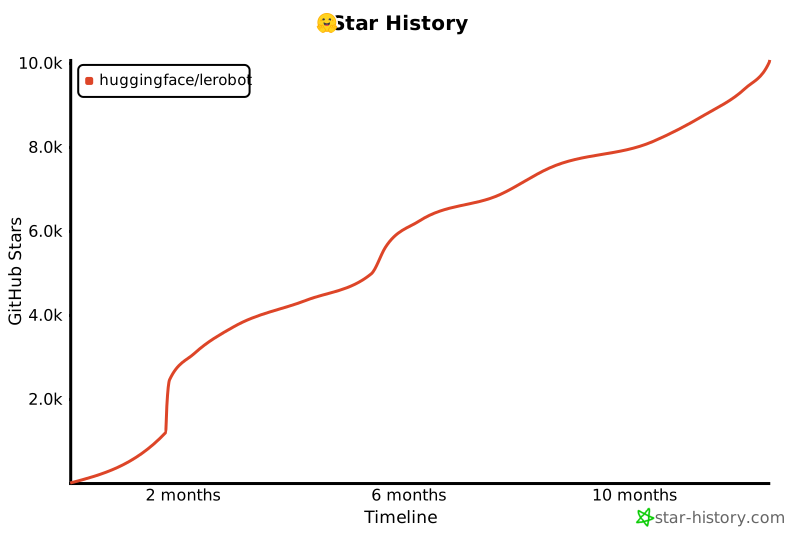](https://star-history.com/#huggingface/lerobot&Timeline)
|
||||
|
||||
-48
@@ -1,48 +0,0 @@
|
||||
# Security Policy
|
||||
|
||||
## Project Status & Philosophy
|
||||
|
||||
`lerobot` has so far been primarily a research and prototyping tool, which is why deployment security hasn’t been a strong focus until now. As `lerobot` continues to be adopted and deployed in production, we are paying much closer attention to these kinds of issues.
|
||||
|
||||
Fortunately, being an open-source project, the community can also help by reporting and fixing vulnerabilities. We appreciate your efforts to responsibly disclose your findings and will make every effort to acknowledge your contributions.
|
||||
|
||||
## Reporting a Vulnerability
|
||||
|
||||
To report a security issue, please use the GitHub Security Advisory ["Report a Vulnerability"](https://github.com/huggingface/lerobot/security/advisories/new) tab.
|
||||
|
||||
The `lerobot` team will send a response indicating the next steps in handling your report. After the initial reply to your report, the security team will keep you informed of the progress towards a fix and full announcement, and may ask for additional information or guidance.
|
||||
|
||||
#### Hugging Face Security Team
|
||||
|
||||
Since this project is part of the Hugging Face ecosystem, feel free to submit vulnerability reports directly to: **[security@huggingface.co](mailto:security@huggingface.co)**. Someone from the HF security team will review the report and recommend next steps.
|
||||
|
||||
#### Open Source Disclosures
|
||||
|
||||
If reporting a vulnerability specific to the open-source codebase (and not the underlying Hub infrastructure), you may also use [Huntr](https://huntr.com), a vulnerability disclosure program for open source software.
|
||||
|
||||
## Supported Versions
|
||||
|
||||
Currently, we treat `lerobot` as a rolling release. We prioritize security updates for the latest available version (`main` branch).
|
||||
|
||||
| Version | Supported |
|
||||
| -------- | --------- |
|
||||
| Latest | ✅ |
|
||||
| < Latest | ❌ |
|
||||
|
||||
## Secure Usage Guidelines
|
||||
|
||||
`lerobot` is tightly coupled to the Hugging Face Hub for sharing data and pretrained policies. When downloading artifacts uploaded by others, you expose yourself to risks. Please read below for recommendations to keep your runtime and robot environment safe.
|
||||
|
||||
### Remote Artefacts (Weights & Policies)
|
||||
|
||||
Models and policies uploaded to the Hugging Face Hub come in different formats. We heavily recommend uploading and downloading models in the [`safetensors`](https://github.com/huggingface/safetensors) format.
|
||||
|
||||
`safetensors` was developed specifically to prevent arbitrary code execution on your system, which is critical when running software on physical hardware/robots.
|
||||
|
||||
To avoid loading models from unsafe formats (e.g., `pickle`), you should ensure you are prioritizing `safetensors` files.
|
||||
|
||||
### Remote Code
|
||||
|
||||
Some models or environments on the Hub may require `trust_remote_code=True` to run custom architecture code.
|
||||
|
||||
Please **always** verify the content of the modeling files when using this argument. We recommend setting a specific `revision` (commit hash) when loading remote code to ensure you protect yourself from unverified updates to the repository.
|
||||
@@ -0,0 +1,11 @@
|
||||
compute_environment: LOCAL_MACHINE
|
||||
debug: false
|
||||
distributed_type: NO
|
||||
downcast_bf16: 'no'
|
||||
enable_cpu_affinity: false
|
||||
machine_rank: 0
|
||||
main_training_function: main
|
||||
mixed_precision: 'no'
|
||||
num_machines: 1
|
||||
num_processes: 1
|
||||
use_cpu: false
|
||||
@@ -0,0 +1,18 @@
|
||||
compute_environment: LOCAL_MACHINE
|
||||
debug: false
|
||||
distributed_type: MULTI_GPU
|
||||
downcast_bf16: 'no'
|
||||
enable_cpu_affinity: false
|
||||
gpu_ids: all
|
||||
machine_rank: 0
|
||||
main_training_function: main
|
||||
mixed_precision: 'no'
|
||||
num_machines: 1
|
||||
num_processes: 2
|
||||
rdzv_backend: static
|
||||
same_network: true
|
||||
tpu_env: []
|
||||
tpu_use_cluster: false
|
||||
tpu_use_sudo: false
|
||||
use_cpu: false
|
||||
dynamo_backend: "no"
|
||||
Executable
+102
@@ -0,0 +1,102 @@
|
||||
#!/usr/bin/env python
|
||||
|
||||
# Copyright 2024 The HuggingFace Inc. team. All rights reserved.
|
||||
#
|
||||
# Licensed under the Apache License, Version 2.0 (the "License");
|
||||
# you may not use this file except in compliance with the License.
|
||||
# You may obtain a copy of the License at
|
||||
#
|
||||
# http://www.apache.org/licenses/LICENSE-2.0
|
||||
#
|
||||
# Unless required by applicable law or agreed to in writing, software
|
||||
# distributed under the License is distributed on an "AS IS" BASIS,
|
||||
# WITHOUT WARRANTIES OR CONDITIONS OF ANY KIND, either express or implied.
|
||||
# See the License for the specific language governing permissions and
|
||||
# limitations under the License.
|
||||
"""Capture video feed from a camera as raw images."""
|
||||
|
||||
import argparse
|
||||
import datetime as dt
|
||||
import os
|
||||
import time
|
||||
from pathlib import Path
|
||||
|
||||
import cv2
|
||||
import rerun as rr
|
||||
|
||||
# see https://rerun.io/docs/howto/visualization/limit-ram
|
||||
RERUN_MEMORY_LIMIT = os.getenv("LEROBOT_RERUN_MEMORY_LIMIT", "5%")
|
||||
|
||||
|
||||
def display_and_save_video_stream(output_dir: Path, fps: int, width: int, height: int, duration: int):
|
||||
rr.init("lerobot_capture_camera_feed")
|
||||
rr.spawn(memory_limit=RERUN_MEMORY_LIMIT)
|
||||
|
||||
now = dt.datetime.now()
|
||||
capture_dir = output_dir / f"{now:%Y-%m-%d}" / f"{now:%H-%M-%S}"
|
||||
if not capture_dir.exists():
|
||||
capture_dir.mkdir(parents=True, exist_ok=True)
|
||||
|
||||
# Opens the default webcam
|
||||
cap = cv2.VideoCapture(0)
|
||||
if not cap.isOpened():
|
||||
print("Error: Could not open video stream.")
|
||||
return
|
||||
|
||||
cap.set(cv2.CAP_PROP_FPS, fps)
|
||||
cap.set(cv2.CAP_PROP_FRAME_WIDTH, width)
|
||||
cap.set(cv2.CAP_PROP_FRAME_HEIGHT, height)
|
||||
|
||||
frame_index = 0
|
||||
start_time = time.time()
|
||||
while time.time() - start_time < duration:
|
||||
ret, frame = cap.read()
|
||||
|
||||
if not ret:
|
||||
print("Error: Could not read frame.")
|
||||
break
|
||||
rr.log("video/stream", rr.Image(frame), static=True)
|
||||
cv2.imwrite(str(capture_dir / f"frame_{frame_index:06d}.png"), frame)
|
||||
frame_index += 1
|
||||
|
||||
# Release the capture
|
||||
cap.release()
|
||||
|
||||
# TODO(Steven): Add a graceful shutdown via a close() method for the Viewer context, though not currently supported in the Rerun API.
|
||||
|
||||
|
||||
if __name__ == "__main__":
|
||||
parser = argparse.ArgumentParser()
|
||||
|
||||
parser.add_argument(
|
||||
"--output-dir",
|
||||
type=Path,
|
||||
default=Path("outputs/cam_capture/"),
|
||||
help="Directory where the capture images are written. A subfolder named with the current date & time will be created inside it for each capture.",
|
||||
)
|
||||
parser.add_argument(
|
||||
"--fps",
|
||||
type=int,
|
||||
default=30,
|
||||
help="Frames Per Second of the capture.",
|
||||
)
|
||||
parser.add_argument(
|
||||
"--width",
|
||||
type=int,
|
||||
default=1280,
|
||||
help="Width of the captured images.",
|
||||
)
|
||||
parser.add_argument(
|
||||
"--height",
|
||||
type=int,
|
||||
default=720,
|
||||
help="Height of the captured images.",
|
||||
)
|
||||
parser.add_argument(
|
||||
"--duration",
|
||||
type=int,
|
||||
default=20,
|
||||
help="Duration in seconds for which the video stream should be captured.",
|
||||
)
|
||||
args = parser.parse_args()
|
||||
display_and_save_video_stream(**vars(args))
|
||||
@@ -21,13 +21,11 @@ See the provided README.md or run `python benchmark/video/run_video_benchmark.py
|
||||
|
||||
import argparse
|
||||
import datetime as dt
|
||||
import itertools
|
||||
import random
|
||||
import shutil
|
||||
from collections import OrderedDict
|
||||
from concurrent.futures import ThreadPoolExecutor, as_completed
|
||||
from pathlib import Path
|
||||
from threading import Lock
|
||||
|
||||
import einops
|
||||
import numpy as np
|
||||
@@ -39,11 +37,10 @@ from tqdm import tqdm
|
||||
|
||||
from lerobot.datasets.lerobot_dataset import LeRobotDataset
|
||||
from lerobot.datasets.video_utils import (
|
||||
decode_video_frames,
|
||||
decode_video_frames_torchvision,
|
||||
encode_video_frames,
|
||||
)
|
||||
from lerobot.utils.constants import OBS_IMAGE
|
||||
from lerobot.utils.utils import TimerManager
|
||||
from lerobot.utils.benchmark import TimeBenchmark
|
||||
|
||||
BASE_ENCODING = OrderedDict(
|
||||
[
|
||||
@@ -88,7 +85,7 @@ def load_original_frames(imgs_dir: Path, timestamps: list[float], fps: int) -> t
|
||||
frames = []
|
||||
for ts in timestamps:
|
||||
idx = int(ts * fps)
|
||||
frame = PIL.Image.open(imgs_dir / f"frame-{idx:06d}.png")
|
||||
frame = PIL.Image.open(imgs_dir / f"frame_{idx:06d}.png")
|
||||
frame = torch.from_numpy(np.array(frame))
|
||||
frame = frame.type(torch.float32) / 255
|
||||
frame = einops.rearrange(frame, "h w c -> c h w")
|
||||
@@ -99,35 +96,34 @@ def load_original_frames(imgs_dir: Path, timestamps: list[float], fps: int) -> t
|
||||
def save_decoded_frames(
|
||||
imgs_dir: Path, save_dir: Path, frames: torch.Tensor, timestamps: list[float], fps: int
|
||||
) -> None:
|
||||
if save_dir.exists() and len(list(save_dir.glob("frame-*.png"))) == len(timestamps):
|
||||
if save_dir.exists() and len(list(save_dir.glob("frame_*.png"))) == len(timestamps):
|
||||
return
|
||||
|
||||
save_dir.mkdir(parents=True, exist_ok=True)
|
||||
for i, ts in enumerate(timestamps):
|
||||
idx = int(ts * fps)
|
||||
frame_hwc = (frames[i].permute((1, 2, 0)) * 255).type(torch.uint8).cpu().numpy()
|
||||
PIL.Image.fromarray(frame_hwc).save(save_dir / f"frame-{idx:06d}_decoded.png")
|
||||
shutil.copyfile(imgs_dir / f"frame-{idx:06d}.png", save_dir / f"frame-{idx:06d}_original.png")
|
||||
PIL.Image.fromarray(frame_hwc).save(save_dir / f"frame_{idx:06d}_decoded.png")
|
||||
shutil.copyfile(imgs_dir / f"frame_{idx:06d}.png", save_dir / f"frame_{idx:06d}_original.png")
|
||||
|
||||
|
||||
def save_first_episode(imgs_dir: Path, dataset: LeRobotDataset) -> None:
|
||||
episode_index = 0
|
||||
ep_num_images = dataset.meta.episodes["length"][episode_index]
|
||||
if imgs_dir.exists() and len(list(imgs_dir.glob("frame-*.png"))) == ep_num_images:
|
||||
ep_num_images = dataset.episode_data_index["to"][0].item()
|
||||
if imgs_dir.exists() and len(list(imgs_dir.glob("frame_*.png"))) == ep_num_images:
|
||||
return
|
||||
|
||||
imgs_dir.mkdir(parents=True, exist_ok=True)
|
||||
hf_dataset = dataset.hf_dataset.with_format(None)
|
||||
|
||||
# We only save images from the first camera
|
||||
img_keys = [key for key in hf_dataset.features if key.startswith(OBS_IMAGE)]
|
||||
img_keys = [key for key in hf_dataset.features if key.startswith("observation.image")]
|
||||
imgs_dataset = hf_dataset.select_columns(img_keys[0])
|
||||
|
||||
for i, item in enumerate(
|
||||
tqdm(imgs_dataset, desc=f"saving {dataset.repo_id} first episode images", leave=False)
|
||||
):
|
||||
img = item[img_keys[0]]
|
||||
img.save(str(imgs_dir / f"frame-{i:06d}.png"), quality=100)
|
||||
img.save(str(imgs_dir / f"frame_{i:06d}.png"), quality=100)
|
||||
|
||||
if i >= ep_num_images - 1:
|
||||
break
|
||||
@@ -151,6 +147,18 @@ def sample_timestamps(timestamps_mode: str, ep_num_images: int, fps: int) -> lis
|
||||
return [idx / fps for idx in frame_indexes]
|
||||
|
||||
|
||||
def decode_video_frames(
|
||||
video_path: str,
|
||||
timestamps: list[float],
|
||||
tolerance_s: float,
|
||||
backend: str,
|
||||
) -> torch.Tensor:
|
||||
if backend in ["pyav", "video_reader"]:
|
||||
return decode_video_frames_torchvision(video_path, timestamps, tolerance_s, backend)
|
||||
else:
|
||||
raise NotImplementedError(backend)
|
||||
|
||||
|
||||
def benchmark_decoding(
|
||||
imgs_dir: Path,
|
||||
video_path: Path,
|
||||
@@ -162,8 +170,8 @@ def benchmark_decoding(
|
||||
num_workers: int = 4,
|
||||
save_frames: bool = False,
|
||||
) -> dict:
|
||||
def process_sample(sample: int, lock: Lock):
|
||||
time_benchmark = TimerManager(log=False)
|
||||
def process_sample(sample: int):
|
||||
time_benchmark = TimeBenchmark()
|
||||
timestamps = sample_timestamps(timestamps_mode, ep_num_images, fps)
|
||||
num_frames = len(timestamps)
|
||||
result = {
|
||||
@@ -172,13 +180,13 @@ def benchmark_decoding(
|
||||
"mse_values": [],
|
||||
}
|
||||
|
||||
with time_benchmark, lock:
|
||||
with time_benchmark:
|
||||
frames = decode_video_frames(video_path, timestamps=timestamps, tolerance_s=5e-1, backend=backend)
|
||||
result["load_time_video_ms"] = (time_benchmark.last * 1000) / num_frames
|
||||
result["load_time_video_ms"] = time_benchmark.result_ms / num_frames
|
||||
|
||||
with time_benchmark:
|
||||
original_frames = load_original_frames(imgs_dir, timestamps, fps)
|
||||
result["load_time_images_ms"] = (time_benchmark.last * 1000) / num_frames
|
||||
result["load_time_images_ms"] = time_benchmark.result_ms / num_frames
|
||||
|
||||
frames_np, original_frames_np = frames.numpy(), original_frames.numpy()
|
||||
for i in range(num_frames):
|
||||
@@ -205,10 +213,8 @@ def benchmark_decoding(
|
||||
# A sample is a single set of decoded frames specified by timestamps_mode (e.g. a single frame, 2 frames, etc.).
|
||||
# For each sample, we record metrics (loading time and quality metrics) which are then averaged over all samples.
|
||||
# As these samples are independent, we run them in parallel threads to speed up the benchmark.
|
||||
# Use a single shared lock for all worker threads
|
||||
shared_lock = Lock()
|
||||
with ThreadPoolExecutor(max_workers=num_workers) as executor:
|
||||
futures = [executor.submit(process_sample, i, shared_lock) for i in range(num_samples)]
|
||||
futures = [executor.submit(process_sample, i) for i in range(num_samples)]
|
||||
for future in tqdm(as_completed(futures), total=num_samples, desc="samples", leave=False):
|
||||
result = future.result()
|
||||
load_times_video_ms.append(result["load_time_video_ms"])
|
||||
@@ -259,8 +265,7 @@ def benchmark_encoding_decoding(
|
||||
overwrite=True,
|
||||
)
|
||||
|
||||
episode_index = 0
|
||||
ep_num_images = dataset.meta.episodes["length"][episode_index]
|
||||
ep_num_images = dataset.episode_data_index["to"][0].item()
|
||||
width, height = tuple(dataset[0][dataset.meta.camera_keys[0]].shape[-2:])
|
||||
num_pixels = width * height
|
||||
video_size_bytes = video_path.stat().st_size
|
||||
@@ -350,27 +355,24 @@ def main(
|
||||
imgs_dir = output_dir / "images" / dataset.repo_id.replace("/", "_")
|
||||
# We only use the first episode
|
||||
save_first_episode(imgs_dir, dataset)
|
||||
for duet in [
|
||||
dict(zip(encoding_benchmarks.keys(), unique_combination, strict=False))
|
||||
for unique_combination in itertools.product(*encoding_benchmarks.values())
|
||||
]:
|
||||
encoding_cfg = BASE_ENCODING.copy()
|
||||
encoding_cfg["vcodec"] = video_codec
|
||||
encoding_cfg["pix_fmt"] = pixel_format
|
||||
for key, value in duet.items():
|
||||
for key, values in tqdm(encoding_benchmarks.items(), desc="encodings (g, crf)", leave=False):
|
||||
for value in tqdm(values, desc=f"encodings ({key})", leave=False):
|
||||
encoding_cfg = BASE_ENCODING.copy()
|
||||
encoding_cfg["vcodec"] = video_codec
|
||||
encoding_cfg["pix_fmt"] = pixel_format
|
||||
encoding_cfg[key] = value
|
||||
args_path = Path("_".join(str(value) for value in encoding_cfg.values()))
|
||||
video_path = output_dir / "videos" / args_path / f"{repo_id.replace('/', '_')}.mp4"
|
||||
benchmark_table += benchmark_encoding_decoding(
|
||||
dataset,
|
||||
video_path,
|
||||
imgs_dir,
|
||||
encoding_cfg,
|
||||
decoding_benchmarks,
|
||||
num_samples,
|
||||
num_workers,
|
||||
save_frames,
|
||||
)
|
||||
args_path = Path("_".join(str(value) for value in encoding_cfg.values()))
|
||||
video_path = output_dir / "videos" / args_path / f"{repo_id.replace('/', '_')}.mp4"
|
||||
benchmark_table += benchmark_encoding_decoding(
|
||||
dataset,
|
||||
video_path,
|
||||
imgs_dir,
|
||||
encoding_cfg,
|
||||
decoding_benchmarks,
|
||||
num_samples,
|
||||
num_workers,
|
||||
save_frames,
|
||||
)
|
||||
|
||||
# Save intermediate results
|
||||
benchmark_df = pd.DataFrame(benchmark_table, columns=headers)
|
||||
@@ -404,9 +406,9 @@ if __name__ == "__main__":
|
||||
nargs="*",
|
||||
default=[
|
||||
"lerobot/pusht_image",
|
||||
"lerobot/aloha_mobile_shrimp_image",
|
||||
"lerobot/paris_street",
|
||||
"lerobot/kitchen",
|
||||
"aliberts/aloha_mobile_shrimp_image",
|
||||
"aliberts/paris_street",
|
||||
"aliberts/kitchen",
|
||||
],
|
||||
help="Datasets repo-ids to test against. First episodes only are used. Must be images.",
|
||||
)
|
||||
@@ -414,7 +416,7 @@ if __name__ == "__main__":
|
||||
"--vcodec",
|
||||
type=str,
|
||||
nargs="*",
|
||||
default=["h264", "hevc", "libsvtav1"],
|
||||
default=["libx264", "hevc", "libsvtav1"],
|
||||
help="Video codecs to be tested",
|
||||
)
|
||||
parser.add_argument(
|
||||
@@ -463,7 +465,7 @@ if __name__ == "__main__":
|
||||
"--backends",
|
||||
type=str,
|
||||
nargs="*",
|
||||
default=["torchcodec", "pyav"],
|
||||
default=["pyav", "video_reader"],
|
||||
help="Torchvision decoding backend to be tested.",
|
||||
)
|
||||
parser.add_argument(
|
||||
|
||||
@@ -39,7 +39,6 @@ RUN apt-get update && apt-get install -y --no-install-recommends \
|
||||
software-properties-common build-essential git curl \
|
||||
libglib2.0-0 libgl1-mesa-glx libegl1-mesa ffmpeg \
|
||||
libusb-1.0-0-dev speech-dispatcher libgeos-dev portaudio19-dev \
|
||||
cmake pkg-config ninja-build \
|
||||
&& add-apt-repository -y ppa:deadsnakes/ppa \
|
||||
&& apt-get update \
|
||||
&& apt-get install -y --no-install-recommends \
|
||||
@@ -73,16 +72,8 @@ ENV HOME=/home/user_lerobot \
|
||||
RUN uv venv --python python${PYTHON_VERSION}
|
||||
|
||||
# Install Python dependencies for caching
|
||||
COPY --chown=user_lerobot:user_lerobot setup.py pyproject.toml README.md MANIFEST.in ./
|
||||
COPY --chown=user_lerobot:user_lerobot pyproject.toml README.md MANIFEST.in ./
|
||||
COPY --chown=user_lerobot:user_lerobot src/ src/
|
||||
|
||||
ARG UNBOUND_DEPS=false
|
||||
|
||||
RUN if [ "$UNBOUND_DEPS" = "true" ]; then \
|
||||
sed -i 's/,[[:space:]]*<[0-9\.]*//g' pyproject.toml; \
|
||||
echo "Dependencies unbound:" && cat pyproject.toml; \
|
||||
fi
|
||||
|
||||
RUN uv pip install --no-cache ".[all]"
|
||||
|
||||
# Copy the rest of the application source code
|
||||
|
||||
+1
-10
@@ -31,7 +31,6 @@ ENV DEBIAN_FRONTEND=noninteractive \
|
||||
RUN apt-get update && apt-get install -y --no-install-recommends \
|
||||
build-essential git curl libglib2.0-0 libegl1-mesa-dev ffmpeg \
|
||||
libusb-1.0-0-dev speech-dispatcher libgeos-dev portaudio19-dev \
|
||||
cmake pkg-config ninja-build \
|
||||
&& curl -LsSf https://astral.sh/uv/install.sh | sh \
|
||||
&& mv /root/.local/bin/uv /usr/local/bin/uv \
|
||||
&& useradd --create-home --shell /bin/bash user_lerobot \
|
||||
@@ -59,16 +58,8 @@ ENV HOME=/home/user_lerobot \
|
||||
RUN uv venv
|
||||
|
||||
# Install Python dependencies for caching
|
||||
COPY --chown=user_lerobot:user_lerobot setup.py pyproject.toml README.md MANIFEST.in ./
|
||||
COPY --chown=user_lerobot:user_lerobot pyproject.toml README.md MANIFEST.in ./
|
||||
COPY --chown=user_lerobot:user_lerobot src/ src/
|
||||
|
||||
ARG UNBOUND_DEPS=false
|
||||
|
||||
RUN if [ "$UNBOUND_DEPS" = "true" ]; then \
|
||||
sed -i 's/,[[:space:]]*<[0-9\.]*//g' pyproject.toml; \
|
||||
echo "Dependencies unbound:" && cat pyproject.toml; \
|
||||
fi
|
||||
|
||||
RUN uv pip install --no-cache ".[all]"
|
||||
|
||||
# Copy the rest of the application code
|
||||
|
||||
@@ -7,82 +7,26 @@
|
||||
- sections:
|
||||
- local: il_robots
|
||||
title: Imitation Learning for Robots
|
||||
- local: il_sim
|
||||
title: Imitation Learning in Sim
|
||||
- local: cameras
|
||||
title: Cameras
|
||||
- local: bring_your_own_policies
|
||||
title: Bring Your Own Policies
|
||||
- local: integrate_hardware
|
||||
title: Bring Your Own Hardware
|
||||
- local: hilserl
|
||||
title: Train a Robot with RL
|
||||
- local: hilserl_sim
|
||||
title: Train RL in Simulation
|
||||
- local: multi_gpu_training
|
||||
title: Multi GPU training
|
||||
- local: peft_training
|
||||
title: Training with PEFT (e.g., LoRA)
|
||||
title: "Tutorials"
|
||||
- sections:
|
||||
- local: lerobot-dataset-v3
|
||||
title: Using LeRobotDataset
|
||||
- local: porting_datasets_v3
|
||||
title: Porting Large Datasets
|
||||
- local: using_dataset_tools
|
||||
title: Using the Dataset Tools
|
||||
title: "Datasets"
|
||||
- sections:
|
||||
- local: act
|
||||
title: ACT
|
||||
- local: smolvla
|
||||
title: SmolVLA
|
||||
- local: pi0
|
||||
title: π₀ (Pi0)
|
||||
- local: pi0fast
|
||||
title: π₀-FAST (Pi0Fast)
|
||||
- local: pi05
|
||||
title: π₀.₅ (Pi05)
|
||||
- local: groot
|
||||
title: NVIDIA GR00T N1.5
|
||||
- local: xvla
|
||||
title: X-VLA
|
||||
- local: walloss
|
||||
title: WALL-OSS
|
||||
title: "Policies"
|
||||
- sections:
|
||||
- local: sarm
|
||||
title: SARM
|
||||
title: "Reward Models"
|
||||
- sections:
|
||||
- local: async
|
||||
title: Use Async Inference
|
||||
- local: rtc
|
||||
title: Real-Time Chunking (RTC)
|
||||
title: "Inference"
|
||||
title: "Tutorials"
|
||||
- sections:
|
||||
- local: envhub
|
||||
title: Environments from the Hub
|
||||
- local: envhub_leisaac
|
||||
title: Control & Train Robots in Sim (LeIsaac)
|
||||
- local: envhub_isaaclab_arena
|
||||
title: NVIDIA IsaacLab Arena Environments
|
||||
- local: libero
|
||||
title: Using Libero
|
||||
- local: metaworld
|
||||
title: Using MetaWorld
|
||||
title: "Simulation"
|
||||
- sections:
|
||||
- local: introduction_processors
|
||||
title: Introduction to Robot Processors
|
||||
- local: debug_processor_pipeline
|
||||
title: Debug your processor pipeline
|
||||
- local: implement_your_own_processor
|
||||
title: Implement your own processor
|
||||
- local: processors_robots_teleop
|
||||
title: Processors for Robots and Teleoperators
|
||||
- local: env_processor
|
||||
title: Environment Processors
|
||||
title: "Robot Processors"
|
||||
- local: smolvla
|
||||
title: Finetune SmolVLA
|
||||
title: "Policies"
|
||||
- sections:
|
||||
- local: hope_jr
|
||||
title: Hope Jr
|
||||
- local: so101
|
||||
title: SO-101
|
||||
- local: so100
|
||||
@@ -91,23 +35,7 @@
|
||||
title: Koch v1.1
|
||||
- local: lekiwi
|
||||
title: LeKiwi
|
||||
- local: hope_jr
|
||||
title: Hope Jr
|
||||
- local: reachy2
|
||||
title: Reachy 2
|
||||
- local: unitree_g1
|
||||
title: Unitree G1
|
||||
- local: earthrover_mini_plus
|
||||
title: Earth Rover Mini
|
||||
title: "Robots"
|
||||
- sections:
|
||||
- local: phone_teleop
|
||||
title: Phone
|
||||
title: "Teleoperators"
|
||||
- sections:
|
||||
- local: torch_accelerators
|
||||
title: PyTorch accelerators
|
||||
title: "Supported Hardware"
|
||||
- sections:
|
||||
- local: notebooks
|
||||
title: Notebooks
|
||||
|
||||
@@ -1,92 +0,0 @@
|
||||
# ACT (Action Chunking with Transformers)
|
||||
|
||||
ACT is a **lightweight and efficient policy for imitation learning**, especially well-suited for fine-grained manipulation tasks. It's the **first model we recommend when you're starting out** with LeRobot due to its fast training time, low computational requirements, and strong performance.
|
||||
|
||||
<div class="video-container">
|
||||
<iframe
|
||||
width="100%"
|
||||
height="415"
|
||||
src="https://www.youtube.com/embed/ft73x0LfGpM"
|
||||
title="LeRobot ACT Tutorial"
|
||||
frameborder="0"
|
||||
allow="accelerometer; autoplay; clipboard-write; encrypted-media; gyroscope; picture-in-picture"
|
||||
allowfullscreen
|
||||
></iframe>
|
||||
</div>
|
||||
|
||||
_Watch this tutorial from the LeRobot team to learn how ACT works: [LeRobot ACT Tutorial](https://www.youtube.com/watch?v=ft73x0LfGpM)_
|
||||
|
||||
## Model Overview
|
||||
|
||||
Action Chunking with Transformers (ACT) was introduced in the paper [Learning Fine-Grained Bimanual Manipulation with Low-Cost Hardware](https://arxiv.org/abs/2304.13705) by Zhao et al. The policy was designed to enable precise, contact-rich manipulation tasks using affordable hardware and minimal demonstration data.
|
||||
|
||||
### Why ACT is Great for Beginners
|
||||
|
||||
ACT stands out as an excellent starting point for several reasons:
|
||||
|
||||
- **Fast Training**: Trains in a few hours on a single GPU
|
||||
- **Lightweight**: Only ~80M parameters, making it efficient and easy to work with
|
||||
- **Data Efficient**: Often achieves high success rates with just 50 demonstrations
|
||||
|
||||
### Architecture
|
||||
|
||||
ACT uses a transformer-based architecture with three main components:
|
||||
|
||||
1. **Vision Backbone**: ResNet-18 processes images from multiple camera viewpoints
|
||||
2. **Transformer Encoder**: Synthesizes information from camera features, joint positions, and a learned latent variable
|
||||
3. **Transformer Decoder**: Generates coherent action sequences using cross-attention
|
||||
|
||||
The policy takes as input:
|
||||
|
||||
- Multiple RGB images (e.g., from wrist cameras, front/top cameras)
|
||||
- Current robot joint positions
|
||||
- A latent style variable `z` (learned during training, set to zero during inference)
|
||||
|
||||
And outputs a chunk of `k` future action sequences.
|
||||
|
||||
## Installation Requirements
|
||||
|
||||
1. Install LeRobot by following our [Installation Guide](./installation).
|
||||
2. ACT is included in the base LeRobot installation, so no additional dependencies are needed!
|
||||
|
||||
## Training ACT
|
||||
|
||||
ACT works seamlessly with the standard LeRobot training pipeline. Here's a complete example for training ACT on your dataset:
|
||||
|
||||
```bash
|
||||
lerobot-train \
|
||||
--dataset.repo_id=${HF_USER}/your_dataset \
|
||||
--policy.type=act \
|
||||
--output_dir=outputs/train/act_your_dataset \
|
||||
--job_name=act_your_dataset \
|
||||
--policy.device=cuda \
|
||||
--wandb.enable=true \
|
||||
--policy.repo_id=${HF_USER}/act_policy
|
||||
```
|
||||
|
||||
### Training Tips
|
||||
|
||||
1. **Start with defaults**: ACT's default hyperparameters work well for most tasks
|
||||
2. **Training duration**: Expect a few hours for 100k training steps on a single GPU
|
||||
3. **Batch size**: Start with batch size 8 and adjust based on your GPU memory
|
||||
|
||||
### Train using Google Colab
|
||||
|
||||
If your local computer doesn't have a powerful GPU, you can utilize Google Colab to train your model by following the [ACT training notebook](./notebooks#training-act).
|
||||
|
||||
## Evaluating ACT
|
||||
|
||||
Once training is complete, you can evaluate your ACT policy using the `lerobot-record` command with your trained policy. This will run inference and record evaluation episodes:
|
||||
|
||||
```bash
|
||||
lerobot-record \
|
||||
--robot.type=so100_follower \
|
||||
--robot.port=/dev/ttyACM0 \
|
||||
--robot.id=my_robot \
|
||||
--robot.cameras="{ front: {type: opencv, index_or_path: 0, width: 640, height: 480, fps: 30}}" \
|
||||
--display_data=true \
|
||||
--dataset.repo_id=${HF_USER}/eval_act_your_dataset \
|
||||
--dataset.num_episodes=10 \
|
||||
--dataset.single_task="Your task description" \
|
||||
--policy.path=${HF_USER}/act_policy
|
||||
```
|
||||
+17
-18
@@ -31,15 +31,15 @@ Then, spin up a policy server (in one terminal, or in a separate machine) specif
|
||||
You can spin up a policy server running:
|
||||
|
||||
```shell
|
||||
python -m lerobot.async_inference.policy_server \
|
||||
--host=127.0.0.1 \
|
||||
--port=8080
|
||||
python src/lerobot/scripts/server/policy_server.py \
|
||||
--host=127.0.0.1 \
|
||||
--port=8080 \
|
||||
```
|
||||
|
||||
This will start a policy server listening on `127.0.0.1:8080` (`localhost`, port 8080). At this stage, the policy server is empty, as all information related to which policy to run and with which parameters are specified during the first handshake with the client. Spin up a client with:
|
||||
|
||||
```shell
|
||||
python -m lerobot.async_inference.robot_client \
|
||||
python src/lerobot/scripts/server/robot_client.py \
|
||||
--server_address=127.0.0.1:8080 \ # SERVER: the host address and port of the policy server
|
||||
--robot.type=so100_follower \ # ROBOT: your robot type
|
||||
--robot.port=/dev/tty.usbmodem585A0076841 \ # ROBOT: your robot port
|
||||
@@ -113,17 +113,17 @@ As such, spinning up a policy server is as easy as specifying the host address a
|
||||
<hfoptions id="start_policy_server">
|
||||
<hfoption id="Command">
|
||||
```bash
|
||||
python -m lerobot.async_inference.policy_server \
|
||||
--host=127.0.0.1 \
|
||||
--port=8080
|
||||
python -m lerobot.scripts.server.policy_server \
|
||||
--host="localhost" \
|
||||
--port=8080
|
||||
```
|
||||
</hfoption>
|
||||
<hfoption id="API example">
|
||||
|
||||
<!-- prettier-ignore-start -->
|
||||
```python
|
||||
from lerobot.async_inference.configs import PolicyServerConfig
|
||||
from lerobot.async_inference.policy_server import serve
|
||||
from lerobot.scripts.server.configs import PolicyServerConfig
|
||||
from lerobot.scripts.server.policy_server import serve
|
||||
|
||||
config = PolicyServerConfig(
|
||||
host="localhost",
|
||||
@@ -148,7 +148,7 @@ The `RobotClient` streams observations to the `PolicyServer`, and receives actio
|
||||
<hfoptions id="start_robot_client">
|
||||
<hfoption id="Command">
|
||||
```bash
|
||||
python -m lerobot.async_inference.robot_client \
|
||||
python src/lerobot/scripts/server/robot_client.py \
|
||||
--server_address=127.0.0.1:8080 \ # SERVER: the host address and port of the policy server
|
||||
--robot.type=so100_follower \ # ROBOT: your robot type
|
||||
--robot.port=/dev/tty.usbmodem585A0076841 \ # ROBOT: your robot port
|
||||
@@ -169,11 +169,11 @@ python -m lerobot.async_inference.robot_client \
|
||||
<!-- prettier-ignore-start -->
|
||||
```python
|
||||
import threading
|
||||
from lerobot.robots.so_follower import SO100FollowerConfig
|
||||
from lerobot.robots.so100_follower import SO100FollowerConfig
|
||||
from lerobot.cameras.opencv.configuration_opencv import OpenCVCameraConfig
|
||||
from lerobot.async_inference.configs import RobotClientConfig
|
||||
from lerobot.async_inference.robot_client import RobotClient
|
||||
from lerobot.async_inference.helpers import visualize_action_queue_size
|
||||
from lerobot.scripts.server.configs import RobotClientConfig
|
||||
from lerobot.scripts.server.robot_client import RobotClient
|
||||
from lerobot.scripts.server.helpers import visualize_action_queue_size
|
||||
|
||||
# 1. Create the robot instance
|
||||
"""Check out the cameras available in your setup by running `python lerobot/find_cameras.py`"""
|
||||
@@ -195,9 +195,8 @@ client_cfg = RobotClientConfig(
|
||||
robot=robot_cfg,
|
||||
server_address="localhost:8080",
|
||||
policy_device="mps",
|
||||
client_device="cpu",
|
||||
policy_type="smolvla",
|
||||
pretrained_name_or_path="<user>/smolvla_async",
|
||||
pretrained_name_or_path="fracapuano/smolvla_async",
|
||||
chunk_size_threshold=0.5,
|
||||
actions_per_chunk=50, # make sure this is less than the max actions of the policy
|
||||
)
|
||||
@@ -279,7 +278,7 @@ We found the default values of `actions_per_chunk` and `chunk_size_threshold` to
|
||||
2. **Adjust your `fps` based on inference latency.** While the server generates a new action chunk, the client is not idle and is stepping through its current action queue. If the two processes happen at fundamentally different speeds, the client might end up with an empty queue. As such, you should reduce your fps if you consistently run out of actions in queue.
|
||||
3. **Adjust `chunk_size_threshold`**.
|
||||
- Values closer to `0.0` result in almost sequential behavior. Values closer to `1.0` → send observation every step (more bandwidth, relies on good world-model).
|
||||
- We found values around 0.5-0.6 to work well. If you want to tweak this, spin up a `RobotClient` setting the `--debug_visualize_queue_size` to `True`. This will plot the action queue size evolution at runtime, and you can use it to find the value of `chunk_size_threshold` that works best for your setup.
|
||||
- We found values around 0.5-0.6 to work well. If you want to tweak this, spin up a `RobotClient` setting the `--debug-visualize-queue-size` to `True`. This will plot the action queue size evolution at runtime, and you can use it to find the value of `chunk_size_threshold` that works best for your setup.
|
||||
|
||||
<p align="center">
|
||||
<img
|
||||
@@ -290,7 +289,7 @@ We found the default values of `actions_per_chunk` and `chunk_size_threshold` to
|
||||
<p align="center">
|
||||
<i>
|
||||
The action queue size is plotted at runtime when the
|
||||
`--debug_visualize_queue_size` flag is passed, for various levels of
|
||||
`--debug-visualize-queue-size` flag is passed, for various levels of
|
||||
`chunk_size_threshold` (`g` in the SmolVLA paper).
|
||||
</i>
|
||||
</p>
|
||||
|
||||
@@ -1,61 +1,5 @@
|
||||
# Backward compatibility
|
||||
|
||||
## Policy Normalization Migration (PR #1452)
|
||||
|
||||
**Breaking Change**: LeRobot policies no longer have built-in normalization layers embedded in their weights. Normalization is now handled by external `PolicyProcessorPipeline` components.
|
||||
|
||||
### What changed?
|
||||
|
||||
| | Before PR #1452 | After PR #1452 |
|
||||
| -------------------------- | ------------------------------------------------ | ------------------------------------------------------------ |
|
||||
| **Normalization Location** | Embedded in model weights (`normalize_inputs.*`) | External `PolicyProcessorPipeline` components |
|
||||
| **Model State Dict** | Contains normalization statistics | **Clean weights only** - no normalization parameters |
|
||||
| **Usage** | `policy(batch)` handles everything | `preprocessor(batch)` → `policy(...)` → `postprocessor(...)` |
|
||||
|
||||
### Impact on existing models
|
||||
|
||||
- Models trained **before** PR #1452 have normalization embedded in their weights
|
||||
- These models need migration to work with the new `PolicyProcessorPipeline` system
|
||||
- The migration extracts normalization statistics and creates separate processor pipelines
|
||||
|
||||
### Migrating old models
|
||||
|
||||
Use the migration script to convert models with embedded normalization:
|
||||
|
||||
```shell
|
||||
python src/lerobot/processor/migrate_policy_normalization.py \
|
||||
--pretrained-path lerobot/act_aloha_sim_transfer_cube_human \
|
||||
--push-to-hub \
|
||||
--branch migrated
|
||||
```
|
||||
|
||||
The script:
|
||||
|
||||
1. **Extracts** normalization statistics from model weights
|
||||
2. **Creates** external preprocessor and postprocessor pipelines
|
||||
3. **Removes** normalization layers from model weights
|
||||
4. **Saves** clean model + processor pipelines
|
||||
5. **Pushes** to Hub with automatic PR creation
|
||||
|
||||
### Using migrated models
|
||||
|
||||
```python
|
||||
# New usage pattern (after migration)
|
||||
from lerobot.policies.factory import make_policy, make_pre_post_processors
|
||||
|
||||
# Load model and processors separately
|
||||
policy = make_policy(config, ds_meta=dataset.meta)
|
||||
preprocessor, postprocessor = make_pre_post_processors(
|
||||
policy_cfg=config,
|
||||
dataset_stats=dataset.meta.stats
|
||||
)
|
||||
|
||||
# Process data through pipeline
|
||||
processed_batch = preprocessor(raw_batch)
|
||||
action = policy.select_action(processed_batch)
|
||||
final_action = postprocessor(action)
|
||||
```
|
||||
|
||||
## Hardware API redesign
|
||||
|
||||
PR [#777](https://github.com/huggingface/lerobot/pull/777) improves the LeRobot calibration but is **not backward-compatible**. Below is a overview of what changed and how you can continue to work with datasets created before this pull request.
|
||||
|
||||
@@ -1,175 +0,0 @@
|
||||
# Bring Your Own Policies
|
||||
|
||||
This tutorial explains how to integrate your own custom policy implementations into the LeRobot ecosystem, allowing you to leverage all LeRobot tools for training, evaluation, and deployment while using your own algorithms.
|
||||
|
||||
## Step 1: Create a Policy Package
|
||||
|
||||
Your custom policy should be organized as an installable Python package following LeRobot's plugin conventions.
|
||||
|
||||
### Package Structure
|
||||
|
||||
Create a package with the prefix `lerobot_policy_` (IMPORTANT!) followed by your policy name:
|
||||
|
||||
```bash
|
||||
lerobot_policy_my_custom_policy/
|
||||
├── pyproject.toml
|
||||
└── src/
|
||||
└── lerobot_policy_my_custom_policy/
|
||||
├── __init__.py
|
||||
├── configuration_my_custom_policy.py
|
||||
├── modeling_my_custom_policy.py
|
||||
└── processor_my_custom_policy.py
|
||||
```
|
||||
|
||||
### Package Configuration
|
||||
|
||||
Set up your `pyproject.toml`:
|
||||
|
||||
```toml
|
||||
[project]
|
||||
name = "lerobot_policy_my_custom_policy"
|
||||
version = "0.1.0"
|
||||
dependencies = [
|
||||
# your policy-specific dependencies
|
||||
]
|
||||
requires-python = ">= 3.11"
|
||||
|
||||
[build-system]
|
||||
build-backend = # your-build-backend
|
||||
requires = # your-build-system
|
||||
```
|
||||
|
||||
## Step 2: Define the Policy Configuration
|
||||
|
||||
Create a configuration class that inherits from `PreTrainedConfig` and registers your policy type:
|
||||
|
||||
```python
|
||||
# configuration_my_custom_policy.py
|
||||
from dataclasses import dataclass, field
|
||||
from lerobot.configs.policies import PreTrainedConfig
|
||||
from lerobot.configs.types import NormalizationMode
|
||||
|
||||
@PreTrainedConfig.register_subclass("my_custom_policy")
|
||||
@dataclass
|
||||
class MyCustomPolicyConfig(PreTrainedConfig):
|
||||
"""Configuration class for MyCustomPolicy.
|
||||
|
||||
Args:
|
||||
n_obs_steps: Number of observation steps to use as input
|
||||
horizon: Action prediction horizon
|
||||
n_action_steps: Number of action steps to execute
|
||||
hidden_dim: Hidden dimension for the policy network
|
||||
# Add your policy-specific parameters here
|
||||
"""
|
||||
# ...PreTrainedConfig fields...
|
||||
pass
|
||||
|
||||
def __post_init__(self):
|
||||
super().__post_init__()
|
||||
# Add any validation logic here
|
||||
|
||||
def validate_features(self) -> None:
|
||||
"""Validate input/output feature compatibility."""
|
||||
# Implement validation logic for your policy's requirements
|
||||
pass
|
||||
```
|
||||
|
||||
## Step 3: Implement the Policy Class
|
||||
|
||||
Create your policy implementation by inheriting from LeRobot's base `PreTrainedPolicy` class:
|
||||
|
||||
```python
|
||||
# modeling_my_custom_policy.py
|
||||
import torch
|
||||
import torch.nn as nn
|
||||
from typing import Dict, Any
|
||||
|
||||
from lerobot.policies.pretrained import PreTrainedPolicy
|
||||
from .configuration_my_custom_policy import MyCustomPolicyConfig
|
||||
|
||||
class MyCustomPolicy(PreTrainedPolicy):
|
||||
config_class = MyCustomPolicyConfig
|
||||
name = "my_custom_policy"
|
||||
|
||||
def __init__(self, config: MyCustomPolicyConfig, dataset_stats: Dict[str, Any] = None):
|
||||
super().__init__(config, dataset_stats)
|
||||
...
|
||||
```
|
||||
|
||||
## Step 4: Add Data Processors
|
||||
|
||||
Create processor functions:
|
||||
|
||||
```python
|
||||
# processor_my_custom_policy.py
|
||||
from typing import Dict, Any
|
||||
import torch
|
||||
|
||||
|
||||
def make_my_custom_policy_pre_post_processors(
|
||||
config,
|
||||
) -> tuple[
|
||||
PolicyProcessorPipeline[dict[str, Any], dict[str, Any]],
|
||||
PolicyProcessorPipeline[PolicyAction, PolicyAction],
|
||||
]:
|
||||
"""Create preprocessing and postprocessing functions for your policy."""
|
||||
pass # Define your preprocessing and postprocessing logic here
|
||||
|
||||
```
|
||||
|
||||
## Step 5: Package Initialization
|
||||
|
||||
Expose your classes in the package's `__init__.py`:
|
||||
|
||||
```python
|
||||
# __init__.py
|
||||
"""Custom policy package for LeRobot."""
|
||||
|
||||
try:
|
||||
import lerobot # noqa: F401
|
||||
except ImportError:
|
||||
raise ImportError(
|
||||
"lerobot is not installed. Please install lerobot to use this policy package."
|
||||
)
|
||||
|
||||
from .configuration_my_custom_policy import MyCustomPolicyConfig
|
||||
from .modeling_my_custom_policy import MyCustomPolicy
|
||||
from .processor_my_custom_policy import make_my_custom_policy_pre_post_processors
|
||||
|
||||
__all__ = [
|
||||
"MyCustomPolicyConfig",
|
||||
"MyCustomPolicy",
|
||||
"make_my_custom_policy_pre_post_processors",
|
||||
]
|
||||
```
|
||||
|
||||
## Step 6: Installation and Usage
|
||||
|
||||
### Install Your Policy Package
|
||||
|
||||
```bash
|
||||
cd lerobot_policy_my_custom_policy
|
||||
pip install -e .
|
||||
|
||||
# Or install from PyPI if published
|
||||
pip install lerobot_policy_my_custom_policy
|
||||
```
|
||||
|
||||
### Use Your Policy
|
||||
|
||||
Once installed, your policy automatically integrates with LeRobot's training and evaluation tools:
|
||||
|
||||
```bash
|
||||
lerobot-train \
|
||||
--policy.type my_custom_policy \
|
||||
--env.type pusht \
|
||||
--steps 200000
|
||||
```
|
||||
|
||||
## Examples and Community Contributions
|
||||
|
||||
Check out these example policy implementations:
|
||||
|
||||
- [DiTFlow Policy](https://github.com/danielsanjosepro/lerobot_policy_ditflow) - Diffusion Transformer policy with flow-matching objective. Try it out in this example: [DiTFlow Example](https://github.com/danielsanjosepro/test_lerobot_policy_ditflow)
|
||||
|
||||
Share your policy implementations with the community! 🤗
|
||||
@@ -1,299 +0,0 @@
|
||||
# Debug Your Processor Pipeline
|
||||
|
||||
Processor pipelines can be complex, especially when chaining multiple transformation steps.
|
||||
Unlike simple function calls, pipelines lack natural observability, you can't easily see what happens
|
||||
between each step or where things go wrong.
|
||||
This guide provides debugging tools and techniques specifically designed to address these challenges
|
||||
and help you understand data flow through your pipelines.
|
||||
|
||||
We'll explore three complementary debugging approaches: **hooks** for runtime monitoring, **step-through debugging** for detailed inspection, and **feature validation** for catching structural mismatches. Each serves a different purpose and together they provide complete visibility into your pipeline's behavior.
|
||||
|
||||
## Understanding Hooks
|
||||
|
||||
Hooks are functions that get called at specific points during pipeline execution.
|
||||
They provide a way to inspect, monitor, or modify data without changing your pipeline code.
|
||||
Think of them as "event listeners" for your pipeline.
|
||||
|
||||
### What is a Hook?
|
||||
|
||||
A hook is a callback function that gets automatically invoked at specific moments during pipeline execution.
|
||||
The concept comes from event-driven programming, imagine you could "hook into" the pipeline's execution flow to observe or react to what's happening.
|
||||
|
||||
Think of hooks like inserting checkpoints into your pipeline. Every time the pipeline reaches one of these checkpoints, it pauses briefly to call your hook function, giving you a chance to inspect the current state, log information, and validate data.
|
||||
|
||||
A hook is simply a function that accepts two parameters:
|
||||
|
||||
- `step_idx: int` - The index of the current processing step (0, 1, 2, etc.)
|
||||
- `transition: EnvTransition` - The data transition at that point in the pipeline
|
||||
|
||||
The beauty of hooks is their non-invasive nature: you can add monitoring, validation, or debugging logic without changing a single line of your pipeline code. The pipeline remains clean and focused on its core logic, while hooks handle the cross-cutting concerns like logging, monitoring, and debugging.
|
||||
|
||||
### Before vs After Hooks
|
||||
|
||||
The pipeline supports two types of hooks:
|
||||
|
||||
- **Before hooks** (`register_before_step_hook`) - Called before each step executes
|
||||
- **After hooks** (`register_after_step_hook`) - Called after each step completes
|
||||
|
||||
```python
|
||||
def before_hook(step_idx: int, transition: EnvTransition):
|
||||
"""Called before step processes the transition."""
|
||||
print(f"About to execute step {step_idx}")
|
||||
# Useful for: logging, validation, setup
|
||||
|
||||
def after_hook(step_idx: int, transition: EnvTransition):
|
||||
"""Called after step has processed the transition."""
|
||||
print(f"Completed step {step_idx}")
|
||||
# Useful for: monitoring results, cleanup, debugging
|
||||
|
||||
processor.register_before_step_hook(before_hook)
|
||||
processor.register_after_step_hook(after_hook)
|
||||
```
|
||||
|
||||
### Implementing a NaN Detection Hook
|
||||
|
||||
Here's a practical example of a hook that detects NaN values:
|
||||
|
||||
```python
|
||||
def check_nans(step_idx: int, transition: EnvTransition):
|
||||
"""Check for NaN values in observations."""
|
||||
obs = transition.get(TransitionKey.OBSERVATION)
|
||||
if obs:
|
||||
for key, value in obs.items():
|
||||
if isinstance(value, torch.Tensor) and torch.isnan(value).any():
|
||||
print(f"NaN detected in {key} at step {step_idx}")
|
||||
|
||||
# Register the hook to run after each step
|
||||
processor.register_after_step_hook(check_nans)
|
||||
|
||||
# Process your data - the hook will be called automatically
|
||||
output = processor(input_data)
|
||||
|
||||
# Remove the hook when done debugging
|
||||
processor.unregister_after_step_hook(check_nans)
|
||||
```
|
||||
|
||||
### How Hooks Work Internally
|
||||
|
||||
Understanding the internal mechanism helps you use hooks more effectively. The pipeline maintains two separate lists: one for before-step hooks and another for after-step hooks. When you register a hook, it's simply appended to the appropriate list.
|
||||
|
||||
During execution, the pipeline follows a strict sequence: for each processing step, it first calls all before-hooks in registration order, then executes the actual step transformation, and finally calls all after-hooks in registration order. This creates a predictable, sandwich-like structure around each step.
|
||||
|
||||
The key insight is that hooks don't change the core pipeline logic—they're purely additive. The pipeline's `_forward` method orchestrates this dance between hooks and processing steps, ensuring that your debugging or monitoring code runs at exactly the right moments without interfering with the main data flow.
|
||||
|
||||
Here's a simplified view of how the pipeline executes hooks:
|
||||
|
||||
```python
|
||||
class DataProcessorPipeline:
|
||||
def __init__(self):
|
||||
self.steps = [...]
|
||||
self.before_step_hooks = [] # List of before hooks
|
||||
self.after_step_hooks = [] # List of after hooks
|
||||
|
||||
def _forward(self, transition):
|
||||
"""Internal method that processes the transition through all steps."""
|
||||
for step_idx, processor_step in enumerate(self.steps):
|
||||
# 1. Call all BEFORE hooks
|
||||
for hook in self.before_step_hooks:
|
||||
hook(step_idx, transition)
|
||||
|
||||
# 2. Execute the actual processing step
|
||||
transition = processor_step(transition)
|
||||
|
||||
# 3. Call all AFTER hooks
|
||||
for hook in self.after_step_hooks:
|
||||
hook(step_idx, transition)
|
||||
|
||||
return transition
|
||||
|
||||
def register_before_step_hook(self, hook_fn):
|
||||
self.before_step_hooks.append(hook_fn)
|
||||
|
||||
def register_after_step_hook(self, hook_fn):
|
||||
self.after_step_hooks.append(hook_fn)
|
||||
```
|
||||
|
||||
### Execution Flow
|
||||
|
||||
The execution flow looks like this:
|
||||
|
||||
```
|
||||
Input → Before Hook → Step 0 → After Hook → Before Hook → Step 1 → After Hook → ... → Output
|
||||
```
|
||||
|
||||
For example, with 3 steps and both hook types:
|
||||
|
||||
```python
|
||||
def timing_before(step_idx, transition):
|
||||
print(f"⏱️ Starting step {step_idx}")
|
||||
|
||||
def validation_after(step_idx, transition):
|
||||
print(f"✅ Completed step {step_idx}")
|
||||
|
||||
processor.register_before_step_hook(timing_before)
|
||||
processor.register_after_step_hook(validation_after)
|
||||
|
||||
# This will output:
|
||||
# ⏱️ Starting step 0
|
||||
# ✅ Completed step 0
|
||||
# ⏱️ Starting step 1
|
||||
# ✅ Completed step 1
|
||||
# ⏱️ Starting step 2
|
||||
# ✅ Completed step 2
|
||||
```
|
||||
|
||||
### Multiple Hooks
|
||||
|
||||
You can register multiple hooks of the same type - they execute in the order registered:
|
||||
|
||||
```python
|
||||
def log_shapes(step_idx: int, transition: EnvTransition):
|
||||
obs = transition.get(TransitionKey.OBSERVATION)
|
||||
if obs:
|
||||
print(f"Step {step_idx} observation shapes:")
|
||||
for key, value in obs.items():
|
||||
if isinstance(value, torch.Tensor):
|
||||
print(f" {key}: {value.shape}")
|
||||
|
||||
processor.register_after_step_hook(check_nans) # Executes first
|
||||
processor.register_after_step_hook(log_shapes) # Executes second
|
||||
|
||||
# Both hooks will be called after each step in registration order
|
||||
output = processor(input_data)
|
||||
```
|
||||
|
||||
While hooks are excellent for monitoring specific issues (like NaN detection) or gathering metrics during normal pipeline execution, sometimes you need to dive deeper. When you want to understand exactly what happens at each step or debug complex transformation logic, step-through debugging provides the detailed inspection you need.
|
||||
|
||||
## Step-Through Debugging
|
||||
|
||||
Step-through debugging is like having a slow-motion replay for your pipeline. Instead of watching your data get transformed in one quick blur from input to output, you can pause and examine what happens after each individual step.
|
||||
|
||||
This approach is particularly valuable when you're trying to understand a complex pipeline, debug unexpected behavior, or verify that each transformation is working as expected. Unlike hooks, which are great for automated monitoring, step-through debugging gives you manual, interactive control over the inspection process.
|
||||
|
||||
The `step_through()` method is a generator that yields the transition state after each processing step, allowing you to inspect intermediate results. Think of it as creating a series of snapshots of your data as it flows through the pipeline—each snapshot shows you exactly what your data looks like after one more transformation has been applied.
|
||||
|
||||
### How Step-Through Works
|
||||
|
||||
The `step_through()` method fundamentally changes how the pipeline executes. Instead of running all steps in sequence and only returning the final result, it transforms the pipeline into an iterator that yields intermediate results.
|
||||
|
||||
Here's what happens internally: the method starts by converting your input data into the pipeline's internal transition format, then yields this initial state. Next, it applies the first processing step and yields the result. Then it applies the second step to that result and yields again, and so on. Each `yield` gives you a complete snapshot of the transition at that point.
|
||||
|
||||
This generator pattern is powerful because it's lazy—the pipeline only computes the next step when you ask for it. This means you can stop at any point, inspect the current state thoroughly, and decide whether to continue. You're not forced to run the entire pipeline just to debug one problematic step.
|
||||
|
||||
Instead of running the entire pipeline and only seeing the final result, `step_through()` pauses after each step and gives you the intermediate transition:
|
||||
|
||||
```python
|
||||
# This creates a generator that yields intermediate states
|
||||
for i, intermediate_result in enumerate(processor.step_through(input_data)):
|
||||
print(f"=== After step {i} ===")
|
||||
|
||||
# Inspect the observation at this stage
|
||||
obs = intermediate_result.get(TransitionKey.OBSERVATION)
|
||||
if obs:
|
||||
for key, value in obs.items():
|
||||
if isinstance(value, torch.Tensor):
|
||||
print(f"{key}: shape={value.shape}, dtype={value.dtype}")
|
||||
```
|
||||
|
||||
### Interactive Debugging with Breakpoints
|
||||
|
||||
You can add breakpoints in the step-through loop to interactively debug:
|
||||
|
||||
```python
|
||||
# Step through the pipeline with debugging
|
||||
for i, intermediate in enumerate(processor.step_through(data)):
|
||||
print(f"Step {i}: {processor.steps[i].__class__.__name__}")
|
||||
|
||||
# Set a breakpoint to inspect the current state
|
||||
breakpoint() # Debugger will pause here
|
||||
|
||||
# You can now inspect 'intermediate' in the debugger:
|
||||
# - Check tensor shapes and values
|
||||
# - Verify expected transformations
|
||||
# - Look for unexpected changes
|
||||
```
|
||||
|
||||
During the debugger session, you can:
|
||||
|
||||
- Examine `intermediate[TransitionKey.OBSERVATION]` to see observation data
|
||||
- Check `intermediate[TransitionKey.ACTION]` for action transformations
|
||||
- Inspect any part of the transition to understand what each step does
|
||||
|
||||
Step-through debugging is perfect for understanding the _data_ transformations, but what about the _structure_ of that data? While hooks and step-through help you debug runtime behavior, you also need to ensure your pipeline produces data in the format expected by downstream components. This is where feature contract validation comes in.
|
||||
|
||||
## Validating Feature Contracts
|
||||
|
||||
Feature contracts define what data structure your pipeline expects as input and produces as output.
|
||||
Validating these contracts helps catch mismatches early.
|
||||
|
||||
### Understanding Feature Contracts
|
||||
|
||||
Each processor step has a `transform_features()` method that describes how it changes the data structure:
|
||||
|
||||
```python
|
||||
# Get the expected output features from your pipeline
|
||||
initial_features = {
|
||||
PipelineFeatureType.OBSERVATION: {
|
||||
"observation.state": PolicyFeature(type=FeatureType.STATE, shape=(7,)),
|
||||
"observation.image": PolicyFeature(type=FeatureType.IMAGE, shape=(3, 224, 224))
|
||||
},
|
||||
PipelineFeatureType.ACTION: {
|
||||
"action": PolicyFeature(type=FeatureType.ACTION, shape=(4,))
|
||||
}
|
||||
}
|
||||
|
||||
# Check what your pipeline will output
|
||||
output_features = processor.transform_features(initial_features)
|
||||
|
||||
print("Input features:")
|
||||
for feature_type, features in initial_features.items():
|
||||
print(f" {feature_type}:")
|
||||
for key, feature in features.items():
|
||||
print(f" {key}: {feature.type.value}, shape={feature.shape}")
|
||||
|
||||
print("\nOutput features:")
|
||||
for feature_type, features in output_features.items():
|
||||
print(f" {feature_type}:")
|
||||
for key, feature in features.items():
|
||||
print(f" {key}: {feature.type.value}, shape={feature.shape}")
|
||||
```
|
||||
|
||||
### Verifying Expected Features
|
||||
|
||||
Check that your pipeline produces the features you expect:
|
||||
|
||||
```python
|
||||
# Define what features you expect the pipeline to produce
|
||||
expected_keys = ["observation.state", "observation.image", "action"]
|
||||
|
||||
print("Validating feature contract...")
|
||||
for expected_key in expected_keys:
|
||||
found = False
|
||||
for feature_type, features in output_features.items():
|
||||
if expected_key in features:
|
||||
feature = features[expected_key]
|
||||
print(f"✅ {expected_key}: {feature.type.value}, shape={feature.shape}")
|
||||
found = True
|
||||
break
|
||||
|
||||
if not found:
|
||||
print(f"❌ Missing expected feature: {expected_key}")
|
||||
```
|
||||
|
||||
This validation helps ensure your pipeline will work correctly with downstream components that expect specific data structures.
|
||||
|
||||
## Summary
|
||||
|
||||
Now that you understand the three debugging approaches, you can tackle any pipeline issue systematically:
|
||||
|
||||
1. **Hooks** - For runtime monitoring and validation without modifying pipeline code
|
||||
2. **Step-through** - For inspecting intermediate states and understanding transformations
|
||||
3. **Feature validation** - For ensuring data structure contracts are met
|
||||
|
||||
**When to use each approach:**
|
||||
|
||||
- Start with **step-through debugging** when you need to understand what your pipeline does or when something unexpected happens
|
||||
- Add **hooks** for continuous monitoring during development and production to catch issues automatically
|
||||
- Use **feature validation** before deployment to ensure your pipeline works with downstream components
|
||||
|
||||
These three tools work together to give you the complete observability that complex pipelines naturally lack. With hooks watching for issues, step-through helping you understand behavior, and feature validation ensuring compatibility, you'll be able to debug any pipeline confidently and efficiently.
|
||||
@@ -1,225 +0,0 @@
|
||||
# EarthRover Mini Plus
|
||||
|
||||
The EarthRover Mini Plus is a fully open source mobile robot that connects through the cloud using the Frodobots SDK. This lets you control the robot and record datasets for training AI models.
|
||||
|
||||
## What You Need
|
||||
|
||||
### Hardware
|
||||
|
||||
- EarthRover Mini robot
|
||||
- Computer with Python 3.10 or newer
|
||||
- Internet connection
|
||||
|
||||
### Setting Up the Frodobots SDK
|
||||
|
||||
The robot needs the [Frodobots SDK](https://github.com/frodobots-org/earth-rovers-sdk) running on your computer. Here's how:
|
||||
|
||||
1. Download and install the SDK:
|
||||
|
||||
```bash
|
||||
git clone https://github.com/frodobots-org/earth-rovers-sdk.git
|
||||
cd earth-rovers-sdk
|
||||
pip install -r requirements.txt
|
||||
```
|
||||
|
||||
2. Save Credentials:
|
||||
|
||||
Write your .env variables with the SDK API key and bot name provided by the Frodobots team.
|
||||
|
||||
```bash
|
||||
SDK_API_TOKEN=your_sdk_api_token_here
|
||||
BOT_SLUG=your_bot_slug_here
|
||||
CHROME_EXECUTABLE_PATH=/path/to/chrome_or_chromium
|
||||
# Default value is MAP_ZOOM_LEVEL=18 https://wiki.openstreetmap.org/wiki/Zoom_levels
|
||||
MAP_ZOOM_LEVEL=18
|
||||
MISSION_SLUG=your_mission_slug_here
|
||||
# Image quality between 0.1 and 1.0 (default: 0.8)
|
||||
# Recommended: 0.8 for better performance
|
||||
IMAGE_QUALITY=0.8
|
||||
# Image format: jpeg, png or webp (default: png)
|
||||
# Recommended: jpeg for better performance and lower bandwidth usage
|
||||
IMAGE_FORMAT=jpeg
|
||||
```
|
||||
|
||||
3. Start the SDK:
|
||||
|
||||
```bash
|
||||
hypercorn main:app --reload
|
||||
```
|
||||
|
||||
4. Open your web browser and go to `http://localhost:8000`, then click "Join"
|
||||
|
||||
The SDK gives you:
|
||||
|
||||
- Live video from front and rear cameras
|
||||
|
||||
> [!IMPORTANT]
|
||||
> The SDK must be running before you can use the robot.
|
||||
|
||||
## Install LeRobot
|
||||
|
||||
Follow our [Installation Guide](./installation) to install LeRobot.
|
||||
|
||||
In addition to the base installation, install the EarthRover Mini dependencies:
|
||||
|
||||
```bash
|
||||
pip install -e .
|
||||
```
|
||||
|
||||
## How It Works
|
||||
|
||||
The robot uses the internet to communicate:
|
||||
|
||||
- **Movement commands**: Sent through the SDK
|
||||
- **Camera video**: Received from the SDK
|
||||
- **Robot info**: Battery, location, speed from the SDK
|
||||
|
||||
You don't need to plug anything in - it all works through the SDK.
|
||||
|
||||
## Calibration
|
||||
|
||||
No calibration needed! The robot is ready to use as soon as the SDK is running.
|
||||
|
||||
## Controlling the Robot
|
||||
|
||||
You control the robot using your keyboard - just like playing a video game with WASD keys.
|
||||
|
||||
### Keyboard Controls
|
||||
|
||||
| Key | Action |
|
||||
| --- | -------------------------------- |
|
||||
| W | Move forward |
|
||||
| S | Move backward |
|
||||
| A | Turn left (with forward motion) |
|
||||
| D | Turn right (with forward motion) |
|
||||
| Q | Rotate left in place |
|
||||
| E | Rotate right in place |
|
||||
| X | Stop all movement |
|
||||
| +/= | Increase speed |
|
||||
| - | Decrease speed |
|
||||
| ESC | Disconnect |
|
||||
|
||||
### Speed Settings
|
||||
|
||||
You can adjust how fast the robot moves:
|
||||
|
||||
- **Forward/backward speed**: Default is full speed (1.0)
|
||||
- **Turning speed**: Default is full speed (1.0)
|
||||
- **Speed changes**: Use +/- keys to adjust by 0.1 each time
|
||||
|
||||
### Try It Out
|
||||
|
||||
Test driving the robot before recording data:
|
||||
|
||||
```python
|
||||
from lerobot.robots.earthrover_mini_plus import EarthRoverMiniPlus, EarthRoverMiniPlusConfig
|
||||
from lerobot.teleoperators.keyboard import KeyboardRoverTeleop, KeyboardRoverTeleopConfig
|
||||
|
||||
# Initialize robot
|
||||
robot_config = EarthRoverMiniPlusConfig()
|
||||
robot = EarthRoverMiniPlus(robot_config)
|
||||
|
||||
# Initialize teleoperator
|
||||
teleop_config = KeyboardRoverTeleopConfig(
|
||||
linear_speed=1.0,
|
||||
angular_speed=1.0,
|
||||
speed_increment=0.1
|
||||
)
|
||||
teleop = KeyboardRoverTeleop(teleop_config)
|
||||
|
||||
# Connect
|
||||
robot.connect()
|
||||
teleop.connect()
|
||||
|
||||
# Teleoperate (use keyboard controls)
|
||||
try:
|
||||
while True:
|
||||
action = teleop.get_action()
|
||||
robot.send_action(action)
|
||||
except KeyboardInterrupt:
|
||||
pass
|
||||
finally:
|
||||
robot.disconnect()
|
||||
teleop.disconnect()
|
||||
```
|
||||
|
||||
> [!TIP]
|
||||
> If you're using a Mac, you might need to give Terminal permission to access your keyboard for teleoperation. Go to System Preferences > Security & Privacy > Input Monitoring and check the box for Terminal.
|
||||
|
||||
## Recording Data
|
||||
|
||||
Once you can drive the robot well, you can start recording data to train AI models. The system records:
|
||||
|
||||
- **What you do**: How you move the robot (forward, backward, turning)
|
||||
- **What the robot sees**:
|
||||
- Videos from both cameras
|
||||
- Robot speed and direction
|
||||
- Battery level and location
|
||||
- GPS position and signal
|
||||
- Other sensor data
|
||||
- **When it happened**: Timestamps for everything
|
||||
|
||||
### Setting Up Hugging Face
|
||||
|
||||
We use Hugging Face to store your data online. First, log in with your token from [Hugging Face settings](https://huggingface.co/settings/tokens):
|
||||
|
||||
```bash
|
||||
huggingface-cli login --token ${HUGGINGFACE_TOKEN} --add-to-git-credential
|
||||
```
|
||||
|
||||
Store your Hugging Face username:
|
||||
|
||||
```bash
|
||||
HF_USER=$(huggingface-cli whoami | head -n 1)
|
||||
echo $HF_USER
|
||||
```
|
||||
|
||||
### Start Recording
|
||||
|
||||
Use the standard recording command:
|
||||
|
||||
```bash
|
||||
python src/lerobot/scripts/lerobot_record.py \
|
||||
--robot.type=earthrover_mini_plus \
|
||||
--teleop.type=keyboard_rover \
|
||||
--dataset.repo_id=your_username/dataset_name \
|
||||
--dataset.num_episodes=2 \
|
||||
--dataset.fps=10 \
|
||||
--dataset.single_task="Navigate around obstacles" \
|
||||
--display_data=true
|
||||
```
|
||||
|
||||
Replace `your_username/dataset_name` with your Hugging Face username and a name for your dataset.
|
||||
|
||||
### What Gets Saved
|
||||
|
||||
Your dataset includes:
|
||||
|
||||
**Your Actions (2 things)**:
|
||||
|
||||
- How much you moved forward/backward
|
||||
- How much you turned left/right
|
||||
|
||||
**Robot Observations (12 things)**:
|
||||
|
||||
- Front camera video
|
||||
- Rear camera video
|
||||
- Current speed
|
||||
- Battery level
|
||||
- Which way the robot is facing
|
||||
- GPS location (latitude, longitude, signal strength)
|
||||
- Network signal strength
|
||||
- Vibration level
|
||||
- Lamp status (on/off)
|
||||
|
||||
### Where Your Data Goes
|
||||
|
||||
On your computer: `~/.cache/huggingface/lerobot/{repo-id}`
|
||||
|
||||
After recording, your data automatically uploads to your Hugging Face page:
|
||||
|
||||
```bash
|
||||
echo https://huggingface.co/datasets/${HF_USER}/earthrover-navigation
|
||||
```
|
||||
|
||||
Your dataset will be tagged with `LeRobot` for community discovery.
|
||||
@@ -1,418 +0,0 @@
|
||||
# Environment Processors
|
||||
|
||||
Environment processors are a critical layer in LeRobot's data processing architecture that handle **environment-specific** transformations, separate from policy-specific processing. This separation of concerns enables cleaner code, better modularity, and easier experimentation with different environments and policies.
|
||||
|
||||
## Why Environment Processors?
|
||||
|
||||
When working with different robot environments (LIBERO, MetaWorld, Aloha, etc.), each environment often has unique data formats, coordinate systems, and conventions that need standardization **before** policy processing. Without environment processors, these transformations would be:
|
||||
|
||||
1. **Hardcoded in environment code** - Making it difficult to experiment with different state representations
|
||||
2. **Duplicated across policies** - Each policy would need to handle environment-specific quirks
|
||||
3. **Mixed with policy logic** - Violating separation of concerns and making debugging harder
|
||||
|
||||
Environment processors solve this by providing a **dedicated processing layer** between raw environment observations and policy inputs.
|
||||
|
||||
## The Processing Pipeline
|
||||
|
||||
Here's how data flows through the complete processing pipeline during evaluation:
|
||||
|
||||
```python
|
||||
# In lerobot_eval.py rollout() function:
|
||||
|
||||
# 1. Raw environment observation (numpy arrays, various formats)
|
||||
raw_observation = env.step(action)
|
||||
|
||||
# 2. Convert numpy to torch, normalize images [0,1]
|
||||
observation = preprocess_observation(raw_observation)
|
||||
|
||||
# 3. Add task metadata (for multi-task environments)
|
||||
observation = add_envs_task(env, observation)
|
||||
|
||||
# 4. ENVIRONMENT-SPECIFIC preprocessing (NEW!)
|
||||
# - Flatten robot states
|
||||
# - Rotate images to match dataset conventions
|
||||
# - Handle environment-specific coordinate systems
|
||||
observation = env_preprocessor(observation)
|
||||
|
||||
# 5. POLICY-SPECIFIC preprocessing
|
||||
# - Normalize with dataset statistics
|
||||
# - Add batch dimensions
|
||||
# - Move to GPU
|
||||
# - Tokenize language instructions
|
||||
observation = preprocessor(observation)
|
||||
|
||||
# 6. Policy inference
|
||||
action = policy.select_action(observation)
|
||||
|
||||
# 7. POLICY-SPECIFIC postprocessing
|
||||
# - Unnormalize actions
|
||||
# - Remove batch dimensions
|
||||
action = postprocessor(action)
|
||||
|
||||
# 8. ENVIRONMENT-SPECIFIC postprocessing (NEW!)
|
||||
# - Convert action formats if needed
|
||||
# - Apply environment-specific constraints
|
||||
action_transition = {"action": action}
|
||||
action_transition = env_postprocessor(action_transition)
|
||||
action = action_transition["action"]
|
||||
|
||||
# 9. Execute in environment
|
||||
env.step(action)
|
||||
```
|
||||
|
||||
## The Benefits
|
||||
|
||||
### 1. **Separation of Concerns**
|
||||
|
||||
Environment processors handle transformations specific to the **environment's data format**, while policy processors handle transformations specific to the **model's requirements**.
|
||||
|
||||
```python
|
||||
# ❌ Before: Mixed concerns
|
||||
class LiberoVLAPolicy:
|
||||
def preprocess(self, obs):
|
||||
# Environment-specific: Flatten robot state (shouldn't be in policy!)
|
||||
state = self._flatten_robot_state(obs["robot_state"])
|
||||
# Policy-specific: Normalize with dataset stats
|
||||
state = self.normalizer(state)
|
||||
return state
|
||||
|
||||
# ✅ After: Clear separation
|
||||
# Environment processor: Handles LIBERO's nested robot state
|
||||
env_preprocessor = LiberoProcessorStep() # Flattens robot_state
|
||||
|
||||
# Policy processor: Handles model requirements
|
||||
policy_preprocessor = NormalizerProcessorStep(stats=dataset_stats)
|
||||
```
|
||||
|
||||
### 2. **Flexibility and Reusability**
|
||||
|
||||
The same policy can work with different environment processors, and the same environment processor can work with different policies:
|
||||
|
||||
```python
|
||||
# Use SmolVLA policy with LIBERO environment
|
||||
libero_preprocessor, libero_postprocessor = make_env_pre_post_processors(libero_cfg)
|
||||
smolvla_preprocessor, smolvla_postprocessor = make_pre_post_processors(smolvla_cfg)
|
||||
|
||||
# Or use ACT policy with the same LIBERO environment
|
||||
libero_preprocessor, libero_postprocessor = make_env_pre_post_processors(libero_cfg)
|
||||
act_preprocessor, act_postprocessor = make_pre_post_processors(act_cfg)
|
||||
```
|
||||
|
||||
### 3. **Easier Experimentation**
|
||||
|
||||
Want to try different state representations for LIBERO? Just create a new processor:
|
||||
|
||||
```python
|
||||
# Original: 8D state (pos + quat→axisangle + gripper)
|
||||
@ProcessorStepRegistry.register("libero_processor")
|
||||
class LiberoProcessorStep(ObservationProcessorStep):
|
||||
def _process_observation(self, obs):
|
||||
eef_pos = robot_state["eef"]["pos"] # 3D
|
||||
eef_axisangle = quat2axisangle(quat) # 3D
|
||||
gripper = robot_state["gripper"]["qpos"] # 2D
|
||||
state = torch.cat([eef_pos, eef_axisangle, gripper], dim=-1) # 8D
|
||||
return state
|
||||
|
||||
# Experiment: Add velocity for better control
|
||||
@ProcessorStepRegistry.register("libero_velocity_processor")
|
||||
class LiberoVelocityProcessorStep(ObservationProcessorStep):
|
||||
def _process_observation(self, obs):
|
||||
# Include velocities for 14D state
|
||||
eef_pos = robot_state["eef"]["pos"] # 3D
|
||||
eef_axisangle = quat2axisangle(quat) # 3D
|
||||
eef_vel = robot_state["eef"]["vel"] # 3D (NEW)
|
||||
gripper_pos = robot_state["gripper"]["qpos"] # 2D
|
||||
gripper_vel = robot_state["gripper"]["qvel"] # 3D (NEW)
|
||||
state = torch.cat([eef_pos, eef_axisangle, eef_vel,
|
||||
gripper_pos, gripper_vel], dim=-1) # 14D
|
||||
return state
|
||||
```
|
||||
|
||||
### 4. **Cleaner Environment Code**
|
||||
|
||||
Environments expose **all available data** without needing to know what downstream models will use:
|
||||
|
||||
```python
|
||||
# LIBERO environment exposes full robot state
|
||||
observation = {
|
||||
"pixels": {"image": img, "image2": img2},
|
||||
"robot_state": {
|
||||
"eef": {"pos": ..., "quat": ..., "vel": ..., "mat": ..., "axisangle": ...},
|
||||
"gripper": {"qpos": ..., "qvel": ...},
|
||||
"joints": {"pos": ..., "vel": ...}
|
||||
}
|
||||
}
|
||||
|
||||
# Environment processor decides what to use
|
||||
# Policy processor handles model-specific transformations
|
||||
```
|
||||
|
||||
## Using Environment Processors
|
||||
|
||||
### Factory Function
|
||||
|
||||
The `make_env_pre_post_processors` function follows the same pattern as `make_pre_post_processors` for policies:
|
||||
|
||||
```python
|
||||
from lerobot.envs.factory import make_env_pre_post_processors
|
||||
from lerobot.envs.configs import LiberoEnv, PushtEnv
|
||||
|
||||
# For LIBERO: Returns LiberoProcessorStep in preprocessor
|
||||
libero_cfg = LiberoEnv(task="libero_spatial", camera_name=["agentview"])
|
||||
env_preprocessor, env_postprocessor = make_env_pre_post_processors(libero_cfg)
|
||||
|
||||
# For other environments: Returns identity processors (no-op)
|
||||
pusht_cfg = PushtEnv()
|
||||
env_preprocessor, env_postprocessor = make_env_pre_post_processors(pusht_cfg)
|
||||
```
|
||||
|
||||
### Implementation in `envs/factory.py`
|
||||
|
||||
```python
|
||||
def make_env_pre_post_processors(
|
||||
env_cfg: EnvConfig,
|
||||
) -> tuple[
|
||||
PolicyProcessorPipeline[dict[str, Any], dict[str, Any]],
|
||||
PolicyProcessorPipeline[dict[str, Any], dict[str, Any]],
|
||||
]:
|
||||
"""
|
||||
Create preprocessor and postprocessor pipelines for environment observations.
|
||||
|
||||
Args:
|
||||
env_cfg: The configuration of the environment.
|
||||
|
||||
Returns:
|
||||
A tuple containing:
|
||||
- preprocessor: Pipeline that processes environment observations
|
||||
- postprocessor: Pipeline that processes environment outputs
|
||||
"""
|
||||
# For LIBERO environments, add the LiberoProcessorStep to preprocessor
|
||||
if isinstance(env_cfg, LiberoEnv) or "libero" in env_cfg.type:
|
||||
preprocessor = PolicyProcessorPipeline(steps=[LiberoProcessorStep()])
|
||||
else:
|
||||
# For all other environments, return an identity preprocessor
|
||||
preprocessor = PolicyProcessorPipeline(steps=[])
|
||||
|
||||
# Postprocessor is currently identity for all environments
|
||||
# Future: Could add environment-specific action transformations
|
||||
postprocessor = PolicyProcessorPipeline(steps=[])
|
||||
|
||||
return preprocessor, postprocessor
|
||||
```
|
||||
|
||||
### Integration in Evaluation
|
||||
|
||||
In `lerobot_eval.py`, the environment processors are created once and used throughout:
|
||||
|
||||
```python
|
||||
def eval_main(cfg: EvalPipelineConfig):
|
||||
# Create environment
|
||||
envs = make_env(cfg.env, n_envs=cfg.eval.batch_size)
|
||||
|
||||
# Create policy
|
||||
policy = make_policy(cfg=cfg.policy, env_cfg=cfg.env)
|
||||
|
||||
# Create policy processors
|
||||
preprocessor, postprocessor = make_pre_post_processors(
|
||||
policy_cfg=cfg.policy,
|
||||
pretrained_path=cfg.policy.pretrained_path,
|
||||
)
|
||||
|
||||
# Create environment processors (NEW!)
|
||||
env_preprocessor, env_postprocessor = make_env_pre_post_processors(env_cfg=cfg.env)
|
||||
|
||||
# Run evaluation with both processor types
|
||||
eval_policy_all(
|
||||
envs=envs,
|
||||
policy=policy,
|
||||
env_preprocessor=env_preprocessor, # Environment-specific
|
||||
env_postprocessor=env_postprocessor, # Environment-specific
|
||||
preprocessor=preprocessor, # Policy-specific
|
||||
postprocessor=postprocessor, # Policy-specific
|
||||
n_episodes=cfg.eval.n_episodes,
|
||||
)
|
||||
```
|
||||
|
||||
## Example: LIBERO Environment Processor
|
||||
|
||||
The `LiberoProcessorStep` demonstrates a real-world environment processor:
|
||||
|
||||
```python
|
||||
from lerobot.processor.pipeline import ObservationProcessorStep
|
||||
|
||||
@dataclass
|
||||
@ProcessorStepRegistry.register(name="libero_processor")
|
||||
class LiberoProcessorStep(ObservationProcessorStep):
|
||||
"""
|
||||
Processes LIBERO observations into the LeRobot format.
|
||||
|
||||
**State Processing:**
|
||||
- Extracts end-effector position (3D)
|
||||
- Converts quaternion to axis-angle representation (3D)
|
||||
- Extracts gripper joint positions (2D)
|
||||
- Concatenates into 8D state vector
|
||||
|
||||
**Image Processing:**
|
||||
- Rotates images 180° to match HuggingFaceVLA/libero convention
|
||||
"""
|
||||
|
||||
def _process_observation(self, observation):
|
||||
processed_obs = observation.copy()
|
||||
|
||||
# Process images: Flip 180° for camera convention
|
||||
for key in list(processed_obs.keys()):
|
||||
if key.startswith("observation.images."):
|
||||
img = processed_obs[key]
|
||||
img = torch.flip(img, dims=[2, 3]) # Flip H and W
|
||||
processed_obs[key] = img
|
||||
|
||||
# Process robot_state: Flatten to 8D vector
|
||||
if "observation.robot_state" in processed_obs:
|
||||
robot_state = processed_obs.pop("observation.robot_state")
|
||||
|
||||
eef_pos = robot_state["eef"]["pos"] # (B, 3)
|
||||
eef_quat = robot_state["eef"]["quat"] # (B, 4)
|
||||
gripper_qpos = robot_state["gripper"]["qpos"] # (B, 2)
|
||||
|
||||
# Convert quaternion to axis-angle
|
||||
eef_axisangle = self._quat2axisangle(eef_quat) # (B, 3)
|
||||
|
||||
# Concatenate into single state vector
|
||||
state = torch.cat((eef_pos, eef_axisangle, gripper_qpos), dim=-1)
|
||||
state = state.float()
|
||||
|
||||
processed_obs["observation.state"] = state
|
||||
|
||||
return processed_obs
|
||||
```
|
||||
|
||||
### Why These Transformations?
|
||||
|
||||
1. **Image Rotation**: The HuggingFaceVLA/libero dataset has images rotated 180° from the raw LIBERO simulator. The processor handles this convention mismatch so policies trained on the dataset work seamlessly.
|
||||
|
||||
2. **State Flattening**: The raw LIBERO environment exposes nested dictionaries with all available state information (position, quaternion, velocity, matrix representation, etc.). The processor:
|
||||
- Selects the relevant components (pos, quat, gripper)
|
||||
- Converts quaternion to axis-angle (more suitable for learning)
|
||||
- Flattens to a single 8D vector that policies expect
|
||||
|
||||
3. **Flexibility**: The environment still exposes **all** raw data. If you want to try different state representations (e.g., including velocities, using matrix representation instead of axis-angle), you can create a new processor without modifying the environment code.
|
||||
|
||||
## Adding Environment Processors for New Environments
|
||||
|
||||
To add environment processors for a new environment:
|
||||
|
||||
### 1. Create the Processor Step
|
||||
|
||||
```python
|
||||
# In src/lerobot/processor/env_processor.py
|
||||
|
||||
@dataclass
|
||||
@ProcessorStepRegistry.register(name="myenv_processor")
|
||||
class MyEnvProcessorStep(ObservationProcessorStep):
|
||||
"""Process observations from MyEnv."""
|
||||
|
||||
def _process_observation(self, observation):
|
||||
processed = observation.copy()
|
||||
|
||||
# Your environment-specific transformations
|
||||
if "myenv.specific.state" in processed:
|
||||
state = processed.pop("myenv.specific.state")
|
||||
# Transform to standard format
|
||||
processed["observation.state"] = self._transform_state(state)
|
||||
|
||||
return processed
|
||||
```
|
||||
|
||||
### 2. Update the Factory
|
||||
|
||||
```python
|
||||
# In src/lerobot/envs/factory.py
|
||||
|
||||
def make_env_pre_post_processors(env_cfg: EnvConfig):
|
||||
if isinstance(env_cfg, LiberoEnv) or "libero" in env_cfg.type:
|
||||
preprocessor = PolicyProcessorPipeline(steps=[LiberoProcessorStep()])
|
||||
elif isinstance(env_cfg, MyEnvConfig) or "myenv" in env_cfg.type:
|
||||
preprocessor = PolicyProcessorPipeline(steps=[MyEnvProcessorStep()])
|
||||
else:
|
||||
preprocessor = PolicyProcessorPipeline(steps=[])
|
||||
|
||||
postprocessor = PolicyProcessorPipeline(steps=[])
|
||||
return preprocessor, postprocessor
|
||||
```
|
||||
|
||||
### 3. Use in Evaluation
|
||||
|
||||
No changes needed! The evaluation script automatically uses the appropriate processor:
|
||||
|
||||
```bash
|
||||
lerobot-eval \
|
||||
--policy.path=lerobot/my_policy \
|
||||
--env.type=myenv \ # Automatically uses MyEnvProcessorStep
|
||||
--eval.n_episodes=10
|
||||
```
|
||||
|
||||
## Future: Environment Postprocessors
|
||||
|
||||
Currently, postprocessors are identity (no-op) for all environments. Future use cases include:
|
||||
|
||||
### Action Space Transformations
|
||||
|
||||
```python
|
||||
@dataclass
|
||||
class MyEnvActionPostprocessor(ProcessorStep):
|
||||
"""Convert policy actions to environment-specific format."""
|
||||
|
||||
def __call__(self, transition: EnvTransition) -> EnvTransition:
|
||||
action = transition["action"]
|
||||
|
||||
# Example: Convert from Cartesian to joint space
|
||||
if self.action_space == "joint":
|
||||
action = self.ik_solver(action)
|
||||
|
||||
# Example: Apply environment-specific safety limits
|
||||
action = torch.clamp(action, self.min_action, self.max_action)
|
||||
|
||||
transition["action"] = action
|
||||
return transition
|
||||
```
|
||||
|
||||
### Coordinate System Conversions
|
||||
|
||||
```python
|
||||
@dataclass
|
||||
class CoordinateTransformPostprocessor(ProcessorStep):
|
||||
"""Transform actions between coordinate systems."""
|
||||
|
||||
def __call__(self, transition: EnvTransition) -> EnvTransition:
|
||||
action = transition["action"]
|
||||
|
||||
# Example: Policy outputs in world frame, env expects base frame
|
||||
action = self.world_to_base_transform(action)
|
||||
|
||||
transition["action"] = action
|
||||
return transition
|
||||
```
|
||||
|
||||
## Best Practices
|
||||
|
||||
1. **Keep environment processors simple**: They should only handle environment-specific data format issues, not complex learning-related transformations.
|
||||
|
||||
2. **Use policy processors for model requirements**: Normalization, batching, device placement, and tokenization belong in policy processors.
|
||||
|
||||
3. **Expose all data from environments**: Let processors decide what to use rather than hardcoding choices in the environment.
|
||||
|
||||
4. **Document conventions**: Clearly document any coordinate system conventions, camera orientations, or data formats that your processor handles.
|
||||
|
||||
5. **Test independently**: Environment processors should be testable without loading full policies or environments.
|
||||
|
||||
## Summary
|
||||
|
||||
Environment processors provide a **clean separation** between environment-specific data transformations and policy-specific model requirements. This architecture:
|
||||
|
||||
- ✅ Enables easy experimentation with different state representations
|
||||
- ✅ Allows policies to work seamlessly across different environments
|
||||
- ✅ Keeps environment code focused on simulation/hardware interface
|
||||
- ✅ Makes processor pipelines more maintainable and debuggable
|
||||
- ✅ Follows the single responsibility principle
|
||||
|
||||
The key insight: **Environments define data formats, processors standardize them, policies consume standardized data.** Each layer has a clear, focused responsibility.
|
||||
@@ -1,431 +0,0 @@
|
||||
# Loading Environments from the Hub
|
||||
|
||||
The **EnvHub** feature allows you to load simulation environments directly from the Hugging Face Hub with a single line of code. This unlocks a powerful new model for collaboration: instead of environments being locked away inside monolithic libraries, anyone can publish custom environments and share them with the community.
|
||||
|
||||
## What is EnvHub?
|
||||
|
||||
EnvHub lets you create custom robotics simulation environments with your own robot models and scenarios, and make them easily usable by anyone through the LeRobot framework.
|
||||
|
||||
EnvHub packages are stored on the Hugging Face Hub, and can be seamlessly pulled and used in your AI robotics projects through LeRobot with a single line of code.
|
||||
|
||||
Thanks to EnvHub, you can:
|
||||
|
||||
1. **Create and publish environments** to the Hugging Face Hub as Git repositories, and distribute complex physics simulations without packaging hassles
|
||||
2. **Load environments** dynamically, without installing them as packages
|
||||
3. **Version and track** environment changes using Git semantics
|
||||
4. **Discover** new simulation tasks shared by the community
|
||||
|
||||
This design means you can go from discovering an interesting environment on the Hub to running experiments in seconds, or create your own custom robot and environment without worrying about dependency conflicts or complex installation procedures.
|
||||
|
||||
When you create an EnvHub package, you can build anything you want inside it and use any simulation tool you like: this is your own space to play with. The only requirement is that the package contains an `env.py` file that defines the environment and allows LeRobot to load and use your EnvHub package.
|
||||
|
||||
This `env.py` file needs to expose a small API so LeRobot can load and run it. In particular, you must provide a `make_env(n_envs: int = 1, use_async_envs: bool = False)` or `make_env(n_envs: int = 1, use_async_envs: bool = False, cfg: EnvConfig)` function, which is the main entry point for LeRobot. It should return one of:
|
||||
|
||||
- A `gym.vector.VectorEnv` (most common)
|
||||
- A single `gym.Env` (will be automatically wrapped)
|
||||
- A dict mapping `{suite_name: {task_id: VectorEnv}}` (for multi-task benchmarks)
|
||||
|
||||
You can also pass an `EnvConfig` object to `make_env` to configure the environment (e.g. the number of environments, task, camera name, initial states, control mode, episode length, etc.).
|
||||
|
||||
Finally, your environment must implement the standard `gym.vector.VectorEnv` interface so it works with LeRobot, including methods like `reset` and `step`.
|
||||
|
||||
## Quick Start
|
||||
|
||||
Loading an environment from the Hub is as simple as:
|
||||
|
||||
```python
|
||||
from lerobot.envs.factory import make_env
|
||||
|
||||
# Load a hub environment (requires explicit consent to run remote code)
|
||||
env = make_env("lerobot/cartpole-env", trust_remote_code=True)
|
||||
```
|
||||
|
||||
<Tip warning={true}>
|
||||
**Security Notice**: Loading environments from the Hub executes Python code
|
||||
from third-party repositories. Only use `trust_remote_code=True` with
|
||||
repositories you trust. We strongly recommend pinning to a specific commit
|
||||
hash for reproducibility and security.
|
||||
</Tip>
|
||||
|
||||
## Repository Structure
|
||||
|
||||
To make your environment loadable from the Hub, your repository must contain at minimum:
|
||||
|
||||
### Required Files
|
||||
|
||||
**`env.py`** (or custom Python file)
|
||||
|
||||
- Must expose a `make_env(n_envs: int, use_async_envs: bool)` function
|
||||
- This function should return one of:
|
||||
- A `gym.vector.VectorEnv` (most common)
|
||||
- A single `gym.Env` (will be automatically wrapped)
|
||||
- A dict mapping `{suite_name: {task_id: VectorEnv}}` (for multi-task benchmarks)
|
||||
|
||||
### Optional Files
|
||||
|
||||
**`requirements.txt`**
|
||||
|
||||
- List any additional dependencies your environment needs
|
||||
- Users will need to install these manually before loading your environment
|
||||
|
||||
**`README.md`**
|
||||
|
||||
- Document your environment: what task it implements, observation/action spaces, rewards, etc.
|
||||
- Include usage examples and any special setup instructions
|
||||
|
||||
**`.gitignore`**
|
||||
|
||||
- Exclude unnecessary files from your repository
|
||||
|
||||
### Example Repository Structure
|
||||
|
||||
```
|
||||
my-environment-repo/
|
||||
├── env.py # Main environment definition (required)
|
||||
├── requirements.txt # Dependencies (optional)
|
||||
├── README.md # Documentation (recommended)
|
||||
├── assets/ # Images, videos, etc. (optional)
|
||||
│ └── demo.gif
|
||||
└── configs/ # Config files if needed (optional)
|
||||
└── task_config.yaml
|
||||
```
|
||||
|
||||
## Creating Your Environment Repository
|
||||
|
||||
### Step 1: Define Your Environment
|
||||
|
||||
Create an `env.py` file with a `make_env` function:
|
||||
|
||||
```python
|
||||
# env.py
|
||||
import gymnasium as gym
|
||||
|
||||
def make_env(n_envs: int = 1, use_async_envs: bool = False):
|
||||
"""
|
||||
Create vectorized environments for your custom task.
|
||||
|
||||
Args:
|
||||
n_envs: Number of parallel environments
|
||||
use_async_envs: Whether to use AsyncVectorEnv or SyncVectorEnv
|
||||
|
||||
Returns:
|
||||
gym.vector.VectorEnv or dict mapping suite names to vectorized envs
|
||||
"""
|
||||
def _make_single_env():
|
||||
# Create your custom environment
|
||||
return gym.make("CartPole-v1")
|
||||
|
||||
# Choose vector environment type
|
||||
env_cls = gym.vector.AsyncVectorEnv if use_async_envs else gym.vector.SyncVectorEnv
|
||||
|
||||
# Create vectorized environment
|
||||
vec_env = env_cls([_make_single_env for _ in range(n_envs)])
|
||||
|
||||
return vec_env
|
||||
```
|
||||
|
||||
### Step 2: Test Locally
|
||||
|
||||
Before uploading, test your environment locally:
|
||||
|
||||
```python
|
||||
from lerobot.envs.utils import _load_module_from_path, _call_make_env, _normalize_hub_result
|
||||
|
||||
# Load your module
|
||||
module = _load_module_from_path("./env.py")
|
||||
|
||||
# Test the make_env function
|
||||
result = _call_make_env(module, n_envs=2, use_async_envs=False)
|
||||
normalized = _normalize_hub_result(result)
|
||||
|
||||
# Verify it works
|
||||
suite_name = next(iter(normalized))
|
||||
env = normalized[suite_name][0]
|
||||
obs, info = env.reset()
|
||||
print(f"Observation shape: {obs.shape if hasattr(obs, 'shape') else type(obs)}")
|
||||
env.close()
|
||||
```
|
||||
|
||||
### Step 3: Upload to the Hub
|
||||
|
||||
Upload your repository to Hugging Face:
|
||||
|
||||
```bash
|
||||
# Install huggingface_hub if needed
|
||||
pip install huggingface_hub
|
||||
|
||||
# Login to Hugging Face
|
||||
huggingface-cli login
|
||||
|
||||
# Create a new repository
|
||||
huggingface-cli repo create my-custom-env --type space --org my-org
|
||||
|
||||
# Initialize git and push
|
||||
git init
|
||||
git add .
|
||||
git commit -m "Initial environment implementation"
|
||||
git remote add origin https://huggingface.co/my-org/my-custom-env
|
||||
git push -u origin main
|
||||
```
|
||||
|
||||
Alternatively, use the `huggingface_hub` Python API:
|
||||
|
||||
```python
|
||||
from huggingface_hub import HfApi
|
||||
|
||||
api = HfApi()
|
||||
|
||||
# Create repository
|
||||
api.create_repo("my-custom-env", repo_type="space")
|
||||
|
||||
# Upload files
|
||||
api.upload_folder(
|
||||
folder_path="./my-env-folder",
|
||||
repo_id="username/my-custom-env",
|
||||
repo_type="space",
|
||||
)
|
||||
```
|
||||
|
||||
## Loading Environments from the Hub
|
||||
|
||||
### Basic Usage
|
||||
|
||||
```python
|
||||
from lerobot.envs.factory import make_env
|
||||
|
||||
# Load from the hub
|
||||
envs_dict = make_env(
|
||||
"username/my-custom-env",
|
||||
n_envs=4,
|
||||
trust_remote_code=True
|
||||
)
|
||||
|
||||
# Access the environment
|
||||
suite_name = next(iter(envs_dict))
|
||||
env = envs_dict[suite_name][0]
|
||||
|
||||
# Use it like any gym environment
|
||||
obs, info = env.reset()
|
||||
action = env.action_space.sample()
|
||||
obs, reward, terminated, truncated, info = env.step(action)
|
||||
```
|
||||
|
||||
### Advanced: Pinning to Specific Versions
|
||||
|
||||
For reproducibility and security, pin to a specific Git revision:
|
||||
|
||||
```python
|
||||
# Pin to a specific branch
|
||||
env = make_env("username/my-env@main", trust_remote_code=True)
|
||||
|
||||
# Pin to a specific commit (recommended for papers/experiments)
|
||||
env = make_env("username/my-env@abc123def456", trust_remote_code=True)
|
||||
|
||||
# Pin to a tag
|
||||
env = make_env("username/my-env@v1.0.0", trust_remote_code=True)
|
||||
```
|
||||
|
||||
### Custom File Paths
|
||||
|
||||
If your environment definition is not in `env.py`:
|
||||
|
||||
```python
|
||||
# Load from a custom file
|
||||
env = make_env("username/my-env:custom_env.py", trust_remote_code=True)
|
||||
|
||||
# Combine with version pinning
|
||||
env = make_env("username/my-env@v1.0:envs/task_a.py", trust_remote_code=True)
|
||||
```
|
||||
|
||||
### Async Environments
|
||||
|
||||
For better performance with multiple environments:
|
||||
|
||||
```python
|
||||
envs_dict = make_env(
|
||||
"username/my-env",
|
||||
n_envs=8,
|
||||
use_async_envs=True, # Use AsyncVectorEnv for parallel execution
|
||||
trust_remote_code=True
|
||||
)
|
||||
```
|
||||
|
||||
## URL Format Reference
|
||||
|
||||
The hub URL format supports several patterns:
|
||||
|
||||
| Pattern | Description | Example |
|
||||
| -------------------- | ------------------------------ | -------------------------------------- |
|
||||
| `user/repo` | Load `env.py` from main branch | `make_env("lerobot/pusht-env")` |
|
||||
| `user/repo@revision` | Load from specific revision | `make_env("lerobot/pusht-env@main")` |
|
||||
| `user/repo:path` | Load custom file | `make_env("lerobot/envs:pusht.py")` |
|
||||
| `user/repo@rev:path` | Revision + custom file | `make_env("lerobot/envs@v1:pusht.py")` |
|
||||
|
||||
## Multi-Task Environments
|
||||
|
||||
For benchmarks with multiple tasks (like LIBERO), return a nested dictionary:
|
||||
|
||||
```python
|
||||
def make_env(n_envs: int = 1, use_async_envs: bool = False):
|
||||
env_cls = gym.vector.AsyncVectorEnv if use_async_envs else gym.vector.SyncVectorEnv
|
||||
|
||||
# Return dict: {suite_name: {task_id: VectorEnv}}
|
||||
return {
|
||||
"suite_1": {
|
||||
0: env_cls([lambda: gym.make("Task1-v0") for _ in range(n_envs)]),
|
||||
1: env_cls([lambda: gym.make("Task2-v0") for _ in range(n_envs)]),
|
||||
},
|
||||
"suite_2": {
|
||||
0: env_cls([lambda: gym.make("Task3-v0") for _ in range(n_envs)]),
|
||||
}
|
||||
}
|
||||
```
|
||||
|
||||
## Security Considerations
|
||||
|
||||
<Tip warning={true}>
|
||||
**Important**: The `trust_remote_code=True` flag is required to execute
|
||||
environment code from the Hub. This is by design for security.
|
||||
</Tip>
|
||||
|
||||
When loading environments from the Hub:
|
||||
|
||||
1. **Review the code first**: Visit the repository and inspect `env.py` before loading
|
||||
2. **Pin to commits**: Use specific commit hashes for reproducibility
|
||||
3. **Check dependencies**: Review `requirements.txt` for suspicious packages
|
||||
4. **Use trusted sources**: Prefer official organizations or well-known researchers
|
||||
5. **Sandbox if needed**: Run untrusted code in isolated environments (containers, VMs)
|
||||
|
||||
Example of safe usage:
|
||||
|
||||
```python
|
||||
# ❌ BAD: Loading without inspection
|
||||
env = make_env("random-user/untrusted-env", trust_remote_code=True)
|
||||
|
||||
# ✅ GOOD: Review code, then pin to specific commit
|
||||
# 1. Visit https://huggingface.co/trusted-org/verified-env
|
||||
# 2. Review the env.py file
|
||||
# 3. Copy the commit hash
|
||||
env = make_env("trusted-org/verified-env@a1b2c3d4", trust_remote_code=True)
|
||||
```
|
||||
|
||||
## Example: CartPole from the Hub
|
||||
|
||||
Here's a complete example using the reference CartPole environment:
|
||||
|
||||
```python
|
||||
from lerobot.envs.factory import make_env
|
||||
import numpy as np
|
||||
|
||||
# Load the environment
|
||||
envs_dict = make_env("lerobot/cartpole-env", n_envs=4, trust_remote_code=True)
|
||||
|
||||
# Get the vectorized environment
|
||||
suite_name = next(iter(envs_dict))
|
||||
env = envs_dict[suite_name][0]
|
||||
|
||||
# Run a simple episode
|
||||
obs, info = env.reset()
|
||||
done = np.zeros(env.num_envs, dtype=bool)
|
||||
total_reward = np.zeros(env.num_envs)
|
||||
|
||||
while not done.all():
|
||||
# Random policy
|
||||
action = env.action_space.sample()
|
||||
obs, reward, terminated, truncated, info = env.step(action)
|
||||
total_reward += reward
|
||||
done = terminated | truncated
|
||||
|
||||
print(f"Average reward: {total_reward.mean():.2f}")
|
||||
env.close()
|
||||
```
|
||||
|
||||
## Benefits of EnvHub
|
||||
|
||||
### For Environment Authors
|
||||
|
||||
- **Easy distribution**: No PyPI packaging required
|
||||
- **Version control**: Use Git for environment versioning
|
||||
- **Rapid iteration**: Push updates instantly
|
||||
- **Documentation**: Hub README renders beautifully
|
||||
- **Community**: Reach LeRobot users directly
|
||||
|
||||
### For Researchers
|
||||
|
||||
- **Quick experiments**: Load any environment in one line
|
||||
- **Reproducibility**: Pin to specific commits
|
||||
- **Discovery**: Browse environments on the Hub
|
||||
- **No conflicts**: No need to install conflicting packages
|
||||
|
||||
### For the Community
|
||||
|
||||
- **Growing ecosystem**: More diverse simulation tasks
|
||||
- **Standardization**: Common `make_env` API
|
||||
- **Collaboration**: Fork and improve existing environments
|
||||
- **Accessibility**: Lower barrier to sharing research
|
||||
|
||||
## Troubleshooting
|
||||
|
||||
### "Refusing to execute remote code"
|
||||
|
||||
You must explicitly pass `trust_remote_code=True`:
|
||||
|
||||
```python
|
||||
env = make_env("user/repo", trust_remote_code=True)
|
||||
```
|
||||
|
||||
### "Module X not found"
|
||||
|
||||
The hub environment has dependencies you need to install:
|
||||
|
||||
```bash
|
||||
# Check the repo's requirements.txt and install dependencies
|
||||
pip install gymnasium numpy
|
||||
```
|
||||
|
||||
### "make_env not found in module"
|
||||
|
||||
Your `env.py` must expose a `make_env` function:
|
||||
|
||||
```python
|
||||
def make_env(n_envs: int, use_async_envs: bool):
|
||||
# Your implementation
|
||||
pass
|
||||
```
|
||||
|
||||
### Environment returns wrong type
|
||||
|
||||
The `make_env` function must return:
|
||||
|
||||
- A `gym.vector.VectorEnv`, or
|
||||
- A single `gym.Env`, or
|
||||
- A dict `{suite_name: {task_id: VectorEnv}}`
|
||||
|
||||
## Best Practices
|
||||
|
||||
1. **Document your environment**: Include observation/action space descriptions, reward structure, and termination conditions in your README
|
||||
2. **Add requirements.txt**: List all dependencies with versions
|
||||
3. **Test thoroughly**: Verify your environment works locally before pushing
|
||||
4. **Use semantic versioning**: Tag releases with version numbers
|
||||
5. **Add examples**: Include usage examples in your README
|
||||
6. **Keep it simple**: Minimize dependencies when possible
|
||||
7. **License your work**: Add a LICENSE file to clarify usage terms
|
||||
|
||||
## Future Directions
|
||||
|
||||
The EnvHub ecosystem enables exciting possibilities:
|
||||
|
||||
- **GPU-accelerated physics**: Share Isaac Gym or Brax environments
|
||||
- **Photorealistic rendering**: Distribute environments with advanced graphics
|
||||
- **Multi-agent scenarios**: Complex interaction tasks
|
||||
- **Real-world simulators**: Digital twins of physical setups
|
||||
- **Procedural generation**: Infinite task variations
|
||||
- **Domain randomization**: Pre-configured DR pipelines
|
||||
|
||||
As more researchers and developers contribute, the diversity and quality of available environments will grow, benefiting the entire robotics learning community.
|
||||
|
||||
## See Also
|
||||
|
||||
- [Hugging Face Hub Documentation](https://huggingface.co/docs/hub/en/index)
|
||||
- [Gymnasium Documentation](https://gymnasium.farama.org/index.html)
|
||||
- [Example Hub Environment](https://huggingface.co/lerobot/cartpole-env)
|
||||
@@ -1,510 +0,0 @@
|
||||
# NVIDIA IsaacLab Arena & LeRobot
|
||||
|
||||
LeRobot EnvHub now supports **GPU-accelerated simulation** with IsaacLab Arena for policy evaluation at scale.
|
||||
Train and evaluate imitation learning policies with high-fidelity simulation — all integrated into the LeRobot ecosystem.
|
||||
|
||||
<img
|
||||
src="https://huggingface.co/nvidia/isaaclab-arena-envs/resolve/main/assets/Gr1OpenMicrowaveEnvironment.png"
|
||||
alt="IsaacLab Arena - GR1 Microwave Environment"
|
||||
style={{ maxWidth: "100%", borderRadius: "8px", marginBottom: "1rem" }}
|
||||
/>
|
||||
|
||||
[IsaacLab Arena](https://github.com/isaac-sim/IsaacLab-Arena) integrates with NVIDIA IsaacLab to provide:
|
||||
|
||||
- 🤖 **Humanoid embodiments**: GR1, G1, Galileo with various configurations
|
||||
- 🎯 **Manipulation & loco-manipulation tasks**: Door opening, pick-and-place, button pressing, and more
|
||||
- ⚡ **GPU-accelerated rollouts**: Parallel environment execution on NVIDIA GPUs
|
||||
- 🖼️ **RTX Rendering**: Evaluate vision-based policies with realistic rendering, reflections and refractions
|
||||
- 📦 **LeRobot-compatible datasets**: Ready for training with GR00T N1x, PI0, SmolVLA, ACT, and Diffusion policies
|
||||
- 🔄 **EnvHub integration**: Load environments from HuggingFace EnvHub with one line
|
||||
|
||||
## Installation
|
||||
|
||||
### Prerequisites
|
||||
|
||||
Hardware requirements are shared with Isaac Sim, and are detailed in [Isaac Sim Requirements](https://docs.isaacsim.omniverse.nvidia.com/5.1.0/installation/requirements.html).
|
||||
|
||||
- NVIDIA GPU with CUDA support
|
||||
- NVIDIA driver compatible with IsaacSim 5.1.0
|
||||
- Linux (Ubuntu 22.04 / 24.04)
|
||||
|
||||
### Setup
|
||||
|
||||
```bash
|
||||
# 1. Create conda environment
|
||||
conda create -y -n lerobot-arena python=3.11
|
||||
conda activate lerobot-arena
|
||||
conda install -y -c conda-forge ffmpeg=7.1.1
|
||||
|
||||
# 2. Install Isaac Sim 5.1.0
|
||||
pip install "isaacsim[all,extscache]==5.1.0" --extra-index-url https://pypi.nvidia.com
|
||||
|
||||
# Accept NVIDIA EULA (required)
|
||||
export ACCEPT_EULA=Y
|
||||
export PRIVACY_CONSENT=Y
|
||||
|
||||
# 3. Install IsaacLab 2.3.0
|
||||
git clone https://github.com/isaac-sim/IsaacLab.git
|
||||
cd IsaacLab
|
||||
git checkout v2.3.0
|
||||
./isaaclab.sh -i
|
||||
cd ..
|
||||
|
||||
# 4. Install IsaacLab Arena
|
||||
git clone https://github.com/isaac-sim/IsaacLab-Arena.git
|
||||
cd IsaacLab-Arena
|
||||
git checkout release/0.1.1
|
||||
pip install -e .
|
||||
cd ..
|
||||
|
||||
|
||||
# 5. Install LeRobot
|
||||
git clone https://github.com/huggingface/lerobot.git
|
||||
cd lerobot
|
||||
pip install -e .
|
||||
cd ..
|
||||
|
||||
|
||||
# 6. Install additional dependencies
|
||||
pip install onnxruntime==1.23.2 lightwheel-sdk==1.0.1 vuer[all]==0.0.70 qpsolvers==4.8.1
|
||||
pip install numpy==1.26.0 # Isaac Sim 5.1 depends on numpy==1.26.0, this will be fixed in next release
|
||||
```
|
||||
|
||||
## Evaluating Policies
|
||||
|
||||
### Pre-trained Policies
|
||||
|
||||
The following trained policies are available:
|
||||
|
||||
| Policy | Architecture | Task | Link |
|
||||
| :-------------------------- | :----------- | :------------ | :----------------------------------------------------------------------- |
|
||||
| pi05-arena-gr1-microwave | PI0.5 | GR1 Microwave | [HuggingFace](https://huggingface.co/nvidia/pi05-arena-gr1-microwave) |
|
||||
| smolvla-arena-gr1-microwave | SmolVLA | GR1 Microwave | [HuggingFace](https://huggingface.co/nvidia/smolvla-arena-gr1-microwave) |
|
||||
|
||||
### Evaluate SmolVLA
|
||||
|
||||
```bash
|
||||
pip install -e ".[smolvla]"
|
||||
pip install numpy==1.26.0 # revert numpy to version 1.26
|
||||
```
|
||||
|
||||
```bash
|
||||
lerobot-eval \
|
||||
--policy.path=nvidia/smolvla-arena-gr1-microwave \
|
||||
--env.type=isaaclab_arena \
|
||||
--env.hub_path=nvidia/isaaclab-arena-envs \
|
||||
--rename_map='{"observation.images.robot_pov_cam_rgb": "observation.images.robot_pov_cam"}' \
|
||||
--policy.device=cuda \
|
||||
--env.environment=gr1_microwave \
|
||||
--env.embodiment=gr1_pink \
|
||||
--env.object=mustard_bottle \
|
||||
--env.headless=false \
|
||||
--env.enable_cameras=true \
|
||||
--env.video=true \
|
||||
--env.video_length=10 \
|
||||
--env.video_interval=15 \
|
||||
--env.state_keys=robot_joint_pos \
|
||||
--env.camera_keys=robot_pov_cam_rgb \
|
||||
--trust_remote_code=True \
|
||||
--eval.batch_size=1
|
||||
```
|
||||
|
||||
### Evaluate PI0.5
|
||||
|
||||
```bash
|
||||
pip install -e ".[pi]"
|
||||
pip install numpy==1.26.0 # revert numpy to version 1.26
|
||||
```
|
||||
|
||||
<Tip>PI0.5 requires disabling torch compile for evaluation:</Tip>
|
||||
|
||||
```bash
|
||||
TORCH_COMPILE_DISABLE=1 TORCHINDUCTOR_DISABLE=1 lerobot-eval \
|
||||
--policy.path=nvidia/pi05-arena-gr1-microwave \
|
||||
--env.type=isaaclab_arena \
|
||||
--env.hub_path=nvidia/isaaclab-arena-envs \
|
||||
--rename_map='{"observation.images.robot_pov_cam_rgb": "observation.images.robot_pov_cam"}' \
|
||||
--policy.device=cuda \
|
||||
--env.environment=gr1_microwave \
|
||||
--env.embodiment=gr1_pink \
|
||||
--env.object=mustard_bottle \
|
||||
--env.headless=false \
|
||||
--env.enable_cameras=true \
|
||||
--env.video=true \
|
||||
--env.video_length=15 \
|
||||
--env.video_interval=15 \
|
||||
--env.state_keys=robot_joint_pos \
|
||||
--env.camera_keys=robot_pov_cam_rgb \
|
||||
--trust_remote_code=True \
|
||||
--eval.batch_size=1
|
||||
```
|
||||
|
||||
<Tip>
|
||||
To change the number of parallel environments, use the ```--eval.batch_size```
|
||||
flag.
|
||||
</Tip>
|
||||
|
||||
### What to Expect
|
||||
|
||||
During evaluation, you will see a progress bar showing the running success rate:
|
||||
|
||||
```
|
||||
Stepping through eval batches: 8%|██████▍ | 4/50 [00:45<08:06, 10.58s/it, running_success_rate=25.0%]
|
||||
```
|
||||
|
||||
### Video Recording
|
||||
|
||||
To enable video recording during evaluation, add the following flags to your command:
|
||||
|
||||
```bash
|
||||
--env.video=true \
|
||||
--env.video_length=15 \
|
||||
--env.video_interval=15
|
||||
```
|
||||
|
||||
For more details on video recording, see the [IsaacLab Recording Documentation](https://isaac-sim.github.io/IsaacLab/main/source/how-to/record_video.html).
|
||||
|
||||
<Tip>
|
||||
When running headless with `--env.headless=true`, you must also enable cameras explicitly for camera enabled environments:
|
||||
|
||||
```bash
|
||||
--env.headless=true --env.enable_cameras=true
|
||||
```
|
||||
|
||||
</Tip>
|
||||
|
||||
### Output Directory
|
||||
|
||||
Evaluation videos are saved to the output directory with the following structure:
|
||||
|
||||
```
|
||||
outputs/eval/<date>/<timestamp>_<env>_<policy>/videos/<task>_<env_id>/eval_episode_<n>.mp4
|
||||
```
|
||||
|
||||
For example:
|
||||
|
||||
```
|
||||
outputs/eval/2026-01-02/14-38-01_isaaclab_arena_smolvla/videos/gr1_microwave_0/eval_episode_0.mp4
|
||||
```
|
||||
|
||||
## Training Policies
|
||||
|
||||
To learn more about training policies with LeRobot, please refer to the training documentation:
|
||||
|
||||
- [SmolVLA](./smolvla)
|
||||
- [Pi0.5](./pi05)
|
||||
- [GR00T N1.5](./groot)
|
||||
|
||||
Sample IsaacLab Arena datasets are available on HuggingFace Hub for experimentation:
|
||||
|
||||
| Dataset | Description | Frames |
|
||||
| :-------------------------------------------------------------------------------------------------------- | :------------------------- | :----- |
|
||||
| [Arena-GR1-Manipulation-Task](https://huggingface.co/datasets/nvidia/Arena-GR1-Manipulation-Task-v3) | GR1 microwave manipulation | ~4K |
|
||||
| [Arena-G1-Loco-Manipulation-Task](https://huggingface.co/datasets/nvidia/Arena-G1-Loco-Manipulation-Task) | G1 loco-manipulation | ~4K |
|
||||
|
||||
## Environment Configuration
|
||||
|
||||
### Full Configuration Options
|
||||
|
||||
```python
|
||||
from lerobot.envs.configs import IsaaclabArenaEnv
|
||||
|
||||
config = IsaaclabArenaEnv(
|
||||
# Environment selection
|
||||
environment="gr1_microwave", # Task environment
|
||||
embodiment="gr1_pink", # Robot embodiment
|
||||
object="power_drill", # Object to manipulate
|
||||
|
||||
# Simulation settings
|
||||
episode_length=300, # Max steps per episode
|
||||
headless=True, # Run without GUI
|
||||
device="cuda:0", # GPU device
|
||||
seed=42, # Random seed
|
||||
|
||||
# Observation configuration
|
||||
state_keys="robot_joint_pos", # State observation keys (comma-separated)
|
||||
camera_keys="robot_pov_cam_rgb", # Camera observation keys (comma-separated)
|
||||
state_dim=54, # Expected state dimension
|
||||
action_dim=36, # Expected action dimension
|
||||
camera_height=512, # Camera image height
|
||||
camera_width=512, # Camera image width
|
||||
enable_cameras=True, # Enable camera observations
|
||||
|
||||
# Video recording
|
||||
video=False, # Enable video recording
|
||||
video_length=100, # Frames per video
|
||||
video_interval=200, # Steps between recordings
|
||||
|
||||
# Advanced
|
||||
mimic=False, # Enable mimic mode
|
||||
teleop_device=None, # Teleoperation device
|
||||
disable_fabric=False, # Disable fabric optimization
|
||||
enable_pinocchio=True, # Enable Pinocchio for IK
|
||||
)
|
||||
```
|
||||
|
||||
### Using Environment Hub directly for advanced usage
|
||||
|
||||
Create a file called `test_env_load_arena.py` or [download from the EnvHub](https://huggingface.co/nvidia/isaaclab-arena-envs/blob/main/tests/test_env_load_arena.py):
|
||||
|
||||
```python
|
||||
import logging
|
||||
from dataclasses import asdict
|
||||
from pprint import pformat
|
||||
import torch
|
||||
import tqdm
|
||||
from lerobot.configs import parser
|
||||
from lerobot.configs.eval import EvalPipelineConfig
|
||||
|
||||
|
||||
@parser.wrap()
|
||||
def main(cfg: EvalPipelineConfig):
|
||||
"""Run random action rollout for IsaacLab Arena environment."""
|
||||
logging.info(pformat(asdict(cfg)))
|
||||
|
||||
from lerobot.envs.factory import make_env
|
||||
|
||||
env_dict = make_env(
|
||||
cfg.env,
|
||||
n_envs=cfg.env.num_envs,
|
||||
trust_remote_code=True,
|
||||
)
|
||||
env = next(iter(env_dict.values()))[0]
|
||||
env.reset()
|
||||
for _ in tqdm.tqdm(range(cfg.env.episode_length)):
|
||||
with torch.inference_mode():
|
||||
actions = env.action_space.sample()
|
||||
obs, rewards, terminated, truncated, info = env.step(actions)
|
||||
if terminated.any() or truncated.any():
|
||||
obs, info = env.reset()
|
||||
env.close()
|
||||
|
||||
|
||||
if __name__ == "__main__":
|
||||
main()
|
||||
```
|
||||
|
||||
Run with:
|
||||
|
||||
```bash
|
||||
python test_env_load_arena.py \
|
||||
--env.environment=g1_locomanip_pnp \
|
||||
--env.embodiment=gr1_pink \
|
||||
--env.object=cracker_box \
|
||||
--env.num_envs=4 \
|
||||
--env.enable_cameras=true \
|
||||
--env.seed=1000 \
|
||||
--env.video=true \
|
||||
--env.video_length=10 \
|
||||
--env.video_interval=15 \
|
||||
--env.headless=false \
|
||||
--env.hub_path=nvidia/isaaclab-arena-envs \
|
||||
--env.type=isaaclab_arena
|
||||
```
|
||||
|
||||
## Creating New Environments
|
||||
|
||||
First create a new IsaacLab Arena environment by following the [IsaacLab Arena Documentation](https://isaac-sim.github.io/IsaacLab-Arena/release/0.1.1/index.html).
|
||||
|
||||
Clone our EnvHub repo:
|
||||
|
||||
```bash
|
||||
git clone https://huggingface.co/nvidia/isaaclab-arena-envs
|
||||
```
|
||||
|
||||
Modify the `example_envs.yaml` file based on your new environment.
|
||||
[Upload](./envhub#step-3-upload-to-the-hub) your modified repo to HuggingFace EnvHub.
|
||||
|
||||
<Tip>
|
||||
Your IsaacLab Arena environment code must be locally available during
|
||||
evaluation. Users can clone your environment repository separately, or you can
|
||||
bundle the environment code and assets directly in your EnvHub repo.
|
||||
</Tip>
|
||||
|
||||
Then, when evaluating, use your new environment:
|
||||
|
||||
```bash
|
||||
lerobot-eval \
|
||||
--env.hub_path=<your-env-hub-path>/isaaclab-arena-envs \
|
||||
--env.environment=<your new environment> \
|
||||
...other flags...
|
||||
```
|
||||
|
||||
We look forward to your contributions!
|
||||
|
||||
## Troubleshooting
|
||||
|
||||
### CUDA out of memory
|
||||
|
||||
Reduce `batch_size` or use a GPU with more VRAM:
|
||||
|
||||
```bash
|
||||
--eval.batch_size=1
|
||||
```
|
||||
|
||||
### EULA not accepted
|
||||
|
||||
Set environment variables before running:
|
||||
|
||||
```bash
|
||||
export ACCEPT_EULA=Y
|
||||
export PRIVACY_CONSENT=Y
|
||||
```
|
||||
|
||||
### Video recording not working
|
||||
|
||||
Enable cameras when running headless:
|
||||
|
||||
```bash
|
||||
--env.video=true --env.enable_cameras=true --env.headless=true
|
||||
```
|
||||
|
||||
### Policy output dimension mismatch
|
||||
|
||||
Ensure `action_dim` matches your policy:
|
||||
|
||||
```bash
|
||||
--env.action_dim=36
|
||||
```
|
||||
|
||||
### libGLU.so.1 Errors during Isaac Sim initialization
|
||||
|
||||
Ensure you have the following dependencies installed, this is likely to happen on headless machines.
|
||||
|
||||
```bash
|
||||
sudo apt update && sudo apt install -y libglu1-mesa libxt6
|
||||
```
|
||||
|
||||
## See Also
|
||||
|
||||
- [EnvHub Documentation](./envhub.mdx) - General EnvHub usage
|
||||
- [IsaacLab Arena GitHub](https://github.com/isaac-sim/IsaacLab-Arena)
|
||||
- [IsaacLab Documentation](https://isaac-sim.github.io/IsaacLab/)
|
||||
|
||||
## Lightwheel LW-BenchHub
|
||||
|
||||
[Lightwheel](https://www.lightwheel.ai) is bringing `Lightwheel-Libero-Tasks` and `Lightwheel-RoboCasa-Tasks` with 268 tasks to the LeRobot ecosystem.
|
||||
LW-BenchHub collects and generates large-scale datasets via teleoperation that comply with the LeRobot specification, enabling out-of-the-box training and evaluation workflows.
|
||||
With the unified interface provided by EnvHub, developers can quickly build end-to-end experimental pipelines.
|
||||
|
||||
### Install
|
||||
|
||||
Assuming you followed the [Installation](#installation) steps, you can install LW-BenchHub with:
|
||||
|
||||
```bash
|
||||
conda install pinocchio -c conda-forge -y
|
||||
pip install numpy==1.26.0 # revert numpy to version 1.26
|
||||
|
||||
sudo apt-get install git-lfs && git lfs install
|
||||
|
||||
git clone https://github.com/LightwheelAI/lw_benchhub
|
||||
git lfs pull # Ensure LFS files (e.g., .usd assets) are downloaded
|
||||
|
||||
cd lw_benchhub
|
||||
pip install -e .
|
||||
```
|
||||
|
||||
For more detailed instructions, please refer to the [LW-BenchHub Documentation](https://docs.lightwheel.net/lw_benchhub/usage/Installation).
|
||||
|
||||
### Lightwheel Tasks Dataset
|
||||
|
||||
LW-BenchHub datasets are available on HuggingFace Hub:
|
||||
|
||||
| Dataset | Description | Tasks | Frames |
|
||||
| :------------------------------------------------------------------------------------------------------------ | :---------------------- | :---- | :----- |
|
||||
| [Lightwheel-Tasks-X7S](https://huggingface.co/datasets/LightwheelAI/Lightwheel-Tasks-X7S) | X7S LIBERO and RoboCasa | 117 | ~10.3M |
|
||||
| [Lightwheel-Tasks-Double-Piper](https://huggingface.co/datasets/LightwheelAI/Lightwheel-Tasks-Double-Piper) | Double-Piper LIBERO | 130 | ~6.0M |
|
||||
| [Lightwheel-Tasks-G1-Controller](https://huggingface.co/datasets/LightwheelAI/Lightwheel-Tasks-G1-Controller) | G1-Controller LIBERO | 62 | ~2.7M |
|
||||
| [Lightwheel-Tasks-G1-WBC](https://huggingface.co/datasets/LightwheelAI/Lightwheel-Tasks-G1-WBC) | G1-WBC RoboCasa | 32 | ~1.5M |
|
||||
|
||||
For training policies, refer to the [Training Policies](#training-policies) section.
|
||||
|
||||
### Evaluating Policies
|
||||
|
||||
#### Pre-trained Policies
|
||||
|
||||
The following trained policies are available:
|
||||
|
||||
| Policy | Architecture | Task | Layout | Robot | Link |
|
||||
| :----------------------- | :----------- | :----------------------------- | :--------- | :-------------- | :------------------------------------------------------------------------------------ |
|
||||
| smolvla-double-piper-pnp | SmolVLA | L90K1PutTheBlackBowlOnThePlate | libero-1-1 | DoublePiper-Abs | [HuggingFace](https://huggingface.co/LightwheelAI/smolvla-double-piper-pnp/tree/main) |
|
||||
|
||||
#### Evaluate SmolVLA
|
||||
|
||||
```bash
|
||||
lerobot-eval \
|
||||
--policy.path=LightwheelAI/smolvla-double-piper-pnp \
|
||||
--env.type=isaaclab_arena \
|
||||
--rename_map='{"observation.images.left_hand_camera_rgb": "observation.images.left_hand", "observation.images.right_hand_camera_rgb": "observation.images.right_hand", "observation.images.first_person_camera_rgb": "observation.images.first_person"}' \
|
||||
--env.hub_path=LightwheelAI/lw_benchhub_env \
|
||||
--env.kwargs='{"config_path": "configs/envhub/example.yml"}' \
|
||||
--trust_remote_code=true \
|
||||
--env.state_keys=joint_pos \
|
||||
--env.action_dim=12 \
|
||||
--env.camera_keys=left_hand_camera_rgb,right_hand_camera_rgb,first_person_camera_rgb \
|
||||
--policy.device=cuda \
|
||||
--eval.batch_size=10 \
|
||||
--eval.n_episodes=100
|
||||
```
|
||||
|
||||
### Environment Configuration
|
||||
|
||||
Evaluation can be quickly launched by modifying the `robot`, `task`, and `layout` settings in the configuration file.
|
||||
|
||||
#### Full Configuration Options
|
||||
|
||||
```yml
|
||||
# =========================
|
||||
# Basic Settings
|
||||
# =========================
|
||||
disable_fabric: false
|
||||
device: cuda:0
|
||||
sensitivity: 1.0
|
||||
step_hz: 50
|
||||
enable_cameras: true
|
||||
execute_mode: eval
|
||||
episode_length_s: 20.0 # Episode length in seconds, increase if episodes timeout during eval
|
||||
|
||||
# =========================
|
||||
# Robot Settings
|
||||
# =========================
|
||||
robot: DoublePiper-Abs # Robot type, DoublePiper-Abs, X7S-Abs, G1-Controller or G1-Controller-DecoupledWBC
|
||||
robot_scale: 1.0
|
||||
|
||||
# =========================
|
||||
# Task & Scene Settings
|
||||
# =========================
|
||||
task: L90K1PutTheBlackBowlOnThePlate # Task name
|
||||
scene_backend: robocasa
|
||||
task_backend: robocasa
|
||||
debug_assets: null
|
||||
layout: libero-1-1 # Layout and style ID
|
||||
sources:
|
||||
- objaverse
|
||||
- lightwheel
|
||||
- aigen_objs
|
||||
object_projects: []
|
||||
usd_simplify: false
|
||||
seed: 42
|
||||
|
||||
# =========================
|
||||
# Object Placement Retry Settings
|
||||
# =========================
|
||||
max_scene_retry: 4
|
||||
max_object_placement_retry: 3
|
||||
|
||||
resample_objects_placement_on_reset: true
|
||||
resample_robot_placement_on_reset: true
|
||||
|
||||
# =========================
|
||||
# Replay Configuration Settings
|
||||
# =========================
|
||||
replay_cfgs:
|
||||
add_camera_to_observation: true
|
||||
render_resolution: [640, 480]
|
||||
```
|
||||
|
||||
### See Also
|
||||
|
||||
- [LW-BenchHub GitHub](https://github.com/LightwheelAI/LW-BenchHub)
|
||||
- [LW-BenchHub Documentation](https://docs.lightwheel.net/lw_benchhub/)
|
||||
@@ -1,302 +0,0 @@
|
||||
# LeIsaac × LeRobot EnvHub
|
||||
|
||||
LeRobot EnvHub now supports **imitation learning in simulation** with LeIsaac.
|
||||
Spin up everyday manipulation tasks, teleoperate the robot, collect demos, push them to the Hub, and train policies in LeRobot — all in one loop.
|
||||
|
||||
[LeIsaac](https://github.com/LightwheelAI/leisaac) integrates with IsaacLab and the SO101 Leader/Follower setup to provide:
|
||||
|
||||
- 🕹️ **Teleoperation-first workflows** for data collection
|
||||
- 📦 **Built-in data conversion** ready for LeRobot training
|
||||
- 🤖 **Everyday skills** like picking oranges, lifting cubes, cleaning tables, and folding cloth
|
||||
- ☁️ **Ongoing upgrades** from [LightWheel](https://lightwheel.ai/): cloud simulation, EnvHub support, Sim2Real tooling, and more
|
||||
|
||||
Below you’ll find the currently supported LeIsaac tasks exposed through LeRobot EnvHub.
|
||||
|
||||
# Available Environments
|
||||
|
||||
The following table lists all available tasks and environments in LeIsaac x LeRobot Envhub. You can also get the latest list of environments by running the following command:
|
||||
|
||||
```bash
|
||||
python scripts/environments/list_envs.py
|
||||
```
|
||||
|
||||
| Task | Environment ID | Task Description | Related Robot |
|
||||
| :-------------------------------------------------------------------------------------------------------------------------------------------------------------- | :-------------------------------------------------------------------------------------------------------------------------------------------------------------------------------------------------------------------------------------------------------------------------------------------------------------------------------------------------------------------------------------------------------------------------------------------------------------------------------------------------------------------------------------------- | :------------------------------------------------------------------------------------------------------------------------- | :--------------------------------------------------------- |
|
||||
| <video src="https://github.com/user-attachments/assets/466eddff-f720-4f99-94d5-5e123e4c302c" autoplay loop muted playsinline style="max-width: 300px;"></video> | [LeIsaac-SO101-PickOrange-v0](https://github.com/LightwheelAI/leisaac/blob/main/source/leisaac/leisaac/tasks/pick_orange/pick_orange_env_cfg.py)<br /><br />[LeIsaac-SO101-PickOrange-Direct-v0](https://github.com/LightwheelAI/leisaac/blob/main/source/leisaac/leisaac/tasks/pick_orange/direct/pick_orange_env.py) | Pick three oranges and put them into the plate, then reset the arm to rest state. | Single-Arm SO101 Follower |
|
||||
| <video src="https://github.com/user-attachments/assets/1e4eb83a-0b38-40fb-a0b2-ddb0fe201e6d" autoplay loop muted playsinline style="max-width: 300px;"></video> | [LeIsaac-SO101-LiftCube-v0](https://github.com/LightwheelAI/leisaac/blob/main/source/leisaac/leisaac/tasks/lift_cube/lift_cube_env_cfg.py)<br /><br />[LeIsaac-SO101-LiftCube-Direct-v0](https://github.com/LightwheelAI/leisaac/blob/main/source/leisaac/leisaac/tasks/lift_cube/direct/lift_cube_env.py) | Lift the red cube up. | Single-Arm SO101 Follower |
|
||||
| <video src="https://github.com/user-attachments/assets/e49d8f1c-dcc9-412b-a88f-100680d8a45b" autoplay loop muted playsinline style="max-width: 300px;"></video> | [LeIsaac-SO101-CleanToyTable-v0](https://github.com/LightwheelAI/leisaac/blob/main/source/leisaac/leisaac/tasks/clean_toy_table/clean_toy_table_env_cfg.py)<br /><br />[LeIsaac-SO101-CleanToyTable-BiArm-v0](https://github.com/LightwheelAI/leisaac/blob/main/source/leisaac/leisaac/tasks/clean_toy_table/clean_toy_table_bi_arm_env_cfg.py)<br /><br />[LeIsaac-SO101-CleanToyTable-BiArm-Direct-v0](https://github.com/LightwheelAI/leisaac/blob/main/source/leisaac/leisaac/tasks/clean_toy_table/direct/clean_toy_table_bi_arm_env.py) | Pick two letter e objects into the box, and reset the arm to rest state. | Single-Arm SO101 Follower<br /><br />Bi-Arm SO101 Follower |
|
||||
| <video src="https://github.com/user-attachments/assets/e29a0f8a-9286-4ce6-b45d-342c3d3ba754" autoplay loop muted playsinline style="max-width: 300px;"></video> | [LeIsaac-SO101-FoldCloth-BiArm-v0](https://github.com/LightwheelAI/leisaac/blob/main/source/leisaac/leisaac/tasks/fold_cloth/fold_cloth_bi_arm_env_cfg.py)<br /><br />[LeIsaac-SO101-FoldCloth-BiArm-Direct-v0](https://github.com/LightwheelAI/leisaac/blob/main/source/leisaac/leisaac/tasks/fold_cloth/direct/fold_cloth_bi_arm_env.py) | Fold the cloth, and reset the arm to rest state.<br /><br />_Note: Only the DirectEnv support check_success in this task._ | Bi-Arm SO101 Follower |
|
||||
|
||||
# Load LeIsaac directly in LeRobot with one line of code
|
||||
|
||||
> EnvHub: Share LeIsaac environments through HuggingFace
|
||||
|
||||
[EnvHub](https://huggingface.co/docs/lerobot/envhub) is our reproducible environment hub, spin up a packaged simulation with one line, experiment immediately, and publish your own tasks for the community.
|
||||
|
||||
LeIsaac offers EnvHub support so you can consume or share tasks with only a few commands.
|
||||
|
||||
<video
|
||||
controls
|
||||
src="https://github.com/user-attachments/assets/687666f5-ebe0-421d-84a0-eb86116ac5f8"
|
||||
style={{ width: "100%", maxWidth: "960px", borderRadius: "8px" }}
|
||||
/>
|
||||
|
||||
## How to get started, environment Setup
|
||||
|
||||
Run the following commands to setup your code environments:
|
||||
|
||||
```bash
|
||||
# Refer to Getting Started/Installation to install leisaac firstly
|
||||
conda create -n leisaac_envhub python=3.11
|
||||
conda activate leisaac_envhub
|
||||
|
||||
conda install -c "nvidia/label/cuda-12.8.1" cuda-toolkit
|
||||
pip install -U torch==2.7.0 torchvision==0.22.0 --index-url https://download.pytorch.org/whl/cu128
|
||||
pip install 'leisaac[isaaclab] @ git+https://github.com/LightwheelAI/leisaac.git#subdirectory=source/leisaac' --extra-index-url https://pypi.nvidia.com
|
||||
|
||||
# Install lerobot
|
||||
pip install lerobot==0.4.1
|
||||
|
||||
# Fix numpy version
|
||||
pip install numpy==1.26.0
|
||||
```
|
||||
|
||||
## Usage Example
|
||||
|
||||
EnvHub exposes every LeIsaac-supported task in a uniform interface. The examples below load `so101_pick_orange` and demonstrate a random-action rollout and an interactive teleoperation.
|
||||
|
||||
### Random Action
|
||||
|
||||
<details>
|
||||
<summary>Click to expand code example</summary>
|
||||
|
||||
```python
|
||||
# envhub_random_action.py
|
||||
|
||||
import torch
|
||||
from lerobot.envs.factory import make_env
|
||||
|
||||
# Load from the hub
|
||||
envs_dict = make_env("LightwheelAI/leisaac_env:envs/so101_pick_orange.py", n_envs=1, trust_remote_code=True)
|
||||
|
||||
# Access the environment
|
||||
suite_name = next(iter(envs_dict))
|
||||
sync_vector_env = envs_dict[suite_name][0]
|
||||
# retrieve the isaac environment from the sync vector env
|
||||
env = sync_vector_env.envs[0].unwrapped
|
||||
|
||||
# Use it like any gym environment
|
||||
obs, info = env.reset()
|
||||
|
||||
while True:
|
||||
action = torch.tensor(env.action_space.sample())
|
||||
obs, reward, terminated, truncated, info = env.step(action)
|
||||
if terminated or truncated:
|
||||
obs, info = env.reset()
|
||||
|
||||
env.close()
|
||||
```
|
||||
|
||||
</details>
|
||||
|
||||
```bash
|
||||
python envhub_random_action.py
|
||||
```
|
||||
|
||||
You should see the SO101 arm swinging under purely random commands.
|
||||
|
||||
### Teleoperation
|
||||
|
||||
LeRobot’s teleoperation stack can drive the simulated arm.
|
||||
|
||||
Connect the SO101 Leader controller, run the calibration command below.
|
||||
|
||||
```bash
|
||||
lerobot-calibrate \
|
||||
--teleop.type=so101_leader \
|
||||
--teleop.port=/dev/ttyACM0 \
|
||||
--teleop.id=leader
|
||||
```
|
||||
|
||||
And then launch the teleop script.
|
||||
|
||||
<details>
|
||||
<summary>Click to expand code example</summary>
|
||||
|
||||
```python
|
||||
# envhub_teleop_example.py
|
||||
|
||||
import logging
|
||||
import time
|
||||
import gymnasium as gym
|
||||
|
||||
from dataclasses import asdict, dataclass
|
||||
from pprint import pformat
|
||||
|
||||
from lerobot.teleoperators import ( # noqa: F401
|
||||
Teleoperator,
|
||||
TeleoperatorConfig,
|
||||
make_teleoperator_from_config,
|
||||
so_leader,
|
||||
bi_so_leader,
|
||||
)
|
||||
from lerobot.utils.robot_utils import precise_sleep
|
||||
from lerobot.utils.utils import init_logging
|
||||
from lerobot.envs.factory import make_env
|
||||
|
||||
|
||||
@dataclass
|
||||
class TeleoperateConfig:
|
||||
teleop: TeleoperatorConfig
|
||||
env_name: str = "so101_pick_orange"
|
||||
fps: int = 60
|
||||
|
||||
|
||||
@dataclass
|
||||
class EnvWrap:
|
||||
env: gym.Env
|
||||
|
||||
|
||||
def make_env_from_leisaac(env_name: str = "so101_pick_orange"):
|
||||
envs_dict = make_env(
|
||||
f'LightwheelAI/leisaac_env:envs/{env_name}.py',
|
||||
n_envs=1,
|
||||
trust_remote_code=True
|
||||
)
|
||||
suite_name = next(iter(envs_dict))
|
||||
sync_vector_env = envs_dict[suite_name][0]
|
||||
env = sync_vector_env.envs[0].unwrapped
|
||||
|
||||
return env
|
||||
|
||||
|
||||
def teleop_loop(teleop: Teleoperator, env: gym.Env, fps: int):
|
||||
from leisaac.devices.action_process import preprocess_device_action
|
||||
from leisaac.assets.robots.lerobot import SO101_FOLLOWER_MOTOR_LIMITS
|
||||
from leisaac.utils.env_utils import dynamic_reset_gripper_effort_limit_sim
|
||||
|
||||
env_wrap = EnvWrap(env=env)
|
||||
|
||||
obs, info = env.reset()
|
||||
while True:
|
||||
loop_start = time.perf_counter()
|
||||
if env.cfg.dynamic_reset_gripper_effort_limit:
|
||||
dynamic_reset_gripper_effort_limit_sim(env, 'so101leader')
|
||||
|
||||
raw_action = teleop.get_action()
|
||||
processed_action = preprocess_device_action(
|
||||
dict(
|
||||
so101_leader=True,
|
||||
joint_state={
|
||||
k.removesuffix(".pos"): v for k, v in raw_action.items()},
|
||||
motor_limits=SO101_FOLLOWER_MOTOR_LIMITS),
|
||||
env_wrap
|
||||
)
|
||||
obs, reward, terminated, truncated, info = env.step(processed_action)
|
||||
if terminated or truncated:
|
||||
obs, info = env.reset()
|
||||
|
||||
dt_s = time.perf_counter() - loop_start
|
||||
precise_sleep(max(1 / fps - dt_s, 0.0))
|
||||
loop_s = time.perf_counter() - loop_start
|
||||
print(f"\ntime: {loop_s * 1e3:.2f}ms ({1 / loop_s:.0f} Hz)")
|
||||
|
||||
|
||||
def teleoperate(cfg: TeleoperateConfig):
|
||||
init_logging()
|
||||
logging.info(pformat(asdict(cfg)))
|
||||
|
||||
teleop = make_teleoperator_from_config(cfg.teleop)
|
||||
env = make_env_from_leisaac(cfg.env_name)
|
||||
|
||||
teleop.connect()
|
||||
if hasattr(env, 'initialize'):
|
||||
env.initialize()
|
||||
try:
|
||||
teleop_loop(teleop=teleop, env=env, fps=cfg.fps)
|
||||
except KeyboardInterrupt:
|
||||
pass
|
||||
finally:
|
||||
teleop.disconnect()
|
||||
env.close()
|
||||
|
||||
|
||||
def main():
|
||||
teleoperate(TeleoperateConfig(
|
||||
teleop=so_leader.SO101LeaderConfig(
|
||||
port="/dev/ttyACM0",
|
||||
id='leader',
|
||||
use_degrees=False,
|
||||
),
|
||||
env_name="so101_pick_orange",
|
||||
fps=60,
|
||||
))
|
||||
|
||||
|
||||
if __name__ == "__main__":
|
||||
main()
|
||||
|
||||
```
|
||||
|
||||
</details>
|
||||
|
||||
```bash
|
||||
python envhub_teleop_example.py
|
||||
```
|
||||
|
||||
Running the script lets you operate the simulated arm using the physical Leader device.
|
||||
|
||||
## ☁️ Cloud Simulation (No GPU Required)
|
||||
|
||||
Don’t have a local GPU or the right drivers? No problem! You can run LeIsaac entirely in the cloud with zero setup.
|
||||
LeIsaac works out-of-the-box on **NVIDIA Brev**, giving you a fully configured environment directly in your browser.
|
||||
|
||||
👉 **Start here:** [https://lightwheelai.github.io/leisaac/docs/cloud_simulation/nvidia_brev](https://lightwheelai.github.io/leisaac/docs/cloud_simulation/nvidia_brev)
|
||||
|
||||
Once your instance is deployed, simply open the link for **port 80 (HTTP)** to launch **Visual Studio Code Server** (default password: `password`). From there, you can run simulations, edit code, and visualize IsaacLab environments — all from your web browser.
|
||||
|
||||
**No GPU, no drivers, no local installation. Just click and run.**
|
||||
|
||||
## Additional Notes
|
||||
|
||||
We keep EnvHub coverage aligned with the LeIsaac task. Currently supported:
|
||||
|
||||
- `so101_pick_orange`
|
||||
- `so101_lift_cube`
|
||||
- `so101_clean_toytable`
|
||||
- `bi_so101_fold_cloth`
|
||||
|
||||
Switch tasks by targeting a different script when calling `make_env`, for example:
|
||||
|
||||
```python
|
||||
envs_dict_pick_orange = make_env("LightwheelAI/leisaac_env:envs/so101_pick_orange.py", n_envs=1, trust_remote_code=True)
|
||||
envs_dict_lift_cube = make_env("LightwheelAI/leisaac_env:envs/so101_lift_cube.py", n_envs=1, trust_remote_code=True)
|
||||
envs_dict_clean_toytable = make_env("LightwheelAI/leisaac_env:envs/so101_clean_toytable.py", n_envs=1, trust_remote_code=True)
|
||||
envs_dict_fold_cloth = make_env("LightwheelAI/leisaac_env:envs/bi_so101_fold_cloth.py", n_envs=1, trust_remote_code=True)
|
||||
```
|
||||
|
||||
Note: when working with `bi_so101_fold_cloth`, call `initialize()` immediately after retrieving the env before performing any other operations:
|
||||
|
||||
<details>
|
||||
<summary>Click to expand code example</summary>
|
||||
|
||||
```python
|
||||
import torch
|
||||
from lerobot.envs.factory import make_env
|
||||
|
||||
# Load from the hub
|
||||
envs_dict = make_env("LightwheelAI/leisaac_env:envs/bi_so101_fold_cloth.py", n_envs=1, trust_remote_code=True)
|
||||
|
||||
# Access the environment
|
||||
suite_name = next(iter(envs_dict))
|
||||
sync_vector_env = envs_dict[suite_name][0]
|
||||
# retrieve the isaac environment from the sync vector env
|
||||
env = sync_vector_env.envs[0].unwrapped
|
||||
|
||||
# NOTE: initialize() first
|
||||
env.initialize()
|
||||
|
||||
# other operation with env...
|
||||
```
|
||||
|
||||
</details>
|
||||
@@ -1,131 +0,0 @@
|
||||
# GR00T N1.5 Policy
|
||||
|
||||
GR00T N1.5 is an open foundation model from NVIDIA designed for generalized humanoid robot reasoning and skills. It is a cross-embodiment model that accepts multimodal input, including language and images, to perform manipulation tasks in diverse environments.
|
||||
|
||||
This document outlines the specifics of its integration and usage within the LeRobot framework.
|
||||
|
||||
## Model Overview
|
||||
|
||||
NVIDIA Isaac GR00T N1.5 is an upgraded version of the GR00T N1 foundation model. It is built to improve generalization and language-following abilities for humanoid robots.
|
||||
|
||||
Developers and researchers can post-train GR00T N1.5 with their own real or synthetic data to adapt it for specific humanoid robots or tasks.
|
||||
|
||||
GR00T N1.5 (specifically the GR00T-N1.5-3B model) is built using pre-trained vision and language encoders. It utilizes a flow matching action transformer to model a chunk of actions, conditioned on vision, language, and proprioception.
|
||||
|
||||
<img
|
||||
src="https://huggingface.co/datasets/huggingface/documentation-images/resolve/main/lerobot/lerobot-groot-paper1%20(1).png"
|
||||
alt="An overview of GR00T"
|
||||
width="80%"
|
||||
/>
|
||||
|
||||
Its strong performance comes from being trained on an expansive and diverse humanoid dataset, which includes:
|
||||
|
||||
- Real captured data from robots.
|
||||
- Synthetic data generated using NVIDIA Isaac GR00T Blueprint.
|
||||
- Internet-scale video data.
|
||||
|
||||
This approach allows the model to be highly adaptable through post-training for specific embodiments, tasks, and environments.
|
||||
|
||||
## Installation Requirements
|
||||
|
||||
As of today, GR00T N1.5 requires flash attention for it's internal working.
|
||||
|
||||
We are working on making this optional, but in the meantime that means that we require an extra installation step and it can only be used in CUDA enabled devices.
|
||||
|
||||
1. Following the Environment Setup of our [Installation Guide](./installation). **Attention** don't install `lerobot` in this step.
|
||||
2. Install [Flash Attention](https://github.com/Dao-AILab/flash-attention) by running:
|
||||
|
||||
```bash
|
||||
# Check https://pytorch.org/get-started/locally/ for your system
|
||||
pip install "torch>=2.2.1,<2.8.0" "torchvision>=0.21.0,<0.23.0" # --index-url https://download.pytorch.org/whl/cu1XX
|
||||
pip install ninja "packaging>=24.2,<26.0" # flash attention dependencies
|
||||
pip install "flash-attn>=2.5.9,<3.0.0" --no-build-isolation
|
||||
python -c "import flash_attn; print(f'Flash Attention {flash_attn.__version__} imported successfully')"
|
||||
```
|
||||
|
||||
3. Install LeRobot by running:
|
||||
|
||||
```bash
|
||||
pip install lerobot[groot]
|
||||
```
|
||||
|
||||
## Usage
|
||||
|
||||
To use GR00T in your LeRobot configuration, specify the policy type as:
|
||||
|
||||
```python
|
||||
policy.type=groot
|
||||
```
|
||||
|
||||
## Training
|
||||
|
||||
### Training Command Example
|
||||
|
||||
Here's a complete training command for finetuning the base GR00T model on your own dataset:
|
||||
|
||||
```bash
|
||||
# Using a multi-GPU setup
|
||||
accelerate launch \
|
||||
--multi_gpu \
|
||||
--num_processes=$NUM_GPUS \
|
||||
$(which lerobot-train) \
|
||||
--output_dir=$OUTPUT_DIR \
|
||||
--save_checkpoint=true \
|
||||
--batch_size=$BATCH_SIZE \
|
||||
--steps=$NUM_STEPS \
|
||||
--save_freq=$SAVE_FREQ \
|
||||
--log_freq=$LOG_FREQ \
|
||||
--policy.push_to_hub=true \
|
||||
--policy.type=groot \
|
||||
--policy.repo_id=$REPO_ID \
|
||||
--policy.tune_diffusion_model=false \
|
||||
--dataset.repo_id=$DATASET_ID \
|
||||
--wandb.enable=true \
|
||||
--wandb.disable_artifact=true \
|
||||
--job_name=$JOB_NAME
|
||||
```
|
||||
|
||||
## Performance Results
|
||||
|
||||
### Libero Benchmark Results
|
||||
|
||||
> [!NOTE]
|
||||
> Follow our instructions for Libero usage: [Libero](./libero)
|
||||
|
||||
GR00T has demonstrated strong performance on the Libero benchmark suite. To compare and test its LeRobot implementation, we finetuned the GR00T N1.5 model for 30k steps on the Libero dataset and compared the results to the GR00T reference results.
|
||||
|
||||
| Benchmark | LeRobot Implementation | GR00T Reference |
|
||||
| ------------------ | ---------------------- | --------------- |
|
||||
| **Libero Spatial** | 82.0% | 92.0% |
|
||||
| **Libero Object** | 99.0% | 92.0% |
|
||||
| **Libero Long** | 82.0% | 76.0% |
|
||||
| **Average** | 87.0% | 87.0% |
|
||||
|
||||
These results demonstrate GR00T's strong generalization capabilities across diverse robotic manipulation tasks. To reproduce these results, you can follow the instructions in the [Libero](https://huggingface.co/docs/lerobot/libero) section.
|
||||
|
||||
### Evaluate in your hardware setup
|
||||
|
||||
Once you have trained your model using your parameters you can run inference in your downstream task. Follow the instructions in [Imitation Learning for Robots](./il_robots). For example:
|
||||
|
||||
```bash
|
||||
lerobot-record \
|
||||
--robot.type=bi_so_follower \
|
||||
--robot.left_arm_port=/dev/ttyACM1 \
|
||||
--robot.right_arm_port=/dev/ttyACM0 \
|
||||
--robot.id=bimanual_follower \
|
||||
--robot.cameras='{ right: {"type": "opencv", "index_or_path": 0, "width": 640, "height": 480, "fps": 30},
|
||||
left: {"type": "opencv", "index_or_path": 2, "width": 640, "height": 480, "fps": 30},
|
||||
top: {"type": "opencv", "index_or_path": 4, "width": 640, "height": 480, "fps": 30},
|
||||
}' \
|
||||
--display_data=true \
|
||||
--dataset.repo_id=<user>/eval_groot-bimanual \
|
||||
--dataset.num_episodes=10 \
|
||||
--dataset.single_task="Grab and handover the red cube to the other arm"
|
||||
--policy.path=<user>/groot-bimanual # your trained model
|
||||
--dataset.episode_time_s=30
|
||||
--dataset.reset_time_s=10
|
||||
```
|
||||
|
||||
## License
|
||||
|
||||
This model follows the **Apache 2.0 License**, consistent with the original [GR00T repository](https://github.com/NVIDIA/Isaac-GR00T).
|
||||
+75
-397
@@ -4,13 +4,7 @@ In this tutorial you will go through the full Human-in-the-Loop Sample-Efficient
|
||||
|
||||
HIL-SERL is a sample-efficient reinforcement learning algorithm that combines human demonstrations with online learning and human interventions. The approach starts from a small set of human demonstrations, uses them to train a reward classifier, and then employs an actor-learner architecture where humans can intervene during policy execution to guide exploration and correct unsafe behaviors. In this tutorial, you'll use a gamepad to provide interventions and control the robot during the learning process.
|
||||
|
||||
It combines three key ingredients:
|
||||
|
||||
1. **Offline demonstrations & reward classifier:** a handful of human-teleop episodes plus a vision-based success detector give the policy a shaped starting point.
|
||||
|
||||
2. **On-robot actor / learner loop with human interventions:** a distributed Soft Actor Critic (SAC) learner updates the policy while an actor explores on the physical robot; the human can jump in at any time to correct dangerous or unproductive behaviour.
|
||||
|
||||
3. **Safety & efficiency tools:** joint/end-effector (EE) bounds, crop region of interest (ROI) preprocessing and WandB monitoring keep the data useful and the hardware safe.
|
||||
It combines three key ingredients: 1. **Offline demonstrations & reward classifier:** a handful of human-teleop episodes plus a vision-based success detector give the policy a shaped starting point. 2. **On-robot actor / learner loop with human interventions:** a distributed Soft Actor Critic (SAC) learner updates the policy while an actor explores on the physical robot; the human can jump in at any time to correct dangerous or unproductive behaviour. 3. **Safety & efficiency tools:** joint/end-effector (EE) bounds, crop region of interest (ROI) preprocessing and WandB monitoring keep the data useful and the hardware safe.
|
||||
|
||||
Together these elements let HIL-SERL reach near-perfect task success and faster cycle times than imitation-only baselines.
|
||||
|
||||
@@ -62,258 +56,49 @@ pip install -e ".[hilserl]"
|
||||
|
||||
### Understanding Configuration
|
||||
|
||||
The training process begins with proper configuration for the HILSerl environment. The main configuration class is `GymManipulatorConfig` in `lerobot/rl/gym_manipulator.py`, which contains nested `HILSerlRobotEnvConfig` and `DatasetConfig`. The configuration is organized into focused, nested sub-configs:
|
||||
The training process begins with proper configuration for the HILSerl environment. The configuration class of interest is `HILSerlRobotEnvConfig` in `lerobot/envs/configs.py`. Which is defined as:
|
||||
|
||||
<!-- prettier-ignore-start -->
|
||||
```python
|
||||
class GymManipulatorConfig:
|
||||
env: HILSerlRobotEnvConfig # Environment configuration (nested)
|
||||
dataset: DatasetConfig # Dataset recording/replay configuration (nested)
|
||||
mode: str | None = None # "record", "replay", or None (for training)
|
||||
device: str = "cpu" # Compute device
|
||||
|
||||
class HILSerlRobotEnvConfig(EnvConfig):
|
||||
robot: RobotConfig | None = None # Main robot agent (defined in `lerobot/robots`)
|
||||
teleop: TeleoperatorConfig | None = None # Teleoperator agent, e.g., gamepad or leader arm
|
||||
processor: HILSerlProcessorConfig # Processing pipeline configuration (nested)
|
||||
name: str = "real_robot" # Environment name
|
||||
task: str | None = None # Task identifier
|
||||
teleop: TeleoperatorConfig | None = None # Teleoperator agent, e.g., gamepad or leader arm, (defined in `lerobot/teleoperators`)
|
||||
wrapper: EnvTransformConfig | None = None # Environment wrapper settings; check `lerobot/scripts/server/gym_manipulator.py`
|
||||
fps: int = 10 # Control frequency
|
||||
|
||||
# Nested processor configuration
|
||||
class HILSerlProcessorConfig:
|
||||
control_mode: str = "gamepad" # Control mode
|
||||
observation: ObservationConfig | None = None # Observation processing settings
|
||||
image_preprocessing: ImagePreprocessingConfig | None = None # Image crop/resize settings
|
||||
gripper: GripperConfig | None = None # Gripper control and penalty settings
|
||||
reset: ResetConfig | None = None # Environment reset and timing settings
|
||||
inverse_kinematics: InverseKinematicsConfig | None = None # IK processing settings
|
||||
reward_classifier: RewardClassifierConfig | None = None # Reward classifier settings
|
||||
max_gripper_pos: float | None = 100.0 # Maximum gripper position
|
||||
|
||||
# Sub-configuration classes
|
||||
class ObservationConfig:
|
||||
add_joint_velocity_to_observation: bool = False # Add joint velocities to state
|
||||
add_current_to_observation: bool = False # Add motor currents to state
|
||||
display_cameras: bool = False # Display camera feeds during execution
|
||||
|
||||
class ImagePreprocessingConfig:
|
||||
crop_params_dict: dict[str, tuple[int, int, int, int]] | None = None # Image cropping parameters
|
||||
resize_size: tuple[int, int] | None = None # Target image size
|
||||
|
||||
class GripperConfig:
|
||||
use_gripper: bool = True # Enable gripper control
|
||||
gripper_penalty: float = 0.0 # Penalty for inappropriate gripper usage
|
||||
|
||||
class ResetConfig:
|
||||
fixed_reset_joint_positions: Any | None = None # Joint positions for reset
|
||||
reset_time_s: float = 5.0 # Time to wait during reset
|
||||
control_time_s: float = 20.0 # Maximum episode duration
|
||||
terminate_on_success: bool = True # Whether to terminate episodes on success detection
|
||||
|
||||
class InverseKinematicsConfig:
|
||||
urdf_path: str | None = None # Path to robot URDF file
|
||||
target_frame_name: str | None = None # End-effector frame name
|
||||
end_effector_bounds: dict[str, list[float]] | None = None # EE workspace bounds
|
||||
end_effector_step_sizes: dict[str, float] | None = None # EE step sizes per axis
|
||||
|
||||
class RewardClassifierConfig:
|
||||
pretrained_path: str | None = None # Path to pretrained reward classifier
|
||||
success_threshold: float = 0.5 # Success detection threshold
|
||||
success_reward: float = 1.0 # Reward value for successful episodes
|
||||
|
||||
# Dataset configuration
|
||||
class DatasetConfig:
|
||||
repo_id: str # LeRobot dataset repository ID
|
||||
task: str # Task identifier
|
||||
root: str | None = None # Local dataset root directory
|
||||
num_episodes_to_record: int = 5 # Number of episodes for recording
|
||||
replay_episode: int | None = None # Episode index for replay
|
||||
push_to_hub: bool = False # Whether to push datasets to Hub
|
||||
name: str = "real_robot" # Environment name
|
||||
mode: str = None # "record", "replay", or None (for training)
|
||||
repo_id: str | None = None # LeRobot dataset repository ID
|
||||
dataset_root: str | None = None # Local dataset root (optional)
|
||||
task: str = "" # Task identifier
|
||||
num_episodes: int = 10 # Number of episodes for recording
|
||||
episode: int = 0 # episode index for replay
|
||||
device: str = "cuda" # Compute device
|
||||
push_to_hub: bool = True # Whether to push the recorded datasets to Hub
|
||||
pretrained_policy_name_or_path: str | None = None # For policy loading
|
||||
reward_classifier_pretrained_path: str | None = None # For reward model
|
||||
number_of_steps_after_success: int = 0 # For reward classifier, collect more positive examples after a success to train a classifier
|
||||
```
|
||||
<!-- prettier-ignore-end -->
|
||||
|
||||
### Processor Pipeline Architecture
|
||||
|
||||
HIL-SERL uses a modular processor pipeline architecture that processes robot observations and actions through a series of composable steps. The pipeline is divided into two main components:
|
||||
|
||||
#### Environment Processor Pipeline
|
||||
|
||||
The environment processor (`env_processor`) handles incoming observations and environment state:
|
||||
|
||||
1. **VanillaObservationProcessorStep**: Converts raw robot observations into standardized format
|
||||
2. **JointVelocityProcessorStep** (optional): Adds joint velocity information to observations
|
||||
3. **MotorCurrentProcessorStep** (optional): Adds motor current readings to observations
|
||||
4. **ForwardKinematicsJointsToEE** (optional): Computes end-effector pose from joint positions
|
||||
5. **ImageCropResizeProcessorStep** (optional): Crops and resizes camera images
|
||||
6. **TimeLimitProcessorStep** (optional): Enforces episode time limits
|
||||
7. **GripperPenaltyProcessorStep** (optional): Applies penalties for inappropriate gripper usage
|
||||
8. **RewardClassifierProcessorStep** (optional): Automated reward detection using vision models
|
||||
9. **AddBatchDimensionProcessorStep**: Converts data to batch format for neural network processing
|
||||
10. **DeviceProcessorStep**: Moves data to the specified compute device (CPU/GPU)
|
||||
|
||||
#### Action Processor Pipeline
|
||||
|
||||
The action processor (`action_processor`) handles outgoing actions and human interventions:
|
||||
|
||||
1. **AddTeleopActionAsComplimentaryDataStep**: Captures teleoperator actions for logging
|
||||
2. **AddTeleopEventsAsInfoStep**: Records intervention events and episode control signals
|
||||
3. **InterventionActionProcessorStep**: Handles human interventions and episode termination
|
||||
4. **Inverse Kinematics Pipeline** (when enabled):
|
||||
- **MapDeltaActionToRobotActionStep**: Converts delta actions to robot action format
|
||||
- **EEReferenceAndDelta**: Computes end-effector reference and delta movements
|
||||
- **EEBoundsAndSafety**: Enforces workspace safety bounds
|
||||
- **InverseKinematicsEEToJoints**: Converts end-effector actions to joint targets
|
||||
- **GripperVelocityToJoint**: Handles gripper control commands
|
||||
|
||||
#### Configuration Examples
|
||||
|
||||
**Basic Observation Processing**:
|
||||
|
||||
```json
|
||||
{
|
||||
"env": {
|
||||
"processor": {
|
||||
"observation": {
|
||||
"add_joint_velocity_to_observation": true,
|
||||
"add_current_to_observation": false,
|
||||
"display_cameras": false
|
||||
}
|
||||
}
|
||||
}
|
||||
}
|
||||
```
|
||||
|
||||
**Image Processing**:
|
||||
|
||||
```json
|
||||
{
|
||||
"env": {
|
||||
"processor": {
|
||||
"image_preprocessing": {
|
||||
"crop_params_dict": {
|
||||
"observation.images.front": [180, 250, 120, 150],
|
||||
"observation.images.side": [180, 207, 180, 200]
|
||||
},
|
||||
"resize_size": [128, 128]
|
||||
}
|
||||
}
|
||||
}
|
||||
}
|
||||
```
|
||||
|
||||
**Inverse Kinematics Setup**:
|
||||
|
||||
```json
|
||||
{
|
||||
"env": {
|
||||
"processor": {
|
||||
"inverse_kinematics": {
|
||||
"urdf_path": "path/to/robot.urdf",
|
||||
"target_frame_name": "end_effector",
|
||||
"end_effector_bounds": {
|
||||
"min": [0.16, -0.08, 0.03],
|
||||
"max": [0.24, 0.2, 0.1]
|
||||
},
|
||||
"end_effector_step_sizes": {
|
||||
"x": 0.02,
|
||||
"y": 0.02,
|
||||
"z": 0.02
|
||||
}
|
||||
}
|
||||
}
|
||||
}
|
||||
}
|
||||
```
|
||||
|
||||
### Advanced Observation Processing
|
||||
|
||||
The HIL-SERL framework supports additional observation processing features that can improve policy learning:
|
||||
|
||||
#### Joint Velocity Processing
|
||||
|
||||
Enable joint velocity estimation to provide the policy with motion information:
|
||||
|
||||
```json
|
||||
{
|
||||
"env": {
|
||||
"processor": {
|
||||
"observation": {
|
||||
"add_joint_velocity_to_observation": true
|
||||
}
|
||||
}
|
||||
}
|
||||
}
|
||||
```
|
||||
|
||||
This processor:
|
||||
|
||||
- Estimates joint velocities using finite differences between consecutive joint position readings
|
||||
- Adds velocity information to the observation state vector
|
||||
- Useful for policies that need motion awareness for dynamic tasks
|
||||
|
||||
#### Motor Current Processing
|
||||
|
||||
Monitor motor currents to detect contact forces and load conditions:
|
||||
|
||||
```json
|
||||
{
|
||||
"env": {
|
||||
"processor": {
|
||||
"observation": {
|
||||
"add_current_to_observation": true
|
||||
}
|
||||
}
|
||||
}
|
||||
}
|
||||
```
|
||||
|
||||
This processor:
|
||||
|
||||
- Reads motor current values from the robot's control system
|
||||
- Adds current measurements to the observation state vector
|
||||
- Helps detect contact events, object weights, and mechanical resistance
|
||||
- Useful for contact-rich manipulation tasks
|
||||
|
||||
#### Combined Observation Processing
|
||||
|
||||
You can enable multiple observation processing features simultaneously:
|
||||
|
||||
```json
|
||||
{
|
||||
"env": {
|
||||
"processor": {
|
||||
"observation": {
|
||||
"add_joint_velocity_to_observation": true,
|
||||
"add_current_to_observation": true,
|
||||
"display_cameras": false
|
||||
}
|
||||
}
|
||||
}
|
||||
}
|
||||
```
|
||||
|
||||
**Note**: Enabling additional observation features increases the state space dimensionality, which may require adjusting your policy network architecture and potentially collecting more training data.
|
||||
|
||||
### Finding Robot Workspace Bounds
|
||||
|
||||
Before collecting demonstrations, you need to determine the appropriate operational bounds for your robot.
|
||||
|
||||
This helps simplify the problem of learning on the real robot in two ways: 1) by limiting the robot's operational space to a specific region that solves the task and avoids unnecessary or unsafe exploration, and 2) by allowing training in end-effector space rather than joint space. Empirically, learning in joint space for reinforcement learning in manipulation is often a harder problem - some tasks are nearly impossible to learn in joint space but become learnable when the action space is transformed to end-effector coordinates.
|
||||
|
||||
**Using lerobot-find-joint-limits**
|
||||
**Using find_joint_limits.py**
|
||||
|
||||
This script helps you find the safe operational bounds for your robot's end-effector. Given that you have a follower and leader arm, you can use the script to find the bounds for the follower arm that will be applied during training.
|
||||
Bounding the action space will reduce the redundant exploration of the agent and guarantees safety.
|
||||
|
||||
```bash
|
||||
lerobot-find-joint-limits \
|
||||
--robot.type=so100_follower \
|
||||
--robot.port=/dev/tty.usbmodem58760431541 \
|
||||
--robot.id=black \
|
||||
--teleop.type=so100_leader \
|
||||
--teleop.port=/dev/tty.usbmodem58760431551 \
|
||||
--teleop.id=blue
|
||||
python -m lerobot.scripts.find_joint_limits \
|
||||
--robot.type=so100_follower \
|
||||
--robot.port=/dev/tty.usbmodem58760431541 \
|
||||
--robot.id=black \
|
||||
--teleop.type=so100_leader \
|
||||
--teleop.port=/dev/tty.usbmodem58760431551 \
|
||||
--teleop.id=blue
|
||||
```
|
||||
|
||||
**Workflow**
|
||||
@@ -343,58 +128,24 @@ With the bounds defined, you can safely collect demonstrations for training. Tra
|
||||
|
||||
**Setting Up Record Mode**
|
||||
|
||||
Create a configuration file for recording demonstrations (or edit an existing one like [env_config.json](https://huggingface.co/datasets/lerobot/config_examples/resolve/main/rl/env_config.json)):
|
||||
Create a configuration file for recording demonstrations (or edit an existing one like [env_config_so100.json](https://huggingface.co/datasets/aractingi/lerobot-example-config-files/blob/main/env_config_so100.json)):
|
||||
|
||||
1. Set `mode` to `"record"` at the root level
|
||||
2. Specify a unique `repo_id` for your dataset in the `dataset` section (e.g., "username/task_name")
|
||||
3. Set `num_episodes_to_record` in the `dataset` section to the number of demonstrations you want to collect
|
||||
4. Set `env.processor.image_preprocessing.crop_params_dict` to `{}` initially (we'll determine crops later)
|
||||
5. Configure `env.robot`, `env.teleop`, and other hardware settings in the `env` section
|
||||
1. Set `mode` to `"record"`
|
||||
2. Specify a unique `repo_id` for your dataset (e.g., "username/task_name")
|
||||
3. Set `num_episodes` to the number of demonstrations you want to collect
|
||||
4. Set `crop_params_dict` to `null` initially (we'll determine crops later)
|
||||
5. Configure `robot`, `cameras`, and other hardware settings
|
||||
|
||||
Example configuration section:
|
||||
|
||||
```json
|
||||
{
|
||||
"env": {
|
||||
"type": "gym_manipulator",
|
||||
"name": "real_robot",
|
||||
"fps": 10,
|
||||
"processor": {
|
||||
"control_mode": "gamepad",
|
||||
"observation": {
|
||||
"display_cameras": false
|
||||
},
|
||||
"image_preprocessing": {
|
||||
"crop_params_dict": {},
|
||||
"resize_size": [128, 128]
|
||||
},
|
||||
"gripper": {
|
||||
"use_gripper": true,
|
||||
"gripper_penalty": 0.0
|
||||
},
|
||||
"reset": {
|
||||
"reset_time_s": 5.0,
|
||||
"control_time_s": 20.0
|
||||
}
|
||||
},
|
||||
"robot": {
|
||||
// ... robot configuration ...
|
||||
},
|
||||
"teleop": {
|
||||
// ... teleoperator configuration ...
|
||||
}
|
||||
},
|
||||
"dataset": {
|
||||
"repo_id": "username/pick_lift_cube",
|
||||
"root": null,
|
||||
"task": "pick_and_lift",
|
||||
"num_episodes_to_record": 15,
|
||||
"replay_episode": 0,
|
||||
"push_to_hub": true
|
||||
},
|
||||
"mode": "record",
|
||||
"device": "cpu"
|
||||
}
|
||||
"mode": "record",
|
||||
"repo_id": "username/pick_lift_cube",
|
||||
"dataset_root": null,
|
||||
"task": "pick_and_lift",
|
||||
"num_episodes": 15,
|
||||
"episode": 0,
|
||||
"push_to_hub": true
|
||||
```
|
||||
|
||||
### Using a Teleoperation Device
|
||||
@@ -440,20 +191,10 @@ The gamepad provides a very convenient way to control the robot and the episode
|
||||
To setup the gamepad, you need to set the `control_mode` to `"gamepad"` and define the `teleop` section in the configuration file.
|
||||
|
||||
```json
|
||||
{
|
||||
"env": {
|
||||
"teleop": {
|
||||
"type": "gamepad",
|
||||
"use_gripper": true
|
||||
},
|
||||
"processor": {
|
||||
"control_mode": "gamepad",
|
||||
"gripper": {
|
||||
"type": "gamepad",
|
||||
"use_gripper": true
|
||||
}
|
||||
}
|
||||
}
|
||||
}
|
||||
},
|
||||
```
|
||||
|
||||
<p align="center">
|
||||
@@ -475,21 +216,11 @@ The SO101 leader arm has reduced gears that allows it to move and track the foll
|
||||
To setup the SO101 leader, you need to set the `control_mode` to `"leader"` and define the `teleop` section in the configuration file.
|
||||
|
||||
```json
|
||||
{
|
||||
"env": {
|
||||
"teleop": {
|
||||
"type": "so101_leader",
|
||||
"port": "/dev/tty.usbmodem585A0077921",
|
||||
"use_degrees": true
|
||||
"type": "so101_leader",
|
||||
"port": "/dev/tty.usbmodem585A0077921", # check your port number
|
||||
"use_degrees": true
|
||||
},
|
||||
"processor": {
|
||||
"control_mode": "leader",
|
||||
"gripper": {
|
||||
"use_gripper": true
|
||||
}
|
||||
}
|
||||
}
|
||||
}
|
||||
```
|
||||
|
||||
In order to annotate the success/failure of the episode, **you will need** to use a keyboard to press `s` for success, `esc` for failure.
|
||||
@@ -515,12 +246,12 @@ During the online training, press `space` to take over the policy and `space` ag
|
||||
Start the recording process, an example of the config file can be found [here](https://huggingface.co/datasets/aractingi/lerobot-example-config-files/blob/main/env_config_so100.json):
|
||||
|
||||
```bash
|
||||
python -m lerobot.rl.gym_manipulator --config_path src/lerobot/configs/env_config_so100.json
|
||||
python -m lerobot.scripts.rl.gym_manipulator --config_path src/lerobot/configs/env_config_so100.json
|
||||
```
|
||||
|
||||
During recording:
|
||||
|
||||
1. The robot will reset to the initial position defined in the configuration file `env.processor.reset.fixed_reset_joint_positions`
|
||||
1. The robot will reset to the initial position defined in the configuration file `fixed_reset_joint_positions`
|
||||
2. Complete the task successfully
|
||||
3. The episode ends with a reward of 1 when you press the "success" button
|
||||
4. If the time limit is reached, or the fail button is pressed, the episode ends with a reward of 0
|
||||
@@ -546,7 +277,7 @@ Note: If you already know the crop parameters, you can skip this step and just s
|
||||
Use the `crop_dataset_roi.py` script to interactively select regions of interest in your camera images:
|
||||
|
||||
```bash
|
||||
python -m lerobot.rl.crop_dataset_roi --repo-id username/pick_lift_cube
|
||||
python -m lerobot.scripts.rl.crop_dataset_roi --repo-id username/pick_lift_cube
|
||||
```
|
||||
|
||||
1. For each camera view, the script will display the first frame
|
||||
@@ -579,19 +310,11 @@ observation.images.front: [180, 250, 120, 150]
|
||||
Add these crop parameters to your training configuration:
|
||||
|
||||
```json
|
||||
{
|
||||
"env": {
|
||||
"processor": {
|
||||
"image_preprocessing": {
|
||||
"crop_params_dict": {
|
||||
"observation.images.side": [180, 207, 180, 200],
|
||||
"observation.images.front": [180, 250, 120, 150]
|
||||
},
|
||||
"resize_size": [128, 128]
|
||||
}
|
||||
}
|
||||
}
|
||||
}
|
||||
"crop_params_dict": {
|
||||
"observation.images.side": [180, 207, 180, 200],
|
||||
"observation.images.front": [180, 250, 120, 150]
|
||||
},
|
||||
"resize_size": [128, 128]
|
||||
```
|
||||
|
||||
**Recommended image resolution**
|
||||
@@ -615,57 +338,31 @@ Before training, you need to collect a dataset with labeled examples. The `recor
|
||||
To collect a dataset, you need to modify some parameters in the environment configuration based on HILSerlRobotEnvConfig.
|
||||
|
||||
```bash
|
||||
python -m lerobot.rl.gym_manipulator --config_path src/lerobot/configs/reward_classifier_train_config.json
|
||||
python -m lerobot.scripts.rl.gym_manipulator --config_path src/lerobot/configs/reward_classifier_train_config.json
|
||||
```
|
||||
|
||||
**Key Parameters for Data Collection**
|
||||
|
||||
- **mode**: set it to `"record"` to collect a dataset (at root level)
|
||||
- **dataset.repo_id**: `"hf_username/dataset_name"`, name of the dataset and repo on the hub
|
||||
- **dataset.num_episodes_to_record**: Number of episodes to record
|
||||
- **env.processor.reset.terminate_on_success**: Whether to automatically terminate episodes when success is detected (default: `true`)
|
||||
- **env.fps**: Number of frames per second to record
|
||||
- **dataset.push_to_hub**: Whether to push the dataset to the hub
|
||||
- **mode**: set it to `"record"` to collect a dataset
|
||||
- **repo_id**: `"hf_username/dataset_name"`, name of the dataset and repo on the hub
|
||||
- **num_episodes**: Number of episodes to record
|
||||
- **number_of_steps_after_success**: Number of additional frames to record after a success (reward=1) is detected
|
||||
- **fps**: Number of frames per second to record
|
||||
- **push_to_hub**: Whether to push the dataset to the hub
|
||||
|
||||
The `env.processor.reset.terminate_on_success` parameter allows you to control episode termination behavior. When set to `false`, episodes will continue even after success is detected, allowing you to collect more positive examples with the reward=1 label. This is crucial for training reward classifiers as it provides more success state examples in your dataset. When set to `true` (default), episodes terminate immediately upon success detection.
|
||||
|
||||
**Important**: For reward classifier training, set `terminate_on_success: false` to collect sufficient positive examples. For regular HIL-SERL training, keep it as `true` to enable automatic episode termination when the task is completed successfully.
|
||||
The `number_of_steps_after_success` parameter is crucial as it allows you to collect more positive examples. When a success is detected, the system will continue recording for the specified number of steps while maintaining the reward=1 label. Otherwise, there won't be enough states in the dataset labeled to 1 to train a good classifier.
|
||||
|
||||
Example configuration section for data collection:
|
||||
|
||||
```json
|
||||
{
|
||||
"env": {
|
||||
"type": "gym_manipulator",
|
||||
"name": "real_robot",
|
||||
"fps": 10,
|
||||
"processor": {
|
||||
"reset": {
|
||||
"reset_time_s": 5.0,
|
||||
"control_time_s": 20.0,
|
||||
"terminate_on_success": false
|
||||
},
|
||||
"gripper": {
|
||||
"use_gripper": true
|
||||
}
|
||||
},
|
||||
"robot": {
|
||||
// ... robot configuration ...
|
||||
},
|
||||
"teleop": {
|
||||
// ... teleoperator configuration ...
|
||||
}
|
||||
},
|
||||
"dataset": {
|
||||
"repo_id": "hf_username/dataset_name",
|
||||
"dataset_root": "data/your_dataset",
|
||||
"task": "reward_classifier_task",
|
||||
"num_episodes_to_record": 20,
|
||||
"replay_episode": null,
|
||||
"push_to_hub": true
|
||||
},
|
||||
"mode": "record",
|
||||
"device": "cpu"
|
||||
"repo_id": "hf_username/dataset_name",
|
||||
"dataset_root": "data/your_dataset",
|
||||
"num_episodes": 20,
|
||||
"push_to_hub": true,
|
||||
"fps": 10,
|
||||
"number_of_steps_after_success": 15
|
||||
}
|
||||
```
|
||||
|
||||
@@ -724,17 +421,9 @@ To use your trained reward classifier, configure the `HILSerlRobotEnvConfig` to
|
||||
|
||||
<!-- prettier-ignore-start -->
|
||||
```python
|
||||
config = GymManipulatorConfig(
|
||||
env=HILSerlRobotEnvConfig(
|
||||
processor=HILSerlProcessorConfig(
|
||||
reward_classifier=RewardClassifierConfig(
|
||||
pretrained_path="path_to_your_pretrained_trained_model"
|
||||
)
|
||||
),
|
||||
# Other environment parameters
|
||||
),
|
||||
dataset=DatasetConfig(...),
|
||||
mode=None # For training
|
||||
env_config = HILSerlRobotEnvConfig(
|
||||
reward_classifier_pretrained_path="path_to_your_pretrained_trained_model",
|
||||
# Other environment parameters
|
||||
)
|
||||
```
|
||||
<!-- prettier-ignore-end -->
|
||||
@@ -743,25 +432,14 @@ or set the argument in the json config file.
|
||||
|
||||
```json
|
||||
{
|
||||
"env": {
|
||||
"processor": {
|
||||
"reward_classifier": {
|
||||
"pretrained_path": "path_to_your_pretrained_model",
|
||||
"success_threshold": 0.7,
|
||||
"success_reward": 1.0
|
||||
},
|
||||
"reset": {
|
||||
"terminate_on_success": true
|
||||
}
|
||||
}
|
||||
}
|
||||
"reward_classifier_pretrained_path": "path_to_your_pretrained_model"
|
||||
}
|
||||
```
|
||||
|
||||
Run `gym_manipulator.py` to test the model.
|
||||
|
||||
```bash
|
||||
python -m lerobot.rl.gym_manipulator --config_path path/to/env_config.json
|
||||
python -m lerobot.scripts.rl.gym_manipulator --config_path path/to/env_config.json
|
||||
```
|
||||
|
||||
The reward classifier will automatically provide rewards based on the visual input from the robot's cameras.
|
||||
@@ -769,12 +447,12 @@ The reward classifier will automatically provide rewards based on the visual inp
|
||||
**Example Workflow for training the reward classifier**
|
||||
|
||||
1. **Create the configuration files**:
|
||||
Create the necessary json configuration files for the reward classifier and the environment. Check the examples [here](https://huggingface.co/datasets/lerobot/config_examples/resolve/main/reward_classifier/config.json).
|
||||
Create the necessary json configuration files for the reward classifier and the environment. Check the examples [here](https://huggingface.co/datasets/aractingi/lerobot-example-config-files/tree/main).
|
||||
|
||||
2. **Collect a dataset**:
|
||||
|
||||
```bash
|
||||
python -m lerobot.rl.gym_manipulator --config_path src/lerobot/configs/env_config.json
|
||||
python -m lerobot.scripts.rl.gym_manipulator --config_path src/lerobot/configs/env_config.json
|
||||
```
|
||||
|
||||
3. **Train the classifier**:
|
||||
@@ -785,7 +463,7 @@ The reward classifier will automatically provide rewards based on the visual inp
|
||||
|
||||
4. **Test the classifier**:
|
||||
```bash
|
||||
python -m lerobot.rl.gym_manipulator --config_path src/lerobot/configs/env_config.json
|
||||
python -m lerobot.scripts.rl.gym_manipulator --config_path src/lerobot/configs/env_config.json
|
||||
```
|
||||
|
||||
### Training with Actor-Learner
|
||||
@@ -794,7 +472,7 @@ The LeRobot system uses a distributed actor-learner architecture for training. T
|
||||
|
||||
**Configuration Setup**
|
||||
|
||||
Create a training configuration file (example available [here](https://huggingface.co/datasets/lerobot/config_examples/resolve/main/rl/train_config.json)). The training config is based on the main `TrainRLServerPipelineConfig` class in `lerobot/configs/train.py`.
|
||||
Create a training configuration file (example available [here](https://huggingface.co/datasets/aractingi/lerobot-example-config-files/blob/main/train_config_hilserl_so100.json)). The training config is based on the main `TrainRLServerPipelineConfig` class in `lerobot/configs/train.py`.
|
||||
|
||||
1. Configure the policy settings (`type="sac"`, `device`, etc.)
|
||||
2. Set `dataset` to your cropped dataset
|
||||
@@ -807,7 +485,7 @@ Create a training configuration file (example available [here](https://huggingfa
|
||||
First, start the learner server process:
|
||||
|
||||
```bash
|
||||
python -m lerobot.rl.learner --config_path src/lerobot/configs/train_config_hilserl_so100.json
|
||||
python -m lerobot.scripts.rl.learner --config_path src/lerobot/configs/train_config_hilserl_so100.json
|
||||
```
|
||||
|
||||
The learner:
|
||||
@@ -822,7 +500,7 @@ The learner:
|
||||
In a separate terminal, start the actor process with the same configuration:
|
||||
|
||||
```bash
|
||||
python -m lerobot.rl.actor --config_path src/lerobot/configs/train_config_hilserl_so100.json
|
||||
python -m lerobot.scripts.rl.actor --config_path src/lerobot/configs/train_config_hilserl_so100.json
|
||||
```
|
||||
|
||||
The actor:
|
||||
|
||||
+36
-62
@@ -26,18 +26,15 @@ pip install -e ".[hilserl]"
|
||||
|
||||
## Configuration
|
||||
|
||||
To use `gym_hil` with LeRobot, you need to create a configuration file. An example is provided [here](https://huggingface.co/datasets/lerobot/config_examples/resolve/main/rl/gym_hil/env_config.json). Key configuration sections include:
|
||||
To use `gym_hil` with LeRobot, you need to create a configuration file. An example is provided [here](https://huggingface.co/datasets/aractingi/lerobot-example-config-files/blob/main/gym_hil_env.json). Key configuration sections include:
|
||||
|
||||
### Environment Type and Task
|
||||
|
||||
```json
|
||||
{
|
||||
"env": {
|
||||
"type": "gym_manipulator",
|
||||
"name": "gym_hil",
|
||||
"task": "PandaPickCubeGamepad-v0",
|
||||
"fps": 10
|
||||
},
|
||||
"type": "hil",
|
||||
"name": "franka_sim",
|
||||
"task": "PandaPickCubeGamepad-v0",
|
||||
"device": "cuda"
|
||||
}
|
||||
```
|
||||
@@ -48,40 +45,28 @@ Available tasks:
|
||||
- `PandaPickCubeGamepad-v0`: With gamepad control
|
||||
- `PandaPickCubeKeyboard-v0`: With keyboard control
|
||||
|
||||
### Processor Configuration
|
||||
### Gym Wrappers Configuration
|
||||
|
||||
```json
|
||||
{
|
||||
"env": {
|
||||
"processor": {
|
||||
"control_mode": "gamepad",
|
||||
"gripper": {
|
||||
"use_gripper": true,
|
||||
"gripper_penalty": -0.02
|
||||
},
|
||||
"reset": {
|
||||
"control_time_s": 15.0,
|
||||
"fixed_reset_joint_positions": [
|
||||
0.0, 0.195, 0.0, -2.43, 0.0, 2.62, 0.785
|
||||
]
|
||||
},
|
||||
"inverse_kinematics": {
|
||||
"end_effector_step_sizes": {
|
||||
"x": 0.025,
|
||||
"y": 0.025,
|
||||
"z": 0.025
|
||||
}
|
||||
}
|
||||
"wrapper": {
|
||||
"gripper_penalty": -0.02,
|
||||
"control_time_s": 15.0,
|
||||
"use_gripper": true,
|
||||
"fixed_reset_joint_positions": [0.0, 0.195, 0.0, -2.43, 0.0, 2.62, 0.785],
|
||||
"end_effector_step_sizes": {
|
||||
"x": 0.025,
|
||||
"y": 0.025,
|
||||
"z": 0.025
|
||||
},
|
||||
"control_mode": "gamepad"
|
||||
}
|
||||
}
|
||||
}
|
||||
```
|
||||
|
||||
Important parameters:
|
||||
|
||||
- `gripper.gripper_penalty`: Penalty for excessive gripper movement
|
||||
- `gripper.use_gripper`: Whether to enable gripper control
|
||||
- `inverse_kinematics.end_effector_step_sizes`: Size of the steps in the x,y,z axes of the end-effector
|
||||
- `gripper_penalty`: Penalty for excessive gripper movement
|
||||
- `use_gripper`: Whether to enable gripper control
|
||||
- `end_effector_step_sizes`: Size of the steps in the x,y,z axes of the end-effector
|
||||
- `control_mode`: Set to `"gamepad"` to use a gamepad controller
|
||||
|
||||
## Running with HIL RL of LeRobot
|
||||
@@ -90,50 +75,39 @@ Important parameters:
|
||||
|
||||
To run the environment, set mode to null:
|
||||
|
||||
```bash
|
||||
python -m lerobot.rl.gym_manipulator --config_path path/to/gym_hil_env.json
|
||||
<!-- prettier-ignore-start -->
|
||||
```python
|
||||
python -m lerobot.scripts.rl.gym_manipulator --config_path path/to/gym_hil_env.json
|
||||
```
|
||||
<!-- prettier-ignore-end -->
|
||||
|
||||
### Recording a Dataset
|
||||
|
||||
To collect a dataset, set the mode to `record` whilst defining the repo_id and number of episodes to record:
|
||||
|
||||
```json
|
||||
{
|
||||
"env": {
|
||||
"type": "gym_manipulator",
|
||||
"name": "gym_hil",
|
||||
"task": "PandaPickCubeGamepad-v0"
|
||||
},
|
||||
"dataset": {
|
||||
"repo_id": "username/sim_dataset",
|
||||
"root": null,
|
||||
"task": "pick_cube",
|
||||
"num_episodes_to_record": 10,
|
||||
"replay_episode": null,
|
||||
"push_to_hub": true
|
||||
},
|
||||
"mode": "record"
|
||||
}
|
||||
```
|
||||
|
||||
```bash
|
||||
python -m lerobot.rl.gym_manipulator --config_path path/to/gym_hil_env.json
|
||||
<!-- prettier-ignore-start -->
|
||||
```python
|
||||
python -m lerobot.scripts.rl.gym_manipulator --config_path path/to/gym_hil_env.json
|
||||
```
|
||||
<!-- prettier-ignore-end -->
|
||||
|
||||
### Training a Policy
|
||||
|
||||
To train a policy, checkout the configuration example available [here](https://huggingface.co/datasets/lerobot/config_examples/resolve/main/rl/gym_hil/train_config.json) and run the actor and learner servers:
|
||||
To train a policy, checkout the configuration example available [here](https://huggingface.co/datasets/aractingi/lerobot-example-config-files/blob/main/train_gym_hil_env.json) and run the actor and learner servers:
|
||||
|
||||
```bash
|
||||
python -m lerobot.rl.actor --config_path path/to/train_gym_hil_env.json
|
||||
<!-- prettier-ignore-start -->
|
||||
```python
|
||||
python -m lerobot.scripts.rl.actor --config_path path/to/train_gym_hil_env.json
|
||||
```
|
||||
<!-- prettier-ignore-end -->
|
||||
|
||||
In a different terminal, run the learner server:
|
||||
|
||||
```bash
|
||||
python -m lerobot.rl.learner --config_path path/to/train_gym_hil_env.json
|
||||
<!-- prettier-ignore-start -->
|
||||
```python
|
||||
python -m lerobot.scripts.rl.learner --config_path path/to/train_gym_hil_env.json
|
||||
```
|
||||
<!-- prettier-ignore-end -->
|
||||
|
||||
The simulation environment provides a safe and repeatable way to develop and test your Human-In-the-Loop reinforcement learning components before deploying to real robots.
|
||||
|
||||
|
||||
+26
-55
@@ -58,8 +58,8 @@ lerobot-teleoperate \
|
||||
|
||||
<!-- prettier-ignore-start -->
|
||||
```python
|
||||
from lerobot.teleoperators.so_leader import SO101LeaderConfig, SO101Leader
|
||||
from lerobot.robots.so_follower import SO101FollowerConfig, SO101Follower
|
||||
from lerobot.teleoperators.so101_leader import SO101LeaderConfig, SO101Leader
|
||||
from lerobot.robots.so101_follower import SO101FollowerConfig, SO101Follower
|
||||
|
||||
robot_config = SO101FollowerConfig(
|
||||
port="/dev/tty.usbmodem58760431541",
|
||||
@@ -165,7 +165,7 @@ huggingface-cli login --token ${HUGGINGFACE_TOKEN} --add-to-git-credential
|
||||
Then store your Hugging Face repository name in a variable:
|
||||
|
||||
```bash
|
||||
HF_USER=$(hf auth whoami | head -n 1)
|
||||
HF_USER=$(huggingface-cli whoami | head -n 1)
|
||||
echo $HF_USER
|
||||
```
|
||||
|
||||
@@ -195,14 +195,13 @@ lerobot-record \
|
||||
from lerobot.cameras.opencv.configuration_opencv import OpenCVCameraConfig
|
||||
from lerobot.datasets.lerobot_dataset import LeRobotDataset
|
||||
from lerobot.datasets.utils import hw_to_dataset_features
|
||||
from lerobot.robots.so_follower import SO100Follower, SO100FollowerConfig
|
||||
from lerobot.teleoperators.so_leader.config_so100_leader import SO100LeaderConfig
|
||||
from lerobot.teleoperators.so_leader.so100_leader import SO100Leader
|
||||
from lerobot.robots.so100_follower import SO100Follower, SO100FollowerConfig
|
||||
from lerobot.teleoperators.so100_leader.config_so100_leader import SO100LeaderConfig
|
||||
from lerobot.teleoperators.so100_leader.so100_leader import SO100Leader
|
||||
from lerobot.utils.control_utils import init_keyboard_listener
|
||||
from lerobot.utils.utils import log_say
|
||||
from lerobot.utils.visualization_utils import init_rerun
|
||||
from lerobot.scripts.lerobot_record import record_loop
|
||||
from lerobot.processor import make_default_processors
|
||||
from lerobot.utils.visualization_utils import _init_rerun
|
||||
from lerobot.record import record_loop
|
||||
|
||||
NUM_EPISODES = 5
|
||||
FPS = 30
|
||||
@@ -210,19 +209,12 @@ EPISODE_TIME_SEC = 60
|
||||
RESET_TIME_SEC = 10
|
||||
TASK_DESCRIPTION = "My task description"
|
||||
|
||||
# Create robot configuration
|
||||
# Create the robot and teleoperator configurations
|
||||
camera_config = {"front": OpenCVCameraConfig(index_or_path=0, width=640, height=480, fps=FPS)}
|
||||
robot_config = SO100FollowerConfig(
|
||||
id="my_awesome_follower_arm",
|
||||
cameras={
|
||||
"front": OpenCVCameraConfig(index_or_path=0, width=640, height=480, fps=FPS) # Optional: fourcc="MJPG" for troubleshooting OpenCV async error.
|
||||
},
|
||||
port="/dev/tty.usbmodem58760434471",
|
||||
)
|
||||
|
||||
teleop_config = SO100LeaderConfig(
|
||||
id="my_awesome_leader_arm",
|
||||
port="/dev/tty.usbmodem585A0077581",
|
||||
port="/dev/tty.usbmodem58760434471", id="my_awesome_follower_arm", cameras=camera_config
|
||||
)
|
||||
teleop_config = SO100LeaderConfig(port="/dev/tty.usbmodem585A0077581", id="my_awesome_leader_arm")
|
||||
|
||||
# Initialize the robot and teleoperator
|
||||
robot = SO100Follower(robot_config)
|
||||
@@ -245,15 +237,12 @@ dataset = LeRobotDataset.create(
|
||||
|
||||
# Initialize the keyboard listener and rerun visualization
|
||||
_, events = init_keyboard_listener()
|
||||
init_rerun(session_name="recording")
|
||||
_init_rerun(session_name="recording")
|
||||
|
||||
# Connect the robot and teleoperator
|
||||
robot.connect()
|
||||
teleop.connect()
|
||||
|
||||
# Create the required processors
|
||||
teleop_action_processor, robot_action_processor, robot_observation_processor = make_default_processors()
|
||||
|
||||
episode_idx = 0
|
||||
while episode_idx < NUM_EPISODES and not events["stop_recording"]:
|
||||
log_say(f"Recording episode {episode_idx + 1} of {NUM_EPISODES}")
|
||||
@@ -262,9 +251,6 @@ while episode_idx < NUM_EPISODES and not events["stop_recording"]:
|
||||
robot=robot,
|
||||
events=events,
|
||||
fps=FPS,
|
||||
teleop_action_processor=teleop_action_processor,
|
||||
robot_action_processor=robot_action_processor,
|
||||
robot_observation_processor=robot_observation_processor,
|
||||
teleop=teleop,
|
||||
dataset=dataset,
|
||||
control_time_s=EPISODE_TIME_SEC,
|
||||
@@ -279,9 +265,6 @@ while episode_idx < NUM_EPISODES and not events["stop_recording"]:
|
||||
robot=robot,
|
||||
events=events,
|
||||
fps=FPS,
|
||||
teleop_action_processor=teleop_action_processor,
|
||||
robot_action_processor=robot_action_processor,
|
||||
robot_observation_processor=robot_observation_processor,
|
||||
teleop=teleop,
|
||||
control_time_s=RESET_TIME_SEC,
|
||||
single_task=TASK_DESCRIPTION,
|
||||
@@ -408,9 +391,9 @@ lerobot-replay \
|
||||
import time
|
||||
|
||||
from lerobot.datasets.lerobot_dataset import LeRobotDataset
|
||||
from lerobot.robots.so_follower.config_so100_follower import SO100FollowerConfig
|
||||
from lerobot.robots.so_follower.so100_follower import SO100Follower
|
||||
from lerobot.utils.robot_utils import precise_sleep
|
||||
from lerobot.robots.so100_follower.config_so100_follower import SO100FollowerConfig
|
||||
from lerobot.robots.so100_follower.so100_follower import SO100Follower
|
||||
from lerobot.utils.robot_utils import busy_wait
|
||||
from lerobot.utils.utils import log_say
|
||||
|
||||
episode_idx = 0
|
||||
@@ -432,7 +415,7 @@ for idx in range(dataset.num_frames):
|
||||
}
|
||||
robot.send_action(action)
|
||||
|
||||
precise_sleep(max(1.0 / dataset.fps - (time.perf_counter() - t0), 0.0))
|
||||
busy_wait(1.0 / dataset.fps - (time.perf_counter() - t0))
|
||||
|
||||
robot.disconnect()
|
||||
```
|
||||
@@ -445,7 +428,7 @@ Your robot should replicate movements similar to those you recorded. For example
|
||||
|
||||
## Train a policy
|
||||
|
||||
To train a policy to control your robot, use the [`lerobot-train`](https://github.com/huggingface/lerobot/blob/main/src/lerobot/scripts/lerobot_train.py) script. A few arguments are required. Here is an example command:
|
||||
To train a policy to control your robot, use the [`lerobot-train`](https://github.com/huggingface/lerobot/blob/main/src/lerobot/scripts/train.py) script. A few arguments are required. Here is an example command:
|
||||
|
||||
```bash
|
||||
lerobot-train \
|
||||
@@ -502,7 +485,7 @@ huggingface-cli upload ${HF_USER}/act_so101_test${CKPT} \
|
||||
|
||||
## Run inference and evaluate your policy
|
||||
|
||||
You can use the `record` script from [`lerobot-record`](https://github.com/huggingface/lerobot/blob/main/src/lerobot/scripts/lerobot_record.py) with a policy checkpoint as input, to run inference and evaluate your policy. For instance, run this command or API example to run inference and record 10 evaluation episodes:
|
||||
You can use the `record` script from [`lerobot/record.py`](https://github.com/huggingface/lerobot/blob/main/src/lerobot/record.py) with a policy checkpoint as input, to run inference and evaluate your policy. For instance, run this command or API example to run inference and record 10 evaluation episodes:
|
||||
|
||||
<hfoptions id="eval">
|
||||
<hfoption id="Command">
|
||||
@@ -530,21 +513,17 @@ from lerobot.cameras.opencv.configuration_opencv import OpenCVCameraConfig
|
||||
from lerobot.datasets.lerobot_dataset import LeRobotDataset
|
||||
from lerobot.datasets.utils import hw_to_dataset_features
|
||||
from lerobot.policies.act.modeling_act import ACTPolicy
|
||||
from lerobot.policies.factory import make_pre_post_processors
|
||||
from lerobot.robots.so_follower.config_so100_follower import SO100FollowerConfig
|
||||
from lerobot.robots.so_follower.so100_follower import SO100Follower
|
||||
from lerobot.scripts.lerobot_record import record_loop
|
||||
from lerobot.robots.so100_follower.config_so100_follower import SO100FollowerConfig
|
||||
from lerobot.robots.so100_follower.so100_follower import SO100Follower
|
||||
from lerobot.utils.control_utils import init_keyboard_listener
|
||||
from lerobot.utils.utils import log_say
|
||||
from lerobot.utils.visualization_utils import init_rerun
|
||||
|
||||
from lerobot.utils.visualization_utils import _init_rerun
|
||||
from lerobot.record import record_loop
|
||||
|
||||
NUM_EPISODES = 5
|
||||
FPS = 30
|
||||
EPISODE_TIME_SEC = 60
|
||||
TASK_DESCRIPTION = "My task description"
|
||||
HF_MODEL_ID = "<hf_username>/<model_repo_id>"
|
||||
HF_DATASET_ID = "<hf_username>/<eval_dataset_repo_id>"
|
||||
|
||||
# Create the robot configuration
|
||||
camera_config = {"front": OpenCVCameraConfig(index_or_path=0, width=640, height=480, fps=FPS)}
|
||||
@@ -556,7 +535,7 @@ robot_config = SO100FollowerConfig(
|
||||
robot = SO100Follower(robot_config)
|
||||
|
||||
# Initialize the policy
|
||||
policy = ACTPolicy.from_pretrained(HF_MODEL_ID)
|
||||
policy = ACTPolicy.from_pretrained("<hf_username>/<my_policy_repo_id>")
|
||||
|
||||
# Configure the dataset features
|
||||
action_features = hw_to_dataset_features(robot.action_features, "action")
|
||||
@@ -565,7 +544,7 @@ dataset_features = {**action_features, **obs_features}
|
||||
|
||||
# Create the dataset
|
||||
dataset = LeRobotDataset.create(
|
||||
repo_id=HF_DATASET_ID,
|
||||
repo_id="<hf_username>/eval_<dataset_repo_id>",
|
||||
fps=FPS,
|
||||
features=dataset_features,
|
||||
robot_type=robot.name,
|
||||
@@ -575,17 +554,11 @@ dataset = LeRobotDataset.create(
|
||||
|
||||
# Initialize the keyboard listener and rerun visualization
|
||||
_, events = init_keyboard_listener()
|
||||
init_rerun(session_name="recording")
|
||||
_init_rerun(session_name="recording")
|
||||
|
||||
# Connect the robot
|
||||
robot.connect()
|
||||
|
||||
preprocessor, postprocessor = make_pre_post_processors(
|
||||
policy_cfg=policy,
|
||||
pretrained_path=HF_MODEL_ID,
|
||||
dataset_stats=dataset.meta.stats,
|
||||
)
|
||||
|
||||
for episode_idx in range(NUM_EPISODES):
|
||||
log_say(f"Running inference, recording eval episode {episode_idx + 1} of {NUM_EPISODES}")
|
||||
|
||||
@@ -595,8 +568,6 @@ for episode_idx in range(NUM_EPISODES):
|
||||
events=events,
|
||||
fps=FPS,
|
||||
policy=policy,
|
||||
preprocessor=preprocessor,
|
||||
postprocessor=postprocessor,
|
||||
dataset=dataset,
|
||||
control_time_s=EPISODE_TIME_SEC,
|
||||
single_task=TASK_DESCRIPTION,
|
||||
|
||||
@@ -0,0 +1,172 @@
|
||||
# Imitation Learning in Sim
|
||||
|
||||
This tutorial will explain how to train a neural network to control a robot in simulation with imitation learning.
|
||||
|
||||
**You'll learn:**
|
||||
|
||||
1. How to record a dataset in simulation with [gym-hil](https://github.com/huggingface/gym-hil) and visualize the dataset.
|
||||
2. How to train a policy using your data.
|
||||
3. How to evaluate your policy in simulation and visualize the results.
|
||||
|
||||
For the simulation environment we use the same [repo](https://github.com/huggingface/gym-hil) that is also being used by the Human-In-the-Loop (HIL) reinforcement learning algorithm.
|
||||
This environment is based on [MuJoCo](https://mujoco.org) and allows you to record datasets in LeRobotDataset format.
|
||||
Teleoperation is easiest with a controller like the Logitech F710, but you can also use your keyboard if you are up for the challenge.
|
||||
|
||||
## Installation
|
||||
|
||||
First, install the `gym_hil` package within the LeRobot environment, go to your LeRobot folder and run this command:
|
||||
|
||||
```bash
|
||||
pip install -e ".[hilserl]"
|
||||
```
|
||||
|
||||
## Teleoperate and Record a Dataset
|
||||
|
||||
To use `gym_hil` with LeRobot, you need to use a configuration file. An example config file can be found [here](https://huggingface.co/datasets/aractingi/lerobot-example-config-files/blob/main/env_config_gym_hil_il.json).
|
||||
|
||||
To teleoperate and collect a dataset, we need to modify this config file and you should add your `repo_id` here: `"repo_id": "il_gym",` and `"num_episodes": 30,` and make sure you set `mode` to `record`, "mode": "record".
|
||||
|
||||
If you do not have a Nvidia GPU also change `"device": "cuda"` parameter in the config file (for example to `mps` for MacOS).
|
||||
|
||||
By default the config file assumes you use a controller. To use your keyboard please change the envoirment specified at `"task"` in the config file and set it to `"PandaPickCubeKeyboard-v0"`.
|
||||
|
||||
Then we can run this command to start:
|
||||
|
||||
<hfoptions id="teleop_sim">
|
||||
<hfoption id="Linux">
|
||||
|
||||
```bash
|
||||
python -m lerobot.scripts.rl.gym_manipulator --config_path path/to/env_config_gym_hil_il.json
|
||||
```
|
||||
|
||||
</hfoption>
|
||||
<hfoption id="MacOS">
|
||||
|
||||
```bash
|
||||
mjpython -m lerobot.scripts.rl.gym_manipulator --config_path path/to/env_config_gym_hil_il.json
|
||||
```
|
||||
|
||||
</hfoption>
|
||||
</hfoptions>
|
||||
|
||||
Once rendered you can teleoperate the robot with the gamepad or keyboard, below you can find the gamepad/keyboard controls.
|
||||
|
||||
Note that to teleoperate the robot you have to hold the "Human Take Over Pause Policy" Button `RB` to enable control!
|
||||
|
||||
**Gamepad Controls**
|
||||
|
||||
<p align="center">
|
||||
<img
|
||||
src="https://huggingface.co/datasets/huggingface/documentation-images/resolve/main/lerobot/gamepad_guide.jpg?raw=true"
|
||||
alt="Figure shows the control mappings on a Logitech gamepad."
|
||||
title="Gamepad Control Mapping"
|
||||
width="100%"
|
||||
></img>
|
||||
</p>
|
||||
<p align="center">
|
||||
<i>Gamepad button mapping for robot control and episode management</i>
|
||||
</p>
|
||||
|
||||
**Keyboard controls**
|
||||
|
||||
For keyboard controls use the `spacebar` to enable control and the following keys to move the robot:
|
||||
|
||||
```bash
|
||||
Arrow keys: Move in X-Y plane
|
||||
Shift and Shift_R: Move in Z axis
|
||||
Right Ctrl and Left Ctrl: Open and close gripper
|
||||
ESC: Exit
|
||||
```
|
||||
|
||||
## Visualize a dataset
|
||||
|
||||
If you uploaded your dataset to the hub you can [visualize your dataset online](https://huggingface.co/spaces/lerobot/visualize_dataset) by copy pasting your repo id.
|
||||
|
||||
<p align="center">
|
||||
<img
|
||||
src="https://huggingface.co/datasets/huggingface/documentation-images/resolve/main/lerobot/dataset_visualizer_sim.png"
|
||||
alt="Figure shows the dataset visualizer"
|
||||
title="Dataset visualization"
|
||||
width="100%"
|
||||
></img>
|
||||
</p>
|
||||
<p align="center">
|
||||
<i>Dataset visualizer</i>
|
||||
</p>
|
||||
|
||||
## Train a policy
|
||||
|
||||
To train a policy to control your robot, use the [`lerobot-train`](https://github.com/huggingface/lerobot/blob/main/src/lerobot/scripts/train.py) script. A few arguments are required. Here is an example command:
|
||||
|
||||
```bash
|
||||
lerobot-train \
|
||||
--dataset.repo_id=${HF_USER}/il_gym \
|
||||
--policy.type=act \
|
||||
--output_dir=outputs/train/il_sim_test \
|
||||
--job_name=il_sim_test \
|
||||
--policy.device=cuda \
|
||||
--wandb.enable=true
|
||||
```
|
||||
|
||||
Let's explain the command:
|
||||
|
||||
1. We provided the dataset as argument with `--dataset.repo_id=${HF_USER}/il_gym`.
|
||||
2. We provided the policy with `policy.type=act`. This loads configurations from [`configuration_act.py`](https://github.com/huggingface/lerobot/blob/main/src/lerobot/policies/act/configuration_act.py). Importantly, this policy will automatically adapt to the number of motor states, motor actions and cameras of your robot (e.g. `laptop` and `phone`) which have been saved in your dataset.
|
||||
3. We provided `policy.device=cuda` since we are training on a Nvidia GPU, but you could use `policy.device=mps` to train on Apple silicon.
|
||||
4. We provided `wandb.enable=true` to use [Weights and Biases](https://docs.wandb.ai/quickstart) for visualizing training plots. This is optional but if you use it, make sure you are logged in by running `wandb login`.
|
||||
|
||||
Training should take several hours, 100k steps (which is the default) will take about 1h on Nvidia A100. You will find checkpoints in `outputs/train/il_sim_test/checkpoints`.
|
||||
|
||||
#### Train using Collab
|
||||
|
||||
If your local computer doesn't have a powerful GPU you could utilize Google Collab to train your model by following the [ACT training notebook](./notebooks#training-act).
|
||||
|
||||
#### Upload policy checkpoints
|
||||
|
||||
Once training is done, upload the latest checkpoint with:
|
||||
|
||||
```bash
|
||||
huggingface-cli upload ${HF_USER}/il_sim_test \
|
||||
outputs/train/il_sim_test/checkpoints/last/pretrained_model
|
||||
```
|
||||
|
||||
You can also upload intermediate checkpoints with:
|
||||
|
||||
```bash
|
||||
CKPT=010000
|
||||
huggingface-cli upload ${HF_USER}/il_sim_test${CKPT} \
|
||||
outputs/train/il_sim_test/checkpoints/${CKPT}/pretrained_model
|
||||
```
|
||||
|
||||
## Evaluate your policy in Sim
|
||||
|
||||
To evaluate your policy we have to use the config file that can be found [here](https://huggingface.co/datasets/aractingi/lerobot-example-config-files/blob/main/eval_config_gym_hil.json).
|
||||
|
||||
Make sure to replace the `repo_id` with the dataset you trained on, for example `pepijn223/il_sim_dataset` and replace the `pretrained_policy_name_or_path` with your model id, for example `pepijn223/il_sim_model`
|
||||
|
||||
Then you can run this command to visualize your trained policy
|
||||
|
||||
<hfoptions id="eval_policy">
|
||||
<hfoption id="Linux">
|
||||
|
||||
```bash
|
||||
python -m lerobot.scripts.rl.eval_policy --config_path=path/to/eval_config_gym_hil.json
|
||||
```
|
||||
|
||||
</hfoption>
|
||||
<hfoption id="MacOS">
|
||||
|
||||
```bash
|
||||
mjpython -m lerobot.scripts.rl.eval_policy --config_path=path/to/eval_config_gym_hil.json
|
||||
```
|
||||
|
||||
</hfoption>
|
||||
</hfoptions>
|
||||
|
||||
> [!WARNING]
|
||||
> While the main workflow of training ACT in simulation is straightforward, there is significant room for exploring how to set up the task, define the initial state of the environment, and determine the type of data required during collection to learn the most effective policy. If your trained policy doesn't perform well, investigate the quality of the dataset it was trained on using our visualizers, as well as the action values and various hyperparameters related to ACT and the simulation.
|
||||
|
||||
Congrats 🎉, you have finished this tutorial. If you want to continue with using LeRobot in simulation follow this [Tutorial on reinforcement learning in sim with HIL-SERL](https://huggingface.co/docs/lerobot/hilserl_sim)
|
||||
|
||||
> [!TIP]
|
||||
> If you have any questions or need help, please reach out on [Discord](https://discord.com/invite/s3KuuzsPFb).
|
||||
@@ -1,273 +0,0 @@
|
||||
# Implement your own Robot Processor
|
||||
|
||||
In this tutorial, you'll learn how to implement your own Robot Processor.
|
||||
It begins by exploring the need for a custom processor, then uses the `NormalizerProcessorStep` as the running example to explain how to implement, configure, and serialize a processor. Finally, it lists all helper processors that ship with LeRobot.
|
||||
|
||||
## Why would you need a custom processor?
|
||||
|
||||
In most cases, when reading raw data from sensors or when models output actions, you need to process this data to make it compatible with your target system. For example, a common need is normalizing data ranges to make them suitable for neural networks.
|
||||
|
||||
LeRobot's `NormalizerProcessorStep` handles this crucial task:
|
||||
|
||||
```python
|
||||
# Input: raw joint positions in [0, 180] degrees
|
||||
raw_action = torch.tensor([90.0, 45.0, 135.0])
|
||||
|
||||
# After processing: normalized to [-1, 1] range for model training
|
||||
normalizer = NormalizerProcessorStep(features=features, norm_map=norm_map, stats=dataset_stats)
|
||||
normalized_result = normalizer(transition)
|
||||
# ...
|
||||
```
|
||||
|
||||
Other common processing needs include:
|
||||
|
||||
- **Device placement**: Moving tensors between CPU/GPU and converting data types
|
||||
- **Format conversion**: Transforming between different data structures
|
||||
- **Batching**: Adding/removing batch dimensions for model compatibility
|
||||
- **Safety constraints**: Applying limits to robot commands
|
||||
|
||||
```python
|
||||
# Example pipeline combining multiple processors
|
||||
pipeline = PolicyProcessorPipeline([
|
||||
RenameObservationsProcessorStep(rename_map={}),
|
||||
AddBatchDimensionProcessorStep(),
|
||||
NormalizerProcessorStep(features=features, stats=stats),
|
||||
DeviceProcessorStep(device="cuda"),
|
||||
# ...
|
||||
])
|
||||
```
|
||||
|
||||
LeRobot provides a pipeline mechanism to implement sequences of processing steps for both input data and output actions, making it easy to compose these transformations in the right order for optimal performance.
|
||||
|
||||
## How to implement your own processor?
|
||||
|
||||
We'll use the `NormalizerProcessorStep` as our main example because it demonstrates essential processor patterns including state management, configuration serialization, and tensor handling that you'll commonly need.
|
||||
|
||||
Prepare the sequence of processing steps necessary for your problem. A processor step is a class that implements the following methods:
|
||||
|
||||
- `__call__`: implements the processing step for the input transition.
|
||||
- `get_config`: gets the configuration of the processor step.
|
||||
- `state_dict`: gets the state of the processor step.
|
||||
- `load_state_dict`: loads the state of the processor step.
|
||||
- `reset`: resets the state of the processor step.
|
||||
- `feature_contract`: displays the modification to the feature space during the processor step.
|
||||
|
||||
### Implement the `__call__` method
|
||||
|
||||
The `__call__` method is the core of your processor step. It takes an `EnvTransition` and returns a modified `EnvTransition`. Here's how the `NormalizerProcessorStep` works:
|
||||
|
||||
```python
|
||||
@dataclass
|
||||
@ProcessorStepRegistry.register("normalizer_processor")
|
||||
class NormalizerProcessorStep(ProcessorStep):
|
||||
"""Normalize observations/actions using dataset statistics."""
|
||||
|
||||
features: dict[str, PolicyFeature]
|
||||
norm_map: dict[FeatureType, NormalizationMode]
|
||||
stats: dict[str, dict[str, Any]] | None = None
|
||||
eps: float = 1e-8
|
||||
_tensor_stats: dict = field(default_factory=dict, init=False, repr=False)
|
||||
|
||||
def __post_init__(self):
|
||||
"""Convert stats to tensors for efficient computation."""
|
||||
self.stats = self.stats or {}
|
||||
self._tensor_stats = to_tensor(self.stats, device=self.device, dtype=torch.float32)
|
||||
|
||||
def __call__(self, transition: EnvTransition) -> EnvTransition:
|
||||
new_transition = transition.copy()
|
||||
# Normalize observations
|
||||
# ...
|
||||
# Normalize action
|
||||
# ...
|
||||
return new_transition
|
||||
|
||||
```
|
||||
|
||||
See the full implementation in `src/lerobot/processor/normalize_processor.py` for complete details.
|
||||
|
||||
**Key principles:**
|
||||
|
||||
- **Always use `transition.copy()`** to avoid side effects
|
||||
- **Handle both observations and actions** consistently
|
||||
- **Separate config from state**: `get_config()` returns JSON-serializable params, `state_dict()` returns tensors
|
||||
- **Convert stats to tensors** in `__post_init__()` for efficient computation
|
||||
|
||||
### Configuration and State Management
|
||||
|
||||
Processors support serialization through three methods that separate configuration from tensor state. The `NormalizerProcessorStep` demonstrates this perfectly - it carries dataset statistics (tensors) in its state, and hyperparameters in its config:
|
||||
|
||||
```python
|
||||
# Continuing the NormalizerProcessorStep example...
|
||||
|
||||
def get_config(self) -> dict[str, Any]:
|
||||
"""JSON-serializable configuration (no tensors)."""
|
||||
return {
|
||||
"eps": self.eps,
|
||||
"features": {k: {"type": v.type.value, "shape": v.shape} for k, v in self.features.items()},
|
||||
"norm_map": {ft.value: nm.value for ft, nm in self.norm_map.items()},
|
||||
# ...
|
||||
}
|
||||
|
||||
def state_dict(self) -> dict[str, torch.Tensor]:
|
||||
"""Tensor state only (e.g., dataset statistics)."""
|
||||
flat: dict[str, torch.Tensor] = {}
|
||||
for key, sub in self._tensor_stats.items():
|
||||
for stat_name, tensor in sub.items():
|
||||
flat[f"{key}.{stat_name}"] = tensor.cpu() # Always save to CPU
|
||||
return flat
|
||||
|
||||
def load_state_dict(self, state: dict[str, torch.Tensor]) -> None:
|
||||
"""Restore tensor state at runtime."""
|
||||
self._tensor_stats.clear()
|
||||
for flat_key, tensor in state.items():
|
||||
key, stat_name = flat_key.rsplit(".", 1)
|
||||
# Load to processor's configured device
|
||||
self._tensor_stats.setdefault(key, {})[stat_name] = tensor.to(
|
||||
dtype=torch.float32, device=self.device
|
||||
)
|
||||
# ...
|
||||
```
|
||||
|
||||
**Usage:**
|
||||
|
||||
```python
|
||||
# Save (e.g., inside a policy)
|
||||
config = normalizer.get_config()
|
||||
tensors = normalizer.state_dict()
|
||||
|
||||
# Restore (e.g., loading a pretrained policy)
|
||||
new_normalizer = NormalizerProcessorStep(**config)
|
||||
new_normalizer.load_state_dict(tensors)
|
||||
# Now new_normalizer has the same stats and configuration
|
||||
```
|
||||
|
||||
### Transform features
|
||||
|
||||
The `transform_features` method defines how your processor transforms feature names and shapes. This is crucial for policy configuration and debugging.
|
||||
|
||||
For `NormalizerProcessorStep`, features are typically preserved unchanged since normalization doesn't alter keys or shapes:
|
||||
|
||||
```python
|
||||
def transform_features(self, features: dict[PipelineFeatureType, dict[str, PolicyFeature]]) -> dict[PipelineFeatureType, dict[str, PolicyFeature]]:
|
||||
"""Normalization preserves all feature definitions."""
|
||||
return features # No changes to feature structure
|
||||
# ...
|
||||
```
|
||||
|
||||
When your processor renames or reshapes data, implement this method to reflect the mapping for downstream components. For example, a simple rename processor:
|
||||
|
||||
```python
|
||||
def transform_features(self, features: dict[str, PolicyFeature]) -> dict[str, PolicyFeature]:
|
||||
# Simple renaming
|
||||
if "pixels" in features:
|
||||
features["observation.image"] = features.pop("pixels")
|
||||
|
||||
# Pattern-based renaming
|
||||
for key in list(features.keys()):
|
||||
if key.startswith("env_state."):
|
||||
suffix = key[len("env_state."):]
|
||||
features[f"observation.{suffix}"] = features.pop(key)
|
||||
# ...
|
||||
|
||||
return features
|
||||
```
|
||||
|
||||
**Key principles:**
|
||||
|
||||
- Use `features.pop(old_key)` to remove and get the old feature
|
||||
- Use `features[new_key] = old_feature` to add the renamed feature
|
||||
- Always return the modified features dictionary
|
||||
- Document transformations clearly in the docstring
|
||||
|
||||
### Using overrides
|
||||
|
||||
You can override step parameters at load-time using `overrides`. This is handy for non-serializable objects or site-specific settings. It works both in policy factories and with `DataProcessorPipeline.from_pretrained(...)`.
|
||||
|
||||
**Foundational model adaptation**: This is particularly useful when working with foundational pretrained policies where you rarely have access to the original training statistics. You can inject your own dataset statistics to adapt the normalizer to your specific robot or environment data.
|
||||
|
||||
Example: during policy evaluation on the robot, override the device and rename map.
|
||||
Use this to run a policy trained on CUDA on a CPU-only robot, or to remap camera keys when the robot uses different names than the dataset.
|
||||
|
||||
Direct usage with `from_pretrained`:
|
||||
|
||||
```python
|
||||
from lerobot.processor import RobotProcessorPipeline
|
||||
|
||||
# Load a foundational policy trained on diverse robot data
|
||||
# but adapt normalization to your specific robot/environment
|
||||
new_stats = LeRobotDataset(repo_id="username/my-dataset").meta.stats
|
||||
processor = RobotProcessorPipeline.from_pretrained(
|
||||
"huggingface/foundational-robot-policy", # Pretrained foundation model
|
||||
overrides={
|
||||
"normalizer_processor": {"stats": new_stats}, # Inject your robot's statistics
|
||||
"device_processor": {"device": "cuda:0"}, # registry name for registered steps
|
||||
"rename_processor": {"rename_map": robot_key_map}, # Map your robot's observation keys
|
||||
# ...
|
||||
},
|
||||
)
|
||||
```
|
||||
|
||||
## Best Practices
|
||||
|
||||
Based on analysis of all LeRobot processor implementations, here are the key patterns and practices:
|
||||
|
||||
### 1. **Safe Data Handling**
|
||||
|
||||
Always create copies of input data to avoid unintended side effects. Use `transition.copy()` and `observation.copy()` rather than modifying data in-place. This prevents your processor from accidentally affecting other components in the pipeline.
|
||||
|
||||
Check for required data before processing and handle missing data gracefully. If your processor expects certain keys (like `"pixels"` for image processing), validate their presence first. For optional data, use safe access patterns like `transition.get()` and handle `None` values appropriately.
|
||||
|
||||
When data validation fails, provide clear, actionable error messages that help users understand what went wrong and how to fix it.
|
||||
|
||||
### 2. **Choose Appropriate Base Classes**
|
||||
|
||||
LeRobot provides specialized base classes that reduce boilerplate code and ensure consistency. Use `ObservationProcessorStep` when you only need to modify observations, `ActionProcessorStep` for action-only processing, and `RobotActionProcessorStep` specifically for dictionary-based robot actions.
|
||||
|
||||
Only inherit directly from `ProcessorStep` when you need full control over the entire transition or when processing multiple transition components simultaneously. The specialized base classes handle the transition management for you and provide type safety.
|
||||
|
||||
### 3. **Registration and Naming**
|
||||
|
||||
Register your processors with descriptive, namespaced names using `@ProcessorStepRegistry.register()`. Use organization prefixes like `"robotics_lab/safety_clipper"` or `"acme_corp/vision_enhancer"` to avoid naming conflicts. Avoid generic names like `"processor"` or `"step"` that could clash with other implementations.
|
||||
|
||||
Good registration makes your processors discoverable and enables clean serialization/deserialization when saving and loading pipelines.
|
||||
|
||||
### 4. **State Management Patterns**
|
||||
|
||||
Distinguish between configuration parameters (JSON-serializable values) and internal state (tensors, buffers). Use dataclass fields with `init=False, repr=False` for internal state that shouldn't appear in the constructor or string representation.
|
||||
|
||||
Implement the `reset()` method to clear internal state between episodes. This is crucial for stateful processors that accumulate data over time, like moving averages or temporal filters.
|
||||
|
||||
Remember that `get_config()` should only return JSON-serializable configuration, while `state_dict()` handles tensor state separately.
|
||||
|
||||
### 5. **Input Validation and Error Handling**
|
||||
|
||||
Validate input types and shapes before processing. Check tensor properties like `dtype` and dimensions to ensure compatibility with your algorithms. For robot actions, verify that required pose components or joint values are present and within expected ranges.
|
||||
|
||||
Use early returns for edge cases where no processing is needed. Provide clear, descriptive error messages that include the expected vs. actual data types or shapes. This makes debugging much easier for users.
|
||||
|
||||
### 6. **Device and Dtype Awareness**
|
||||
|
||||
Design your processors to automatically adapt to the device and dtype of input tensors. Internal tensors (like normalization statistics) should match the input tensor's device and dtype to ensure compatibility with multi-GPU training, mixed precision, and distributed setups.
|
||||
|
||||
Implement a `to()` method that moves your processor's internal state to the specified device. Check device/dtype compatibility at runtime and automatically migrate internal state when needed. This pattern enables seamless operation across different hardware configurations without manual intervention.
|
||||
|
||||
## Conclusion
|
||||
|
||||
You now have all the tools to implement custom processors in LeRobot! The key steps are:
|
||||
|
||||
1. **Define your processor** as a dataclass with the required methods (`__call__`, `get_config`, `state_dict`, `load_state_dict`, `reset`, `transform_features`)
|
||||
2. **Register it** using `@ProcessorStepRegistry.register("name")` for discoverability
|
||||
3. **Integrate it** into a `DataProcessorPipeline` with other processing steps
|
||||
4. **Use base classes** like `ObservationProcessorStep` when possible to reduce boilerplate
|
||||
5. **Implement device/dtype awareness** to support multi-GPU and mixed precision setups
|
||||
|
||||
The processor system is designed to be modular and composable, allowing you to build complex data processing pipelines from simple, focused components. Whether you're preprocessing sensor data for training or post-processing model outputs for robot execution, custom processors give you the flexibility to handle any data transformation your robotics application requires.
|
||||
|
||||
Key principles for robust processors:
|
||||
|
||||
- **Device/dtype adaptation**: Internal tensors should match input tensors
|
||||
- **Clear error messages**: Help users understand what went wrong
|
||||
- **Base class usage**: Leverage specialized base classes to reduce boilerplate
|
||||
- **Feature contracts**: Declare data structure changes with `transform_features()`
|
||||
|
||||
Start simple, test thoroughly, and ensure your processors work seamlessly across different hardware configurations!
|
||||
@@ -1,15 +1,8 @@
|
||||
# Installation
|
||||
|
||||
## Install [`miniforge`](https://conda-forge.org/download/)
|
||||
|
||||
```bash
|
||||
wget "https://github.com/conda-forge/miniforge/releases/latest/download/Miniforge3-$(uname)-$(uname -m).sh"
|
||||
bash Miniforge3-$(uname)-$(uname -m).sh
|
||||
```
|
||||
|
||||
## Environment Setup
|
||||
|
||||
Create a virtual environment with Python 3.10, using conda:
|
||||
Create a virtual environment with Python 3.10, using [`Miniconda`](https://docs.anaconda.com/miniconda/install/#quick-command-line-install)
|
||||
|
||||
```bash
|
||||
conda create -y -n lerobot python=3.10
|
||||
@@ -21,7 +14,7 @@ Then activate your conda environment, you have to do this each time you open a s
|
||||
conda activate lerobot
|
||||
```
|
||||
|
||||
When using `conda`, install `ffmpeg` in your environment:
|
||||
When using `miniconda`, install `ffmpeg` in your environment:
|
||||
|
||||
```bash
|
||||
conda install ffmpeg -c conda-forge
|
||||
@@ -81,16 +74,13 @@ _Replace `[...]` with your desired features._
|
||||
For a full list of optional dependencies, see:
|
||||
https://pypi.org/project/lerobot/
|
||||
|
||||
> [!NOTE]
|
||||
> For lerobot 0.4.0, if you want to install pi, you will have to do: `pip install "lerobot[pi]@git+https://github.com/huggingface/lerobot.git"`
|
||||
|
||||
### Troubleshooting
|
||||
|
||||
If you encounter build errors, you may need to install additional dependencies: `cmake`, `build-essential`, and `ffmpeg libs`.
|
||||
To install these for linux run:
|
||||
|
||||
```bash
|
||||
sudo apt-get install cmake build-essential python3-dev pkg-config libavformat-dev libavcodec-dev libavdevice-dev libavutil-dev libswscale-dev libswresample-dev libavfilter-dev
|
||||
sudo apt-get install cmake build-essential python-dev pkg-config libavformat-dev libavcodec-dev libavdevice-dev libavutil-dev libswscale-dev libswresample-dev libavfilter-dev pkg-config
|
||||
```
|
||||
|
||||
For other systems, see: [Compiling PyAV](https://pyav.org/docs/develop/overview/installation.html#bring-your-own-ffmpeg)
|
||||
@@ -101,7 +91,7 @@ LeRobot provides optional extras for specific functionalities. Multiple extras c
|
||||
|
||||
### Simulations
|
||||
|
||||
Install environment packages: `aloha` ([gym-aloha](https://github.com/huggingface/gym-aloha)), or `pusht` ([gym-pusht](https://github.com/huggingface/gym-pusht))
|
||||
Install environment packages: `aloha` ([gym-aloha](https://github.com/huggingface/gym-aloha)), `xarm` ([gym-xarm](https://github.com/huggingface/gym-xarm)), or `pusht` ([gym-pusht](https://github.com/huggingface/gym-pusht))
|
||||
Example:
|
||||
|
||||
```bash
|
||||
|
||||
@@ -8,7 +8,7 @@ To that end, we provide the [`Robot`](https://github.com/huggingface/lerobot/blo
|
||||
|
||||
- Your own robot which exposes a communication interface (e.g. serial, CAN, TCP)
|
||||
- A way to read sensor data and send motor commands programmatically, e.g. manufacturer's SDK or API, or your own protocol implementation.
|
||||
- LeRobot installed in your environment. Follow our [Installation Guide](./installation).
|
||||
- LeRobot installed in your environment. Follow our [Installation Guide](./installation.mdx).
|
||||
|
||||
## Choose your motors
|
||||
|
||||
@@ -18,7 +18,7 @@ If you're using Feetech or Dynamixel motors, LeRobot provides built-in bus inter
|
||||
- [`DynamixelMotorsBus`](https://github.com/huggingface/lerobot/blob/main/src/lerobot/motors/dynamixel/dynamixel.py) – for controlling Dynamixel servos
|
||||
|
||||
Please refer to the [`MotorsBus`](https://github.com/huggingface/lerobot/blob/main/src/lerobot/motors/motors_bus.py) abstract class to learn about its API.
|
||||
For a good example of how it can be used, you can have a look at our own [SO101 follower implementation](https://github.com/huggingface/lerobot/blob/main/src/lerobot/robots/so_follower/so101_follower/so101_follower.py)
|
||||
For a good example of how it can be used, you can have a look at our own [SO101 follower implementation](https://github.com/huggingface/lerobot/blob/main/src/lerobot/robots/so101_follower/so101_follower.py)
|
||||
|
||||
Use these if compatible. Otherwise, you'll need to find or write a Python interface (not covered in this tutorial):
|
||||
|
||||
@@ -65,7 +65,7 @@ class MyCoolRobotConfig(RobotConfig):
|
||||
```
|
||||
<!-- prettier-ignore-end -->
|
||||
|
||||
[Cameras tutorial](./cameras) to understand how to detect and add your camera.
|
||||
[Cameras tutorial](./cameras.mdx) to understand how to detect and add your camera.
|
||||
|
||||
Next, we'll create our actual robot class which inherits from `Robot`. This abstract class defines a contract you must follow for your robot to be usable with the rest of the LeRobot tools.
|
||||
|
||||
@@ -208,36 +208,34 @@ LeRobot supports saving and loading calibration data automatically. This is usef
|
||||
|
||||
<!-- prettier-ignore-start -->
|
||||
```python
|
||||
@property
|
||||
def is_calibrated(self) -> bool:
|
||||
return True
|
||||
|
||||
def calibrate(self) -> None:
|
||||
pass
|
||||
```
|
||||
<!-- prettier-ignore-end -->
|
||||
> @property
|
||||
> def is_calibrated(self) -> bool:
|
||||
> return True
|
||||
>
|
||||
> def calibrate(self) -> None:
|
||||
> pass
|
||||
> ```
|
||||
|
||||
### `is_calibrated`
|
||||
|
||||
This should reflect whether your robot has the required calibration loaded.
|
||||
|
||||
<!-- prettier-ignore-start -->
|
||||
```python
|
||||
```
|
||||
<!-- prettier-ignore-end -->python
|
||||
@property
|
||||
def is_calibrated(self) -> bool:
|
||||
return self.bus.is_calibrated
|
||||
```
|
||||
<!-- prettier-ignore-end -->
|
||||
|
||||
### `calibrate()`
|
||||
|
||||
The goal of the calibration is twofold:
|
||||
|
||||
- Know the physical range of motion of each motors in order to only send commands within this range.
|
||||
- Normalize raw motors positions to sensible continuous values (e.g. percentages, degrees) instead of arbitrary discrete value dependant on the specific motor used that will not replicate elsewhere.
|
||||
- Know the physical range of motion of each motors in order to only send commands within this range.
|
||||
- Normalize raw motors positions to sensible continuous values (e.g. percentages, degrees) instead of arbitrary discrete value dependant on the specific motor used that will not replicate elsewhere.
|
||||
|
||||
It should implement the logic for calibration (if relevant) and update the `self.calibration` dictionary. If you are using Feetech or Dynamixel motors, our bus interfaces already include methods to help with this.
|
||||
|
||||
|
||||
<!-- prettier-ignore-start -->
|
||||
```python
|
||||
def calibrate(self) -> None:
|
||||
@@ -337,134 +335,6 @@ For implementing teleoperation devices, we also provide a [`Teleoperator`](https
|
||||
|
||||
The main differences are in the I/O functions: a teleoperator allows you to produce action via `get_action` and can receive feedback actions via `send_feedback`. Feedback could be anything controllable on the teleoperation device that could help the person controlling it understand the consequences of the actions sent. Think motion/force feedback on a leader arm, vibrations on a gamepad controller for example. To implement a teleoperator, you can follow this same tutorial and adapt it for these two methods.
|
||||
|
||||
## Using Your Own `LeRobot` Devices 🔌
|
||||
|
||||
You can easily extend `lerobot` with your own custom hardware—be it a camera, robot, or teleoperation device—by creating a separate, installable Python package. If you follow a few simple conventions, the `lerobot` command-line tools (like `lerobot-teleop` and `lerobot-record`) will **automatically discover and integrate your creations** without requiring any changes to the `lerobot` source code.
|
||||
|
||||
This guide outlines the conventions your plugin must follow.
|
||||
|
||||
### The 4 Core Conventions
|
||||
|
||||
To ensure your custom device is discoverable, you must adhere to the following four rules.
|
||||
|
||||
#### 1\. Create an Installable Package with a Specific Prefix
|
||||
|
||||
Your project must be a standard, installable Python package. Crucially, the name of your package (as defined in `pyproject.toml` or `setup.py`) must begin with one of these prefixes:
|
||||
|
||||
- `lerobot_robot_` for a robot.
|
||||
- `lerobot_camera_` for a camera.
|
||||
- `lerobot_teleoperator_` for a teleoperation device.
|
||||
|
||||
This prefix system is how `lerobot` automatically finds your plugin in the Python environment.
|
||||
|
||||
#### 2\. Follow the `SomethingConfig`/`Something` Naming Pattern
|
||||
|
||||
Your device's implementation class must be named after its configuration class, simply by removing the `Config` suffix.
|
||||
|
||||
- **Config Class:** `MyAwesomeTeleopConfig`
|
||||
- **Device Class:** `MyAwesomeTeleop`
|
||||
|
||||
#### 3\. Place Your Files in a Predictable Structure
|
||||
|
||||
The device class (`MyAwesomeTeleop`) must be located in a predictable module relative to its configuration class (`MyAwesomeTeleopConfig`). `lerobot` will automatically search in these locations:
|
||||
|
||||
- In the **same module** as the config class.
|
||||
- In a **submodule named after the device** (e.g., `my_awesome_teleop.py`).
|
||||
|
||||
The recommended and simplest structure is to place them in separate, clearly named files within the same directory.
|
||||
|
||||
#### 4\. Expose Classes in `__init__.py`
|
||||
|
||||
Your package's `__init__.py` file should import and expose both the configuration and the device classes, making them easily accessible.
|
||||
|
||||
### Putting It All Together: A Complete Example
|
||||
|
||||
Let's create a new teleoperator called `my_awesome_teleop`.
|
||||
|
||||
#### Directory Structure
|
||||
|
||||
Here is what the project folder should look like. The package name, `lerobot_teleoperator_my_awesome_teleop`, follows **Convention \#1**.
|
||||
|
||||
```
|
||||
lerobot_teleoperator_my_awesome_teleop/
|
||||
├── pyproject.toml # (or setup.py) lists lerobot as a dependency
|
||||
└── lerobot_teleoperator_my_awesome_teleop/
|
||||
├── __init__.py
|
||||
├── config_my_awesome_teleop.py
|
||||
└── my_awesome_teleop.py
|
||||
```
|
||||
|
||||
#### File Contents
|
||||
|
||||
- **`config_my_awesome_teleop.py`**: Defines the configuration class. Note the `Config` suffix (**Convention \#2**).
|
||||
|
||||
```python
|
||||
from dataclasses import dataclass
|
||||
|
||||
from lerobot.teleoperators.config import TeleoperatorConfig
|
||||
|
||||
@TeleoperatorConfig.register_subclass("my_awesome_teleop")
|
||||
@dataclass
|
||||
class MyAwesomeTeleopConfig(TeleoperatorConfig):
|
||||
# Your configuration fields go here
|
||||
port: str = "192.168.1.1"
|
||||
```
|
||||
|
||||
- **`my_awesome_teleop.py`**: Implements the device. The class name `MyAwesomeTeleop` matches its config class name (**Convention \#2**). This file structure adheres to **Convention \#3**.
|
||||
|
||||
```python
|
||||
from lerobot.teleoperators.teleoperator import Teleoperator
|
||||
|
||||
from .config_my_awesome_teleop import MyAwesomeTeleopConfig
|
||||
|
||||
class MyAwesomeTeleop(Teleoperator):
|
||||
config_class = MyAwesomeTeleopConfig
|
||||
name = "my_awesome_teleop"
|
||||
|
||||
def __init__(self, config: MyAwesomeTeleopConfig):
|
||||
super().__init__(config)
|
||||
self.config = config
|
||||
|
||||
# Your device logic (e.g., connect) goes here
|
||||
```
|
||||
|
||||
- **`__init__.py`**: Exposes the key classes (**Convention \#4**).
|
||||
|
||||
```python
|
||||
from .config_my_awesome_teleop import MyAwesomeTeleopConfig
|
||||
from .my_awesome_teleop import MyAwesomeTeleop
|
||||
```
|
||||
|
||||
### Installation and Usage
|
||||
|
||||
1. **Install your new plugin in your Python environment.** You can install your local plugin package using `pip`'s editable mode or from PyPi.
|
||||
|
||||
```bash
|
||||
# Locally
|
||||
# Navigate to your plugin's root directory and install it
|
||||
cd lerobot_teleoperator_my_awesome_teleop
|
||||
pip install -e .
|
||||
|
||||
# From PyPi
|
||||
pip install lerobot_teleoperator_my_awesome_teleop
|
||||
```
|
||||
|
||||
2. **Use it directly from the command line.** Now, you can use your custom device by referencing its type.
|
||||
|
||||
```bash
|
||||
lerobot-teleoperate --teleop.type=my_awesome_teleop \
|
||||
# other arguments
|
||||
```
|
||||
|
||||
And that's it\! Your custom device is now fully integrated.
|
||||
|
||||
### Looking for an example ?
|
||||
|
||||
Check out these two packages from the community:
|
||||
|
||||
- https://github.com/SpesRobotics/lerobot-robot-xarm
|
||||
- https://github.com/SpesRobotics/lerobot-teleoperator-teleop
|
||||
|
||||
## Wrapping Up
|
||||
|
||||
Once your robot class is complete, you can leverage the LeRobot ecosystem:
|
||||
|
||||
@@ -1,314 +0,0 @@
|
||||
# Introduction to Processors
|
||||
|
||||
In robotics, there's a fundamental mismatch between the data that robots and humans produce and what machine learning models expect.
|
||||
Robots output raw sensor data like camera images and joint positions that need normalization, batching, and device placement before models can process them.
|
||||
Language instructions from humans must be tokenized into numerical representations, and different robots use different coordinate systems that need standardization.
|
||||
|
||||
The challenge extends to model outputs as well.
|
||||
Models might output end-effector positions while robots need joint-space commands, or teleoperators produce relative movements while robots expect absolute commands.
|
||||
Model predictions are often normalized and need conversion back to real-world scales.
|
||||
|
||||
Cross-domain translation adds another layer of complexity.
|
||||
Training data from one robot setup needs adaptation for deployment on different hardware, models trained with specific camera configurations must work with new arrangements, and datasets with different naming conventions need harmonization.
|
||||
|
||||
**That's where processors come in.** They serve as universal translators that bridge these gaps, ensuring seamless data flow from sensors to models to actuators.
|
||||
Processors handle all the preprocessing and postprocessing steps needed to convert raw environment data into model-ready inputs and vice versa.
|
||||
|
||||
This means that your favorite policy can be used like this:
|
||||
|
||||
```python
|
||||
import torch
|
||||
|
||||
from lerobot.datasets.lerobot_dataset import LeRobotDataset
|
||||
from lerobot.policies.factory import make_pre_post_processors
|
||||
from lerobot.policies.your_policy import YourPolicy
|
||||
from lerobot.processor.pipeline import RobotProcessorPipeline, PolicyProcessorPipeline
|
||||
dataset = LeRobotDataset("hf_user/dataset", episodes=[0])
|
||||
sample = dataset[10]
|
||||
|
||||
model = YourPolicy.from_pretrained(
|
||||
"hf_user/model",
|
||||
)
|
||||
model.eval()
|
||||
model.to("cuda")
|
||||
preprocessor, postprocessor = make_pre_post_processors(model.config, pretrained_path="hf_user/model", dataset_stats=dataset.meta.stats)
|
||||
|
||||
preprocessed_sample = preprocessor(sample)
|
||||
action = model.select_action(preprocessed_sample)
|
||||
postprocessed_action = postprocessor(action)
|
||||
```
|
||||
|
||||
## What are Processors?
|
||||
|
||||
In robotics, data comes in many forms: images from cameras, joint positions from sensors, text instructions from users, and more. Each type of data requires specific transformations before a model can use it effectively. Models need this data to be:
|
||||
|
||||
- **Normalized**: Scaled to appropriate ranges for neural network processing
|
||||
- **Batched**: Organized with proper dimensions for batch processing
|
||||
- **Tokenized**: Text converted to numerical representations
|
||||
- **Device-placed**: Moved to the right hardware (CPU/GPU)
|
||||
- **Type-converted**: Cast to appropriate data types
|
||||
|
||||
Processors handle these transformations through composable, reusable steps that can be chained together into pipelines. Think of them as a modular assembly line where each station performs a specific transformation on your data.
|
||||
|
||||
## Core Concepts
|
||||
|
||||
### EnvTransition: The Universal Data Container
|
||||
|
||||
The `EnvTransition` is the fundamental data structure that flows through all processors.
|
||||
It's a typed dictionary that represents a complete robot-environment interaction:
|
||||
|
||||
- **OBSERVATION**: All sensor data (images, states, proprioception)
|
||||
- **ACTION**: The action to execute or that was executed
|
||||
- **REWARD**: Reinforcement learning signal
|
||||
- **DONE/TRUNCATED**: Episode boundary indicators
|
||||
- **INFO**: Arbitrary metadata
|
||||
- **COMPLEMENTARY_DATA**: Task descriptions, indices, padding flags, inter-step data
|
||||
|
||||
### ProcessorStep: The Building Block
|
||||
|
||||
A `ProcessorStep` is a single transformation unit that processes transitions. It's an abstract base class with two required methods:
|
||||
|
||||
```python
|
||||
from lerobot.processor import ProcessorStep, EnvTransition
|
||||
|
||||
class MyProcessorStep(ProcessorStep):
|
||||
"""Example processor step - inherit and implement abstract methods."""
|
||||
|
||||
def __call__(self, transition: EnvTransition) -> EnvTransition:
|
||||
"""Transform the transition - REQUIRED abstract method."""
|
||||
# Your processing logic here
|
||||
return transition
|
||||
|
||||
def transform_features(self, features):
|
||||
"""Declare how this step transforms feature shapes/types - REQUIRED abstract method."""
|
||||
return features # Most processors return features unchanged
|
||||
```
|
||||
|
||||
`__call__` is the core of your processor step. It takes an `EnvTransition` and returns a modified `EnvTransition`.
|
||||
|
||||
`transform_features` is used to declare how this step transforms feature shapes/types.
|
||||
|
||||
### DataProcessorPipeline: The Generic Orchestrator
|
||||
|
||||
The `DataProcessorPipeline[TInput, TOutput]` chains multiple `ProcessorStep` instances together:
|
||||
|
||||
```python
|
||||
from lerobot.processor import RobotProcessorPipeline, PolicyProcessorPipeline
|
||||
|
||||
# For robot hardware (unbatched data)
|
||||
robot_processor = RobotProcessorPipeline[RobotAction, RobotAction](
|
||||
steps=[step1, step2, step3],
|
||||
name="robot_pipeline"
|
||||
)
|
||||
|
||||
# For model training/inference (batched data)
|
||||
policy_processor = PolicyProcessorPipeline[dict[str, Any], dict[str, Any]](
|
||||
steps=[step1, step2, step3],
|
||||
name="policy_pipeline"
|
||||
)
|
||||
```
|
||||
|
||||
## RobotProcessorPipeline vs PolicyProcessorPipeline
|
||||
|
||||
The key distinction is in the data structures they handle:
|
||||
|
||||
| Aspect | RobotProcessorPipeline | PolicyProcessorPipeline |
|
||||
| --------------- | -------------------------------------------- | ---------------------------------------- |
|
||||
| **Input** | `dict[str, Any]` - Individual robot values | `dict[str, Any]` - Batched tensors |
|
||||
| **Output** | `dict[str, Any]` - Individual robot commands | `torch.Tensor` - Policy predictions |
|
||||
| **Use Case** | Real-time robot control | Model training/inference |
|
||||
| **Data Format** | Unbatched, heterogeneous | Batched, homogeneous |
|
||||
| **Examples** | `{"joint_1": 0.5}` | `{"observation.state": tensor([[0.5]])}` |
|
||||
|
||||
**Use `RobotProcessorPipeline`** for robot hardware interfaces:
|
||||
|
||||
```python
|
||||
# Robot data structures: dict[str, Any] for observations and actions
|
||||
robot_obs: dict[str, Any] = {
|
||||
"joint_1": 0.5, # Individual joint values
|
||||
"joint_2": -0.3,
|
||||
"camera_0": image_array # Raw camera data
|
||||
}
|
||||
|
||||
robot_action: dict[str, Any] = {
|
||||
"joint_1": 0.2, # Target joint positions
|
||||
"joint_2": 0.1,
|
||||
"gripper": 0.8
|
||||
}
|
||||
```
|
||||
|
||||
**Use `PolicyProcessorPipeline`** for model training and batch processing:
|
||||
|
||||
```python
|
||||
# Policy data structures: batch dicts and tensors
|
||||
policy_batch: dict[str, Any] = {
|
||||
"observation.state": torch.tensor([[0.5, -0.3]]), # Batched states
|
||||
"observation.images.camera0": torch.tensor(...), # Batched images
|
||||
"action": torch.tensor([[0.2, 0.1, 0.8]]) # Batched actions
|
||||
}
|
||||
|
||||
policy_action: torch.Tensor = torch.tensor([[0.2, 0.1, 0.8]]) # Model output tensor
|
||||
```
|
||||
|
||||
## Converter Functions
|
||||
|
||||
LeRobot provides converter functions to bridge different data formats in `lerobot.processor.converters`. These functions handle the crucial translations between robot hardware data structures, policy model formats, and the internal `EnvTransition` representation that flows through processor pipelines.
|
||||
|
||||
| Category | Function | Description |
|
||||
| ------------------------------ | ----------------------------- | ------------------------------- |
|
||||
| **Robot Hardware Converters** | `robot_action_to_transition` | Robot dict → EnvTransition |
|
||||
| | `observation_to_transition` | Robot obs → EnvTransition |
|
||||
| | `transition_to_robot_action` | EnvTransition → Robot dict |
|
||||
| **Policy/Training Converters** | `batch_to_transition` | Batch dict → EnvTransition |
|
||||
| | `transition_to_batch` | EnvTransition → Batch dict |
|
||||
| | `policy_action_to_transition` | Policy tensor → EnvTransition |
|
||||
| | `transition_to_policy_action` | EnvTransition → Policy tensor |
|
||||
| **Utilities** | `create_transition` | Build transitions with defaults |
|
||||
| | `identity_transition` | Pass-through converter |
|
||||
|
||||
The key insight is that **robot hardware converters** work with individual values and dictionaries, while **policy/training converters** work with batched tensors and model outputs. The converter functions automatically handle the structural differences, so your processor steps can focus on the core transformations without worrying about data format compatibility.
|
||||
|
||||
## Processor Examples
|
||||
|
||||
The following examples demonstrate real-world processor configurations for policy training and inference.
|
||||
|
||||
Here is an example processor for policy training and inference:
|
||||
|
||||
```python
|
||||
# Training data preprocessing (optimized order for GPU performance)
|
||||
training_preprocessor = PolicyProcessorPipeline[dict[str, Any], dict[str, Any]](
|
||||
steps=[
|
||||
RenameObservationsProcessorStep(rename_map={}), # Standardize keys
|
||||
AddBatchDimensionProcessorStep(), # Add batch dims
|
||||
TokenizerProcessorStep(tokenizer_name="...", ...), # Tokenize language
|
||||
DeviceProcessorStep(device="cuda"), # Move to GPU first
|
||||
NormalizerProcessorStep(features=..., stats=...), # Normalize on GPU
|
||||
]
|
||||
)
|
||||
|
||||
# Model output postprocessing
|
||||
training_postprocessor = PolicyProcessorPipeline[torch.Tensor, torch.Tensor](
|
||||
steps=[
|
||||
DeviceProcessorStep(device="cpu"), # Move to CPU
|
||||
UnnormalizerProcessorStep(features=..., stats=...), # Denormalize
|
||||
]
|
||||
to_transition=policy_action_to_transition,
|
||||
to_output=transition_to_policy_action,
|
||||
)
|
||||
```
|
||||
|
||||
### An interaction between a robot and a policy with processors
|
||||
|
||||
The most common real-world scenario combines both pipeline types robot hardware generates observations that need policy processing, and policy outputs need robot-compatible postprocessing:
|
||||
|
||||
```python
|
||||
# Real deployment: Robot sensors → Model → Robot commands
|
||||
with torch.no_grad():
|
||||
while not done:
|
||||
raw_obs = robot.get_observation() # dict[str, Any]
|
||||
|
||||
# Add your robot observation to policy observation processor
|
||||
|
||||
policy_input = policy_preprocessor(raw_obs) # Batched dict
|
||||
|
||||
policy_output = policy.select_action(policy_input) # Policy tensor
|
||||
|
||||
policy_action = policy_postprocessor(policy_output)
|
||||
|
||||
# Add your robot action to policy action processor
|
||||
|
||||
robot.send_action(policy_action)
|
||||
```
|
||||
|
||||
## Feature Contracts: Shape and Type Transformation
|
||||
|
||||
Processors don't just transform data - they can also **change the data structure itself**. The `transform_features()` method declares these changes, which is crucial for dataset recording and policy creation.
|
||||
|
||||
### Why Feature Contracts Matter
|
||||
|
||||
When building datasets or policies, LeRobot needs to know:
|
||||
|
||||
- **What data fields will exist** after processing
|
||||
- **What shapes and types** each field will have
|
||||
- **How to configure models** for the expected data structure
|
||||
|
||||
```python
|
||||
# Example: A processor that adds velocity to observations
|
||||
class VelocityProcessor(ObservationProcessorStep):
|
||||
def observation(self, obs):
|
||||
new_obs = obs.copy()
|
||||
if "observation.state" in obs:
|
||||
# concatenate computed velocity field to the state
|
||||
new_obs["observation.state"] = self._compute_velocity(obs["observation.state"])
|
||||
return new_obs
|
||||
|
||||
def transform_features(self, features):
|
||||
"""Declare the new velocity field we're adding."""
|
||||
state_feature = features[PipelineFeatureType.OBSERVATION].get("observation.state")
|
||||
if state_feature:
|
||||
double_shape = (state_feature.shape[0] * 2,) if state_feature.shape else (2,)
|
||||
features[PipelineFeatureType.OBSERVATION]["observation.state"] = PolicyFeature(
|
||||
type=FeatureType.STATE, shape=double_shape
|
||||
)
|
||||
return features
|
||||
```
|
||||
|
||||
### Feature Specification Functions
|
||||
|
||||
`create_initial_features()` and `aggregate_pipeline_dataset_features()` solve a critical dataset creation problem: determining the exact final data structure before any data is processed.
|
||||
Since processor pipelines can add new features (like velocity fields), change tensor shapes (like cropping images), or rename keys, datasets need to know the complete output specification upfront to allocate proper storage and define schemas.
|
||||
These functions work together by starting with robot hardware specifications (`create_initial_features()`) then simulating the entire pipeline transformation (`aggregate_pipeline_dataset_features()`) to compute the final feature dictionary that gets passed to `LeRobotDataset.create()`, ensuring perfect alignment between what processors output and what datasets expect to store.
|
||||
|
||||
```python
|
||||
from lerobot.datasets.pipeline_features import aggregate_pipeline_dataset_features
|
||||
|
||||
# Start with robot's raw features
|
||||
initial_features = create_initial_features(
|
||||
observation=robot.observation_features, # {"joint_1.pos": float, "camera_0": (480,640,3)}
|
||||
action=robot.action_features # {"joint_1.pos": float, "gripper.pos": float}
|
||||
)
|
||||
|
||||
# Apply processor pipeline to compute final features
|
||||
final_features = aggregate_pipeline_dataset_features(
|
||||
pipeline=my_processor_pipeline,
|
||||
initial_features=initial_features,
|
||||
use_videos=True
|
||||
)
|
||||
|
||||
# Use for dataset creation
|
||||
dataset = LeRobotDataset.create(
|
||||
repo_id="my_dataset",
|
||||
features=final_features, # Knows exactly what data to expect
|
||||
...
|
||||
)
|
||||
```
|
||||
|
||||
## Common Processor Steps
|
||||
|
||||
LeRobot provides many registered processor steps. Here are the most commonly used core processors:
|
||||
|
||||
### Essential Processors
|
||||
|
||||
- **`normalizer_processor`**: Normalize observations/actions using dataset statistics (mean/std or min/max)
|
||||
- **`device_processor`**: Move tensors to CPU/GPU with optional dtype conversion
|
||||
- **`to_batch_processor`**: Add batch dimensions to transitions for model compatibility
|
||||
- **`rename_observations_processor`**: Rename observation keys using mapping dictionaries
|
||||
- **`tokenizer_processor`**: Tokenize natural language task descriptions into tokens and attention masks
|
||||
|
||||
### Next Steps
|
||||
|
||||
- **[Implement Your Own Processor](./implement_your_own_processor)** - Create custom processor steps
|
||||
- **[Debug Your Pipeline](./debug_processor_pipeline)** - Troubleshoot and optimize pipelines
|
||||
- **[Processors for Robots and Teleoperators](./processors_robots_teleop)** - Real-world integration patterns
|
||||
|
||||
## Summary
|
||||
|
||||
Processors solve the data translation problem in robotics by providing:
|
||||
|
||||
- **Modular transformations**: Composable, reusable processing steps
|
||||
- **Type safety**: Generic pipelines with compile-time checking
|
||||
- **Performance optimization**: GPU-accelerated operations
|
||||
- **Robot/Policy distinction**: Separate pipelines for different data structures
|
||||
- **Comprehensive ecosystem**: 30+ registered processors for common tasks
|
||||
|
||||
The key insight: `RobotProcessorPipeline` handles unbatched robot hardware data, while `PolicyProcessorPipeline` handles batched model data. Choose the right tool for your data structure!
|
||||
@@ -277,7 +277,7 @@ leader.disconnect()
|
||||
</hfoption>
|
||||
</hfoptions>
|
||||
|
||||
Congrats 🎉, your robot is all set to learn a task on its own. Start training it by following this tutorial: [Getting started with real-world robots](./il_robots)
|
||||
Congrats 🎉, your robot is all set to learn a task on its own. Start training it by following this tutorial: [Getting started with real-world robots](./getting_started_real_world_robot)
|
||||
|
||||
> [!TIP]
|
||||
> If you have any questions or need help, please reach out on [Discord](https://discord.com/invite/s3KuuzsPFb).
|
||||
|
||||
@@ -204,7 +204,7 @@ lerobot-calibrate \
|
||||
|
||||
<!-- prettier-ignore-start -->
|
||||
```python
|
||||
from lerobot.teleoperators.so_leader import SO100LeaderConfig, SO100Leader
|
||||
from lerobot.teleoperators.so100_leader import SO100LeaderConfig, SO100Leader
|
||||
|
||||
config = SO100LeaderConfig(
|
||||
port="/dev/tty.usbmodem58760431551",
|
||||
@@ -323,7 +323,7 @@ To replay an episode run the API example below, make sure to change `remote_ip`,
|
||||
python examples/lekiwi/replay.py
|
||||
```
|
||||
|
||||
Congrats 🎉, your robot is all set to learn a task on its own. Start training it by the training part of this tutorial: [Getting started with real-world robots](./il_robots)
|
||||
Congrats 🎉, your robot is all set to learn a task on its own. Start training it by the training part of this tutorial: [Getting started with real-world robots](./getting_started_real_world_robot)
|
||||
|
||||
## Evaluate your policy
|
||||
|
||||
|
||||
@@ -1,314 +0,0 @@
|
||||
# LeRobotDataset v3.0
|
||||
|
||||
`LeRobotDataset v3.0` is a standardized format for robot learning data. It provides unified access to multi-modal time-series data, sensorimotor signals and multi‑camera video, as well as rich metadata for indexing, search, and visualization on the Hugging Face Hub.
|
||||
|
||||
This docs will guide you to:
|
||||
|
||||
- Understand the v3.0 design and directory layout
|
||||
- Record a dataset and push it to the Hub
|
||||
- Load datasets for training with `LeRobotDataset`
|
||||
- Stream datasets without downloading using `StreamingLeRobotDataset`
|
||||
- Apply image transforms for data augmentation during training
|
||||
- Migrate existing `v2.1` datasets to `v3.0`
|
||||
|
||||
## What’s new in `v3`
|
||||
|
||||
- **File-based storage**: Many episodes per Parquet/MP4 file (v2 used one file per episode).
|
||||
- **Relational metadata**: Episode boundaries and lookups are resolved through metadata, not filenames.
|
||||
- **Hub-native streaming**: Consume datasets directly from the Hub with `StreamingLeRobotDataset`.
|
||||
- **Lower file-system pressure**: Fewer, larger files ⇒ faster initialization and fewer issues at scale.
|
||||
- **Unified organization**: Clean directory layout with consistent path templates across data and videos.
|
||||
|
||||
## Installation
|
||||
|
||||
`LeRobotDataset v3.0` will be included in `lerobot >= 0.4.0`.
|
||||
|
||||
Until that stable release, you can use the main branch by following the [build from source instructions](./installation#from-source).
|
||||
|
||||
## Record a dataset
|
||||
|
||||
Run the command below to record a dataset with the SO-101 and push to the Hub:
|
||||
|
||||
```bash
|
||||
lerobot-record \
|
||||
--robot.type=so101_follower \
|
||||
--robot.port=/dev/tty.usbmodem585A0076841 \
|
||||
--robot.id=my_awesome_follower_arm \
|
||||
--robot.cameras="{ front: {type: opencv, index_or_path: 0, width: 1920, height: 1080, fps: 30}}" \
|
||||
--teleop.type=so101_leader \
|
||||
--teleop.port=/dev/tty.usbmodem58760431551 \
|
||||
--teleop.id=my_awesome_leader_arm \
|
||||
--display_data=true \
|
||||
--dataset.repo_id=${HF_USER}/record-test \
|
||||
--dataset.num_episodes=5 \
|
||||
--dataset.single_task="Grab the black cube"
|
||||
```
|
||||
|
||||
See the [recording guide](./il_robots#record-a-dataset) for more details.
|
||||
|
||||
## Format design
|
||||
|
||||
A core v3 principle is **decoupling storage from the user API**: data is stored efficiently (few large files), while the public API exposes intuitive episode-level access.
|
||||
|
||||
`v3` has three pillars:
|
||||
|
||||
1. **Tabular data**: Low‑dimensional, high‑frequency signals (states, actions, timestamps) stored in **Apache Parquet**. Access is memory‑mapped or streamed via the `datasets` stack.
|
||||
2. **Visual data**: Camera frames concatenated and encoded into **MP4**. Frames from the same episode are grouped; videos are sharded per camera for practical sizes.
|
||||
3. **Metadata**: JSON/Parquet records describing schema (feature names, dtypes, shapes), frame rates, normalization stats, and **episode segmentation** (start/end offsets into shared Parquet/MP4 files).
|
||||
|
||||
> To scale to millions of episodes, tabular rows and video frames from multiple episodes are **concatenated** into larger files. Episode‑specific views are reconstructed **via metadata**, not file boundaries.
|
||||
|
||||
<div style="display:flex; justify-content:center; gap:12px; flex-wrap:wrap;">
|
||||
<figure style="margin:0; text-align:center;">
|
||||
<img
|
||||
src="https://huggingface.co/datasets/huggingface/documentation-images/resolve/main/lerobotdataset-v3/asset1datasetv3.png"
|
||||
alt="LeRobotDataset v3 diagram"
|
||||
width="220"
|
||||
/>
|
||||
<figcaption style="font-size:0.9em; color:#666;">
|
||||
From episode‑based to file‑based datasets
|
||||
</figcaption>
|
||||
</figure>
|
||||
</div>
|
||||
|
||||
### Directory layout (simplified)
|
||||
|
||||
- **`meta/info.json`**: canonical schema (features, shapes/dtypes), FPS, codebase version, and **path templates** to locate data/video shards.
|
||||
- **`meta/stats.json`**: global feature statistics (mean/std/min/max) used for normalization; exposed as `dataset.meta.stats`.
|
||||
- **`meta/tasks.jsonl`**: natural‑language task descriptions mapped to integer IDs for task‑conditioned policies.
|
||||
- **`meta/episodes/`**: per‑episode records (lengths, tasks, offsets) stored as **chunked Parquet** for scalability.
|
||||
- **`data/`**: frame‑by‑frame **Parquet** shards; each file typically contains **many episodes**.
|
||||
- **`videos/`**: **MP4** shards per camera; each file typically contains **many episodes**.
|
||||
|
||||
## Load a dataset for training
|
||||
|
||||
`LeRobotDataset` returns Python dictionaries of PyTorch tensors and integrates with `torch.utils.data.DataLoader`. Here is a code example showing its use:
|
||||
|
||||
```python
|
||||
import torch
|
||||
from lerobot.datasets.lerobot_dataset import LeRobotDataset
|
||||
|
||||
repo_id = "yaak-ai/L2D-v3"
|
||||
|
||||
# 1) Load from the Hub (cached locally)
|
||||
dataset = LeRobotDataset(repo_id)
|
||||
|
||||
# 2) Random access by index
|
||||
sample = dataset[100]
|
||||
print(sample)
|
||||
# {
|
||||
# 'observation.state': tensor([...]),
|
||||
# 'action': tensor([...]),
|
||||
# 'observation.images.front_left': tensor([C, H, W]),
|
||||
# 'timestamp': tensor(1.234),
|
||||
# ...
|
||||
# }
|
||||
|
||||
# 3) Temporal windows via delta_timestamps (seconds relative to t)
|
||||
delta_timestamps = {
|
||||
"observation.images.front_left": [-0.2, -0.1, 0.0] # 0.2s and 0.1s before current frame
|
||||
}
|
||||
|
||||
dataset = LeRobotDataset(repo_id, delta_timestamps=delta_timestamps)
|
||||
|
||||
# Accessing an index now returns a stack for the specified key(s)
|
||||
sample = dataset[100]
|
||||
print(sample["observation.images.front_left"].shape) # [T, C, H, W], where T=3
|
||||
|
||||
# 4) Wrap with a DataLoader for training
|
||||
batch_size = 16
|
||||
data_loader = torch.utils.data.DataLoader(dataset, batch_size=batch_size)
|
||||
|
||||
device = "cuda" if torch.cuda.is_available() else "cpu"
|
||||
for batch in data_loader:
|
||||
observations = batch["observation.state"].to(device)
|
||||
actions = batch["action"].to(device)
|
||||
images = batch["observation.images.front_left"].to(device)
|
||||
# model.forward(batch)
|
||||
```
|
||||
|
||||
## Stream a dataset (no downloads)
|
||||
|
||||
Use `StreamingLeRobotDataset` to iterate directly from the Hub without local copies. This allows to stream large datasets without the need to downloading them onto disk or loading them onto memory, and is a key feature of the new dataset format.
|
||||
|
||||
```python
|
||||
from lerobot.datasets.streaming_dataset import StreamingLeRobotDataset
|
||||
|
||||
repo_id = "yaak-ai/L2D-v3"
|
||||
dataset = StreamingLeRobotDataset(repo_id) # streams directly from the Hub
|
||||
```
|
||||
|
||||
<div style="display:flex; justify-content:center; gap:12px; flex-wrap:wrap;">
|
||||
<figure style="margin:0; text-align:center;">
|
||||
<img
|
||||
src="https://huggingface.co/datasets/huggingface/documentation-images/resolve/main/lerobotdataset-v3/streaming-lerobot.png"
|
||||
alt="StreamingLeRobotDataset"
|
||||
width="520"
|
||||
/>
|
||||
<figcaption style="font-size:0.9em; color:#666;">
|
||||
Stream directly from the Hub for on‑the‑fly training.
|
||||
</figcaption>
|
||||
</figure>
|
||||
</div>
|
||||
|
||||
## Image transforms
|
||||
|
||||
Image transforms are data augmentations applied to camera frames during training to improve model robustness and generalization. LeRobot supports various transforms including brightness, contrast, saturation, hue, and sharpness adjustments.
|
||||
|
||||
### Using transforms during dataset creation/recording
|
||||
|
||||
Currently, transforms are applied during **training time only**, not during recording. When you create or record a dataset, the raw images are stored without transforms. This allows you to experiment with different augmentations later without re-recording data.
|
||||
|
||||
### Adding transforms to existing datasets (API)
|
||||
|
||||
Use the `image_transforms` parameter when loading a dataset for training:
|
||||
|
||||
```python
|
||||
from lerobot.datasets.lerobot_dataset import LeRobotDataset
|
||||
from lerobot.datasets.transforms import ImageTransforms, ImageTransformsConfig, ImageTransformConfig
|
||||
|
||||
# Option 1: Use default transform configuration (disabled by default)
|
||||
transforms_config = ImageTransformsConfig(
|
||||
enable=True, # Enable transforms
|
||||
max_num_transforms=3, # Apply up to 3 transforms per frame
|
||||
random_order=False, # Apply in standard order
|
||||
)
|
||||
transforms = ImageTransforms(transforms_config)
|
||||
|
||||
dataset = LeRobotDataset(
|
||||
repo_id="your-username/your-dataset",
|
||||
image_transforms=transforms
|
||||
)
|
||||
|
||||
# Option 2: Create custom transform configuration
|
||||
custom_transforms_config = ImageTransformsConfig(
|
||||
enable=True,
|
||||
max_num_transforms=2,
|
||||
random_order=True,
|
||||
tfs={
|
||||
"brightness": ImageTransformConfig(
|
||||
weight=1.0,
|
||||
type="ColorJitter",
|
||||
kwargs={"brightness": (0.7, 1.3)} # Adjust brightness range
|
||||
),
|
||||
"contrast": ImageTransformConfig(
|
||||
weight=2.0, # Higher weight = more likely to be selected
|
||||
type="ColorJitter",
|
||||
kwargs={"contrast": (0.8, 1.2)}
|
||||
),
|
||||
"sharpness": ImageTransformConfig(
|
||||
weight=0.5, # Lower weight = less likely to be selected
|
||||
type="SharpnessJitter",
|
||||
kwargs={"sharpness": (0.3, 2.0)}
|
||||
),
|
||||
}
|
||||
)
|
||||
|
||||
dataset = LeRobotDataset(
|
||||
repo_id="your-username/your-dataset",
|
||||
image_transforms=ImageTransforms(custom_transforms_config)
|
||||
)
|
||||
|
||||
# Option 3: Use pure torchvision transforms
|
||||
from torchvision.transforms import v2
|
||||
|
||||
torchvision_transforms = v2.Compose([
|
||||
v2.ColorJitter(brightness=0.2, contrast=0.2, saturation=0.2, hue=0.1),
|
||||
v2.GaussianBlur(kernel_size=3, sigma=(0.1, 2.0)),
|
||||
])
|
||||
|
||||
dataset = LeRobotDataset(
|
||||
repo_id="your-username/your-dataset",
|
||||
image_transforms=torchvision_transforms
|
||||
)
|
||||
```
|
||||
|
||||
### Available transform types
|
||||
|
||||
LeRobot provides several transform types:
|
||||
|
||||
- **`ColorJitter`**: Adjusts brightness, contrast, saturation, and hue
|
||||
- **`SharpnessJitter`**: Randomly adjusts image sharpness
|
||||
- **`Identity`**: No transformation (useful for testing)
|
||||
|
||||
You can also use any `torchvision.transforms.v2` transform by passing it directly to the `image_transforms` parameter.
|
||||
|
||||
### Configuration options
|
||||
|
||||
- **`enable`**: Enable/disable transforms (default: `False`)
|
||||
- **`max_num_transforms`**: Maximum number of transforms applied per frame (default: `3`)
|
||||
- **`random_order`**: Apply transforms in random order vs. standard order (default: `False`)
|
||||
- **`weight`**: Sampling probability for each transform (higher = more likely, if sum of weights is not 1, they will be normalized)
|
||||
- **`kwargs`**: Transform-specific parameters (e.g., brightness range)
|
||||
|
||||
### Visualizing transforms
|
||||
|
||||
Use the visualization script to preview how transforms affect your data:
|
||||
|
||||
```bash
|
||||
lerobot-imgtransform-viz \
|
||||
--repo-id=your-username/your-dataset \
|
||||
--output-dir=./transform_examples \
|
||||
--n-examples=5
|
||||
```
|
||||
|
||||
This saves example images showing the effect of each transform, helping you tune parameters.
|
||||
|
||||
### Best practices
|
||||
|
||||
- **Start conservative**: Begin with small ranges (e.g., brightness 0.9-1.1) and increase gradually
|
||||
- **Test first**: Use the visualization script to ensure transforms look reasonable
|
||||
- **Monitor training**: Strong augmentations can hurt performance if too aggressive
|
||||
- **Match your domain**: If your robot operates in varying lighting, use brightness/contrast transforms
|
||||
- **Combine wisely**: Using too many transforms simultaneously can make training unstable
|
||||
|
||||
## Migrate `v2.1` → `v3.0`
|
||||
|
||||
A converter aggregates per‑episode files into larger shards and writes episode offsets/metadata. Convert your dataset using the instructions below.
|
||||
|
||||
```bash
|
||||
# Pre-release build with v3 support:
|
||||
pip install "https://github.com/huggingface/lerobot/archive/33cad37054c2b594ceba57463e8f11ee374fa93c.zip"
|
||||
|
||||
# Convert an existing v2.1 dataset hosted on the Hub:
|
||||
python -m lerobot.datasets.v30.convert_dataset_v21_to_v30 --repo-id=<HF_USER/DATASET_ID>
|
||||
```
|
||||
|
||||
**What it does**
|
||||
|
||||
- Aggregates parquet files: `episode-0000.parquet`, `episode-0001.parquet`, … → **`file-0000.parquet`**, …
|
||||
- Aggregates mp4 files: `episode-0000.mp4`, `episode-0001.mp4`, … → **`file-0000.mp4`**, …
|
||||
- Updates `meta/episodes/*` (chunked Parquet) with per‑episode lengths, tasks, and byte/frame offsets.
|
||||
|
||||
## Common Issues
|
||||
|
||||
### Always call `finalize()` before pushing
|
||||
|
||||
When creating or recording datasets, you **must** call `dataset.finalize()` to properly close parquet writers. See the [PR #1903](https://github.com/huggingface/lerobot/pull/1903) for more details.
|
||||
|
||||
```python
|
||||
from lerobot.datasets.lerobot_dataset import LeRobotDataset
|
||||
|
||||
# Create dataset and record episodes
|
||||
dataset = LeRobotDataset.create(...)
|
||||
|
||||
for episode in range(num_episodes):
|
||||
# Record frames
|
||||
for frame in episode_data:
|
||||
dataset.add_frame(frame)
|
||||
dataset.save_episode()
|
||||
|
||||
# Call finalize() when done recording and before push_to_hub()
|
||||
dataset.finalize() # Closes parquet writers, writes metadata footers
|
||||
dataset.push_to_hub()
|
||||
```
|
||||
|
||||
**Why is this necessary?**
|
||||
|
||||
Dataset v3.0 uses incremental parquet writing with buffered metadata for efficiency. The `finalize()` method:
|
||||
|
||||
- Flushes any buffered episode metadata to disk
|
||||
- Closes parquet writers to write footer metadata, otherwise the parquet files will be corrupt
|
||||
- Ensures the dataset is valid for loading
|
||||
|
||||
Without calling `finalize()`, your parquet files will be incomplete and the dataset won't load properly.
|
||||
@@ -1,171 +0,0 @@
|
||||
# LIBERO
|
||||
|
||||
**LIBERO** is a benchmark designed to study **lifelong robot learning**. The idea is that robots won’t just be pretrained once in a factory, they’ll need to keep learning and adapting with their human users over time. This ongoing adaptation is called **lifelong learning in decision making (LLDM)**, and it’s a key step toward building robots that become truly personalized helpers.
|
||||
|
||||
- 📄 [LIBERO paper](https://arxiv.org/abs/2306.03310)
|
||||
- 💻 [Original LIBERO repo](https://github.com/Lifelong-Robot-Learning/LIBERO)
|
||||
|
||||
To make progress on this challenge, LIBERO provides a set of standardized tasks that focus on **knowledge transfer**: how well a robot can apply what it has already learned to new situations. By evaluating on LIBERO, different algorithms can be compared fairly and researchers can build on each other’s work.
|
||||
|
||||
LIBERO includes **five task suites**:
|
||||
|
||||
- **LIBERO-Spatial (`libero_spatial`)** – tasks that require reasoning about spatial relations.
|
||||
- **LIBERO-Object (`libero_object`)** – tasks centered on manipulating different objects.
|
||||
- **LIBERO-Goal (`libero_goal`)** – goal-conditioned tasks where the robot must adapt to changing targets.
|
||||
- **LIBERO-90 (`libero_90`)** – 90 short-horizon tasks from the LIBERO-100 collection.
|
||||
- **LIBERO-Long (`libero_10`)** – 10 long-horizon tasks from the LIBERO-100 collection.
|
||||
|
||||
Together, these suites cover **130 tasks**, ranging from simple object manipulations to complex multi-step scenarios. LIBERO is meant to grow over time, and to serve as a shared benchmark where the community can test and improve lifelong learning algorithms.
|
||||
|
||||
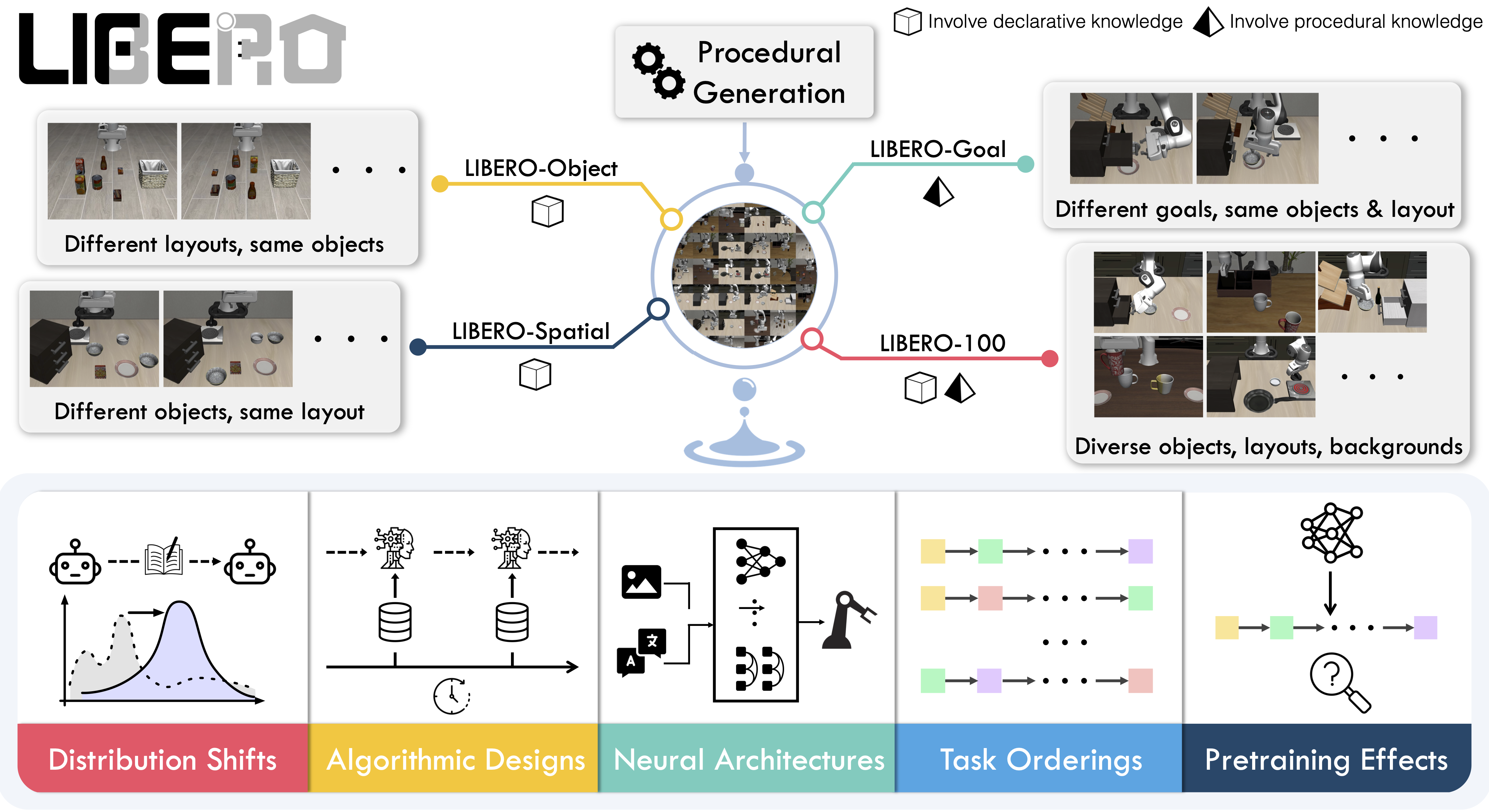
|
||||
|
||||
## Evaluating with LIBERO
|
||||
|
||||
At **LeRobot**, we ported [LIBERO](https://github.com/Lifelong-Robot-Learning/LIBERO) into our framework and used it mainly to **evaluate [SmolVLA](https://huggingface.co/docs/lerobot/en/smolvla)**, our lightweight Vision-Language-Action model.
|
||||
|
||||
LIBERO is now part of our **multi-eval supported simulation**, meaning you can benchmark your policies either on a **single suite of tasks** or across **multiple suites at once** with just a flag.
|
||||
|
||||
To Install LIBERO, after following LeRobot official instructions, just do:
|
||||
`pip install -e ".[libero]"`
|
||||
|
||||
### Single-suite evaluation
|
||||
|
||||
Evaluate a policy on one LIBERO suite:
|
||||
|
||||
```bash
|
||||
lerobot-eval \
|
||||
--policy.path="your-policy-id" \
|
||||
--env.type=libero \
|
||||
--env.task=libero_object \
|
||||
--eval.batch_size=2 \
|
||||
--eval.n_episodes=3
|
||||
```
|
||||
|
||||
- `--env.task` picks the suite (`libero_object`, `libero_spatial`, etc.).
|
||||
- `--eval.batch_size` controls how many environments run in parallel.
|
||||
- `--eval.n_episodes` sets how many episodes to run in total.
|
||||
|
||||
---
|
||||
|
||||
### Multi-suite evaluation
|
||||
|
||||
Benchmark a policy across multiple suites at once:
|
||||
|
||||
```bash
|
||||
lerobot-eval \
|
||||
--policy.path="your-policy-id" \
|
||||
--env.type=libero \
|
||||
--env.task=libero_object,libero_spatial \
|
||||
--eval.batch_size=1 \
|
||||
--eval.n_episodes=2
|
||||
```
|
||||
|
||||
- Pass a comma-separated list to `--env.task` for multi-suite evaluation.
|
||||
|
||||
### Control Mode
|
||||
|
||||
LIBERO now supports two control modes: relative and absolute. This matters because different VLA checkpoints are trained with different mode of action to output hence control parameterizations.
|
||||
You can switch them with: `env.control_mode = "relative"` and `env.control_mode = "absolute"`
|
||||
|
||||
### Policy inputs and outputs
|
||||
|
||||
When using LIBERO through LeRobot, policies interact with the environment via **observations** and **actions**:
|
||||
|
||||
- **Observations**
|
||||
- `observation.state` – proprioceptive features (agent state).
|
||||
- `observation.images.image` – main camera view (`agentview_image`).
|
||||
- `observation.images.image2` – wrist camera view (`robot0_eye_in_hand_image`).
|
||||
|
||||
⚠️ **Note:** LeRobot enforces the `.images.*` prefix for any multi-modal visual features. Always ensure that your policy config `input_features` use the same naming keys, and that your dataset metadata keys follow this convention during evaluation.
|
||||
If your data contains different keys, you must rename the observations to match what the policy expects, since naming keys are encoded inside the normalization statistics layer.
|
||||
This will be fixed with the upcoming Pipeline PR.
|
||||
|
||||
- **Actions**
|
||||
- Continuous control values in a `Box(-1, 1, shape=(7,))` space.
|
||||
|
||||
We also provide a notebook for quick testing:
|
||||
Training with LIBERO
|
||||
|
||||
## Training with LIBERO
|
||||
|
||||
When training on LIBERO tasks, make sure your dataset parquet and metadata keys follow the LeRobot convention.
|
||||
|
||||
The environment expects:
|
||||
|
||||
- `observation.state` → 8-dim agent state
|
||||
- `observation.images.image` → main camera (`agentview_image`)
|
||||
- `observation.images.image2` → wrist camera (`robot0_eye_in_hand_image`)
|
||||
|
||||
⚠️ Cleaning the dataset upfront is **cleaner and more efficient** than remapping keys inside the code.
|
||||
To avoid potential mismatches and key errors, we provide a **preprocessed LIBERO dataset** that is fully compatible with the current LeRobot codebase and requires no additional manipulation:
|
||||
👉 [HuggingFaceVLA/libero](https://huggingface.co/datasets/HuggingFaceVLA/libero)
|
||||
|
||||
For reference, here is the **original dataset** published by Physical Intelligence:
|
||||
👉 [physical-intelligence/libero](https://huggingface.co/datasets/physical-intelligence/libero)
|
||||
|
||||
---
|
||||
|
||||
### Example training command
|
||||
|
||||
```bash
|
||||
lerobot-train \
|
||||
--policy.type=smolvla \
|
||||
--policy.repo_id=${HF_USER}/libero-test \
|
||||
--policy.load_vlm_weights=true \
|
||||
--dataset.repo_id=HuggingFaceVLA/libero \
|
||||
--env.type=libero \
|
||||
--env.task=libero_10 \
|
||||
--output_dir=./outputs/ \
|
||||
--steps=100000 \
|
||||
--batch_size=4 \
|
||||
--eval.batch_size=1 \
|
||||
--eval.n_episodes=1 \
|
||||
--eval_freq=1000 \
|
||||
```
|
||||
|
||||
---
|
||||
|
||||
### Note on rendering
|
||||
|
||||
LeRobot uses MuJoCo for simulation. You need to set the rendering backend before training or evaluation:
|
||||
|
||||
- `export MUJOCO_GL=egl` → for headless servers (e.g. HPC, cloud)
|
||||
|
||||
## Reproducing π₀.₅ results
|
||||
|
||||
We reproduce the results of π₀.₅ on the LIBERO benchmark using the LeRobot implementation. We take the Physical Intelligence LIBERO base model (`pi05_libero`) and finetune for an additional 6k steps in bfloat16, with batch size of 256 on 8 H100 GPUs using the [HuggingFace LIBERO dataset](https://huggingface.co/datasets/HuggingFaceVLA/libero).
|
||||
|
||||
The finetuned model can be found here:
|
||||
|
||||
- **π₀.₅ LIBERO**: [lerobot/pi05_libero_finetuned](https://huggingface.co/lerobot/pi05_libero_finetuned)
|
||||
|
||||
We then evaluate the finetuned model using the LeRobot LIBERO implementation, by running the following command:
|
||||
|
||||
```bash
|
||||
lerobot-eval \
|
||||
--output_dir=/logs/ \
|
||||
--env.type=libero \
|
||||
--env.task=libero_spatial,libero_object,libero_goal,libero_10 \
|
||||
--eval.batch_size=1 \
|
||||
--eval.n_episodes=10 \
|
||||
--policy.path=pi05_libero_finetuned \
|
||||
--policy.n_action_steps=10 \
|
||||
--output_dir=./eval_logs/ \
|
||||
--env.max_parallel_tasks=1
|
||||
```
|
||||
|
||||
**Note:** We set `n_action_steps=10`, similar to the original OpenPI implementation.
|
||||
|
||||
### Results
|
||||
|
||||
We obtain the following results on the LIBERO benchmark:
|
||||
|
||||
| Model | LIBERO Spatial | LIBERO Object | LIBERO Goal | LIBERO 10 | Average |
|
||||
| -------- | -------------- | ------------- | ----------- | --------- | -------- |
|
||||
| **π₀.₅** | 97.0 | 99.0 | 98.0 | 96.0 | **97.5** |
|
||||
|
||||
These results are consistent with the original [results](https://github.com/Physical-Intelligence/openpi/tree/main/examples/libero#results) reported by Physical Intelligence:
|
||||
|
||||
| Model | LIBERO Spatial | LIBERO Object | LIBERO Goal | LIBERO 10 | Average |
|
||||
| -------- | -------------- | ------------- | ----------- | --------- | --------- |
|
||||
| **π₀.₅** | 98.8 | 98.2 | 98.0 | 92.4 | **96.85** |
|
||||
@@ -1,80 +0,0 @@
|
||||
# Meta-World
|
||||
|
||||
Meta-World is a well-designed, open-source simulation benchmark for multi-task and meta reinforcement learning in continuous-control robotic manipulation. It gives researchers a shared, realistic playground to test whether algorithms can _learn many different tasks_ and _generalize quickly to new ones_ — two central challenges for real-world robotics.
|
||||
|
||||
- 📄 [MetaWorld paper](https://arxiv.org/pdf/1910.10897)
|
||||
- 💻 [Original MetaWorld repo](https://github.com/Farama-Foundation/Metaworld)
|
||||
|
||||
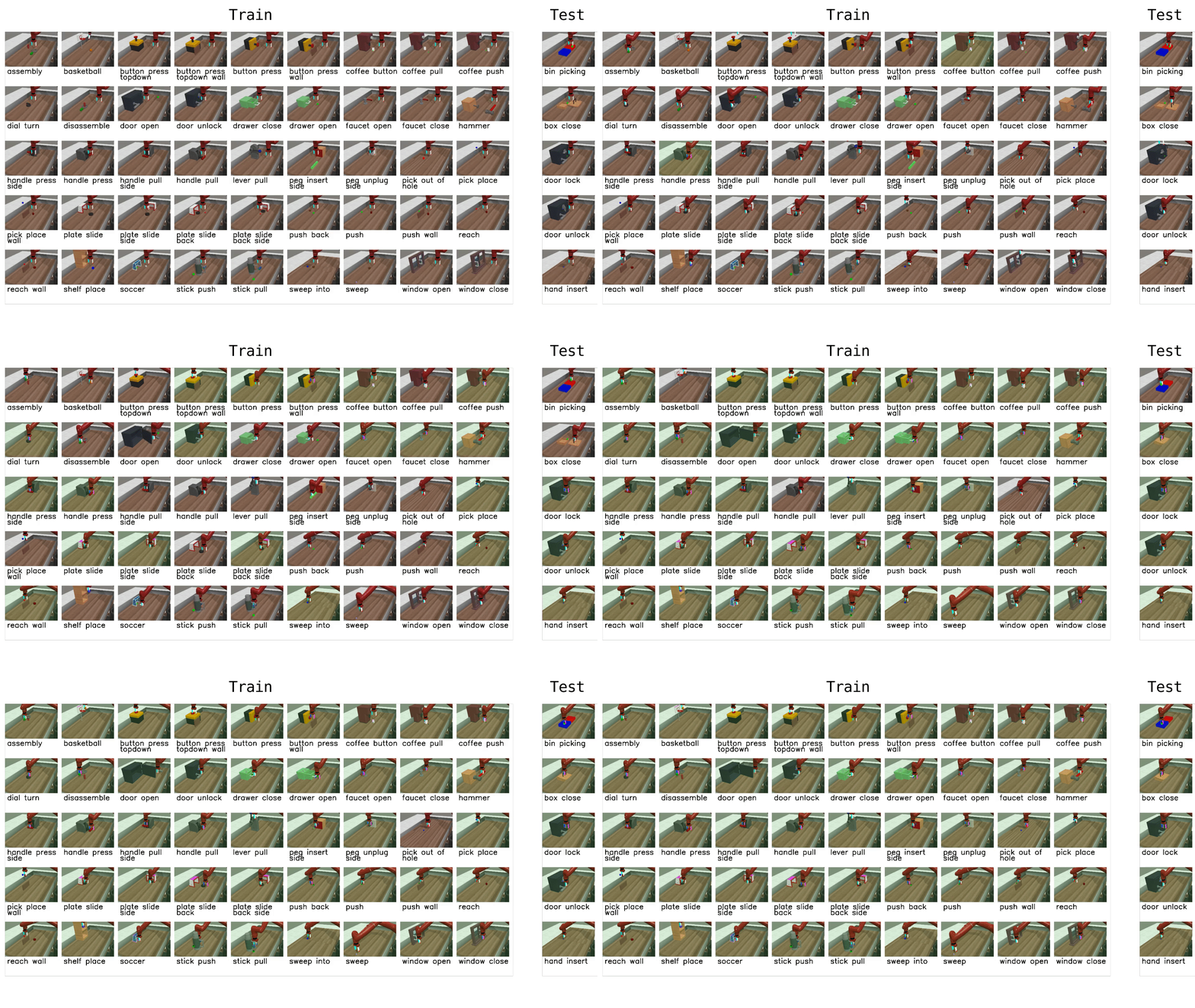
|
||||
|
||||
## Why Meta-World matters
|
||||
|
||||
- **Diverse, realistic tasks.** Meta-World bundles a large suite of simulated manipulation tasks (50 in the MT50 suite) using everyday objects and a common tabletop Sawyer arm. This diversity exposes algorithms to a wide variety of dynamics, contacts and goal specifications while keeping a consistent control and observation structure.
|
||||
- **Focus on generalization and multi-task learning.** By evaluating across task distributions that share structure but differ in goals and objects, Meta-World reveals whether an agent truly learns transferable skills rather than overfitting to a narrow task.
|
||||
- **Standardized evaluation protocol.** It provides clear evaluation modes and difficulty splits, so different methods can be compared fairly across easy, medium, hard and very-hard regimes.
|
||||
- **Empirical insight.** Past evaluations on Meta-World show impressive progress on some fronts, but also highlight that current multi-task and meta-RL methods still struggle with large, diverse task sets. That gap points to important research directions.
|
||||
|
||||
## What it enables in LeRobot
|
||||
|
||||
In LeRobot, you can evaluate any policy or vision-language-action (VLA) model on Meta-World tasks and get a clear success-rate measure. The integration is designed to be straightforward:
|
||||
|
||||
- We provide a LeRobot-ready dataset for Meta-World (MT50) on the HF Hub: `https://huggingface.co/datasets/lerobot/metaworld_mt50`.
|
||||
- This dataset is formatted for the MT50 evaluation that uses all 50 tasks (the most challenging multi-task setting).
|
||||
- MT50 gives the policy a one-hot task vector and uses fixed object/goal positions for consistency.
|
||||
|
||||
- Task descriptions and the exact keys required for evaluation are available in the repo/dataset — use these to ensure your policy outputs the right success signals.
|
||||
|
||||
## Quick start, train a SmolVLA policy on Meta-World
|
||||
|
||||
Example command to train a SmolVLA policy on a subset of tasks:
|
||||
|
||||
```bash
|
||||
lerobot-train \
|
||||
--policy.type=smolvla \
|
||||
--policy.repo_id=${HF_USER}/metaworld-test \
|
||||
--policy.load_vlm_weights=true \
|
||||
--dataset.repo_id=lerobot/metaworld_mt50 \
|
||||
--env.type=metaworld \
|
||||
--env.task=assembly-v3,dial-turn-v3,handle-press-side-v3 \
|
||||
--output_dir=./outputs/ \
|
||||
--steps=100000 \
|
||||
--batch_size=4 \
|
||||
--eval.batch_size=1 \
|
||||
--eval.n_episodes=1 \
|
||||
--eval_freq=1000
|
||||
```
|
||||
|
||||
Notes:
|
||||
|
||||
- `--env.task` accepts explicit task lists (comma separated) or difficulty groups (e.g., `env.task="hard"`).
|
||||
- Adjust `batch_size`, `steps`, and `eval_freq` to match your compute budget.
|
||||
- **Gymnasium Assertion Error**: if you encounter an error like
|
||||
`AssertionError: ['human', 'rgb_array', 'depth_array']` when running MetaWorld environments, this comes from a mismatch between MetaWorld and your Gymnasium version.
|
||||
We recommend using:
|
||||
|
||||
```bash
|
||||
pip install "gymnasium==1.1.0"
|
||||
```
|
||||
|
||||
to ensure proper compatibility.
|
||||
|
||||
## Quick start — evaluate a trained policy
|
||||
|
||||
To evaluate a trained policy on the Meta-World medium difficulty split:
|
||||
|
||||
```bash
|
||||
lerobot-eval \
|
||||
--policy.path="your-policy-id" \
|
||||
--env.type=metaworld \
|
||||
--env.task=medium \
|
||||
--eval.batch_size=1 \
|
||||
--eval.n_episodes=2
|
||||
```
|
||||
|
||||
This will run episodes and return per-task success rates using the standard Meta-World evaluation keys.
|
||||
|
||||
## Practical tips
|
||||
|
||||
- If you care about generalization, run on the full MT50 suite — it’s intentionally challenging and reveals strengths/weaknesses better than a few narrow tasks.
|
||||
- Use the one-hot task conditioning for multi-task training (MT10 / MT50 conventions) so policies have explicit task context.
|
||||
- Inspect the dataset task descriptions and the `info["is_success"]` keys when writing post-processing or logging so your success metrics line up with the benchmark.
|
||||
@@ -1,125 +0,0 @@
|
||||
# Multi-GPU Training
|
||||
|
||||
This guide shows you how to train policies on multiple GPUs using [Hugging Face Accelerate](https://huggingface.co/docs/accelerate).
|
||||
|
||||
## Installation
|
||||
|
||||
First, ensure you have accelerate installed:
|
||||
|
||||
```bash
|
||||
pip install accelerate
|
||||
```
|
||||
|
||||
## Training with Multiple GPUs
|
||||
|
||||
You can launch training in two ways:
|
||||
|
||||
### Option 1: Without config (specify parameters directly)
|
||||
|
||||
You can specify all parameters directly in the command without running `accelerate config`:
|
||||
|
||||
```bash
|
||||
accelerate launch \
|
||||
--multi_gpu \
|
||||
--num_processes=2 \
|
||||
$(which lerobot-train) \
|
||||
--dataset.repo_id=${HF_USER}/my_dataset \
|
||||
--policy.type=act \
|
||||
--policy.repo_id=${HF_USER}/my_trained_policy \
|
||||
--output_dir=outputs/train/act_multi_gpu \
|
||||
--job_name=act_multi_gpu \
|
||||
--wandb.enable=true
|
||||
```
|
||||
|
||||
**Key accelerate parameters:**
|
||||
|
||||
- `--multi_gpu`: Enable multi-GPU training
|
||||
- `--num_processes=2`: Number of GPUs to use
|
||||
- `--mixed_precision=fp16`: Use fp16 mixed precision (or `bf16` if supported)
|
||||
|
||||
### Option 2: Using accelerate config
|
||||
|
||||
If you prefer to save your configuration, you can optionally configure accelerate for your hardware setup by running:
|
||||
|
||||
```bash
|
||||
accelerate config
|
||||
```
|
||||
|
||||
This interactive setup will ask you questions about your training environment (number of GPUs, mixed precision settings, etc.) and saves the configuration for future use. For a simple multi-GPU setup on a single machine, you can use these recommended settings:
|
||||
|
||||
- Compute environment: This machine
|
||||
- Number of machines: 1
|
||||
- Number of processes: (number of GPUs you want to use)
|
||||
- GPU ids to use: (leave empty to use all)
|
||||
- Mixed precision: fp16 or bf16 (recommended for faster training)
|
||||
|
||||
Then launch training with:
|
||||
|
||||
```bash
|
||||
accelerate launch $(which lerobot-train) \
|
||||
--dataset.repo_id=${HF_USER}/my_dataset \
|
||||
--policy.type=act \
|
||||
--policy.repo_id=${HF_USER}/my_trained_policy \
|
||||
--output_dir=outputs/train/act_multi_gpu \
|
||||
--job_name=act_multi_gpu \
|
||||
--wandb.enable=true
|
||||
```
|
||||
|
||||
## How It Works
|
||||
|
||||
When you launch training with accelerate:
|
||||
|
||||
1. **Automatic detection**: LeRobot automatically detects if it's running under accelerate
|
||||
2. **Data distribution**: Your batch is automatically split across GPUs
|
||||
3. **Gradient synchronization**: Gradients are synchronized across GPUs during backpropagation
|
||||
4. **Single process logging**: Only the main process logs to wandb and saves checkpoints
|
||||
|
||||
## Learning Rate and Training Steps Scaling
|
||||
|
||||
**Important:** LeRobot does **NOT** automatically scale learning rates or training steps based on the number of GPUs. This gives you full control over your training hyperparameters.
|
||||
|
||||
### Why No Automatic Scaling?
|
||||
|
||||
Many distributed training frameworks automatically scale the learning rate by the number of GPUs (e.g., `lr = base_lr × num_gpus`).
|
||||
However, LeRobot keeps the learning rate exactly as you specify it.
|
||||
|
||||
### When and How to Scale
|
||||
|
||||
If you want to scale your hyperparameters when using multiple GPUs, you should do it manually:
|
||||
|
||||
**Learning Rate Scaling:**
|
||||
|
||||
```bash
|
||||
# Example: 2 GPUs with linear LR scaling
|
||||
# Base LR: 1e-4, with 2 GPUs -> 2e-4
|
||||
accelerate launch --num_processes=2 $(which lerobot-train) \
|
||||
--optimizer.lr=2e-4 \
|
||||
--dataset.repo_id=lerobot/pusht \
|
||||
--policy=act
|
||||
```
|
||||
|
||||
**Training Steps Scaling:**
|
||||
|
||||
Since the effective batch size `bs` increases with multiple GPUs (batch_size × num_gpus), you may want to reduce the number of training steps proportionally:
|
||||
|
||||
```bash
|
||||
# Example: 2 GPUs with effective batch size 2x larger
|
||||
# Original: batch_size=8, steps=100000
|
||||
# With 2 GPUs: batch_size=8 (16 in total), steps=50000
|
||||
accelerate launch --num_processes=2 $(which lerobot-train) \
|
||||
--batch_size=8 \
|
||||
--steps=50000 \
|
||||
--dataset.repo_id=lerobot/pusht \
|
||||
--policy=act
|
||||
```
|
||||
|
||||
## Notes
|
||||
|
||||
- The `--policy.use_amp` flag in `lerobot-train` is only used when **not** running with accelerate. When using accelerate, mixed precision is controlled by accelerate's configuration.
|
||||
- Training logs, checkpoints, and hub uploads are only done by the main process to avoid conflicts. Non-main processes have console logging disabled to prevent duplicate output.
|
||||
- The effective batch size is `batch_size × num_gpus`. If you use 4 GPUs with `--batch_size=8`, your effective batch size is 32.
|
||||
- Learning rate scheduling is handled correctly across multiple processes—LeRobot sets `step_scheduler_with_optimizer=False` to prevent accelerate from adjusting scheduler steps based on the number of processes.
|
||||
- When saving or pushing models, LeRobot automatically unwraps the model from accelerate's distributed wrapper to ensure compatibility.
|
||||
- WandB integration automatically initializes only on the main process, preventing multiple runs from being created.
|
||||
|
||||
For more advanced configurations and troubleshooting, see the [Accelerate documentation](https://huggingface.co/docs/accelerate). If you want to learn more about how to train on a large number of GPUs, checkout this awesome guide: [Ultrascale Playbook](https://huggingface.co/spaces/nanotron/ultrascale-playbook).
|
||||
@@ -1,62 +0,0 @@
|
||||
# Parameter efficient fine-tuning with 🤗 PEFT
|
||||
|
||||
[🤗 PEFT](https://github.com/huggingface/peft) (Parameter-Efficient Fine-Tuning) is a library for efficiently adapting
|
||||
large pretrained models such as pre-trained policies (e.g., SmolVLA, π₀, ...) to new tasks without training all
|
||||
of the model's parameters while yielding comparable performance.
|
||||
|
||||
Install the `lerobot[peft]` optional package to enable PEFT support.
|
||||
|
||||
To read about all the possible methods of adaption, please refer to the [🤗 PEFT docs](https://huggingface.co/docs/peft/index).
|
||||
|
||||
## Training SmolVLA
|
||||
|
||||
In this section we'll show you how to train a pre-trained SmolVLA policy with PEFT on the libero dataset.
|
||||
For brevity we're only training on the `libero_spatial` subset. We will use `lerobot/smolvla_base` as the model
|
||||
to parameter efficiently fine-tune:
|
||||
|
||||
```
|
||||
lerobot-train \
|
||||
--policy.path=lerobot/smolvla_base \
|
||||
--policy.repo_id=your_hub_name/my_libero_smolvla \
|
||||
--dataset.repo_id=HuggingFaceVLA/libero \
|
||||
--policy.output_features=null \
|
||||
--policy.input_features=null \
|
||||
--policy.optimizer_lr=1e-3 \
|
||||
--policy.scheduler_decay_lr=1e-4 \
|
||||
--env.type=libero \
|
||||
--env.task=libero_spatial \
|
||||
--steps=100000 \
|
||||
--batch_size=32 \
|
||||
--peft.method_type=LORA \
|
||||
--peft.r=64
|
||||
```
|
||||
|
||||
Note the `--peft.method_type` parameter that let's you select which PEFT method to use. Here we use
|
||||
[LoRA](https://huggingface.co/docs/peft/main/en/package_reference/lora) (Low-Rank Adapter) which is probably the most
|
||||
popular fine-tuning method to date. Low-rank adaption means that we only fine-tune a matrix with comparably low rank
|
||||
instead of the full weight matrix. This rank can be specified using the `--peft.r` parameter. The higher the rank
|
||||
the closer you get to full fine-tuning
|
||||
|
||||
There are more complex methods that have more parameters. These are not yet supported, feel free to raise an issue
|
||||
if you want to see a specific PEFT method supported.
|
||||
|
||||
By default, PEFT will target the `q_proj` and `v_proj` layers of the LM expert in SmolVLA. It will also target the
|
||||
state and action projection matrices as they are most likely task-dependent. If you need to target different layers
|
||||
you can use `--peft.target_modules` to specify which layers to target. You can refer to the respective PEFT method's
|
||||
documentation to see what inputs are supported, (e.g., [LoRA's target_modules documentation](https://huggingface.co/docs/peft/main/en/package_reference/lora#peft.LoraConfig.target_modules)).
|
||||
Usually a list of suffixes or a regex are supported. For example, to target the MLPs of the `lm_expert` instead of
|
||||
the `q` and `v` projections, use:
|
||||
|
||||
```
|
||||
--peft.target_modules='(model\.vlm_with_expert\.lm_expert\..*\.(down|gate|up)_proj|.*\.(state_proj|action_in_proj|action_out_proj|action_time_mlp_in|action_time_mlp_out))'
|
||||
```
|
||||
|
||||
In case you need to fully fine-tune a layer instead of just adapting it, you can supply a list of layer suffixes
|
||||
to the `--peft.full_training_modules` parameter:
|
||||
|
||||
```
|
||||
--peft.full_training_modules=["state_proj"]
|
||||
```
|
||||
|
||||
The learning rate and the scheduled target learning rate can usually be scaled by a factor of 10 compared to the
|
||||
learning rate used for full fine-tuning (e.g., 1e-4 normal, so 1e-3 using LoRA).
|
||||
@@ -1,191 +0,0 @@
|
||||
# Phone
|
||||
|
||||
Use your phone (iOS or Android) to control your robot.
|
||||
|
||||
**In this guide you'll learn:**
|
||||
|
||||
- How to connect an iOS/Android phone
|
||||
- How phone pose is mapped to robot end‑effector (EE) targets
|
||||
- How to tweak safety limits, gripper control, and IK settings
|
||||
|
||||
To use phone to control your robot, install the relevant dependencies with:
|
||||
|
||||
```bash
|
||||
pip install lerobot[phone]
|
||||
```
|
||||
|
||||
## Get started
|
||||
|
||||
### Supported platforms
|
||||
|
||||
- iOS: Uses the HEBI Mobile I/O app (ARKit pose + buttons). Download the app first, open it and the examples will discover it on your network and stream the phone pose and inputs.
|
||||
- Android: Uses the `teleop` package (WebXR). When you start the Python process, it prints a local URL. Open the link on your phone, tap Start, then use Move to stream pose.
|
||||
|
||||
Links:
|
||||
|
||||
- Android WebXR library: [`teleop` on PyPI](https://pypi.org/project/teleop/)
|
||||
- iOS app: [HEBI Mobile I/O](https://docs.hebi.us/tools.html#mobile-io)
|
||||
|
||||
### Phone orientation and controls
|
||||
|
||||
- Orientation: hold the phone with the screen facing up and the top edge pointing in the same direction as the robot gripper. This ensures calibration aligns the phone’s frame with the robot frame so motion feels natural, see the image below for reference.
|
||||
- Enable/disable:
|
||||
- iOS: Hold `B1` to enable teleoperation, release to stop. The first press captures a reference pose.
|
||||
- Android: Press and hold the `Move` button, release to stop. The first press captures a reference pose.
|
||||
- Gripper control:
|
||||
- iOS: Analog input `A3` controls the gripper as velocity input.
|
||||
- Android: Buttons `A` and `B` act like increment/decrement (A opens, B closes). You can tune velocity in the `GripperVelocityToJoint` step.
|
||||
|
||||
<img src="https://huggingface.co/datasets/huggingface/documentation-images/resolve/main/lerobot/phone_teleop.webp" alt="Phone teleop orientation" title="Phone teleop orientation" width="40%">
|
||||
|
||||
### Step 1: Choose the platform
|
||||
|
||||
Modify the examples to use `PhoneOS.IOS` or `PhoneOS.ANDROID` in `PhoneConfig`. The API is identical across platforms, only the input source differs. All examples are under `examples/` and have `phone_so100_*.py` variants.
|
||||
|
||||
Teleoperation example:
|
||||
|
||||
```python
|
||||
from lerobot.teleoperators.phone.config_phone import PhoneConfig, PhoneOS
|
||||
|
||||
teleop_config = PhoneConfig(phone_os=PhoneOS.IOS) # or PhoneOS.ANDROID
|
||||
teleop_device = Phone(teleop_config)
|
||||
```
|
||||
|
||||
### Step 2: Connect and calibrate
|
||||
|
||||
When `Phone(teleop_config)` is created and `connect()` is called, calibration is prompted automatically. Hold the phone in the orientation described above, then:
|
||||
|
||||
- iOS: press and hold `B1` to capture the reference pose.
|
||||
- Android: press `Move` button on the WebXR page to capture the reference pose.
|
||||
|
||||
Why calibrate? We capture the current pose so subsequent poses are expressed in a robot aligned frame. When you again press the button to enable control, the position is recaptured to avoid drift when your phone is repositioned while it was disabled.
|
||||
|
||||
### Step 3: Run an example
|
||||
|
||||
Run on of the examples scripts to teleoperate, record a dataset, replay a dataset or evaluate a policy.
|
||||
|
||||
All scripts assume you configured your robot (e.g., SO-100 follower) and set the correct serial port.
|
||||
|
||||
Additionally you need to **copy the urdf of the robot to the examples folder**. For the examples in this tutorial (Using SO100/SO101) it is highly recommended to use the urdf in the [SO-ARM100 repo](https://github.com/TheRobotStudio/SO-ARM100/blob/main/Simulation/SO101/so101_new_calib.urdf)
|
||||
|
||||
- Run this example to teleoperate:
|
||||
|
||||
```bash
|
||||
python examples/phone_to_so100/teleoperate.py
|
||||
```
|
||||
|
||||
After running the example:
|
||||
|
||||
- Android: after starting the script, open the printed local URL on your phone, tap Start, then press and hold Move.
|
||||
- iOS: open HEBI Mobile I/O first; B1 enables motion. A3 controls the gripper.
|
||||
|
||||
Additionally you can customize mapping or safety limits by editing the processor steps shown in the examples. You can also remap inputs (e.g., use a different analog input) or adapt the pipeline to other robots (e.g., LeKiwi) by modifying the input and kinematics steps. More about this in the [Processors for Robots and Teleoperators](./processors_robots_teleop) guide.
|
||||
|
||||
- Run this example to record a dataset, which saves absolute end effector observations and actions:
|
||||
|
||||
```bash
|
||||
python examples/phone_to_so100/record.py
|
||||
```
|
||||
|
||||
- Run this example to replay recorded episodes:
|
||||
|
||||
```bash
|
||||
python examples/phone_to_so100/replay.py
|
||||
```
|
||||
|
||||
- Run this example to evaluate a pretrained policy:
|
||||
|
||||
```bash
|
||||
python examples/phone_to_so100/evaluate.py
|
||||
```
|
||||
|
||||
### Important pipeline steps and options
|
||||
|
||||
- Kinematics are used in multiple steps. We use [Placo](https://github.com/Rhoban/placo) which is a wrapper around Pinocchio for handling our kinematics. We construct the kinematics object by passing the robot's URDF and target frame. We set `target_frame_name` to the gripper frame.
|
||||
|
||||
```python
|
||||
kinematics_solver = RobotKinematics(
|
||||
urdf_path="./SO101/so101_new_calib.urdf",
|
||||
target_frame_name="gripper_frame_link",
|
||||
joint_names=list(robot.bus.motors.keys()),
|
||||
)
|
||||
|
||||
```
|
||||
|
||||
- The `MapPhoneActionToRobotAction` step converts the calibrated phone pose and inputs into target deltas and gripper commands, below is shown what the step outputs.
|
||||
|
||||
```python
|
||||
action["enabled"] = enabled
|
||||
action["target_x"] = -pos[1] if enabled else 0.0
|
||||
action["target_y"] = pos[0] if enabled else 0.0
|
||||
action["target_z"] = pos[2] if enabled else 0.0
|
||||
action["target_wx"] = rotvec[1] if enabled else 0.0
|
||||
action["target_wy"] = rotvec[0] if enabled else 0.0
|
||||
action["target_wz"] = -rotvec[2] if enabled else 0.0
|
||||
action["gripper_vel"] = gripper_vel # Still send gripper action when disabled
|
||||
```
|
||||
|
||||
- The `EEReferenceAndDelta` step converts target deltas to an absolute desired EE pose, storing a reference on enable, the `end_effector_step_sizes` are the step sizes for the EE pose and can be modified to change the motion speed.
|
||||
|
||||
```python
|
||||
EEReferenceAndDelta(
|
||||
kinematics=kinematics_solver,
|
||||
end_effector_step_sizes={"x": 0.5, "y": 0.5, "z": 0.5},
|
||||
motor_names=list(robot.bus.motors.keys()),
|
||||
use_latched_reference=True,
|
||||
),
|
||||
```
|
||||
|
||||
- The `EEBoundsAndSafety` step clamps EE motion to a workspace and checks for large ee step jumps to ensure safety. The `end_effector_bounds` are the bounds for the EE pose and can be modified to change the workspace. The `max_ee_step_m` are the step limits for the EE pose and can be modified to change the safety limits.
|
||||
|
||||
```python
|
||||
EEBoundsAndSafety(
|
||||
end_effector_bounds={"min": [-1.0, -1.0, -1.0], "max": [1.0, 1.0, 1.0]},
|
||||
max_ee_step_m=0.10,
|
||||
)
|
||||
```
|
||||
|
||||
- The `GripperVelocityToJoint` step turns a velocity‑like gripper input into absolute gripper position using the current measured state. The `speed_factor` is the factor by which the velocity is multiplied.
|
||||
|
||||
```python
|
||||
GripperVelocityToJoint(speed_factor=20.0)
|
||||
```
|
||||
|
||||
#### Different IK initial guesses
|
||||
|
||||
We use different IK initial guesses in the kinematic steps. As initial guess either the current measured joints or the previous IK solution is used.
|
||||
|
||||
- Closed loop (used in record/eval): sets `initial_guess_current_joints=True` so IK starts from the measured joints each frame.
|
||||
|
||||
```python
|
||||
InverseKinematicsEEToJoints(
|
||||
kinematics=kinematics_solver,
|
||||
motor_names=list(robot.bus.motors.keys()),
|
||||
initial_guess_current_joints=True, # closed loop
|
||||
)
|
||||
```
|
||||
|
||||
- Open loop (used in replay): sets `initial_guess_current_joints=False` so IK continues from the previous IK solution rather than the measured state. This preserves action stability when we replay without feedback.
|
||||
|
||||
```python
|
||||
InverseKinematicsEEToJoints(
|
||||
kinematics=kinematics_solver,
|
||||
motor_names=list(robot.bus.motors.keys()),
|
||||
initial_guess_current_joints=False, # open loop
|
||||
)
|
||||
```
|
||||
|
||||
### Pipeline steps explained
|
||||
|
||||
- MapPhoneActionToRobotAction: converts calibrated phone pose and inputs into target deltas and a gripper command. Motion is gated by an enable signal (B1 on iOS, Move on Android).
|
||||
- EEReferenceAndDelta: latches a reference EE pose on enable and combines it with target deltas to produce an absolute desired EE pose each frame. When disabled, it keeps sending the last commanded pose.
|
||||
- EEBoundsAndSafety: clamps the EE pose to a workspace and rate‑limits jumps for safety. Also declares `action.ee.*` features.
|
||||
- InverseKinematicsEEToJoints: turns an EE pose into joint positions with IK. `initial_guess_current_joints=True` is recommended for closed‑loop control; set `False` for open‑loop replay for stability.
|
||||
- GripperVelocityToJoint: integrates a velocity‑like gripper input into an absolute gripper position using the current measured state.
|
||||
- ForwardKinematicsJointsToEE: computes `observation.state.ee.*` from observed joints for logging and training on EE state.
|
||||
|
||||
### Troubleshooting
|
||||
|
||||
- iOS not discovered: ensure HEBI Mobile I/O is open and your laptop/phone are on the same network.
|
||||
- Android URL not reachable: check local you used `https` instead of `http`, use the exact IP printed by the script and allow your browser to enter and ignore the certificate issue.
|
||||
- Motion feels inverted: adjust the sign flips in `MapPhoneActionToRobotAction` or swap axes to match your setup.
|
||||
@@ -1,101 +0,0 @@
|
||||
# π₀ (Pi0)
|
||||
|
||||
π₀ is a **Vision-Language-Action model for general robot control**, from Physical Intelligence. The LeRobot implementation is adapted from their open source [OpenPI](https://github.com/Physical-Intelligence/openpi) repository.
|
||||
|
||||
## Model Overview
|
||||
|
||||
π₀ represents a breakthrough in robotics as the first general-purpose robot foundation model developed by [Physical Intelligence](https://www.physicalintelligence.company/blog/pi0). Unlike traditional robot programs that are narrow specialists programmed for repetitive motions, π₀ is designed to be a generalist policy that can understand visual inputs, interpret natural language instructions, and control a variety of different robots across diverse tasks.
|
||||
|
||||
<img
|
||||
src="https://huggingface.co/datasets/huggingface/documentation-images/resolve/main/lerobot/lerobot-pi0%20(1).png"
|
||||
alt="An overview of Pi0"
|
||||
width="85%"
|
||||
/>
|
||||
|
||||
### The Vision for Physical Intelligence
|
||||
|
||||
As described by Physical Intelligence, while AI has achieved remarkable success in digital domains, from chess-playing to drug discovery, human intelligence still dramatically outpaces AI in the physical world. To paraphrase Moravec's paradox, winning a game of chess represents an "easy" problem for AI, but folding a shirt or cleaning up a table requires solving some of the most difficult engineering problems ever conceived. π₀ represents a first step toward developing artificial physical intelligence that enables users to simply ask robots to perform any task they want, just like they can with large language models.
|
||||
|
||||
### Architecture and Approach
|
||||
|
||||
π₀ combines several key innovations:
|
||||
|
||||
- **Flow Matching**: Uses a novel method to augment pre-trained VLMs with continuous action outputs via flow matching (a variant of diffusion models)
|
||||
- **Cross-Embodiment Training**: Trained on data from 8 distinct robot platforms including UR5e, Bimanual UR5e, Franka, Bimanual Trossen, Bimanual ARX, Mobile Trossen, and Mobile Fibocom
|
||||
- **Internet-Scale Pre-training**: Inherits semantic knowledge from a pre-trained 3B parameter Vision-Language Model
|
||||
- **High-Frequency Control**: Outputs motor commands at up to 50 Hz for real-time dexterous manipulation
|
||||
|
||||
## Installation Requirements
|
||||
|
||||
1. Install LeRobot by following our [Installation Guide](./installation).
|
||||
2. Install Pi0 dependencies by running:
|
||||
|
||||
```bash
|
||||
pip install -e ".[pi]"
|
||||
```
|
||||
|
||||
> [!NOTE]
|
||||
> For lerobot 0.4.0, if you want to install pi tag, you will have to do: `pip install "lerobot[pi]@git+https://github.com/huggingface/lerobot.git"`.
|
||||
>
|
||||
> This will be solved in the next patch release
|
||||
|
||||
## Training Data and Capabilities
|
||||
|
||||
π₀ is trained on the largest robot interaction dataset to date, combining three key data sources:
|
||||
|
||||
1. **Internet-Scale Pre-training**: Vision-language data from the web for semantic understanding
|
||||
2. **Open X-Embodiment Dataset**: Open-source robot manipulation datasets
|
||||
3. **Physical Intelligence Dataset**: Large and diverse dataset of dexterous tasks across 8 distinct robots
|
||||
|
||||
## Usage
|
||||
|
||||
To use π₀ in LeRobot, specify the policy type as:
|
||||
|
||||
```python
|
||||
policy.type=pi0
|
||||
```
|
||||
|
||||
## Training
|
||||
|
||||
For training π₀, you can use the standard LeRobot training script with the appropriate configuration:
|
||||
|
||||
```bash
|
||||
python src/lerobot/scripts/lerobot_train.py \
|
||||
--dataset.repo_id=your_dataset \
|
||||
--policy.type=pi0 \
|
||||
--output_dir=./outputs/pi0_training \
|
||||
--job_name=pi0_training \
|
||||
--policy.pretrained_path=lerobot/pi0_base \
|
||||
--policy.repo_id=your_repo_id \
|
||||
--policy.compile_model=true \
|
||||
--policy.gradient_checkpointing=true \
|
||||
--policy.dtype=bfloat16 \
|
||||
--policy.freeze_vision_encoder=false \
|
||||
--policy.train_expert_only=false \
|
||||
--steps=3000 \
|
||||
--policy.device=cuda \
|
||||
--batch_size=32
|
||||
```
|
||||
|
||||
### Key Training Parameters
|
||||
|
||||
- **`--policy.compile_model=true`**: Enables model compilation for faster training
|
||||
- **`--policy.gradient_checkpointing=true`**: Reduces memory usage significantly during training
|
||||
- **`--policy.dtype=bfloat16`**: Use mixed precision training for efficiency
|
||||
- **`--batch_size=32`**: Batch size for training, adapt this based on your GPU memory
|
||||
- **`--policy.pretrained_path=lerobot/pi0_base`**: The base π₀ model you want to finetune, options are:
|
||||
- [lerobot/pi0_base](https://huggingface.co/lerobot/pi0_base)
|
||||
- [lerobot/pi0_libero](https://huggingface.co/lerobot/pi0_libero) (specifically trained on the Libero dataset)
|
||||
|
||||
### Training Parameters Explained
|
||||
|
||||
| Parameter | Default | Description |
|
||||
| ----------------------- | ------- | ------------------------------------------- |
|
||||
| `freeze_vision_encoder` | `false` | Do not freeze the vision encoder |
|
||||
| `train_expert_only` | `false` | Do not freeze the VLM, train all parameters |
|
||||
|
||||
**💡 Tip**: Setting `train_expert_only=true` freezes the VLM and trains only the action expert and projections, allowing finetuning with reduced memory usage.
|
||||
|
||||
## License
|
||||
|
||||
This model follows the **Apache 2.0 License**, consistent with the original [OpenPI repository](https://github.com/Physical-Intelligence/openpi).
|
||||
@@ -1,123 +0,0 @@
|
||||
# π₀.₅ (Pi05) Policy
|
||||
|
||||
π₀.₅ is a **Vision-Language-Action model with open-world generalization**, from Physical Intelligence. The LeRobot implementation is adapted from their open source [OpenPI](https://github.com/Physical-Intelligence/openpi) repository.
|
||||
|
||||
## Model Overview
|
||||
|
||||
π₀.₅ represents a significant evolution from π₀, developed by [Physical Intelligence](https://www.physicalintelligence.company/blog/pi05) to address a big challenge in robotics: **open-world generalization**. While robots can perform impressive tasks in controlled environments, π₀.₅ is designed to generalize to entirely new environments and situations that were never seen during training.
|
||||
|
||||
### The Generalization Challenge
|
||||
|
||||
As Physical Intelligence explains, the fundamental challenge isn't performing tasks of agility or dexterity, but generalization, the ability to correctly perform tasks in new settings with new objects. Consider a robot cleaning different homes: each home has different objects in different places. Generalization must occur at multiple levels:
|
||||
|
||||
- **Physical Level**: Understanding how to pick up a spoon (by the handle) or plate (by the edge), even with unseen objects in cluttered environments
|
||||
- **Semantic Level**: Understanding task semantics, where to put clothes and shoes (laundry hamper, not on the bed), and what tools are appropriate for cleaning spills
|
||||
- **Environmental Level**: Adapting to "messy" real-world environments like homes, grocery stores, offices, and hospitals
|
||||
|
||||
### Co-Training on Heterogeneous Data
|
||||
|
||||
The breakthrough innovation in π₀.₅ is **co-training on heterogeneous data sources**. The model learns from:
|
||||
|
||||
1. **Multimodal Web Data**: Image captioning, visual question answering, object detection
|
||||
2. **Verbal Instructions**: Humans coaching robots through complex tasks step-by-step
|
||||
3. **Subtask Commands**: High-level semantic behavior labels (e.g., "pick up the pillow" for an unmade bed)
|
||||
4. **Cross-Embodiment Robot Data**: Data from various robot platforms with different capabilities
|
||||
5. **Multi-Environment Data**: Static robots deployed across many different homes
|
||||
6. **Mobile Manipulation Data**: ~400 hours of mobile robot demonstrations
|
||||
|
||||
This diverse training mixture creates a "curriculum" that enables generalization across physical, visual, and semantic levels simultaneously.
|
||||
|
||||
## Installation Requirements
|
||||
|
||||
1. Install LeRobot by following our [Installation Guide](./installation).
|
||||
2. Install Pi0.5 dependencies by running:
|
||||
|
||||
```bash
|
||||
pip install -e ".[pi]"
|
||||
```
|
||||
|
||||
> [!NOTE]
|
||||
> For lerobot 0.4.0, if you want to install pi tag, you will have to do: `pip install "lerobot[pi]@git+https://github.com/huggingface/lerobot.git"`.
|
||||
>
|
||||
> This will be solved in the next patch release
|
||||
|
||||
## Usage
|
||||
|
||||
To use π₀.₅ in your LeRobot configuration, specify the policy type as:
|
||||
|
||||
```python
|
||||
policy.type=pi05
|
||||
```
|
||||
|
||||
## Training
|
||||
|
||||
### Training Command Example
|
||||
|
||||
Here's a complete training command for finetuning the base π₀.₅ model on your own dataset:
|
||||
|
||||
```bash
|
||||
python src/lerobot/scripts/lerobot_train.py\
|
||||
--dataset.repo_id=your_dataset \
|
||||
--policy.type=pi05 \
|
||||
--output_dir=./outputs/pi05_training \
|
||||
--job_name=pi05_training \
|
||||
--policy.repo_id=your_repo_id \
|
||||
--policy.pretrained_path=lerobot/pi05_base \
|
||||
--policy.compile_model=true \
|
||||
--policy.gradient_checkpointing=true \
|
||||
--wandb.enable=true \
|
||||
--policy.dtype=bfloat16 \
|
||||
--policy.freeze_vision_encoder=false \
|
||||
--policy.train_expert_only=false \
|
||||
--steps=3000 \
|
||||
--policy.device=cuda \
|
||||
--batch_size=32
|
||||
```
|
||||
|
||||
### Key Training Parameters
|
||||
|
||||
- **`--policy.compile_model=true`**: Enables model compilation for faster training
|
||||
- **`--policy.gradient_checkpointing=true`**: Reduces memory usage significantly during training
|
||||
- **`--policy.dtype=bfloat16`**: Use mixed precision training for efficiency
|
||||
- **`--batch_size=32`**: Batch size for training, adapt this based on your GPU memory
|
||||
- **`--policy.pretrained_path=lerobot/pi05_base`**: The base π₀.₅ model you want to finetune, options are:
|
||||
- [lerobot/pi05_base](https://huggingface.co/lerobot/pi05_base)
|
||||
- [lerobot/pi05_libero](https://huggingface.co/lerobot/pi05_libero) (specifically trained on the Libero dataset)
|
||||
|
||||
### Training Parameters Explained
|
||||
|
||||
| Parameter | Default | Description |
|
||||
| ----------------------- | ------- | ------------------------------------------- |
|
||||
| `freeze_vision_encoder` | `false` | Do not freeze the vision encoder |
|
||||
| `train_expert_only` | `false` | Do not freeze the VLM, train all parameters |
|
||||
|
||||
**💡 Tip**: Setting `train_expert_only=true` freezes the VLM and trains only the action expert and projections, allowing finetuning with reduced memory usage.
|
||||
|
||||
If your dataset is not converted with `quantiles`, you can convert it with the following command:
|
||||
|
||||
```bash
|
||||
python src/lerobot/datasets/v30/augment_dataset_quantile_stats.py \
|
||||
--repo-id=your_dataset \
|
||||
```
|
||||
|
||||
Or train pi05 with this normalization mapping: `--policy.normalization_mapping='{"ACTION": "MEAN_STD", "STATE": "MEAN_STD", "VISUAL": "IDENTITY"}'`
|
||||
|
||||
## Performance Results
|
||||
|
||||
### Libero Benchmark Results
|
||||
|
||||
π₀.₅ has demonstrated strong performance on the Libero benchmark suite. To compare and test its LeRobot implementation, we finetuned the libero base model for an additional 6k steps on the Libero dataset and compared the results to the OpenPI reference results.
|
||||
|
||||
| Benchmark | LeRobot Implementation | OpenPI Reference |
|
||||
| ------------------ | ---------------------- | ---------------- |
|
||||
| **Libero Spatial** | 97.0% | 98.8% |
|
||||
| **Libero Object** | 99.0% | 98.2% |
|
||||
| **Libero Goal** | 98.0% | 98.0% |
|
||||
| **Libero 10** | 96.0% | 92.4% |
|
||||
| **Average** | 97.5% | 96.85% |
|
||||
|
||||
These results demonstrate π₀.₅'s strong generalization capabilities across diverse robotic manipulation tasks. To reproduce these results, you can follow the instructions in the [Libero](https://huggingface.co/docs/lerobot/libero) section.
|
||||
|
||||
## License
|
||||
|
||||
This model follows the **Apache 2.0 License**, consistent with the original [OpenPI repository](https://github.com/Physical-Intelligence/openpi).
|
||||
@@ -1,246 +0,0 @@
|
||||
# π₀-FAST (Pi0-FAST)
|
||||
|
||||
π₀-FAST is a **Vision-Language-Action model for general robot control** that uses autoregressive next-token prediction to model continuous robot actions.
|
||||
|
||||
## Model Overview
|
||||
|
||||
π₀-FAST combines the power of Vision-Language Models with a novel action tokenization approach called **FAST (Frequency-space Action Sequence Tokenization)**. This enables training autoregressive VLAs on highly dexterous tasks that are impossible with standard binning-based discretization, while training **up to 5x faster** than diffusion-based approaches like π₀.
|
||||
|
||||
<img
|
||||
src="https://huggingface.co/datasets/huggingface/documentation-images/resolve/main/lerobot/lerobot-pifast.png"
|
||||
alt="An overview of Pi0-FAST"
|
||||
width="85%"
|
||||
/>
|
||||
|
||||
### Why FAST?
|
||||
|
||||
Standard approaches for robot action tokenization use simple per-dimension, per-timestep binning schemes. While passable for simple behaviors, this rapidly breaks down for complex and dexterous skills that require precision and high-frequency control.
|
||||
|
||||
FAST solves this by compressing action sequences using signal processing techniques, resulting in a dense sequence of action tokens that can be predicted autoregressively—just like language tokens.
|
||||
|
||||
### How FAST Tokenization Works
|
||||
|
||||
The FAST tokenizer compresses action sequences through the following steps:
|
||||
|
||||
1. **Normalize**: Take a continuous action chunk of shape `(H, D)` where `H` is the horizon and `D` is the action dimension. Normalize using one of the supported normalization methods (Quantiles recommended to handle outliers).
|
||||
|
||||
2. **Discrete Cosine Transform (DCT)**: Apply DCT (via scipy) to each action dimension separately. DCT is a compression algorithm commonly used in image and audio codecs (JPEG, MP3).
|
||||
|
||||
3. **Quantization**: Round and remove insignificant coefficients for each action dimension, producing a sparse frequency matrix.
|
||||
|
||||
4. **Flatten**: Flatten the matrix into a 1D vector, with low-frequency components first.
|
||||
|
||||
5. **Byte Pair Encoding (BPE)**: Train a BPE tokenizer to compress the DCT coefficients into dense action tokens, typically achieving **10x compression** over prior tokenization approaches.
|
||||
|
||||
This approach can transform **any existing VLM** into a VLA by training it to predict these FAST tokens.
|
||||
|
||||
## Installation Requirements
|
||||
|
||||
1. Install LeRobot by following our [Installation Guide](./installation).
|
||||
2. Install π₀-FAST dependencies by running:
|
||||
|
||||
```bash
|
||||
pip install -e ".[pi]"
|
||||
```
|
||||
|
||||
> [!NOTE]
|
||||
> For lerobot 0.4.0, if you want to install the pi tag, you will have to do: `pip install "lerobot[pi]@git+https://github.com/huggingface/lerobot.git"`.
|
||||
>
|
||||
> This will be solved in the next patch release
|
||||
|
||||
## Training a Custom FAST Tokenizer
|
||||
|
||||
You have two options for the FAST tokenizer:
|
||||
|
||||
1. **Use the pre-trained tokenizer**: The `physical-intelligence/fast` tokenizer was trained on 1M+ real robot action sequences and works as a general-purpose tokenizer.
|
||||
|
||||
2. **Train your own tokenizer**: For maximum performance on your specific dataset, you can finetune the tokenizer on your own data.
|
||||
|
||||
### Training Your Own Tokenizer
|
||||
|
||||
```bash
|
||||
lerobot-train-tokenizer \
|
||||
--repo_id "user/my-lerobot-dataset" \
|
||||
--action_horizon 10 \
|
||||
--encoded_dims "0:6" \
|
||||
--vocab_size 1024 \
|
||||
--scale 10.0 \
|
||||
--normalization_mode QUANTILES \
|
||||
--output_dir "./my_fast_tokenizer" \
|
||||
--push_to_hub \
|
||||
--hub_repo_id "username/my-action-tokenizer"
|
||||
```
|
||||
|
||||
### Key Tokenizer Parameters
|
||||
|
||||
| Parameter | Description | Default |
|
||||
| ---------------------- | --------------------------------------------------------------------------------- | ------------ |
|
||||
| `--repo_id` | LeRobot dataset repository ID | Required |
|
||||
| `--action_horizon` | Number of future actions in each chunk | `10` |
|
||||
| `--encoded_dims` | Comma-separated dimension ranges to encode (e.g., `"0:6,7:23"`) | `"0:6,7:23"` |
|
||||
| `--vocab_size` | BPE vocabulary size | `1024` |
|
||||
| `--scale` | DCT scaling factor for quantization | `10.0` |
|
||||
| `--normalization_mode` | Normalization mode (`MEAN_STD`, `MIN_MAX`, `QUANTILES`, `QUANTILE10`, `IDENTITY`) | `QUANTILES` |
|
||||
| `--sample_fraction` | Fraction of chunks to sample per episode | `0.1` |
|
||||
|
||||
## Usage
|
||||
|
||||
To use π₀-FAST in LeRobot, specify the policy type as:
|
||||
|
||||
```python
|
||||
policy.type=pi0_fast
|
||||
```
|
||||
|
||||
## Training
|
||||
|
||||
For training π₀-FAST, you can use the LeRobot training script:
|
||||
|
||||
```bash
|
||||
lerobot-train \
|
||||
--dataset.repo_id=your_dataset \
|
||||
--policy.type=pi0_fast \
|
||||
--output_dir=./outputs/pi0fast_training \
|
||||
--job_name=pi0fast_training \
|
||||
--policy.pretrained_path=lerobot/pi0_fast_base \
|
||||
--policy.dtype=bfloat16 \
|
||||
--policy.gradient_checkpointing=true \
|
||||
--policy.chunk_size=10 \
|
||||
--policy.n_action_steps=10 \
|
||||
--policy.max_action_tokens=256 \
|
||||
--steps=100000 \
|
||||
--batch_size=4 \
|
||||
--policy.device=cuda
|
||||
```
|
||||
|
||||
### Key Training Parameters
|
||||
|
||||
| Parameter | Description | Default |
|
||||
| -------------------------------------- | -------------------------------------------------- | ---------------------------- |
|
||||
| `--policy.gradient_checkpointing=true` | Reduces memory usage significantly during training | `false` |
|
||||
| `--policy.dtype=bfloat16` | Use mixed precision training for efficiency | `float32` |
|
||||
| `--policy.chunk_size` | Number of action steps to predict (action horizon) | `50` |
|
||||
| `--policy.n_action_steps` | Number of action steps to execute | `50` |
|
||||
| `--policy.max_action_tokens` | Maximum number of FAST tokens per action chunk | `256` |
|
||||
| `--policy.action_tokenizer_name` | FAST tokenizer to use | `physical-intelligence/fast` |
|
||||
| `--policy.compile_model=true` | Enable torch.compile for faster training | `false` |
|
||||
|
||||
## Inference
|
||||
|
||||
### KV-Caching for Fast Inference
|
||||
|
||||
π₀-FAST supports **KV-caching**, a widely used optimization in LLM inference. This caches the key-value pairs from the attention mechanism, avoiding redundant computation during autoregressive decoding.
|
||||
|
||||
```python
|
||||
# KV-caching is enabled by default
|
||||
policy.use_kv_cache=true
|
||||
```
|
||||
|
||||
### Inference Example
|
||||
|
||||
```python
|
||||
from lerobot.policies.pi0_fast import PI0FastPolicy, PI0FastConfig
|
||||
|
||||
# Load the policy
|
||||
policy = PI0FastPolicy.from_pretrained("your-model-path")
|
||||
|
||||
# During inference
|
||||
actions = policy.predict_action_chunk(batch)
|
||||
```
|
||||
|
||||
## Model Architecture
|
||||
|
||||
π₀-FAST uses a PaliGemma-based architecture:
|
||||
|
||||
- **Vision Encoder**: SigLIP vision tower for image understanding
|
||||
- **Language Model**: Gemma 2B for processing language instructions and predicting action tokens
|
||||
|
||||
The model takes images, text instructions, and robot state as input, and outputs discrete FAST tokens that are decoded back to continuous actions.
|
||||
|
||||
## Configuration Options
|
||||
|
||||
| Parameter | Description | Default |
|
||||
| -------------------- | ----------------------------------------------- | ---------- |
|
||||
| `paligemma_variant` | VLM backbone variant (`gemma_300m`, `gemma_2b`) | `gemma_2b` |
|
||||
| `max_state_dim` | Maximum state vector dimension (padded) | `32` |
|
||||
| `max_action_dim` | Maximum action vector dimension (padded) | `32` |
|
||||
| `temperature` | Sampling temperature (0.0 for greedy) | `0.0` |
|
||||
| `max_decoding_steps` | Maximum decoding steps | `256` |
|
||||
| `use_kv_cache` | Enable KV caching for faster inference | `true` |
|
||||
|
||||
## Comparison with π₀
|
||||
|
||||
| Feature | π₀ | π₀-FAST |
|
||||
| --------------------- | ------------------------- | ---------------------------- |
|
||||
| Action Representation | Flow Matching (Diffusion) | Autoregressive Tokens (FAST) |
|
||||
| Training Speed | 1x | **5x faster** |
|
||||
| Dexterity | High | High |
|
||||
| Inference Method | Iterative Denoising | Autoregressive Decoding |
|
||||
| KV-Caching | N/A | Supported |
|
||||
|
||||
## Reproducing π₀Fast results
|
||||
|
||||
We reproduce the results of π₀Fast on the LIBERO benchmark using the LeRobot implementation. We take the LeRobot PiFast base model [lerobot/pi0fast-base](https://huggingface.co/lerobot/pi0fast-base) and finetune for an additional 40kk steps in bfloat16, with batch size of 256 on 8 H100 GPUs using the [HuggingFace LIBERO dataset](https://huggingface.co/datasets/HuggingFaceVLA/libero).
|
||||
|
||||
The finetuned model can be found here:
|
||||
|
||||
- **π₀Fast LIBERO**: [lerobot/pi0fast-libero](https://huggingface.co/lerobot/pi0fast-libero)
|
||||
|
||||
With the following training command:
|
||||
|
||||
```bash
|
||||
lerobot-train \
|
||||
--dataset.repo_id=lerobot/libero \
|
||||
--output_dir=outputs/libero_pi0fast \
|
||||
--job_name=libero_pi0fast \
|
||||
--policy.path=lerobot/pi0fast_base \
|
||||
--policy.dtype=bfloat16 \
|
||||
--steps=100000 \
|
||||
--save_freq=20000 \
|
||||
--batch_size=4 \
|
||||
--policy.device=cuda \
|
||||
--policy.scheduler_warmup_steps=4000 \
|
||||
--policy.scheduler_decay_steps=100000 \
|
||||
--policy.scheduler_decay_lr=1e-5 \
|
||||
--policy.gradient_checkpointing=true \
|
||||
--policy.chunk_size=10 \
|
||||
--policy.n_action_steps=10 \
|
||||
--policy.max_action_tokens=256 \
|
||||
--policy.empty_cameras=1 \
|
||||
```
|
||||
|
||||
We then evaluate the finetuned model using the LeRobot LIBERO implementation, by running the following command:
|
||||
|
||||
```bash
|
||||
tasks="libero_object,libero_spatial,libero_goal,libero_10"
|
||||
lerobot-eval \
|
||||
--policy.path=lerobot/pi0fast-libero \
|
||||
--policy.max_action_tokens=256 \
|
||||
--env.type=libero \
|
||||
--policy.gradient_checkpointing=false \
|
||||
--env.task=${tasks} \
|
||||
--eval.batch_size=1 \
|
||||
--eval.n_episodes=1 \
|
||||
--rename_map='{"observation.images.image":"observation.images.base_0_rgb","observation.images.image2":"observation.images.left_wrist_0_rgb"}'
|
||||
```
|
||||
|
||||
**Note:** We set `n_action_steps=10`, similar to the original OpenPI implementation.
|
||||
|
||||
### Results
|
||||
|
||||
We obtain the following results on the LIBERO benchmark:
|
||||
|
||||
| Model | LIBERO Spatial | LIBERO Object | LIBERO Goal | LIBERO 10 | Average |
|
||||
| ----------- | -------------- | ------------- | ----------- | --------- | -------- |
|
||||
| **π₀-fast** | 70.0 | 100.0 | 100.0 | 60.0 | **82.5** |
|
||||
|
||||
The full evaluation output folder, including videos, is available [here](https://drive.google.com/drive/folders/1HXpwPTRm4hx6g1sF2P7OOqGG0TwPU7LQ?usp=sharing)
|
||||
|
||||
## License
|
||||
|
||||
This model follows the **Apache 2.0 License**, consistent with the original [OpenPI repository](https://github.com/Physical-Intelligence/openpi).
|
||||
|
||||
## References
|
||||
|
||||
- [FAST: Efficient Robot Action Tokenization](https://www.physicalintelligence.company/research/fast) - Physical Intelligence Blog
|
||||
- [OpenPI Repository](https://github.com/Physical-Intelligence/openpi) - Original implementation
|
||||
- [FAST Tokenizer on Hugging Face](https://huggingface.co/physical-intelligence/fast) - Pre-trained tokenizer
|
||||
@@ -1,27 +0,0 @@
|
||||
## Research Paper
|
||||
|
||||
Paper: https://research.nvidia.com/labs/gear/gr00t-n1_5/
|
||||
|
||||
## Repository
|
||||
|
||||
Code: https://github.com/NVIDIA/Isaac-GR00T
|
||||
|
||||
## Citation
|
||||
|
||||
```bibtex
|
||||
@inproceedings{gr00tn1_2025,
|
||||
archivePrefix = {arxiv},
|
||||
eprint = {2503.14734},
|
||||
title = {{GR00T} {N1}: An Open Foundation Model for Generalist Humanoid Robots},
|
||||
author = {NVIDIA and Johan Bjorck andFernando Castañeda, Nikita Cherniadev and Xingye Da and Runyu Ding and Linxi "Jim" Fan and Yu Fang and Dieter Fox and Fengyuan Hu and Spencer Huang and Joel Jang and Zhenyu Jiang and Jan Kautz and Kaushil Kundalia and Lawrence Lao and Zhiqi Li and Zongyu Lin and Kevin Lin and Guilin Liu and Edith Llontop and Loic Magne and Ajay Mandlekar and Avnish Narayan and Soroush Nasiriany and Scott Reed and You Liang Tan and Guanzhi Wang and Zu Wang and Jing Wang and Qi Wang and Jiannan Xiang and Yuqi Xie and Yinzhen Xu and Zhenjia Xu and Seonghyeon Ye and Zhiding Yu and Ao Zhang and Hao Zhang and Yizhou Zhao and Ruijie Zheng and Yuke Zhu},
|
||||
month = {March},
|
||||
year = {2025},
|
||||
booktitle = {ArXiv Preprint},
|
||||
}
|
||||
```
|
||||
|
||||
## Additional Resources
|
||||
|
||||
Blog: https://developer.nvidia.com/isaac/gr00t
|
||||
|
||||
Hugging Face Model: https://huggingface.co/nvidia/GR00T-N1.5-3B
|
||||
@@ -1,45 +0,0 @@
|
||||
# WALL-OSS
|
||||
|
||||
This repository contains the Hugging Face port of [**WALL-OSS**](https://x2robot.com/en/research/68bc2cde8497d7f238dde690), a Vision-Language-Action model for cross-embodiment robotic control based on Qwen2.5-VL with flow matching/FAST action prediction.
|
||||
|
||||
---
|
||||
|
||||
## Model Overview
|
||||
|
||||
| Feature | Description |
|
||||
| ------------------ | ----------------------------------------------------- |
|
||||
| Base Model | Qwen2.5-VL (Vision-Language Model) |
|
||||
| Action Prediction | Flow Matching (diffusion) or FAST (discrete tokens) |
|
||||
| Architecture | Mixture of Experts (MoE) with action-specific routing |
|
||||
| Multi-Modal Inputs | Vision (images/videos), Language, Proprioception |
|
||||
|
||||
---
|
||||
|
||||
## Additional Resources
|
||||
|
||||
Paper: https://arxiv.org/pdf/2509.11766
|
||||
|
||||
Official Repository: https://github.com/X-Square-Robot/wall-x
|
||||
|
||||
Hugging Face: https://huggingface.co/x-square-robot
|
||||
|
||||
---
|
||||
|
||||
## Citation
|
||||
|
||||
If you use this work, please cite:
|
||||
|
||||
```bibtex
|
||||
@article{zhai2025igniting,
|
||||
title = {Igniting VLMs Toward the Embodied Space},
|
||||
author = {Zhai, Andy and Liu, Brae and Fang, Bruno and Cai, Chalse and Ma, Ellie and Yin, Ethan and Wang, Hao and Zhou, Hugo and Wang, James and Shi, Lights and Liang, Lucy and Wang, Make and Wang, Qian and Gan, Roy and Yu, Ryan and Li, Shalfun and Liu, Starrick and Chen, Sylas and Chen, Vincent and Xu, Zach},
|
||||
journal = {arXiv preprint arXiv:2509.11766},
|
||||
year = {2025}
|
||||
}
|
||||
```
|
||||
|
||||
---
|
||||
|
||||
## License
|
||||
|
||||
This model follows the **Apache 2.0 License**, consistent with the original [WallX repository](https://github.com/X-Square-Robot/wall-x).
|
||||
@@ -1,321 +0,0 @@
|
||||
# Porting Large Datasets to LeRobot Dataset v3.0
|
||||
|
||||
This tutorial explains how to port large-scale robotic datasets to the LeRobot Dataset v3.0 format. We'll use the **DROID 1.0.1** dataset as our primary example, which demonstrates handling multi-terabyte datasets with thousands of shards across SLURM clusters.
|
||||
|
||||
## File Organization: v2.1 vs v3.0
|
||||
|
||||
Dataset v3.0 fundamentally changes how data is organized and stored:
|
||||
|
||||
**v2.1 Structure (Episode-based)**:
|
||||
|
||||
```
|
||||
dataset/
|
||||
├── data/chunk-000/episode_000000.parquet
|
||||
├── data/chunk-000/episode_000001.parquet
|
||||
├── videos/chunk-000/camera/episode_000000.mp4
|
||||
└── meta/episodes.jsonl
|
||||
```
|
||||
|
||||
**v3.0 Structure (File-based)**:
|
||||
|
||||
```
|
||||
dataset/
|
||||
├── data/chunk-000/file-000.parquet # Multiple episodes per file
|
||||
├── videos/camera/chunk-000/file-000.mp4 # Consolidated video chunks
|
||||
└── meta/episodes/chunk-000/file-000.parquet # Structured metadata
|
||||
```
|
||||
|
||||
This transition from individual episode files to file-based chunks dramatically improves performance and reduces storage overhead.
|
||||
|
||||
## What's New in Dataset v3.0
|
||||
|
||||
Dataset v3.0 introduces significant improvements for handling large datasets:
|
||||
|
||||
### 🏗️ **Enhanced File Organization**
|
||||
|
||||
- **File-based structure**: Episodes are now grouped into chunked files rather than individual episode files
|
||||
- **Configurable file sizes**: for data and video files
|
||||
- **Improved storage efficiency**: Better compression and reduced overhead
|
||||
|
||||
### 📊 **Modern Metadata Management**
|
||||
|
||||
- **Parquet-based metadata**: Replaced JSON Lines with efficient parquet format
|
||||
- **Structured episode access**: Direct pandas DataFrame access via `dataset.meta.episodes`
|
||||
- **Per-episode statistics**: Enhanced statistics tracking at episode level
|
||||
|
||||
### 🚀 **Performance Enhancements**
|
||||
|
||||
- **Memory-mapped access**: Improved RAM usage through PyArrow memory mapping
|
||||
- **Faster loading**: Significantly reduced dataset initialization time
|
||||
- **Better scalability**: Designed for datasets with millions of episodes
|
||||
|
||||
## Prerequisites
|
||||
|
||||
Before porting large datasets, ensure you have:
|
||||
|
||||
- **LeRobot installed** with v3.0 support. Follow our [Installation Guide](./installation).
|
||||
- **Sufficient storage**: Raw datasets can be very large (e.g., DROID requires 2TB)
|
||||
- **Cluster access** (recommended for large datasets): SLURM or similar job scheduler
|
||||
- **Dataset-specific dependencies**: For DROID, you'll need TensorFlow Dataset utilities
|
||||
|
||||
## Understanding the DROID Dataset
|
||||
|
||||
[DROID 1.0.1](https://droid-dataset.github.io/droid/the-droid-dataset) is an excellent example of a large-scale robotic dataset:
|
||||
|
||||
- **Size**: 1.7TB (RLDS format), 8.7TB (raw data)
|
||||
- **Structure**: 2048 pre-defined TensorFlow dataset shards
|
||||
- **Content**: 76,000+ robot manipulation trajectories from Franka Emika Panda robots
|
||||
- **Scope**: Real-world manipulation tasks across multiple environments and objects
|
||||
- **Format**: Originally in TensorFlow Records/RLDS format, requiring conversion to LeRobot format
|
||||
- **Hosting**: Google Cloud Storage with public access via `gsutil`
|
||||
|
||||
The dataset contains diverse manipulation demonstrations with:
|
||||
|
||||
- Multiple camera views (wrist camera, exterior cameras)
|
||||
- Natural language task descriptions
|
||||
- Robot proprioceptive state and actions
|
||||
- Success/failure annotations
|
||||
|
||||
### DROID Features Schema
|
||||
|
||||
```python
|
||||
DROID_FEATURES = {
|
||||
# Episode markers
|
||||
"is_first": {"dtype": "bool", "shape": (1,)},
|
||||
"is_last": {"dtype": "bool", "shape": (1,)},
|
||||
"is_terminal": {"dtype": "bool", "shape": (1,)},
|
||||
|
||||
# Language instructions
|
||||
"language_instruction": {"dtype": "string", "shape": (1,)},
|
||||
"language_instruction_2": {"dtype": "string", "shape": (1,)},
|
||||
"language_instruction_3": {"dtype": "string", "shape": (1,)},
|
||||
|
||||
# Robot state
|
||||
"observation.state.gripper_position": {"dtype": "float32", "shape": (1,)},
|
||||
"observation.state.cartesian_position": {"dtype": "float32", "shape": (6,)},
|
||||
"observation.state.joint_position": {"dtype": "float32", "shape": (7,)},
|
||||
|
||||
# Camera observations
|
||||
"observation.images.wrist_left": {"dtype": "image"},
|
||||
"observation.images.exterior_1_left": {"dtype": "image"},
|
||||
"observation.images.exterior_2_left": {"dtype": "image"},
|
||||
|
||||
# Actions
|
||||
"action.gripper_position": {"dtype": "float32", "shape": (1,)},
|
||||
"action.cartesian_position": {"dtype": "float32", "shape": (6,)},
|
||||
"action.joint_position": {"dtype": "float32", "shape": (7,)},
|
||||
|
||||
# Standard LeRobot format
|
||||
"observation.state": {"dtype": "float32", "shape": (8,)}, # joints + gripper
|
||||
"action": {"dtype": "float32", "shape": (8,)}, # joints + gripper
|
||||
}
|
||||
```
|
||||
|
||||
## Approach 1: Single Computer Porting
|
||||
|
||||
### Step 1: Install Dependencies
|
||||
|
||||
For DROID specifically:
|
||||
|
||||
```bash
|
||||
pip install tensorflow
|
||||
pip install tensorflow_datasets
|
||||
```
|
||||
|
||||
For other datasets, install the appropriate readers for your source format.
|
||||
|
||||
### Step 2: Download Raw Data
|
||||
|
||||
Download DROID from Google Cloud Storage using `gsutil`:
|
||||
|
||||
```bash
|
||||
# Install Google Cloud SDK if not already installed
|
||||
# https://cloud.google.com/sdk/docs/install
|
||||
|
||||
# Download the full RLDS dataset (1.7TB)
|
||||
gsutil -m cp -r gs://gresearch/robotics/droid/1.0.1 /your/data/
|
||||
|
||||
# Or download just the 100-episode sample (2GB) for testing
|
||||
gsutil -m cp -r gs://gresearch/robotics/droid_100 /your/data/
|
||||
```
|
||||
|
||||
> [!WARNING]
|
||||
> Large datasets require substantial time and storage:
|
||||
>
|
||||
> - **Full DROID (1.7TB)**: Several days to download depending on bandwidth
|
||||
> - **Processing time**: 7+ days for local porting of full dataset
|
||||
> - **Upload time**: 3+ days to push to Hugging Face Hub
|
||||
> - **Local storage**: ~400GB for processed LeRobot format
|
||||
|
||||
### Step 3: Port the Dataset
|
||||
|
||||
```bash
|
||||
python examples/port_datasets/port_droid.py \
|
||||
--raw-dir /your/data/droid/1.0.1 \
|
||||
--repo-id your_id/droid_1.0.1 \
|
||||
--push-to-hub
|
||||
```
|
||||
|
||||
### Development and Testing
|
||||
|
||||
For development, you can port a single shard:
|
||||
|
||||
```bash
|
||||
python examples/port_datasets/port_droid.py \
|
||||
--raw-dir /your/data/droid/1.0.1 \
|
||||
--repo-id your_id/droid_1.0.1_test \
|
||||
--num-shards 2048 \
|
||||
--shard-index 0
|
||||
```
|
||||
|
||||
This approach works for smaller datasets or testing, but large datasets require cluster computing.
|
||||
|
||||
## Approach 2: SLURM Cluster Porting (Recommended)
|
||||
|
||||
For large datasets like DROID, parallel processing across multiple nodes dramatically reduces processing time.
|
||||
|
||||
### Step 1: Install Cluster Dependencies
|
||||
|
||||
```bash
|
||||
pip install datatrove # Hugging Face's distributed processing library
|
||||
```
|
||||
|
||||
### Step 2: Configure Your SLURM Environment
|
||||
|
||||
Find your partition information:
|
||||
|
||||
```bash
|
||||
sinfo --format="%R" # List available partitions
|
||||
sinfo -N -p your_partition -h -o "%N cpus=%c mem=%m" # Check resources
|
||||
```
|
||||
|
||||
Choose a **CPU partition** - no GPU needed for dataset porting.
|
||||
|
||||
### Step 3: Launch Parallel Porting Jobs
|
||||
|
||||
```bash
|
||||
python examples/port_datasets/slurm_port_shards.py \
|
||||
--raw-dir /your/data/droid/1.0.1 \
|
||||
--repo-id your_id/droid_1.0.1 \
|
||||
--logs-dir /your/logs \
|
||||
--job-name port_droid \
|
||||
--partition your_partition \
|
||||
--workers 2048 \
|
||||
--cpus-per-task 8 \
|
||||
--mem-per-cpu 1950M
|
||||
```
|
||||
|
||||
#### Parameter Guidelines
|
||||
|
||||
- **`--workers`**: Number of parallel jobs (max 2048 for DROID's shard count)
|
||||
- **`--cpus-per-task`**: 8 CPUs recommended for frame encoding parallelization
|
||||
- **`--mem-per-cpu`**: ~16GB total RAM (8×1950M) for loading raw frames
|
||||
|
||||
> [!TIP]
|
||||
> Start with fewer workers (e.g., 100) to test your cluster configuration before launching thousands of jobs.
|
||||
|
||||
### Step 4: Monitor Progress
|
||||
|
||||
Check running jobs:
|
||||
|
||||
```bash
|
||||
squeue -u $USER
|
||||
```
|
||||
|
||||
Monitor overall progress:
|
||||
|
||||
```bash
|
||||
jobs_status /your/logs
|
||||
```
|
||||
|
||||
Inspect individual job logs:
|
||||
|
||||
```bash
|
||||
less /your/logs/port_droid/slurm_jobs/JOB_ID_WORKER_ID.out
|
||||
```
|
||||
|
||||
Debug failed jobs:
|
||||
|
||||
```bash
|
||||
failed_logs /your/logs/port_droid
|
||||
```
|
||||
|
||||
### Step 5: Aggregate Shards
|
||||
|
||||
Once all porting jobs complete:
|
||||
|
||||
```bash
|
||||
python examples/port_datasets/slurm_aggregate_shards.py \
|
||||
--repo-id your_id/droid_1.0.1 \
|
||||
--logs-dir /your/logs \
|
||||
--job-name aggr_droid \
|
||||
--partition your_partition \
|
||||
--workers 2048 \
|
||||
--cpus-per-task 8 \
|
||||
--mem-per-cpu 1950M
|
||||
```
|
||||
|
||||
### Step 6: Upload to Hub
|
||||
|
||||
```bash
|
||||
python examples/port_datasets/slurm_upload.py \
|
||||
--repo-id your_id/droid_1.0.1 \
|
||||
--logs-dir /your/logs \
|
||||
--job-name upload_droid \
|
||||
--partition your_partition \
|
||||
--workers 50 \
|
||||
--cpus-per-task 4 \
|
||||
--mem-per-cpu 1950M
|
||||
```
|
||||
|
||||
> [!NOTE]
|
||||
> Upload uses fewer workers (50) since it's network-bound rather than compute-bound.
|
||||
|
||||
## Dataset v3.0 File Structure
|
||||
|
||||
Your completed dataset will have this modern structure:
|
||||
|
||||
```
|
||||
dataset/
|
||||
├── meta/
|
||||
│ ├── episodes/
|
||||
│ │ └── chunk-000/
|
||||
│ │ └── file-000.parquet # Episode metadata
|
||||
│ ├── tasks.parquet # Task definitions
|
||||
│ ├── stats.json # Aggregated statistics
|
||||
│ └── info.json # Dataset information
|
||||
├── data/
|
||||
│ └── chunk-000/
|
||||
│ └── file-000.parquet # Consolidated episode data
|
||||
└── videos/
|
||||
└── camera_key/
|
||||
└── chunk-000/
|
||||
└── file-000.mp4 # Consolidated video files
|
||||
```
|
||||
|
||||
This replaces the old episode-per-file structure with efficient, optimally-sized chunks.
|
||||
|
||||
## Migrating from Dataset v2.1
|
||||
|
||||
If you have existing datasets in v2.1 format, use the migration tool:
|
||||
|
||||
```bash
|
||||
python src/lerobot/datasets/v30/convert_dataset_v21_to_v30.py \
|
||||
--repo-id your_id/existing_dataset
|
||||
```
|
||||
|
||||
This automatically:
|
||||
|
||||
- Converts file structure to v3.0 format
|
||||
- Migrates metadata from JSON Lines to parquet
|
||||
- Aggregates statistics and creates per-episode stats
|
||||
- Updates version information
|
||||
|
||||
## Performance Benefits
|
||||
|
||||
Dataset v3.0 provides significant improvements for large datasets:
|
||||
|
||||
- **Faster loading**: 3-5x reduction in initialization time
|
||||
- **Memory efficiency**: Better RAM usage through memory mapping
|
||||
- **Scalable processing**: Handles millions of episodes efficiently
|
||||
- **Storage optimization**: Reduced file count and improved compression
|
||||
@@ -1,151 +0,0 @@
|
||||
# Processors for Robots and Teleoperators
|
||||
|
||||
This guide shows how to build and modify processing pipelines that connect teleoperators (e.g., phone) to robots and datasets. Pipelines standardize conversions between different action/observation spaces so you can swap teleops and robots without rewriting glue code.
|
||||
|
||||
We use the Phone to SO‑100 follower examples for concreteness, but the same patterns apply to other robots.
|
||||
|
||||
**What you'll learn**
|
||||
|
||||
- Absolute vs. relative EE control: What each means, trade‑offs, and how to choose for your task.
|
||||
- Three-pipeline pattern: How to map teleop actions → dataset actions → robot commands, and robot observations → dataset observations.
|
||||
- Adapters (`to_transition` / `to_output`): How these convert raw dicts to `EnvTransition` and back to reduce boilerplate.
|
||||
- Dataset feature contracts: How steps declare features via `transform_features(...)`, and how to aggregate/merge them for recording.
|
||||
- Choosing a representation: When to store joints, absolute EE poses, or relative EE deltas—and how that affects training.
|
||||
- Pipeline customization guidance: How to swap robots/URDFs safely and tune bounds, step sizes, and options like IK initialization.
|
||||
|
||||
### Absolute vs relative EE control
|
||||
|
||||
The examples in this guide use absolute end effector (EE) poses because they are easy to reason about. In practice, relative EE deltas or joint position are often preferred as learning features.
|
||||
|
||||
With processors, you choose the learning features you want to use for your policy. This could be joints positions/velocities, absolute EE, or relative EE positions. You can also choose to store other features, such as joint torques, motor currents, etc.
|
||||
|
||||
## Three pipelines
|
||||
|
||||
We often compose three pipelines. Depending on your setup, some can be empty if action and observation spaces already match.
|
||||
Each of these pipelines handle different conversions between different action and observation spaces. Below is a quick explanation of each pipeline.
|
||||
|
||||
1. Pipeline 1: Teleop action space → dataset action space (phone pose → EE targets)
|
||||
2. Pipeline 2: Dataset action space → robot command space (EE targets → joints)
|
||||
3. Pipeline 3: Robot observation space → dataset observation space (joints → EE pose)
|
||||
|
||||
Below is an example of the three pipelines that we use in the phone to SO-100 follower examples:
|
||||
|
||||
```python
|
||||
phone_to_robot_ee_pose_processor = RobotProcessorPipeline[RobotAction, RobotAction]( # teleop -> dataset action
|
||||
steps=[
|
||||
MapPhoneActionToRobotAction(platform=teleop_config.phone_os),
|
||||
EEReferenceAndDelta(
|
||||
kinematics=kinematics_solver, end_effector_step_sizes={"x": 0.5, "y": 0.5, "z": 0.5}, motor_names=list(robot.bus.motors.keys()),
|
||||
),
|
||||
EEBoundsAndSafety(
|
||||
end_effector_bounds={"min": [-1.0, -1.0, -1.0], "max": [1.0, 1.0, 1.0]}, max_ee_step_m=0.20,
|
||||
),
|
||||
GripperVelocityToJoint(),
|
||||
],
|
||||
to_transition=robot_action_to_transition,
|
||||
to_output=transition_to_robot_action,
|
||||
)
|
||||
|
||||
robot_ee_to_joints_processor = RobotProcessorPipeline[RobotAction, RobotAction]( # dataset action -> robot
|
||||
steps=[
|
||||
InverseKinematicsEEToJoints(
|
||||
kinematics=kinematics_solver, motor_names=list(robot.bus.motors.keys()), initial_guess_current_joints=True,
|
||||
),
|
||||
],
|
||||
to_transition=robot_action_to_transition,
|
||||
to_output=transition_to_robot_action,
|
||||
)
|
||||
|
||||
robot_joints_to_ee_pose = RobotProcessorPipeline[RobotObservation, RobotObservation]( # robot obs -> dataset obs
|
||||
steps=[
|
||||
ForwardKinematicsJointsToEE(kinematics=kinematics_solver, motor_names=list(robot.bus.motors.keys()))
|
||||
],
|
||||
to_transition=observation_to_transition,
|
||||
to_output=transition_to_observation,
|
||||
)
|
||||
```
|
||||
|
||||
## Why to_transition / to_output
|
||||
|
||||
To convert from robot/teleoperator to pipeline and back, we use the `to_transition` and `to_output` pipeline adapters.
|
||||
They standardize conversions to reduce boilerplate code, and form the bridge between the robot and teleoperators raw dictionaries and the pipeline’s `EnvTransition` format.
|
||||
In the phone to SO-100 follower examples we use the following adapters:
|
||||
|
||||
- `robot_action_to_transition`: transforms the teleop action dict to a pipeline transition.
|
||||
- `transition_to_robot_action`: transforms the pipeline transition to a robot action dict.
|
||||
- `observation_to_transition`: transforms the robot observation dict to a pipeline transition.
|
||||
- `transition_to_observation`: transforms the pipeline transition to a observation dict.
|
||||
|
||||
Checkout [src/lerobot/processor/converters.py](https://github.com/huggingface/lerobot/blob/main/src/lerobot/processor/converters.py) for more details.
|
||||
|
||||
## Dataset feature contracts
|
||||
|
||||
Dataset features are determined by the keys saved in the dataset. Each step can declare what features it modifies in a contract called `transform_features(...)`. Once you build a processor, the processor can then aggregate all of these features with `aggregate_pipeline_dataset_features()` and merge multiple feature dicts with `combine_feature_dicts(...)`.
|
||||
|
||||
Below is and example of how we declare features with the `transform_features` method in the phone to SO-100 follower examples:
|
||||
|
||||
```python
|
||||
def transform_features(
|
||||
self, features: dict[PipelineFeatureType, dict[str, PolicyFeature]]
|
||||
) -> dict[PipelineFeatureType, dict[str, PolicyFeature]]:
|
||||
# We only use the ee pose in the dataset, so we don't need the joint positions
|
||||
for n in self.motor_names:
|
||||
features[PipelineFeatureType.ACTION].pop(f"{n}.pos", None)
|
||||
# We specify the dataset features of this step that we want to be stored in the dataset
|
||||
for k in ["x", "y", "z", "wx", "wy", "wz", "gripper_pos"]:
|
||||
features[PipelineFeatureType.ACTION][f"ee.{k}"] = PolicyFeature(
|
||||
type=FeatureType.STATE, shape=(1,)
|
||||
)
|
||||
return features
|
||||
```
|
||||
|
||||
Here we declare what PolicyFeatures we modify in this step, so we know what features we can expect when we run the processor. These features can then be aggregated and used to create the dataset features.
|
||||
|
||||
Below is an example of how we aggregate and merge features in the phone to SO-100 record example:
|
||||
|
||||
```python
|
||||
features=combine_feature_dicts(
|
||||
# Run the feature contract of the pipelines
|
||||
# This tells you how the features would look like after the pipeline steps
|
||||
aggregate_pipeline_dataset_features(
|
||||
pipeline=phone_to_robot_ee_pose_processor,
|
||||
initial_features=create_initial_features(action=phone.action_features), # <- Action features we can expect, these come from our teleop device (phone) and action processor
|
||||
use_videos=True,
|
||||
),
|
||||
aggregate_pipeline_dataset_features(
|
||||
pipeline=robot_joints_to_ee_pose,
|
||||
initial_features=create_initial_features(observation=robot.observation_features), # <- Observation features we can expect, these come from our robot and observation processor
|
||||
use_videos=True,
|
||||
patterns=["observation.state.ee"], # <- Here you could optionally filter the features we want to store in the dataset, with a specific pattern
|
||||
|
||||
),
|
||||
),
|
||||
```
|
||||
|
||||
How it works:
|
||||
|
||||
- `aggregate_pipeline_dataset_features(...)`: applies `transform_features` across the pipeline and filters by patterns (images included when `use_videos=True`, and state features included when `patterns` is specified).
|
||||
- `combine_feature_dicts(...)`: combine multiple feature dicts.
|
||||
- Recording with `record_loop(...)` uses `build_dataset_frame(...)` to build frames consistent with `dataset.features` before we call `add_frame(...)` to add the frame to the dataset.
|
||||
|
||||
## Guidance when customizing robot pipelines
|
||||
|
||||
You can store any of the following features as your action/observation space:
|
||||
|
||||
- Joint positions
|
||||
- Absolute EE poses
|
||||
- Relative EE deltas
|
||||
- Other features: joint velocity, torques, etc.
|
||||
|
||||
Pick what you want to use for your policy action and observation space and configure/modify the pipelines and steps accordingly.
|
||||
|
||||
### Different robots
|
||||
|
||||
- You can easily reuse pipelines, for example to use another robot with phone teleop, modify the examples and swap the robot `RobotKinematics` (URDF) and `motor_names` to use your own robot with Phone teleop. Additionally you should ensure `target_frame_name` points to your gripper/wrist.
|
||||
|
||||
### Safety first
|
||||
|
||||
- When changing pipelines, start with tight bounds, implement safety steps when working with real robots.
|
||||
- Its advised to start with simulation first and then move to real robots.
|
||||
|
||||
Thats it! We hope this guide helps you get started with customizing your robot pipelines, If you run into any issues at any point, jump into our [Discord community](https://discord.com/invite/s3KuuzsPFb) for support.
|
||||
@@ -1,303 +0,0 @@
|
||||
# Reachy 2
|
||||
|
||||
Reachy 2 is an open-source humanoid robot made by Pollen Robotics, specifically designed for the development of embodied AI and real-world applications.
|
||||
Check out [Pollen Robotics website](https://www.pollen-robotics.com/reachy/), or access [Reachy 2 documentation](https://docs.pollen-robotics.com/) for more information on the platform!
|
||||
|
||||
## Teleoperate Reachy 2
|
||||
|
||||
Currently, there are two ways to teleoperate Reachy 2:
|
||||
|
||||
- Pollen Robotics’ VR teleoperation (not included in LeRobot).
|
||||
- Robot-to-robot teleoperation (use one Reachy 2 to control another).
|
||||
|
||||
## Reachy 2 Simulation
|
||||
|
||||
**(Linux only)** You can run Reachy 2 in simulation (Gazebo or MuJoCo) using the provided [Docker image](https://hub.docker.com/r/pollenrobotics/reachy2_core).
|
||||
|
||||
1. Install [Docker Engine](https://docs.docker.com/engine/).
|
||||
2. Run (for MuJoCo):
|
||||
|
||||
```
|
||||
docker run --rm -it \
|
||||
--name reachy \
|
||||
--privileged \
|
||||
--network host \
|
||||
--ipc host \
|
||||
--device-cgroup-rule='c 189:* rwm' \
|
||||
--group-add audio \
|
||||
-e ROS_DOMAIN_ID="$ROS_DOMAIN_ID" \
|
||||
-e DISPLAY="$DISPLAY" \
|
||||
-e RCUTILS_CONSOLE_OUTPUT_FORMAT="[{severity}]: {message}" \
|
||||
-e REACHY2_CORE_SERVICE_FAKE="${REACHY2_CORE_SERVICE_FAKE:-true}" \
|
||||
-v /dev:/dev \
|
||||
-v "$HOME/.reachy_config":/home/reachy/.reachy_config_override \
|
||||
-v "$HOME/.reachy.log":/home/reachy/.ros/log \
|
||||
-v /usr/lib/x86_64-linux-gnu:/opt/host-libs \
|
||||
--entrypoint /package/launch.sh \
|
||||
pollenrobotics/reachy2_core:1.7.5.9_deploy \
|
||||
start_rviz:=true start_sdk_server:=true mujoco:=true
|
||||
```
|
||||
|
||||
> [!NOTE]
|
||||
> If MuJoCo runs slowly (low simulation frequency), append `-e LD_LIBRARY_PATH="/opt/host-libs:$LD_LIBRARY_PATH" \` to the previous command to improve performance:
|
||||
>
|
||||
> ```
|
||||
> docker run --rm -it \
|
||||
> --name reachy \
|
||||
> --privileged \
|
||||
> --network host \
|
||||
> --ipc host \
|
||||
> --device-cgroup-rule='c 189:* rwm' \
|
||||
> --group-add audio \
|
||||
> -e ROS_DOMAIN_ID="$ROS_DOMAIN_ID" \
|
||||
> -e DISPLAY="$DISPLAY" \
|
||||
> -e RCUTILS_CONSOLE_OUTPUT_FORMAT="[{severity}]: {message}" \
|
||||
> -e REACHY2_CORE_SERVICE_FAKE="${REACHY2_CORE_SERVICE_FAKE:-true}" \
|
||||
> -e LD_LIBRARY_PATH="/opt/host-libs:$LD_LIBRARY_PATH" \
|
||||
> -v /dev:/dev \
|
||||
> -v "$HOME/.reachy_config":/home/reachy/.reachy_config_override \
|
||||
> -v "$HOME/.reachy.log":/home/reachy/.ros/log \
|
||||
> -v /usr/lib/x86_64-linux-gnu:/opt/host-libs \
|
||||
> --entrypoint /package/launch.sh \
|
||||
> pollenrobotics/reachy2_core:1.7.5.9_deploy \
|
||||
> start_rviz:=true start_sdk_server:=true mujoco:=true
|
||||
> ```
|
||||
|
||||
## Setup
|
||||
|
||||
### Prerequisites
|
||||
|
||||
- On your robot, check the **service images** meet the minimum versions:
|
||||
- **reachy2-core >= 1.7.5.2**
|
||||
- **webrtc >= 2.0.1.1**
|
||||
|
||||
Then, if you want to use VR teleoperation:
|
||||
|
||||
- Install the [Reachy 2 teleoperation application](https://docs.pollen-robotics.com/teleoperation/teleoperation-introduction/discover-teleoperation/).
|
||||
Use version **>=v1.2.0**
|
||||
|
||||
We recommend using two computers: one for teleoperation (Windows required) and another for recording with LeRobot.
|
||||
|
||||
### Install LeRobot
|
||||
|
||||
Follow the [installation instructions](https://github.com/huggingface/lerobot#installation) to install LeRobot.
|
||||
|
||||
Install LeRobot with Reachy 2 dependencies:
|
||||
|
||||
```bash
|
||||
pip install -e ".[reachy2]"
|
||||
```
|
||||
|
||||
### (Optional but recommended) Install pollen_data_acquisition_server
|
||||
|
||||
How you manage Reachy 2 recording sessions is up to you, but the **easiest** way is to use this server so you can control sessions directly from the VR teleoperation app.
|
||||
|
||||
> **Note:** Currently, only the VR teleoperation application works as a client for this server, so this step primarily targets teleoperation. You’re free to develop custom clients to manage sessions to your needs.
|
||||
|
||||
In your LeRobot environment, install the server from source:
|
||||
|
||||
```bash
|
||||
git clone https://github.com/pollen-robotics/pollen_data_acquisition_server.git
|
||||
cd pollen_data_acquisition_server
|
||||
pip install -e .
|
||||
```
|
||||
|
||||
Find the [pollen_data_acquisition_server documentation here](https://github.com/pollen-robotics/pollen_data_acquisition_server).
|
||||
|
||||
## Step 1: Recording
|
||||
|
||||
### Get Reachy 2 IP address
|
||||
|
||||
Before starting teleoperation and data recording, find the [robot's IP address](https://docs.pollen-robotics.com/getting-started/setup-reachy2/connect-reachy2/).
|
||||
We strongly recommend connecting all devices (PC and robot) via **Ethernet**.
|
||||
|
||||
### Launch recording
|
||||
|
||||
There are two ways to manage recording sessions when using the Reachy 2 VR teleoperation application:
|
||||
|
||||
- **Using the data acquisition server (recommended for VR teleop)**: The VR app orchestrates sessions (via the server it tells LeRobot when to create datasets, start/stop episodes) while also controlling the robot’s motions.
|
||||
- **Using LeRobot’s record script**: LeRobot owns session control and decides when to start/stop episodes. If you also use the VR teleop app, it’s only for motion control.
|
||||
|
||||
### Option 1: Using Pollen data acquisition server (recommended for VR teleop)
|
||||
|
||||
Make sure you have installed pollen_data_acquisition_server, as explained in the Setup section.
|
||||
|
||||
Launch the data acquisition server to be able to manage your session directly from the teleoperation application:
|
||||
|
||||
```bash
|
||||
python -m pollen_data_acquisition_server.server
|
||||
```
|
||||
|
||||
Then get into the teleoperation application and choose "Data acquisition session".
|
||||
You can finally setup your session by following the screens displayed.
|
||||
|
||||
> Even without the VR app, you can use the `pollen_data_acquisition_server` with your own client implementation.
|
||||
|
||||
### Option 2: Using lerobot.record
|
||||
|
||||
Reachy 2 is fully supported by LeRobot’s recording features.
|
||||
If you choose this option but still want to use the VR teleoperation application, select "Standard session" in the app.
|
||||
|
||||
**Example: start a recording without the mobile base:**
|
||||
First add reachy2 and reachy2_teleoperator to the imports of the record script. Then you can use the following command:
|
||||
|
||||
```bash
|
||||
lerobot-record \
|
||||
--robot.type=reachy2 \
|
||||
--robot.ip_address=192.168.0.200 \
|
||||
--robot.id=r2-0000 \
|
||||
--robot.use_external_commands=true \
|
||||
--robot.with_mobile_base=false \
|
||||
--teleop.type=reachy2_teleoperator \
|
||||
--teleop.ip_address=192.168.0.200 \
|
||||
--teleop.with_mobile_base=false \
|
||||
--robot.with_torso_camera=true \
|
||||
--dataset.repo_id=pollen_robotics/record_test \
|
||||
--dataset.single_task="Reachy 2 recording test" \
|
||||
--dataset.num_episodes=1 \
|
||||
--dataset.episode_time_s=5 \
|
||||
--dataset.fps=15 \
|
||||
--dataset.push_to_hub=true \
|
||||
--dataset.private=true \
|
||||
--display_data=true
|
||||
```
|
||||
|
||||
#### Specific Options
|
||||
|
||||
**Extended setup overview (all options included):**
|
||||
|
||||
```bash
|
||||
lerobot-record \
|
||||
--robot.type=reachy2 \
|
||||
--robot.ip_address=192.168.0.200 \
|
||||
--robot.use_external_commands=true \
|
||||
--robot.with_mobile_base=true \
|
||||
--robot.with_l_arm=true \
|
||||
--robot.with_r_arm=true \
|
||||
--robot.with_neck=true \
|
||||
--robot.with_antennas=true \
|
||||
--robot.with_left_teleop_camera=true \
|
||||
--robot.with_right_teleop_camera=true \
|
||||
--robot.with_torso_camera=false \
|
||||
--robot.camera_width=640 \
|
||||
--robot.camera_height=480 \
|
||||
--robot.disable_torque_on_disconnect=false \
|
||||
--robot.max_relative_target=5.0 \
|
||||
--teleop.type=reachy2_teleoperator \
|
||||
--teleop.ip_address=192.168.0.200 \
|
||||
--teleop.use_present_position=false \
|
||||
--teleop.with_mobile_base=false \
|
||||
--teleop.with_l_arm=true \
|
||||
--teleop.with_r_arm=true \
|
||||
--teleop.with_neck=true \
|
||||
--teleop.with_antennas=true \
|
||||
--dataset.repo_id=pollen_robotics/record_test \
|
||||
--dataset.single_task="Reachy 2 recording test" \
|
||||
--dataset.num_episodes=1 \
|
||||
--dataset.episode_time_s=5 \
|
||||
--dataset.fps=15 \
|
||||
--dataset.push_to_hub=true \
|
||||
--dataset.private=true \
|
||||
--display_data=true
|
||||
```
|
||||
|
||||
##### `--robot.use_external_commands`
|
||||
|
||||
Determine whether LeRobot robot.send_action() sends commands to the robot.
|
||||
**Must** be set to false while using the VR teleoperation application, as the app already sends commands.
|
||||
|
||||
##### `--teleop.use_present_position`
|
||||
|
||||
Determine whether the teleoperator reads the goal or present position of the robot.
|
||||
Must be set to true if a compliant Reachy 2 is used to control another one.
|
||||
|
||||
##### Use the relevant parts
|
||||
|
||||
From our initial tests, recording **all** joints when only some are moving can reduce model quality with certain policies.
|
||||
To avoid this, you can exclude specific parts from recording and replay using:
|
||||
|
||||
```bash
|
||||
--robot.with_<part>=false
|
||||
```
|
||||
|
||||
with `<part>` being one of : `mobile_base`, `l_arm`, `r_arm", `neck`, `antennas`.
|
||||
It determine whether the corresponding part is recorded in the observations. True if not set.
|
||||
|
||||
By default, **all parts are recorded**.
|
||||
|
||||
The same per-part mechanism is available in `reachy2_teleoperator` as well.
|
||||
|
||||
```bash
|
||||
--teleop.with\_<part>
|
||||
```
|
||||
|
||||
with `<part>` being one of : `mobile_base`, `l_arm`, `r_arm", `neck`, `antennas`.
|
||||
Determine whether the corresponding part is recorded in the actions. True if not set.
|
||||
|
||||
> **Important:** In a given session, the **enabled parts must match** on both the robot and the teleoperator.
|
||||
> For example, if the robot runs with `--robot.with_mobile_base=false`, the teleoperator must disable the same part `--teleoperator.with_mobile_base=false`.
|
||||
|
||||
##### Use the relevant cameras
|
||||
|
||||
You can do the same for **cameras**. Enable or disable each camera with default parameters using:
|
||||
|
||||
```bash
|
||||
--robot.with_left_teleop_camera=<true|false> \
|
||||
--robot.with_right_teleop_camera=<true|false> \
|
||||
--robot.with_torso_camera=<true|false>
|
||||
```
|
||||
|
||||
By default, no camera is recorded, all camera arguments are set to `false`.
|
||||
If you want to, you can use custom `width` and `height` parameters for Reachy 2's cameras using the `--robot.camera_width` & `--robot.camera_height` argument:
|
||||
|
||||
```bash
|
||||
--robot.camera_width=1920 \
|
||||
--robot.camera_height=1080
|
||||
```
|
||||
|
||||
This will change the resolution of all 3 default robot cameras (enabled by the above bool arguments).
|
||||
|
||||
If you want, you can add additional cameras other than the ones in the robot as usual with:
|
||||
|
||||
```bash
|
||||
--robot.cameras="{ extra: {type: opencv, index_or_path: 42, width: 640, height: 480, fps: 30}}" \
|
||||
```
|
||||
|
||||
## Step 2: Replay
|
||||
|
||||
Make sure the robot is configured with the same parts as the dataset:
|
||||
|
||||
```bash
|
||||
lerobot-replay \
|
||||
--robot.type=reachy2 \
|
||||
--robot.ip_address=192.168.0.200 \
|
||||
--robot.use_external_commands=false \
|
||||
--robot.with_mobile_base=false \
|
||||
--dataset.repo_id=pollen_robotics/record_test \
|
||||
--dataset.episode=0
|
||||
```
|
||||
|
||||
## Step 3: Train
|
||||
|
||||
```bash
|
||||
lerobot-train \
|
||||
--dataset.repo_id=pollen_robotics/record_test \
|
||||
--policy.type=act \
|
||||
--output_dir=outputs/train/reachy2_test \
|
||||
--job_name=reachy2 \
|
||||
--policy.device=mps \
|
||||
--wandb.enable=true \
|
||||
--policy.repo_id=pollen_robotics/record_test_policy
|
||||
```
|
||||
|
||||
## Step 4: Evaluate
|
||||
|
||||
```bash
|
||||
lerobot-eval \
|
||||
--robot.type=reachy2 \
|
||||
--robot.ip_address=192.168.0.200 \
|
||||
--dataset.repo_id=pollen_robotics/eval_record_test \
|
||||
--dataset.single_task="Evaluate reachy2 policy" \
|
||||
--dataset.num_episodes=10 \
|
||||
--policy.path=outputs/train/reachy2_test/checkpoints/last/pretrained_model
|
||||
```
|
||||
@@ -1,188 +0,0 @@
|
||||
# Real-Time Chunking (RTC)
|
||||
|
||||
Real-Time Chunking (RTC) is an inference-time method that allows large, flow-matching based robotic policies, such as [Pi0](./pi0), [Pi0.5](./pi05), and [SmolVLA](./smolvla), to produce smooth, continuous, and reactive motion despite having high inference latency.
|
||||
|
||||
These policies generate chunks of future actions (e.g., 50 steps at a time) instead of single actions.
|
||||
Because the models are large, producing each chunk takes longer than the time it takes the robot to execute it.
|
||||
Naively executing chunks leads to problems such as pauses, jerky transitions, or sudden changes in strategy whenever the next chunk arrives late or disagrees with the previously executed actions.
|
||||
|
||||
RTC solves this by asynchronously generating the next chunk while the robot continues executing the current one, and by guiding the new chunk so it aligns smoothly with the portion of the previous chunk that has already been executed.
|
||||
|
||||
## How RTC Works (simplified)
|
||||
|
||||
RTC lets the robot think ahead while it’s still moving. When the robot is carrying out one chunk of actions, RTC starts creating the next chunk early.
|
||||
But since the robot has already moved a bit by the time the new chunk is ready, RTC has to make sure the new chunk still lines up smoothly with what the robot is currently doing.
|
||||
|
||||
To do this, RTC treats the beginning of the new chunk like an inpainting or “fill-in-the-gaps” problem:
|
||||
it gently adjusts the first part of the new chunk so it blends naturally with the robot’s ongoing motion. The result is no pauses, no sudden jumps.
|
||||
|
||||
In technical terms, RTC adds a guidance term to the flow-matching denoising process that forces the overlapping timesteps of the new chunk to stay close to the executed portion of the previous chunk, typically using a soft transition mask.
|
||||
|
||||
## Quick Start
|
||||
|
||||
### Installation
|
||||
|
||||
RTC is built into LeRobot. Just install the policy dependencies you need:
|
||||
|
||||
```bash
|
||||
# For Pi0 or Pi0.5
|
||||
pip install -e ".[pi]"
|
||||
|
||||
# For SmolVLA
|
||||
pip install -e ".[smolvla]"
|
||||
```
|
||||
|
||||
### Using RTC with Pi0
|
||||
|
||||
You can find a complete reference implementation in [eval_with_real_robot.py](examples/rtc/eval_with_real_robot.py).
|
||||
The snippet below provides a simplified pseudo-example of how RTC operates with Pi0 in your pipeline:
|
||||
|
||||
```python
|
||||
from lerobot.policies.pi0 import PI0Policy, PI0Config
|
||||
from lerobot.configs.types import RTCAttentionSchedule
|
||||
from lerobot.policies.rtc.configuration_rtc import RTCConfig
|
||||
from lerobot.policies.rtc.action_queue import ActionQueue
|
||||
|
||||
# Load Pi0 with RTC enabled
|
||||
policy_cfg = PI0Config()
|
||||
|
||||
# Enable RTC
|
||||
policy_cfg.rtc_config = RTCConfig(
|
||||
enabled=True,
|
||||
execution_horizon=10, # How many steps to blend with previous chunk
|
||||
max_guidance_weight=10.0, # How strongly to enforce consistency
|
||||
prefix_attention_schedule=RTCAttentionSchedule.EXP, # Exponential blend
|
||||
)
|
||||
|
||||
# Load the policy
|
||||
policy = PI0Policy.from_pretrained("lerobot/pi0_base", policy_cfg=policy_cfg, device="cuda")
|
||||
|
||||
# Now use predict_action_chunk with RTC parameters
|
||||
inference_delay = 4 # How many steps of inference latency, this values should be calculated based on the inference latency of the policy
|
||||
|
||||
# Initialize the action queue
|
||||
action_queue = ActionQueue(policy_cfg.rtc_config)
|
||||
|
||||
# Start in a separate thread with the following function
|
||||
def get_actions():
|
||||
while True:
|
||||
if should_get_actions:
|
||||
|
||||
prev_actions = action_queue.get_left_over()
|
||||
obs = get_robot_observations(robot)
|
||||
|
||||
# Generate actions WITH RTC
|
||||
actions = policy.predict_action_chunk(
|
||||
obs,
|
||||
inference_delay=inference_delay,
|
||||
prev_chunk_left_over=prev_actions,
|
||||
)
|
||||
|
||||
action_queue.merge(
|
||||
actions, actions, inference_delay
|
||||
)
|
||||
|
||||
for step in range(num_steps):
|
||||
action = action_queue.get()
|
||||
|
||||
# Execute the first N actions
|
||||
execute_actions(action)
|
||||
```
|
||||
|
||||
## Key Parameters
|
||||
|
||||
`RTCConfig` has the following parameters to tune:
|
||||
|
||||
**`execution_horizon`**: How many timesteps from the previous chunk to maintain consistency with. Higher values mean smoother transitions but potentially less reactivity.
|
||||
|
||||
Typical values: 8-12 steps
|
||||
|
||||
```python
|
||||
RTCConfig(execution_horizon=10)
|
||||
```
|
||||
|
||||
**`max_guidance_weight`**: How strongly to enforce consistency with the previous chunk. This is a hyperparameter that can be tuned to balance the smoothness of the transitions and the reactivity of the policy. For 10 steps flow matching (SmolVLA, Pi0, Pi0.5), a value of 10.0 is a optimal value.
|
||||
|
||||
**`prefix_attention_schedule`**: How to weight consistency across the overlap region.
|
||||
|
||||
- `LINEAR`: Linear decay from inference_delay to execution_horizon
|
||||
- `EXP`: Exponential decay (recommended for getting started)
|
||||
- `ONES`: Full weight across entire execution_horizon
|
||||
- `ZEROS`: Binary (full weight up to inference_delay, then zero)
|
||||
|
||||
**`inference_delay`**: How many timesteps of inference latency your system has. This is passed to `predict_action_chunk()` rather than the config, since it may vary at runtime.
|
||||
|
||||
## Testing RTC Offline
|
||||
|
||||
Before running on a real robot, test RTC with dataset samples to visualize how it works:
|
||||
|
||||
```bash
|
||||
python examples/rtc/eval_dataset.py \
|
||||
--policy.path=lerobot/pi0_libero_finetuned \
|
||||
--dataset.repo_id=HuggingFaceVLA/libero \
|
||||
--rtc.execution_horizon=10 \
|
||||
--rtc.max_guidance_weight=10.0 \
|
||||
--device=cuda
|
||||
```
|
||||
|
||||
The script generates a visualization of the denoising process, comparing standard generation (left) with RTC (right). In the RTC plots, you can see how the first few steps (blue/purple lines) are guided to match the red ground truth trajectory (previous chunk's tail), ensuring a smooth transition between chunks.
|
||||
|
||||
<p align="center">
|
||||
<img
|
||||
src="https://huggingface.co/datasets/huggingface/documentation-images/resolve/main/lerobot/flow_matching.png"
|
||||
alt="Denoising steps with and without RTC"
|
||||
width="100%"
|
||||
/>
|
||||
</p>
|
||||
|
||||
## Testing RTC with a Real Robot
|
||||
|
||||
```bash
|
||||
python examples/rtc/eval_with_real_robot.py \
|
||||
--policy.path=${HF_USERNAME}/policy_repo_id \
|
||||
--robot.type=so100_follower \
|
||||
--robot.port=/dev/tty.usbmodem58FA0834591 \
|
||||
--robot.cameras="{ gripper: {type: opencv, index_or_path: 1, width: 640, height: 480, fps: 30}, front: {type: opencv, index_or_path: 0, width: 640, height: 480, fps: 30}}" \
|
||||
--task="Move green small object into the purple platform" \
|
||||
--duration=120 \
|
||||
--device=cuda
|
||||
```
|
||||
|
||||
## How It Differs from the Async Inference in LeRobot
|
||||
|
||||
Both RTC and [async inference](./async) improve real-time robot control, but they solve different problems.
|
||||
|
||||
| Aspect | Async Inference | RTC |
|
||||
| ------------- | -------------------------------------------------------------------------- | --------------------------------------------------- |
|
||||
| **Problem** | Idle frames while waiting for inference | Discontinuities between action chunks |
|
||||
| **Solution** | Decouple prediction from execution | Guide new chunks to continue smoothly from previous |
|
||||
| **Benefit** | No waiting, continuous action | Smooth transitions, natural motion |
|
||||
| **Best Used** | Async inference is best used with large models with high inference latency | Flow-matching based policies |
|
||||
|
||||
**Use both together** for maximum smoothness and reactivity!
|
||||
|
||||
## Advanced: Debug Tracking
|
||||
|
||||
RTC includes built-in debug tracking to help you understand what's happening during inference:
|
||||
|
||||
```python
|
||||
# Enable debug tracking
|
||||
policy_cfg.rtc_config.debug = True
|
||||
policy_cfg.rtc_config.debug_maxlen = 100
|
||||
|
||||
# After inference, access debug data
|
||||
debug_data = policy.rtc_processor.get_debug_data()
|
||||
|
||||
# Visualize denoising steps, corrections, etc.
|
||||
from lerobot.policies.rtc.debug_visualizer import RTCDebugVisualizer
|
||||
visualizer = RTCDebugVisualizer()
|
||||
# ... create plots
|
||||
```
|
||||
|
||||
See `examples/rtc/eval_dataset.py` for a complete example of visualization.
|
||||
|
||||
## References
|
||||
|
||||
- [Smooth-As-Butter Robot Policies](https://alexander-soare.github.io/robotics/2025/08/05/smooth-as-butter-robot-policies.html) - Excellent technical explanation with real robot results
|
||||
- [Physical Intelligence - Real-Time Chunking](https://www.physicalintelligence.company/research/real_time_chunking) - Original paper and research
|
||||
- [Kinetix RTC Implementation](https://github.com/Physical-Intelligence/real-time-chunking-kinetix) - Reference implementation from Physical Intelligence
|
||||
@@ -1,592 +0,0 @@
|
||||
# SARM: Stage-Aware Reward Modeling
|
||||
|
||||
SARM (Stage-Aware Reward Modeling) is a video-based reward modeling framework for long-horizon robot manipulation tasks. This guide covers how to train SARM reward models and optionally use them with Reward-Aligned Behavior Cloning (RA-BC).
|
||||
|
||||
**Paper**: [SARM: Stage-Aware Reward Modeling for Long Horizon Robot Manipulation](https://arxiv.org/abs/2509.25358)
|
||||
|
||||
<img
|
||||
src="https://huggingface.co/datasets/huggingface/documentation-images/resolve/main/lerobot/lerobot-sarm.png"
|
||||
alt="An overview of SARM"
|
||||
width="80%"
|
||||
/>
|
||||
|
||||
## Why Reward Models?
|
||||
|
||||
Standard behavior cloning treats all demonstration frames equally, but real-world robot datasets are messy. They contain hesitations, corrections, and variable-quality trajectories. Reward models solve this by learning a generalizable notion of **task progress** from demonstrations: given video frames and a task description, they predict how close the robot is to completing the task (0→1). This learned "progress signal" can be used in multiple ways, two promising applications are: (1) **weighted imitation learning** (RA-BC), where high-progress frames receive more weight during policy training, and (2) **reinforcement learning**, where the reward model provides dense rewards for online or offline policy improvement.
|
||||
|
||||
## Overview
|
||||
|
||||
SARM has following features:
|
||||
|
||||
1. **Stage-aware architecture**: Jointly predicts the high-level task stage and fine-grained progress within each stage
|
||||
2. **Subtask annotations**: Uses natural language subtask annotations to derive consistent progress labels
|
||||
3. **Temporal proportions**: Computes dataset-level priors (α̅\_k) for each subtask to normalize progress across variable-length demonstrations
|
||||
|
||||
SARM trains on a compact **stage+tau** target for each frame:
|
||||
|
||||
- **stage**: integer stage index `k ∈ {0, ..., K-1}`
|
||||
- **τ (tau)**: within-stage progress `τ ∈ [0, 1]`
|
||||
- **target encoding**: `y = k + τ` (this is what the dataset processor produces)
|
||||
|
||||
At inference time (and in downstream RA-BC), SARM converts the raw `k + τ` value into a **normalized progress** in `[0, 1]` using dataset-level **temporal proportions** `α̅_k` (stored in `meta/temporal_proportions_*.json`).
|
||||
|
||||
This matches **Formula (2)** from the paper:
|
||||
|
||||
```
|
||||
progress_t = P_{k-1} + α̅_k × τ_t
|
||||
```
|
||||
|
||||
Where:
|
||||
|
||||
- `τ_t = (t - s_k) / (e_k - s_k)` is within-subtask normalized time
|
||||
- `P_{k-1}` is cumulative prior (sum of previous subtask proportions)
|
||||
- `α̅_k` is the temporal proportion for subtask k
|
||||
|
||||
This ensures identical task states map to consistent progress values, even across demonstrations of different lengths.
|
||||
|
||||
## Inputs and Targets (What the new code expects)
|
||||
|
||||
SARM is trained through its processor (`src/lerobot/policies/sarm/processor_sarm.py`), which:
|
||||
|
||||
- **Encodes** images and task text with CLIP (ViT-B/32) into `video_features` and `text_features`
|
||||
- **Pads/truncates** robot state into `state_features` (up to `max_state_dim`)
|
||||
- **Builds targets** as `sparse_targets` (and `dense_targets` in `dense_only`/`dual`) using the stage+tau encoding `y = k + τ`
|
||||
- **Masks rewind frames** using a per-sample `lengths` tensor (rewind is a training-time augmentation)
|
||||
|
||||
At minimum, each training sample needs:
|
||||
|
||||
- `task` (string): task description
|
||||
- `policy.image_key` images and `policy.state_key` states from the dataset
|
||||
|
||||
---
|
||||
|
||||
## Annotation Modes
|
||||
|
||||
You can choose from **3 annotation modes** that determine how progress labels are computed:
|
||||
|
||||
| Mode | Annotations Required | Heads | Use Case |
|
||||
| -------------- | -------------------- | ---------------------------- | ------------------------------------------------------------ |
|
||||
| `single_stage` | None | Sparse only | Simple tasks, quick experiments, no VLM needed |
|
||||
| `dense_only` | Dense (VLM) | Dual (sparse auto-generated) | Detailed subtask tracking without defining high-level stages |
|
||||
| `dual` | Sparse + Dense (VLM) | Dual | Full SARM paper setup with both granularities |
|
||||
|
||||
### Mode Details
|
||||
|
||||
<hfoptions id="mode_explanation">
|
||||
<hfoption id="single_stage">
|
||||
|
||||
**No annotations required.** The entire episode is treated as a single stage called `"task"`, and progress is linear from 0 to 1 over the episode duration.
|
||||
|
||||
- **Sparse head**: 1 stage ("task"), linear progress
|
||||
- **Dense head**: Not used
|
||||
- **Best for**: Simple tasks, quick experiments, or when VLM annotation is not available
|
||||
|
||||
## Set Up Your Environment
|
||||
|
||||
1. Install LeRobot by following our [Installation Guide](./installation).
|
||||
2. Install SARM dependencies by running:
|
||||
|
||||
```bash
|
||||
pip install -e ".[sarm]"
|
||||
```
|
||||
|
||||
Workflow:
|
||||
|
||||
```
|
||||
1. Train SARM → 2. Visualize predictions → 3. (Optional) Train policy with RA-BC
|
||||
```
|
||||
|
||||
</hfoption>
|
||||
<hfoption id="dense_only">
|
||||
|
||||
**Only dense (fine-grained) annotations from a VLM.** The sparse head automatically uses a single `"task"` stage covering the full episode, while the dense head learns detailed subtask progression.
|
||||
|
||||
- **Sparse head**: 1 stage ("task"), linear progress (auto-generated)
|
||||
- **Dense head**: Multiple fine-grained stages from VLM annotations
|
||||
- **Best for**: When you want detailed subtask tracking but don't need to define high-level stages
|
||||
|
||||
Workflow:
|
||||
|
||||
```
|
||||
1. Annotate (dense) → 2. Verify → 3. Train SARM → 4. Visualize → 5. (Optional) Train policy with RA-BC
|
||||
```
|
||||
|
||||
</hfoption>
|
||||
<hfoption id="dual">
|
||||
|
||||
**Both sparse and dense annotations from VLM.** Full dual-head mode as described in the SARM paper, with both high-level (sparse) and fine-grained (dense) stage predictions.
|
||||
|
||||
- **Sparse head**: High-level stages from VLM annotations
|
||||
- **Dense head**: Fine-grained stages from VLM annotations
|
||||
- **Best for**: Complex multi-stage tasks where both granularities are useful
|
||||
|
||||
Workflow:
|
||||
|
||||
```
|
||||
1. Annotate (sparse+dense) → 2. Verify → 3. Train SARM → 4. Visualize → 5. (Optional) Train policy with RA-BC
|
||||
```
|
||||
|
||||
</hfoption>
|
||||
</hfoptions>
|
||||
|
||||
---
|
||||
|
||||
## Step 1: Subtask Annotation
|
||||
|
||||
<hfoptions id="annotation_mode">
|
||||
<hfoption id="single_stage">
|
||||
|
||||
**No annotation required!** Skip this step entirely. The model will use the episode's task description and compute linear progress automatically.
|
||||
|
||||
</hfoption>
|
||||
<hfoption id="dense_only">
|
||||
|
||||
Generate **dense (fine-grained) annotations only** using a VLM. The sparse stage will be auto-generated.
|
||||
|
||||
```bash
|
||||
python src/lerobot/data_processing/sarm_annotations/subtask_annotation.py \
|
||||
--repo-id your-username/your-dataset \
|
||||
--dense-only \
|
||||
--dense-subtasks "Bring robot arms up from starting position,Grab near side and do 1st fold,Grab side and do 2nd fold,Grab side and do 3rd fold to finish folding" \
|
||||
--video-key observation.images.base \
|
||||
--num-workers 4 \
|
||||
--push-to-hub
|
||||
```
|
||||
|
||||
**What gets saved:**
|
||||
|
||||
- `meta/temporal_proportions_sparse.json` - Auto-generated sparse proportions (`{"task": 1.0}`)
|
||||
- `meta/temporal_proportions_dense.json` - Dense temporal proportions
|
||||
- Per-episode columns in `episodes/*.parquet`:
|
||||
- `dense_subtask_names`, `dense_subtask_start_frames`, `dense_subtask_end_frames`
|
||||
- (also time-based columns: `dense_subtask_start_times`, `dense_subtask_end_times`)
|
||||
|
||||
</hfoption>
|
||||
<hfoption id="dual">
|
||||
|
||||
Generate **both sparse (high-level) and dense (fine-grained) annotations** using a VLM.
|
||||
|
||||
```bash
|
||||
python src/lerobot/data_processing/sarm_annotations/subtask_annotation.py \
|
||||
--repo-id your-username/your-dataset \
|
||||
--sparse-subtasks "Bring arms up from starting position,Fold the towel (3 folds in total)" \
|
||||
--dense-subtasks "Bring robot arms up from starting position,Grab near side and do 1st fold,Grab side and do 2nd fold,Grab side and do 3rd fold to finish folding" \
|
||||
--video-key observation.images.base \
|
||||
--num-workers 4 \
|
||||
--push-to-hub
|
||||
```
|
||||
|
||||
**What gets saved:**
|
||||
|
||||
- `meta/temporal_proportions_sparse.json` - Sparse temporal proportions
|
||||
- `meta/temporal_proportions_dense.json` - Dense temporal proportions
|
||||
- Per-episode columns in `episodes/*.parquet`:
|
||||
- `sparse_subtask_names`, `sparse_subtask_start_frames`, `sparse_subtask_end_frames`
|
||||
- `dense_subtask_names`, `dense_subtask_start_frames`, `dense_subtask_end_frames`
|
||||
- (also time-based columns: `*_subtask_start_times`, `*_subtask_end_times`)
|
||||
|
||||
</hfoption>
|
||||
</hfoptions>
|
||||
|
||||
### Annotation Arguments
|
||||
|
||||
| Argument | Description |
|
||||
| ---------------------- | ------------------------------------------------------------------------------- |
|
||||
| `--repo-id` | HuggingFace dataset repository ID |
|
||||
| `--sparse-subtasks` | Comma-separated list of high-level subtask names |
|
||||
| `--dense-subtasks` | Comma-separated list of fine-grained subtask names |
|
||||
| `--dense-only` | Generate only dense annotations (auto-creates sparse "task" stage) |
|
||||
| `--video-key` | Camera/video key to use (e.g., `observation.images.top`) |
|
||||
| `--num-workers` | Number of parallel GPU workers (default: 1) |
|
||||
| `--episodes` | Specific episode indices to annotate (default: all) |
|
||||
| `--skip-existing` | Skip episodes that already have annotations |
|
||||
| `--model` | VLM model (default: `Qwen/Qwen3-VL-30B-A3B-Instruct`) |
|
||||
| `--num-visualizations` | Number of episodes to visualize after annotation (default: 5, set to 0 to skip) |
|
||||
|
||||
> **Note**: After annotation completes, 5 episodes are automatically visualized by default. Use `--num-visualizations 0` to skip this step.
|
||||
|
||||
---
|
||||
|
||||
## Step 2: Verify Annotations
|
||||
|
||||
<hfoptions id="verify_mode">
|
||||
<hfoption id="single_stage">
|
||||
|
||||
**No verification needed!** Skip this step.
|
||||
|
||||
</hfoption>
|
||||
<hfoption id="dense_only">
|
||||
|
||||
Visualize annotations using the `--visualize-only` flag:
|
||||
|
||||
```bash
|
||||
python src/lerobot/data_processing/sarm_annotations/subtask_annotation.py \
|
||||
--repo-id your-username/your-dataset \
|
||||
--visualize-only \
|
||||
--visualize-type dense \
|
||||
--num-visualizations 5 \
|
||||
--video-key observation.images.base \
|
||||
--output-dir ./subtask_viz
|
||||
```
|
||||
|
||||
</hfoption>
|
||||
<hfoption id="dual">
|
||||
|
||||
Visualize annotations using the `--visualize-only` flag:
|
||||
|
||||
```bash
|
||||
python src/lerobot/data_processing/sarm_annotations/subtask_annotation.py \
|
||||
--repo-id your-username/your-dataset \
|
||||
--visualize-only \
|
||||
--visualize-type both \
|
||||
--num-visualizations 5 \
|
||||
--video-key observation.images.base \
|
||||
--output-dir ./subtask_viz
|
||||
```
|
||||
|
||||
</hfoption>
|
||||
</hfoptions>
|
||||
|
||||
This generates visualizations showing video frames with subtask boundaries overlaid and timeline of subtasks.
|
||||
|
||||
### Visualization Arguments
|
||||
|
||||
| Argument | Description |
|
||||
| ---------------------- | -------------------------------------------------------------- |
|
||||
| `--visualize-only` | Only visualize existing annotations (no generation) |
|
||||
| `--num-visualizations` | Number of episodes to visualize (default: 5) |
|
||||
| `--visualize-type` | Type of annotations to visualize: `sparse`, `dense`, or `both` |
|
||||
|
||||
**Tip**: If annotations are inaccurate, adjust your subtask descriptions to be more specific and re-run.
|
||||
|
||||
---
|
||||
|
||||
## Step 3: Train SARM
|
||||
|
||||
<hfoptions id="train_mode">
|
||||
<hfoption id="single_stage">
|
||||
|
||||
Train with **no annotations** - uses linear progress from 0 to 1:
|
||||
|
||||
```bash
|
||||
python src/lerobot/scripts/lerobot_train.py \
|
||||
--dataset.repo_id=your-username/your-dataset \
|
||||
--policy.type=sarm \
|
||||
--policy.annotation_mode=single_stage \
|
||||
--policy.image_key=observation.images.base \
|
||||
--output_dir=outputs/train/sarm_single \
|
||||
--batch_size=32 \
|
||||
--steps=5000 \
|
||||
--wandb.enable=true \
|
||||
--wandb.project=sarm \
|
||||
--policy.repo_id=your-username/your-model-name
|
||||
```
|
||||
|
||||
</hfoption>
|
||||
<hfoption id="dense_only">
|
||||
|
||||
Train with **dense annotations only** (sparse auto-generated):
|
||||
|
||||
```bash
|
||||
python src/lerobot/scripts/lerobot_train.py \
|
||||
--dataset.repo_id=your-username/your-dataset \
|
||||
--policy.type=sarm \
|
||||
--policy.annotation_mode=dense_only \
|
||||
--policy.image_key=observation.images.base \
|
||||
--output_dir=outputs/train/sarm_dense \
|
||||
--batch_size=32 \
|
||||
--steps=5000 \
|
||||
--wandb.enable=true \
|
||||
--wandb.project=sarm \
|
||||
--policy.repo_id=your-username/your-model-name
|
||||
```
|
||||
|
||||
</hfoption>
|
||||
<hfoption id="dual">
|
||||
|
||||
Train with **both sparse and dense annotations**:
|
||||
|
||||
```bash
|
||||
python src/lerobot/scripts/lerobot_train.py \
|
||||
--dataset.repo_id=your-username/your-dataset \
|
||||
--policy.type=sarm \
|
||||
--policy.annotation_mode=dual \
|
||||
--policy.image_key=observation.images.base \
|
||||
--output_dir=outputs/train/sarm_dual \
|
||||
--batch_size=32 \
|
||||
--steps=5000 \
|
||||
--wandb.enable=true \
|
||||
--wandb.project=sarm \
|
||||
--policy.repo_id=your-username/your-model-name
|
||||
```
|
||||
|
||||
</hfoption>
|
||||
</hfoptions>
|
||||
|
||||
### Multi-GPU Training
|
||||
|
||||
Add `accelerate launch --multi_gpu --num_processes=4` to use multiple GPUs for training.
|
||||
|
||||
### Training Arguments
|
||||
|
||||
| Argument | Description | Default |
|
||||
| -------------------------- | ----------------------------------------------------------------- | ------------------------ |
|
||||
| `--policy.annotation_mode` | `single_stage`, `dense_only`, or `dual` | `single_stage` |
|
||||
| `--policy.image_key` | Camera key for images | `observation.images.top` |
|
||||
| `--policy.state_key` | Key for joint states | `observation.state` |
|
||||
| `--policy.n_obs_steps` | Observation history steps (total obs frames = `n_obs_steps + 1`) | `8` |
|
||||
| `--policy.frame_gap` | Gap (in frames) between sampled observations (at 30 fps: 30 ≈ 1s) | `30` |
|
||||
|
||||
---
|
||||
|
||||
## Step 4: Visualize Predictions
|
||||
|
||||
Use `compute_rabc_weights.py` with `--visualize-only` to visualize model predictions (and, if available, annotation-derived targets) without writing a parquet file.
|
||||
|
||||
<hfoptions id="viz_mode">
|
||||
<hfoption id="single_stage">
|
||||
|
||||
```bash
|
||||
python src/lerobot/policies/sarm/compute_rabc_weights.py \
|
||||
--dataset-repo-id your-username/your-dataset \
|
||||
--reward-model-path your-username/sarm-model \
|
||||
--visualize-only \
|
||||
--num-visualizations 5 \
|
||||
--head-mode sparse \
|
||||
--output-dir ./sarm_viz
|
||||
```
|
||||
|
||||
</hfoption>
|
||||
<hfoption id="dense_only">
|
||||
|
||||
```bash
|
||||
python src/lerobot/policies/sarm/compute_rabc_weights.py \
|
||||
--dataset-repo-id your-username/your-dataset \
|
||||
--reward-model-path your-username/sarm-model \
|
||||
--visualize-only \
|
||||
--num-visualizations 5 \
|
||||
--head-mode dense \
|
||||
--output-dir ./sarm_viz
|
||||
```
|
||||
|
||||
</hfoption>
|
||||
<hfoption id="dual">
|
||||
|
||||
```bash
|
||||
python src/lerobot/policies/sarm/compute_rabc_weights.py \
|
||||
--dataset-repo-id your-username/your-dataset \
|
||||
--reward-model-path your-username/sarm-model \
|
||||
--visualize-only \
|
||||
--num-visualizations 5 \
|
||||
--head-mode both \
|
||||
--output-dir ./sarm_viz
|
||||
```
|
||||
|
||||
</hfoption>
|
||||
</hfoptions>
|
||||
|
||||
The visualization shows:
|
||||
|
||||
- **Progress plot**: Predicted progress (and optional annotation-derived “GT” when available and `--stride 1`)
|
||||
- **Stage probabilities**: Stacked area plot of predicted stage probabilities
|
||||
- **Sample frames**: Key frames from the episode with progress/stage labels
|
||||
|
||||
### Visualization Arguments
|
||||
|
||||
| Argument | Description |
|
||||
| ---------------------- | --------------------------------------------------------- |
|
||||
| `--visualize-only` | Only visualize predictions (no RABC computation) |
|
||||
| `--num-visualizations` | Number of episodes to visualize (default: 5) |
|
||||
| `--head-mode` | SARM head to use: `sparse`, `dense`, or `both` |
|
||||
| `--stride` | Compute every N frames, interpolate the rest (default: 1) |
|
||||
|
||||
---
|
||||
|
||||
## Step 5 (Optional): Train Policy with RA-BC
|
||||
|
||||
Reward-Aligned Behavior Cloning (RA-BC) uses the trained SARM model to weight training samples based on predicted progress improvement. This requires two steps:
|
||||
|
||||
1. **Precompute progress values** for all frames using the trained SARM model
|
||||
2. **Train policy** with RA-BC weighting using the precomputed values
|
||||
|
||||
### How RA-BC Works
|
||||
|
||||
For each training sample, RA-BC computes the progress delta:
|
||||
|
||||
```
|
||||
r_i = φ(o_{t+Δ}) - φ(o_t)
|
||||
```
|
||||
|
||||
Where `φ` is the SARM progress prediction and `Δ` is the policy's `chunk_size`. Samples with positive progress (good demonstrations) get higher weights, while samples with negative or zero progress get down-weighted.
|
||||
|
||||
The weighting follows **Equations 8-9** from the paper:
|
||||
|
||||
- **Soft weight**: `w̃_i = clip((r_i − (μ − 2σ)) / (4σ + ε), 0, 1)`
|
||||
- **Final weight**: `w_i = 𝟙{r_i > κ} + 𝟙{0 ≤ r_i ≤ κ} × w̃_i`
|
||||
|
||||
### Step 5a: Compute SARM Progress Values
|
||||
|
||||
First, run the SARM model on all frames in your dataset to compute progress values:
|
||||
|
||||
```bash
|
||||
python src/lerobot/policies/sarm/compute_rabc_weights.py \
|
||||
--dataset-repo-id your-username/your-dataset \
|
||||
--reward-model-path your-username/sarm-model \
|
||||
--head-mode sparse \
|
||||
--num-visualizations 5 \
|
||||
--push-to-hub
|
||||
```
|
||||
|
||||
This script:
|
||||
|
||||
- Processes all frames and computes progress values
|
||||
- Saves progress values to a parquet file next to the dataset on disk (defaults to `<dataset_root>/sarm_progress.parquet`)
|
||||
- Generates visualizations of the first N episodes (default: 5)
|
||||
|
||||
**Arguments:**
|
||||
|
||||
| Argument | Description | Default |
|
||||
| ---------------------- | -------------------------------------------------------------- | ---------- |
|
||||
| `--reward-model-path` | Path to trained SARM model | (required) |
|
||||
| `--head-mode` | SARM head to use: `sparse`, `dense`, or `both` | `sparse` |
|
||||
| `--device` | Device for inference | `cuda` |
|
||||
| `--visualize-only` | Only visualize predictions (no RA-BC computation) | `false` |
|
||||
| `--num-visualizations` | Number of episodes to visualize (default: 5, set to 0 to skip) | `5` |
|
||||
|
||||
**Output format** (`sarm_progress.parquet`):
|
||||
|
||||
| Column | Description |
|
||||
| ----------------- | ---------------------------------------------- |
|
||||
| `index` | Global frame index in dataset |
|
||||
| `episode_index` | Episode number |
|
||||
| `frame_index` | Local frame index within episode |
|
||||
| `progress_sparse` | Sparse head progress value [0, 1] |
|
||||
| `progress_dense` | Dense head progress value [0, 1] (if computed) |
|
||||
|
||||
### Step 5b: Train Policy with RA-BC
|
||||
|
||||
Once you have the progress file, train your policy with RA-BC weighting. The progress file is auto-detected from the dataset path (`sarm_progress.parquet`). Currently PI0, PI0.5 and SmolVLA are supported with RA-BC:
|
||||
|
||||
```bash
|
||||
python src/lerobot/scripts/lerobot_train.py \
|
||||
--dataset.repo_id=your-username/your-dataset \
|
||||
--policy.type=pi0 \
|
||||
--use_rabc=true \
|
||||
--rabc_head_mode=sparse \
|
||||
--rabc_kappa=0.01 \
|
||||
--output_dir=outputs/train/policy_rabc \
|
||||
--batch_size=32 \
|
||||
--steps=40000
|
||||
```
|
||||
|
||||
The training script automatically:
|
||||
|
||||
- Loads the precomputed progress values from the parquet file
|
||||
- Uses the policy's `chunk_size` to compute progress deltas (Δ)
|
||||
- Computes sample weights based on progress improvement
|
||||
- Applies weighted loss during training
|
||||
|
||||
**RA-BC Arguments:**
|
||||
|
||||
| Argument | Description | Default |
|
||||
| ---------------------- | ---------------------------------------------------------- | ---------------------------------- |
|
||||
| `--use_rabc` | Enable RA-BC sample weighting | `false` |
|
||||
| `--rabc_progress_path` | Path to progress parquet file (auto-detected from dataset) | `sarm_progress.parquet` in dataset |
|
||||
| `--rabc_head_mode` | Which SARM head's progress to use: `sparse` or `dense` | `sparse` |
|
||||
| `--rabc_kappa` | Threshold κ for high-quality samples | `0.01` |
|
||||
|
||||
### Tuning RA-BC Kappa
|
||||
|
||||
The `kappa` parameter is the threshold that determines which samples get full weight (w=1). Understanding how to tune it is critical for RA-BC to work effectively.
|
||||
|
||||
**How the weighting works:**
|
||||
|
||||
| Condition | Weight |
|
||||
| ------------------- | ----------------------- |
|
||||
| `delta > kappa` | 1.0 (hard threshold) |
|
||||
| `0 ≤ delta ≤ kappa` | Soft weight from Eq. 8 |
|
||||
| `delta < 0` | 0.0 (negative progress) |
|
||||
|
||||
**Diagnosing kappa issues:**
|
||||
|
||||
Monitor these WandB metrics during training:
|
||||
|
||||
| Metric | Healthy Range | Problem Indicator |
|
||||
| ------------------ | ------------- | ------------------------- |
|
||||
| `rabc_mean_weight` | 0.3 - 0.8 | ≈ 1.0 means kappa too low |
|
||||
| `rabc_delta_mean` | > 0 | Should be positive |
|
||||
| `rabc_delta_std` | > 0 | Variance in data quality |
|
||||
|
||||
**If `rabc_mean_weight ≈ 1.0`:** Your kappa is too low. Most samples have `delta > kappa` and bypass the soft-weighting entirely. RA-BC becomes equivalent to vanilla BC.
|
||||
|
||||
**Setting kappa based on your data:**
|
||||
|
||||
The default `kappa=0.01` was tuned for the paper's T-shirt folding task (~90s episodes at 30fps). For your dataset, check the logged `rabc_delta_mean` and `rabc_delta_std`:
|
||||
|
||||
```
|
||||
# If delta_mean ≈ 0.03 and delta_std ≈ 0.02:
|
||||
# Most deltas fall in range [0.01, 0.05]
|
||||
|
||||
# Option 1: Set kappa = delta_mean (medium selectivity)
|
||||
--rabc_kappa=0.03
|
||||
|
||||
# Option 2: Set kappa = delta_mean + delta_std (high selectivity)
|
||||
--rabc_kappa=0.05
|
||||
|
||||
# Option 3: Set kappa = delta_mean + 2*delta_std (very selective)
|
||||
--rabc_kappa=0.07
|
||||
```
|
||||
|
||||
**When RA-BC may not help:**
|
||||
|
||||
If your dataset is already high quality (consistent progress across all demonstrations), RA-BC won't provide much benefit since there's nothing to filter.
|
||||
|
||||
### Multi-GPU Training with RA-BC
|
||||
|
||||
```bash
|
||||
accelerate launch \
|
||||
--multi_gpu \
|
||||
--num_processes=4 \
|
||||
src/lerobot/scripts/lerobot_train.py \
|
||||
--dataset.repo_id=your-username/your-dataset \
|
||||
--policy.type=pi0 \
|
||||
--use_rabc=true \
|
||||
--rabc_kappa=0.01 \
|
||||
--output_dir=outputs/train/policy_rabc \
|
||||
--batch_size=32 \
|
||||
--steps=40000
|
||||
```
|
||||
|
||||
---
|
||||
|
||||
## Tips & Best Practices
|
||||
|
||||
### Choosing a Mode
|
||||
|
||||
- **Start with `single_stage`** for quick experiments - no annotation overhead
|
||||
- Use **`dense_only`** when you want detailed progress tracking but tasks don't have clear high-level stages
|
||||
- Use **`dual`** for complex tasks where both coarse and fine-grained progress is meaningful
|
||||
|
||||
### Annotation Quality
|
||||
|
||||
1. **Be specific with subtask names**: Instead of "fold", use "grab near side and fold toward center"
|
||||
2. **Verify with visualization**: Always check a few episodes before training
|
||||
3. **Consistent naming**: Use the same subtask names across all episodes
|
||||
|
||||
### RA-BC
|
||||
|
||||
1. **Train SARM first**: RA-BC quality depends entirely on SARM quality
|
||||
2. **Monitor `rabc_mean_weight`**: If it's ≈ 1.0, increase kappa (see [Tuning RA-BC Kappa](#tuning-ra-bc-kappa))
|
||||
|
||||
---
|
||||
|
||||
## Citation
|
||||
|
||||
```bibtex
|
||||
@article{chen2025sarm,
|
||||
title={SARM: Stage-Aware Reward Modeling for Long Horizon Robot Manipulation},
|
||||
author={Chen, Qianzhong and Yu, Justin and Schwager, Mac and Abbeel, Pieter and Shentu, Yide and Wu, Philipp},
|
||||
journal={arXiv preprint arXiv:2509.25358},
|
||||
year={2025}
|
||||
}
|
||||
```
|
||||
@@ -1,4 +1,4 @@
|
||||
# SmolVLA
|
||||
# Finetune SmolVLA
|
||||
|
||||
SmolVLA is Hugging Face’s lightweight foundation model for robotics. Designed for easy fine-tuning on LeRobot datasets, it helps accelerate your development!
|
||||
|
||||
@@ -29,7 +29,7 @@ SmolVLA is Hugging Face’s lightweight foundation model for robotics. Designed
|
||||
## Collect a dataset
|
||||
|
||||
SmolVLA is a base model, so fine-tuning on your own data is required for optimal performance in your setup.
|
||||
We recommend recording ~50 episodes of your task as a starting point. Follow our guide to get started: [Recording a Dataset](./il_robots)
|
||||
We recommend recording ~50 episodes of your task as a starting point. Follow our guide to get started: [Recording a Dataset](https://huggingface.co/docs/lerobot/getting_started_real_world_robot#record-a-dataset)
|
||||
|
||||
<Tip>
|
||||
|
||||
@@ -93,7 +93,7 @@ lerobot-train --help
|
||||
|
||||
## Evaluate the finetuned model and run it in real-time
|
||||
|
||||
Similarly for when recording an episode, it is recommended that you are logged in to the HuggingFace Hub. You can follow the corresponding steps: [Record a dataset](./il_robots).
|
||||
Similarly for when recording an episode, it is recommended that you are logged in to the HuggingFace Hub. You can follow the corresponding steps: [Record a dataset](./getting_started_real_world_robot#record-a-dataset).
|
||||
Once you are logged in, you can run inference in your setup by doing:
|
||||
|
||||
```bash
|
||||
|
||||
@@ -103,7 +103,7 @@ lerobot-setup-motors \
|
||||
|
||||
<!-- prettier-ignore-start -->
|
||||
```python
|
||||
from lerobot.robots.so_follower import SO100Follower, SO100FollowerConfig
|
||||
from lerobot.robots.so100_follower import SO100Follower, SO100FollowerConfig
|
||||
|
||||
config = SO100FollowerConfig(
|
||||
port="/dev/tty.usbmodem585A0076841",
|
||||
@@ -177,7 +177,7 @@ lerobot-setup-motors \
|
||||
|
||||
<!-- prettier-ignore-start -->
|
||||
```python
|
||||
from lerobot.teleoperators.so_leader import SO100Leader, SO100LeaderConfig
|
||||
from lerobot.teleoperators.so100_leader import SO100Leader, SO100LeaderConfig
|
||||
|
||||
config = SO100LeaderConfig(
|
||||
port="/dev/tty.usbmodem585A0076841",
|
||||
@@ -579,7 +579,7 @@ lerobot-calibrate \
|
||||
|
||||
<!-- prettier-ignore-start -->
|
||||
```python
|
||||
from lerobot.robots.so_follower import SO100FollowerConfig, SO100Follower
|
||||
from lerobot.robots.so100_follower import SO100FollowerConfig, SO100Follower
|
||||
|
||||
config = SO100FollowerConfig(
|
||||
port="/dev/tty.usbmodem585A0076891",
|
||||
@@ -617,7 +617,7 @@ lerobot-calibrate \
|
||||
|
||||
<!-- prettier-ignore-start -->
|
||||
```python
|
||||
from lerobot.teleoperators.so_leader import SO100LeaderConfig, SO100Leader
|
||||
from lerobot.teleoperators.so100_leader import SO100LeaderConfig, SO100Leader
|
||||
|
||||
config = SO100LeaderConfig(
|
||||
port="/dev/tty.usbmodem58760431551",
|
||||
@@ -634,7 +634,7 @@ leader.disconnect()
|
||||
</hfoption>
|
||||
</hfoptions>
|
||||
|
||||
Congrats 🎉, your robot is all set to learn a task on its own. Start training it by following this tutorial: [Getting started with real-world robots](./il_robots)
|
||||
Congrats 🎉, your robot is all set to learn a task on its own. Start training it by following this tutorial: [Getting started with real-world robots](./getting_started_real_world_robot)
|
||||
|
||||
> [!TIP]
|
||||
> If you have any questions or need help, please reach out on [Discord](https://discord.com/invite/s3KuuzsPFb).
|
||||
|
||||
+188
-188
@@ -30,191 +30,6 @@ The follower arm uses 6x STS3215 motors with 1/345 gearing. The leader, however,
|
||||
| Wrist Roll | 5 | 1 / 147 |
|
||||
| Gripper | 6 | 1 / 147 |
|
||||
|
||||
## Configure the motors
|
||||
|
||||
### 1. Find the USB ports associated with each arm
|
||||
|
||||
To find the port for each bus servo adapter, connect MotorBus to your computer via USB and power. Run the following script and disconnect the MotorBus when prompted:
|
||||
|
||||
```bash
|
||||
lerobot-find-port
|
||||
```
|
||||
|
||||
<hfoptions id="example">
|
||||
<hfoption id="Mac">
|
||||
|
||||
Example output:
|
||||
|
||||
```
|
||||
Finding all available ports for the MotorBus.
|
||||
['/dev/tty.usbmodem575E0032081', '/dev/tty.usbmodem575E0031751']
|
||||
Remove the USB cable from your MotorsBus and press Enter when done.
|
||||
|
||||
[...Disconnect corresponding leader or follower arm and press Enter...]
|
||||
|
||||
The port of this MotorsBus is /dev/tty.usbmodem575E0032081
|
||||
Reconnect the USB cable.
|
||||
```
|
||||
|
||||
Where the found port is: `/dev/tty.usbmodem575E0032081` corresponding to your leader or follower arm.
|
||||
|
||||
</hfoption>
|
||||
<hfoption id="Linux">
|
||||
|
||||
On Linux, you might need to give access to the USB ports by running:
|
||||
|
||||
```bash
|
||||
sudo chmod 666 /dev/ttyACM0
|
||||
sudo chmod 666 /dev/ttyACM1
|
||||
```
|
||||
|
||||
Example output:
|
||||
|
||||
```
|
||||
Finding all available ports for the MotorBus.
|
||||
['/dev/ttyACM0', '/dev/ttyACM1']
|
||||
Remove the usb cable from your MotorsBus and press Enter when done.
|
||||
|
||||
[...Disconnect corresponding leader or follower arm and press Enter...]
|
||||
|
||||
The port of this MotorsBus is /dev/ttyACM1
|
||||
Reconnect the USB cable.
|
||||
```
|
||||
|
||||
Where the found port is: `/dev/ttyACM1` corresponding to your leader or follower arm.
|
||||
|
||||
</hfoption>
|
||||
</hfoptions>
|
||||
|
||||
### 2. Set the motors ids and baudrates
|
||||
|
||||
Each motor is identified by a unique id on the bus. When brand new, motors usually come with a default id of `1`. For the communication to work properly between the motors and the controller, we first need to set a unique, different id to each motor. Additionally, the speed at which data is transmitted on the bus is determined by the baudrate. In order to talk to each other, the controller and all the motors need to be configured with the same baudrate.
|
||||
|
||||
To that end, we first need to connect to each motor individually with the controller in order to set these. Since we will write these parameters in the non-volatile section of the motors' internal memory (EEPROM), we'll only need to do this once.
|
||||
|
||||
If you are repurposing motors from another robot, you will probably also need to perform this step as the ids and baudrate likely won't match.
|
||||
|
||||
The video below shows the sequence of steps for setting the motor ids.
|
||||
|
||||
##### Setup motors video
|
||||
|
||||
<div class="video-container">
|
||||
<video controls width="600">
|
||||
<source
|
||||
src="https://huggingface.co/datasets/huggingface/documentation-images/resolve/main/lerobot/setup_motors_so101_2.mp4"
|
||||
type="video/mp4"
|
||||
/>
|
||||
</video>
|
||||
</div>
|
||||
|
||||
#### Follower
|
||||
|
||||
Connect the usb cable from your computer and the power supply to the follower arm's controller board. Then, run the following command or run the API example with the port you got from the previous step. You'll also need to give your leader arm a name with the `id` parameter.
|
||||
|
||||
<hfoptions id="setup_motors">
|
||||
<hfoption id="Command">
|
||||
|
||||
```bash
|
||||
lerobot-setup-motors \
|
||||
--robot.type=so101_follower \
|
||||
--robot.port=/dev/tty.usbmodem585A0076841 # <- paste here the port found at previous step
|
||||
```
|
||||
|
||||
</hfoption>
|
||||
<hfoption id="API example">
|
||||
|
||||
<!-- prettier-ignore-start -->
|
||||
```python
|
||||
from lerobot.robots.so_follower import SO101Follower, SO101FollowerConfig
|
||||
|
||||
config = SO101FollowerConfig(
|
||||
port="/dev/tty.usbmodem585A0076841",
|
||||
id="my_awesome_follower_arm",
|
||||
)
|
||||
follower = SO101Follower(config)
|
||||
follower.setup_motors()
|
||||
```
|
||||
<!-- prettier-ignore-end -->
|
||||
|
||||
</hfoption>
|
||||
</hfoptions>
|
||||
|
||||
You should see the following instruction
|
||||
|
||||
```bash
|
||||
Connect the controller board to the 'gripper' motor only and press enter.
|
||||
```
|
||||
|
||||
As instructed, plug the gripper's motor. Make sure it's the only motor connected to the board, and that the motor itself is not yet daisy-chained to any other motor. As you press `[Enter]`, the script will automatically set the id and baudrate for that motor.
|
||||
|
||||
<details>
|
||||
<summary>Troubleshooting</summary>
|
||||
|
||||
If you get an error at that point, check your cables and make sure they are plugged in properly:
|
||||
|
||||
<ul>
|
||||
<li>Power supply</li>
|
||||
<li>USB cable between your computer and the controller board</li>
|
||||
<li>The 3-pin cable from the controller board to the motor</li>
|
||||
</ul>
|
||||
|
||||
If you are using a Waveshare controller board, make sure that the two jumpers are set on the `B` channel (USB).
|
||||
|
||||
</details>
|
||||
|
||||
You should then see the following message:
|
||||
|
||||
```bash
|
||||
'gripper' motor id set to 6
|
||||
```
|
||||
|
||||
Followed by the next instruction:
|
||||
|
||||
```bash
|
||||
Connect the controller board to the 'wrist_roll' motor only and press enter.
|
||||
```
|
||||
|
||||
You can disconnect the 3-pin cable from the controller board, but you can leave it connected to the gripper motor on the other end, as it will already be in the right place. Now, plug in another 3-pin cable to the wrist roll motor and connect it to the controller board. As with the previous motor, make sure it is the only motor connected to the board and that the motor itself isn't connected to any other one.
|
||||
|
||||
Repeat the operation for each motor as instructed.
|
||||
|
||||
> [!TIP]
|
||||
> Check your cabling at each step before pressing Enter. For instance, the power supply cable might disconnect as you manipulate the board.
|
||||
|
||||
When you are done, the script will simply finish, at which point the motors are ready to be used. You can now plug the 3-pin cable from each motor to the next one, and the cable from the first motor (the 'shoulder pan' with id=1) to the controller board, which can now be attached to the base of the arm.
|
||||
|
||||
#### Leader
|
||||
|
||||
Do the same steps for the leader arm.
|
||||
|
||||
<hfoptions id="setup_motors">
|
||||
<hfoption id="Command">
|
||||
|
||||
```bash
|
||||
lerobot-setup-motors \
|
||||
--teleop.type=so101_leader \
|
||||
--teleop.port=/dev/tty.usbmodem575E0031751 # <- paste here the port found at previous step
|
||||
```
|
||||
|
||||
</hfoption>
|
||||
<hfoption id="API example">
|
||||
|
||||
<!-- prettier-ignore-start -->
|
||||
```python
|
||||
from lerobot.teleoperators.so_leader import SO101Leader, SO101LeaderConfig
|
||||
|
||||
config = SO101LeaderConfig(
|
||||
port="/dev/tty.usbmodem585A0076841",
|
||||
id="my_awesome_leader_arm",
|
||||
)
|
||||
leader = SO101Leader(config)
|
||||
leader.setup_motors()
|
||||
```
|
||||
<!-- prettier-ignore-end -->
|
||||
|
||||
</hfoption>
|
||||
</hfoptions>
|
||||
|
||||
### Clean Parts
|
||||
|
||||
Remove all support material from the 3D-printed parts. The easiest way to do this is using a small screwdriver to get underneath the support material.
|
||||
@@ -340,6 +155,191 @@ It is advisable to install one 3-pin cable in the motor after placing them befor
|
||||
</hfoption>
|
||||
</hfoptions>
|
||||
|
||||
## Configure the motors
|
||||
|
||||
### 1. Find the USB ports associated with each arm
|
||||
|
||||
To find the port for each bus servo adapter, connect MotorBus to your computer via USB and power. Run the following script and disconnect the MotorBus when prompted:
|
||||
|
||||
```bash
|
||||
lerobot-find-port
|
||||
```
|
||||
|
||||
<hfoptions id="example">
|
||||
<hfoption id="Mac">
|
||||
|
||||
Example output:
|
||||
|
||||
```
|
||||
Finding all available ports for the MotorBus.
|
||||
['/dev/tty.usbmodem575E0032081', '/dev/tty.usbmodem575E0031751']
|
||||
Remove the USB cable from your MotorsBus and press Enter when done.
|
||||
|
||||
[...Disconnect corresponding leader or follower arm and press Enter...]
|
||||
|
||||
The port of this MotorsBus is /dev/tty.usbmodem575E0032081
|
||||
Reconnect the USB cable.
|
||||
```
|
||||
|
||||
Where the found port is: `/dev/tty.usbmodem575E0032081` corresponding to your leader or follower arm.
|
||||
|
||||
</hfoption>
|
||||
<hfoption id="Linux">
|
||||
|
||||
On Linux, you might need to give access to the USB ports by running:
|
||||
|
||||
```bash
|
||||
sudo chmod 666 /dev/ttyACM0
|
||||
sudo chmod 666 /dev/ttyACM1
|
||||
```
|
||||
|
||||
Example output:
|
||||
|
||||
```
|
||||
Finding all available ports for the MotorBus.
|
||||
['/dev/ttyACM0', '/dev/ttyACM1']
|
||||
Remove the usb cable from your MotorsBus and press Enter when done.
|
||||
|
||||
[...Disconnect corresponding leader or follower arm and press Enter...]
|
||||
|
||||
The port of this MotorsBus is /dev/ttyACM1
|
||||
Reconnect the USB cable.
|
||||
```
|
||||
|
||||
Where the found port is: `/dev/ttyACM1` corresponding to your leader or follower arm.
|
||||
|
||||
</hfoption>
|
||||
</hfoptions>
|
||||
|
||||
### 2. Set the motors ids and baudrates
|
||||
|
||||
Each motor is identified by a unique id on the bus. When brand new, motors usually come with a default id of `1`. For the communication to work properly between the motors and the controller, we first need to set a unique, different id to each motor. Additionally, the speed at which data is transmitted on the bus is determined by the baudrate. In order to talk to each other, the controller and all the motors need to be configured with the same baudrate.
|
||||
|
||||
To that end, we first need to connect to each motor individually with the controller in order to set these. Since we will write these parameters in the non-volatile section of the motors' internal memory (EEPROM), we'll only need to do this once.
|
||||
|
||||
If you are repurposing motors from another robot, you will probably also need to perform this step as the ids and baudrate likely won't match.
|
||||
|
||||
The video below shows the sequence of steps for setting the motor ids.
|
||||
|
||||
##### Setup motors video
|
||||
|
||||
<div class="video-container">
|
||||
<video controls width="600">
|
||||
<source
|
||||
src="https://huggingface.co/datasets/huggingface/documentation-images/resolve/main/lerobot/setup_motors_so101_2.mp4"
|
||||
type="video/mp4"
|
||||
/>
|
||||
</video>
|
||||
</div>
|
||||
|
||||
#### Follower
|
||||
|
||||
Connect the usb cable from your computer and the power supply to the follower arm's controller board. Then, run the following command or run the API example with the port you got from the previous step. You'll also need to give your leader arm a name with the `id` parameter.
|
||||
|
||||
<hfoptions id="setup_motors">
|
||||
<hfoption id="Command">
|
||||
|
||||
```bash
|
||||
lerobot-setup-motors \
|
||||
--robot.type=so101_follower \
|
||||
--robot.port=/dev/tty.usbmodem585A0076841 # <- paste here the port found at previous step
|
||||
```
|
||||
|
||||
</hfoption>
|
||||
<hfoption id="API example">
|
||||
|
||||
<!-- prettier-ignore-start -->
|
||||
```python
|
||||
from lerobot.robots.so101_follower import SO101Follower, SO101FollowerConfig
|
||||
|
||||
config = SO101FollowerConfig(
|
||||
port="/dev/tty.usbmodem585A0076841",
|
||||
id="my_awesome_follower_arm",
|
||||
)
|
||||
follower = SO101Follower(config)
|
||||
follower.setup_motors()
|
||||
```
|
||||
<!-- prettier-ignore-end -->
|
||||
|
||||
</hfoption>
|
||||
</hfoptions>
|
||||
|
||||
You should see the following instruction
|
||||
|
||||
```bash
|
||||
Connect the controller board to the 'gripper' motor only and press enter.
|
||||
```
|
||||
|
||||
As instructed, plug the gripper's motor. Make sure it's the only motor connected to the board, and that the motor itself is not yet daisy-chained to any other motor. As you press `[Enter]`, the script will automatically set the id and baudrate for that motor.
|
||||
|
||||
<details>
|
||||
<summary>Troubleshooting</summary>
|
||||
|
||||
If you get an error at that point, check your cables and make sure they are plugged in properly:
|
||||
|
||||
<ul>
|
||||
<li>Power supply</li>
|
||||
<li>USB cable between your computer and the controller board</li>
|
||||
<li>The 3-pin cable from the controller board to the motor</li>
|
||||
</ul>
|
||||
|
||||
If you are using a Waveshare controller board, make sure that the two jumpers are set on the `B` channel (USB).
|
||||
|
||||
</details>
|
||||
|
||||
You should then see the following message:
|
||||
|
||||
```bash
|
||||
'gripper' motor id set to 6
|
||||
```
|
||||
|
||||
Followed by the next instruction:
|
||||
|
||||
```bash
|
||||
Connect the controller board to the 'wrist_roll' motor only and press enter.
|
||||
```
|
||||
|
||||
You can disconnect the 3-pin cable from the controller board, but you can leave it connected to the gripper motor on the other end, as it will already be in the right place. Now, plug in another 3-pin cable to the wrist roll motor and connect it to the controller board. As with the previous motor, make sure it is the only motor connected to the board and that the motor itself isn't connected to any other one.
|
||||
|
||||
Repeat the operation for each motor as instructed.
|
||||
|
||||
> [!TIP]
|
||||
> Check your cabling at each step before pressing Enter. For instance, the power supply cable might disconnect as you manipulate the board.
|
||||
|
||||
When you are done, the script will simply finish, at which point the motors are ready to be used. You can now plug the 3-pin cable from each motor to the next one, and the cable from the first motor (the 'shoulder pan' with id=1) to the controller board, which can now be attached to the base of the arm.
|
||||
|
||||
#### Leader
|
||||
|
||||
Do the same steps for the leader arm.
|
||||
|
||||
<hfoptions id="setup_motors">
|
||||
<hfoption id="Command">
|
||||
|
||||
```bash
|
||||
lerobot-setup-motors \
|
||||
--teleop.type=so101_leader \
|
||||
--teleop.port=/dev/tty.usbmodem575E0031751 # <- paste here the port found at previous step
|
||||
```
|
||||
|
||||
</hfoption>
|
||||
<hfoption id="API example">
|
||||
|
||||
<!-- prettier-ignore-start -->
|
||||
```python
|
||||
from lerobot.teleoperators.so101_leader import SO101Leader, SO101LeaderConfig
|
||||
|
||||
config = SO101LeaderConfig(
|
||||
port="/dev/tty.usbmodem585A0076841",
|
||||
id="my_awesome_leader_arm",
|
||||
)
|
||||
leader = SO101Leader(config)
|
||||
leader.setup_motors()
|
||||
```
|
||||
<!-- prettier-ignore-end -->
|
||||
|
||||
</hfoption>
|
||||
</hfoptions>
|
||||
|
||||
## Calibrate
|
||||
|
||||
Next, you'll need to calibrate your robot to ensure that the leader and follower arms have the same position values when they are in the same physical position.
|
||||
@@ -364,7 +364,7 @@ lerobot-calibrate \
|
||||
|
||||
<!-- prettier-ignore-start -->
|
||||
```python
|
||||
from lerobot.robots.so_follower import SO101FollowerConfig, SO101Follower
|
||||
from lerobot.robots.so101_follower import SO101FollowerConfig, SO101Follower
|
||||
|
||||
config = SO101FollowerConfig(
|
||||
port="/dev/tty.usbmodem585A0076891",
|
||||
@@ -413,7 +413,7 @@ lerobot-calibrate \
|
||||
|
||||
<!-- prettier-ignore-start -->
|
||||
```python
|
||||
from lerobot.teleoperators.so_leader import SO101LeaderConfig, SO101Leader
|
||||
from lerobot.teleoperators.so101_leader import SO101LeaderConfig, SO101Leader
|
||||
|
||||
config = SO101LeaderConfig(
|
||||
port="/dev/tty.usbmodem58760431551",
|
||||
@@ -430,7 +430,7 @@ leader.disconnect()
|
||||
</hfoption>
|
||||
</hfoptions>
|
||||
|
||||
Congrats 🎉, your robot is all set to learn a task on its own. Start training it by following this tutorial: [Getting started with real-world robots](./il_robots)
|
||||
Congrats 🎉, your robot is all set to learn a task on its own. Start training it by following this tutorial: [Getting started with real-world robots](./getting_started_real_world_robot)
|
||||
|
||||
> [!TIP]
|
||||
> If you have any questions or need help, please reach out on [Discord](https://discord.com/invite/s3KuuzsPFb).
|
||||
|
||||
@@ -1,42 +0,0 @@
|
||||
# PyTorch accelerators
|
||||
|
||||
LeRobot supports multiple hardware acceleration options for both training and inference.
|
||||
|
||||
These options include:
|
||||
|
||||
- **CPU**: CPU executes all computations, no dedicated accelerator is used
|
||||
- **CUDA**: acceleration with NVIDIA & AMD GPUs
|
||||
- **MPS**: acceleration with Apple Silicon GPUs
|
||||
- **XPU**: acceleration with Intel integrated and discrete GPUs
|
||||
|
||||
## Getting Started
|
||||
|
||||
To use particular accelerator, a suitable version of PyTorch should be installed.
|
||||
|
||||
For CPU, CUDA, and MPS backends follow instructions provided on [PyTorch installation page](https://pytorch.org/get-started/locally).
|
||||
For XPU backend, follow instructions from [PyTorch documentation](https://docs.pytorch.org/docs/stable/notes/get_start_xpu.html).
|
||||
|
||||
### Verifying the installation
|
||||
|
||||
After installation, accelerator availability can be verified by running
|
||||
|
||||
```python
|
||||
import torch
|
||||
print(torch.<backend_name>.is_available()) # <backend_name> is cuda, mps, or xpu
|
||||
```
|
||||
|
||||
## How to run training or evaluation
|
||||
|
||||
To select the desired accelerator, use the `--policy.device` flag when running `lerobot-train` or `lerobot-eval`. For example, to use MPS on Apple Silicon, run:
|
||||
|
||||
```bash
|
||||
lerobot-train
|
||||
--policy.device=mps ...
|
||||
```
|
||||
|
||||
```bash
|
||||
lerobot-eval \
|
||||
--policy.device=mps ...
|
||||
```
|
||||
|
||||
However, in most cases, presence of an accelerator is detected automatically and `policy.device` parameter can be omitted from CLI commands.
|
||||
@@ -1,203 +0,0 @@
|
||||
# Unitree G1
|
||||
|
||||
This guide covers the complete setup process for the Unitree G1 humanoid, from initial connection to running gr00t_wbc locomotion.
|
||||
|
||||
## About
|
||||
|
||||
We support both 29 and 23 DOF G1 EDU version. We introduce:
|
||||
|
||||
- **`unitree g1` robot class, handling low level read/write from/to the humanoid**
|
||||
- **ZMQ socket bridge** for remote communication and camera streaming, allowing for remote policy deployment over wlan, eth or directly on the robot
|
||||
- **Locomotion policies** from NVIDIA gr00t and Amazon FAR Holosoma
|
||||
- **Simulation mode** for testing policies without the physical robot in mujoco
|
||||
|
||||
---
|
||||
|
||||
## Connection guide
|
||||
|
||||
### Step 1: Configure Ethernet Interface
|
||||
|
||||
Set a static IP on the same subnet as the robot:
|
||||
|
||||
```bash
|
||||
# Replace 'enp131s0' with your ethernet interface name (check with `ip a`)
|
||||
sudo ip addr flush dev enp131s0
|
||||
sudo ip addr add 192.168.123.200/24 dev enp131s0
|
||||
sudo ip link set enp131s0 up
|
||||
```
|
||||
|
||||
**Note**: The G1's Ethernet IP is fixed at `192.168.123.164`. Your computer must use `192.168.123.x` with x ≠ 164.
|
||||
|
||||
### Step 2: SSH into the Robot
|
||||
|
||||
```bash
|
||||
ssh unitree@192.168.123.164
|
||||
# Password: 123
|
||||
```
|
||||
|
||||
You should now be connected to the G1's Orin.
|
||||
|
||||
---
|
||||
|
||||
## Part 2: Enable WiFi on the Robot
|
||||
|
||||
Wlan0 is disabled by default on the G1. To enable it:
|
||||
|
||||
### Step 1: Enable WiFi Hardware
|
||||
|
||||
```bash
|
||||
sudo rfkill unblock wifi
|
||||
sudo rfkill unblock all
|
||||
|
||||
# Bring up wlan0
|
||||
sudo ip link set wlan0 up
|
||||
|
||||
# Enable NetworkManager control of wlan0
|
||||
sudo nmcli radio wifi on
|
||||
sudo nmcli device set wlan0 managed yes
|
||||
sudo systemctl restart NetworkManager
|
||||
```
|
||||
|
||||
### Step 2: Enable Internet Forwarding
|
||||
|
||||
**On your laptop:**
|
||||
|
||||
```bash
|
||||
# Enable IP forwarding
|
||||
sudo sysctl -w net.ipv4.ip_forward=1
|
||||
|
||||
# Set up NAT (replace wlp132s0f0 with your WiFi interface)
|
||||
sudo iptables -t nat -A POSTROUTING -o wlp132s0f0 -s 192.168.123.0/24 -j MASQUERADE
|
||||
sudo iptables -A FORWARD -i wlp132s0f0 -o enp131s0 -m state --state RELATED,ESTABLISHED -j ACCEPT
|
||||
sudo iptables -A FORWARD -i enp131s0 -o wlp132s0f0 -j ACCEPT
|
||||
```
|
||||
|
||||
**On the G1:**
|
||||
|
||||
```bash
|
||||
# Add laptop as default gateway
|
||||
sudo ip route del default 2>/dev/null || true
|
||||
sudo ip route add default via 192.168.123.200 dev eth0
|
||||
echo "nameserver 8.8.8.8" | sudo tee /etc/resolv.conf
|
||||
|
||||
# Test connection
|
||||
ping -c 3 8.8.8.8
|
||||
```
|
||||
|
||||
### Step 3: Connect to WiFi Network
|
||||
|
||||
```bash
|
||||
# List available networks
|
||||
nmcli device wifi list
|
||||
|
||||
# Connect to your WiFi (example)
|
||||
sudo nmcli connection add type wifi ifname wlan0 con-name "YourNetwork" ssid "YourNetwork"
|
||||
sudo nmcli connection modify "YourNetwork" wifi-sec.key-mgmt wpa-psk
|
||||
sudo nmcli connection modify "YourNetwork" wifi-sec.psk "YourPassword"
|
||||
sudo nmcli connection modify "YourNetwork" connection.autoconnect yes
|
||||
sudo nmcli connection up "YourNetwork"
|
||||
|
||||
# Check WiFi IP address
|
||||
ip a show wlan0
|
||||
```
|
||||
|
||||
### Step 4: SSH Over WiFi
|
||||
|
||||
Once connected to WiFi, note the robot's IP address and disconnect the Ethernet cable. You can now SSH over WiFi:
|
||||
|
||||
```bash
|
||||
ssh unitree@<YOUR_ROBOT_IP>
|
||||
# Password: 123
|
||||
```
|
||||
|
||||
Replace `<YOUR_ROBOT_IP>` with your robot's actual WiFi IP address.
|
||||
|
||||
---
|
||||
|
||||
## Part 3: Robot Server Setup
|
||||
|
||||
### Step 1: Install LeRobot on the Orin
|
||||
|
||||
SSH into the robot and install LeRobot:
|
||||
|
||||
```bash
|
||||
ssh unitree@<YOUR_ROBOT_IP>
|
||||
|
||||
conda create -y -n lerobot python=3.10
|
||||
conda activate lerobot
|
||||
git clone https://github.com/huggingface/lerobot.git
|
||||
cd lerobot
|
||||
pip install -e '.[unitree_g1]'
|
||||
git clone https://github.com/unitreerobotics/unitree_sdk2_python.git
|
||||
cd unitree_sdk2_python && pip install -e .
|
||||
```
|
||||
|
||||
**Note**: The Unitree SDK requires CycloneDDS v0.10.2 to be installed. See the [Unitree SDK documentation](https://github.com/unitreerobotics/unitree_sdk2_python) for details.
|
||||
|
||||
### Step 2: Run the Robot Server
|
||||
|
||||
On the robot:
|
||||
|
||||
```bash
|
||||
python src/lerobot/robots/unitree_g1/run_g1_server.py
|
||||
```
|
||||
|
||||
**Important**: Keep this terminal running. The server must be active for remote control.
|
||||
|
||||
---
|
||||
|
||||
## Part 4: Controlling the robot
|
||||
|
||||
With the robot server running, you can now control the robot remotely. Let's launch a locomotion policy
|
||||
|
||||
### Step 1: Install LeRobot on your machine
|
||||
|
||||
```bash
|
||||
conda create -y -n lerobot python=3.10
|
||||
conda activate lerobot
|
||||
git clone https://github.com/huggingface/lerobot.git
|
||||
cd lerobot
|
||||
pip install -e '.[unitree_g1]'
|
||||
git clone https://github.com/unitreerobotics/unitree_sdk2_python.git
|
||||
cd unitree_sdk2_python && pip install -e .
|
||||
```
|
||||
|
||||
### Step 2: Update Robot IP in Config
|
||||
|
||||
Edit the config file to match your robot's WiFi IP:
|
||||
|
||||
```python
|
||||
# In src/lerobot/robots/unitree_g1/config_unitree_g1.py
|
||||
robot_ip: str = "<YOUR_ROBOT_IP>" # Replace with your robot's WiFi IP.
|
||||
```
|
||||
|
||||
### Step 3: Run the Locomotion Policy
|
||||
|
||||
```bash
|
||||
# Run GR00T locomotion controller
|
||||
python examples/unitree_g1/gr00t_locomotion.py --repo-id "nepyope/GR00T-WholeBodyControl_g1"
|
||||
|
||||
# Run Holosoma locomotion controller
|
||||
python examples/unitree_g1/holosoma_locomotion.py
|
||||
|
||||
```
|
||||
|
||||
Press `Ctrl+C` to stop the policy.
|
||||
|
||||
---
|
||||
|
||||
## Running in Simulation Mode (MuJoCo)
|
||||
|
||||
You can now test policies before unleashing them on the physical robot using MuJoCo. To do so simply set `is_simulation=True` in config.
|
||||
|
||||
## Additional Resources
|
||||
|
||||
- [Unitree SDK Documentation](https://github.com/unitreerobotics/unitree_sdk2_python)
|
||||
- [GR00T-WholeBodyControl](https://github.com/NVlabs/GR00T-WholeBodyControl)
|
||||
- [Holosoma](https://github.com/amazon-far/holosoma)
|
||||
- [LeRobot Documentation](https://github.com/huggingface/lerobot)
|
||||
- [Unitree_IL_Lerobot](https://github.com/unitreerobotics/unitree_IL_lerobot)
|
||||
|
||||
---
|
||||
|
||||
_Last updated: December 2025_
|
||||
@@ -1,210 +0,0 @@
|
||||
# Using Dataset Tools
|
||||
|
||||
This guide covers the dataset tools utilities available in LeRobot for modifying and editing existing datasets.
|
||||
|
||||
## Overview
|
||||
|
||||
LeRobot provides several utilities for manipulating datasets:
|
||||
|
||||
1. **Delete Episodes** - Remove specific episodes from a dataset
|
||||
2. **Split Dataset** - Divide a dataset into multiple smaller datasets
|
||||
3. **Merge Datasets** - Combine multiple datasets into one. The datasets must have identical features, and episodes are concatenated in the order specified in `repo_ids`
|
||||
4. **Add Features** - Add new features to a dataset
|
||||
5. **Remove Features** - Remove features from a dataset
|
||||
6. **Convert to Video** - Convert image-based datasets to video format for efficient storage
|
||||
|
||||
The core implementation is in `lerobot.datasets.dataset_tools`.
|
||||
An example script detailing how to use the tools API is available in `examples/dataset/use_dataset_tools.py`.
|
||||
|
||||
## Command-Line Tool: lerobot-edit-dataset
|
||||
|
||||
`lerobot-edit-dataset` is a command-line script for editing datasets. It can be used to delete episodes, split datasets, merge datasets, add features, remove features, and convert image datasets to video format.
|
||||
|
||||
Run `lerobot-edit-dataset --help` for more information on the configuration of each operation.
|
||||
|
||||
### Usage Examples
|
||||
|
||||
#### Delete Episodes
|
||||
|
||||
Remove specific episodes from a dataset. This is useful for filtering out undesired data.
|
||||
|
||||
```bash
|
||||
# Delete episodes 0, 2, and 5 (modifies original dataset)
|
||||
lerobot-edit-dataset \
|
||||
--repo_id lerobot/pusht \
|
||||
--operation.type delete_episodes \
|
||||
--operation.episode_indices "[0, 2, 5]"
|
||||
|
||||
# Delete episodes and save to a new dataset (preserves original dataset)
|
||||
lerobot-edit-dataset \
|
||||
--repo_id lerobot/pusht \
|
||||
--new_repo_id lerobot/pusht_after_deletion \
|
||||
--operation.type delete_episodes \
|
||||
--operation.episode_indices "[0, 2, 5]"
|
||||
```
|
||||
|
||||
#### Split Dataset
|
||||
|
||||
Divide a dataset into multiple subsets.
|
||||
|
||||
```bash
|
||||
# Split by fractions (e.g. 80% train, 20% test, 20% val)
|
||||
lerobot-edit-dataset \
|
||||
--repo_id lerobot/pusht \
|
||||
--operation.type split \
|
||||
--operation.splits '{"train": 0.8, "test": 0.2, "val": 0.2}'
|
||||
|
||||
# Split by specific episode indices
|
||||
lerobot-edit-dataset \
|
||||
--repo_id lerobot/pusht \
|
||||
--operation.type split \
|
||||
--operation.splits '{"task1": [0, 1, 2, 3], "task2": [4, 5]}'
|
||||
```
|
||||
|
||||
There are no constraints on the split names, they can be determined by the user. Resulting datasets are saved under the repo id with the split name appended, e.g. `lerobot/pusht_train`, `lerobot/pusht_task1`, `lerobot/pusht_task2`.
|
||||
|
||||
#### Merge Datasets
|
||||
|
||||
Combine multiple datasets into a single dataset.
|
||||
|
||||
```bash
|
||||
# Merge train and validation splits back into one dataset
|
||||
lerobot-edit-dataset \
|
||||
--repo_id lerobot/pusht_merged \
|
||||
--operation.type merge \
|
||||
--operation.repo_ids "['lerobot/pusht_train', 'lerobot/pusht_val']"
|
||||
```
|
||||
|
||||
#### Remove Features
|
||||
|
||||
Remove features from a dataset.
|
||||
|
||||
```bash
|
||||
# Remove a camera feature
|
||||
lerobot-edit-dataset \
|
||||
--repo_id lerobot/pusht \
|
||||
--operation.type remove_feature \
|
||||
--operation.feature_names "['observation.images.top']"
|
||||
```
|
||||
|
||||
#### Convert to Video
|
||||
|
||||
Convert an image-based dataset to video format, creating a new LeRobotDataset where images are stored as videos. This is useful for reducing storage requirements and improving data loading performance. The new dataset will have the exact same structure as the original, but with images encoded as MP4 videos in the proper LeRobot format.
|
||||
|
||||
```bash
|
||||
# Local-only: Save to a custom output directory (no hub push)
|
||||
lerobot-edit-dataset \
|
||||
--repo_id lerobot/pusht_image \
|
||||
--operation.type convert_image_to_video \
|
||||
--operation.output_dir /path/to/output/pusht_video
|
||||
|
||||
# Save with new repo_id (local storage)
|
||||
lerobot-edit-dataset \
|
||||
--repo_id lerobot/pusht_image \
|
||||
--new_repo_id lerobot/pusht_video \
|
||||
--operation.type convert_image_to_video
|
||||
|
||||
# Convert and push to Hugging Face Hub
|
||||
lerobot-edit-dataset \
|
||||
--repo_id lerobot/pusht_image \
|
||||
--new_repo_id lerobot/pusht_video \
|
||||
--operation.type convert_image_to_video \
|
||||
--push_to_hub true
|
||||
|
||||
# Convert with custom video codec and quality settings
|
||||
lerobot-edit-dataset \
|
||||
--repo_id lerobot/pusht_image \
|
||||
--operation.type convert_image_to_video \
|
||||
--operation.output_dir outputs/pusht_video \
|
||||
--operation.vcodec libsvtav1 \
|
||||
--operation.pix_fmt yuv420p \
|
||||
--operation.g 2 \
|
||||
--operation.crf 30
|
||||
|
||||
# Convert only specific episodes
|
||||
lerobot-edit-dataset \
|
||||
--repo_id lerobot/pusht_image \
|
||||
--operation.type convert_image_to_video \
|
||||
--operation.output_dir outputs/pusht_video \
|
||||
--operation.episode_indices "[0, 1, 2, 5, 10]"
|
||||
|
||||
# Convert with multiple workers for parallel processing
|
||||
lerobot-edit-dataset \
|
||||
--repo_id lerobot/pusht_image \
|
||||
--operation.type convert_image_to_video \
|
||||
--operation.output_dir outputs/pusht_video \
|
||||
--operation.num_workers 8
|
||||
|
||||
# For memory-constrained systems, users can now specify limits:
|
||||
lerobot-edit-dataset \
|
||||
--repo_id lerobot/pusht_image \
|
||||
--operation.type convert_to_video \
|
||||
--operation.max_episodes_per_batch 50 \
|
||||
--operation.max_frames_per_batch 10000
|
||||
```
|
||||
|
||||
**Parameters:**
|
||||
|
||||
- `output_dir`: Custom output directory (optional - by default uses `new_repo_id` or `{repo_id}_video`)
|
||||
- `vcodec`: Video codec to use - options: `h264`, `hevc`, `libsvtav1` (default: `libsvtav1`)
|
||||
- `pix_fmt`: Pixel format - options: `yuv420p`, `yuv444p` (default: `yuv420p`)
|
||||
- `g`: Group of pictures (GOP) size - lower values give better quality but larger files (default: 2)
|
||||
- `crf`: Constant rate factor - lower values give better quality but larger files, 0 is lossless (default: 30)
|
||||
- `fast_decode`: Fast decode tuning option (default: 0)
|
||||
- `episode_indices`: List of specific episodes to convert (default: all episodes)
|
||||
- `num_workers`: Number of parallel workers for processing (default: 4)
|
||||
|
||||
**Note:** The resulting dataset will be a proper LeRobotDataset with all cameras encoded as videos in the `videos/` directory, with parquet files containing only metadata (no raw image data). All episodes, stats, and tasks are preserved.
|
||||
|
||||
### Push to Hub
|
||||
|
||||
Add the `--push_to_hub true` flag to any command to automatically upload the resulting dataset to the Hugging Face Hub:
|
||||
|
||||
```bash
|
||||
lerobot-edit-dataset \
|
||||
--repo_id lerobot/pusht \
|
||||
--new_repo_id lerobot/pusht_after_deletion \
|
||||
--operation.type delete_episodes \
|
||||
--operation.episode_indices "[0, 2, 5]" \
|
||||
--push_to_hub true
|
||||
```
|
||||
|
||||
There is also a tool for adding features to a dataset that is not yet covered in `lerobot-edit-dataset`.
|
||||
|
||||
# Dataset Visualization
|
||||
|
||||
## Online Visualization
|
||||
|
||||
When you record a dataset using `lerobot`, it automatically uploads to the Hugging Face Hub unless you specify otherwise. To view the dataset online, use our **LeRobot Dataset Visualizer**, available at:
|
||||
https://huggingface.co/spaces/lerobot/visualize_dataset
|
||||
|
||||
## Local Visualization
|
||||
|
||||
You can also visualize episodes from a dataset locally using our command-line tool.
|
||||
|
||||
**From the Hugging Face Hub:**
|
||||
|
||||
```bash
|
||||
lerobot-dataset-viz \
|
||||
--repo-id lerobot/pusht \
|
||||
--episode-index 0
|
||||
```
|
||||
|
||||
**From a local folder:**
|
||||
Add the `--root` option and set `--mode local`. For example, to search in `./my_local_data_dir/lerobot/pusht`:
|
||||
|
||||
```bash
|
||||
lerobot-dataset-viz \
|
||||
--repo-id lerobot/pusht \
|
||||
--root ./my_local_data_dir \
|
||||
--mode local \
|
||||
--episode-index 0
|
||||
```
|
||||
|
||||
Once executed, the tool opens `rerun.io` and displays the camera streams, robot states, and actions for the selected episode.
|
||||
|
||||
For advanced usage—including visualizing datasets stored on a remote server—run:
|
||||
|
||||
```bash
|
||||
lerobot-dataset-viz --help
|
||||
```
|
||||
@@ -1,80 +0,0 @@
|
||||
# WALL-OSS
|
||||
|
||||
WALL-OSS is an open-source foundation model for embodied intelligence, proposed by the [XSquare Robot](https://x2robot.com/en/research/68bc2cde8497d7f238dde690) team in 2025. The LeRobot implementation is adapted from their open-source [WallX](https://github.com/X-Square-Robot/wall-x) repository.
|
||||
|
||||
X Square Robot’s WALL-OSS is now integrated into Hugging Face’s LeRobot ecosystem. This is an exciting collaborative project between the LeRobot and X Square Robot teams. You can now post-train, evaluate, and deploy WALL-OSS directly through LeRobot. With this, we’re aiming to make it easier for the open-source robotics community to customize and deploy WALL-OSS foundation models. Read and explore WALL-OSS [paper](https://arxiv.org/pdf/2509.11766) and [code](https://github.com/X-Square-Robot/wall-x).
|
||||
|
||||
## Model Overview
|
||||
|
||||
The WALL-OSS team is building the embodied foundation model to capture and compress the world's most valuable data: the continuous, high-fidelity stream of physical interaction. By creating a direct feedback loop between the model's decisions and the body's lived experience, the emergence of a truly generalizable intelligence is enabled—one that understands not just how the world works, but how to act effectively within it.
|
||||
|
||||
<img
|
||||
src="https://huggingface.co/datasets/huggingface/documentation-images/resolve/main/lerobot/walloss-lerobot-paper.png"
|
||||
alt="An overview of WALL-OSS"
|
||||
width="85%"
|
||||
/>
|
||||
|
||||
Technically, WALL-OSS introduces a tightly coupled multimodal architecture (tightly-coupled MoE structure) that integrates both discrete and continuous action modeling strategies. Through a two-stage training pipeline (Inspiration → Integration), the model gradually unifies semantic reasoning and high-frequency action generation. Its core innovations include:
|
||||
|
||||
- **Embodied perception–enhanced multimodal pretraining**: Large-scale training on unified vision–language–action data to strengthen spatial, causal, and manipulation understanding.
|
||||
- **Unified Cross-Level Chain-of-Thought (Uni-CoT)**: A single differentiable framework that unifies high-level instruction reasoning, sub-task decomposition, and fine-grained action synthesis, forming a continuous chain from “understanding” to “execution.”
|
||||
- **Mixture-of-Experts (MoE) action heads**: Dynamically activating experts depending on the task phase and modeling actions in discrete or continuous space to maintain stable VLM priors.
|
||||
- **Two-stage training paradigm**:
|
||||
- **Inspiration stage**: Injecting discrete action priors to strengthen spatial understanding and semantic-action alignment.
|
||||
- **Integration stage**: Using flow matching to achieve high-frequency continuous control.
|
||||
|
||||
## Installation Requirements
|
||||
|
||||
1. Install LeRobot by following our [Installation Guide](./installation).
|
||||
2. Install WallX dependencies by running:
|
||||
|
||||
```bash
|
||||
pip install -e ".[wallx]"
|
||||
```
|
||||
|
||||
## Usage
|
||||
|
||||
To use WallX in LeRobot, specify the policy type as:
|
||||
|
||||
```python
|
||||
policy.type=wall_x
|
||||
```
|
||||
|
||||
## Training
|
||||
|
||||
For training WallX, you can use the standard LeRobot training script with the appropriate configuration:
|
||||
|
||||
```bash
|
||||
python src/lerobot/scripts/lerobot_train.py \
|
||||
--dataset.repo_id=your_dataset \
|
||||
--policy.type=wall_x \
|
||||
--output_dir=./outputs/wallx_training \
|
||||
--job_name=wallx_training \
|
||||
--policy.repo_id=your_repo_id \
|
||||
--policy.pretrained_name_or_path=x-square-robot/wall-oss-flow \
|
||||
--policy.prediction_mode=diffusion \
|
||||
--policy.attn_implementation=eager \
|
||||
--steps=3000 \
|
||||
--policy.device=cuda \
|
||||
--batch_size=32
|
||||
```
|
||||
|
||||
### Training Arguments
|
||||
|
||||
| Argument | Description |
|
||||
| ------------------------------ | ------------------------------------------------------------------------------------------------------------------------------------------------------------- |
|
||||
| `--dataset.repo_id` | The Hugging Face Hub repository ID for your training dataset (e.g., `lerobot/aloha_sim_insertion_human`) |
|
||||
| `--policy.type` | Specifies using the WallX policy architecture |
|
||||
| `--output_dir` | Local directory where training checkpoints and logs will be saved |
|
||||
| `--job_name` | A name identifier for this training run (used in logging/tracking) |
|
||||
| `--policy.repo_id` | Your Hugging Face Hub repo ID where the trained model will be pushed |
|
||||
| `--policy.pretrained_path` | Path to pretrained WallX weights to initialize from (the official WALL-OSS checkpoint) |
|
||||
| `--policy.prediction_mode` | The action prediction strategy: `diffusion` or `fast` - `diffusion` uses iterative denoising for action generation, `fast` uses next token prediction instead |
|
||||
| `--policy.attn_implementation` | Attention implementation backend - `eager` uses standard PyTorch attention (alternatives include `flash_attention_2` or `sdpa`) |
|
||||
| `--steps` | Total number of training steps to run |
|
||||
| `--policy.device` | Device to train on (`cuda` for GPU, `cpu` for CPU) |
|
||||
| `--batch_size` | Number of samples per training batch |
|
||||
|
||||
## License
|
||||
|
||||
This model follows the **Apache 2.0 License**, consistent with the original [WallX repository](https://github.com/X-Square-Robot/wall-x).
|
||||
@@ -1,528 +0,0 @@
|
||||
# X-VLA: The First Soft-Prompted Robot Foundation Model for Any Robot, Any Task
|
||||
|
||||
## Overview
|
||||
|
||||
For years, robotics has aspired to build agents that can follow natural human instructions and operate dexterously across many environments and robot bodies. Recent breakthroughs in LLMs and VLMs suggest a path forward: extend these foundation-model architectures to embodied control by grounding them in actions. This has led to the rise of Vision-Language-Action (VLA) models, with the hope that a single generalist model could combine broad semantic understanding with robust manipulation skills.
|
||||
|
||||
But training such models is difficult. Robot data is fragmented across platforms, sensors, embodiments, and collection protocols. Heterogeneity appears everywhere: different arm configurations, different action spaces, different camera setups, different visual domains, and different task distributions. These inconsistencies create major distribution shifts that make pretraining unstable and adaptation unreliable.
|
||||
|
||||
Inspired by meta-learning and prompt learning, we ask: **"What if a VLA model could learn the structure of each robot and dataset the same way LLMs learn tasks, through prompts?"**
|
||||
|
||||
**X-VLA** is a soft-prompted, flow-matching VLA framework that treats each hardware setup as a "task" and encodes it using a small set of learnable embeddings. These **Soft Prompts** capture embodiment and domain-specific variations, guiding the Transformer from the earliest stages of multimodal fusion. With this mechanism, X-VLA can reconcile diverse robot morphologies, data types, and sensor setups within a single unified architecture.
|
||||
|
||||
<p align="center">
|
||||
<img
|
||||
src="https://huggingface.co/datasets/huggingface/documentation-images/resolve/main/lerobot/xvla-architecture.png"
|
||||
alt="XVLA Architecture"
|
||||
style="max-width: 100%; height: auto; width: 800px;"
|
||||
/>
|
||||
</p>
|
||||
|
||||
Built from pure Transformer encoders, X-VLA scales naturally with model size and dataset diversity. Across 6 simulation benchmarks and 3 real robots, Soft Prompts consistently outperform existing methods in handling hardware and domain differences. X-VLA-0.9B, trained on 290K episodes spanning seven robotic platforms, learns an embodiment-agnostic generalist policy in Phase I, and adapts efficiently to new robots in Phase II simply by learning a new set of prompts, while keeping the backbone frozen.
|
||||
|
||||
<p align="center">
|
||||
<img
|
||||
src="https://huggingface.co/datasets/huggingface/documentation-images/resolve/main/lerobot/xvla-architecture2.png"
|
||||
alt="XVLA Architecture 2"
|
||||
style="width: 60%; height: auto;"
|
||||
/>
|
||||
</p>
|
||||
|
||||
With only 1% of parameters tuned (9M), X-VLA-0.9B achieves near-π₀ performance on LIBERO and Simpler-WidowX, despite using **300× fewer trainable parameters**. It also demonstrates strong real-world dexterity with minimal demonstrations, including folding cloths in under two minutes.
|
||||
|
||||
<p align="center">
|
||||
<img
|
||||
src="https://huggingface.co/datasets/huggingface/documentation-images/resolve/main/lerobot/xvla-fold.png"
|
||||
alt="XVLA fold visualization"
|
||||
style="width: 95%; max-width: 1100px; height: auto;"
|
||||
/>
|
||||
</p>
|
||||
|
||||
X-VLA shows that generalist robot intelligence does not require increasingly complex architectures, only the right way to absorb heterogeneity. Soft Prompts offer a simple, scalable mechanism for unifying diverse robotic data, paving the way toward adaptable, cross-embodiment robot foundation models.
|
||||
|
||||
## Installation
|
||||
|
||||
After installing LeRobot, install the X-VLA dependencies:
|
||||
|
||||
```bash
|
||||
pip install -e .[xvla]
|
||||
```
|
||||
|
||||
After the new release, you'll be able to do:
|
||||
|
||||
```bash
|
||||
pip install lerobot[xvla]
|
||||
```
|
||||
|
||||
## Quick Start
|
||||
|
||||
### Basic Usage
|
||||
|
||||
To use X-VLA in your LeRobot configuration, specify the policy type as:
|
||||
|
||||
```bash
|
||||
policy.type=xvla
|
||||
```
|
||||
|
||||
### Evaluating Pre-trained Checkpoints
|
||||
|
||||
Example evaluation with LIBERO:
|
||||
|
||||
```bash
|
||||
lerobot-eval \
|
||||
--policy.path="lerobot/xvla-libero" \
|
||||
--env.type=libero \
|
||||
--env.task=libero_spatial,libero_goal,libero_10 \
|
||||
--env.control_mode=absolute \
|
||||
--eval.batch_size=1 \
|
||||
--eval.n_episodes=1 \
|
||||
--env.episode_length=800 \
|
||||
--seed=142
|
||||
```
|
||||
|
||||
## Available Checkpoints
|
||||
|
||||
### 🎯 Base Model
|
||||
|
||||
**[lerobot/xvla-base](https://huggingface.co/lerobot/xvla-base)**
|
||||
|
||||
A 0.9B parameter instantiation of X-VLA, trained with a carefully designed data processing and learning recipe. The training pipeline consists of two phases:
|
||||
|
||||
- **Phase I: Pretraining** - Pretrained on 290K episodes from Droid, Robomind, and Agibot, spanning seven platforms across five types of robotic arms (single-arm to bi-manual setups). By leveraging soft prompts to absorb embodiment-specific variations, the model learns an embodiment-agnostic generalist policy.
|
||||
|
||||
- **Phase II: Domain Adaptation** - Adapted to deployable policies for target domains. A new set of soft prompts is introduced and optimized to encode the hardware configuration of the novel domain, while the pretrained backbone remains frozen.
|
||||
|
||||
### Simulation Checkpoints
|
||||
|
||||
**[lerobot/xvla-libero](https://huggingface.co/lerobot/xvla-libero)**
|
||||
|
||||
Achieves 93% success rate on LIBERO benchmarks. Fine-tuned from the base model for simulation tasks.
|
||||
|
||||
**[lerobot/xvla-widowx](https://huggingface.co/lerobot/xvla-widowx)**
|
||||
|
||||
Fine-tuned on BridgeData for pick-and-place experiments on compact WidowX platforms. Demonstrates robust manipulation capabilities.
|
||||
|
||||
### 🤖 Real-World Checkpoints
|
||||
|
||||
**[lerobot/xvla-folding](https://huggingface.co/lerobot/xvla-folding)**
|
||||
|
||||
A fine-tuned dexterous manipulation model trained on the high-quality Soft-FOLD cloth folding dataset. Achieves 100% success rate over 2 hours of continuous cloth folding.
|
||||
|
||||
**[lerobot/xvla-agibot-world](https://huggingface.co/lerobot/xvla-agibot-world)**
|
||||
|
||||
Optimized for AgileX robot dexterous manipulation tasks.
|
||||
|
||||
**[lerobot/xvla-google-robot](https://huggingface.co/lerobot/xvla-google-robot)**
|
||||
|
||||
Adapted for Google Robot platforms.
|
||||
|
||||
## Training X-VLA
|
||||
|
||||
### Recommended Training Configuration
|
||||
|
||||
When fine-tuning X-VLA for a new embodiment or task, we recommend not freezing the VLM, and also setting the `policy.dtype=bfloat16` to not hit OOM errors.
|
||||
|
||||
```bash
|
||||
lerobot-train \
|
||||
--dataset.repo_id=YOUR_DATASET \
|
||||
--output_dir=./outputs/xvla_training \
|
||||
--job_name=xvla_training \
|
||||
--policy.path="lerobot/xvla-base" \
|
||||
--policy.repo_id="HF_USER/xvla-your-robot" \
|
||||
--policy.dtype=bfloat16 \
|
||||
--policy.action_mode=auto \
|
||||
--steps=20000 \
|
||||
--policy.device=cuda \
|
||||
--policy.freeze_vision_encoder=false \
|
||||
--policy.freeze_language_encoder=false \
|
||||
--policy.train_policy_transformer=true \
|
||||
--policy.train_soft_prompts=true \
|
||||
```
|
||||
|
||||
### Training Parameters Explained
|
||||
|
||||
| Parameter | Default | Description |
|
||||
| -------------------------- | ------- | ---------------------------------------------- |
|
||||
| `freeze_vision_encoder` | `false` | Do not freeze the VLM vision encoder weights |
|
||||
| `freeze_language_encoder` | `false` | Do not freeze the VLM language encoder weights |
|
||||
| `train_policy_transformer` | `true` | Allow policy transformer layers to train |
|
||||
| `train_soft_prompts` | `true` | Allow soft prompts to train |
|
||||
|
||||
**💡 Best Practice**: For Phase II adaptation to new embodiments, do not freeze the VLM encoders and also train the policy transformer and soft prompts.
|
||||
|
||||
### Example: Training on Bimanual Robot
|
||||
|
||||
```bash
|
||||
lerobot-train \
|
||||
--dataset.repo_id=pepijn223/bimanual-so100-handover-cube \
|
||||
--output_dir=./outputs/xvla_bimanual \
|
||||
--job_name=xvla_so101_training \
|
||||
--policy.path="lerobot/xvla-base" \
|
||||
--policy.dtype=bfloat16 \
|
||||
--policy.repo_id="YOUR_USERNAME/xvla-biso101" \
|
||||
--steps=3000 \
|
||||
--policy.device=cuda \
|
||||
--policy.action_mode=so101_bimanual \
|
||||
--policy.freeze_vision_encoder=false \
|
||||
--policy.freeze_language_encoder=false \
|
||||
--policy.train_policy_transformer=true \
|
||||
--policy.train_soft_prompts=true
|
||||
```
|
||||
|
||||
💡 **Best Performance:** If you have sufficient computational resources and want to achieve best X-VLA finetuning performance, you should follow the official finetuning strategy:
|
||||
|
||||
**🔥 Full-finetune all components with a custom learning-rate scheme**
|
||||
|
||||
To ensure stable optimization, the Vision-Language Model (VLM) must be trained with only 1/10 of the base learning rate, while all other components use the full LR.
|
||||
This LR ratio is crucial for achieving strong and stable finetuning performance. This is already done for you by default.
|
||||
❕Note
|
||||
|
||||
Completely matching the official reported performance may require an additional warm-up LR schedule for soft-prompts, which can bring minor improvements.
|
||||
We encourage implementing this in your customized training pipeline for optimal results.
|
||||
|
||||
## Core Concepts
|
||||
|
||||
### 1. Action Modes
|
||||
|
||||
X-VLA uses an **Action Registry** system to handle different action spaces and embodiments. The `action_mode` parameter defines how actions are processed, what loss functions are used, and how predictions are post-processed.
|
||||
|
||||
#### Available Action Modes
|
||||
|
||||
| Action Mode | Action Dim | Description | Use Case |
|
||||
| ---------------- | ----------------------- | ------------------------------------------- | ------------------------------------ |
|
||||
| `ee6d` | 20 | End-effector with xyz, 6D rotation, gripper | Dual-arm setups with spatial control |
|
||||
| `joint` | 14 | Joint-space with gripper | Direct joint control robots |
|
||||
| `agibot_ee6d` | 20 | AGI-bot variant with MSE loss | AGI-bot platforms |
|
||||
| `so101_bimanual` | 20 (model), 12 (real) | SO101 bimanual robot | Bimanual manipulation tasks |
|
||||
| `auto` | 20 (model), auto (real) | Auto-detects action dim from dataset | **Recommended** for new robots |
|
||||
|
||||
#### Why Action Modes Matter
|
||||
|
||||
When you have a pretrained checkpoint like `lerobot/xvla-base` trained with `action_dim=20`, and you want to train on a dataset with a different action dimension (e.g., 14 for bimanual arms), you can't simply trim the action dimension. The action mode orchestrates:
|
||||
|
||||
1. **Loss Computation**: Different loss functions for different action components (MSE for joints, BCE for grippers, etc.)
|
||||
2. **Preprocessing**: Zeroing out gripper channels, padding dimensions
|
||||
3. **Postprocessing**: Applying sigmoid to gripper logits, trimming padding
|
||||
|
||||
#### Example: BimanualSO101 Action Space
|
||||
|
||||
The `so101_bimanual` action mode handles the mismatch between model output (20D) and real robot control (12D):
|
||||
|
||||
```python
|
||||
# Model outputs 20 dimensions for compatibility
|
||||
dim_action = 20
|
||||
|
||||
# Real robot only needs 12 dimensions
|
||||
# [left_arm (6), right_arm (6)] = [joints (5) + gripper (1)] × 2
|
||||
REAL_DIM = 12
|
||||
|
||||
# Preprocessing: Pad 12D actions to 20D for training
|
||||
# Postprocessing: Trim 20D predictions to 12D for deployment
|
||||
```
|
||||
|
||||
See the [action_hub.py](/home/jade_choghari/robot/lerobot/src/lerobot/policies/xvla/action_hub.py) implementation for details.
|
||||
|
||||
#### Auto Action Mode (Recommended)
|
||||
|
||||
The `auto` action mode is the easiest way to use X-VLA with any robot. It automatically detects your dataset's action dimension and handles padding/trimming:
|
||||
|
||||
```bash
|
||||
lerobot-train \
|
||||
--policy.path="lerobot/xvla-base" \
|
||||
--policy.action_mode=auto \
|
||||
--policy.max_action_dim=20 \
|
||||
...
|
||||
```
|
||||
|
||||
**How it works:**
|
||||
|
||||
- Reads `action_feature.shape[-1]` from your dataset (e.g., 7 for Franka)
|
||||
- Model outputs `max_action_dim` (default 20) for pretrained compatibility
|
||||
- Loss is computed **only on the real dimensions**: `MSE(pred[:,:,:real_dim], target[:,:,:real_dim])`
|
||||
- Postprocess trims output back to `real_dim` for robot control
|
||||
|
||||
This eliminates the need to create custom action modes for most robots.
|
||||
|
||||
### 2. Domain IDs
|
||||
|
||||
Domain IDs are learnable identifiers for different robot configurations and camera setups. They allow X-VLA to distinguish between:
|
||||
|
||||
- Different robots (Robot 1 vs Robot 2)
|
||||
- Different camera configurations (cam1 vs cam2)
|
||||
- Different combinations (Robot1-cam1-cam2 vs Robot1-cam1 vs Robot2-cam1)
|
||||
|
||||
#### Setting Domain IDs
|
||||
|
||||
**During Training**: By default, domain_id is set to 0 for general training.
|
||||
|
||||
**During Evaluation**: Specify the domain_id that matches your checkpoint's training configuration.
|
||||
|
||||
```python
|
||||
# Example: LIBERO checkpoint uses domain_id=3
|
||||
domain_id = 3
|
||||
```
|
||||
|
||||
The domain_id is automatically added to observations by the `XVLAAddDomainIdProcessorStep` in the preprocessing pipeline.
|
||||
|
||||
The `lerobot/xvla-base` model has been trained on the following domain IDs. It is recommended to choose one that most resembles your robot/configuration:
|
||||
|
||||
#### Fine-tuning Datasets
|
||||
|
||||
| Dataset Name | Domain ID |
|
||||
| ---------------- | --------- |
|
||||
| Bridge | 0 |
|
||||
| RT1 | 1 |
|
||||
| Calvin | 2 |
|
||||
| libero | 3 |
|
||||
| widowx-air | 4 |
|
||||
| AIR-AGILEX-HQ | 5 |
|
||||
| robotwin2_abs_ee | 6 |
|
||||
| robotwin2_clean | 6 |
|
||||
| robocasa-human | 7 |
|
||||
| VLABench | 8 |
|
||||
| AGIBOT-challenge | 9 |
|
||||
| AIR-AGILEX | 10 |
|
||||
| AIRBOT | 18 |
|
||||
|
||||
### 3. Processor Steps
|
||||
|
||||
X-VLA requires specific preprocessing and postprocessing steps for proper operation.
|
||||
|
||||
#### Required Preprocessing Steps
|
||||
|
||||
1. **XVLAImageToFloatProcessorStep**: Converts images from [0, 255] to [0, 1] range
|
||||
2. **XVLAImageNetNormalizeProcessorStep**: Applies ImageNet normalization (required for VLM backbone)
|
||||
3. **XVLAAddDomainIdProcessorStep**: Adds domain_id to observations
|
||||
|
||||
#### Example Custom Processor
|
||||
|
||||
For LIBERO environments, a custom processor handles the specific observation format:
|
||||
|
||||
```python
|
||||
from lerobot.policies.xvla.processor_xvla import LiberoProcessorStep
|
||||
|
||||
processor = LiberoProcessorStep()
|
||||
# Handles robot_state dictionary, converts rotation matrices to 6D representation
|
||||
# Applies 180° image rotation for camera convention
|
||||
```
|
||||
|
||||
### 4. Configuration Parameters
|
||||
|
||||
Key configuration parameters for X-VLA:
|
||||
|
||||
```python
|
||||
# Observation and action
|
||||
n_obs_steps: int = 1 # Number of observation timesteps
|
||||
chunk_size: int = 32 # Action sequence length
|
||||
n_action_steps: int = 32 # Number of action steps to execute
|
||||
|
||||
# Model architecture
|
||||
hidden_size: int = 1024 # Transformer hidden dimension
|
||||
depth: int = 24 # Number of transformer layers
|
||||
num_heads: int = 16 # Number of attention heads
|
||||
num_domains: int = 30 # Maximum number of domain IDs
|
||||
len_soft_prompts: int = 32 # Length of soft prompt embeddings
|
||||
|
||||
# Action space
|
||||
action_mode: str = "ee6d" # Action space type (use "auto" for auto-detection)
|
||||
use_proprio: bool = True # Use proprioceptive state
|
||||
max_state_dim: int = 32 # Maximum state dimension
|
||||
max_action_dim: int = 20 # Max action dim for padding (used by "auto" mode)
|
||||
|
||||
# Vision
|
||||
num_image_views: int | None # Number of camera views
|
||||
resize_imgs_with_padding: tuple[int, int] | None # Target image size with padding
|
||||
|
||||
# Training
|
||||
num_denoising_steps: int = 10 # Flow matching denoising steps
|
||||
```
|
||||
|
||||
## Creating Custom Action Modes
|
||||
|
||||
If your robot has a unique action space, you can create a custom action mode:
|
||||
|
||||
### Step 1: Define Your Action Space
|
||||
|
||||
```python
|
||||
from lerobot.policies.xvla.action_hub import BaseActionSpace, register_action
|
||||
import torch.nn as nn
|
||||
|
||||
@register_action("my_custom_robot")
|
||||
class MyCustomActionSpace(BaseActionSpace):
|
||||
"""Custom action space for my robot."""
|
||||
|
||||
dim_action = 15 # Your robot's action dimension
|
||||
gripper_idx = (7, 14) # Gripper channel indices
|
||||
|
||||
def __init__(self):
|
||||
super().__init__()
|
||||
self.mse = nn.MSELoss()
|
||||
self.bce = nn.BCEWithLogitsLoss()
|
||||
|
||||
def compute_loss(self, pred, target):
|
||||
"""Define your loss computation."""
|
||||
# Example: MSE for joints, BCE for grippers
|
||||
joints_loss = self.mse(pred[:, :, :7], target[:, :, :7])
|
||||
gripper_loss = self.bce(pred[:, :, self.gripper_idx],
|
||||
target[:, :, self.gripper_idx])
|
||||
|
||||
return {
|
||||
"joints_loss": joints_loss,
|
||||
"gripper_loss": gripper_loss,
|
||||
}
|
||||
|
||||
def preprocess(self, proprio, action, mode="train"):
|
||||
"""Preprocess actions before training."""
|
||||
# Example: Zero out grippers in proprioception
|
||||
proprio_m = proprio.clone()
|
||||
action_m = action.clone() if action is not None else None
|
||||
proprio_m[..., self.gripper_idx] = 0.0
|
||||
if action_m is not None:
|
||||
action_m[..., self.gripper_idx] = 0.0
|
||||
return proprio_m, action_m
|
||||
|
||||
def postprocess(self, action):
|
||||
"""Post-process predictions for deployment."""
|
||||
# Example: Apply sigmoid to gripper logits
|
||||
action[..., self.gripper_idx] = torch.sigmoid(action[..., self.gripper_idx])
|
||||
return action
|
||||
```
|
||||
|
||||
### Step 2: Use Your Custom Action Mode
|
||||
|
||||
```bash
|
||||
lerobot-train \
|
||||
--policy.action_mode=my_custom_robot \
|
||||
--dataset.repo_id=YOUR_DATASET \
|
||||
--policy.path="lerobot/xvla-base" \
|
||||
...
|
||||
```
|
||||
|
||||
## Advanced Topics
|
||||
|
||||
### Multi-Camera Support
|
||||
|
||||
X-VLA supports multiple camera views through the `num_image_views` parameter:
|
||||
|
||||
```python
|
||||
# Configure for 3 camera views
|
||||
policy.num_image_views=3
|
||||
|
||||
# Add empty cameras if you have fewer physical cameras
|
||||
policy.empty_cameras=1 # Adds 1 zero-padded camera view
|
||||
```
|
||||
|
||||
### Custom Preprocessing Pipeline
|
||||
|
||||
Create a custom preprocessing pipeline for your environment:
|
||||
|
||||
```python
|
||||
from lerobot.processor import PolicyProcessorPipeline
|
||||
from lerobot.policies.xvla.processor_xvla import (
|
||||
XVLAImageToFloatProcessorStep,
|
||||
XVLAImageNetNormalizeProcessorStep,
|
||||
XVLAAddDomainIdProcessorStep,
|
||||
)
|
||||
|
||||
# Build custom pipeline
|
||||
preprocessor = PolicyProcessorPipeline(
|
||||
steps=[
|
||||
YourCustomProcessorStep(), # Your custom processing
|
||||
XVLAImageToFloatProcessorStep(), # Required: convert to float
|
||||
XVLAImageNetNormalizeProcessorStep(), # Required: ImageNet norm
|
||||
XVLAAddDomainIdProcessorStep(domain_id=5), # Your domain ID
|
||||
]
|
||||
)
|
||||
```
|
||||
|
||||
### Handling Different Action Dimensions
|
||||
|
||||
When your dataset has fewer action dimensions than the pretrained model:
|
||||
|
||||
**Option 1 (Recommended)**: Use `auto` action mode
|
||||
|
||||
```bash
|
||||
# Automatically detects your dataset's action dimension
|
||||
# Works with any robot without custom code
|
||||
policy.action_mode=auto
|
||||
policy.max_action_dim=20 # Match pretrained model
|
||||
```
|
||||
|
||||
**Option 2**: Use a predefined action mode with built-in padding
|
||||
|
||||
```python
|
||||
# Model expects 20D, dataset has 12D
|
||||
# Action mode handles padding internally
|
||||
action_mode = "so101_bimanual" # Pads 12 → 20
|
||||
```
|
||||
|
||||
**Option 2**: Create a custom action mode that maps dimensions explicitly
|
||||
|
||||
```python
|
||||
@register_action("my_mapped_action")
|
||||
class MappedActionSpace(BaseActionSpace):
|
||||
dim_action = 20
|
||||
REAL_DIM = 12
|
||||
|
||||
def _pad_to_model_dim(self, x):
|
||||
# Custom padding logic
|
||||
...
|
||||
```
|
||||
|
||||
## Troubleshooting
|
||||
|
||||
### Common Issues
|
||||
|
||||
**Issue**: "Action dimension mismatch"
|
||||
|
||||
- **Solution**: Check that your `action_mode` matches your robot's action space. Create a custom action mode if needed.
|
||||
|
||||
**Issue**: "Image values outside [0, 1] range"
|
||||
|
||||
- **Solution**: Ensure images are preprocessed with `XVLAImageToFloatProcessorStep` before normalization.
|
||||
|
||||
**Issue**: "Domain ID not found"
|
||||
|
||||
- **Solution**: Make sure `XVLAAddDomainIdProcessorStep` is in your preprocessing pipeline with the correct domain_id.
|
||||
|
||||
**Issue**: "Low success rate on new embodiment"
|
||||
|
||||
- **Solution**:
|
||||
1. Verify your action_mode is correct
|
||||
2. Check that soft prompts are being trained (`train_soft_prompts=True`)
|
||||
3. Ensure proper preprocessing (ImageNet normalization, domain_id)
|
||||
4. Consider increasing training steps
|
||||
|
||||
**Issue**: "Out of memory during training"
|
||||
|
||||
- **Solution**:
|
||||
1. Reduce `chunk_size` (e.g., from 32 to 16)
|
||||
2. Enable gradient checkpointing
|
||||
3. Reduce batch size
|
||||
4. Freeze more components
|
||||
|
||||
## Citation
|
||||
|
||||
If you use X-VLA in your research, please cite:
|
||||
|
||||
```bibtex
|
||||
@article{zheng2025x,
|
||||
title = {X-VLA: Soft-Prompted Transformer as Scalable Cross-Embodiment Vision-Language-Action Model},
|
||||
author = {Zheng, Jinliang and Li, Jianxiong and Wang, Zhihao and Liu, Dongxiu and Kang, Xirui
|
||||
and Feng, Yuchun and Zheng, Yinan and Zou, Jiayin and Chen, Yilun and Zeng, Jia and others},
|
||||
journal = {arXiv preprint arXiv:2510.10274},
|
||||
year = {2025}
|
||||
}
|
||||
```
|
||||
|
||||
## Additional Resources
|
||||
|
||||
- [X-VLA Paper](https://arxiv.org/pdf/2510.10274)
|
||||
- [LeRobot Documentation](https://github.com/huggingface/lerobot)
|
||||
- [Action Registry Implementation](https://github.com/huggingface/lerobot/src/lerobot/policies/xvla/action_hub.py)
|
||||
- [Processor Implementation](https://github.com/huggingface/lerobot/src/lerobot/policies/xvla/processor_xvla.py)
|
||||
- [Model Configuration](https://github.com/huggingface/lerobot/src/lerobot/policies/xvla/configuration_xvla.py)
|
||||
|
||||
## Contributing
|
||||
|
||||
We welcome contributions! If you've implemented a new action mode or processor for your robot, please consider submitting a PR to help the community.
|
||||
@@ -0,0 +1,148 @@
|
||||
# Copyright 2024 The HuggingFace Inc. team. All rights reserved.
|
||||
#
|
||||
# Licensed under the Apache License, Version 2.0 (the "License");
|
||||
# you may not use this file except in compliance with the License.
|
||||
# You may obtain a copy of the License at
|
||||
#
|
||||
# http://www.apache.org/licenses/LICENSE-2.0
|
||||
#
|
||||
# Unless required by applicable law or agreed to in writing, software
|
||||
# distributed under the License is distributed on an "AS IS" BASIS,
|
||||
# WITHOUT WARRANTIES OR CONDITIONS OF ANY KIND, either express or implied.
|
||||
# See the License for the specific language governing permissions and
|
||||
# limitations under the License.
|
||||
|
||||
"""
|
||||
This script demonstrates the use of `LeRobotDataset` class for handling and processing robotic datasets from Hugging Face.
|
||||
It illustrates how to load datasets, manipulate them, and apply transformations suitable for machine learning tasks in PyTorch.
|
||||
|
||||
Features included in this script:
|
||||
- Viewing a dataset's metadata and exploring its properties.
|
||||
- Loading an existing dataset from the hub or a subset of it.
|
||||
- Accessing frames by episode number.
|
||||
- Using advanced dataset features like timestamp-based frame selection.
|
||||
- Demonstrating compatibility with PyTorch DataLoader for batch processing.
|
||||
|
||||
The script ends with examples of how to batch process data using PyTorch's DataLoader.
|
||||
"""
|
||||
|
||||
from pprint import pprint
|
||||
|
||||
import torch
|
||||
from huggingface_hub import HfApi
|
||||
|
||||
import lerobot
|
||||
from lerobot.datasets.lerobot_dataset import LeRobotDataset, LeRobotDatasetMetadata
|
||||
|
||||
# We ported a number of existing datasets ourselves, use this to see the list:
|
||||
print("List of available datasets:")
|
||||
pprint(lerobot.available_datasets)
|
||||
|
||||
# You can also browse through the datasets created/ported by the community on the hub using the hub api:
|
||||
hub_api = HfApi()
|
||||
repo_ids = [info.id for info in hub_api.list_datasets(task_categories="robotics", tags=["LeRobot"])]
|
||||
pprint(repo_ids)
|
||||
|
||||
# Or simply explore them in your web browser directly at:
|
||||
# https://huggingface.co/datasets?other=LeRobot
|
||||
|
||||
# Let's take this one for this example
|
||||
repo_id = "lerobot/aloha_mobile_cabinet"
|
||||
# We can have a look and fetch its metadata to know more about it:
|
||||
ds_meta = LeRobotDatasetMetadata(repo_id)
|
||||
|
||||
# By instantiating just this class, you can quickly access useful information about the content and the
|
||||
# structure of the dataset without downloading the actual data yet (only metadata files — which are
|
||||
# lightweight).
|
||||
print(f"Total number of episodes: {ds_meta.total_episodes}")
|
||||
print(f"Average number of frames per episode: {ds_meta.total_frames / ds_meta.total_episodes:.3f}")
|
||||
print(f"Frames per second used during data collection: {ds_meta.fps}")
|
||||
print(f"Robot type: {ds_meta.robot_type}")
|
||||
print(f"keys to access images from cameras: {ds_meta.camera_keys=}\n")
|
||||
|
||||
print("Tasks:")
|
||||
print(ds_meta.tasks)
|
||||
print("Features:")
|
||||
pprint(ds_meta.features)
|
||||
|
||||
# You can also get a short summary by simply printing the object:
|
||||
print(ds_meta)
|
||||
|
||||
# You can then load the actual dataset from the hub.
|
||||
# Either load any subset of episodes:
|
||||
dataset = LeRobotDataset(repo_id, episodes=[0, 10, 11, 23])
|
||||
|
||||
# And see how many frames you have:
|
||||
print(f"Selected episodes: {dataset.episodes}")
|
||||
print(f"Number of episodes selected: {dataset.num_episodes}")
|
||||
print(f"Number of frames selected: {dataset.num_frames}")
|
||||
|
||||
# Or simply load the entire dataset:
|
||||
dataset = LeRobotDataset(repo_id)
|
||||
print(f"Number of episodes selected: {dataset.num_episodes}")
|
||||
print(f"Number of frames selected: {dataset.num_frames}")
|
||||
|
||||
# The previous metadata class is contained in the 'meta' attribute of the dataset:
|
||||
print(dataset.meta)
|
||||
|
||||
# LeRobotDataset actually wraps an underlying Hugging Face dataset
|
||||
# (see https://huggingface.co/docs/datasets for more information).
|
||||
print(dataset.hf_dataset)
|
||||
|
||||
# LeRobot datasets also subclasses PyTorch datasets so you can do everything you know and love from working
|
||||
# with the latter, like iterating through the dataset.
|
||||
# The __getitem__ iterates over the frames of the dataset. Since our datasets are also structured by
|
||||
# episodes, you can access the frame indices of any episode using the episode_data_index. Here, we access
|
||||
# frame indices associated to the first episode:
|
||||
episode_index = 0
|
||||
from_idx = dataset.episode_data_index["from"][episode_index].item()
|
||||
to_idx = dataset.episode_data_index["to"][episode_index].item()
|
||||
|
||||
# Then we grab all the image frames from the first camera:
|
||||
camera_key = dataset.meta.camera_keys[0]
|
||||
frames = [dataset[idx][camera_key] for idx in range(from_idx, to_idx)]
|
||||
|
||||
# The objects returned by the dataset are all torch.Tensors
|
||||
print(type(frames[0]))
|
||||
print(frames[0].shape)
|
||||
|
||||
# Since we're using pytorch, the shape is in pytorch, channel-first convention (c, h, w).
|
||||
# We can compare this shape with the information available for that feature
|
||||
pprint(dataset.features[camera_key])
|
||||
# In particular:
|
||||
print(dataset.features[camera_key]["shape"])
|
||||
# The shape is in (h, w, c) which is a more universal format.
|
||||
|
||||
# For many machine learning applications we need to load the history of past observations or trajectories of
|
||||
# future actions. Our datasets can load previous and future frames for each key/modality, using timestamps
|
||||
# differences with the current loaded frame. For instance:
|
||||
delta_timestamps = {
|
||||
# loads 4 images: 1 second before current frame, 500 ms before, 200 ms before, and current frame
|
||||
camera_key: [-1, -0.5, -0.20, 0],
|
||||
# loads 6 state vectors: 1.5 seconds before, 1 second before, ... 200 ms, 100 ms, and current frame
|
||||
"observation.state": [-1.5, -1, -0.5, -0.20, -0.10, 0],
|
||||
# loads 64 action vectors: current frame, 1 frame in the future, 2 frames, ... 63 frames in the future
|
||||
"action": [t / dataset.fps for t in range(64)],
|
||||
}
|
||||
# Note that in any case, these delta_timestamps values need to be multiples of (1/fps) so that added to any
|
||||
# timestamp, you still get a valid timestamp.
|
||||
|
||||
dataset = LeRobotDataset(repo_id, delta_timestamps=delta_timestamps)
|
||||
print(f"\n{dataset[0][camera_key].shape=}") # (4, c, h, w)
|
||||
print(f"{dataset[0]['observation.state'].shape=}") # (6, c)
|
||||
print(f"{dataset[0]['action'].shape=}\n") # (64, c)
|
||||
|
||||
# Finally, our datasets are fully compatible with PyTorch dataloaders and samplers because they are just
|
||||
# PyTorch datasets.
|
||||
dataloader = torch.utils.data.DataLoader(
|
||||
dataset,
|
||||
num_workers=0,
|
||||
batch_size=32,
|
||||
shuffle=True,
|
||||
)
|
||||
|
||||
for batch in dataloader:
|
||||
print(f"{batch[camera_key].shape=}") # (32, 4, c, h, w)
|
||||
print(f"{batch['observation.state'].shape=}") # (32, 6, c)
|
||||
print(f"{batch['action'].shape=}") # (32, 64, c)
|
||||
break
|
||||
@@ -0,0 +1,139 @@
|
||||
# Copyright 2024 The HuggingFace Inc. team. All rights reserved.
|
||||
#
|
||||
# Licensed under the Apache License, Version 2.0 (the "License");
|
||||
# you may not use this file except in compliance with the License.
|
||||
# You may obtain a copy of the License at
|
||||
#
|
||||
# http://www.apache.org/licenses/LICENSE-2.0
|
||||
#
|
||||
# Unless required by applicable law or agreed to in writing, software
|
||||
# distributed under the License is distributed on an "AS IS" BASIS,
|
||||
# WITHOUT WARRANTIES OR CONDITIONS OF ANY KIND, either express or implied.
|
||||
# See the License for the specific language governing permissions and
|
||||
# limitations under the License.
|
||||
|
||||
"""
|
||||
This script demonstrates how to evaluate a pretrained policy from the HuggingFace Hub or from your local
|
||||
training outputs directory. In the latter case, you might want to run examples/3_train_policy.py first.
|
||||
|
||||
It requires the installation of the 'gym_pusht' simulation environment. Install it by running:
|
||||
```bash
|
||||
pip install -e ".[pusht]"
|
||||
```
|
||||
"""
|
||||
|
||||
from pathlib import Path
|
||||
|
||||
import gym_pusht # noqa: F401
|
||||
import gymnasium as gym
|
||||
import imageio
|
||||
import numpy
|
||||
import torch
|
||||
|
||||
from lerobot.policies.diffusion.modeling_diffusion import DiffusionPolicy
|
||||
|
||||
# Create a directory to store the video of the evaluation
|
||||
output_directory = Path("outputs/eval/example_pusht_diffusion")
|
||||
output_directory.mkdir(parents=True, exist_ok=True)
|
||||
|
||||
# Select your device
|
||||
device = "cuda"
|
||||
|
||||
# Provide the [hugging face repo id](https://huggingface.co/lerobot/diffusion_pusht):
|
||||
pretrained_policy_path = "lerobot/diffusion_pusht"
|
||||
# OR a path to a local outputs/train folder.
|
||||
# pretrained_policy_path = Path("outputs/train/example_pusht_diffusion")
|
||||
|
||||
policy = DiffusionPolicy.from_pretrained(pretrained_policy_path)
|
||||
|
||||
# Initialize evaluation environment to render two observation types:
|
||||
# an image of the scene and state/position of the agent. The environment
|
||||
# also automatically stops running after 300 interactions/steps.
|
||||
env = gym.make(
|
||||
"gym_pusht/PushT-v0",
|
||||
obs_type="pixels_agent_pos",
|
||||
max_episode_steps=300,
|
||||
)
|
||||
|
||||
# We can verify that the shapes of the features expected by the policy match the ones from the observations
|
||||
# produced by the environment
|
||||
print(policy.config.input_features)
|
||||
print(env.observation_space)
|
||||
|
||||
# Similarly, we can check that the actions produced by the policy will match the actions expected by the
|
||||
# environment
|
||||
print(policy.config.output_features)
|
||||
print(env.action_space)
|
||||
|
||||
# Reset the policy and environments to prepare for rollout
|
||||
policy.reset()
|
||||
numpy_observation, info = env.reset(seed=42)
|
||||
|
||||
# Prepare to collect every rewards and all the frames of the episode,
|
||||
# from initial state to final state.
|
||||
rewards = []
|
||||
frames = []
|
||||
|
||||
# Render frame of the initial state
|
||||
frames.append(env.render())
|
||||
|
||||
step = 0
|
||||
done = False
|
||||
while not done:
|
||||
# Prepare observation for the policy running in Pytorch
|
||||
state = torch.from_numpy(numpy_observation["agent_pos"])
|
||||
image = torch.from_numpy(numpy_observation["pixels"])
|
||||
|
||||
# Convert to float32 with image from channel first in [0,255]
|
||||
# to channel last in [0,1]
|
||||
state = state.to(torch.float32)
|
||||
image = image.to(torch.float32) / 255
|
||||
image = image.permute(2, 0, 1)
|
||||
|
||||
# Send data tensors from CPU to GPU
|
||||
state = state.to(device, non_blocking=True)
|
||||
image = image.to(device, non_blocking=True)
|
||||
|
||||
# Add extra (empty) batch dimension, required to forward the policy
|
||||
state = state.unsqueeze(0)
|
||||
image = image.unsqueeze(0)
|
||||
|
||||
# Create the policy input dictionary
|
||||
observation = {
|
||||
"observation.state": state,
|
||||
"observation.image": image,
|
||||
}
|
||||
|
||||
# Predict the next action with respect to the current observation
|
||||
with torch.inference_mode():
|
||||
action = policy.select_action(observation)
|
||||
|
||||
# Prepare the action for the environment
|
||||
numpy_action = action.squeeze(0).to("cpu").numpy()
|
||||
|
||||
# Step through the environment and receive a new observation
|
||||
numpy_observation, reward, terminated, truncated, info = env.step(numpy_action)
|
||||
print(f"{step=} {reward=} {terminated=}")
|
||||
|
||||
# Keep track of all the rewards and frames
|
||||
rewards.append(reward)
|
||||
frames.append(env.render())
|
||||
|
||||
# The rollout is considered done when the success state is reached (i.e. terminated is True),
|
||||
# or the maximum number of iterations is reached (i.e. truncated is True)
|
||||
done = terminated | truncated | done
|
||||
step += 1
|
||||
|
||||
if terminated:
|
||||
print("Success!")
|
||||
else:
|
||||
print("Failure!")
|
||||
|
||||
# Get the speed of environment (i.e. its number of frames per second).
|
||||
fps = env.metadata["render_fps"]
|
||||
|
||||
# Encode all frames into a mp4 video.
|
||||
video_path = output_directory / "rollout.mp4"
|
||||
imageio.mimsave(str(video_path), numpy.stack(frames), fps=fps)
|
||||
|
||||
print(f"Video of the evaluation is available in '{video_path}'.")
|
||||
@@ -12,7 +12,11 @@
|
||||
# See the License for the specific language governing permissions and
|
||||
# limitations under the License.
|
||||
|
||||
"""This script demonstrates how to train Diffusion Policy on the PushT environment."""
|
||||
"""This script demonstrates how to train Diffusion Policy on the PushT environment.
|
||||
|
||||
Once you have trained a model with this script, you can try to evaluate it on
|
||||
examples/2_evaluate_pretrained_policy.py
|
||||
"""
|
||||
|
||||
from pathlib import Path
|
||||
|
||||
@@ -23,7 +27,6 @@ from lerobot.datasets.lerobot_dataset import LeRobotDataset, LeRobotDatasetMetad
|
||||
from lerobot.datasets.utils import dataset_to_policy_features
|
||||
from lerobot.policies.diffusion.configuration_diffusion import DiffusionConfig
|
||||
from lerobot.policies.diffusion.modeling_diffusion import DiffusionPolicy
|
||||
from lerobot.policies.factory import make_pre_post_processors
|
||||
|
||||
|
||||
def main():
|
||||
@@ -53,10 +56,9 @@ def main():
|
||||
cfg = DiffusionConfig(input_features=input_features, output_features=output_features)
|
||||
|
||||
# We can now instantiate our policy with this config and the dataset stats.
|
||||
policy = DiffusionPolicy(cfg)
|
||||
policy = DiffusionPolicy(cfg, dataset_stats=dataset_metadata.stats)
|
||||
policy.train()
|
||||
policy.to(device)
|
||||
preprocessor, postprocessor = make_pre_post_processors(cfg, dataset_stats=dataset_metadata.stats)
|
||||
|
||||
# Another policy-dataset interaction is with the delta_timestamps. Each policy expects a given number frames
|
||||
# which can differ for inputs, outputs and rewards (if there are some).
|
||||
@@ -97,7 +99,7 @@ def main():
|
||||
done = False
|
||||
while not done:
|
||||
for batch in dataloader:
|
||||
batch = preprocessor(batch)
|
||||
batch = {k: (v.to(device) if isinstance(v, torch.Tensor) else v) for k, v in batch.items()}
|
||||
loss, _ = policy.forward(batch)
|
||||
loss.backward()
|
||||
optimizer.step()
|
||||
@@ -112,8 +114,6 @@ def main():
|
||||
|
||||
# Save a policy checkpoint.
|
||||
policy.save_pretrained(output_directory)
|
||||
preprocessor.save_pretrained(output_directory)
|
||||
postprocessor.save_pretrained(output_directory)
|
||||
|
||||
|
||||
if __name__ == "__main__":
|
||||
@@ -0,0 +1,311 @@
|
||||
This tutorial will explain the training script, how to use it, and particularly how to configure everything needed for the training run.
|
||||
|
||||
> **Note:** The following assumes you're running these commands on a machine equipped with a cuda GPU. If you don't have one (or if you're using a Mac), you can add `--policy.device=cpu` (`--policy.device=mps` respectively). However, be advised that the code executes much slower on cpu.
|
||||
|
||||
## The training script
|
||||
|
||||
LeRobot offers a training script at [`lerobot/scripts/train.py`](../src/lerobot/scripts/train.py). At a high level it does the following:
|
||||
|
||||
- Initialize/load a configuration for the following steps using.
|
||||
- Instantiates a dataset.
|
||||
- (Optional) Instantiates a simulation environment corresponding to that dataset.
|
||||
- Instantiates a policy.
|
||||
- Runs a standard training loop with forward pass, backward pass, optimization step, and occasional logging, evaluation (of the policy on the environment), and checkpointing.
|
||||
|
||||
## Overview of the configuration system
|
||||
|
||||
In the training script, the main function `train` expects a `TrainPipelineConfig` object:
|
||||
|
||||
<!-- prettier-ignore-start -->
|
||||
```python
|
||||
# train.py
|
||||
@parser.wrap()
|
||||
def train(cfg: TrainPipelineConfig):
|
||||
```
|
||||
<!-- prettier-ignore-end -->
|
||||
|
||||
You can inspect the `TrainPipelineConfig` defined in [`lerobot/configs/train.py`](../src/lerobot/configs/train.py) (which is heavily commented and meant to be a reference to understand any option)
|
||||
|
||||
When running the script, inputs for the command line are parsed thanks to the `@parser.wrap()` decorator and an instance of this class is automatically generated. Under the hood, this is done with [Draccus](https://github.com/dlwh/draccus) which is a tool dedicated to this purpose. If you're familiar with Hydra, Draccus can similarly load configurations from config files (.json, .yaml) and also override their values through command line inputs. Unlike Hydra, these configurations are pre-defined in the code through dataclasses rather than being defined entirely in config files. This allows for more rigorous serialization/deserialization, typing, and to manipulate configuration as objects directly in the code and not as dictionaries or namespaces (which enables nice features in an IDE such as autocomplete, jump-to-def, etc.)
|
||||
|
||||
Let's have a look at a simplified example. Amongst other attributes, the training config has the following attributes:
|
||||
|
||||
<!-- prettier-ignore-start -->
|
||||
```python
|
||||
@dataclass
|
||||
class TrainPipelineConfig:
|
||||
dataset: DatasetConfig
|
||||
env: envs.EnvConfig | None = None
|
||||
policy: PreTrainedConfig | None = None
|
||||
```
|
||||
<!-- prettier-ignore-end -->
|
||||
|
||||
in which `DatasetConfig` for example is defined as such:
|
||||
|
||||
<!-- prettier-ignore-start -->
|
||||
```python
|
||||
@dataclass
|
||||
class DatasetConfig:
|
||||
repo_id: str
|
||||
episodes: list[int] | None = None
|
||||
video_backend: str = "pyav"
|
||||
```
|
||||
<!-- prettier-ignore-end -->
|
||||
|
||||
This creates a hierarchical relationship where, for example assuming we have a `cfg` instance of `TrainPipelineConfig`, we can access the `repo_id` value with `cfg.dataset.repo_id`.
|
||||
From the command line, we can specify this value by using a very similar syntax `--dataset.repo_id=repo/id`.
|
||||
|
||||
By default, every field takes its default value specified in the dataclass. If a field doesn't have a default value, it needs to be specified either from the command line or from a config file – which path is also given in the command line (more in this below). In the example above, the `dataset` field doesn't have a default value which means it must be specified.
|
||||
|
||||
## Specifying values from the CLI
|
||||
|
||||
Let's say that we want to train [Diffusion Policy](../src/lerobot/policies/diffusion) on the [pusht](https://huggingface.co/datasets/lerobot/pusht) dataset, using the [gym_pusht](https://github.com/huggingface/gym-pusht) environment for evaluation. The command to do so would look like this:
|
||||
|
||||
```bash
|
||||
lerobot-train \
|
||||
--dataset.repo_id=lerobot/pusht \
|
||||
--policy.type=diffusion \
|
||||
--env.type=pusht
|
||||
```
|
||||
|
||||
Let's break this down:
|
||||
|
||||
- To specify the dataset, we just need to specify its `repo_id` on the hub which is the only required argument in the `DatasetConfig`. The rest of the fields have default values and in this case we are fine with those so we can just add the option `--dataset.repo_id=lerobot/pusht`.
|
||||
- To specify the policy, we can just select diffusion policy using `--policy` appended with `.type`. Here, `.type` is a special argument which allows us to select config classes inheriting from `draccus.ChoiceRegistry` and that have been decorated with the `register_subclass()` method. To have a better explanation of this feature, have a look at this [Draccus demo](https://github.com/dlwh/draccus?tab=readme-ov-file#more-flexible-configuration-with-choice-types). In our code, we use this mechanism mainly to select policies, environments, robots, and some other components like optimizers. The policies available to select are located in [lerobot/policies](../src/lerobot/policies)
|
||||
- Similarly, we select the environment with `--env.type=pusht`. The different environment configs are available in [`lerobot/envs/configs.py`](../src/lerobot/envs/configs.py)
|
||||
|
||||
Let's see another example. Let's say you've been training [ACT](../src/lerobot/policies/act) on [lerobot/aloha_sim_insertion_human](https://huggingface.co/datasets/lerobot/aloha_sim_insertion_human) using the [gym-aloha](https://github.com/huggingface/gym-aloha) environment for evaluation with:
|
||||
|
||||
```bash
|
||||
lerobot-train \
|
||||
--policy.type=act \
|
||||
--dataset.repo_id=lerobot/aloha_sim_insertion_human \
|
||||
--env.type=aloha \
|
||||
--output_dir=outputs/train/act_aloha_insertion
|
||||
```
|
||||
|
||||
> Notice we added `--output_dir` to explicitly tell where to write outputs from this run (checkpoints, training state, configs etc.). This is not mandatory and if you don't specify it, a default directory will be created from the current date and time, env.type and policy.type. This will typically look like `outputs/train/2025-01-24/16-10-05_aloha_act`.
|
||||
|
||||
We now want to train a different policy for aloha on another task. We'll change the dataset and use [lerobot/aloha_sim_transfer_cube_human](https://huggingface.co/datasets/lerobot/aloha_sim_transfer_cube_human) instead. Of course, we also need to change the task of the environment as well to match this other task.
|
||||
Looking at the [`AlohaEnv`](../src/lerobot/envs/configs.py) config, the task is `"AlohaInsertion-v0"` by default, which corresponds to the task we trained on in the command above. The [gym-aloha](https://github.com/huggingface/gym-aloha?tab=readme-ov-file#description) environment also has the `AlohaTransferCube-v0` task which corresponds to this other task we want to train on. Putting this together, we can train this new policy on this different task using:
|
||||
|
||||
```bash
|
||||
lerobot-train \
|
||||
--policy.type=act \
|
||||
--dataset.repo_id=lerobot/aloha_sim_transfer_cube_human \
|
||||
--env.type=aloha \
|
||||
--env.task=AlohaTransferCube-v0 \
|
||||
--output_dir=outputs/train/act_aloha_transfer
|
||||
```
|
||||
|
||||
## Loading from a config file
|
||||
|
||||
Now, let's assume that we want to reproduce the run just above. That run has produced a `train_config.json` file in its checkpoints, which serializes the `TrainPipelineConfig` instance it used:
|
||||
|
||||
```json
|
||||
{
|
||||
"dataset": {
|
||||
"repo_id": "lerobot/aloha_sim_transfer_cube_human",
|
||||
"episodes": null,
|
||||
...
|
||||
},
|
||||
"env": {
|
||||
"type": "aloha",
|
||||
"task": "AlohaTransferCube-v0",
|
||||
"fps": 50,
|
||||
...
|
||||
},
|
||||
"policy": {
|
||||
"type": "act",
|
||||
"n_obs_steps": 1,
|
||||
...
|
||||
},
|
||||
...
|
||||
}
|
||||
```
|
||||
|
||||
We can then simply load the config values from this file using:
|
||||
|
||||
```bash
|
||||
lerobot-train \
|
||||
--config_path=outputs/train/act_aloha_transfer/checkpoints/last/pretrained_model/ \
|
||||
--output_dir=outputs/train/act_aloha_transfer_2
|
||||
```
|
||||
|
||||
`--config_path` is also a special argument which allows to initialize the config from a local config file. It can point to a directory that contains `train_config.json` or to the config file itself directly.
|
||||
|
||||
Similarly to Hydra, we can still override some parameters in the CLI if we want to, e.g.:
|
||||
|
||||
```bash
|
||||
lerobot-train \
|
||||
--config_path=outputs/train/act_aloha_transfer/checkpoints/last/pretrained_model/ \
|
||||
--output_dir=outputs/train/act_aloha_transfer_2
|
||||
--policy.n_action_steps=80
|
||||
```
|
||||
|
||||
> Note: While `--output_dir` is not required in general, in this case we need to specify it since it will otherwise take the value from the `train_config.json` (which is `outputs/train/act_aloha_transfer`). In order to prevent accidental deletion of previous run checkpoints, we raise an error if you're trying to write in an existing directory. This is not the case when resuming a run, which is what you'll learn next.
|
||||
|
||||
`--config_path` can also accept the repo_id of a repo on the hub that contains a `train_config.json` file, e.g. running:
|
||||
|
||||
```bash
|
||||
lerobot-train --config_path=lerobot/diffusion_pusht
|
||||
```
|
||||
|
||||
will start a training run with the same configuration used for training [lerobot/diffusion_pusht](https://huggingface.co/lerobot/diffusion_pusht)
|
||||
|
||||
## Resume training
|
||||
|
||||
Being able to resume a training run is important in case it crashed or aborted for any reason. We'll demonstrate how to do that here.
|
||||
|
||||
Let's reuse the command from the previous run and add a few more options:
|
||||
|
||||
```bash
|
||||
lerobot-train \
|
||||
--policy.type=act \
|
||||
--dataset.repo_id=lerobot/aloha_sim_transfer_cube_human \
|
||||
--env.type=aloha \
|
||||
--env.task=AlohaTransferCube-v0 \
|
||||
--log_freq=25 \
|
||||
--save_freq=100 \
|
||||
--output_dir=outputs/train/run_resumption
|
||||
```
|
||||
|
||||
Here we've taken care to set up the log frequency and checkpointing frequency to low numbers so we can showcase resumption. You should be able to see some logging and have a first checkpoint within 1 minute (depending on hardware). Wait for the first checkpoint to happen, you should see a line that looks like this in your terminal:
|
||||
|
||||
```
|
||||
INFO 2025-01-24 16:10:56 ts/train.py:263 Checkpoint policy after step 100
|
||||
```
|
||||
|
||||
Now let's simulate a crash by killing the process (hit `ctrl`+`c`). We can then simply resume this run from the last checkpoint available with:
|
||||
|
||||
```bash
|
||||
lerobot-train \
|
||||
--config_path=outputs/train/run_resumption/checkpoints/last/pretrained_model/ \
|
||||
--resume=true
|
||||
```
|
||||
|
||||
You should see from the logging that your training picks up from where it left off.
|
||||
|
||||
Another reason for which you might want to resume a run is simply to extend training and add more training steps. The number of training steps is set by the option `--steps`, which is 100 000 by default.
|
||||
You could double the number of steps of the previous run with:
|
||||
|
||||
```bash
|
||||
lerobot-train \
|
||||
--config_path=outputs/train/run_resumption/checkpoints/last/pretrained_model/ \
|
||||
--resume=true \
|
||||
--steps=200000
|
||||
```
|
||||
|
||||
## Outputs of a run
|
||||
|
||||
In the output directory, there will be a folder called `checkpoints` with the following structure:
|
||||
|
||||
```bash
|
||||
outputs/train/run_resumption/checkpoints
|
||||
├── 000100 # checkpoint_dir for training step 100
|
||||
│ ├── pretrained_model/
|
||||
│ │ ├── config.json # policy config
|
||||
│ │ ├── model.safetensors # policy weights
|
||||
│ │ └── train_config.json # train config
|
||||
│ └── training_state/
|
||||
│ ├── optimizer_param_groups.json # optimizer param groups
|
||||
│ ├── optimizer_state.safetensors # optimizer state
|
||||
│ ├── rng_state.safetensors # rng states
|
||||
│ ├── scheduler_state.json # scheduler state
|
||||
│ └── training_step.json # training step
|
||||
├── 000200
|
||||
└── last -> 000200 # symlink to the last available checkpoint
|
||||
```
|
||||
|
||||
## Fine-tuning a pre-trained policy
|
||||
|
||||
In addition to the features currently in Draccus, we've added a special `.path` argument for the policy, which allows to load a policy as you would with `PreTrainedPolicy.from_pretrained()`. In that case, `path` can be a local directory that contains a checkpoint or a repo_id pointing to a pretrained policy on the hub.
|
||||
|
||||
For example, we could fine-tune a [policy pre-trained on the aloha transfer task](https://huggingface.co/lerobot/act_aloha_sim_transfer_cube_human) on the aloha insertion task. We can achieve this with:
|
||||
|
||||
```bash
|
||||
lerobot-train \
|
||||
--policy.path=lerobot/act_aloha_sim_transfer_cube_human \
|
||||
--dataset.repo_id=lerobot/aloha_sim_insertion_human \
|
||||
--env.type=aloha \
|
||||
--env.task=AlohaInsertion-v0
|
||||
```
|
||||
|
||||
When doing so, keep in mind that the features of the fine-tuning dataset would have to match the input/output features of the pretrained policy.
|
||||
|
||||
## Typical logs and metrics
|
||||
|
||||
When you start the training process, you will first see your full configuration being printed in the terminal. You can check it to make sure that you configured your run correctly. The final configuration will also be saved with the checkpoint.
|
||||
|
||||
After that, you will see training log like this one:
|
||||
|
||||
```
|
||||
INFO 2024-08-14 13:35:12 ts/train.py:192 step:0 smpl:64 ep:1 epch:0.00 loss:1.112 grdn:15.387 lr:2.0e-07 updt_s:1.738 data_s:4.774
|
||||
```
|
||||
|
||||
or evaluation log:
|
||||
|
||||
```
|
||||
INFO 2024-08-14 13:38:45 ts/train.py:226 step:100 smpl:6K ep:52 epch:0.25 ∑rwrd:20.693 success:0.0% eval_s:120.266
|
||||
```
|
||||
|
||||
These logs will also be saved in wandb if `wandb.enable` is set to `true`. Here are the meaning of some abbreviations:
|
||||
|
||||
- `smpl`: number of samples seen during training.
|
||||
- `ep`: number of episodes seen during training. An episode contains multiple samples in a complete manipulation task.
|
||||
- `epch`: number of time all unique samples are seen (epoch).
|
||||
- `grdn`: gradient norm.
|
||||
- `∑rwrd`: compute the sum of rewards in every evaluation episode and then take an average of them.
|
||||
- `success`: average success rate of eval episodes. Reward and success are usually different except for the sparsing reward setting, where reward=1 only when the task is completed successfully.
|
||||
- `eval_s`: time to evaluate the policy in the environment, in second.
|
||||
- `updt_s`: time to update the network parameters, in second.
|
||||
- `data_s`: time to load a batch of data, in second.
|
||||
|
||||
Some metrics are useful for initial performance profiling. For example, if you find the current GPU utilization is low via the `nvidia-smi` command and `data_s` sometimes is too high, you may need to modify batch size or number of dataloading workers to accelerate dataloading. We also recommend [pytorch profiler](https://github.com/huggingface/lerobot?tab=readme-ov-file#improve-your-code-with-profiling) for detailed performance probing.
|
||||
|
||||
## In short
|
||||
|
||||
We'll summarize here the main use cases to remember from this tutorial.
|
||||
|
||||
#### Train a policy from scratch – CLI
|
||||
|
||||
```bash
|
||||
lerobot-train \
|
||||
--policy.type=act \ # <- select 'act' policy
|
||||
--env.type=pusht \ # <- select 'pusht' environment
|
||||
--dataset.repo_id=lerobot/pusht # <- train on this dataset
|
||||
```
|
||||
|
||||
#### Train a policy from scratch - config file + CLI
|
||||
|
||||
```bash
|
||||
lerobot-train \
|
||||
--config_path=path/to/pretrained_model \ # <- can also be a repo_id
|
||||
--policy.n_action_steps=80 # <- you may still override values
|
||||
```
|
||||
|
||||
#### Resume/continue a training run
|
||||
|
||||
```bash
|
||||
lerobot-train \
|
||||
--config_path=checkpoint/pretrained_model/ \
|
||||
--resume=true \
|
||||
--steps=200000 # <- you can change some training parameters
|
||||
```
|
||||
|
||||
#### Fine-tuning
|
||||
|
||||
```bash
|
||||
lerobot-train \
|
||||
--policy.path=lerobot/act_aloha_sim_transfer_cube_human \ # <- can also be a local path to a checkpoint
|
||||
--dataset.repo_id=lerobot/aloha_sim_insertion_human \
|
||||
--env.type=aloha \
|
||||
--env.task=AlohaInsertion-v0
|
||||
```
|
||||
|
||||
---
|
||||
|
||||
Now that you know the basics of how to train a policy, you might want to know how to apply this knowledge to actual robots, or how to record your own datasets and train policies on your specific task?
|
||||
If that's the case, head over to the next tutorial [`7_get_started_with_real_robot.md`](./7_get_started_with_real_robot.md).
|
||||
|
||||
Or in the meantime, happy training! 🤗
|
||||
@@ -41,10 +41,10 @@ from lerobot.robots import ( # noqa: F401
|
||||
RobotConfig,
|
||||
koch_follower,
|
||||
make_robot_from_config,
|
||||
so_follower,
|
||||
so100_follower,
|
||||
so101_follower,
|
||||
)
|
||||
from lerobot.utils.constants import ACTION
|
||||
from lerobot.utils.robot_utils import precise_sleep
|
||||
from lerobot.utils.robot_utils import busy_wait
|
||||
from lerobot.utils.utils import (
|
||||
init_logging,
|
||||
log_say,
|
||||
@@ -78,16 +78,16 @@ def replay(cfg: ReplayConfig):
|
||||
|
||||
robot = make_robot_from_config(cfg.robot)
|
||||
dataset = LeRobotDataset(cfg.dataset.repo_id, root=cfg.dataset.root, episodes=[cfg.dataset.episode])
|
||||
actions = dataset.hf_dataset.select_columns(ACTION)
|
||||
actions = dataset.hf_dataset.select_columns("action")
|
||||
robot.connect()
|
||||
|
||||
log_say("Replaying episode", cfg.play_sounds, blocking=True)
|
||||
for idx in range(dataset.num_frames):
|
||||
start_episode_t = time.perf_counter()
|
||||
|
||||
action_array = actions[idx][ACTION]
|
||||
action_array = actions[idx]["action"]
|
||||
action = {}
|
||||
for i, name in enumerate(dataset.features[ACTION]["names"]):
|
||||
for i, name in enumerate(dataset.features["action"]["names"]):
|
||||
key = f"{name.removeprefix('main_')}.pos"
|
||||
action[key] = action_array[i].item()
|
||||
|
||||
@@ -96,7 +96,7 @@ def replay(cfg: ReplayConfig):
|
||||
robot.send_action(action)
|
||||
|
||||
dt_s = time.perf_counter() - start_episode_t
|
||||
precise_sleep(max(1 / dataset.fps - dt_s, 0.0))
|
||||
busy_wait(1 / dataset.fps - dt_s)
|
||||
|
||||
robot.disconnect()
|
||||
|
||||
|
||||
@@ -1,151 +0,0 @@
|
||||
# Copyright 2024 The HuggingFace Inc. team. All rights reserved.
|
||||
#
|
||||
# Licensed under the Apache License, Version 2.0 (the "License");
|
||||
# you may not use this file except in compliance with the License.
|
||||
# You may obtain a copy of the License at
|
||||
#
|
||||
# http://www.apache.org/licenses/LICENSE-2.0
|
||||
#
|
||||
# Unless required by applicable law or agreed to in writing, software
|
||||
# distributed under the License is distributed on an "AS IS" BASIS,
|
||||
# WITHOUT WARRANTIES OR CONDITIONS OF ANY KIND, either express or implied.
|
||||
# See the License for the specific language governing permissions and
|
||||
# limitations under the License.
|
||||
|
||||
"""
|
||||
This script demonstrates the use of `LeRobotDataset` class for handling and processing robotic datasets from Hugging Face.
|
||||
It illustrates how to load datasets, manipulate them, and apply transformations suitable for machine learning tasks in PyTorch.
|
||||
|
||||
Features included in this script:
|
||||
- Viewing a dataset's metadata and exploring its properties.
|
||||
- Loading an existing dataset from the hub or a subset of it.
|
||||
- Accessing frames by episode number.
|
||||
- Using advanced dataset features like timestamp-based frame selection.
|
||||
- Demonstrating compatibility with PyTorch DataLoader for batch processing.
|
||||
|
||||
The script ends with examples of how to batch process data using PyTorch's DataLoader.
|
||||
"""
|
||||
|
||||
from pprint import pprint
|
||||
|
||||
import torch
|
||||
from huggingface_hub import HfApi
|
||||
|
||||
import lerobot
|
||||
from lerobot.datasets.lerobot_dataset import LeRobotDataset, LeRobotDatasetMetadata
|
||||
|
||||
|
||||
def main():
|
||||
# We ported a number of existing datasets ourselves, use this to see the list:
|
||||
print("List of available datasets:")
|
||||
pprint(lerobot.available_datasets)
|
||||
|
||||
# You can also browse through the datasets created/ported by the community on the hub using the hub api:
|
||||
hub_api = HfApi()
|
||||
repo_ids = [info.id for info in hub_api.list_datasets(task_categories="robotics", tags=["LeRobot"])]
|
||||
pprint(repo_ids)
|
||||
|
||||
# Or simply explore them in your web browser directly at:
|
||||
# https://huggingface.co/datasets?other=LeRobot
|
||||
|
||||
# Let's take this one for this example
|
||||
repo_id = "lerobot/aloha_mobile_cabinet"
|
||||
# We can have a look and fetch its metadata to know more about it:
|
||||
ds_meta = LeRobotDatasetMetadata(repo_id)
|
||||
|
||||
# By instantiating just this class, you can quickly access useful information about the content and the
|
||||
# structure of the dataset without downloading the actual data yet (only metadata files — which are
|
||||
# lightweight).
|
||||
print(f"Total number of episodes: {ds_meta.total_episodes}")
|
||||
print(f"Average number of frames per episode: {ds_meta.total_frames / ds_meta.total_episodes:.3f}")
|
||||
print(f"Frames per second used during data collection: {ds_meta.fps}")
|
||||
print(f"Robot type: {ds_meta.robot_type}")
|
||||
print(f"keys to access images from cameras: {ds_meta.camera_keys=}\n")
|
||||
|
||||
print("Tasks:")
|
||||
print(ds_meta.tasks)
|
||||
print("Features:")
|
||||
pprint(ds_meta.features)
|
||||
|
||||
# You can also get a short summary by simply printing the object:
|
||||
print(ds_meta)
|
||||
|
||||
# You can then load the actual dataset from the hub.
|
||||
# Either load any subset of episodes:
|
||||
dataset = LeRobotDataset(repo_id, episodes=[0, 10, 11, 23])
|
||||
|
||||
# And see how many frames you have:
|
||||
print(f"Selected episodes: {dataset.episodes}")
|
||||
print(f"Number of episodes selected: {dataset.num_episodes}")
|
||||
print(f"Number of frames selected: {dataset.num_frames}")
|
||||
|
||||
# Or simply load the entire dataset:
|
||||
dataset = LeRobotDataset(repo_id)
|
||||
print(f"Number of episodes selected: {dataset.num_episodes}")
|
||||
print(f"Number of frames selected: {dataset.num_frames}")
|
||||
|
||||
# The previous metadata class is contained in the 'meta' attribute of the dataset:
|
||||
print(dataset.meta)
|
||||
|
||||
# LeRobotDataset actually wraps an underlying Hugging Face dataset
|
||||
# (see https://huggingface.co/docs/datasets for more information).
|
||||
print(dataset.hf_dataset)
|
||||
|
||||
# LeRobot datasets also subclasses PyTorch datasets so you can do everything you know and love from working
|
||||
# with the latter, like iterating through the dataset.
|
||||
# The __getitem__ iterates over the frames of the dataset. Since our datasets are also structured by
|
||||
# episodes, you can access the frame indices of any episode using dataset.meta.episodes. Here, we access
|
||||
# frame indices associated to the first episode:
|
||||
episode_index = 0
|
||||
from_idx = dataset.meta.episodes["dataset_from_index"][episode_index]
|
||||
to_idx = dataset.meta.episodes["dataset_to_index"][episode_index]
|
||||
|
||||
# Then we grab all the image frames from the first camera:
|
||||
camera_key = dataset.meta.camera_keys[0]
|
||||
frames = [dataset[idx][camera_key] for idx in range(from_idx, to_idx)]
|
||||
|
||||
# The objects returned by the dataset are all torch.Tensors
|
||||
print(type(frames[0]))
|
||||
print(frames[0].shape)
|
||||
|
||||
# Since we're using pytorch, the shape is in pytorch, channel-first convention (c, h, w).
|
||||
# We can compare this shape with the information available for that feature
|
||||
pprint(dataset.features[camera_key])
|
||||
# In particular:
|
||||
print(dataset.features[camera_key]["shape"])
|
||||
# The shape is in (h, w, c) which is a more universal format.
|
||||
|
||||
# For many machine learning applications we need to load the history of past observations or trajectories of
|
||||
# future actions. Our datasets can load previous and future frames for each key/modality, using timestamps
|
||||
# differences with the current loaded frame. For instance:
|
||||
delta_timestamps = {
|
||||
# loads 4 images: 1 second before current frame, 500 ms before, 200 ms before, and current frame
|
||||
camera_key: [-1, -0.5, -0.20, 0],
|
||||
# loads 6 state vectors: 1.5 seconds before, 1 second before, ... 200 ms, 100 ms, and current frame
|
||||
"observation.state": [-1.5, -1, -0.5, -0.20, -0.10, 0],
|
||||
# loads 64 action vectors: current frame, 1 frame in the future, 2 frames, ... 63 frames in the future
|
||||
"action": [t / dataset.fps for t in range(64)],
|
||||
}
|
||||
# Note that in any case, these delta_timestamps values need to be multiples of (1/fps) so that added to any
|
||||
# timestamp, you still get a valid timestamp.
|
||||
|
||||
dataset = LeRobotDataset(repo_id, delta_timestamps=delta_timestamps)
|
||||
print(f"\n{dataset[0][camera_key].shape=}") # (4, c, h, w)
|
||||
print(f"{dataset[0]['observation.state'].shape=}") # (6, c)
|
||||
print(f"{dataset[0]['action'].shape=}\n") # (64, c)
|
||||
|
||||
dataloader = torch.utils.data.DataLoader(
|
||||
dataset,
|
||||
num_workers=4,
|
||||
batch_size=32,
|
||||
shuffle=True,
|
||||
)
|
||||
for batch in dataloader:
|
||||
print(f"{batch[camera_key].shape=}") # (32, 4, c, h, w)
|
||||
print(f"{batch['observation.state'].shape=}") # (32, 6, c)
|
||||
print(f"{batch['action'].shape=}") # (32, 64, c)
|
||||
break
|
||||
|
||||
|
||||
if __name__ == "__main__":
|
||||
main()
|
||||
@@ -1,177 +0,0 @@
|
||||
#!/usr/bin/env python
|
||||
|
||||
# Copyright 2024 The HuggingFace Inc. team. All rights reserved.
|
||||
#
|
||||
# Licensed under the Apache License, Version 2.0 (the "License");
|
||||
# you may not use this file except in compliance with the License.
|
||||
# You may obtain a copy of the License at
|
||||
#
|
||||
# http://www.apache.org/licenses/LICENSE-2.0
|
||||
#
|
||||
# Unless required by applicable law or agreed to in writing, software
|
||||
# distributed under the License is distributed on an "AS IS" BASIS,
|
||||
# WITHOUT WARRANTIES OR CONDITIONS OF ANY KIND, either express or implied.
|
||||
# See the License for the specific language governing permissions and
|
||||
# limitations under the License.
|
||||
|
||||
"""
|
||||
This example demonstrates how to use image transforms with LeRobot datasets for data augmentation during training.
|
||||
|
||||
Image transforms are applied to camera frames to improve model robustness and generalization. They are applied
|
||||
at training time only, not during dataset recording, allowing you to experiment with different augmentations
|
||||
without re-recording data.
|
||||
"""
|
||||
|
||||
import torch
|
||||
from torchvision.transforms import v2
|
||||
from torchvision.transforms.functional import to_pil_image
|
||||
|
||||
from lerobot.datasets.lerobot_dataset import LeRobotDataset
|
||||
from lerobot.datasets.transforms import ImageTransformConfig, ImageTransforms, ImageTransformsConfig
|
||||
|
||||
|
||||
def save_image(tensor, filename):
|
||||
"""Helper function to save a tensor as an image file."""
|
||||
if tensor.dim() == 3: # [C, H, W]
|
||||
if tensor.max() > 1.0:
|
||||
tensor = tensor / 255.0
|
||||
tensor = torch.clamp(tensor, 0.0, 1.0)
|
||||
pil_image = to_pil_image(tensor)
|
||||
pil_image.save(filename)
|
||||
print(f"Saved: {filename}")
|
||||
else:
|
||||
print(f"Skipped {filename}: unexpected tensor shape {tensor.shape}")
|
||||
|
||||
|
||||
def example_1_default_transforms():
|
||||
"""Example 1: Use default transform configuration and save original vs transformed images"""
|
||||
print("\n Example 1: Default Transform Configuration with Image Saving")
|
||||
|
||||
repo_id = "pepijn223/record_main_0" # Example dataset
|
||||
|
||||
try:
|
||||
# Load dataset without transforms (original)
|
||||
dataset_original = LeRobotDataset(repo_id=repo_id)
|
||||
|
||||
# Load dataset with transforms enabled
|
||||
transforms_config = ImageTransformsConfig(
|
||||
enable=True, # Enable transforms (disabled by default)
|
||||
max_num_transforms=2, # Apply up to 2 transforms per frame
|
||||
random_order=False, # Apply in standard order
|
||||
)
|
||||
dataset_with_transforms = LeRobotDataset(
|
||||
repo_id=repo_id, image_transforms=ImageTransforms(transforms_config)
|
||||
)
|
||||
|
||||
# Save original and transformed images for comparison
|
||||
if len(dataset_original) > 0:
|
||||
frame_idx = 0 # Use first frame
|
||||
original_sample = dataset_original[frame_idx]
|
||||
transformed_sample = dataset_with_transforms[frame_idx]
|
||||
|
||||
print(f"Saving comparison images (frame {frame_idx}):")
|
||||
|
||||
for cam_key in dataset_original.meta.camera_keys:
|
||||
if cam_key in original_sample and cam_key in transformed_sample:
|
||||
cam_name = cam_key.replace(".", "_").replace("/", "_")
|
||||
|
||||
# Save original and transformed images
|
||||
save_image(original_sample[cam_key], f"{cam_name}_original.png")
|
||||
save_image(transformed_sample[cam_key], f"{cam_name}_transformed.png")
|
||||
|
||||
except Exception as e:
|
||||
print(f"Could not load dataset '{repo_id}': {e}")
|
||||
|
||||
|
||||
def example_2_custom_transforms():
|
||||
"""Example 2: Create custom transform configuration and save examples"""
|
||||
print("\n Example 2: Custom Transform Configuration")
|
||||
|
||||
repo_id = "pepijn223/record_main_0" # Example dataset
|
||||
|
||||
try:
|
||||
# Create custom transform configuration with strong effects
|
||||
custom_transforms_config = ImageTransformsConfig(
|
||||
enable=True,
|
||||
max_num_transforms=2, # Apply up to 2 transforms per frame
|
||||
random_order=True, # Apply transforms in random order
|
||||
tfs={
|
||||
"brightness": ImageTransformConfig(
|
||||
weight=1.0,
|
||||
type="ColorJitter",
|
||||
kwargs={"brightness": (0.5, 1.5)}, # Strong brightness range
|
||||
),
|
||||
"contrast": ImageTransformConfig(
|
||||
weight=1.0, # Higher weight = more likely to be selected
|
||||
type="ColorJitter",
|
||||
kwargs={"contrast": (0.6, 1.4)}, # Strong contrast
|
||||
),
|
||||
"sharpness": ImageTransformConfig(
|
||||
weight=0.5, # Lower weight = less likely to be selected
|
||||
type="SharpnessJitter",
|
||||
kwargs={"sharpness": (0.2, 2.0)}, # Strong sharpness variation
|
||||
),
|
||||
},
|
||||
)
|
||||
|
||||
dataset_with_custom_transforms = LeRobotDataset(
|
||||
repo_id=repo_id, image_transforms=ImageTransforms(custom_transforms_config)
|
||||
)
|
||||
|
||||
# Save examples with strong transforms
|
||||
if len(dataset_with_custom_transforms) > 0:
|
||||
sample = dataset_with_custom_transforms[0]
|
||||
print("Saving custom transform examples:")
|
||||
|
||||
for cam_key in dataset_with_custom_transforms.meta.camera_keys:
|
||||
if cam_key in sample:
|
||||
cam_name = cam_key.replace(".", "_").replace("/", "_")
|
||||
save_image(sample[cam_key], f"{cam_name}_custom_transforms.png")
|
||||
|
||||
except Exception as e:
|
||||
print(f"Could not load dataset '{repo_id}': {e}")
|
||||
|
||||
|
||||
def example_3_torchvision_transforms():
|
||||
"""Example 3: Use pure torchvision transforms and save examples"""
|
||||
print("\n Example 3: Pure Torchvision Transforms")
|
||||
|
||||
repo_id = "pepijn223/record_main_0" # Example dataset
|
||||
|
||||
try:
|
||||
# Create torchvision transform pipeline
|
||||
torchvision_transforms = v2.Compose(
|
||||
[
|
||||
v2.ColorJitter(brightness=0.3, contrast=0.3, saturation=0.3, hue=0.1),
|
||||
v2.GaussianBlur(kernel_size=3, sigma=(0.1, 2.0)),
|
||||
v2.RandomRotation(degrees=10), # Small rotation
|
||||
]
|
||||
)
|
||||
|
||||
dataset_with_torchvision = LeRobotDataset(repo_id=repo_id, image_transforms=torchvision_transforms)
|
||||
|
||||
# Save examples with torchvision transforms
|
||||
if len(dataset_with_torchvision) > 0:
|
||||
sample = dataset_with_torchvision[0]
|
||||
print("Saving torchvision transform examples:")
|
||||
|
||||
for cam_key in dataset_with_torchvision.meta.camera_keys:
|
||||
if cam_key in sample:
|
||||
cam_name = cam_key.replace(".", "_").replace("/", "_")
|
||||
save_image(sample[cam_key], f"{cam_name}_torchvision.png")
|
||||
|
||||
except Exception as e:
|
||||
print(f"Could not load dataset '{repo_id}': {e}")
|
||||
|
||||
|
||||
def main():
|
||||
"""Run all examples"""
|
||||
print("LeRobot Dataset Image Transforms Examples")
|
||||
|
||||
example_1_default_transforms()
|
||||
example_2_custom_transforms()
|
||||
example_3_torchvision_transforms()
|
||||
|
||||
|
||||
if __name__ == "__main__":
|
||||
main()
|
||||
@@ -1,124 +0,0 @@
|
||||
#!/usr/bin/env python
|
||||
|
||||
# Copyright 2025 The HuggingFace Inc. team. All rights reserved.
|
||||
#
|
||||
# Licensed under the Apache License, Version 2.0 (the "License");
|
||||
# you may not use this file except in compliance with the License.
|
||||
# You may obtain a copy of the License at
|
||||
#
|
||||
# http://www.apache.org/licenses/LICENSE-2.0
|
||||
#
|
||||
# Unless required by applicable law or agreed to in writing, software
|
||||
# distributed under the License is distributed on an "AS IS" BASIS,
|
||||
# WITHOUT WARRANTIES OR CONDITIONS OF ANY KIND, either express or implied.
|
||||
# See the License for the specific language governing permissions and
|
||||
# limitations under the License.
|
||||
|
||||
"""
|
||||
Example script demonstrating dataset tools utilities.
|
||||
|
||||
This script shows how to:
|
||||
1. Delete episodes from a dataset
|
||||
2. Split a dataset into train/val sets
|
||||
3. Add/remove features
|
||||
4. Merge datasets
|
||||
|
||||
Usage:
|
||||
python examples/dataset/use_dataset_tools.py
|
||||
"""
|
||||
|
||||
import numpy as np
|
||||
|
||||
from lerobot.datasets.dataset_tools import (
|
||||
add_features,
|
||||
delete_episodes,
|
||||
merge_datasets,
|
||||
modify_features,
|
||||
remove_feature,
|
||||
split_dataset,
|
||||
)
|
||||
from lerobot.datasets.lerobot_dataset import LeRobotDataset
|
||||
|
||||
|
||||
def main():
|
||||
dataset = LeRobotDataset("lerobot/pusht")
|
||||
|
||||
print(f"Original dataset: {dataset.meta.total_episodes} episodes, {dataset.meta.total_frames} frames")
|
||||
print(f"Features: {list(dataset.meta.features.keys())}")
|
||||
|
||||
print("\n1. Deleting episodes 0 and 2...")
|
||||
filtered_dataset = delete_episodes(dataset, episode_indices=[0, 2], repo_id="lerobot/pusht_filtered")
|
||||
print(f"Filtered dataset: {filtered_dataset.meta.total_episodes} episodes")
|
||||
|
||||
print("\n2. Splitting dataset into train/val...")
|
||||
splits = split_dataset(
|
||||
dataset,
|
||||
splits={"train": 0.8, "val": 0.2},
|
||||
)
|
||||
print(f"Train split: {splits['train'].meta.total_episodes} episodes")
|
||||
print(f"Val split: {splits['val'].meta.total_episodes} episodes")
|
||||
|
||||
print("\n3. Adding features...")
|
||||
|
||||
reward_values = np.random.randn(dataset.meta.total_frames).astype(np.float32)
|
||||
|
||||
def compute_success(row_dict, episode_index, frame_index):
|
||||
episode_length = 10
|
||||
return float(frame_index >= episode_length - 10)
|
||||
|
||||
dataset_with_features = add_features(
|
||||
dataset,
|
||||
features={
|
||||
"reward": (
|
||||
reward_values,
|
||||
{"dtype": "float32", "shape": (1,), "names": None},
|
||||
),
|
||||
"success": (
|
||||
compute_success,
|
||||
{"dtype": "float32", "shape": (1,), "names": None},
|
||||
),
|
||||
},
|
||||
repo_id="lerobot/pusht_with_features",
|
||||
)
|
||||
|
||||
print(f"New features: {list(dataset_with_features.meta.features.keys())}")
|
||||
|
||||
print("\n4. Removing the success feature...")
|
||||
dataset_cleaned = remove_feature(
|
||||
dataset_with_features, feature_names="success", repo_id="lerobot/pusht_cleaned"
|
||||
)
|
||||
print(f"Features after removal: {list(dataset_cleaned.meta.features.keys())}")
|
||||
|
||||
print("\n5. Using modify_features to add and remove features simultaneously...")
|
||||
dataset_modified = modify_features(
|
||||
dataset_with_features,
|
||||
add_features={
|
||||
"discount": (
|
||||
np.ones(dataset.meta.total_frames, dtype=np.float32) * 0.99,
|
||||
{"dtype": "float32", "shape": (1,), "names": None},
|
||||
),
|
||||
},
|
||||
remove_features="reward",
|
||||
repo_id="lerobot/pusht_modified",
|
||||
)
|
||||
print(f"Modified features: {list(dataset_modified.meta.features.keys())}")
|
||||
|
||||
print("\n6. Merging train and val splits back together...")
|
||||
merged = merge_datasets([splits["train"], splits["val"]], output_repo_id="lerobot/pusht_merged")
|
||||
print(f"Merged dataset: {merged.meta.total_episodes} episodes")
|
||||
|
||||
print("\n7. Complex workflow example...")
|
||||
|
||||
if len(dataset.meta.camera_keys) > 1:
|
||||
camera_to_remove = dataset.meta.camera_keys[0]
|
||||
print(f"Removing camera: {camera_to_remove}")
|
||||
dataset_no_cam = remove_feature(
|
||||
dataset, feature_names=camera_to_remove, repo_id="pusht_no_first_camera"
|
||||
)
|
||||
print(f"Remaining cameras: {dataset_no_cam.meta.camera_keys}")
|
||||
|
||||
print("\nDone! Check ~/.cache/huggingface/lerobot/ for the created datasets.")
|
||||
|
||||
|
||||
if __name__ == "__main__":
|
||||
main()
|
||||
+58
-112
@@ -1,144 +1,90 @@
|
||||
# !/usr/bin/env python
|
||||
|
||||
# Copyright 2025 The HuggingFace Inc. team. All rights reserved.
|
||||
#
|
||||
# Licensed under the Apache License, Version 2.0 (the "License");
|
||||
# you may not use this file except in compliance with the License.
|
||||
# You may obtain a copy of the License at
|
||||
#
|
||||
# http://www.apache.org/licenses/LICENSE-2.0
|
||||
#
|
||||
# Unless required by applicable law or agreed to in writing, software
|
||||
# distributed under the License is distributed on an "AS IS" BASIS,
|
||||
# WITHOUT WARRANTIES OR CONDITIONS OF ANY KIND, either express or implied.
|
||||
# See the License for the specific language governing permissions and
|
||||
# limitations under the License.
|
||||
|
||||
from lerobot.datasets.lerobot_dataset import LeRobotDataset
|
||||
from lerobot.datasets.utils import hw_to_dataset_features
|
||||
from lerobot.policies.act.modeling_act import ACTPolicy
|
||||
from lerobot.policies.factory import make_pre_post_processors
|
||||
from lerobot.processor import make_default_processors
|
||||
from lerobot.record import record_loop
|
||||
from lerobot.robots.lekiwi import LeKiwiClient, LeKiwiClientConfig
|
||||
from lerobot.scripts.lerobot_record import record_loop
|
||||
from lerobot.utils.constants import ACTION, OBS_STR
|
||||
from lerobot.utils.control_utils import init_keyboard_listener
|
||||
from lerobot.utils.utils import log_say
|
||||
from lerobot.utils.visualization_utils import init_rerun
|
||||
from lerobot.utils.visualization_utils import _init_rerun
|
||||
|
||||
NUM_EPISODES = 2
|
||||
FPS = 30
|
||||
EPISODE_TIME_SEC = 60
|
||||
TASK_DESCRIPTION = "My task description"
|
||||
HF_MODEL_ID = "<hf_username>/<model_repo_id>"
|
||||
HF_DATASET_ID = "<hf_username>/<eval_dataset_repo_id>"
|
||||
|
||||
# Create the robot and teleoperator configurations
|
||||
robot_config = LeKiwiClientConfig(remote_ip="172.18.134.136", id="lekiwi")
|
||||
robot = LeKiwiClient(robot_config)
|
||||
|
||||
def main():
|
||||
# Create the robot configuration & robot
|
||||
robot_config = LeKiwiClientConfig(remote_ip="172.18.134.136", id="lekiwi")
|
||||
policy = ACTPolicy.from_pretrained("<hf_username>/<policy_repo_id>")
|
||||
|
||||
robot = LeKiwiClient(robot_config)
|
||||
# Configure the dataset features
|
||||
action_features = hw_to_dataset_features(robot.action_features, "action")
|
||||
obs_features = hw_to_dataset_features(robot.observation_features, "observation")
|
||||
dataset_features = {**action_features, **obs_features}
|
||||
|
||||
# Create policy
|
||||
policy = ACTPolicy.from_pretrained(HF_MODEL_ID)
|
||||
# Create the dataset
|
||||
dataset = LeRobotDataset.create(
|
||||
repo_id="<hf_username>/<eval_dataset_repo_id>",
|
||||
fps=FPS,
|
||||
features=dataset_features,
|
||||
robot_type=robot.name,
|
||||
use_videos=True,
|
||||
image_writer_threads=4,
|
||||
)
|
||||
|
||||
# Configure the dataset features
|
||||
action_features = hw_to_dataset_features(robot.action_features, ACTION)
|
||||
obs_features = hw_to_dataset_features(robot.observation_features, OBS_STR)
|
||||
dataset_features = {**action_features, **obs_features}
|
||||
# To connect you already should have this script running on LeKiwi: `python -m lerobot.robots.lekiwi.lekiwi_host --robot.id=my_awesome_kiwi`
|
||||
robot.connect()
|
||||
|
||||
# Create the dataset
|
||||
dataset = LeRobotDataset.create(
|
||||
repo_id=HF_DATASET_ID,
|
||||
_init_rerun(session_name="recording")
|
||||
|
||||
listener, events = init_keyboard_listener()
|
||||
|
||||
if not robot.is_connected:
|
||||
raise ValueError("Robot is not connected!")
|
||||
|
||||
recorded_episodes = 0
|
||||
while recorded_episodes < NUM_EPISODES and not events["stop_recording"]:
|
||||
log_say(f"Running inference, recording eval episode {recorded_episodes} of {NUM_EPISODES}")
|
||||
|
||||
# Run the policy inference loop
|
||||
record_loop(
|
||||
robot=robot,
|
||||
events=events,
|
||||
fps=FPS,
|
||||
features=dataset_features,
|
||||
robot_type=robot.name,
|
||||
use_videos=True,
|
||||
image_writer_threads=4,
|
||||
policy=policy,
|
||||
dataset=dataset,
|
||||
control_time_s=EPISODE_TIME_SEC,
|
||||
single_task=TASK_DESCRIPTION,
|
||||
display_data=True,
|
||||
)
|
||||
|
||||
# Build Policy Processors
|
||||
preprocessor, postprocessor = make_pre_post_processors(
|
||||
policy_cfg=policy,
|
||||
pretrained_path=HF_MODEL_ID,
|
||||
dataset_stats=dataset.meta.stats,
|
||||
# The inference device is automatically set to match the detected hardware, overriding any previous device settings from training to ensure compatibility.
|
||||
preprocessor_overrides={"device_processor": {"device": str(policy.config.device)}},
|
||||
)
|
||||
|
||||
# Connect the robot
|
||||
# To connect you already should have this script running on LeKiwi: `python -m lerobot.robots.lekiwi.lekiwi_host --robot.id=my_awesome_kiwi`
|
||||
robot.connect()
|
||||
|
||||
# TODO(Steven): Update this example to use pipelines
|
||||
teleop_action_processor, robot_action_processor, robot_observation_processor = make_default_processors()
|
||||
|
||||
# Initialize the keyboard listener and rerun visualization
|
||||
listener, events = init_keyboard_listener()
|
||||
init_rerun(session_name="lekiwi_evaluate")
|
||||
|
||||
if not robot.is_connected:
|
||||
raise ValueError("Robot is not connected!")
|
||||
|
||||
print("Starting evaluate loop...")
|
||||
recorded_episodes = 0
|
||||
while recorded_episodes < NUM_EPISODES and not events["stop_recording"]:
|
||||
log_say(f"Running inference, recording eval episode {recorded_episodes} of {NUM_EPISODES}")
|
||||
|
||||
# Main record loop
|
||||
# Logic for reset env
|
||||
if not events["stop_recording"] and (
|
||||
(recorded_episodes < NUM_EPISODES - 1) or events["rerecord_episode"]
|
||||
):
|
||||
log_say("Reset the environment")
|
||||
record_loop(
|
||||
robot=robot,
|
||||
events=events,
|
||||
fps=FPS,
|
||||
policy=policy,
|
||||
preprocessor=preprocessor, # Pass the pre and post policy processors
|
||||
postprocessor=postprocessor,
|
||||
dataset=dataset,
|
||||
control_time_s=EPISODE_TIME_SEC,
|
||||
single_task=TASK_DESCRIPTION,
|
||||
display_data=True,
|
||||
teleop_action_processor=teleop_action_processor,
|
||||
robot_action_processor=robot_action_processor,
|
||||
robot_observation_processor=robot_observation_processor,
|
||||
)
|
||||
|
||||
# Reset the environment if not stopping or re-recording
|
||||
if not events["stop_recording"] and (
|
||||
(recorded_episodes < NUM_EPISODES - 1) or events["rerecord_episode"]
|
||||
):
|
||||
log_say("Reset the environment")
|
||||
record_loop(
|
||||
robot=robot,
|
||||
events=events,
|
||||
fps=FPS,
|
||||
control_time_s=EPISODE_TIME_SEC,
|
||||
single_task=TASK_DESCRIPTION,
|
||||
display_data=True,
|
||||
teleop_action_processor=teleop_action_processor,
|
||||
robot_action_processor=robot_action_processor,
|
||||
robot_observation_processor=robot_observation_processor,
|
||||
)
|
||||
if events["rerecord_episode"]:
|
||||
log_say("Re-record episode")
|
||||
events["rerecord_episode"] = False
|
||||
events["exit_early"] = False
|
||||
dataset.clear_episode_buffer()
|
||||
continue
|
||||
|
||||
if events["rerecord_episode"]:
|
||||
log_say("Re-record episode")
|
||||
events["rerecord_episode"] = False
|
||||
events["exit_early"] = False
|
||||
dataset.clear_episode_buffer()
|
||||
continue
|
||||
dataset.save_episode()
|
||||
recorded_episodes += 1
|
||||
|
||||
# Save episode
|
||||
dataset.save_episode()
|
||||
recorded_episodes += 1
|
||||
# Upload to hub and clean up
|
||||
dataset.push_to_hub()
|
||||
|
||||
# Clean up
|
||||
log_say("Stop recording")
|
||||
robot.disconnect()
|
||||
listener.stop()
|
||||
|
||||
dataset.finalize()
|
||||
dataset.push_to_hub()
|
||||
|
||||
|
||||
if __name__ == "__main__":
|
||||
main()
|
||||
robot.disconnect()
|
||||
listener.stop()
|
||||
|
||||
+68
-108
@@ -1,141 +1,101 @@
|
||||
# !/usr/bin/env python
|
||||
|
||||
# Copyright 2025 The HuggingFace Inc. team. All rights reserved.
|
||||
#
|
||||
# Licensed under the Apache License, Version 2.0 (the "License");
|
||||
# you may not use this file except in compliance with the License.
|
||||
# You may obtain a copy of the License at
|
||||
#
|
||||
# http://www.apache.org/licenses/LICENSE-2.0
|
||||
#
|
||||
# Unless required by applicable law or agreed to in writing, software
|
||||
# distributed under the License is distributed on an "AS IS" BASIS,
|
||||
# WITHOUT WARRANTIES OR CONDITIONS OF ANY KIND, either express or implied.
|
||||
# See the License for the specific language governing permissions and
|
||||
# limitations under the License.
|
||||
|
||||
from lerobot.datasets.lerobot_dataset import LeRobotDataset
|
||||
from lerobot.datasets.utils import hw_to_dataset_features
|
||||
from lerobot.processor import make_default_processors
|
||||
from lerobot.record import record_loop
|
||||
from lerobot.robots.lekiwi.config_lekiwi import LeKiwiClientConfig
|
||||
from lerobot.robots.lekiwi.lekiwi_client import LeKiwiClient
|
||||
from lerobot.scripts.lerobot_record import record_loop
|
||||
from lerobot.teleoperators.keyboard import KeyboardTeleop, KeyboardTeleopConfig
|
||||
from lerobot.teleoperators.so_leader import SO100Leader, SO100LeaderConfig
|
||||
from lerobot.utils.constants import ACTION, OBS_STR
|
||||
from lerobot.teleoperators.so100_leader import SO100Leader, SO100LeaderConfig
|
||||
from lerobot.utils.control_utils import init_keyboard_listener
|
||||
from lerobot.utils.utils import log_say
|
||||
from lerobot.utils.visualization_utils import init_rerun
|
||||
from lerobot.utils.visualization_utils import _init_rerun
|
||||
|
||||
NUM_EPISODES = 2
|
||||
NUM_EPISODES = 3
|
||||
FPS = 30
|
||||
EPISODE_TIME_SEC = 30
|
||||
RESET_TIME_SEC = 10
|
||||
TASK_DESCRIPTION = "My task description"
|
||||
HF_REPO_ID = "<hf_username>/<dataset_repo_id>"
|
||||
|
||||
# Create the robot and teleoperator configurations
|
||||
robot_config = LeKiwiClientConfig(remote_ip="172.18.134.136", id="lekiwi")
|
||||
leader_arm_config = SO100LeaderConfig(port="/dev/tty.usbmodem585A0077581", id="my_awesome_leader_arm")
|
||||
keyboard_config = KeyboardTeleopConfig()
|
||||
|
||||
def main():
|
||||
# Create the robot and teleoperator configurations
|
||||
robot_config = LeKiwiClientConfig(remote_ip="172.18.134.136", id="lekiwi")
|
||||
leader_arm_config = SO100LeaderConfig(port="/dev/tty.usbmodem585A0077581", id="my_awesome_leader_arm")
|
||||
keyboard_config = KeyboardTeleopConfig()
|
||||
robot = LeKiwiClient(robot_config)
|
||||
leader_arm = SO100Leader(leader_arm_config)
|
||||
keyboard = KeyboardTeleop(keyboard_config)
|
||||
|
||||
# Initialize the robot and teleoperator
|
||||
robot = LeKiwiClient(robot_config)
|
||||
leader_arm = SO100Leader(leader_arm_config)
|
||||
keyboard = KeyboardTeleop(keyboard_config)
|
||||
# Configure the dataset features
|
||||
action_features = hw_to_dataset_features(robot.action_features, "action")
|
||||
obs_features = hw_to_dataset_features(robot.observation_features, "observation")
|
||||
dataset_features = {**action_features, **obs_features}
|
||||
|
||||
# TODO(Steven): Update this example to use pipelines
|
||||
teleop_action_processor, robot_action_processor, robot_observation_processor = make_default_processors()
|
||||
# Create the dataset
|
||||
dataset = LeRobotDataset.create(
|
||||
repo_id="<hf_username>/<dataset_repo_id>",
|
||||
fps=FPS,
|
||||
features=dataset_features,
|
||||
robot_type=robot.name,
|
||||
use_videos=True,
|
||||
image_writer_threads=4,
|
||||
)
|
||||
|
||||
# Configure the dataset features
|
||||
action_features = hw_to_dataset_features(robot.action_features, ACTION)
|
||||
obs_features = hw_to_dataset_features(robot.observation_features, OBS_STR)
|
||||
dataset_features = {**action_features, **obs_features}
|
||||
# To connect you already should have this script running on LeKiwi: `python -m lerobot.robots.lekiwi.lekiwi_host --robot.id=my_awesome_kiwi`
|
||||
robot.connect()
|
||||
leader_arm.connect()
|
||||
keyboard.connect()
|
||||
|
||||
# Create the dataset
|
||||
dataset = LeRobotDataset.create(
|
||||
repo_id=HF_REPO_ID,
|
||||
_init_rerun(session_name="lekiwi_record")
|
||||
|
||||
listener, events = init_keyboard_listener()
|
||||
|
||||
if not robot.is_connected or not leader_arm.is_connected or not keyboard.is_connected:
|
||||
raise ValueError("Robot, leader arm of keyboard is not connected!")
|
||||
|
||||
recorded_episodes = 0
|
||||
while recorded_episodes < NUM_EPISODES and not events["stop_recording"]:
|
||||
log_say(f"Recording episode {recorded_episodes}")
|
||||
|
||||
# Run the record loop
|
||||
record_loop(
|
||||
robot=robot,
|
||||
events=events,
|
||||
fps=FPS,
|
||||
features=dataset_features,
|
||||
robot_type=robot.name,
|
||||
use_videos=True,
|
||||
image_writer_threads=4,
|
||||
dataset=dataset,
|
||||
teleop=[leader_arm, keyboard],
|
||||
control_time_s=EPISODE_TIME_SEC,
|
||||
single_task=TASK_DESCRIPTION,
|
||||
display_data=True,
|
||||
)
|
||||
|
||||
# Connect the robot and teleoperator
|
||||
# To connect you already should have this script running on LeKiwi: `python -m lerobot.robots.lekiwi.lekiwi_host --robot.id=my_awesome_kiwi`
|
||||
robot.connect()
|
||||
leader_arm.connect()
|
||||
keyboard.connect()
|
||||
|
||||
# Initialize the keyboard listener and rerun visualization
|
||||
listener, events = init_keyboard_listener()
|
||||
init_rerun(session_name="lekiwi_record")
|
||||
|
||||
if not robot.is_connected or not leader_arm.is_connected or not keyboard.is_connected:
|
||||
raise ValueError("Robot or teleop is not connected!")
|
||||
|
||||
print("Starting record loop...")
|
||||
recorded_episodes = 0
|
||||
while recorded_episodes < NUM_EPISODES and not events["stop_recording"]:
|
||||
log_say(f"Recording episode {recorded_episodes}")
|
||||
|
||||
# Main record loop
|
||||
# Logic for reset env
|
||||
if not events["stop_recording"] and (
|
||||
(recorded_episodes < NUM_EPISODES - 1) or events["rerecord_episode"]
|
||||
):
|
||||
log_say("Reset the environment")
|
||||
record_loop(
|
||||
robot=robot,
|
||||
events=events,
|
||||
fps=FPS,
|
||||
dataset=dataset,
|
||||
teleop=[leader_arm, keyboard],
|
||||
control_time_s=EPISODE_TIME_SEC,
|
||||
control_time_s=RESET_TIME_SEC,
|
||||
single_task=TASK_DESCRIPTION,
|
||||
display_data=True,
|
||||
teleop_action_processor=teleop_action_processor,
|
||||
robot_action_processor=robot_action_processor,
|
||||
robot_observation_processor=robot_observation_processor,
|
||||
)
|
||||
|
||||
# Reset the environment if not stopping or re-recording
|
||||
if not events["stop_recording"] and (
|
||||
(recorded_episodes < NUM_EPISODES - 1) or events["rerecord_episode"]
|
||||
):
|
||||
log_say("Reset the environment")
|
||||
record_loop(
|
||||
robot=robot,
|
||||
events=events,
|
||||
fps=FPS,
|
||||
teleop=[leader_arm, keyboard],
|
||||
control_time_s=RESET_TIME_SEC,
|
||||
single_task=TASK_DESCRIPTION,
|
||||
display_data=True,
|
||||
teleop_action_processor=teleop_action_processor,
|
||||
robot_action_processor=robot_action_processor,
|
||||
robot_observation_processor=robot_observation_processor,
|
||||
)
|
||||
if events["rerecord_episode"]:
|
||||
log_say("Re-record episode")
|
||||
events["rerecord_episode"] = False
|
||||
events["exit_early"] = False
|
||||
dataset.clear_episode_buffer()
|
||||
continue
|
||||
|
||||
if events["rerecord_episode"]:
|
||||
log_say("Re-record episode")
|
||||
events["rerecord_episode"] = False
|
||||
events["exit_early"] = False
|
||||
dataset.clear_episode_buffer()
|
||||
continue
|
||||
dataset.save_episode()
|
||||
recorded_episodes += 1
|
||||
|
||||
# Save episode
|
||||
dataset.save_episode()
|
||||
recorded_episodes += 1
|
||||
# Upload to hub and clean up
|
||||
dataset.push_to_hub()
|
||||
|
||||
# Clean up
|
||||
log_say("Stop recording")
|
||||
robot.disconnect()
|
||||
leader_arm.disconnect()
|
||||
keyboard.disconnect()
|
||||
listener.stop()
|
||||
|
||||
dataset.finalize()
|
||||
dataset.push_to_hub()
|
||||
|
||||
|
||||
if __name__ == "__main__":
|
||||
main()
|
||||
robot.disconnect()
|
||||
leader_arm.disconnect()
|
||||
keyboard.disconnect()
|
||||
listener.stop()
|
||||
|
||||
+17
-51
@@ -1,67 +1,33 @@
|
||||
# !/usr/bin/env python
|
||||
|
||||
# Copyright 2025 The HuggingFace Inc. team. All rights reserved.
|
||||
#
|
||||
# Licensed under the Apache License, Version 2.0 (the "License");
|
||||
# you may not use this file except in compliance with the License.
|
||||
# You may obtain a copy of the License at
|
||||
#
|
||||
# http://www.apache.org/licenses/LICENSE-2.0
|
||||
#
|
||||
# Unless required by applicable law or agreed to in writing, software
|
||||
# distributed under the License is distributed on an "AS IS" BASIS,
|
||||
# WITHOUT WARRANTIES OR CONDITIONS OF ANY KIND, either express or implied.
|
||||
# See the License for the specific language governing permissions and
|
||||
# limitations under the License.
|
||||
|
||||
import time
|
||||
|
||||
from lerobot.datasets.lerobot_dataset import LeRobotDataset
|
||||
from lerobot.robots.lekiwi.config_lekiwi import LeKiwiClientConfig
|
||||
from lerobot.robots.lekiwi.lekiwi_client import LeKiwiClient
|
||||
from lerobot.utils.constants import ACTION
|
||||
from lerobot.utils.robot_utils import precise_sleep
|
||||
from lerobot.utils.robot_utils import busy_wait
|
||||
from lerobot.utils.utils import log_say
|
||||
|
||||
EPISODE_IDX = 0
|
||||
|
||||
robot_config = LeKiwiClientConfig(remote_ip="172.18.134.136", id="lekiwi")
|
||||
robot = LeKiwiClient(robot_config)
|
||||
|
||||
def main():
|
||||
# Initialize the robot config
|
||||
robot_config = LeKiwiClientConfig(remote_ip="172.18.134.136", id="lekiwi")
|
||||
dataset = LeRobotDataset("<hf_username>/<dataset_repo_id>", episodes=[EPISODE_IDX])
|
||||
actions = dataset.hf_dataset.select_columns("action")
|
||||
|
||||
# Initialize the robot
|
||||
robot = LeKiwiClient(robot_config)
|
||||
robot.connect()
|
||||
|
||||
# Fetch the dataset to replay
|
||||
dataset = LeRobotDataset("<hf_username>/<dataset_repo_id>", episodes=[EPISODE_IDX])
|
||||
# Filter dataset to only include frames from the specified episode since episodes are chunked in dataset V3.0
|
||||
episode_frames = dataset.hf_dataset.filter(lambda x: x["episode_index"] == EPISODE_IDX)
|
||||
actions = episode_frames.select_columns(ACTION)
|
||||
if not robot.is_connected:
|
||||
raise ValueError("Robot is not connected!")
|
||||
|
||||
# Connect to the robot
|
||||
robot.connect()
|
||||
log_say(f"Replaying episode {EPISODE_IDX}")
|
||||
for idx in range(dataset.num_frames):
|
||||
t0 = time.perf_counter()
|
||||
|
||||
if not robot.is_connected:
|
||||
raise ValueError("Robot is not connected!")
|
||||
action = {
|
||||
name: float(actions[idx]["action"][i]) for i, name in enumerate(dataset.features["action"]["names"])
|
||||
}
|
||||
robot.send_action(action)
|
||||
|
||||
print("Starting replay loop...")
|
||||
log_say(f"Replaying episode {EPISODE_IDX}")
|
||||
for idx in range(len(episode_frames)):
|
||||
t0 = time.perf_counter()
|
||||
busy_wait(max(1.0 / dataset.fps - (time.perf_counter() - t0), 0.0))
|
||||
|
||||
# Get recorded action from dataset
|
||||
action = {
|
||||
name: float(actions[idx][ACTION][i]) for i, name in enumerate(dataset.features[ACTION]["names"])
|
||||
}
|
||||
|
||||
# Send action to robot
|
||||
_ = robot.send_action(action)
|
||||
|
||||
precise_sleep(max(1.0 / dataset.fps - (time.perf_counter() - t0), 0.0))
|
||||
|
||||
robot.disconnect()
|
||||
|
||||
|
||||
if __name__ == "__main__":
|
||||
main()
|
||||
robot.disconnect()
|
||||
|
||||
@@ -1,78 +1,47 @@
|
||||
# !/usr/bin/env python
|
||||
|
||||
# Copyright 2025 The HuggingFace Inc. team. All rights reserved.
|
||||
#
|
||||
# Licensed under the Apache License, Version 2.0 (the "License");
|
||||
# you may not use this file except in compliance with the License.
|
||||
# You may obtain a copy of the License at
|
||||
#
|
||||
# http://www.apache.org/licenses/LICENSE-2.0
|
||||
#
|
||||
# Unless required by applicable law or agreed to in writing, software
|
||||
# distributed under the License is distributed on an "AS IS" BASIS,
|
||||
# WITHOUT WARRANTIES OR CONDITIONS OF ANY KIND, either express or implied.
|
||||
# See the License for the specific language governing permissions and
|
||||
# limitations under the License.
|
||||
|
||||
import time
|
||||
|
||||
from lerobot.robots.lekiwi import LeKiwiClient, LeKiwiClientConfig
|
||||
from lerobot.teleoperators.keyboard.teleop_keyboard import KeyboardTeleop, KeyboardTeleopConfig
|
||||
from lerobot.teleoperators.so_leader import SO100Leader, SO100LeaderConfig
|
||||
from lerobot.utils.robot_utils import precise_sleep
|
||||
from lerobot.utils.visualization_utils import init_rerun, log_rerun_data
|
||||
from lerobot.teleoperators.so100_leader import SO100Leader, SO100LeaderConfig
|
||||
from lerobot.utils.robot_utils import busy_wait
|
||||
from lerobot.utils.visualization_utils import _init_rerun, log_rerun_data
|
||||
|
||||
FPS = 30
|
||||
|
||||
# Create the robot and teleoperator configurations
|
||||
robot_config = LeKiwiClientConfig(remote_ip="172.18.134.136", id="my_lekiwi")
|
||||
teleop_arm_config = SO100LeaderConfig(port="/dev/tty.usbmodem585A0077581", id="my_awesome_leader_arm")
|
||||
keyboard_config = KeyboardTeleopConfig(id="my_laptop_keyboard")
|
||||
|
||||
def main():
|
||||
# Create the robot and teleoperator configurations
|
||||
robot_config = LeKiwiClientConfig(remote_ip="172.18.134.136", id="my_lekiwi")
|
||||
teleop_arm_config = SO100LeaderConfig(port="/dev/tty.usbmodem585A0077581", id="my_awesome_leader_arm")
|
||||
keyboard_config = KeyboardTeleopConfig(id="my_laptop_keyboard")
|
||||
robot = LeKiwiClient(robot_config)
|
||||
leader_arm = SO100Leader(teleop_arm_config)
|
||||
keyboard = KeyboardTeleop(keyboard_config)
|
||||
|
||||
# Initialize the robot and teleoperator
|
||||
robot = LeKiwiClient(robot_config)
|
||||
leader_arm = SO100Leader(teleop_arm_config)
|
||||
keyboard = KeyboardTeleop(keyboard_config)
|
||||
# To connect you already should have this script running on LeKiwi: `python -m lerobot.robots.lekiwi.lekiwi_host --robot.id=my_awesome_kiwi`
|
||||
robot.connect()
|
||||
leader_arm.connect()
|
||||
keyboard.connect()
|
||||
|
||||
# Connect to the robot and teleoperator
|
||||
# To connect you already should have this script running on LeKiwi: `python -m lerobot.robots.lekiwi.lekiwi_host --robot.id=my_awesome_kiwi`
|
||||
robot.connect()
|
||||
leader_arm.connect()
|
||||
keyboard.connect()
|
||||
_init_rerun(session_name="lekiwi_teleop")
|
||||
|
||||
# Init rerun viewer
|
||||
init_rerun(session_name="lekiwi_teleop")
|
||||
if not robot.is_connected or not leader_arm.is_connected or not keyboard.is_connected:
|
||||
raise ValueError("Robot, leader arm of keyboard is not connected!")
|
||||
|
||||
if not robot.is_connected or not leader_arm.is_connected or not keyboard.is_connected:
|
||||
raise ValueError("Robot or teleop is not connected!")
|
||||
while True:
|
||||
t0 = time.perf_counter()
|
||||
|
||||
print("Starting teleop loop...")
|
||||
while True:
|
||||
t0 = time.perf_counter()
|
||||
observation = robot.get_observation()
|
||||
|
||||
# Get robot observation
|
||||
observation = robot.get_observation()
|
||||
arm_action = leader_arm.get_action()
|
||||
arm_action = {f"arm_{k}": v for k, v in arm_action.items()}
|
||||
|
||||
# Get teleop action
|
||||
# Arm
|
||||
arm_action = leader_arm.get_action()
|
||||
arm_action = {f"arm_{k}": v for k, v in arm_action.items()}
|
||||
# Keyboard
|
||||
keyboard_keys = keyboard.get_action()
|
||||
base_action = robot._from_keyboard_to_base_action(keyboard_keys)
|
||||
keyboard_keys = keyboard.get_action()
|
||||
base_action = robot._from_keyboard_to_base_action(keyboard_keys)
|
||||
|
||||
action = {**arm_action, **base_action} if len(base_action) > 0 else arm_action
|
||||
log_rerun_data(observation, {**arm_action, **base_action})
|
||||
|
||||
# Send action to robot
|
||||
_ = robot.send_action(action)
|
||||
action = {**arm_action, **base_action} if len(base_action) > 0 else arm_action
|
||||
|
||||
# Visualize
|
||||
log_rerun_data(observation=observation, action=action)
|
||||
robot.send_action(action)
|
||||
|
||||
precise_sleep(max(1.0 / FPS - (time.perf_counter() - t0), 0.0))
|
||||
|
||||
|
||||
if __name__ == "__main__":
|
||||
main()
|
||||
busy_wait(max(1.0 / FPS - (time.perf_counter() - t0), 0.0))
|
||||
|
||||
@@ -1,206 +0,0 @@
|
||||
# !/usr/bin/env python
|
||||
|
||||
# Copyright 2025 The HuggingFace Inc. team. All rights reserved.
|
||||
#
|
||||
# Licensed under the Apache License, Version 2.0 (the "License");
|
||||
# you may not use this file except in compliance with the License.
|
||||
# You may obtain a copy of the License at
|
||||
#
|
||||
# http://www.apache.org/licenses/LICENSE-2.0
|
||||
#
|
||||
# Unless required by applicable law or agreed to in writing, software
|
||||
# distributed under the License is distributed on an "AS IS" BASIS,
|
||||
# WITHOUT WARRANTIES OR CONDITIONS OF ANY KIND, either express or implied.
|
||||
# See the License for the specific language governing permissions and
|
||||
# limitations under the License.
|
||||
|
||||
from lerobot.cameras.opencv.configuration_opencv import OpenCVCameraConfig
|
||||
from lerobot.configs.types import FeatureType, PolicyFeature
|
||||
from lerobot.datasets.lerobot_dataset import LeRobotDataset
|
||||
from lerobot.datasets.pipeline_features import aggregate_pipeline_dataset_features, create_initial_features
|
||||
from lerobot.datasets.utils import combine_feature_dicts
|
||||
from lerobot.model.kinematics import RobotKinematics
|
||||
from lerobot.policies.act.modeling_act import ACTPolicy
|
||||
from lerobot.policies.factory import make_pre_post_processors
|
||||
from lerobot.processor import (
|
||||
RobotAction,
|
||||
RobotObservation,
|
||||
RobotProcessorPipeline,
|
||||
make_default_teleop_action_processor,
|
||||
)
|
||||
from lerobot.processor.converters import (
|
||||
observation_to_transition,
|
||||
robot_action_observation_to_transition,
|
||||
transition_to_observation,
|
||||
transition_to_robot_action,
|
||||
)
|
||||
from lerobot.robots.so_follower import SO100Follower, SO100FollowerConfig
|
||||
from lerobot.robots.so_follower.robot_kinematic_processor import (
|
||||
ForwardKinematicsJointsToEE,
|
||||
InverseKinematicsEEToJoints,
|
||||
)
|
||||
from lerobot.scripts.lerobot_record import record_loop
|
||||
from lerobot.utils.control_utils import init_keyboard_listener
|
||||
from lerobot.utils.utils import log_say
|
||||
from lerobot.utils.visualization_utils import init_rerun
|
||||
|
||||
NUM_EPISODES = 5
|
||||
FPS = 30
|
||||
EPISODE_TIME_SEC = 60
|
||||
TASK_DESCRIPTION = "My task description"
|
||||
HF_MODEL_ID = "<hf_username>/<model_repo_id>"
|
||||
HF_DATASET_ID = "<hf_username>/<dataset_repo_id>"
|
||||
|
||||
|
||||
def main():
|
||||
# Create the robot configuration & robot
|
||||
camera_config = {"front": OpenCVCameraConfig(index_or_path=0, width=640, height=480, fps=FPS)}
|
||||
robot_config = SO100FollowerConfig(
|
||||
port="/dev/tty.usbmodem58760434471",
|
||||
id="my_awesome_follower_arm",
|
||||
cameras=camera_config,
|
||||
use_degrees=True,
|
||||
)
|
||||
|
||||
robot = SO100Follower(robot_config)
|
||||
|
||||
# Create policy
|
||||
policy = ACTPolicy.from_pretrained(HF_MODEL_ID)
|
||||
|
||||
# NOTE: It is highly recommended to use the urdf in the SO-ARM100 repo: https://github.com/TheRobotStudio/SO-ARM100/blob/main/Simulation/SO101/so101_new_calib.urdf
|
||||
kinematics_solver = RobotKinematics(
|
||||
urdf_path="./SO101/so101_new_calib.urdf",
|
||||
target_frame_name="gripper_frame_link",
|
||||
joint_names=list(robot.bus.motors.keys()),
|
||||
)
|
||||
|
||||
# Build pipeline to convert EE action to joints action
|
||||
robot_ee_to_joints_processor = RobotProcessorPipeline[tuple[RobotAction, RobotObservation], RobotAction](
|
||||
steps=[
|
||||
InverseKinematicsEEToJoints(
|
||||
kinematics=kinematics_solver,
|
||||
motor_names=list(robot.bus.motors.keys()),
|
||||
initial_guess_current_joints=True,
|
||||
),
|
||||
],
|
||||
to_transition=robot_action_observation_to_transition,
|
||||
to_output=transition_to_robot_action,
|
||||
)
|
||||
|
||||
# Build pipeline to convert joints observation to EE observation
|
||||
robot_joints_to_ee_pose_processor = RobotProcessorPipeline[RobotObservation, RobotObservation](
|
||||
steps=[
|
||||
ForwardKinematicsJointsToEE(
|
||||
kinematics=kinematics_solver, motor_names=list(robot.bus.motors.keys())
|
||||
)
|
||||
],
|
||||
to_transition=observation_to_transition,
|
||||
to_output=transition_to_observation,
|
||||
)
|
||||
|
||||
# Create the dataset
|
||||
dataset = LeRobotDataset.create(
|
||||
repo_id=HF_DATASET_ID,
|
||||
fps=FPS,
|
||||
features=combine_feature_dicts(
|
||||
aggregate_pipeline_dataset_features(
|
||||
pipeline=robot_joints_to_ee_pose_processor,
|
||||
initial_features=create_initial_features(observation=robot.observation_features),
|
||||
use_videos=True,
|
||||
),
|
||||
# User for now should be explicit on the feature keys that were used for record
|
||||
# Alternatively, the user can pass the processor step that has the right features
|
||||
aggregate_pipeline_dataset_features(
|
||||
pipeline=make_default_teleop_action_processor(),
|
||||
initial_features=create_initial_features(
|
||||
action={
|
||||
f"ee.{k}": PolicyFeature(type=FeatureType.ACTION, shape=(1,))
|
||||
for k in ["x", "y", "z", "wx", "wy", "wz", "gripper_pos"]
|
||||
}
|
||||
),
|
||||
use_videos=True,
|
||||
),
|
||||
),
|
||||
robot_type=robot.name,
|
||||
use_videos=True,
|
||||
image_writer_threads=4,
|
||||
)
|
||||
|
||||
# Build Policy Processors
|
||||
preprocessor, postprocessor = make_pre_post_processors(
|
||||
policy_cfg=policy,
|
||||
pretrained_path=HF_MODEL_ID,
|
||||
dataset_stats=dataset.meta.stats,
|
||||
# The inference device is automatically set to match the detected hardware, overriding any previous device settings from training to ensure compatibility.
|
||||
preprocessor_overrides={"device_processor": {"device": str(policy.config.device)}},
|
||||
)
|
||||
|
||||
# Connect the robot
|
||||
robot.connect()
|
||||
|
||||
# Initialize the keyboard listener and rerun visualization
|
||||
listener, events = init_keyboard_listener()
|
||||
init_rerun(session_name="phone_so100_evaluate")
|
||||
|
||||
if not robot.is_connected:
|
||||
raise ValueError("Robot is not connected!")
|
||||
|
||||
print("Starting evaluate loop...")
|
||||
episode_idx = 0
|
||||
for episode_idx in range(NUM_EPISODES):
|
||||
log_say(f"Running inference, recording eval episode {episode_idx + 1} of {NUM_EPISODES}")
|
||||
|
||||
# Main record loop
|
||||
record_loop(
|
||||
robot=robot,
|
||||
events=events,
|
||||
fps=FPS,
|
||||
policy=policy,
|
||||
preprocessor=preprocessor, # Pass the pre and post policy processors
|
||||
postprocessor=postprocessor,
|
||||
dataset=dataset,
|
||||
control_time_s=EPISODE_TIME_SEC,
|
||||
single_task=TASK_DESCRIPTION,
|
||||
display_data=True,
|
||||
teleop_action_processor=make_default_teleop_action_processor(),
|
||||
robot_action_processor=robot_ee_to_joints_processor,
|
||||
robot_observation_processor=robot_joints_to_ee_pose_processor,
|
||||
)
|
||||
|
||||
# Reset the environment if not stopping or re-recording
|
||||
if not events["stop_recording"] and ((episode_idx < NUM_EPISODES - 1) or events["rerecord_episode"]):
|
||||
log_say("Reset the environment")
|
||||
record_loop(
|
||||
robot=robot,
|
||||
events=events,
|
||||
fps=FPS,
|
||||
control_time_s=EPISODE_TIME_SEC,
|
||||
single_task=TASK_DESCRIPTION,
|
||||
display_data=True,
|
||||
teleop_action_processor=make_default_teleop_action_processor(),
|
||||
robot_action_processor=robot_ee_to_joints_processor,
|
||||
robot_observation_processor=robot_joints_to_ee_pose_processor,
|
||||
)
|
||||
|
||||
if events["rerecord_episode"]:
|
||||
log_say("Re-record episode")
|
||||
events["rerecord_episode"] = False
|
||||
events["exit_early"] = False
|
||||
dataset.clear_episode_buffer()
|
||||
continue
|
||||
|
||||
# Save episode
|
||||
dataset.save_episode()
|
||||
episode_idx += 1
|
||||
|
||||
# Clean up
|
||||
log_say("Stop recording")
|
||||
robot.disconnect()
|
||||
listener.stop()
|
||||
|
||||
dataset.finalize()
|
||||
dataset.push_to_hub()
|
||||
|
||||
|
||||
if __name__ == "__main__":
|
||||
main()
|
||||
@@ -1,213 +0,0 @@
|
||||
# !/usr/bin/env python
|
||||
|
||||
# Copyright 2025 The HuggingFace Inc. team. All rights reserved.
|
||||
#
|
||||
# Licensed under the Apache License, Version 2.0 (the "License");
|
||||
# you may not use this file except in compliance with the License.
|
||||
# You may obtain a copy of the License at
|
||||
#
|
||||
# http://www.apache.org/licenses/LICENSE-2.0
|
||||
#
|
||||
# Unless required by applicable law or agreed to in writing, software
|
||||
# distributed under the License is distributed on an "AS IS" BASIS,
|
||||
# WITHOUT WARRANTIES OR CONDITIONS OF ANY KIND, either express or implied.
|
||||
# See the License for the specific language governing permissions and
|
||||
# limitations under the License.
|
||||
|
||||
from lerobot.cameras.opencv.configuration_opencv import OpenCVCameraConfig
|
||||
from lerobot.datasets.lerobot_dataset import LeRobotDataset
|
||||
from lerobot.datasets.pipeline_features import aggregate_pipeline_dataset_features, create_initial_features
|
||||
from lerobot.datasets.utils import combine_feature_dicts
|
||||
from lerobot.model.kinematics import RobotKinematics
|
||||
from lerobot.processor import RobotAction, RobotObservation, RobotProcessorPipeline
|
||||
from lerobot.processor.converters import (
|
||||
observation_to_transition,
|
||||
robot_action_observation_to_transition,
|
||||
transition_to_observation,
|
||||
transition_to_robot_action,
|
||||
)
|
||||
from lerobot.robots.so_follower import SO100Follower, SO100FollowerConfig
|
||||
from lerobot.robots.so_follower.robot_kinematic_processor import (
|
||||
EEBoundsAndSafety,
|
||||
EEReferenceAndDelta,
|
||||
ForwardKinematicsJointsToEE,
|
||||
GripperVelocityToJoint,
|
||||
InverseKinematicsEEToJoints,
|
||||
)
|
||||
from lerobot.scripts.lerobot_record import record_loop
|
||||
from lerobot.teleoperators.phone.config_phone import PhoneConfig, PhoneOS
|
||||
from lerobot.teleoperators.phone.phone_processor import MapPhoneActionToRobotAction
|
||||
from lerobot.teleoperators.phone.teleop_phone import Phone
|
||||
from lerobot.utils.control_utils import init_keyboard_listener
|
||||
from lerobot.utils.utils import log_say
|
||||
from lerobot.utils.visualization_utils import init_rerun
|
||||
|
||||
NUM_EPISODES = 2
|
||||
FPS = 30
|
||||
EPISODE_TIME_SEC = 60
|
||||
RESET_TIME_SEC = 30
|
||||
TASK_DESCRIPTION = "My task description"
|
||||
HF_REPO_ID = "<hf_username>/<dataset_repo_id>"
|
||||
|
||||
|
||||
def main():
|
||||
# Create the robot and teleoperator configurations
|
||||
camera_config = {"front": OpenCVCameraConfig(index_or_path=0, width=640, height=480, fps=FPS)}
|
||||
robot_config = SO100FollowerConfig(
|
||||
port="/dev/tty.usbmodem5A460814411",
|
||||
id="my_awesome_follower_arm",
|
||||
cameras=camera_config,
|
||||
use_degrees=True,
|
||||
)
|
||||
teleop_config = PhoneConfig(phone_os=PhoneOS.IOS) # or PhoneOS.ANDROID
|
||||
|
||||
# Initialize the robot and teleoperator
|
||||
robot = SO100Follower(robot_config)
|
||||
phone = Phone(teleop_config)
|
||||
|
||||
# NOTE: It is highly recommended to use the urdf in the SO-ARM100 repo: https://github.com/TheRobotStudio/SO-ARM100/blob/main/Simulation/SO101/so101_new_calib.urdf
|
||||
kinematics_solver = RobotKinematics(
|
||||
urdf_path="./SO101/so101_new_calib.urdf",
|
||||
target_frame_name="gripper_frame_link",
|
||||
joint_names=list(robot.bus.motors.keys()),
|
||||
)
|
||||
|
||||
# Build pipeline to convert phone action to EE action
|
||||
phone_to_robot_ee_pose_processor = RobotProcessorPipeline[
|
||||
tuple[RobotAction, RobotObservation], RobotAction
|
||||
](
|
||||
steps=[
|
||||
MapPhoneActionToRobotAction(platform=teleop_config.phone_os),
|
||||
EEReferenceAndDelta(
|
||||
kinematics=kinematics_solver,
|
||||
end_effector_step_sizes={"x": 0.5, "y": 0.5, "z": 0.5},
|
||||
motor_names=list(robot.bus.motors.keys()),
|
||||
use_latched_reference=True,
|
||||
),
|
||||
EEBoundsAndSafety(
|
||||
end_effector_bounds={"min": [-1.0, -1.0, -1.0], "max": [1.0, 1.0, 1.0]},
|
||||
max_ee_step_m=0.20,
|
||||
),
|
||||
GripperVelocityToJoint(speed_factor=20.0),
|
||||
],
|
||||
to_transition=robot_action_observation_to_transition,
|
||||
to_output=transition_to_robot_action,
|
||||
)
|
||||
|
||||
# Build pipeline to convert EE action to joints action
|
||||
robot_ee_to_joints_processor = RobotProcessorPipeline[tuple[RobotAction, RobotObservation], RobotAction](
|
||||
steps=[
|
||||
InverseKinematicsEEToJoints(
|
||||
kinematics=kinematics_solver,
|
||||
motor_names=list(robot.bus.motors.keys()),
|
||||
initial_guess_current_joints=True,
|
||||
),
|
||||
],
|
||||
to_transition=robot_action_observation_to_transition,
|
||||
to_output=transition_to_robot_action,
|
||||
)
|
||||
|
||||
# Build pipeline to convert joint observation to EE observation
|
||||
robot_joints_to_ee_pose = RobotProcessorPipeline[RobotObservation, RobotObservation](
|
||||
steps=[
|
||||
ForwardKinematicsJointsToEE(
|
||||
kinematics=kinematics_solver, motor_names=list(robot.bus.motors.keys())
|
||||
)
|
||||
],
|
||||
to_transition=observation_to_transition,
|
||||
to_output=transition_to_observation,
|
||||
)
|
||||
|
||||
# Create the dataset
|
||||
dataset = LeRobotDataset.create(
|
||||
repo_id=HF_REPO_ID,
|
||||
fps=FPS,
|
||||
features=combine_feature_dicts(
|
||||
# Run the feature contract of the pipelines
|
||||
# This tells you how the features would look like after the pipeline steps
|
||||
aggregate_pipeline_dataset_features(
|
||||
pipeline=phone_to_robot_ee_pose_processor,
|
||||
initial_features=create_initial_features(action=phone.action_features),
|
||||
use_videos=True,
|
||||
),
|
||||
aggregate_pipeline_dataset_features(
|
||||
pipeline=robot_joints_to_ee_pose,
|
||||
initial_features=create_initial_features(observation=robot.observation_features),
|
||||
use_videos=True,
|
||||
),
|
||||
),
|
||||
robot_type=robot.name,
|
||||
use_videos=True,
|
||||
image_writer_threads=4,
|
||||
)
|
||||
|
||||
# Connect the robot and teleoperator
|
||||
robot.connect()
|
||||
phone.connect()
|
||||
|
||||
# Initialize the keyboard listener and rerun visualization
|
||||
listener, events = init_keyboard_listener()
|
||||
init_rerun(session_name="phone_so100_record")
|
||||
|
||||
if not robot.is_connected or not phone.is_connected:
|
||||
raise ValueError("Robot or teleop is not connected!")
|
||||
|
||||
print("Starting record loop. Move your phone to teleoperate the robot...")
|
||||
episode_idx = 0
|
||||
while episode_idx < NUM_EPISODES and not events["stop_recording"]:
|
||||
log_say(f"Recording episode {episode_idx + 1} of {NUM_EPISODES}")
|
||||
|
||||
# Main record loop
|
||||
record_loop(
|
||||
robot=robot,
|
||||
events=events,
|
||||
fps=FPS,
|
||||
teleop=phone,
|
||||
dataset=dataset,
|
||||
control_time_s=EPISODE_TIME_SEC,
|
||||
single_task=TASK_DESCRIPTION,
|
||||
display_data=True,
|
||||
teleop_action_processor=phone_to_robot_ee_pose_processor,
|
||||
robot_action_processor=robot_ee_to_joints_processor,
|
||||
robot_observation_processor=robot_joints_to_ee_pose,
|
||||
)
|
||||
|
||||
# Reset the environment if not stopping or re-recording
|
||||
if not events["stop_recording"] and (episode_idx < NUM_EPISODES - 1 or events["rerecord_episode"]):
|
||||
log_say("Reset the environment")
|
||||
record_loop(
|
||||
robot=robot,
|
||||
events=events,
|
||||
fps=FPS,
|
||||
teleop=phone,
|
||||
control_time_s=RESET_TIME_SEC,
|
||||
single_task=TASK_DESCRIPTION,
|
||||
display_data=True,
|
||||
teleop_action_processor=phone_to_robot_ee_pose_processor,
|
||||
robot_action_processor=robot_ee_to_joints_processor,
|
||||
robot_observation_processor=robot_joints_to_ee_pose,
|
||||
)
|
||||
|
||||
if events["rerecord_episode"]:
|
||||
log_say("Re-recording episode")
|
||||
events["rerecord_episode"] = False
|
||||
events["exit_early"] = False
|
||||
dataset.clear_episode_buffer()
|
||||
continue
|
||||
|
||||
# Save episode
|
||||
dataset.save_episode()
|
||||
episode_idx += 1
|
||||
|
||||
# Clean up
|
||||
log_say("Stop recording")
|
||||
robot.disconnect()
|
||||
phone.disconnect()
|
||||
listener.stop()
|
||||
|
||||
dataset.finalize()
|
||||
dataset.push_to_hub()
|
||||
|
||||
|
||||
if __name__ == "__main__":
|
||||
main()
|
||||
@@ -1,105 +0,0 @@
|
||||
# !/usr/bin/env python
|
||||
|
||||
# Copyright 2025 The HuggingFace Inc. team. All rights reserved.
|
||||
#
|
||||
# Licensed under the Apache License, Version 2.0 (the "License");
|
||||
# you may not use this file except in compliance with the License.
|
||||
# You may obtain a copy of the License at
|
||||
#
|
||||
# http://www.apache.org/licenses/LICENSE-2.0
|
||||
#
|
||||
# Unless required by applicable law or agreed to in writing, software
|
||||
# distributed under the License is distributed on an "AS IS" BASIS,
|
||||
# WITHOUT WARRANTIES OR CONDITIONS OF ANY KIND, either express or implied.
|
||||
# See the License for the specific language governing permissions and
|
||||
# limitations under the License.
|
||||
|
||||
import time
|
||||
|
||||
from lerobot.datasets.lerobot_dataset import LeRobotDataset
|
||||
from lerobot.model.kinematics import RobotKinematics
|
||||
from lerobot.processor import RobotAction, RobotObservation, RobotProcessorPipeline
|
||||
from lerobot.processor.converters import (
|
||||
robot_action_observation_to_transition,
|
||||
transition_to_robot_action,
|
||||
)
|
||||
from lerobot.robots.so_follower import SO100Follower, SO100FollowerConfig
|
||||
from lerobot.robots.so_follower.robot_kinematic_processor import (
|
||||
InverseKinematicsEEToJoints,
|
||||
)
|
||||
from lerobot.utils.constants import ACTION
|
||||
from lerobot.utils.robot_utils import precise_sleep
|
||||
from lerobot.utils.utils import log_say
|
||||
|
||||
EPISODE_IDX = 0
|
||||
HF_REPO_ID = "<hf_username>/<dataset_repo_id>"
|
||||
|
||||
|
||||
def main():
|
||||
# Initialize the robot config
|
||||
robot_config = SO100FollowerConfig(
|
||||
port="/dev/tty.usbmodem5A460814411", id="my_awesome_follower_arm", use_degrees=True
|
||||
)
|
||||
|
||||
# Initialize the robot
|
||||
robot = SO100Follower(robot_config)
|
||||
|
||||
# NOTE: It is highly recommended to use the urdf in the SO-ARM100 repo: https://github.com/TheRobotStudio/SO-ARM100/blob/main/Simulation/SO101/so101_new_calib.urdf
|
||||
kinematics_solver = RobotKinematics(
|
||||
urdf_path="./SO101/so101_new_calib.urdf",
|
||||
target_frame_name="gripper_frame_link",
|
||||
joint_names=list(robot.bus.motors.keys()),
|
||||
)
|
||||
|
||||
# Build pipeline to convert EE action to joints action
|
||||
robot_ee_to_joints_processor = RobotProcessorPipeline[tuple[RobotAction, RobotObservation], RobotAction](
|
||||
steps=[
|
||||
InverseKinematicsEEToJoints(
|
||||
kinematics=kinematics_solver,
|
||||
motor_names=list(robot.bus.motors.keys()),
|
||||
initial_guess_current_joints=False, # Because replay is open loop
|
||||
),
|
||||
],
|
||||
to_transition=robot_action_observation_to_transition,
|
||||
to_output=transition_to_robot_action,
|
||||
)
|
||||
|
||||
# Fetch the dataset to replay
|
||||
dataset = LeRobotDataset(HF_REPO_ID, episodes=[EPISODE_IDX])
|
||||
# Filter dataset to only include frames from the specified episode since episodes are chunked in dataset V3.0
|
||||
episode_frames = dataset.hf_dataset.filter(lambda x: x["episode_index"] == EPISODE_IDX)
|
||||
actions = episode_frames.select_columns(ACTION)
|
||||
|
||||
# Connect to the robot
|
||||
robot.connect()
|
||||
|
||||
if not robot.is_connected:
|
||||
raise ValueError("Robot is not connected!")
|
||||
|
||||
print("Starting replay loop...")
|
||||
log_say(f"Replaying episode {EPISODE_IDX}")
|
||||
for idx in range(len(episode_frames)):
|
||||
t0 = time.perf_counter()
|
||||
|
||||
# Get recorded action from dataset
|
||||
ee_action = {
|
||||
name: float(actions[idx][ACTION][i]) for i, name in enumerate(dataset.features[ACTION]["names"])
|
||||
}
|
||||
|
||||
# Get robot observation
|
||||
robot_obs = robot.get_observation()
|
||||
|
||||
# Dataset EE -> robot joints
|
||||
joint_action = robot_ee_to_joints_processor((ee_action, robot_obs))
|
||||
|
||||
# Send action to robot
|
||||
_ = robot.send_action(joint_action)
|
||||
|
||||
precise_sleep(max(1.0 / dataset.fps - (time.perf_counter() - t0), 0.0))
|
||||
|
||||
# Clean up
|
||||
robot.disconnect()
|
||||
|
||||
|
||||
if __name__ == "__main__":
|
||||
main()
|
||||
@@ -1,120 +0,0 @@
|
||||
# !/usr/bin/env python
|
||||
|
||||
# Copyright 2025 The HuggingFace Inc. team. All rights reserved.
|
||||
#
|
||||
# Licensed under the Apache License, Version 2.0 (the "License");
|
||||
# you may not use this file except in compliance with the License.
|
||||
# You may obtain a copy of the License at
|
||||
#
|
||||
# http://www.apache.org/licenses/LICENSE-2.0
|
||||
#
|
||||
# Unless required by applicable law or agreed to in writing, software
|
||||
# distributed under the License is distributed on an "AS IS" BASIS,
|
||||
# WITHOUT WARRANTIES OR CONDITIONS OF ANY KIND, either express or implied.
|
||||
# See the License for the specif
|
||||
|
||||
import time
|
||||
|
||||
from lerobot.model.kinematics import RobotKinematics
|
||||
from lerobot.processor import RobotAction, RobotObservation, RobotProcessorPipeline
|
||||
from lerobot.processor.converters import (
|
||||
robot_action_observation_to_transition,
|
||||
transition_to_robot_action,
|
||||
)
|
||||
from lerobot.robots.so_follower import SO100Follower, SO100FollowerConfig
|
||||
from lerobot.robots.so_follower.robot_kinematic_processor import (
|
||||
EEBoundsAndSafety,
|
||||
EEReferenceAndDelta,
|
||||
GripperVelocityToJoint,
|
||||
InverseKinematicsEEToJoints,
|
||||
)
|
||||
from lerobot.teleoperators.phone.config_phone import PhoneConfig, PhoneOS
|
||||
from lerobot.teleoperators.phone.phone_processor import MapPhoneActionToRobotAction
|
||||
from lerobot.teleoperators.phone.teleop_phone import Phone
|
||||
from lerobot.utils.robot_utils import precise_sleep
|
||||
from lerobot.utils.visualization_utils import init_rerun, log_rerun_data
|
||||
|
||||
FPS = 30
|
||||
|
||||
|
||||
def main():
|
||||
# Initialize the robot and teleoperator
|
||||
robot_config = SO100FollowerConfig(
|
||||
port="/dev/tty.usbmodem5A460814411", id="my_awesome_follower_arm", use_degrees=True
|
||||
)
|
||||
teleop_config = PhoneConfig(phone_os=PhoneOS.IOS) # or PhoneOS.ANDROID
|
||||
|
||||
# Initialize the robot and teleoperator
|
||||
robot = SO100Follower(robot_config)
|
||||
teleop_device = Phone(teleop_config)
|
||||
|
||||
# NOTE: It is highly recommended to use the urdf in the SO-ARM100 repo: https://github.com/TheRobotStudio/SO-ARM100/blob/main/Simulation/SO101/so101_new_calib.urdf
|
||||
kinematics_solver = RobotKinematics(
|
||||
urdf_path="./SO101/so101_new_calib.urdf",
|
||||
target_frame_name="gripper_frame_link",
|
||||
joint_names=list(robot.bus.motors.keys()),
|
||||
)
|
||||
|
||||
# Build pipeline to convert phone action to ee pose action to joint action
|
||||
phone_to_robot_joints_processor = RobotProcessorPipeline[
|
||||
tuple[RobotAction, RobotObservation], RobotAction
|
||||
](
|
||||
steps=[
|
||||
MapPhoneActionToRobotAction(platform=teleop_config.phone_os),
|
||||
EEReferenceAndDelta(
|
||||
kinematics=kinematics_solver,
|
||||
end_effector_step_sizes={"x": 0.5, "y": 0.5, "z": 0.5},
|
||||
motor_names=list(robot.bus.motors.keys()),
|
||||
use_latched_reference=True,
|
||||
),
|
||||
EEBoundsAndSafety(
|
||||
end_effector_bounds={"min": [-1.0, -1.0, -1.0], "max": [1.0, 1.0, 1.0]},
|
||||
max_ee_step_m=0.10,
|
||||
),
|
||||
GripperVelocityToJoint(
|
||||
speed_factor=20.0,
|
||||
),
|
||||
InverseKinematicsEEToJoints(
|
||||
kinematics=kinematics_solver,
|
||||
motor_names=list(robot.bus.motors.keys()),
|
||||
initial_guess_current_joints=True,
|
||||
),
|
||||
],
|
||||
to_transition=robot_action_observation_to_transition,
|
||||
to_output=transition_to_robot_action,
|
||||
)
|
||||
|
||||
# Connect to the robot and teleoperator
|
||||
robot.connect()
|
||||
teleop_device.connect()
|
||||
|
||||
# Init rerun viewer
|
||||
init_rerun(session_name="phone_so100_teleop")
|
||||
|
||||
if not robot.is_connected or not teleop_device.is_connected:
|
||||
raise ValueError("Robot or teleop is not connected!")
|
||||
|
||||
print("Starting teleop loop. Move your phone to teleoperate the robot...")
|
||||
while True:
|
||||
t0 = time.perf_counter()
|
||||
|
||||
# Get robot observation
|
||||
robot_obs = robot.get_observation()
|
||||
|
||||
# Get teleop action
|
||||
phone_obs = teleop_device.get_action()
|
||||
|
||||
# Phone -> EE pose -> Joints transition
|
||||
joint_action = phone_to_robot_joints_processor((phone_obs, robot_obs))
|
||||
|
||||
# Send action to robot
|
||||
_ = robot.send_action(joint_action)
|
||||
|
||||
# Visualize
|
||||
log_rerun_data(observation=phone_obs, action=joint_action)
|
||||
|
||||
precise_sleep(max(1.0 / FPS - (time.perf_counter() - t0), 0.0))
|
||||
|
||||
|
||||
if __name__ == "__main__":
|
||||
main()
|
||||
@@ -1,85 +0,0 @@
|
||||
#!/usr/bin/env python
|
||||
|
||||
# Copyright 2025 The HuggingFace Inc. team. All rights reserved.
|
||||
#
|
||||
# Licensed under the Apache License, Version 2.0 (the "License");
|
||||
# you may not use this file except in compliance with the License.
|
||||
# You may obtain a copy of the License at
|
||||
#
|
||||
# http://www.apache.org/licenses/LICENSE-2.0
|
||||
#
|
||||
# Unless required by applicable law or agreed to in writing, software
|
||||
# distributed under the License is distributed on an "AS IS" BASIS,
|
||||
# WITHOUT WARRANTIES OR CONDITIONS OF ANY KIND, either express or implied.
|
||||
# See the License for the specific language governing permissions and
|
||||
# limitations under the License.
|
||||
|
||||
import argparse
|
||||
import json
|
||||
from pathlib import Path
|
||||
|
||||
|
||||
def find_missing_workers(completions_dir, world_size):
|
||||
"""Find workers that are not completed and returns their indices."""
|
||||
full = list(range(world_size))
|
||||
|
||||
completed = []
|
||||
for path in completions_dir.glob("*"):
|
||||
if path.name in [".", ".."]:
|
||||
continue
|
||||
index = path.name.lstrip("0")
|
||||
index = 0 if index == "" else int(index)
|
||||
completed.append(index)
|
||||
|
||||
missing_workers = set(full) - set(completed)
|
||||
return missing_workers
|
||||
|
||||
|
||||
def find_output_files(slurm_dir, worker_indices):
|
||||
"""Find output files associated to worker indices, and return tuples
|
||||
of (worker index, output file path)
|
||||
"""
|
||||
out_files = []
|
||||
for path in slurm_dir.glob("*.out"):
|
||||
_, worker_id = path.name.replace(".out", "").split("_")
|
||||
worker_id = int(worker_id)
|
||||
if worker_id in worker_indices:
|
||||
out_files.append((worker_id, path))
|
||||
return out_files
|
||||
|
||||
|
||||
def display_error_files(logs_dir, job_name):
|
||||
executor_path = Path(logs_dir) / job_name / "executor.json"
|
||||
completions_dir = Path(logs_dir) / job_name / "completions"
|
||||
|
||||
with open(executor_path) as f:
|
||||
executor = json.load(f)
|
||||
|
||||
missing_workers = find_missing_workers(completions_dir, executor["world_size"])
|
||||
|
||||
for missing in sorted(missing_workers)[::-1]:
|
||||
print(missing)
|
||||
|
||||
|
||||
def main():
|
||||
parser = argparse.ArgumentParser()
|
||||
|
||||
parser.add_argument(
|
||||
"--logs-dir",
|
||||
type=str,
|
||||
help="Path to logs directory for `datatrove`.",
|
||||
)
|
||||
parser.add_argument(
|
||||
"--job-name",
|
||||
type=str,
|
||||
default="port_droid",
|
||||
help="Job name used in slurm, and name of the directory created inside the provided logs directory.",
|
||||
)
|
||||
|
||||
args = parser.parse_args()
|
||||
|
||||
display_error_files(**vars(args))
|
||||
|
||||
|
||||
if __name__ == "__main__":
|
||||
main()
|
||||
@@ -1,432 +0,0 @@
|
||||
#!/usr/bin/env python
|
||||
|
||||
# Copyright 2025 The HuggingFace Inc. team. All rights reserved.
|
||||
#
|
||||
# Licensed under the Apache License, Version 2.0 (the "License");
|
||||
# you may not use this file except in compliance with the License.
|
||||
# You may obtain a copy of the License at
|
||||
#
|
||||
# http://www.apache.org/licenses/LICENSE-2.0
|
||||
#
|
||||
# Unless required by applicable law or agreed to in writing, software
|
||||
# distributed under the License is distributed on an "AS IS" BASIS,
|
||||
# WITHOUT WARRANTIES OR CONDITIONS OF ANY KIND, either express or implied.
|
||||
# See the License for the specific language governing permissions and
|
||||
# limitations under the License.
|
||||
|
||||
import argparse
|
||||
import logging
|
||||
import time
|
||||
from pathlib import Path
|
||||
|
||||
import numpy as np
|
||||
import tensorflow_datasets as tfds
|
||||
|
||||
from lerobot.datasets.lerobot_dataset import LeRobotDataset, LeRobotDatasetMetadata
|
||||
from lerobot.utils.utils import get_elapsed_time_in_days_hours_minutes_seconds
|
||||
|
||||
DROID_SHARDS = 2048
|
||||
DROID_FPS = 15
|
||||
DROID_ROBOT_TYPE = "Franka"
|
||||
|
||||
# Dataset schema slightly adapted from: https://droid-dataset.github.io/droid/the-droid-dataset.html#-dataset-schema
|
||||
DROID_FEATURES = {
|
||||
# true on first step of the episode
|
||||
"is_first": {
|
||||
"dtype": "bool",
|
||||
"shape": (1,),
|
||||
"names": None,
|
||||
},
|
||||
# true on last step of the episode
|
||||
"is_last": {
|
||||
"dtype": "bool",
|
||||
"shape": (1,),
|
||||
"names": None,
|
||||
},
|
||||
# true on last step of the episode if it is a terminal step, True for demos
|
||||
"is_terminal": {
|
||||
"dtype": "bool",
|
||||
"shape": (1,),
|
||||
"names": None,
|
||||
},
|
||||
# language_instruction is also stored as "task" to follow LeRobot standard
|
||||
"language_instruction": {
|
||||
"dtype": "string",
|
||||
"shape": (1,),
|
||||
"names": None,
|
||||
},
|
||||
"language_instruction_2": {
|
||||
"dtype": "string",
|
||||
"shape": (1,),
|
||||
"names": None,
|
||||
},
|
||||
"language_instruction_3": {
|
||||
"dtype": "string",
|
||||
"shape": (1,),
|
||||
"names": None,
|
||||
},
|
||||
"observation.state.gripper_position": {
|
||||
"dtype": "float32",
|
||||
"shape": (1,),
|
||||
"names": {
|
||||
"axes": ["gripper"],
|
||||
},
|
||||
},
|
||||
"observation.state.cartesian_position": {
|
||||
"dtype": "float32",
|
||||
"shape": (6,),
|
||||
"names": {
|
||||
"axes": ["x", "y", "z", "roll", "pitch", "yaw"],
|
||||
},
|
||||
},
|
||||
"observation.state.joint_position": {
|
||||
"dtype": "float32",
|
||||
"shape": (7,),
|
||||
"names": {
|
||||
"axes": ["joint_0", "joint_1", "joint_2", "joint_3", "joint_4", "joint_5", "joint_6"],
|
||||
},
|
||||
},
|
||||
# Add this new feature to follow LeRobot standard of using joint position + gripper
|
||||
"observation.state": {
|
||||
"dtype": "float32",
|
||||
"shape": (8,),
|
||||
"names": {
|
||||
"axes": ["joint_0", "joint_1", "joint_2", "joint_3", "joint_4", "joint_5", "joint_6", "gripper"],
|
||||
},
|
||||
},
|
||||
# Initially called wrist_image_left
|
||||
"observation.images.wrist_left": {
|
||||
"dtype": "video",
|
||||
"shape": (180, 320, 3),
|
||||
"names": [
|
||||
"height",
|
||||
"width",
|
||||
"channels",
|
||||
],
|
||||
},
|
||||
# Initially called exterior_image_1_left
|
||||
"observation.images.exterior_1_left": {
|
||||
"dtype": "video",
|
||||
"shape": (180, 320, 3),
|
||||
"names": [
|
||||
"height",
|
||||
"width",
|
||||
"channels",
|
||||
],
|
||||
},
|
||||
# Initially called exterior_image_2_left
|
||||
"observation.images.exterior_2_left": {
|
||||
"dtype": "video",
|
||||
"shape": (180, 320, 3),
|
||||
"names": [
|
||||
"height",
|
||||
"width",
|
||||
"channels",
|
||||
],
|
||||
},
|
||||
"action.gripper_position": {
|
||||
"dtype": "float32",
|
||||
"shape": (1,),
|
||||
"names": {
|
||||
"axes": ["gripper"],
|
||||
},
|
||||
},
|
||||
"action.gripper_velocity": {
|
||||
"dtype": "float32",
|
||||
"shape": (1,),
|
||||
"names": {
|
||||
"axes": ["gripper"],
|
||||
},
|
||||
},
|
||||
"action.cartesian_position": {
|
||||
"dtype": "float32",
|
||||
"shape": (6,),
|
||||
"names": {
|
||||
"axes": ["x", "y", "z", "roll", "pitch", "yaw"],
|
||||
},
|
||||
},
|
||||
"action.cartesian_velocity": {
|
||||
"dtype": "float32",
|
||||
"shape": (6,),
|
||||
"names": {
|
||||
"axes": ["x", "y", "z", "roll", "pitch", "yaw"],
|
||||
},
|
||||
},
|
||||
"action.joint_position": {
|
||||
"dtype": "float32",
|
||||
"shape": (7,),
|
||||
"names": {
|
||||
"axes": ["joint_0", "joint_1", "joint_2", "joint_3", "joint_4", "joint_5", "joint_6"],
|
||||
},
|
||||
},
|
||||
"action.joint_velocity": {
|
||||
"dtype": "float32",
|
||||
"shape": (7,),
|
||||
"names": {
|
||||
"axes": ["joint_0", "joint_1", "joint_2", "joint_3", "joint_4", "joint_5", "joint_6"],
|
||||
},
|
||||
},
|
||||
# This feature was called "action" in RLDS dataset and consists of [6x joint velocities, 1x gripper position]
|
||||
"action.original": {
|
||||
"dtype": "float32",
|
||||
"shape": (7,),
|
||||
"names": {
|
||||
"axes": ["x", "y", "z", "roll", "pitch", "yaw", "gripper"],
|
||||
},
|
||||
},
|
||||
# Add this new feature to follow LeRobot standard of using joint position + gripper
|
||||
"action": {
|
||||
"dtype": "float32",
|
||||
"shape": (8,),
|
||||
"names": {
|
||||
"axes": ["joint_0", "joint_1", "joint_2", "joint_3", "joint_4", "joint_5", "joint_6", "gripper"],
|
||||
},
|
||||
},
|
||||
"discount": {
|
||||
"dtype": "float32",
|
||||
"shape": (1,),
|
||||
"names": None,
|
||||
},
|
||||
"reward": {
|
||||
"dtype": "float32",
|
||||
"shape": (1,),
|
||||
"names": None,
|
||||
},
|
||||
# Meta data that are the same for all frames in the episode
|
||||
"task_category": {
|
||||
"dtype": "string",
|
||||
"shape": (1,),
|
||||
"names": None,
|
||||
},
|
||||
"building": {
|
||||
"dtype": "string",
|
||||
"shape": (1,),
|
||||
"names": None,
|
||||
},
|
||||
"collector_id": {
|
||||
"dtype": "string",
|
||||
"shape": (1,),
|
||||
"names": None,
|
||||
},
|
||||
"date": {
|
||||
"dtype": "string",
|
||||
"shape": (1,),
|
||||
"names": None,
|
||||
},
|
||||
"camera_extrinsics.wrist_left": {
|
||||
"dtype": "float32",
|
||||
"shape": (6,),
|
||||
"names": {
|
||||
"axes": ["x", "y", "z", "roll", "pitch", "yaw"],
|
||||
},
|
||||
},
|
||||
"camera_extrinsics.exterior_1_left": {
|
||||
"dtype": "float32",
|
||||
"shape": (6,),
|
||||
"names": {
|
||||
"axes": ["x", "y", "z", "roll", "pitch", "yaw"],
|
||||
},
|
||||
},
|
||||
"camera_extrinsics.exterior_2_left": {
|
||||
"dtype": "float32",
|
||||
"shape": (6,),
|
||||
"names": {
|
||||
"axes": ["x", "y", "z", "roll", "pitch", "yaw"],
|
||||
},
|
||||
},
|
||||
"is_episode_successful": {
|
||||
"dtype": "bool",
|
||||
"shape": (1,),
|
||||
"names": None,
|
||||
},
|
||||
}
|
||||
|
||||
|
||||
def is_episode_successful(tf_episode_metadata):
|
||||
# Adapted from: https://github.com/droid-dataset/droid_policy_learning/blob/dd1020eb20d981f90b5ff07dc80d80d5c0cb108b/robomimic/utils/rlds_utils.py#L8
|
||||
return "/success/" in tf_episode_metadata["file_path"].numpy().decode()
|
||||
|
||||
|
||||
def generate_lerobot_frames(tf_episode):
|
||||
m = tf_episode["episode_metadata"]
|
||||
frame_meta = {
|
||||
"task_category": m["building"].numpy().decode(),
|
||||
"building": m["building"].numpy().decode(),
|
||||
"collector_id": m["collector_id"].numpy().decode(),
|
||||
"date": m["date"].numpy().decode(),
|
||||
"camera_extrinsics.wrist_left": m["extrinsics_wrist_cam"].numpy(),
|
||||
"camera_extrinsics.exterior_1_left": m["extrinsics_exterior_cam_1"].numpy(),
|
||||
"camera_extrinsics.exterior_2_left": m["extrinsics_exterior_cam_2"].numpy(),
|
||||
"is_episode_successful": np.array([is_episode_successful(m)]),
|
||||
}
|
||||
for f in tf_episode["steps"]:
|
||||
# Dataset schema slightly adapted from: https://droid-dataset.github.io/droid/the-droid-dataset.html#-dataset-schema
|
||||
frame = {
|
||||
"is_first": np.array([f["is_first"].numpy()]),
|
||||
"is_last": np.array([f["is_last"].numpy()]),
|
||||
"is_terminal": np.array([f["is_terminal"].numpy()]),
|
||||
"language_instruction": f["language_instruction"].numpy().decode(),
|
||||
"language_instruction_2": f["language_instruction_2"].numpy().decode(),
|
||||
"language_instruction_3": f["language_instruction_3"].numpy().decode(),
|
||||
"observation.state.gripper_position": f["observation"]["gripper_position"].numpy(),
|
||||
"observation.state.cartesian_position": f["observation"]["cartesian_position"].numpy(),
|
||||
"observation.state.joint_position": f["observation"]["joint_position"].numpy(),
|
||||
"observation.images.wrist_left": f["observation"]["wrist_image_left"].numpy(),
|
||||
"observation.images.exterior_1_left": f["observation"]["exterior_image_1_left"].numpy(),
|
||||
"observation.images.exterior_2_left": f["observation"]["exterior_image_2_left"].numpy(),
|
||||
"action.gripper_position": f["action_dict"]["gripper_position"].numpy(),
|
||||
"action.gripper_velocity": f["action_dict"]["gripper_velocity"].numpy(),
|
||||
"action.cartesian_position": f["action_dict"]["cartesian_position"].numpy(),
|
||||
"action.cartesian_velocity": f["action_dict"]["cartesian_velocity"].numpy(),
|
||||
"action.joint_position": f["action_dict"]["joint_position"].numpy(),
|
||||
"action.joint_velocity": f["action_dict"]["joint_velocity"].numpy(),
|
||||
"discount": np.array([f["discount"].numpy()]),
|
||||
"reward": np.array([f["reward"].numpy()]),
|
||||
"action.original": f["action"].numpy(),
|
||||
}
|
||||
|
||||
# language_instruction is also stored as "task" to follow LeRobot standard
|
||||
frame["task"] = frame["language_instruction"]
|
||||
|
||||
# Add this new feature to follow LeRobot standard of using joint position + gripper
|
||||
frame["observation.state"] = np.concatenate(
|
||||
[frame["observation.state.joint_position"], frame["observation.state.gripper_position"]]
|
||||
)
|
||||
frame["action"] = np.concatenate([frame["action.joint_position"], frame["action.gripper_position"]])
|
||||
|
||||
# Meta data that are the same for all frames in the episode
|
||||
frame.update(frame_meta)
|
||||
|
||||
# Cast fp64 to fp32
|
||||
for key in frame:
|
||||
if isinstance(frame[key], np.ndarray) and frame[key].dtype == np.float64:
|
||||
frame[key] = frame[key].astype(np.float32)
|
||||
|
||||
yield frame
|
||||
|
||||
|
||||
def port_droid(
|
||||
raw_dir: Path,
|
||||
repo_id: str,
|
||||
push_to_hub: bool = False,
|
||||
num_shards: int | None = None,
|
||||
shard_index: int | None = None,
|
||||
):
|
||||
dataset_name = raw_dir.parent.name
|
||||
version = raw_dir.name
|
||||
data_dir = raw_dir.parent.parent
|
||||
|
||||
builder = tfds.builder(f"{dataset_name}/{version}", data_dir=data_dir, version="")
|
||||
|
||||
if num_shards is not None:
|
||||
tfds_num_shards = builder.info.splits["train"].num_shards
|
||||
if tfds_num_shards != DROID_SHARDS:
|
||||
raise ValueError(
|
||||
f"Number of shards of Droid dataset is expected to be {DROID_SHARDS} but is {tfds_num_shards}."
|
||||
)
|
||||
if num_shards != tfds_num_shards:
|
||||
raise ValueError(
|
||||
f"We only shard over the fixed number of shards provided by tensorflow dataset ({tfds_num_shards}), but {num_shards} shards provided instead."
|
||||
)
|
||||
if shard_index >= tfds_num_shards:
|
||||
raise ValueError(
|
||||
f"Shard index is greater than the num of shards ({shard_index} >= {num_shards})."
|
||||
)
|
||||
|
||||
raw_dataset = builder.as_dataset(split=f"train[{shard_index}shard]")
|
||||
else:
|
||||
raw_dataset = builder.as_dataset(split="train")
|
||||
|
||||
lerobot_dataset = LeRobotDataset.create(
|
||||
repo_id=repo_id,
|
||||
robot_type=DROID_ROBOT_TYPE,
|
||||
fps=DROID_FPS,
|
||||
features=DROID_FEATURES,
|
||||
)
|
||||
|
||||
start_time = time.time()
|
||||
num_episodes = raw_dataset.cardinality().numpy().item()
|
||||
logging.info(f"Number of episodes {num_episodes}")
|
||||
|
||||
for episode_index, episode in enumerate(raw_dataset):
|
||||
elapsed_time = time.time() - start_time
|
||||
d, h, m, s = get_elapsed_time_in_days_hours_minutes_seconds(elapsed_time)
|
||||
|
||||
logging.info(
|
||||
f"{episode_index} / {num_episodes} episodes processed (after {d} days, {h} hours, {m} minutes, {s:.3f} seconds)"
|
||||
)
|
||||
|
||||
for frame in generate_lerobot_frames(episode):
|
||||
lerobot_dataset.add_frame(frame)
|
||||
|
||||
lerobot_dataset.save_episode()
|
||||
logging.info("Save_episode")
|
||||
|
||||
lerobot_dataset.finalize()
|
||||
|
||||
if push_to_hub:
|
||||
lerobot_dataset.push_to_hub(
|
||||
# Add openx tag, since it belongs to the openx collection of datasets
|
||||
tags=["openx"],
|
||||
private=False,
|
||||
)
|
||||
|
||||
|
||||
def validate_dataset(repo_id):
|
||||
"""Sanity check that ensure meta data can be loaded and all files are present."""
|
||||
meta = LeRobotDatasetMetadata(repo_id)
|
||||
|
||||
if meta.total_episodes == 0:
|
||||
raise ValueError("Number of episodes is 0.")
|
||||
|
||||
for ep_idx in range(meta.total_episodes):
|
||||
data_path = meta.root / meta.get_data_file_path(ep_idx)
|
||||
|
||||
if not data_path.exists():
|
||||
raise ValueError(f"Parquet file is missing in: {data_path}")
|
||||
|
||||
for vid_key in meta.video_keys:
|
||||
vid_path = meta.root / meta.get_video_file_path(ep_idx, vid_key)
|
||||
if not vid_path.exists():
|
||||
raise ValueError(f"Video file is missing in: {vid_path}")
|
||||
|
||||
|
||||
def main():
|
||||
parser = argparse.ArgumentParser()
|
||||
|
||||
parser.add_argument(
|
||||
"--raw-dir",
|
||||
type=Path,
|
||||
required=True,
|
||||
help="Directory containing input raw datasets (e.g. `path/to/dataset` or `path/to/dataset/version).",
|
||||
)
|
||||
parser.add_argument(
|
||||
"--repo-id",
|
||||
type=str,
|
||||
help="Repositery identifier on Hugging Face: a community or a user name `/` the name of the dataset, required when push-to-hub is True",
|
||||
)
|
||||
parser.add_argument(
|
||||
"--push-to-hub",
|
||||
action="store_true",
|
||||
help="Upload to hub.",
|
||||
)
|
||||
parser.add_argument(
|
||||
"--num-shards",
|
||||
type=int,
|
||||
default=None,
|
||||
help="Number of shards. Can be either None to load the full dataset, or 2048 to load one of the 2048 tensorflow dataset files.",
|
||||
)
|
||||
parser.add_argument(
|
||||
"--shard-index",
|
||||
type=int,
|
||||
default=None,
|
||||
help="Index of the shard. Can be either None to load the full dataset, or in [0,2047] to load one of the 2048 tensorflow dataset files.",
|
||||
)
|
||||
|
||||
args = parser.parse_args()
|
||||
|
||||
port_droid(**vars(args))
|
||||
|
||||
|
||||
if __name__ == "__main__":
|
||||
main()
|
||||
@@ -1,149 +0,0 @@
|
||||
#!/usr/bin/env python
|
||||
|
||||
# Copyright 2025 The HuggingFace Inc. team. All rights reserved.
|
||||
#
|
||||
# Licensed under the Apache License, Version 2.0 (the "License");
|
||||
# you may not use this file except in compliance with the License.
|
||||
# You may obtain a copy of the License at
|
||||
#
|
||||
# http://www.apache.org/licenses/LICENSE-2.0
|
||||
#
|
||||
# Unless required by applicable law or agreed to in writing, software
|
||||
# distributed under the License is distributed on an "AS IS" BASIS,
|
||||
# WITHOUT WARRANTIES OR CONDITIONS OF ANY KIND, either express or implied.
|
||||
# See the License for the specific language governing permissions and
|
||||
# limitations under the License.
|
||||
|
||||
import argparse
|
||||
from pathlib import Path
|
||||
|
||||
from datatrove.executor import LocalPipelineExecutor
|
||||
from datatrove.executor.slurm import SlurmPipelineExecutor
|
||||
from datatrove.pipeline.base import PipelineStep
|
||||
from port_droid import DROID_SHARDS
|
||||
|
||||
|
||||
class AggregateDatasets(PipelineStep):
|
||||
def __init__(
|
||||
self,
|
||||
repo_ids: list[str],
|
||||
aggregated_repo_id: str,
|
||||
):
|
||||
super().__init__()
|
||||
self.repo_ids = repo_ids
|
||||
self.aggr_repo_id = aggregated_repo_id
|
||||
|
||||
def run(self, data=None, rank: int = 0, world_size: int = 1):
|
||||
import logging
|
||||
|
||||
from lerobot.datasets.aggregate import aggregate_datasets
|
||||
from lerobot.utils.utils import init_logging
|
||||
|
||||
init_logging()
|
||||
|
||||
# Since aggregate_datasets already handles parallel processing internally,
|
||||
# we only need one worker to run the entire aggregation
|
||||
if rank == 0:
|
||||
logging.info(f"Starting aggregation of {len(self.repo_ids)} datasets into {self.aggr_repo_id}")
|
||||
aggregate_datasets(self.repo_ids, self.aggr_repo_id)
|
||||
logging.info("Aggregation complete!")
|
||||
else:
|
||||
logging.info(f"Worker {rank} skipping - only worker 0 performs aggregation")
|
||||
|
||||
|
||||
def make_aggregate_executor(
|
||||
repo_ids, repo_id, job_name, logs_dir, workers, partition, cpus_per_task, mem_per_cpu, slurm=True
|
||||
):
|
||||
kwargs = {
|
||||
"pipeline": [
|
||||
AggregateDatasets(repo_ids, repo_id),
|
||||
],
|
||||
"logging_dir": str(logs_dir / job_name),
|
||||
}
|
||||
|
||||
if slurm:
|
||||
# For aggregation, we only need 1 task since aggregate_datasets handles everything
|
||||
kwargs.update(
|
||||
{
|
||||
"job_name": job_name,
|
||||
"tasks": 1, # Only need 1 task for aggregation
|
||||
"workers": 1, # Only need 1 worker
|
||||
"time": "08:00:00",
|
||||
"partition": partition,
|
||||
"cpus_per_task": cpus_per_task,
|
||||
"sbatch_args": {"mem-per-cpu": mem_per_cpu},
|
||||
}
|
||||
)
|
||||
executor = SlurmPipelineExecutor(**kwargs)
|
||||
else:
|
||||
kwargs.update(
|
||||
{
|
||||
"tasks": 1,
|
||||
"workers": 1,
|
||||
}
|
||||
)
|
||||
executor = LocalPipelineExecutor(**kwargs)
|
||||
|
||||
return executor
|
||||
|
||||
|
||||
def main():
|
||||
parser = argparse.ArgumentParser()
|
||||
|
||||
parser.add_argument(
|
||||
"--repo-id",
|
||||
type=str,
|
||||
help="Repository identifier on Hugging Face: a community or a user name `/` the name of the dataset, required when push-to-hub is True.",
|
||||
)
|
||||
parser.add_argument(
|
||||
"--logs-dir",
|
||||
type=Path,
|
||||
help="Path to logs directory for `datatrove`.",
|
||||
)
|
||||
parser.add_argument(
|
||||
"--job-name",
|
||||
type=str,
|
||||
default="aggr_droid",
|
||||
help="Job name used in slurm, and name of the directory created inside the provided logs directory.",
|
||||
)
|
||||
parser.add_argument(
|
||||
"--slurm",
|
||||
type=int,
|
||||
default=1,
|
||||
help="Launch over slurm. Use `--slurm 0` to launch sequentially (useful to debug).",
|
||||
)
|
||||
parser.add_argument(
|
||||
"--workers",
|
||||
type=int,
|
||||
default=1, # Changed default to 1 since aggregation doesn't need multiple workers
|
||||
help="Number of slurm workers. For aggregation, this should be 1.",
|
||||
)
|
||||
parser.add_argument(
|
||||
"--partition",
|
||||
type=str,
|
||||
help="Slurm partition. Ideally a CPU partition. No need for GPU partition.",
|
||||
)
|
||||
parser.add_argument(
|
||||
"--cpus-per-task",
|
||||
type=int,
|
||||
default=8,
|
||||
help="Number of cpus that each slurm worker will use.",
|
||||
)
|
||||
parser.add_argument(
|
||||
"--mem-per-cpu",
|
||||
type=str,
|
||||
default="1950M",
|
||||
help="Memory per cpu that each worker will use.",
|
||||
)
|
||||
|
||||
args = parser.parse_args()
|
||||
kwargs = vars(args)
|
||||
kwargs["slurm"] = kwargs.pop("slurm") == 1
|
||||
|
||||
repo_ids = [f"{args.repo_id}_world_{DROID_SHARDS}_rank_{rank}" for rank in range(DROID_SHARDS)]
|
||||
aggregate_executor = make_aggregate_executor(repo_ids, **kwargs)
|
||||
aggregate_executor.run()
|
||||
|
||||
|
||||
if __name__ == "__main__":
|
||||
main()
|
||||
@@ -1,162 +0,0 @@
|
||||
#!/usr/bin/env python
|
||||
|
||||
# Copyright 2025 The HuggingFace Inc. team. All rights reserved.
|
||||
#
|
||||
# Licensed under the Apache License, Version 2.0 (the "License");
|
||||
# you may not use this file except in compliance with the License.
|
||||
# You may obtain a copy of the License at
|
||||
#
|
||||
# http://www.apache.org/licenses/LICENSE-2.0
|
||||
#
|
||||
# Unless required by applicable law or agreed to in writing, software
|
||||
# distributed under the License is distributed on an "AS IS" BASIS,
|
||||
# WITHOUT WARRANTIES OR CONDITIONS OF ANY KIND, either express or implied.
|
||||
# See the License for the specific language governing permissions and
|
||||
# limitations under the License.
|
||||
|
||||
import argparse
|
||||
from pathlib import Path
|
||||
|
||||
from datatrove.executor import LocalPipelineExecutor
|
||||
from datatrove.executor.slurm import SlurmPipelineExecutor
|
||||
from datatrove.pipeline.base import PipelineStep
|
||||
from port_droid import DROID_SHARDS
|
||||
|
||||
|
||||
class PortDroidShards(PipelineStep):
|
||||
def __init__(
|
||||
self,
|
||||
raw_dir: Path | str,
|
||||
repo_id: str = None,
|
||||
):
|
||||
super().__init__()
|
||||
self.raw_dir = Path(raw_dir)
|
||||
self.repo_id = repo_id
|
||||
|
||||
def run(self, data=None, rank: int = 0, world_size: int = 1):
|
||||
from datasets.utils.tqdm import disable_progress_bars
|
||||
from port_droid import port_droid, validate_dataset
|
||||
|
||||
from lerobot.utils.utils import init_logging
|
||||
|
||||
init_logging()
|
||||
disable_progress_bars()
|
||||
|
||||
shard_repo_id = f"{self.repo_id}_world_{world_size}_rank_{rank}"
|
||||
|
||||
try:
|
||||
validate_dataset(shard_repo_id)
|
||||
return
|
||||
except Exception:
|
||||
pass # nosec B110 - Dataset doesn't exist yet, continue with porting
|
||||
|
||||
port_droid(
|
||||
self.raw_dir,
|
||||
shard_repo_id,
|
||||
push_to_hub=False,
|
||||
num_shards=world_size,
|
||||
shard_index=rank,
|
||||
)
|
||||
|
||||
validate_dataset(shard_repo_id)
|
||||
|
||||
|
||||
def make_port_executor(
|
||||
raw_dir, repo_id, job_name, logs_dir, workers, partition, cpus_per_task, mem_per_cpu, slurm=True
|
||||
):
|
||||
kwargs = {
|
||||
"pipeline": [
|
||||
PortDroidShards(raw_dir, repo_id),
|
||||
],
|
||||
"logging_dir": str(logs_dir / job_name),
|
||||
}
|
||||
|
||||
if slurm:
|
||||
kwargs.update(
|
||||
{
|
||||
"job_name": job_name,
|
||||
"tasks": DROID_SHARDS,
|
||||
"workers": workers,
|
||||
"time": "08:00:00",
|
||||
"partition": partition,
|
||||
"cpus_per_task": cpus_per_task,
|
||||
"sbatch_args": {"mem-per-cpu": mem_per_cpu},
|
||||
}
|
||||
)
|
||||
executor = SlurmPipelineExecutor(**kwargs)
|
||||
else:
|
||||
kwargs.update(
|
||||
{
|
||||
"tasks": 1,
|
||||
"workers": 1,
|
||||
}
|
||||
)
|
||||
executor = LocalPipelineExecutor(**kwargs)
|
||||
|
||||
return executor
|
||||
|
||||
|
||||
def main():
|
||||
parser = argparse.ArgumentParser()
|
||||
|
||||
parser.add_argument(
|
||||
"--raw-dir",
|
||||
type=Path,
|
||||
required=True,
|
||||
help="Directory containing input raw datasets (e.g. `path/to/dataset` or `path/to/dataset/version).",
|
||||
)
|
||||
parser.add_argument(
|
||||
"--repo-id",
|
||||
type=str,
|
||||
help="Repositery identifier on Hugging Face: a community or a user name `/` the name of the dataset, required when push-to-hub is True.",
|
||||
)
|
||||
parser.add_argument(
|
||||
"--logs-dir",
|
||||
type=Path,
|
||||
help="Path to logs directory for `datatrove`.",
|
||||
)
|
||||
parser.add_argument(
|
||||
"--job-name",
|
||||
type=str,
|
||||
default="port_droid",
|
||||
help="Job name used in slurm, and name of the directory created inside the provided logs directory.",
|
||||
)
|
||||
parser.add_argument(
|
||||
"--slurm",
|
||||
type=int,
|
||||
default=1,
|
||||
help="Launch over slurm. Use `--slurm 0` to launch sequentially (useful to debug).",
|
||||
)
|
||||
parser.add_argument(
|
||||
"--workers",
|
||||
type=int,
|
||||
default=2048,
|
||||
help="Number of slurm workers. It should be less than the maximum number of shards.",
|
||||
)
|
||||
parser.add_argument(
|
||||
"--partition",
|
||||
type=str,
|
||||
help="Slurm partition. Ideally a CPU partition. No need for GPU partition.",
|
||||
)
|
||||
parser.add_argument(
|
||||
"--cpus-per-task",
|
||||
type=int,
|
||||
default=8,
|
||||
help="Number of cpus that each slurm worker will use.",
|
||||
)
|
||||
parser.add_argument(
|
||||
"--mem-per-cpu",
|
||||
type=str,
|
||||
default="1950M",
|
||||
help="Memory per cpu that each worker will use.",
|
||||
)
|
||||
|
||||
args = parser.parse_args()
|
||||
kwargs = vars(args)
|
||||
kwargs["slurm"] = kwargs.pop("slurm") == 1
|
||||
port_executor = make_port_executor(**kwargs)
|
||||
port_executor.run()
|
||||
|
||||
|
||||
if __name__ == "__main__":
|
||||
main()
|
||||
@@ -1,287 +0,0 @@
|
||||
#!/usr/bin/env python
|
||||
|
||||
# Copyright 2025 The HuggingFace Inc. team. All rights reserved.
|
||||
#
|
||||
# Licensed under the Apache License, Version 2.0 (the "License");
|
||||
# you may not use this file except in compliance with the License.
|
||||
# You may obtain a copy of the License at
|
||||
#
|
||||
# http://www.apache.org/licenses/LICENSE-2.0
|
||||
#
|
||||
# Unless required by applicable law or agreed to in writing, software
|
||||
# distributed under the License is distributed on an "AS IS" BASIS,
|
||||
# WITHOUT WARRANTIES OR CONDITIONS OF ANY KIND, either express or implied.
|
||||
# See the License for the specific language governing permissions and
|
||||
# limitations under the License.
|
||||
|
||||
import argparse
|
||||
import logging
|
||||
import os
|
||||
from pathlib import Path
|
||||
|
||||
from datatrove.executor import LocalPipelineExecutor
|
||||
from datatrove.executor.slurm import SlurmPipelineExecutor
|
||||
from datatrove.pipeline.base import PipelineStep
|
||||
from huggingface_hub import HfApi
|
||||
from huggingface_hub.constants import REPOCARD_NAME
|
||||
from port_droid import DROID_SHARDS
|
||||
|
||||
from lerobot.datasets.lerobot_dataset import CODEBASE_VERSION, LeRobotDatasetMetadata
|
||||
from lerobot.datasets.utils import create_lerobot_dataset_card
|
||||
from lerobot.utils.utils import init_logging
|
||||
|
||||
|
||||
class UploadDataset(PipelineStep):
|
||||
def __init__(
|
||||
self,
|
||||
repo_id: str,
|
||||
branch: str | None = None,
|
||||
revision: str | None = None,
|
||||
tags: list | None = None,
|
||||
license: str | None = "apache-2.0",
|
||||
private: bool = False,
|
||||
distant_repo_id: str | None = None,
|
||||
**card_kwargs,
|
||||
):
|
||||
super().__init__()
|
||||
self.repo_id = repo_id
|
||||
self.distant_repo_id = self.repo_id if distant_repo_id is None else distant_repo_id
|
||||
self.branch = branch
|
||||
self.tags = tags
|
||||
self.license = license
|
||||
self.private = private
|
||||
self.card_kwargs = card_kwargs
|
||||
self.revision = revision if revision else CODEBASE_VERSION
|
||||
|
||||
if os.environ.get("HF_HUB_ENABLE_HF_TRANSFER", "0") != "1":
|
||||
logging.warning(
|
||||
'HF_HUB_ENABLE_HF_TRANSFER is not set to "1". Install hf_transfer and set the env '
|
||||
"variable for faster uploads:\npip install hf-transfer\nexport HF_HUB_ENABLE_HF_TRANSFER=1"
|
||||
)
|
||||
|
||||
self.create_repo()
|
||||
|
||||
def create_repo(self):
|
||||
logging.info(f"Loading meta data from {self.repo_id}...")
|
||||
meta = LeRobotDatasetMetadata(self.repo_id)
|
||||
|
||||
logging.info(f"Creating repo {self.distant_repo_id}...")
|
||||
hub_api = HfApi()
|
||||
hub_api.create_repo(
|
||||
repo_id=self.distant_repo_id,
|
||||
private=self.private,
|
||||
repo_type="dataset",
|
||||
exist_ok=True,
|
||||
)
|
||||
if self.branch:
|
||||
hub_api.create_branch(
|
||||
repo_id=self.distant_repo_id,
|
||||
branch=self.branch,
|
||||
revision=self.revision,
|
||||
repo_type="dataset",
|
||||
exist_ok=True,
|
||||
)
|
||||
|
||||
if not hub_api.file_exists(
|
||||
self.distant_repo_id, REPOCARD_NAME, repo_type="dataset", revision=self.branch
|
||||
):
|
||||
card = create_lerobot_dataset_card(
|
||||
tags=self.tags, dataset_info=meta.info, license=self.license, **self.card_kwargs
|
||||
)
|
||||
card.push_to_hub(repo_id=self.distant_repo_id, repo_type="dataset", revision=self.branch)
|
||||
|
||||
hub_api.create_tag(self.distant_repo_id, tag=CODEBASE_VERSION, repo_type="dataset")
|
||||
|
||||
def list_files_recursively(directory):
|
||||
base_path = Path(directory)
|
||||
return [str(file.relative_to(base_path)) for file in base_path.rglob("*") if file.is_file()]
|
||||
|
||||
logging.info(f"Listing all local files from {self.repo_id}...")
|
||||
self.file_paths = list_files_recursively(meta.root)
|
||||
self.file_paths = sorted(self.file_paths)
|
||||
|
||||
def create_chunks(self, lst, n):
|
||||
from itertools import islice
|
||||
|
||||
it = iter(lst)
|
||||
return [list(islice(it, size)) for size in [len(lst) // n + (i < len(lst) % n) for i in range(n)]]
|
||||
|
||||
def create_commits(self, additions):
|
||||
import logging
|
||||
import math
|
||||
import random
|
||||
import time
|
||||
|
||||
from huggingface_hub import create_commit
|
||||
from huggingface_hub.utils import HfHubHTTPError
|
||||
|
||||
FILES_BETWEEN_COMMITS = 10 # noqa: N806
|
||||
BASE_DELAY = 0.1 # noqa: N806
|
||||
MAX_RETRIES = 12 # noqa: N806
|
||||
|
||||
# Split the files into smaller chunks for faster commit
|
||||
# and avoiding "A commit has happened since" error
|
||||
num_chunks = math.ceil(len(additions) / FILES_BETWEEN_COMMITS)
|
||||
chunks = self.create_chunks(additions, num_chunks)
|
||||
|
||||
for chunk in chunks:
|
||||
retries = 0
|
||||
while True:
|
||||
try:
|
||||
create_commit(
|
||||
self.distant_repo_id,
|
||||
repo_type="dataset",
|
||||
operations=chunk,
|
||||
commit_message=f"DataTrove upload ({len(chunk)} files)",
|
||||
revision=self.branch,
|
||||
)
|
||||
# TODO: every 100 chunks super_squach_commits()
|
||||
logging.info("create_commit completed!")
|
||||
break
|
||||
except HfHubHTTPError as e:
|
||||
if "A commit has happened since" in e.server_message:
|
||||
if retries >= MAX_RETRIES:
|
||||
logging.error(f"Failed to create commit after {MAX_RETRIES=}. Giving up.")
|
||||
raise e
|
||||
logging.info("Commit creation race condition issue. Waiting...")
|
||||
time.sleep(BASE_DELAY * 2**retries + random.uniform(0, 2))
|
||||
retries += 1
|
||||
else:
|
||||
raise e
|
||||
|
||||
def run(self, data=None, rank: int = 0, world_size: int = 1):
|
||||
import logging
|
||||
|
||||
from datasets.utils.tqdm import disable_progress_bars
|
||||
from huggingface_hub import CommitOperationAdd, preupload_lfs_files
|
||||
|
||||
from lerobot.datasets.lerobot_dataset import LeRobotDatasetMetadata
|
||||
from lerobot.utils.utils import init_logging
|
||||
|
||||
init_logging()
|
||||
disable_progress_bars()
|
||||
|
||||
chunks = self.create_chunks(self.file_paths, world_size)
|
||||
file_paths = chunks[rank]
|
||||
|
||||
if len(file_paths) == 0:
|
||||
raise ValueError(file_paths)
|
||||
|
||||
logging.info("Pre-uploading LFS files...")
|
||||
for i, path in enumerate(file_paths):
|
||||
logging.info(f"{i}: {path}")
|
||||
|
||||
meta = LeRobotDatasetMetadata(self.repo_id)
|
||||
additions = [
|
||||
CommitOperationAdd(path_in_repo=path, path_or_fileobj=meta.root / path) for path in file_paths
|
||||
]
|
||||
preupload_lfs_files(
|
||||
repo_id=self.distant_repo_id, repo_type="dataset", additions=additions, revision=self.branch
|
||||
)
|
||||
|
||||
logging.info("Creating commits...")
|
||||
self.create_commits(additions)
|
||||
logging.info("Done!")
|
||||
|
||||
|
||||
def make_upload_executor(
|
||||
repo_id, job_name, logs_dir, workers, partition, cpus_per_task, mem_per_cpu, private=False, slurm=True
|
||||
):
|
||||
kwargs = {
|
||||
"pipeline": [
|
||||
UploadDataset(repo_id, private=private),
|
||||
],
|
||||
"logging_dir": str(logs_dir / job_name),
|
||||
}
|
||||
|
||||
if slurm:
|
||||
kwargs.update(
|
||||
{
|
||||
"job_name": job_name,
|
||||
"tasks": DROID_SHARDS,
|
||||
"workers": workers,
|
||||
"time": "08:00:00",
|
||||
"partition": partition,
|
||||
"cpus_per_task": cpus_per_task,
|
||||
"sbatch_args": {"mem-per-cpu": mem_per_cpu},
|
||||
}
|
||||
)
|
||||
executor = SlurmPipelineExecutor(**kwargs)
|
||||
else:
|
||||
kwargs.update(
|
||||
{
|
||||
"tasks": DROID_SHARDS,
|
||||
"workers": 1,
|
||||
}
|
||||
)
|
||||
executor = LocalPipelineExecutor(**kwargs)
|
||||
|
||||
return executor
|
||||
|
||||
|
||||
def main():
|
||||
parser = argparse.ArgumentParser()
|
||||
|
||||
parser.add_argument(
|
||||
"--repo-id",
|
||||
type=str,
|
||||
help="Repositery identifier on Hugging Face: a community or a user name `/` the name of the dataset, required when push-to-hub is True.",
|
||||
)
|
||||
parser.add_argument(
|
||||
"--logs-dir",
|
||||
type=Path,
|
||||
help="Path to logs directory for `datatrove`.",
|
||||
)
|
||||
parser.add_argument(
|
||||
"--job-name",
|
||||
type=str,
|
||||
default="upload_droid",
|
||||
help="Job name used in slurm, and name of the directory created inside the provided logs directory.",
|
||||
)
|
||||
parser.add_argument(
|
||||
"--slurm",
|
||||
type=int,
|
||||
default=1,
|
||||
help="Launch over slurm. Use `--slurm 0` to launch sequentially (useful to debug).",
|
||||
)
|
||||
parser.add_argument(
|
||||
"--workers",
|
||||
type=int,
|
||||
default=50,
|
||||
help="Number of slurm workers. It should be less than the maximum number of shards.",
|
||||
)
|
||||
parser.add_argument(
|
||||
"--partition",
|
||||
type=str,
|
||||
help="Slurm partition. Ideally a CPU partition. No need for GPU partition.",
|
||||
)
|
||||
parser.add_argument(
|
||||
"--cpus-per-task",
|
||||
type=int,
|
||||
default=8,
|
||||
help="Number of cpus that each slurm worker will use.",
|
||||
)
|
||||
parser.add_argument(
|
||||
"--mem-per-cpu",
|
||||
type=str,
|
||||
default="1950M",
|
||||
help="Memory per cpu that each worker will use.",
|
||||
)
|
||||
parser.add_argument(
|
||||
"--private",
|
||||
action="store_true",
|
||||
default=False,
|
||||
help="Whether to create a private repository.",
|
||||
)
|
||||
|
||||
init_logging()
|
||||
|
||||
args = parser.parse_args()
|
||||
kwargs = vars(args)
|
||||
kwargs["slurm"] = kwargs.pop("slurm") == 1
|
||||
upload_executor = make_upload_executor(**kwargs)
|
||||
upload_executor.run()
|
||||
|
||||
|
||||
if __name__ == "__main__":
|
||||
main()
|
||||
@@ -1,951 +0,0 @@
|
||||
#!/usr/bin/env python
|
||||
|
||||
# Copyright 2025 The HuggingFace Inc. team. All rights reserved.
|
||||
#
|
||||
# Licensed under the Apache License, Version 2.0 (the "License");
|
||||
# you may not use this file except in compliance with the License.
|
||||
# You may obtain a copy of the License at
|
||||
#
|
||||
# http://www.apache.org/licenses/LICENSE-2.0
|
||||
#
|
||||
# Unless required by applicable law or agreed to in writing, software
|
||||
# distributed under the License is distributed on an "AS IS" BASIS,
|
||||
# WITHOUT WARRANTIES OR CONDITIONS OF ANY KIND, either express or implied.
|
||||
# See the License for the specific language governing permissions and
|
||||
# limitations under the License.
|
||||
|
||||
"""
|
||||
Evaluate Real-Time Chunking (RTC) performance on dataset samples.
|
||||
|
||||
This script takes two random samples from a dataset:
|
||||
- Uses actions from the first sample as previous chunk
|
||||
- Generates new actions for the second sample with and without RTC
|
||||
|
||||
It compares action predictions with and without RTC on dataset samples,
|
||||
measuring consistency and ground truth alignment.
|
||||
|
||||
Usage:
|
||||
# Basic usage with smolvla policy
|
||||
uv run python examples/rtc/eval_dataset.py \
|
||||
--policy.path=helper2424/smolvla_check_rtc_last3 \
|
||||
--dataset.repo_id=helper2424/check_rtc \
|
||||
--rtc.execution_horizon=8 \
|
||||
--device=mps \
|
||||
--rtc.max_guidance_weight=10.0 \
|
||||
--rtc.prefix_attention_schedule=EXP \
|
||||
--seed=10
|
||||
|
||||
# Basic usage with pi0.5 policy
|
||||
uv run python examples/rtc/eval_dataset.py \
|
||||
--policy.path=lerobot/pi05_libero_finetuned \
|
||||
--dataset.repo_id=HuggingFaceVLA/libero \
|
||||
--rtc.execution_horizon=10 \
|
||||
--device=mps
|
||||
--seed=10
|
||||
|
||||
# Basic usage with pi0.5 policy with cuda device
|
||||
uv run python examples/rtc/eval_dataset.py \
|
||||
--policy.path=lerobot/pi05_libero_finetuned \
|
||||
--dataset.repo_id=HuggingFaceVLA/libero \
|
||||
--rtc.execution_horizon=8 \
|
||||
--device=cuda
|
||||
|
||||
# Basic usage with pi0 policy with cuda device
|
||||
uv run python examples/rtc/eval_dataset.py \
|
||||
--policy.path=lerobot/pi0_libero_finetuned \
|
||||
--dataset.repo_id=HuggingFaceVLA/libero \
|
||||
--rtc.execution_horizon=8 \
|
||||
--device=cuda
|
||||
|
||||
uv run python examples/rtc/eval_dataset.py \
|
||||
--policy.path=lipsop/reuben_pi0 \
|
||||
--dataset.repo_id=ReubenLim/so101_cube_in_cup \
|
||||
--rtc.execution_horizon=8 \
|
||||
--device=cuda
|
||||
|
||||
# With torch.compile for faster inference (PyTorch 2.0+)
|
||||
# Note: CUDA graphs disabled by default due to in-place ops in denoising loop
|
||||
uv run python examples/rtc/eval_dataset.py \
|
||||
--policy.path=helper2424/smolvla_check_rtc_last3 \
|
||||
--dataset.repo_id=helper2424/check_rtc \
|
||||
--rtc.execution_horizon=8 \
|
||||
--device=mps \
|
||||
--use_torch_compile=true \
|
||||
--torch_compile_mode=max-autotune
|
||||
|
||||
# With torch.compile on CUDA (CUDA graphs disabled by default)
|
||||
uv run python examples/rtc/eval_dataset.py \
|
||||
--policy.path=helper2424/smolvla_check_rtc_last3 \
|
||||
--dataset.repo_id=helper2424/check_rtc \
|
||||
--rtc.execution_horizon=8 \
|
||||
--device=cuda \
|
||||
--use_torch_compile=true \
|
||||
--torch_compile_mode=reduce-overhead
|
||||
|
||||
# Enable CUDA graphs (advanced - may cause tensor aliasing errors)
|
||||
uv run python examples/rtc/eval_dataset.py \
|
||||
--policy.path=helper2424/smolvla_check_rtc_last3 \
|
||||
--dataset.repo_id=helper2424/check_rtc \
|
||||
--use_torch_compile=true \
|
||||
--torch_compile_backend=inductor \
|
||||
--torch_compile_mode=max-autotune \
|
||||
--torch_compile_disable_cudagraphs=false
|
||||
"""
|
||||
|
||||
import gc
|
||||
import logging
|
||||
import os
|
||||
import random
|
||||
from dataclasses import dataclass, field
|
||||
|
||||
import numpy as np
|
||||
import torch
|
||||
|
||||
try:
|
||||
import matplotlib.pyplot as plt
|
||||
|
||||
MATPLOTLIB_AVAILABLE = True
|
||||
except ImportError:
|
||||
MATPLOTLIB_AVAILABLE = False
|
||||
plt = None
|
||||
|
||||
from lerobot.configs import parser
|
||||
from lerobot.configs.default import DatasetConfig
|
||||
from lerobot.configs.policies import PreTrainedConfig
|
||||
from lerobot.configs.types import RTCAttentionSchedule
|
||||
from lerobot.datasets.factory import resolve_delta_timestamps
|
||||
from lerobot.datasets.lerobot_dataset import LeRobotDataset, LeRobotDatasetMetadata
|
||||
from lerobot.policies.factory import get_policy_class, make_pre_post_processors
|
||||
from lerobot.policies.rtc.configuration_rtc import RTCConfig
|
||||
from lerobot.policies.rtc.debug_visualizer import RTCDebugVisualizer
|
||||
from lerobot.utils.hub import HubMixin
|
||||
from lerobot.utils.utils import init_logging
|
||||
|
||||
|
||||
def set_seed(seed: int):
|
||||
"""Set random seed for reproducibility."""
|
||||
random.seed(seed)
|
||||
np.random.seed(seed)
|
||||
torch.manual_seed(seed)
|
||||
if torch.cuda.is_available():
|
||||
torch.cuda.manual_seed(seed)
|
||||
torch.cuda.manual_seed_all(seed)
|
||||
if torch.backends.mps.is_available():
|
||||
torch.mps.manual_seed(seed)
|
||||
torch.backends.cudnn.deterministic = True
|
||||
torch.backends.cudnn.benchmark = False
|
||||
|
||||
|
||||
def _check_matplotlib_available():
|
||||
"""Check if matplotlib is available, raise helpful error if not."""
|
||||
if not MATPLOTLIB_AVAILABLE:
|
||||
raise ImportError(
|
||||
"matplotlib is required for RTC debug visualizations. "
|
||||
"Please install it by running:\n"
|
||||
" uv pip install matplotlib"
|
||||
)
|
||||
|
||||
|
||||
@dataclass
|
||||
class RTCEvalConfig(HubMixin):
|
||||
"""Configuration for RTC evaluation."""
|
||||
|
||||
# Policy configuration
|
||||
policy: PreTrainedConfig | None = None
|
||||
|
||||
# Dataset configuration
|
||||
dataset: DatasetConfig = field(default_factory=DatasetConfig)
|
||||
|
||||
# RTC configuration
|
||||
rtc: RTCConfig = field(
|
||||
default_factory=lambda: RTCConfig(
|
||||
enabled=True,
|
||||
execution_horizon=20,
|
||||
max_guidance_weight=10.0,
|
||||
prefix_attention_schedule=RTCAttentionSchedule.EXP,
|
||||
debug=True,
|
||||
debug_maxlen=1000,
|
||||
)
|
||||
)
|
||||
|
||||
# Device configuration
|
||||
device: str | None = field(
|
||||
default=None,
|
||||
metadata={"help": "Device to run on (cuda, cpu, mps, auto)"},
|
||||
)
|
||||
|
||||
# Output configuration
|
||||
output_dir: str = field(
|
||||
default="rtc_debug_output",
|
||||
metadata={"help": "Directory to save debug visualizations"},
|
||||
)
|
||||
|
||||
# Seed configuration
|
||||
seed: int = field(
|
||||
default=42,
|
||||
metadata={"help": "Random seed for reproducibility"},
|
||||
)
|
||||
|
||||
inference_delay: int = field(
|
||||
default=4,
|
||||
metadata={"help": "Inference delay for RTC"},
|
||||
)
|
||||
|
||||
# Torch compile configuration
|
||||
use_torch_compile: bool = field(
|
||||
default=False,
|
||||
metadata={"help": "Use torch.compile for faster inference (PyTorch 2.0+)"},
|
||||
)
|
||||
|
||||
torch_compile_backend: str = field(
|
||||
default="inductor",
|
||||
metadata={"help": "Backend for torch.compile (inductor, aot_eager, cudagraphs)"},
|
||||
)
|
||||
|
||||
torch_compile_mode: str = field(
|
||||
default="default",
|
||||
metadata={"help": "Compilation mode (default, reduce-overhead, max-autotune)"},
|
||||
)
|
||||
|
||||
torch_compile_disable_cudagraphs: bool = field(
|
||||
default=True,
|
||||
metadata={
|
||||
"help": "Disable CUDA graphs in torch.compile. Required due to in-place tensor "
|
||||
"operations in denoising loop (x_t += dt * v_t) which cause tensor aliasing issues."
|
||||
},
|
||||
)
|
||||
|
||||
def __post_init__(self):
|
||||
# Parse policy path
|
||||
policy_path = parser.get_path_arg("policy")
|
||||
if policy_path:
|
||||
cli_overrides = parser.get_cli_overrides("policy")
|
||||
self.policy = PreTrainedConfig.from_pretrained(policy_path, cli_overrides=cli_overrides)
|
||||
self.policy.pretrained_path = policy_path
|
||||
else:
|
||||
raise ValueError("Policy path is required (--policy.path)")
|
||||
|
||||
# Auto-detect device if not specified
|
||||
if self.device is None or self.device == "auto":
|
||||
if torch.cuda.is_available():
|
||||
self.device = "cuda"
|
||||
elif torch.backends.mps.is_available():
|
||||
self.device = "mps"
|
||||
else:
|
||||
self.device = "cpu"
|
||||
logging.info(f"Auto-detected device: {self.device}")
|
||||
|
||||
@classmethod
|
||||
def __get_path_fields__(cls) -> list[str]:
|
||||
"""This enables the parser to load config from the policy using `--policy.path=local/dir`"""
|
||||
return ["policy"]
|
||||
|
||||
|
||||
class RTCEvaluator:
|
||||
"""Evaluator for RTC on dataset samples."""
|
||||
|
||||
def __init__(self, cfg: RTCEvalConfig):
|
||||
self.cfg = cfg
|
||||
self.device = cfg.device
|
||||
|
||||
# Load dataset with proper delta_timestamps based on policy configuration
|
||||
# Calculate delta_timestamps using the same logic as make_dataset factory
|
||||
logging.info(f"Loading dataset: {cfg.dataset.repo_id}")
|
||||
|
||||
# Get dataset metadata to extract FPS
|
||||
ds_meta = LeRobotDatasetMetadata(cfg.dataset.repo_id)
|
||||
|
||||
# Calculate delta_timestamps from policy's delta_indices
|
||||
delta_timestamps = resolve_delta_timestamps(cfg.policy, ds_meta)
|
||||
|
||||
# Create dataset with calculated delta_timestamps
|
||||
self.dataset = LeRobotDataset(
|
||||
cfg.dataset.repo_id,
|
||||
delta_timestamps=delta_timestamps,
|
||||
)
|
||||
logging.info(f"Dataset loaded: {len(self.dataset)} samples, {self.dataset.num_episodes} episodes")
|
||||
|
||||
# Create preprocessor/postprocessor
|
||||
self.preprocessor, self.postprocessor = make_pre_post_processors(
|
||||
policy_cfg=cfg.policy,
|
||||
pretrained_path=cfg.policy.pretrained_path,
|
||||
preprocessor_overrides={
|
||||
"device_processor": {"device": self.device},
|
||||
},
|
||||
)
|
||||
|
||||
logging.info("=" * 80)
|
||||
logging.info("Ready to run evaluation with sequential policy loading:")
|
||||
logging.info(" 1. policy_prev_chunk - Generate reference chunk, then destroy")
|
||||
logging.info(" 2. policy_no_rtc - Generate without RTC, then destroy")
|
||||
logging.info(" 3. policy_rtc - Generate with RTC, then destroy")
|
||||
logging.info(" Note: Only one policy in memory at a time for efficient memory usage")
|
||||
logging.info("=" * 80)
|
||||
|
||||
def _init_policy(self, name: str, rtc_enabled: bool, rtc_debug: bool):
|
||||
"""Initialize a single policy instance with specified RTC configuration.
|
||||
|
||||
Args:
|
||||
name: Name identifier for logging purposes
|
||||
rtc_enabled: Whether to enable RTC for this policy
|
||||
rtc_debug: Whether to enable debug tracking for this policy
|
||||
|
||||
Returns:
|
||||
Configured policy instance with optional torch.compile applied
|
||||
"""
|
||||
logging.info(f"Initializing {name}...")
|
||||
|
||||
# Load policy from pretrained
|
||||
policy_class = get_policy_class(self.cfg.policy.type)
|
||||
|
||||
config = PreTrainedConfig.from_pretrained(self.cfg.policy.pretrained_path)
|
||||
|
||||
if self.cfg.policy.type == "pi05" or self.cfg.policy.type == "pi0":
|
||||
config.compile_model = self.cfg.use_torch_compile
|
||||
|
||||
policy = policy_class.from_pretrained(self.cfg.policy.pretrained_path, config=config)
|
||||
policy = policy.to(self.device)
|
||||
policy.eval()
|
||||
|
||||
# Configure RTC
|
||||
rtc_config = RTCConfig(
|
||||
enabled=rtc_enabled,
|
||||
execution_horizon=self.cfg.rtc.execution_horizon,
|
||||
max_guidance_weight=self.cfg.rtc.max_guidance_weight,
|
||||
prefix_attention_schedule=self.cfg.rtc.prefix_attention_schedule,
|
||||
debug=rtc_debug,
|
||||
debug_maxlen=self.cfg.rtc.debug_maxlen,
|
||||
)
|
||||
policy.config.rtc_config = rtc_config
|
||||
policy.init_rtc_processor()
|
||||
|
||||
logging.info(f" RTC enabled: {rtc_enabled}")
|
||||
logging.info(f" RTC debug: {rtc_debug}")
|
||||
logging.info(f" Policy config: {config}")
|
||||
|
||||
# Apply torch.compile to predict_action_chunk method if enabled
|
||||
if self.cfg.use_torch_compile:
|
||||
policy = self._apply_torch_compile(policy, name)
|
||||
|
||||
logging.info(f"✓ {name} initialized successfully")
|
||||
return policy
|
||||
|
||||
def _apply_torch_compile(self, policy, policy_name: str):
|
||||
"""Apply torch.compile to the policy's predict_action_chunk method.
|
||||
|
||||
Args:
|
||||
policy: Policy instance to compile
|
||||
policy_name: Name for logging purposes
|
||||
|
||||
Returns:
|
||||
Policy with compiled predict_action_chunk method
|
||||
"""
|
||||
|
||||
# PI models handle their own compilation
|
||||
if policy.type == "pi05" or policy.type == "pi0":
|
||||
return policy
|
||||
|
||||
try:
|
||||
# Check if torch.compile is available (PyTorch 2.0+)
|
||||
if not hasattr(torch, "compile"):
|
||||
logging.warning(
|
||||
f" [{policy_name}] torch.compile is not available. Requires PyTorch 2.0+. "
|
||||
f"Current version: {torch.__version__}. Skipping compilation."
|
||||
)
|
||||
return policy
|
||||
|
||||
logging.info(f" [{policy_name}] Applying torch.compile to predict_action_chunk...")
|
||||
logging.info(f" Backend: {self.cfg.torch_compile_backend}")
|
||||
logging.info(f" Mode: {self.cfg.torch_compile_mode}")
|
||||
logging.info(f" Disable CUDA graphs: {self.cfg.torch_compile_disable_cudagraphs}")
|
||||
logging.info(" Note: Debug tracker excluded from compilation via @torch._dynamo.disable")
|
||||
|
||||
# Compile the predict_action_chunk method
|
||||
# - Debug tracker is excluded from compilation via @torch._dynamo.disable
|
||||
# - CUDA graphs disabled to prevent tensor aliasing from in-place ops (x_t += dt * v_t)
|
||||
compile_kwargs = {
|
||||
"backend": self.cfg.torch_compile_backend,
|
||||
"mode": self.cfg.torch_compile_mode,
|
||||
}
|
||||
|
||||
# Disable CUDA graphs if requested (prevents tensor aliasing issues)
|
||||
if self.cfg.torch_compile_disable_cudagraphs:
|
||||
compile_kwargs["options"] = {"triton.cudagraphs": False}
|
||||
|
||||
original_method = policy.predict_action_chunk
|
||||
compiled_method = torch.compile(original_method, **compile_kwargs)
|
||||
policy.predict_action_chunk = compiled_method
|
||||
logging.info(f" ✓ [{policy_name}] Successfully compiled predict_action_chunk")
|
||||
|
||||
except Exception as e:
|
||||
logging.error(f" [{policy_name}] Failed to apply torch.compile: {e}")
|
||||
logging.warning(f" [{policy_name}] Continuing without torch.compile")
|
||||
|
||||
return policy
|
||||
|
||||
def _destroy_policy(self, policy, policy_name: str):
|
||||
"""Explicitly destroy a policy and free all associated memory.
|
||||
|
||||
This method performs aggressive cleanup to ensure maximum memory is freed,
|
||||
which is critical for large models (e.g., VLAs with billions of parameters).
|
||||
|
||||
Args:
|
||||
policy: Policy instance to destroy
|
||||
policy_name: Name for logging purposes
|
||||
"""
|
||||
logging.info(f" Destroying {policy_name} and freeing memory...")
|
||||
|
||||
try:
|
||||
# Step 1: Move policy to CPU to free GPU/MPS memory
|
||||
policy.cpu()
|
||||
|
||||
# Step 2: Delete the policy object
|
||||
del policy
|
||||
|
||||
# Step 3: Force garbage collection to reclaim memory immediately
|
||||
gc.collect()
|
||||
|
||||
# Step 4: Clear device-specific caches
|
||||
if torch.cuda.is_available():
|
||||
torch.cuda.empty_cache()
|
||||
torch.cuda.synchronize() # Ensure all operations complete
|
||||
|
||||
if torch.backends.mps.is_available():
|
||||
torch.mps.empty_cache()
|
||||
|
||||
logging.info(f" ✓ {policy_name} destroyed and memory freed")
|
||||
|
||||
except Exception as e:
|
||||
logging.warning(f" Warning: Error during {policy_name} cleanup: {e}")
|
||||
|
||||
def run_evaluation(self):
|
||||
"""Run evaluation on two random dataset samples using three separate policies.
|
||||
|
||||
Note: Policies are deinitalized after each step to free memory. Large models
|
||||
(e.g., VLA models with billions of parameters) cannot fit three instances in
|
||||
memory simultaneously. By deleting and garbage collecting after each step,
|
||||
we ensure only one policy is loaded at a time.
|
||||
"""
|
||||
# Create output directory
|
||||
os.makedirs(self.cfg.output_dir, exist_ok=True)
|
||||
logging.info(f"Output directory: {self.cfg.output_dir}")
|
||||
|
||||
logging.info("=" * 80)
|
||||
logging.info("Starting RTC evaluation")
|
||||
logging.info(f"Inference delay: {self.cfg.inference_delay}")
|
||||
logging.info("=" * 80)
|
||||
|
||||
# Load two random samples from dataset
|
||||
data_loader = torch.utils.data.DataLoader(self.dataset, batch_size=1, shuffle=True)
|
||||
loader_iter = iter(data_loader)
|
||||
first_sample = next(loader_iter)
|
||||
second_sample = next(loader_iter)
|
||||
|
||||
preprocessed_first_sample = self.preprocessor(first_sample)
|
||||
preprocessed_second_sample = self.preprocessor(second_sample)
|
||||
|
||||
# ============================================================================
|
||||
# Step 1: Generate previous chunk using policy_prev_chunk
|
||||
# ============================================================================
|
||||
# This policy is only used to generate the reference chunk and then freed
|
||||
logging.info("=" * 80)
|
||||
logging.info("Step 1: Generating previous chunk with policy_prev_chunk")
|
||||
logging.info("=" * 80)
|
||||
|
||||
# Initialize policy 1
|
||||
policy_prev_chunk_policy = self._init_policy(
|
||||
name="policy_prev_chunk",
|
||||
rtc_enabled=False,
|
||||
rtc_debug=False,
|
||||
)
|
||||
with torch.no_grad():
|
||||
prev_chunk_left_over = policy_prev_chunk_policy.predict_action_chunk(
|
||||
preprocessed_first_sample,
|
||||
)[:, :25, :].squeeze(0)
|
||||
logging.info(f" Generated prev_chunk shape: {prev_chunk_left_over.shape}")
|
||||
|
||||
# Destroy policy_prev_chunk to free memory for large models
|
||||
self._destroy_policy(policy_prev_chunk_policy, "policy_prev_chunk")
|
||||
|
||||
# ============================================================================
|
||||
# Step 2: Generate actions WITHOUT RTC using policy_no_rtc
|
||||
# ============================================================================
|
||||
logging.info("=" * 80)
|
||||
logging.info("Step 2: Generating actions WITHOUT RTC with policy_no_rtc")
|
||||
logging.info("=" * 80)
|
||||
|
||||
set_seed(self.cfg.seed)
|
||||
|
||||
# Initialize policy 2
|
||||
policy_no_rtc_policy = self._init_policy(
|
||||
name="policy_no_rtc",
|
||||
rtc_enabled=False,
|
||||
rtc_debug=True,
|
||||
)
|
||||
|
||||
# Sample noise (use same noise for both RTC and non-RTC for fair comparison)
|
||||
noise_size = (1, policy_no_rtc_policy.config.chunk_size, policy_no_rtc_policy.config.max_action_dim)
|
||||
noise = policy_no_rtc_policy.model.sample_noise(noise_size, self.device)
|
||||
noise_clone = noise.clone()
|
||||
policy_no_rtc_policy.rtc_processor.reset_tracker()
|
||||
with torch.no_grad():
|
||||
no_rtc_actions = policy_no_rtc_policy.predict_action_chunk(
|
||||
preprocessed_second_sample,
|
||||
noise=noise,
|
||||
)
|
||||
no_rtc_tracked_steps = policy_no_rtc_policy.rtc_processor.tracker.get_all_steps()
|
||||
logging.info(f" Tracked {len(no_rtc_tracked_steps)} steps without RTC")
|
||||
logging.info(f" Generated no_rtc_actions shape: {no_rtc_actions.shape}")
|
||||
|
||||
# Destroy policy_no_rtc to free memory before loading policy_rtc
|
||||
self._destroy_policy(policy_no_rtc_policy, "policy_no_rtc")
|
||||
|
||||
# ============================================================================
|
||||
# Step 3: Generate actions WITH RTC using policy_rtc
|
||||
# ============================================================================
|
||||
logging.info("=" * 80)
|
||||
logging.info("Step 3: Generating actions WITH RTC with policy_rtc")
|
||||
logging.info("=" * 80)
|
||||
|
||||
set_seed(self.cfg.seed)
|
||||
|
||||
# Initialize policy 3
|
||||
policy_rtc_policy = self._init_policy(
|
||||
name="policy_rtc",
|
||||
rtc_enabled=True,
|
||||
rtc_debug=True,
|
||||
)
|
||||
policy_rtc_policy.rtc_processor.reset_tracker()
|
||||
with torch.no_grad():
|
||||
rtc_actions = policy_rtc_policy.predict_action_chunk(
|
||||
preprocessed_second_sample,
|
||||
noise=noise_clone,
|
||||
inference_delay=self.cfg.inference_delay,
|
||||
prev_chunk_left_over=prev_chunk_left_over,
|
||||
execution_horizon=self.cfg.rtc.execution_horizon,
|
||||
)
|
||||
rtc_tracked_steps = policy_rtc_policy.rtc_processor.get_all_debug_steps()
|
||||
logging.info(f" Tracked {len(rtc_tracked_steps)} steps with RTC")
|
||||
logging.info(f" Generated rtc_actions shape: {rtc_actions.shape}")
|
||||
|
||||
# Save num_steps before destroying policy (needed for plotting)
|
||||
try:
|
||||
num_steps = policy_rtc_policy.config.num_steps
|
||||
except Exception as e:
|
||||
logging.error(f" Error getting num_steps: {e}")
|
||||
num_steps = policy_rtc_policy.config.num_inference_steps
|
||||
logging.warning(f" Using num_inference_steps: {num_steps} instead of num_steps")
|
||||
|
||||
# Destroy policy_rtc after final use
|
||||
self._destroy_policy(policy_rtc_policy, "policy_rtc")
|
||||
|
||||
# Plot and save results
|
||||
logging.info("=" * 80)
|
||||
logging.info("Plotting results...")
|
||||
self.plot_tracked_data(rtc_tracked_steps, no_rtc_tracked_steps, prev_chunk_left_over, num_steps)
|
||||
|
||||
# Plot final actions comparison
|
||||
logging.info("=" * 80)
|
||||
logging.info("Plotting final actions comparison...")
|
||||
self.plot_final_actions_comparison(rtc_actions, no_rtc_actions, prev_chunk_left_over)
|
||||
|
||||
logging.info("=" * 80)
|
||||
logging.info("Evaluation completed successfully")
|
||||
|
||||
def plot_final_actions_comparison(self, rtc_actions, no_rtc_actions, prev_chunk_left_over):
|
||||
"""Plot final action predictions comparison on a single chart.
|
||||
|
||||
Args:
|
||||
rtc_actions: Final actions from RTC policy
|
||||
no_rtc_actions: Final actions from non-RTC policy
|
||||
prev_chunk_left_over: Previous chunk used as ground truth
|
||||
"""
|
||||
_check_matplotlib_available()
|
||||
|
||||
# Remove batch dimension if present
|
||||
rtc_actions_plot = rtc_actions.squeeze(0).cpu() if len(rtc_actions.shape) == 3 else rtc_actions.cpu()
|
||||
no_rtc_actions_plot = (
|
||||
no_rtc_actions.squeeze(0).cpu() if len(no_rtc_actions.shape) == 3 else no_rtc_actions.cpu()
|
||||
)
|
||||
prev_chunk_plot = prev_chunk_left_over.cpu()
|
||||
|
||||
# Create figure with 6 subplots (one per action dimension)
|
||||
fig, axes = plt.subplots(6, 1, figsize=(16, 12))
|
||||
fig.suptitle("Final Action Predictions Comparison (Raw)", fontsize=16)
|
||||
|
||||
# Plot each action dimension
|
||||
for dim_idx, ax in enumerate(axes):
|
||||
# Plot previous chunk (ground truth) in red
|
||||
RTCDebugVisualizer.plot_waypoints(
|
||||
[ax],
|
||||
prev_chunk_plot[:, dim_idx : dim_idx + 1],
|
||||
start_from=0,
|
||||
color="red",
|
||||
label="Previous Chunk (Ground Truth)",
|
||||
linewidth=2.5,
|
||||
alpha=0.8,
|
||||
)
|
||||
|
||||
# Plot no-RTC actions in blue
|
||||
RTCDebugVisualizer.plot_waypoints(
|
||||
[ax],
|
||||
no_rtc_actions_plot[:, dim_idx : dim_idx + 1],
|
||||
start_from=0,
|
||||
color="blue",
|
||||
label="No RTC",
|
||||
linewidth=2,
|
||||
alpha=0.7,
|
||||
)
|
||||
|
||||
# Plot RTC actions in green
|
||||
RTCDebugVisualizer.plot_waypoints(
|
||||
[ax],
|
||||
rtc_actions_plot[:, dim_idx : dim_idx + 1],
|
||||
start_from=0,
|
||||
color="green",
|
||||
label="RTC",
|
||||
linewidth=2,
|
||||
alpha=0.7,
|
||||
)
|
||||
|
||||
# Add vertical lines for inference delay and execution horizon
|
||||
inference_delay = self.cfg.inference_delay
|
||||
execution_horizon = self.cfg.rtc.execution_horizon
|
||||
|
||||
if inference_delay > 0:
|
||||
ax.axvline(
|
||||
x=inference_delay - 1,
|
||||
color="orange",
|
||||
linestyle="--",
|
||||
alpha=0.5,
|
||||
label=f"Inference Delay ({inference_delay})",
|
||||
)
|
||||
|
||||
if execution_horizon > 0:
|
||||
ax.axvline(
|
||||
x=execution_horizon,
|
||||
color="purple",
|
||||
linestyle="--",
|
||||
alpha=0.5,
|
||||
label=f"Execution Horizon ({execution_horizon})",
|
||||
)
|
||||
|
||||
ax.set_ylabel(f"Dim {dim_idx}", fontsize=10)
|
||||
ax.grid(True, alpha=0.3)
|
||||
|
||||
# Set x-axis ticks to show all integer values
|
||||
max_len = max(rtc_actions_plot.shape[0], no_rtc_actions_plot.shape[0], prev_chunk_plot.shape[0])
|
||||
ax.set_xticks(range(0, max_len, max(1, max_len // 20))) # Show ~20 ticks
|
||||
ax.set_xlim(-0.5, max_len - 0.5)
|
||||
|
||||
axes[-1].set_xlabel("Step", fontsize=10)
|
||||
|
||||
# Collect legend handles and labels from first subplot
|
||||
handles, labels = axes[0].get_legend_handles_labels()
|
||||
# Remove duplicates while preserving order
|
||||
seen = set()
|
||||
unique_handles = []
|
||||
unique_labels = []
|
||||
for handle, label in zip(handles, labels, strict=True):
|
||||
if label not in seen:
|
||||
seen.add(label)
|
||||
unique_handles.append(handle)
|
||||
unique_labels.append(label)
|
||||
|
||||
# Add legend outside the plot area (to the right)
|
||||
fig.legend(
|
||||
unique_handles,
|
||||
unique_labels,
|
||||
loc="center right",
|
||||
fontsize=9,
|
||||
bbox_to_anchor=(1.0, 0.5),
|
||||
framealpha=0.9,
|
||||
)
|
||||
|
||||
# Save figure
|
||||
output_path = os.path.join(self.cfg.output_dir, "final_actions_comparison.png")
|
||||
fig.tight_layout(rect=[0, 0, 0.85, 1]) # Leave space for legend on right
|
||||
fig.savefig(output_path, dpi=150, bbox_inches="tight")
|
||||
logging.info(f"Saved final actions comparison to {output_path}")
|
||||
plt.close(fig)
|
||||
|
||||
def plot_tracked_data(self, rtc_tracked_steps, no_rtc_tracked_steps, prev_chunk_left_over, num_steps):
|
||||
_check_matplotlib_available()
|
||||
|
||||
# Create side-by-side figures for denoising visualization
|
||||
fig_xt, axs_xt = self._create_figure("x_t Denoising: No RTC (left) vs RTC (right)")
|
||||
fig_vt, axs_vt = self._create_figure("v_t Denoising: No RTC (left) vs RTC (right)")
|
||||
fig_corr, axs_corr = self._create_figure("Correction: No RTC (left) vs RTC (right)")
|
||||
fig_x1t, axs_x1t = self._create_figure(
|
||||
"x1_t Predicted State & Error: No RTC (left - empty) vs RTC (right)"
|
||||
)
|
||||
self._plot_denoising_steps_from_tracker(
|
||||
rtc_tracked_steps,
|
||||
axs_xt[:, 1], # Right column for x_t
|
||||
axs_vt[:, 1], # Right column for v_t
|
||||
axs_corr[:, 1], # Right column for correction
|
||||
axs_x1t[:, 1], # Right column for x1_t
|
||||
num_steps,
|
||||
add_labels=True, # Add labels for RTC (right column)
|
||||
)
|
||||
|
||||
self._plot_denoising_steps_from_tracker(
|
||||
no_rtc_tracked_steps,
|
||||
axs_xt[:, 0], # Left column for x_t
|
||||
axs_vt[:, 0], # Left column for v_t
|
||||
axs_corr[:, 0], # Left column for correction
|
||||
axs_x1t[:, 0], # Left column for x1_t
|
||||
num_steps,
|
||||
add_labels=False, # No labels for No RTC (left column)
|
||||
)
|
||||
|
||||
# Plot no-RTC x_t data on right chart as orange dashed line for comparison
|
||||
self._plot_no_rtc_xt_reference(no_rtc_tracked_steps, axs_xt[:, 1], num_steps)
|
||||
|
||||
# Plot ground truth on x_t axes
|
||||
RTCDebugVisualizer.plot_waypoints(
|
||||
axs_xt[:, 1], prev_chunk_left_over, start_from=0, color="red", label="Ground truth"
|
||||
)
|
||||
|
||||
# Plot ground truth on x1_t axes
|
||||
RTCDebugVisualizer.plot_waypoints(
|
||||
axs_x1t[:, 1], prev_chunk_left_over, start_from=0, color="red", label="Ground truth"
|
||||
)
|
||||
|
||||
# Plot ground truth on x_t axes (no labels for left column)
|
||||
RTCDebugVisualizer.plot_waypoints(
|
||||
axs_xt[:, 0], prev_chunk_left_over, start_from=0, color="red", label=None
|
||||
)
|
||||
|
||||
RTCDebugVisualizer.plot_waypoints(
|
||||
axs_x1t[:, 0], prev_chunk_left_over, start_from=0, color="red", label=None
|
||||
)
|
||||
|
||||
# Add legends outside the plot area for each figure
|
||||
self._add_figure_legend(fig_xt, axs_xt)
|
||||
self._add_figure_legend(fig_vt, axs_vt)
|
||||
self._add_figure_legend(fig_corr, axs_corr)
|
||||
self._add_figure_legend(fig_x1t, axs_x1t)
|
||||
|
||||
# Save denoising plots
|
||||
self._save_figure(fig_xt, os.path.join(self.cfg.output_dir, "denoising_xt_comparison.png"))
|
||||
self._save_figure(fig_vt, os.path.join(self.cfg.output_dir, "denoising_vt_comparison.png"))
|
||||
self._save_figure(fig_corr, os.path.join(self.cfg.output_dir, "denoising_correction_comparison.png"))
|
||||
self._save_figure(fig_x1t, os.path.join(self.cfg.output_dir, "denoising_x1t_comparison.png"))
|
||||
|
||||
def _create_figure(self, title):
|
||||
fig, axs = plt.subplots(6, 2, figsize=(24, 12))
|
||||
fig.suptitle(title, fontsize=16)
|
||||
|
||||
for ax in axs[:, 0]:
|
||||
ax.set_title("No RTC (N/A)" if ax == axs[0, 0] else "", fontsize=12)
|
||||
for ax in axs[:, 1]:
|
||||
ax.set_title("RTC" if ax == axs[0, 1] else "", fontsize=12)
|
||||
|
||||
return fig, axs
|
||||
|
||||
def _add_figure_legend(self, fig, axs):
|
||||
"""Add a legend outside the plot area on the right side.
|
||||
|
||||
Args:
|
||||
fig: Matplotlib figure to add legend to
|
||||
axs: Array of axes to collect legend handles from
|
||||
"""
|
||||
# Collect all handles and labels from the first row of axes (right column)
|
||||
handles, labels = axs[0, 1].get_legend_handles_labels()
|
||||
|
||||
# Remove duplicates while preserving order
|
||||
seen = set()
|
||||
unique_handles = []
|
||||
unique_labels = []
|
||||
for handle, label in zip(handles, labels, strict=True):
|
||||
if label not in seen:
|
||||
seen.add(label)
|
||||
unique_handles.append(handle)
|
||||
unique_labels.append(label)
|
||||
|
||||
# Add legend outside the plot area (to the right, close to charts)
|
||||
if unique_handles:
|
||||
fig.legend(
|
||||
unique_handles,
|
||||
unique_labels,
|
||||
loc="center left",
|
||||
fontsize=8,
|
||||
bbox_to_anchor=(0.87, 0.5),
|
||||
framealpha=0.9,
|
||||
ncol=1,
|
||||
)
|
||||
|
||||
def _save_figure(self, fig, path):
|
||||
fig.tight_layout(rect=[0, 0, 0.85, 1]) # Leave space for legend/colorbar on right
|
||||
fig.savefig(path, dpi=150, bbox_inches="tight")
|
||||
logging.info(f"Saved figure to {path}")
|
||||
plt.close(fig)
|
||||
|
||||
def _plot_denoising_steps_from_tracker(
|
||||
self, tracked_steps, xt_axs, vt_axs, corr_axs, x1t_axs, num_steps, add_labels=True
|
||||
):
|
||||
"""Plot denoising steps from tracker data.
|
||||
|
||||
Args:
|
||||
tracked_steps: List of DebugStep objects containing debug steps
|
||||
xt_axs: Matplotlib axes for x_t plots (array of 6 axes)
|
||||
vt_axs: Matplotlib axes for v_t plots (array of 6 axes)
|
||||
corr_axs: Matplotlib axes for correction plots (array of 6 axes)
|
||||
x1t_axs: Matplotlib axes for x1_t plots (array of 6 axes)
|
||||
num_steps: Total number of denoising steps for colormap
|
||||
add_labels: Whether to add legend labels for the plots
|
||||
"""
|
||||
|
||||
logging.info("=" * 80)
|
||||
logging.info(f"Plotting {len(tracked_steps)} steps")
|
||||
|
||||
debug_steps = tracked_steps
|
||||
if not debug_steps:
|
||||
return
|
||||
|
||||
# Define colors for different denoise steps (using a colormap)
|
||||
colors = plt.cm.viridis(np.linspace(0, 1, num_steps))
|
||||
|
||||
for step_idx, debug_step in enumerate(debug_steps):
|
||||
color = colors[step_idx % len(colors)]
|
||||
label = f"Step {step_idx}" if add_labels else None
|
||||
|
||||
# Plot x_t
|
||||
if debug_step.x_t is not None:
|
||||
RTCDebugVisualizer.plot_waypoints(
|
||||
xt_axs, debug_step.x_t, start_from=0, color=color, label=label
|
||||
)
|
||||
|
||||
# Plot v_t
|
||||
if debug_step.v_t is not None:
|
||||
RTCDebugVisualizer.plot_waypoints(
|
||||
vt_axs, debug_step.v_t, start_from=0, color=color, label=label
|
||||
)
|
||||
|
||||
# Plot correction on separate axes
|
||||
if debug_step.correction is not None:
|
||||
RTCDebugVisualizer.plot_waypoints(
|
||||
corr_axs,
|
||||
debug_step.correction,
|
||||
start_from=0,
|
||||
color=color,
|
||||
label=label,
|
||||
)
|
||||
|
||||
# Plot x1_t (predicted state)
|
||||
if x1t_axs is not None and debug_step.x1_t is not None:
|
||||
x1t_label = f"x1_t Step {step_idx}" if add_labels else None
|
||||
RTCDebugVisualizer.plot_waypoints(
|
||||
x1t_axs,
|
||||
debug_step.x1_t,
|
||||
start_from=0,
|
||||
color=color,
|
||||
label=x1t_label,
|
||||
)
|
||||
|
||||
# Plot error in orange dashed
|
||||
if x1t_axs is not None and debug_step.err is not None:
|
||||
error_chunk = (
|
||||
debug_step.err[0].cpu().numpy()
|
||||
if len(debug_step.err.shape) == 3
|
||||
else debug_step.err.cpu().numpy()
|
||||
)
|
||||
|
||||
num_dims = min(error_chunk.shape[-1], 6)
|
||||
error_label = f"error Step {step_idx}" if add_labels else None
|
||||
for j in range(num_dims):
|
||||
x1t_axs[j].plot(
|
||||
np.arange(0, error_chunk.shape[0]),
|
||||
error_chunk[:, j],
|
||||
color="orange",
|
||||
linestyle="--",
|
||||
alpha=0.7,
|
||||
label=error_label,
|
||||
)
|
||||
|
||||
# Recalculate axis limits after plotting to ensure proper scaling
|
||||
self._rescale_axes(xt_axs)
|
||||
self._rescale_axes(vt_axs)
|
||||
self._rescale_axes(corr_axs)
|
||||
self._rescale_axes(x1t_axs)
|
||||
|
||||
def _plot_no_rtc_xt_reference(self, no_rtc_tracked_steps, xt_axs, num_steps):
|
||||
"""Plot final no-RTC x_t data as orange dashed line on the RTC chart for comparison.
|
||||
|
||||
Args:
|
||||
no_rtc_tracked_steps: List of DebugStep objects containing no-RTC debug steps
|
||||
xt_axs: Matplotlib axes for x_t plots (array of 6 axes, right column)
|
||||
num_steps: Total number of denoising steps for colormap
|
||||
"""
|
||||
debug_steps = no_rtc_tracked_steps
|
||||
if not debug_steps:
|
||||
return
|
||||
|
||||
# Plot only the final x_t step as orange dashed line
|
||||
final_step = debug_steps[-1]
|
||||
logging.info("Plotting final no-RTC x_t step as orange dashed reference")
|
||||
|
||||
if final_step.x_t is not None:
|
||||
x_t_chunk = (
|
||||
final_step.x_t[0].cpu().numpy()
|
||||
if len(final_step.x_t.shape) == 3
|
||||
else final_step.x_t.cpu().numpy()
|
||||
)
|
||||
|
||||
num_dims = min(x_t_chunk.shape[-1], 6)
|
||||
for j in range(num_dims):
|
||||
xt_axs[j].plot(
|
||||
np.arange(0, x_t_chunk.shape[0]),
|
||||
x_t_chunk[:, j],
|
||||
color="orange",
|
||||
linestyle="--",
|
||||
alpha=0.7,
|
||||
linewidth=2,
|
||||
label="No RTC (final)" if j == 0 else "",
|
||||
)
|
||||
|
||||
def _rescale_axes(self, axes):
|
||||
"""Rescale axes to show all data with proper margins.
|
||||
|
||||
Args:
|
||||
axes: Array of matplotlib axes to rescale
|
||||
"""
|
||||
for ax in axes:
|
||||
ax.relim()
|
||||
ax.autoscale_view()
|
||||
|
||||
# Add 10% margin to y-axis for better visualization
|
||||
ylim = ax.get_ylim()
|
||||
y_range = ylim[1] - ylim[0]
|
||||
if y_range > 0: # Avoid division by zero
|
||||
margin = y_range * 0.1
|
||||
ax.set_ylim(ylim[0] - margin, ylim[1] + margin)
|
||||
|
||||
# Set x-axis ticks to show all integer values
|
||||
xlim = ax.get_xlim()
|
||||
max_len = int(xlim[1]) + 1
|
||||
if max_len > 0:
|
||||
ax.set_xticks(range(0, max_len, max(1, max_len // 20))) # Show ~20 ticks
|
||||
ax.set_xlim(-0.5, max_len - 0.5)
|
||||
|
||||
|
||||
@parser.wrap()
|
||||
def main(cfg: RTCEvalConfig):
|
||||
"""Main entry point for RTC evaluation."""
|
||||
# Set random seed for reproducibility
|
||||
set_seed(cfg.seed)
|
||||
|
||||
init_logging()
|
||||
|
||||
logging.info("=" * 80)
|
||||
logging.info("RTC Dataset Evaluation")
|
||||
logging.info(f"Config: {cfg}")
|
||||
logging.info("=" * 80)
|
||||
|
||||
evaluator = RTCEvaluator(cfg)
|
||||
evaluator.run_evaluation()
|
||||
|
||||
|
||||
if __name__ == "__main__":
|
||||
main()
|
||||
@@ -1,560 +0,0 @@
|
||||
#!/usr/bin/env python
|
||||
|
||||
# Copyright 2025 The HuggingFace Inc. team. All rights reserved.
|
||||
#
|
||||
# Licensed under the Apache License, Version 2.0 (the "License");
|
||||
# you may not use this file except in compliance with the License.
|
||||
# You may obtain a copy of the License at
|
||||
#
|
||||
# http://www.apache.org/licenses/LICENSE-2.0
|
||||
#
|
||||
# Unless required by applicable law or agreed to in writing, software
|
||||
# distributed under the License is distributed on an "AS IS" BASIS,
|
||||
# WITHOUT WARRANTIES OR CONDITIONS OF ANY KIND, either express or implied.
|
||||
# See the License for the specific language governing permissions and
|
||||
# limitations under the License.
|
||||
|
||||
"""
|
||||
Demo script showing how to use Real-Time Chunking (RTC) with action chunking policies on real robots.
|
||||
|
||||
This script demonstrates:
|
||||
1. Creating a robot and policy (SmolVLA, Pi0, etc.) with RTC
|
||||
2. Consuming actions from the policy while the robot executes
|
||||
3. Periodically requesting new action chunks in the background using threads
|
||||
4. Managing action buffers and timing for real-time operation
|
||||
|
||||
For simulation environments, see eval_with_simulation.py
|
||||
|
||||
Usage:
|
||||
# Run RTC with Real robot with RTC
|
||||
uv run examples/rtc/eval_with_real_robot.py \
|
||||
--policy.path=helper2424/smolvla_check_rtc_last3 \
|
||||
--policy.device=mps \
|
||||
--rtc.enabled=true \
|
||||
--rtc.execution_horizon=20 \
|
||||
--robot.type=so100_follower \
|
||||
--robot.port=/dev/tty.usbmodem58FA0834591 \
|
||||
--robot.id=so100_follower \
|
||||
--robot.cameras="{ gripper: {type: opencv, index_or_path: 1, width: 640, height: 480, fps: 30}, front: {type: opencv, index_or_path: 0, width: 640, height: 480, fps: 30}}" \
|
||||
--task="Move green small object into the purple platform" \
|
||||
--duration=120
|
||||
|
||||
# Run RTC with Real robot without RTC
|
||||
uv run examples/rtc/eval_with_real_robot.py \
|
||||
--policy.path=helper2424/smolvla_check_rtc_last3 \
|
||||
--policy.device=mps \
|
||||
--rtc.enabled=false \
|
||||
--robot.type=so100_follower \
|
||||
--robot.port=/dev/tty.usbmodem58FA0834591 \
|
||||
--robot.id=so100_follower \
|
||||
--robot.cameras="{ gripper: {type: opencv, index_or_path: 1, width: 640, height: 480, fps: 30}, front: {type: opencv, index_or_path: 0, width: 640, height: 480, fps: 30}}" \
|
||||
--task="Move green small object into the purple platform" \
|
||||
--duration=120
|
||||
|
||||
# Run RTC with Real robot with pi0.5 policy
|
||||
uv run examples/rtc/eval_with_real_robot.py \
|
||||
--policy.path=helper2424/pi05_check_rtc \
|
||||
--policy.device=mps \
|
||||
--rtc.enabled=true \
|
||||
--rtc.execution_horizon=20 \
|
||||
--robot.type=so100_follower \
|
||||
--robot.port=/dev/tty.usbmodem58FA0834591 \
|
||||
--robot.id=so100_follower \
|
||||
--robot.cameras="{ gripper: {type: opencv, index_or_path: 0, width: 640, height: 480, fps: 30}, front: {type: opencv, index_or_path: 1, width: 640, height: 480, fps: 30}}" \
|
||||
--task="Move green small object into the purple platform" \
|
||||
--duration=120
|
||||
"""
|
||||
|
||||
import logging
|
||||
import math
|
||||
import sys
|
||||
import time
|
||||
import traceback
|
||||
from dataclasses import dataclass, field
|
||||
from threading import Event, Lock, Thread
|
||||
|
||||
import torch
|
||||
from torch import Tensor
|
||||
|
||||
from lerobot.cameras.opencv.configuration_opencv import OpenCVCameraConfig # noqa: F401
|
||||
from lerobot.cameras.realsense.configuration_realsense import RealSenseCameraConfig # noqa: F401
|
||||
from lerobot.configs import parser
|
||||
from lerobot.configs.policies import PreTrainedConfig
|
||||
from lerobot.configs.types import RTCAttentionSchedule
|
||||
from lerobot.datasets.utils import build_dataset_frame, hw_to_dataset_features
|
||||
from lerobot.policies.factory import get_policy_class, make_pre_post_processors
|
||||
from lerobot.policies.rtc.action_queue import ActionQueue
|
||||
from lerobot.policies.rtc.configuration_rtc import RTCConfig
|
||||
from lerobot.policies.rtc.latency_tracker import LatencyTracker
|
||||
from lerobot.processor.factory import (
|
||||
make_default_robot_action_processor,
|
||||
make_default_robot_observation_processor,
|
||||
)
|
||||
from lerobot.rl.process import ProcessSignalHandler
|
||||
from lerobot.robots import ( # noqa: F401
|
||||
Robot,
|
||||
RobotConfig,
|
||||
bi_so_follower,
|
||||
koch_follower,
|
||||
so_follower,
|
||||
)
|
||||
from lerobot.robots.utils import make_robot_from_config
|
||||
from lerobot.utils.constants import OBS_IMAGES
|
||||
from lerobot.utils.hub import HubMixin
|
||||
from lerobot.utils.utils import init_logging
|
||||
|
||||
logging.basicConfig(level=logging.INFO)
|
||||
logger = logging.getLogger(__name__)
|
||||
|
||||
|
||||
class RobotWrapper:
|
||||
def __init__(self, robot: Robot):
|
||||
self.robot = robot
|
||||
self.lock = Lock()
|
||||
|
||||
def get_observation(self) -> dict[str, Tensor]:
|
||||
with self.lock:
|
||||
return self.robot.get_observation()
|
||||
|
||||
def send_action(self, action: Tensor):
|
||||
with self.lock:
|
||||
self.robot.send_action(action)
|
||||
|
||||
def observation_features(self) -> list[str]:
|
||||
with self.lock:
|
||||
return self.robot.observation_features
|
||||
|
||||
def action_features(self) -> list[str]:
|
||||
with self.lock:
|
||||
return self.robot.action_features
|
||||
|
||||
|
||||
@dataclass
|
||||
class RTCDemoConfig(HubMixin):
|
||||
"""Configuration for RTC demo with action chunking policies and real robots."""
|
||||
|
||||
# Policy configuration
|
||||
policy: PreTrainedConfig | None = None
|
||||
|
||||
# Robot configuration
|
||||
robot: RobotConfig | None = None
|
||||
|
||||
# RTC configuration
|
||||
rtc: RTCConfig = field(
|
||||
default_factory=lambda: RTCConfig(
|
||||
execution_horizon=10,
|
||||
max_guidance_weight=1.0,
|
||||
prefix_attention_schedule=RTCAttentionSchedule.EXP,
|
||||
)
|
||||
)
|
||||
|
||||
# Demo parameters
|
||||
duration: float = 30.0 # Duration to run the demo (seconds)
|
||||
fps: float = 10.0 # Action execution frequency (Hz)
|
||||
|
||||
# Compute device
|
||||
device: str | None = None # Device to run on (cuda, cpu, auto)
|
||||
|
||||
# Get new actions horizon. The amount of executed steps after which will be requested new actions.
|
||||
# It should be higher than inference delay + execution horizon.
|
||||
action_queue_size_to_get_new_actions: int = 30
|
||||
|
||||
# Task to execute
|
||||
task: str = field(default="", metadata={"help": "Task to execute"})
|
||||
|
||||
# Torch compile configuration
|
||||
use_torch_compile: bool = field(
|
||||
default=False,
|
||||
metadata={"help": "Use torch.compile for faster inference (PyTorch 2.0+)"},
|
||||
)
|
||||
|
||||
torch_compile_backend: str = field(
|
||||
default="inductor",
|
||||
metadata={"help": "Backend for torch.compile (inductor, aot_eager, cudagraphs)"},
|
||||
)
|
||||
|
||||
torch_compile_mode: str = field(
|
||||
default="default",
|
||||
metadata={"help": "Compilation mode (default, reduce-overhead, max-autotune)"},
|
||||
)
|
||||
|
||||
torch_compile_disable_cudagraphs: bool = field(
|
||||
default=True,
|
||||
metadata={
|
||||
"help": "Disable CUDA graphs in torch.compile. Required due to in-place tensor "
|
||||
"operations in denoising loop (x_t += dt * v_t) which cause tensor aliasing issues."
|
||||
},
|
||||
)
|
||||
|
||||
def __post_init__(self):
|
||||
# HACK: We parse again the cli args here to get the pretrained path if there was one.
|
||||
policy_path = parser.get_path_arg("policy")
|
||||
if policy_path:
|
||||
cli_overrides = parser.get_cli_overrides("policy")
|
||||
self.policy = PreTrainedConfig.from_pretrained(policy_path, cli_overrides=cli_overrides)
|
||||
self.policy.pretrained_path = policy_path
|
||||
else:
|
||||
raise ValueError("Policy path is required")
|
||||
|
||||
# Validate that robot configuration is provided
|
||||
if self.robot is None:
|
||||
raise ValueError("Robot configuration must be provided")
|
||||
|
||||
@classmethod
|
||||
def __get_path_fields__(cls) -> list[str]:
|
||||
"""This enables the parser to load config from the policy using `--policy.path=local/dir`"""
|
||||
return ["policy"]
|
||||
|
||||
|
||||
def is_image_key(k: str) -> bool:
|
||||
return k.startswith(OBS_IMAGES)
|
||||
|
||||
|
||||
def get_actions(
|
||||
policy,
|
||||
robot: RobotWrapper,
|
||||
robot_observation_processor,
|
||||
action_queue: ActionQueue,
|
||||
shutdown_event: Event,
|
||||
cfg: RTCDemoConfig,
|
||||
):
|
||||
"""Thread function to request action chunks from the policy.
|
||||
|
||||
Args:
|
||||
policy: The policy instance (SmolVLA, Pi0, etc.)
|
||||
robot: The robot instance for getting observations
|
||||
robot_observation_processor: Processor for raw robot observations
|
||||
action_queue: Queue to put new action chunks
|
||||
shutdown_event: Event to signal shutdown
|
||||
cfg: Demo configuration
|
||||
"""
|
||||
try:
|
||||
logger.info("[GET_ACTIONS] Starting get actions thread")
|
||||
|
||||
latency_tracker = LatencyTracker() # Track latency of action chunks
|
||||
fps = cfg.fps
|
||||
time_per_chunk = 1.0 / fps
|
||||
|
||||
dataset_features = hw_to_dataset_features(robot.observation_features(), "observation")
|
||||
policy_device = policy.config.device
|
||||
|
||||
# Load preprocessor and postprocessor from pretrained files
|
||||
# The stats are embedded in the processor .safetensors files
|
||||
logger.info(f"[GET_ACTIONS] Loading preprocessor/postprocessor from {cfg.policy.pretrained_path}")
|
||||
|
||||
preprocessor, postprocessor = make_pre_post_processors(
|
||||
policy_cfg=cfg.policy,
|
||||
pretrained_path=cfg.policy.pretrained_path,
|
||||
dataset_stats=None, # Will load from pretrained processor files
|
||||
preprocessor_overrides={
|
||||
"device_processor": {"device": cfg.policy.device},
|
||||
},
|
||||
)
|
||||
|
||||
logger.info("[GET_ACTIONS] Preprocessor/postprocessor loaded successfully with embedded stats")
|
||||
|
||||
get_actions_threshold = cfg.action_queue_size_to_get_new_actions
|
||||
|
||||
if not cfg.rtc.enabled:
|
||||
get_actions_threshold = 0
|
||||
|
||||
while not shutdown_event.is_set():
|
||||
if action_queue.qsize() <= get_actions_threshold:
|
||||
current_time = time.perf_counter()
|
||||
action_index_before_inference = action_queue.get_action_index()
|
||||
prev_actions = action_queue.get_left_over()
|
||||
|
||||
inference_latency = latency_tracker.max()
|
||||
inference_delay = math.ceil(inference_latency / time_per_chunk)
|
||||
|
||||
obs = robot.get_observation()
|
||||
|
||||
# Apply robot observation processor
|
||||
obs_processed = robot_observation_processor(obs)
|
||||
|
||||
obs_with_policy_features = build_dataset_frame(
|
||||
dataset_features, obs_processed, prefix="observation"
|
||||
)
|
||||
|
||||
for name in obs_with_policy_features:
|
||||
obs_with_policy_features[name] = torch.from_numpy(obs_with_policy_features[name])
|
||||
if "image" in name:
|
||||
obs_with_policy_features[name] = (
|
||||
obs_with_policy_features[name].type(torch.float32) / 255
|
||||
)
|
||||
obs_with_policy_features[name] = (
|
||||
obs_with_policy_features[name].permute(2, 0, 1).contiguous()
|
||||
)
|
||||
obs_with_policy_features[name] = obs_with_policy_features[name].unsqueeze(0)
|
||||
obs_with_policy_features[name] = obs_with_policy_features[name].to(policy_device)
|
||||
|
||||
obs_with_policy_features["task"] = [cfg.task] # Task should be a list, not a string!
|
||||
obs_with_policy_features["robot_type"] = (
|
||||
robot.robot.name if hasattr(robot.robot, "name") else ""
|
||||
)
|
||||
|
||||
preproceseded_obs = preprocessor(obs_with_policy_features)
|
||||
|
||||
# Generate actions WITH RTC
|
||||
actions = policy.predict_action_chunk(
|
||||
preproceseded_obs,
|
||||
inference_delay=inference_delay,
|
||||
prev_chunk_left_over=prev_actions,
|
||||
)
|
||||
|
||||
# Store original actions (before postprocessing) for RTC
|
||||
original_actions = actions.squeeze(0).clone()
|
||||
|
||||
postprocessed_actions = postprocessor(actions)
|
||||
|
||||
postprocessed_actions = postprocessed_actions.squeeze(0)
|
||||
|
||||
new_latency = time.perf_counter() - current_time
|
||||
new_delay = math.ceil(new_latency / time_per_chunk)
|
||||
latency_tracker.add(new_latency)
|
||||
|
||||
if cfg.action_queue_size_to_get_new_actions < cfg.rtc.execution_horizon + new_delay:
|
||||
logger.warning(
|
||||
"[GET_ACTIONS] cfg.action_queue_size_to_get_new_actions Too small, It should be higher than inference delay + execution horizon."
|
||||
)
|
||||
|
||||
action_queue.merge(
|
||||
original_actions, postprocessed_actions, new_delay, action_index_before_inference
|
||||
)
|
||||
else:
|
||||
# Small sleep to prevent busy waiting
|
||||
time.sleep(0.1)
|
||||
|
||||
logger.info("[GET_ACTIONS] get actions thread shutting down")
|
||||
except Exception as e:
|
||||
logger.error(f"[GET_ACTIONS] Fatal exception in get_actions thread: {e}")
|
||||
logger.error(traceback.format_exc())
|
||||
sys.exit(1)
|
||||
|
||||
|
||||
def actor_control(
|
||||
robot: RobotWrapper,
|
||||
robot_action_processor,
|
||||
action_queue: ActionQueue,
|
||||
shutdown_event: Event,
|
||||
cfg: RTCDemoConfig,
|
||||
):
|
||||
"""Thread function to execute actions on the robot.
|
||||
|
||||
Args:
|
||||
robot: The robot instance
|
||||
action_queue: Queue to get actions from
|
||||
shutdown_event: Event to signal shutdown
|
||||
cfg: Demo configuration
|
||||
"""
|
||||
try:
|
||||
logger.info("[ACTOR] Starting actor thread")
|
||||
|
||||
action_count = 0
|
||||
action_interval = 1.0 / cfg.fps
|
||||
|
||||
while not shutdown_event.is_set():
|
||||
start_time = time.perf_counter()
|
||||
|
||||
# Try to get an action from the queue with timeout
|
||||
action = action_queue.get()
|
||||
|
||||
if action is not None:
|
||||
action = action.cpu()
|
||||
action_dict = {key: action[i].item() for i, key in enumerate(robot.action_features())}
|
||||
action_processed = robot_action_processor((action_dict, None))
|
||||
robot.send_action(action_processed)
|
||||
|
||||
action_count += 1
|
||||
|
||||
dt_s = time.perf_counter() - start_time
|
||||
time.sleep(max(0, (action_interval - dt_s) - 0.001))
|
||||
|
||||
logger.info(f"[ACTOR] Actor thread shutting down. Total actions executed: {action_count}")
|
||||
except Exception as e:
|
||||
logger.error(f"[ACTOR] Fatal exception in actor_control thread: {e}")
|
||||
logger.error(traceback.format_exc())
|
||||
sys.exit(1)
|
||||
|
||||
|
||||
def _apply_torch_compile(policy, cfg: RTCDemoConfig):
|
||||
"""Apply torch.compile to the policy's predict_action_chunk method.
|
||||
|
||||
Args:
|
||||
policy: Policy instance to compile
|
||||
cfg: Configuration containing torch compile settings
|
||||
|
||||
Returns:
|
||||
Policy with compiled predict_action_chunk method
|
||||
"""
|
||||
|
||||
# PI models handle their own compilation
|
||||
if policy.type == "pi05" or policy.type == "pi0":
|
||||
return policy
|
||||
|
||||
try:
|
||||
# Check if torch.compile is available (PyTorch 2.0+)
|
||||
if not hasattr(torch, "compile"):
|
||||
logger.warning(
|
||||
f"torch.compile is not available. Requires PyTorch 2.0+. "
|
||||
f"Current version: {torch.__version__}. Skipping compilation."
|
||||
)
|
||||
return policy
|
||||
|
||||
logger.info("Applying torch.compile to predict_action_chunk...")
|
||||
logger.info(f" Backend: {cfg.torch_compile_backend}")
|
||||
logger.info(f" Mode: {cfg.torch_compile_mode}")
|
||||
logger.info(f" Disable CUDA graphs: {cfg.torch_compile_disable_cudagraphs}")
|
||||
|
||||
# Compile the predict_action_chunk method
|
||||
# - CUDA graphs disabled to prevent tensor aliasing from in-place ops (x_t += dt * v_t)
|
||||
compile_kwargs = {
|
||||
"backend": cfg.torch_compile_backend,
|
||||
"mode": cfg.torch_compile_mode,
|
||||
}
|
||||
|
||||
# Disable CUDA graphs if requested (prevents tensor aliasing issues)
|
||||
if cfg.torch_compile_disable_cudagraphs:
|
||||
compile_kwargs["options"] = {"triton.cudagraphs": False}
|
||||
|
||||
original_method = policy.predict_action_chunk
|
||||
compiled_method = torch.compile(original_method, **compile_kwargs)
|
||||
policy.predict_action_chunk = compiled_method
|
||||
logger.info("✓ Successfully compiled predict_action_chunk")
|
||||
|
||||
except Exception as e:
|
||||
logger.error(f"Failed to apply torch.compile: {e}")
|
||||
logger.warning("Continuing without torch.compile")
|
||||
|
||||
return policy
|
||||
|
||||
|
||||
@parser.wrap()
|
||||
def demo_cli(cfg: RTCDemoConfig):
|
||||
"""Main entry point for RTC demo with draccus configuration."""
|
||||
|
||||
# Initialize logging
|
||||
init_logging()
|
||||
|
||||
logger.info(f"Using device: {cfg.device}")
|
||||
|
||||
# Setup signal handler for graceful shutdown
|
||||
signal_handler = ProcessSignalHandler(use_threads=True, display_pid=False)
|
||||
shutdown_event = signal_handler.shutdown_event
|
||||
|
||||
policy = None
|
||||
robot = None
|
||||
get_actions_thread = None
|
||||
actor_thread = None
|
||||
|
||||
policy_class = get_policy_class(cfg.policy.type)
|
||||
|
||||
# Load config and set compile_model for pi0/pi05 models
|
||||
config = PreTrainedConfig.from_pretrained(cfg.policy.pretrained_path)
|
||||
|
||||
if cfg.policy.type == "pi05" or cfg.policy.type == "pi0":
|
||||
config.compile_model = cfg.use_torch_compile
|
||||
|
||||
if config.use_peft:
|
||||
from peft import PeftConfig, PeftModel
|
||||
|
||||
peft_pretrained_path = cfg.policy.pretrained_path
|
||||
peft_config = PeftConfig.from_pretrained(peft_pretrained_path)
|
||||
|
||||
policy = policy_class.from_pretrained(
|
||||
pretrained_name_or_path=peft_config.base_model_name_or_path, config=config
|
||||
)
|
||||
policy = PeftModel.from_pretrained(policy, peft_pretrained_path, config=peft_config)
|
||||
else:
|
||||
policy = policy_class.from_pretrained(cfg.policy.pretrained_path, config=config)
|
||||
|
||||
# Turn on RTC
|
||||
policy.config.rtc_config = cfg.rtc
|
||||
|
||||
# Init RTC processort, as by default if RTC disabled in the config
|
||||
# The processor won't be created
|
||||
policy.init_rtc_processor()
|
||||
|
||||
assert policy.name in ["smolvla", "pi05", "pi0"], "Only smolvla, pi05, and pi0 are supported for RTC"
|
||||
|
||||
policy = policy.to(cfg.device)
|
||||
policy.eval()
|
||||
|
||||
# Apply torch.compile to predict_action_chunk method if enabled
|
||||
if cfg.use_torch_compile:
|
||||
policy = _apply_torch_compile(policy, cfg)
|
||||
|
||||
# Create robot
|
||||
logger.info(f"Initializing robot: {cfg.robot.type}")
|
||||
robot = make_robot_from_config(cfg.robot)
|
||||
robot.connect()
|
||||
robot_wrapper = RobotWrapper(robot)
|
||||
|
||||
# Create robot observation processor
|
||||
robot_observation_processor = make_default_robot_observation_processor()
|
||||
robot_action_processor = make_default_robot_action_processor()
|
||||
|
||||
# Create action queue for communication between threads
|
||||
action_queue = ActionQueue(cfg.rtc)
|
||||
|
||||
# Start chunk requester thread
|
||||
get_actions_thread = Thread(
|
||||
target=get_actions,
|
||||
args=(policy, robot_wrapper, robot_observation_processor, action_queue, shutdown_event, cfg),
|
||||
daemon=True,
|
||||
name="GetActions",
|
||||
)
|
||||
get_actions_thread.start()
|
||||
logger.info("Started get actions thread")
|
||||
|
||||
# Start action executor thread
|
||||
actor_thread = Thread(
|
||||
target=actor_control,
|
||||
args=(robot_wrapper, robot_action_processor, action_queue, shutdown_event, cfg),
|
||||
daemon=True,
|
||||
name="Actor",
|
||||
)
|
||||
actor_thread.start()
|
||||
logger.info("Started actor thread")
|
||||
|
||||
logger.info("Started stop by duration thread")
|
||||
|
||||
# Main thread monitors for duration or shutdown
|
||||
logger.info(f"Running demo for {cfg.duration} seconds...")
|
||||
start_time = time.time()
|
||||
|
||||
while not shutdown_event.is_set() and (time.time() - start_time) < cfg.duration:
|
||||
time.sleep(10)
|
||||
|
||||
# Log queue status periodically
|
||||
if int(time.time() - start_time) % 5 == 0:
|
||||
logger.info(f"[MAIN] Action queue size: {action_queue.qsize()}")
|
||||
|
||||
if time.time() - start_time > cfg.duration:
|
||||
break
|
||||
|
||||
logger.info("Demo duration reached or shutdown requested")
|
||||
|
||||
# Signal shutdown
|
||||
shutdown_event.set()
|
||||
|
||||
# Wait for threads to finish
|
||||
if get_actions_thread and get_actions_thread.is_alive():
|
||||
logger.info("Waiting for chunk requester thread to finish...")
|
||||
get_actions_thread.join()
|
||||
|
||||
if actor_thread and actor_thread.is_alive():
|
||||
logger.info("Waiting for action executor thread to finish...")
|
||||
actor_thread.join()
|
||||
|
||||
# Cleanup robot
|
||||
if robot:
|
||||
robot.disconnect()
|
||||
logger.info("Robot disconnected")
|
||||
|
||||
logger.info("Cleanup completed")
|
||||
|
||||
|
||||
if __name__ == "__main__":
|
||||
demo_cli()
|
||||
logging.info("RTC demo finished")
|
||||
@@ -1,206 +0,0 @@
|
||||
# !/usr/bin/env python
|
||||
|
||||
# Copyright 2025 The HuggingFace Inc. team. All rights reserved.
|
||||
#
|
||||
# Licensed under the Apache License, Version 2.0 (the "License");
|
||||
# you may not use this file except in compliance with the License.
|
||||
# You may obtain a copy of the License at
|
||||
#
|
||||
# http://www.apache.org/licenses/LICENSE-2.0
|
||||
#
|
||||
# Unless required by applicable law or agreed to in writing, software
|
||||
# distributed under the License is distributed on an "AS IS" BASIS,
|
||||
# WITHOUT WARRANTIES OR CONDITIONS OF ANY KIND, either express or implied.
|
||||
# See the License for the specific language governing permissions and
|
||||
# limitations under the License.
|
||||
|
||||
from lerobot.cameras.opencv.configuration_opencv import OpenCVCameraConfig
|
||||
from lerobot.configs.types import FeatureType, PolicyFeature
|
||||
from lerobot.datasets.lerobot_dataset import LeRobotDataset
|
||||
from lerobot.datasets.pipeline_features import aggregate_pipeline_dataset_features, create_initial_features
|
||||
from lerobot.datasets.utils import combine_feature_dicts
|
||||
from lerobot.model.kinematics import RobotKinematics
|
||||
from lerobot.policies.act.modeling_act import ACTPolicy
|
||||
from lerobot.policies.factory import make_pre_post_processors
|
||||
from lerobot.processor import (
|
||||
RobotAction,
|
||||
RobotObservation,
|
||||
RobotProcessorPipeline,
|
||||
make_default_teleop_action_processor,
|
||||
)
|
||||
from lerobot.processor.converters import (
|
||||
observation_to_transition,
|
||||
robot_action_observation_to_transition,
|
||||
transition_to_observation,
|
||||
transition_to_robot_action,
|
||||
)
|
||||
from lerobot.robots.so_follower import SO100Follower, SO100FollowerConfig
|
||||
from lerobot.robots.so_follower.robot_kinematic_processor import (
|
||||
ForwardKinematicsJointsToEE,
|
||||
InverseKinematicsEEToJoints,
|
||||
)
|
||||
from lerobot.scripts.lerobot_record import record_loop
|
||||
from lerobot.utils.control_utils import init_keyboard_listener
|
||||
from lerobot.utils.utils import log_say
|
||||
from lerobot.utils.visualization_utils import init_rerun
|
||||
|
||||
NUM_EPISODES = 5
|
||||
FPS = 30
|
||||
EPISODE_TIME_SEC = 60
|
||||
TASK_DESCRIPTION = "My task description"
|
||||
HF_MODEL_ID = "<hf_username>/<model_repo_id>"
|
||||
HF_DATASET_ID = "<hf_username>/<dataset_repo_id>"
|
||||
|
||||
|
||||
def main():
|
||||
# Create the robot configuration & robot
|
||||
camera_config = {"front": OpenCVCameraConfig(index_or_path=0, width=640, height=480, fps=FPS)}
|
||||
robot_config = SO100FollowerConfig(
|
||||
port="/dev/tty.usbmodem5A460814411",
|
||||
id="my_awesome_follower_arm",
|
||||
cameras=camera_config,
|
||||
use_degrees=True,
|
||||
)
|
||||
|
||||
robot = SO100Follower(robot_config)
|
||||
|
||||
# Create policy
|
||||
policy = ACTPolicy.from_pretrained(HF_MODEL_ID)
|
||||
|
||||
# NOTE: It is highly recommended to use the urdf in the SO-ARM100 repo: https://github.com/TheRobotStudio/SO-ARM100/blob/main/Simulation/SO101/so101_new_calib.urdf
|
||||
kinematics_solver = RobotKinematics(
|
||||
urdf_path="./SO101/so101_new_calib.urdf",
|
||||
target_frame_name="gripper_frame_link",
|
||||
joint_names=list(robot.bus.motors.keys()),
|
||||
)
|
||||
|
||||
# Build pipeline to convert EE action to joints action
|
||||
robot_ee_to_joints_processor = RobotProcessorPipeline[tuple[RobotAction, RobotObservation], RobotAction](
|
||||
steps=[
|
||||
InverseKinematicsEEToJoints(
|
||||
kinematics=kinematics_solver,
|
||||
motor_names=list(robot.bus.motors.keys()),
|
||||
initial_guess_current_joints=True,
|
||||
),
|
||||
],
|
||||
to_transition=robot_action_observation_to_transition,
|
||||
to_output=transition_to_robot_action,
|
||||
)
|
||||
|
||||
# Build pipeline to convert joints observation to EE observation
|
||||
robot_joints_to_ee_pose_processor = RobotProcessorPipeline[RobotObservation, RobotObservation](
|
||||
steps=[
|
||||
ForwardKinematicsJointsToEE(
|
||||
kinematics=kinematics_solver, motor_names=list(robot.bus.motors.keys())
|
||||
)
|
||||
],
|
||||
to_transition=observation_to_transition,
|
||||
to_output=transition_to_observation,
|
||||
)
|
||||
|
||||
# Create the dataset
|
||||
dataset = LeRobotDataset.create(
|
||||
repo_id=HF_DATASET_ID,
|
||||
fps=FPS,
|
||||
features=combine_feature_dicts(
|
||||
aggregate_pipeline_dataset_features(
|
||||
pipeline=robot_joints_to_ee_pose_processor,
|
||||
initial_features=create_initial_features(observation=robot.observation_features),
|
||||
use_videos=True,
|
||||
),
|
||||
# User for now should be explicit on the feature keys that were used for record
|
||||
# Alternatively, the user can pass the processor step that has the right features
|
||||
aggregate_pipeline_dataset_features(
|
||||
pipeline=make_default_teleop_action_processor(),
|
||||
initial_features=create_initial_features(
|
||||
action={
|
||||
f"ee.{k}": PolicyFeature(type=FeatureType.ACTION, shape=(1,))
|
||||
for k in ["x", "y", "z", "wx", "wy", "wz", "gripper_pos"]
|
||||
}
|
||||
),
|
||||
use_videos=True,
|
||||
),
|
||||
),
|
||||
robot_type=robot.name,
|
||||
use_videos=True,
|
||||
image_writer_threads=4,
|
||||
)
|
||||
|
||||
# Build Policy Processors
|
||||
preprocessor, postprocessor = make_pre_post_processors(
|
||||
policy_cfg=policy,
|
||||
pretrained_path=HF_MODEL_ID,
|
||||
dataset_stats=dataset.meta.stats,
|
||||
# The inference device is automatically set to match the detected hardware, overriding any previous device settings from training to ensure compatibility.
|
||||
preprocessor_overrides={"device_processor": {"device": str(policy.config.device)}},
|
||||
)
|
||||
|
||||
# Connect the robot and teleoperator
|
||||
robot.connect()
|
||||
|
||||
# Initialize the keyboard listener and rerun visualization
|
||||
listener, events = init_keyboard_listener()
|
||||
init_rerun(session_name="so100_so100_evaluate")
|
||||
|
||||
if not robot.is_connected:
|
||||
raise ValueError("Robot is not connected!")
|
||||
|
||||
print("Starting evaluate loop...")
|
||||
episode_idx = 0
|
||||
for episode_idx in range(NUM_EPISODES):
|
||||
log_say(f"Running inference, recording eval episode {episode_idx + 1} of {NUM_EPISODES}")
|
||||
|
||||
# Main record loop
|
||||
record_loop(
|
||||
robot=robot,
|
||||
events=events,
|
||||
fps=FPS,
|
||||
policy=policy,
|
||||
preprocessor=preprocessor, # Pass the pre and post policy processors
|
||||
postprocessor=postprocessor,
|
||||
dataset=dataset,
|
||||
control_time_s=EPISODE_TIME_SEC,
|
||||
single_task=TASK_DESCRIPTION,
|
||||
display_data=True,
|
||||
teleop_action_processor=make_default_teleop_action_processor(),
|
||||
robot_action_processor=robot_ee_to_joints_processor,
|
||||
robot_observation_processor=robot_joints_to_ee_pose_processor,
|
||||
)
|
||||
|
||||
# Reset the environment if not stopping or re-recording
|
||||
if not events["stop_recording"] and ((episode_idx < NUM_EPISODES - 1) or events["rerecord_episode"]):
|
||||
log_say("Reset the environment")
|
||||
record_loop(
|
||||
robot=robot,
|
||||
events=events,
|
||||
fps=FPS,
|
||||
control_time_s=EPISODE_TIME_SEC,
|
||||
single_task=TASK_DESCRIPTION,
|
||||
display_data=True,
|
||||
teleop_action_processor=make_default_teleop_action_processor(),
|
||||
robot_action_processor=robot_ee_to_joints_processor,
|
||||
robot_observation_processor=robot_joints_to_ee_pose_processor,
|
||||
)
|
||||
|
||||
if events["rerecord_episode"]:
|
||||
log_say("Re-record episode")
|
||||
events["rerecord_episode"] = False
|
||||
events["exit_early"] = False
|
||||
dataset.clear_episode_buffer()
|
||||
continue
|
||||
|
||||
# Save episode
|
||||
dataset.save_episode()
|
||||
episode_idx += 1
|
||||
|
||||
# Clean up
|
||||
log_say("Stop recording")
|
||||
robot.disconnect()
|
||||
listener.stop()
|
||||
|
||||
dataset.finalize()
|
||||
dataset.push_to_hub()
|
||||
|
||||
|
||||
if __name__ == "__main__":
|
||||
main()
|
||||
@@ -1,210 +0,0 @@
|
||||
# !/usr/bin/env python
|
||||
|
||||
# Copyright 2025 The HuggingFace Inc. team. All rights reserved.
|
||||
#
|
||||
# Licensed under the Apache License, Version 2.0 (the "License");
|
||||
# you may not use this file except in compliance with the License.
|
||||
# You may obtain a copy of the License at
|
||||
#
|
||||
# http://www.apache.org/licenses/LICENSE-2.0
|
||||
#
|
||||
# Unless required by applicable law or agreed to in writing, software
|
||||
# distributed under the License is distributed on an "AS IS" BASIS,
|
||||
# WITHOUT WARRANTIES OR CONDITIONS OF ANY KIND, either express or implied.
|
||||
# See the License for the specific language governing permissions and
|
||||
# limitations under the License.
|
||||
|
||||
|
||||
from lerobot.cameras.opencv.configuration_opencv import OpenCVCameraConfig
|
||||
from lerobot.datasets.lerobot_dataset import LeRobotDataset
|
||||
from lerobot.datasets.pipeline_features import aggregate_pipeline_dataset_features, create_initial_features
|
||||
from lerobot.datasets.utils import combine_feature_dicts
|
||||
from lerobot.model.kinematics import RobotKinematics
|
||||
from lerobot.processor import RobotAction, RobotObservation, RobotProcessorPipeline
|
||||
from lerobot.processor.converters import (
|
||||
observation_to_transition,
|
||||
robot_action_observation_to_transition,
|
||||
transition_to_observation,
|
||||
transition_to_robot_action,
|
||||
)
|
||||
from lerobot.robots.so_follower import SO100Follower, SO100FollowerConfig
|
||||
from lerobot.robots.so_follower.robot_kinematic_processor import (
|
||||
EEBoundsAndSafety,
|
||||
ForwardKinematicsJointsToEE,
|
||||
InverseKinematicsEEToJoints,
|
||||
)
|
||||
from lerobot.scripts.lerobot_record import record_loop
|
||||
from lerobot.teleoperators.so_leader import SO100Leader, SO100LeaderConfig
|
||||
from lerobot.utils.control_utils import init_keyboard_listener
|
||||
from lerobot.utils.utils import log_say
|
||||
from lerobot.utils.visualization_utils import init_rerun
|
||||
|
||||
NUM_EPISODES = 2
|
||||
FPS = 30
|
||||
EPISODE_TIME_SEC = 60
|
||||
RESET_TIME_SEC = 30
|
||||
TASK_DESCRIPTION = "My task description"
|
||||
HF_REPO_ID = "<hf_username>/<dataset_repo_id>"
|
||||
|
||||
|
||||
def main():
|
||||
# Create the robot and teleoperator configurations
|
||||
camera_config = {"front": OpenCVCameraConfig(index_or_path=0, width=640, height=480, fps=FPS)}
|
||||
follower_config = SO100FollowerConfig(
|
||||
port="/dev/tty.usbmodem5A460814411",
|
||||
id="my_awesome_follower_arm",
|
||||
cameras=camera_config,
|
||||
use_degrees=True,
|
||||
)
|
||||
leader_config = SO100LeaderConfig(port="/dev/tty.usbmodem5A460819811", id="my_awesome_leader_arm")
|
||||
|
||||
# Initialize the robot and teleoperator
|
||||
follower = SO100Follower(follower_config)
|
||||
leader = SO100Leader(leader_config)
|
||||
|
||||
# NOTE: It is highly recommended to use the urdf in the SO-ARM100 repo: https://github.com/TheRobotStudio/SO-ARM100/blob/main/Simulation/SO101/so101_new_calib.urdf
|
||||
follower_kinematics_solver = RobotKinematics(
|
||||
urdf_path="./SO101/so101_new_calib.urdf",
|
||||
target_frame_name="gripper_frame_link",
|
||||
joint_names=list(follower.bus.motors.keys()),
|
||||
)
|
||||
|
||||
# NOTE: It is highly recommended to use the urdf in the SO-ARM100 repo: https://github.com/TheRobotStudio/SO-ARM100/blob/main/Simulation/SO101/so101_new_calib.urdf
|
||||
leader_kinematics_solver = RobotKinematics(
|
||||
urdf_path="./SO101/so101_new_calib.urdf",
|
||||
target_frame_name="gripper_frame_link",
|
||||
joint_names=list(leader.bus.motors.keys()),
|
||||
)
|
||||
|
||||
# Build pipeline to convert follower joints to EE observation
|
||||
follower_joints_to_ee = RobotProcessorPipeline[RobotObservation, RobotObservation](
|
||||
steps=[
|
||||
ForwardKinematicsJointsToEE(
|
||||
kinematics=follower_kinematics_solver, motor_names=list(follower.bus.motors.keys())
|
||||
),
|
||||
],
|
||||
to_transition=observation_to_transition,
|
||||
to_output=transition_to_observation,
|
||||
)
|
||||
|
||||
# Build pipeline to convert leader joints to EE action
|
||||
leader_joints_to_ee = RobotProcessorPipeline[tuple[RobotAction, RobotObservation], RobotAction](
|
||||
steps=[
|
||||
ForwardKinematicsJointsToEE(
|
||||
kinematics=leader_kinematics_solver, motor_names=list(leader.bus.motors.keys())
|
||||
),
|
||||
],
|
||||
to_transition=robot_action_observation_to_transition,
|
||||
to_output=transition_to_robot_action,
|
||||
)
|
||||
|
||||
# Build pipeline to convert EE action to follower joints
|
||||
ee_to_follower_joints = RobotProcessorPipeline[tuple[RobotAction, RobotObservation], RobotAction](
|
||||
[
|
||||
EEBoundsAndSafety(
|
||||
end_effector_bounds={"min": [-1.0, -1.0, -1.0], "max": [1.0, 1.0, 1.0]},
|
||||
max_ee_step_m=0.10,
|
||||
),
|
||||
InverseKinematicsEEToJoints(
|
||||
kinematics=follower_kinematics_solver,
|
||||
motor_names=list(follower.bus.motors.keys()),
|
||||
initial_guess_current_joints=True,
|
||||
),
|
||||
],
|
||||
to_transition=robot_action_observation_to_transition,
|
||||
to_output=transition_to_robot_action,
|
||||
)
|
||||
|
||||
# Create the dataset
|
||||
dataset = LeRobotDataset.create(
|
||||
repo_id=HF_REPO_ID,
|
||||
fps=FPS,
|
||||
features=combine_feature_dicts(
|
||||
# Run the feature contract of the pipelines
|
||||
# This tells you how the features would look like after the pipeline steps
|
||||
aggregate_pipeline_dataset_features(
|
||||
pipeline=leader_joints_to_ee,
|
||||
initial_features=create_initial_features(action=leader.action_features),
|
||||
use_videos=True,
|
||||
),
|
||||
aggregate_pipeline_dataset_features(
|
||||
pipeline=follower_joints_to_ee,
|
||||
initial_features=create_initial_features(observation=follower.observation_features),
|
||||
use_videos=True,
|
||||
),
|
||||
),
|
||||
robot_type=follower.name,
|
||||
use_videos=True,
|
||||
image_writer_threads=4,
|
||||
)
|
||||
|
||||
# Connect the robot and teleoperator
|
||||
leader.connect()
|
||||
follower.connect()
|
||||
|
||||
# Initialize the keyboard listener and rerun visualization
|
||||
listener, events = init_keyboard_listener()
|
||||
init_rerun(session_name="recording_phone")
|
||||
|
||||
if not leader.is_connected or not follower.is_connected:
|
||||
raise ValueError("Robot or teleop is not connected!")
|
||||
|
||||
print("Starting record loop...")
|
||||
episode_idx = 0
|
||||
while episode_idx < NUM_EPISODES and not events["stop_recording"]:
|
||||
log_say(f"Recording episode {episode_idx + 1} of {NUM_EPISODES}")
|
||||
|
||||
# Main record loop
|
||||
record_loop(
|
||||
robot=follower,
|
||||
events=events,
|
||||
fps=FPS,
|
||||
teleop=leader,
|
||||
dataset=dataset,
|
||||
control_time_s=EPISODE_TIME_SEC,
|
||||
single_task=TASK_DESCRIPTION,
|
||||
display_data=True,
|
||||
teleop_action_processor=leader_joints_to_ee,
|
||||
robot_action_processor=ee_to_follower_joints,
|
||||
robot_observation_processor=follower_joints_to_ee,
|
||||
)
|
||||
|
||||
# Reset the environment if not stopping or re-recording
|
||||
if not events["stop_recording"] and (episode_idx < NUM_EPISODES - 1 or events["rerecord_episode"]):
|
||||
log_say("Reset the environment")
|
||||
record_loop(
|
||||
robot=follower,
|
||||
events=events,
|
||||
fps=FPS,
|
||||
teleop=leader,
|
||||
control_time_s=RESET_TIME_SEC,
|
||||
single_task=TASK_DESCRIPTION,
|
||||
display_data=True,
|
||||
teleop_action_processor=leader_joints_to_ee,
|
||||
robot_action_processor=ee_to_follower_joints,
|
||||
robot_observation_processor=follower_joints_to_ee,
|
||||
)
|
||||
|
||||
if events["rerecord_episode"]:
|
||||
log_say("Re-recording episode")
|
||||
events["rerecord_episode"] = False
|
||||
events["exit_early"] = False
|
||||
dataset.clear_episode_buffer()
|
||||
continue
|
||||
|
||||
# Save episode
|
||||
dataset.save_episode()
|
||||
episode_idx += 1
|
||||
|
||||
# Clean up
|
||||
log_say("Stop recording")
|
||||
leader.disconnect()
|
||||
follower.disconnect()
|
||||
listener.stop()
|
||||
|
||||
dataset.finalize()
|
||||
dataset.push_to_hub()
|
||||
|
||||
|
||||
if __name__ == "__main__":
|
||||
main()
|
||||
@@ -1,106 +0,0 @@
|
||||
# !/usr/bin/env python
|
||||
|
||||
# Copyright 2025 The HuggingFace Inc. team. All rights reserved.
|
||||
#
|
||||
# Licensed under the Apache License, Version 2.0 (the "License");
|
||||
# you may not use this file except in compliance with the License.
|
||||
# You may obtain a copy of the License at
|
||||
#
|
||||
# http://www.apache.org/licenses/LICENSE-2.0
|
||||
#
|
||||
# Unless required by applicable law or agreed to in writing, software
|
||||
# distributed under the License is distributed on an "AS IS" BASIS,
|
||||
# WITHOUT WARRANTIES OR CONDITIONS OF ANY KIND, either express or implied.
|
||||
# See the License for the specific language governing permissions and
|
||||
# limitations under the License.
|
||||
|
||||
|
||||
import time
|
||||
|
||||
from lerobot.datasets.lerobot_dataset import LeRobotDataset
|
||||
from lerobot.model.kinematics import RobotKinematics
|
||||
from lerobot.processor import RobotAction, RobotObservation, RobotProcessorPipeline
|
||||
from lerobot.processor.converters import (
|
||||
robot_action_observation_to_transition,
|
||||
transition_to_robot_action,
|
||||
)
|
||||
from lerobot.robots.so_follower import SO100Follower, SO100FollowerConfig
|
||||
from lerobot.robots.so_follower.robot_kinematic_processor import (
|
||||
InverseKinematicsEEToJoints,
|
||||
)
|
||||
from lerobot.utils.constants import ACTION
|
||||
from lerobot.utils.robot_utils import precise_sleep
|
||||
from lerobot.utils.utils import log_say
|
||||
|
||||
EPISODE_IDX = 0
|
||||
HF_REPO_ID = "<hf_username>/<dataset_repo_id>"
|
||||
|
||||
|
||||
def main():
|
||||
# Initialize the robot config
|
||||
robot_config = SO100FollowerConfig(
|
||||
port="/dev/tty.usbmodem5A460814411", id="my_awesome_follower_arm", use_degrees=True
|
||||
)
|
||||
|
||||
# Initialize the robot
|
||||
robot = SO100Follower(robot_config)
|
||||
|
||||
# NOTE: It is highly recommended to use the urdf in the SO-ARM100 repo: https://github.com/TheRobotStudio/SO-ARM100/blob/main/Simulation/SO101/so101_new_calib.urdf
|
||||
kinematics_solver = RobotKinematics(
|
||||
urdf_path="./SO101/so101_new_calib.urdf",
|
||||
target_frame_name="gripper_frame_link",
|
||||
joint_names=list(robot.bus.motors.keys()),
|
||||
)
|
||||
|
||||
# Build pipeline to convert EE action to joints action
|
||||
robot_ee_to_joints_processor = RobotProcessorPipeline[tuple[RobotAction, RobotObservation], RobotAction](
|
||||
steps=[
|
||||
InverseKinematicsEEToJoints(
|
||||
kinematics=kinematics_solver,
|
||||
motor_names=list(robot.bus.motors.keys()),
|
||||
initial_guess_current_joints=False, # Because replay is open loop
|
||||
),
|
||||
],
|
||||
to_transition=robot_action_observation_to_transition,
|
||||
to_output=transition_to_robot_action,
|
||||
)
|
||||
|
||||
# Fetch the dataset to replay
|
||||
dataset = LeRobotDataset(HF_REPO_ID, episodes=[EPISODE_IDX])
|
||||
# Filter dataset to only include frames from the specified episode since episodes are chunked in dataset V3.0
|
||||
episode_frames = dataset.hf_dataset.filter(lambda x: x["episode_index"] == EPISODE_IDX)
|
||||
actions = episode_frames.select_columns(ACTION)
|
||||
|
||||
# Connect to the robot
|
||||
robot.connect()
|
||||
|
||||
if not robot.is_connected:
|
||||
raise ValueError("Robot is not connected!")
|
||||
|
||||
print("Starting replay loop...")
|
||||
log_say(f"Replaying episode {EPISODE_IDX}")
|
||||
for idx in range(len(episode_frames)):
|
||||
t0 = time.perf_counter()
|
||||
|
||||
# Get recorded action from dataset
|
||||
ee_action = {
|
||||
name: float(actions[idx][ACTION][i]) for i, name in enumerate(dataset.features[ACTION]["names"])
|
||||
}
|
||||
|
||||
# Get robot observation
|
||||
robot_obs = robot.get_observation()
|
||||
|
||||
# Dataset EE -> robot joints
|
||||
joint_action = robot_ee_to_joints_processor((ee_action, robot_obs))
|
||||
|
||||
# Send action to robot
|
||||
_ = robot.send_action(joint_action)
|
||||
|
||||
precise_sleep(max(1.0 / dataset.fps - (time.perf_counter() - t0), 0.0))
|
||||
|
||||
# Clean up
|
||||
robot.disconnect()
|
||||
|
||||
|
||||
if __name__ == "__main__":
|
||||
main()
|
||||
Some files were not shown because too many files have changed in this diff Show More
Reference in New Issue
Block a user